
9 Computer Hardware Skills for Advanced CAD Software Users
 Akinpedia
15 min read
Akinpedia
15 min readComputer hardware skill for advanced CAD software users involves having a deep understanding of how every component in your workstation—such as the CPU, GPU, RAM, storage devices, cooling systems, and power supply—impacts the overall performance during modeling, rendering, and simulation tasks.
This knowledge empowers you to accurately identify and diagnose performance bottlenecks that may be hindering your system’s overall efficiency. It also allows you to fine-tune your system settings meticulously, ensuring that every component operates at its highest potential for optimal performance. Additionally, it equips you to make well-informed decisions when considering investments in hardware upgrades, helping you choose the most appropriate components that align with your specific needs.
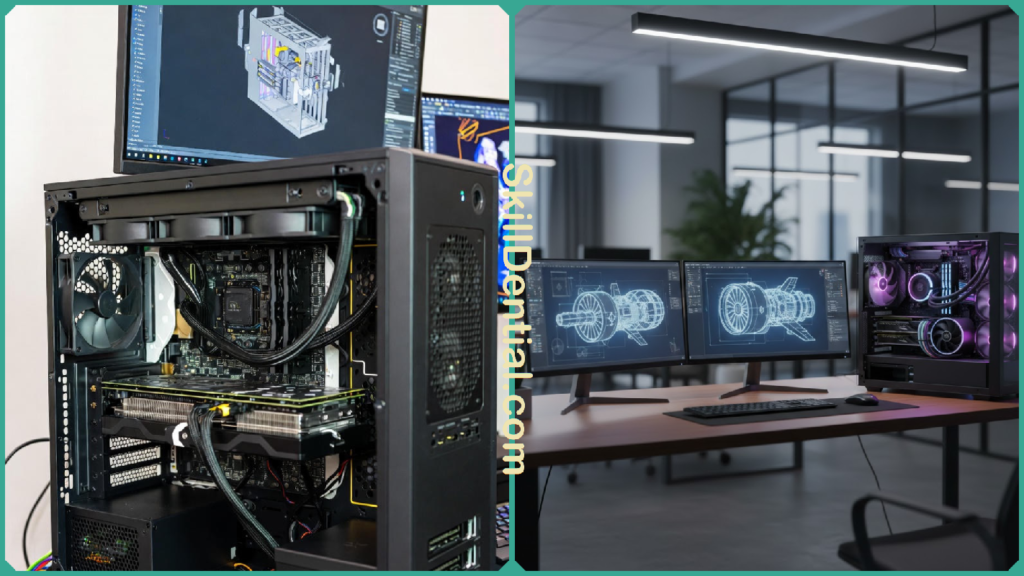
By mastering these critical aspects, you can avoid the common pitfall of wasting money on unsuitable or unnecessary specifications, ultimately ensuring that your workstation is perfectly customized and optimized to handle even the most demanding CAD workflows with maximum productivity, stability, and long-term reliability.
Computer Hardware Skills for CAD Power Users
If you are already highly proficient and fluent in software like AutoCAD, SolidWorks, Revit, CATIA, or Fusion 360 but still struggle with frustrating lag, unexpected crashes, and painfully slow rendering times, then your next competitive advantage is not simply finding another shortcut or installing yet another plug‑in—it lies in mastering the skill of understanding computer hardware.
This means gaining a deep knowledge of, measuring, and optimizing the physical components that power and drive your CAD and CAE workflows. When you can accurately connect specific performance problems to particular hardware parts (such as CPU versus GPU versus RAM versus SSD), you can confidently build or purchase computer systems that genuinely align with your specific workloads and stop wasting money on specifications that don’t actually improve your performance.
Understanding CPU behavior for CAD and CAE
The CPU is still the main engine for most CAD modeling and a large portion of simulation workloads, but not all CPU performance is equal. Many CAD applications are still heavily single‑threaded for sketching, feature regeneration, and general UI tasks, so per‑core speed (high clock frequency and IPC) often matters more than raw core count.
At the same time, rendering processes and certain CAE/CFD solvers can scale efficiently and effectively with the addition of more cores, allowing for improved performance. Therefore, advanced users must carefully differentiate between “modeling CPUs” and “rendering/simulation CPUs” when considering hardware upgrades to ensure they select the right type of processor that best suits their specific computational needs.
A strong computer hardware skill here is learning to read CPU spec sheets (base/boost clock, core count, cache size) and benchmark data specifically for your CAD tools rather than generic “gaming” scores. For example, a mechanical engineer running large assemblies in SolidWorks all day may get more value from a high‑frequency 8‑core CPU than from a slower 24‑core chip that only shines in offline rendering.
Matching GPU type to your CAD and rendering tasks
For 3D viewports, real‑time shading, and GPU‑accelerated rendering, the graphics card is crucial—but not all GPUs are designed for the same thing. Consumer “gaming” GPUs (like GeForce RTX) offer excellent raw performance per dollar and are often great for many 3D CAD and visualization tasks, especially when budgets are tight.
Professional workstation GPUs (like NVIDIA RTX / Quadro or AMD Radeon Pro) add optimized drivers, ECC options, and certifications for CAD/CAE suites, which can significantly improve stability, viewport accuracy, and performance in complex wireframe or double‑sided polygon scenes.
A practical example: a product designer working on intricate assemblies with RealView‑style modes, sectioning, and heavy use of reference geometry may see fewer graphical glitches and smoother interaction on a certified workstation GPU than on a similarly priced gaming card.
Developing computer hardware skill here means reading vendor certification lists, understanding VRAM requirements for your resolution and model size, and knowing when it is worth paying extra for pro‑grade drivers versus maximizing raw GPU horsepower.
Sizing and configuring RAM for massive assemblies
If your models are crashing or freezing when you open large and complex assemblies, the most common cause is often insufficient RAM (memory). Many CAD software vendors and hardware performance guides now consider 16 GB of RAM to be the absolute minimum for basic tasks, and they recommend having at least 32 GB or more for serious 3D modeling work to ensure smooth performance.
For more demanding workflows such as simulation and point-cloud processing, it is quite common to see systems equipped with 64 GB or even more RAM to handle the increased data load efficiently. When your system runs out of available RAM, your operating system begins swapping data to the hard disk or SSD, which results in significant slowdowns and can sometimes lead to application instability or crashes.
This makes having sufficient memory crucial for maintaining stability and responsiveness during intensive CAD sessions. An important computer hardware skill is learning how to monitor memory usage while working (via Task Manager or similar tools) and mapping that to real capacity planning.
If your usage regularly spikes above 80% during normal projects, it is time to upgrade, ideally in matched pairs or kits to maintain dual‑channel performance. For CAE users running multiple solvers, meshing operations, or large CFD cases, prioritizing RAM capacity can deliver a far bigger productivity boost than upgrading CPU or GPU first.
Choosing the right storage: SSDs, NVMe, and project workflows
Storage performance has a direct and significant impact on how quickly projects open, save, and load reference data, which is especially critical when working with large assemblies, complex BIM models, and extensive simulation result sets.
For modern CAD workstations, it is highly recommended to use SSDs instead of traditional HDDs because SSDs offer much faster read/write speeds and better overall responsiveness. Among SSD options, NVMe drives connected via PCIe interfaces provide the highest data throughput and the lowest latency, making them ideal for managing active project data that requires fast access.
Additionally, using separate drives dedicated to the operating system and applications, active project files, and long-term archival storage can help maintain consistent performance levels and simplify backup and data management strategies, ensuring smoother workflows and better data security.
A well‑developed computer hardware skill here includes mapping your data lifecycle to your storage layout: for example, using a fast NVMe drive for current projects, a secondary SSD or NAS for shared libraries, and slower, larger capacity storage (local or cloud) for archived jobs.
For teams collaborating across locations, understanding how network bandwidth and latency interact with CAD file servers or PDM/PLM systems is also part of the hardware equation, especially when loading large references over VPN or remote links.
Diagnosing bottlenecks with real‑time monitoring
Without proper measurement, the statement “my PC is slow” remains nothing more than a subjective feeling or perception. Advanced users are encouraged to cultivate the habit of consistently monitoring key system metrics such as CPU utilization, GPU load, RAM usage, and disk activity while they are engaged in specific tasks.
These tasks may include sketching, regenerating features, orbiting large and complex models, running finite element analysis (FEA), or performing photorealistic rendering. When you observe that only one particular component is operating at its maximum capacity—such as the CPU being pegged at 100% utilization while the GPU remains completely idle during a simulation—you gain a very clear and objective indication of exactly where your system’s performance bottleneck is located.
This essential diagnostic computer hardware skill is invaluable for avoiding frequent and costly upgrade errors, such as purchasing an expensive, high-end GPU when the real cause of your modeling lag is actually a low-frequency CPU or not enough RAM. By developing this skill, you can accurately identify the true bottlenecks in your system’s performance.
Over time, this process allows you to create a detailed personal “performance profile” that reflects the specific demands of your typical projects. This profile not only helps you make smarter, more informed investment decisions in your hardware but also equips you with concrete data and evidence to support your budget requests when dealing with management.
Balancing cooling, power delivery, and stability
High‑performance CAD workstations are frequently operated at sustained, intensive loads for extended periods of time, often lasting several hours, particularly during complex rendering tasks or lengthy simulation processes.
When the cooling system is insufficient or poorly designed, it can result in thermal throttling, a condition where the CPUs and GPUs automatically reduce their clock speeds to maintain safe operating temperatures. This protective measure, unfortunately, leads to a significant loss in performance, effectively wasting the investment you made in high-end hardware.
Similarly, using an under‑sized or low‑quality power supply unit can introduce serious instability issues when the system is under heavy load, causing random crashes, unexpected shutdowns, or failed render jobs, all of which can disrupt your workflow and reduce productivity.
Computer hardware skills in this area encompass a thorough understanding of TDP (thermal design power), which is crucial for managing heat output and ensuring efficient cooling. It also involves expertise in airflow design, including strategic placement of intake and exhaust fans as well as effective dust management to maintain system reliability over time.
Additionally, it is crucial to recognize the critical importance of investing in high-quality power supply units (PSUs) that not only deliver reliable and stable power but also provide sufficient headroom to comfortably handle peak power loads. This extra capacity ensures that the PSU can support sudden surges in power demand without compromising system stability.
Furthermore, having a PSU with ample headroom is essential for accommodating future GPU upgrades, allowing users to enhance their system’s performance without the immediate need to replace the power supply unit.
For instance, an engineering firm that upgraded its GPUs without properly assessing their system’s power and cooling capabilities encountered frequent crashes during overnight computational fluid dynamics (CFD) simulations. The problem was only resolved after they installed a higher-capacity PSU and enhanced their chassis airflow design, resulting in a stable and reliable system suitable for continuous production use.
Differentiating workstation‑class vs consumer‑class systems
Pre‑built consumer desktops and gaming laptops often boast impressive high specifications, making them appealing at first glance; however, they may not be specifically optimized or fine-tuned for the demanding reliability requirements of CAD/CAE applications or for maintaining stable long‑term thermal performance under continuous heavy workloads.
In contrast, workstation‑class systems are designed with professional use in mind and typically come equipped with ECC memory options to ensure data integrity, ISV‑certified GPU drivers that guarantee compatibility and stability with professional software, as well as more robust and efficient cooling solutions.
Additionally, these workstations feature chassis designs that are carefully optimized for easy expansion and straightforward serviceability. These crucial differences become especially significant when you are working with large, complex assemblies or running mission‑critical simulations that need to operate reliably overnight or for extended periods without experiencing any failures or interruptions.
Developing strong computer hardware skills involves learning how to look beyond the flashy marketing headlines such as “RTX + 32 GB RAM!” and instead carefully evaluate critical platform features like ECC (Error-Correcting Code) memory support, the quality and stability of the VRM (Voltage Regulator Module), and the potential for future upgradability.
For an independent consultant or freelancer working alone, a high-end consumer-grade build with impressive specifications may be perfectly adequate and cost-effective. However, when dealing with highly regulated industries such as aerospace or medical device development, investing in a certified workstation that includes ECC memory and comes with reliable vendor support is often the wiser and more responsible long-term choice to ensure system stability and compliance.
Aligning hardware choices with specific CAD applications
Not all CAD, BIM, and CAE software tools put the same kind of stress on computer hardware components. For example, some parametric modeling programs still rely mostly on single-threaded processes for their core modeling tasks, meaning they use only one CPU core at a time.
In contrast, rendering engines and simulation solvers are often designed to take full advantage of multiple CPU cores or utilize GPU acceleration to improve performance. Both vendor-provided hardware recommendations and independent benchmark tests consistently reveal significant differences in how identical CPUs or GPUs perform when running various applications such as SolidWorks, Revit, CATIA, Fusion 360, or Ansys.
These performance variations highlight the importance of selecting hardware tailored to the specific software workload. A valuable computer hardware skill is being able to translate those vendor recommendations into concrete build decisions for your own workflows.
For instance, a Revit‑focused architect working primarily with large multi‑discipline models may prioritize high‑frequency CPUs and lots of RAM, while a product visualization specialist may invest more heavily in GPU performance for ray‑traced rendering and VR.
Planning upgrade paths and total cost of ownership
Advanced CAD users should approach their workstation as a long-term investment and an ongoing project rather than just a one-time purchase. Careful planning for future upgrades—such as including extra RAM slots for memory expansion, additional drive bays for increased storage capacity, a higher-wattage power supply unit (PSU) to support more powerful components, and ample case space to accommodate a larger or more advanced GPU—can greatly extend the overall lifespan of your system.
This thoughtful preparation not only enhances performance over time but also saves you significant money by reducing the need for completely new systems. Developing this forward-looking approach to computer hardware management helps you avoid getting stuck with dead-end platforms that require full replacements, allowing you instead to make incremental improvements and keep your workstation up to date efficiently and cost-effectively.
A practical case study involves a small design studio that initially built mid-range workstations equipped with upgradeable motherboards and spacious cases to allow for future improvements. Over the course of two years, as their projects expanded in complexity and size, instead of purchasing entirely new systems, they chose to upgrade their existing workstations by installing more powerful GPUs and doubling the amount of RAM.
This well-planned and carefully executed strategic approach significantly reduced their overall hardware expenses, allowing for substantial cost savings. At the same time, it successfully maintained performance levels that continued to be highly competitive and comparable with the most advanced and latest machines currently available on the market today.
Additionally, when evaluating the total cost of ownership for CAD hardware, it is important to also consider factors such as warranty coverage, energy efficiency, and the potential risks associated with downtime. Taking all these elements into account provides a much more comprehensive and realistic understanding of the true cost involved in maintaining and operating CAD workstations over time.
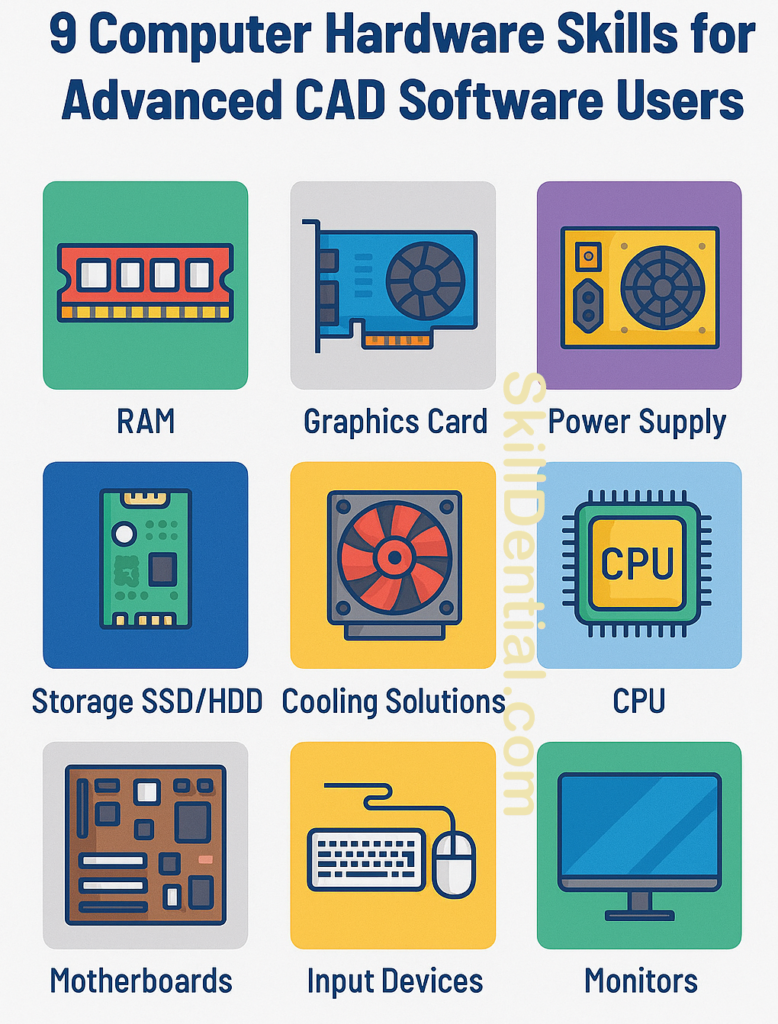
Sample CAD hardware focus comparison
Not all hardware is created equally, and it is important to recognize that different types of CAD work require varying components to perform optimally. This detailed comparison clearly illustrates how the specific focus of your work—whether it involves intricate 3D modeling, high-quality rendering, or managing large and complex assemblies—should strongly influence and dictate the priorities you set when investing in hardware. Understanding these distinctions can help ensure you allocate your resources effectively to meet the demands of your particular CAD tasks.
| Workload Focus | CPU Priority (Key Skill) | GPU Priority (Key Skill) | RAM & Storage Focus (Key Skill) | Upgrade Priority & Budget Tip (2025) |
|---|---|---|---|---|
| Parametric 3D Modeling (SolidWorks, Inventor) | High single-core speed (around 5.0+ GHz boost), strong IPC. Single-thread tasks dominate sketching and regeneration. | Mid-to-high-range GPU (e.g., RTX 4070+ or RTX A4000) for smooth viewports, 12–16 GB VRAM. Prioritize driver stability over raw gaming performance. | 32–64 GB DDR5, fast NVMe Gen4 SSD (2+ TB) for assemblies and shared libraries. Monitor memory peaks to avoid swapping. | Upgrade CPU first, then RAM. A well-balanced mid-range build can deliver ~40% faster modeling responsiveness. |
| BIM (Revit, Archicad) | High-clock CPUs, 16+ cores helpful for exports and linked models. Balances single- and multi-threaded tasks. | Workstation-class GPUs with stable drivers for very large models; 16–24 GB VRAM is ideal for high-resolution viewports. | 64 GB DDR5 as a practical baseline, NVMe SSD (or RAID) for large project files to keep open/save times low. | Prioritize RAM and storage, then CPU. This often halves export and sync times on heavy BIM projects. |
| Rendering (V-Ray, KeyShot, Blender) | Many-core CPUs for CPU render engines; hybrid setups benefit from strong all-core performance. | High-end GPUs with plenty of VRAM (24 GB or more) for GPU renderers and ray tracing; consider ECC for mission-critical work. | 64 GB+ RAM, very fast SSDs for textures, HDRIs, and asset libraries to reduce scene load times. | GPU is typically the best first upgrade, often giving 3–5× faster renders compared to older cards. |
| CAE/CFD/FEA (Ansys, Abaqus, Simulia) | High core counts and large cache; consider workstation or server-grade CPUs, and clusters for very large meshes. | GPU compute only if the solver supports it; powerful compute GPUs with large VRAM for GPU-accelerated solvers. | 128 GB+ RAM (preferably ECC) and dedicated NVMe scratch disks for temp data and result files. | Prioritize RAM and CPU. For very large models, moving to a cluster or multi-socket system can cut solve times dramatically. |
Why This Table Empowers CAD Users
This detailed comparison emphasizes essential computer hardware skills, such as workload-specific benchmarking, which can be effectively performed using tools like Puget Systems or SPECviewperf for accurate validation. It also covers bottleneck diagnosis, a crucial process that transforms vague performance frustrations into precise, targeted hardware upgrades.
For example, a SolidWorks user who initially had 16 GB of RAM experienced a remarkable 70% increase in assembly load speeds after upgrading to 64 GB of RAM and switching to an NVMe drive—demonstrating significant real-world performance improvements without needing a complete system rebuild.
Consider incorporating this detailed content into your blog post specifically under the “Sample CAD Hardware Focus Comparison” section. Doing so will significantly enhance reader engagement by providing valuable insights and comparisons.
Additionally, this integration will play a significant role in enhancing your site’s AEO (Answer Engine Optimization) performance, thereby making your content much more visible and easily accessible to your specific target audience. This improvement will help attract more visitors and ensure that your information reaches the right people more effectively.
FAQs
How do I know whether my CAD slowdown is CPU or GPU related?
Watch CPU and GPU utilization while you reproduce the slowdown: if the CPU is pegged and GPU is low during modeling or regeneration, the CPU is the bottleneck; if the GPU hits high usage while orbiting, rotating, or rendering, you are more GPU‑limited. Also track RAM usage; if memory is near full and disk activity spikes, insufficient RAM may be the real issue.
How much RAM do I really need for advanced CAD work?
For serious 3D modeling, 32 GB is a practical baseline, with 64 GB or more recommended for very large assemblies, BIM projects, or simulation workloads. Monitor your typical projects; if you routinely exceed 80% memory usage, upgrading RAM should be a high priority.
Are gaming GPUs good enough for professional CAD?
Modern gaming GPUs provide strong performance per dollar and can handle many CAD viewports and GPU render engines very well, especially for freelancers or small teams on a budget. However, workstation GPUs add CAD‑optimized drivers, certifications, and sometimes ECC options that improve stability and accuracy for demanding professional environments.
Is it better to buy a new workstation or upgrade my existing one?
If your platform still supports more RAM, stronger GPUs, and additional SSDs—and your PSU and cooling can handle it—targeted upgrades can be highly cost‑effective. If you are limited by an old socket, lack of PCIe lanes, or poor thermals, a new workstation platform may offer better long‑term value and reliability.
How often should CAD professionals refresh hardware?
Many engineering teams follow a 3–5 year refresh cycle, with interim upgrades (RAM, GPU, SSD) as workloads grow. Monitoring project sizes, software version requirements, and render/simulation times helps determine when the productivity loss outweighs the cost of new hardware.
In Conclusion
Advanced CAD software users elevate their performance to the next level by gaining a deep understanding of computer hardware and how it interacts with their specific workflows. Mastering the critical components such as the CPU, GPU, RAM, storage solutions, cooling systems, and power supply enables users to optimize CAD and CAE processes effectively.
By developing basic monitoring skills and comprehensive knowledge of each hardware component, you can accurately diagnose genuine performance bottlenecks rather than relying on guesswork. This informed approach allows you to make targeted investments in upgrades that meaningfully reduce load times, minimize system crashes, and shorten simulation or rendering queues, ultimately enhancing your overall productivity and workflow efficiency.
Key takeaways include prioritizing high-frequency CPUs specifically designed for interactive modeling tasks, carefully sizing your RAM and SSD capacity to accommodate your largest and most demanding real-world projects, selecting GPUs based on the specific requirements of both viewport performance and rendering workloads, and focusing on planning workstations that are easily upgradeable and equipped with effective cooling systems rather than simply chasing superficial or flashy specification lists.
As a practical next step, take the time to thoroughly profile one actual project running on your current machine, identify which hardware component reaches saturation first, and then develop a focused and strategic upgrade or new-build plan that aligns closely with the primary CAD applications you use most frequently.
Call‑to‑Action
Audit your current workstation thoroughly this week—carefully monitor the performance of your CPU, GPU, RAM, and storage while working on a real project to gather accurate data. After collecting detailed insights, create a prioritized, budget-aligned upgrade list that strategically transforms your hardware from a limiting bottleneck into a powerful advantage that enhances your productivity and workflow.

His mission is to provide clear, actionable advice that helps readers navigate the complexities of the modern workplace, advance their careers, and unlock their full potential. You can find his expert guides on technology, entrepreneurship, and professional development.
Discover more from SkillDential
Subscribe to get the latest posts sent to your email.