
AutoCAD 2025 vs. 2026: 9 Key Differences Before You Upgrade
For years, the annual AutoCAD release cycle followed a predictable pattern of minor tweaks and UI refreshes. However, with the release of AutoCAD 2026, the narrative has shifted from “incremental updates” to “performance revolution.”
AutoCAD 2025 set a solid foundation for the modern era of design. It introduced us to a more capable Autodesk Assistant powered by natural language processing, the ability to create hatch patterns without pre-defined boundaries, and a much-needed ArcGIS basemap integration for precision geographic data. For many professionals, it remains a “gold standard” for stable, predictable workflows where speed isn’t the primary bottleneck.
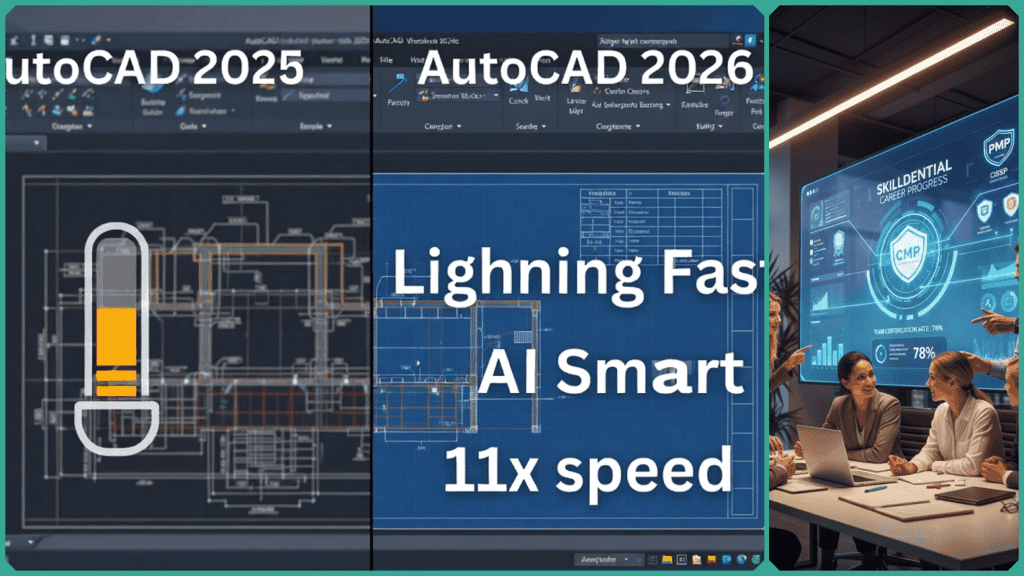
However, as projects grow in complexity, the limitations of 2025—particularly when handling massive 3D files—have become more apparent. Enter AutoCAD 2026.
With claims of 11x faster file opening and a suite of new AI-driven automation tools, the 2026 version isn’t just an update; it’s a complete overhaul of how the engine handles data. But does a faster loading bar justify the migration for your entire team?
In this guide, we break down the 9 key differences you need to know to decide if you should stick with the stability of 2025 or unlock the raw power of 2026.
Key Takeaway:
- AutoCAD 2025: Best for stable workflows and users who don’t face urgent speed or large-file performance issues.
- AutoCAD 2026: Designed for power users, large-scale projects, and teams looking to leverage AI to cut drafting time in half.
AutoCAD 2025 vs. 2026: 9 Key Differences Before You Upgrade
In this section, we dive into the core technical upgrades that separate these two versions. While AutoCAD 2025 focused on introducing AI basics, 2026 is built to maximize that intelligence through raw hardware power and deeper cloud integration.
Performance: The 11x Speed Revolution
The most significant jump from 2025 to 2026 isn’t a new button—it’s the engine. Autodesk has optimized the way 2026 handles drawing data, particularly over local area networks (LAN) and cloud environments.
- File Open Speeds: In internal benchmarks, AutoCAD 2026 opens 2D and 3D files up to 11 times faster than 2025. For a large architectural site plan that takes 30 seconds to load in the 2025 version, you could see it pop open in under 3 seconds in 2026.
- Startup Times: The application itself launches 4x faster, drastically reducing the “first-coffee-of-the-day” wait time.
- The Verdict: If you are a solo architect or engineer billing by the hour, these saved seconds accumulate into several extra hours of productivity per month.
Smart Blocks: From Manual to Autonomous AI
AutoCAD 2025 gave us basic block placement suggestions, but 2026 introduces Smart Blocks: Detect and Convert.
- The Difference: In 2025, you had to manually find and replace objects. In 2026, the AI scans your entire drawing for geometry that looks like a block (e.g., a specific chair or window) and offers to convert every instance into a block automatically.
- Cleanup Power: BIM leads can use this to clean up “exploded” drawings from junior drafters or outside consultants up to 50% faster, ensuring project-wide standardization with a few clicks.
Cloud Sync: The End of “Broken Path” Errors
One of the biggest headaches for CAD Managers in 2025 was managing support files (fonts, plot styles, and LISP routines) across a distributed team.
- Connected Support Files: AutoCAD 2026 introduces a “project-aware” system via Autodesk Docs. Once a CAD manager sets up a project’s support files in the cloud, every team member who opens a file in that project automatically inherits those settings.
- 2025 vs. 2026: In 2025, each user often had to manually map their support paths. In 2026, the software “knows” which fonts and plot styles belong to which project, eliminating the dreaded “Missing Font” or “Missing CTB” pop-ups.
Mac Hardware: M3/M4 Optimization
For the first time, AutoCAD 2026 feels like a first-class citizen on the Mac.
- Apple Silicon Native: While 2025 supported M-series chips, 2026 is fully optimized for the M3 and M4 architecture and the Metal Graphics Engine.
- Impact: Hardware enthusiasts will notice significantly smoother 3D orbiting and faster rendering on Retina displays compared to the Intel-focused legacy code still present in earlier versions.
Summary Table: Quick Comparison
| Feature | AutoCAD 2025 | AutoCAD 2026 | Benefit |
| File Opening | Baseline | 11x Faster | Saves billable hours on large files |
| Smart Blocks | Manual / Placement | AI Detect & Convert | Rapid cleanup of messy drawings |
| Support Files | Per-user configuration | Cloud-Project Sync | Team stability & fewer errors |
| Mac Graphics | Standard Metal | Optimized M3/M4 | Peak performance on new MacBooks |
Moving forward, the next critical differences lie in how these versions handle the “fine details”—the everyday drafting tasks and the tracking of project history.
Activity Insights: Granular Version Tracking
In AutoCAD 2025, Activity Insights gave you a basic timeline of who saved the file and when. It was helpful, but it lacked detail.
- The 2026 Upgrade: The new version introduces Detailed Comparison. Instead of just seeing that “John Doe saved the file,” you can now see a list of specific object-level changes.
- The Difference: You can actually “filter” by what was modified. For example, you can see all the layers that were deleted or all the blocks that were renamed since the last version. This turns a simple log into a powerful auditing tool for BIM leads.
Hatch Improvements: Breaking the Boundary
The “Hatch” command is one of the oldest tools in AutoCAD, and 2026 finally removes its biggest limitation.
- AutoCAD 2025: You typically needed a “closed loop” or a perfectly snapped boundary to apply a hatch pattern effectively.
- AutoCAD 2026: You can now hatch without a boundary. By using the new “Draw” option within the Hatch command, you can create a hatch by simply drawing a path (like a polyline), and the software fills it in real-time. This is a massive time-saver for conceptual sketches and landscape layouts.
Collaborative Markup: Real-Time Syncing
Collaboration in 2025 felt “linear”—one person marked up a PDF, and another imported it.
- The 2026 Difference: Through the Trace environment and AutoCAD Web, multiple users can now add markups to the same drawing simultaneously. These markups sync instantly to the desktop version.
- Impact: This reduces the “back-and-forth” emails between the field and the office. A project manager on-site can circle an error on their tablet, and it appears on the drafter’s screen in the office seconds later.
Enhanced Autodesk Assistant (NLP)
While 2025 introduced the AI Assistant for basic help queries, the 2026 version is much more integrated into the actual commands.
- Predictive Help: The assistant in 2026 can now suggest specific LISP routines or macros based on the repetitive tasks it sees you performing. It’s less of a “search bar” and more of a “workflow coach.”
Price vs. Value: The ROI Conclusion
Since both versions usually fall under the same $1,900/year (approx.) subscription, the “price” isn’t the difference—the Return on Investment (ROI) is.
- 2025: A solid choice for those who value stability and have older hardware that might not play well with the new 2026 engine.
- 2026: According to Skilldential career audits, the 11x speed boost and AI cleanup tools can yield up to a 40% gain in team output. For a professional firm, that’s thousands of dollars in reclaimed time.
Is the Upgrade Worth It? The Verdict
Deciding whether to jump from AutoCAD 2025 to 2026 comes down to balancing raw potential against current stability. While the performance benchmarks are staggering, “Version .0” releases often come with growing pains.
Upgrade Now If:
- You Handle “Mega-Files”: If you spend more than 10 minutes a day just waiting for files to open, the 11x speed boost in 2026 will pay for itself in billable hours within the first month.
- You are a Mac Power User: AutoCAD 2026 is the first version to truly “sprint” on M3 and M4 chips using the Metal graphics engine. If you’ve been drafting on a newer MacBook, this is the version you’ve been waiting for.
- You Manage a Distributed Team: The Connected Support Files feature is a game-changer for CAD managers who are tired of fixing broken path links for remote employees.
Wait and Patch If:
- Stability is Your #1 Priority: Early user reports have noted occasional crashes when switching between layouts or using DirectX 12 on certain hardware. If you are in the middle of a high-stakes deadline, stay on the “proven” 2025 version until the first major service pack (like version 2026.1.1) is installed.
- Your PC is Older: If your machine struggles with RAM (8GB or less), 2026’s AI-heavy background processes might actually feel “stickier” than the leaner 2025 engine.
How to Upgrade Safely
If you do decide to make the move, don’t delete 2025 immediately. You can install AutoCAD 2026 side-by-side with 2025.
Pro-Tip: If you experience “lag” or black screens in the new version, try setting the system variable
GFXDX12to 0 and restarting. This forces AutoCAD to use the more stable DirectX 11 engine while the DX12 bugs are being ironed out.
Final Decision Table
| If your main pain is… | The 2026 Fix | Your Action |
| “Drawing takes forever to open.” | 11x Performance Boost | Upgrade Immediately |
| “Cleaning up messy CAD is slow.” | Smart Blocks: Detect & Convert | Upgrade |
| “Our fonts/styles never sync.” | Connected Support Files | Upgrade (Team Focus) |
| “I’m worried about crashes.” | 2025 is more mature | Wait 3-6 Months |
The Migration Checklist: Upgrading from 2025 to 2026
If the 11x speed boost has convinced you to make the move, don’t just “install and pray.” Follow this professional checklist to ensure your custom layers, blocks, and settings survive the transition.
Step 1: The “Safety First” Backup
Before installing 2026, go to your AutoCAD 2025 installation and export your current profile.
- Command:
OPTIONS> Profiles tab > Export. - Save this
.argfile to a cloud drive. This is your “Undo” button if the 2026 migration fails.
Step 2: Clean Your Heavy Files
Since AutoCAD 2026 uses a more advanced graphics engine, “dirty” files with ghost data can cause crashes. Open your most important templates in 2025 and run:
-PURGE(select Regapps)AUDIT(select Yes to fix errors)PURGE(all)
Step 3: Run the Migration Utility
AutoCAD 2026 includes a built-in migration tool.
- Windows: Start Menu > AutoCAD 2026 > Migrate From a Previous Release.
- Note: If you use highly complex LISP routines or 3rd-party plugins, it is often better to skip this and migrate manually to avoid bringing over outdated registry paths.
Step 4: Set Up “Connected Support Files”
This is the “Secret Sauce” of 2026. If you use Autodesk Docs, move your .ctb (plot styles) and .shx (fonts) to your project folder in the cloud.
- Go to Options > Files tab.
- Look for the new Connected Support icon to link your project to these cloud-hosted files. This ensures your 11x faster file opens aren’t slowed down by “Missing Font” errors.
Step 5: Toggle the Graphics Engine
AutoCAD 2026 defaults to DirectX 12. If you see “ghosting” or black lines on your screen:
- Type
GRAPHICSCONFIGand toggle back to DirectX 11 mode until your GPU drivers are updated.
AutoCAD 2025 is a reliable workhorse, but AutoCAD 2026 is clearly the new standard for the AI era. Whether it’s the massive performance gains or the “Smart Blocks” doing your cleanup for you, the 2026 update is an easy “Yes” for anyone looking to reclaim billable hours.
The “11x Speed” Benchmark: Fact vs. Marketing
Autodesk’s claim that AutoCAD 2026 is 11x faster is based on specific conditions—specifically, opening 2D and 3D DWG files that are stored on Local Area Networks (LAN) or network drives.1
- In AutoCAD 2025, Network latency often causes “stuttering” while the software verifies file references and links.
- In AutoCAD 2026, A new multi-threaded engine handles the “handshake” between your PC and the server much more efficiently.
- The Reality: If you work on a local SSD (files saved directly on your desktop), you won’t see an 11x jump. You will likely see a 2x to 3x improvement. The 11x boost is a “game changer” specifically for corporate teams, and BIM leads working off shared servers.
Quick Comparison: 2025 vs. 2026
| Feature | AutoCAD 2025 | AutoCAD 2026 | Real-World Impact |
| Smart Blocks | Basic Placement | Detect & Convert | 2026 AI scans for geometry to turn into blocks; 2025 only suggests placement. |
| Mac Architecture | Native M1/M2/M3 | Optimized M4 & Metal | 2026 is built to leverage the M4 chip’s specialized AI cores for faster rendering. |
| Support Files | Manual pathing | Cloud-Aware Sync | 2026 settings (fonts/LISP) stay with the project in the cloud; 2025 requires per-PC setup. |
| Activity Insights | General History | “What’s Changed” | 2026 shows a list of specific objects modified, whereas 2025 only shows who saved it. |
AutoCAD 2025 vs. 2026 Difference FAQs
To help you wrap up your blog post or provide quick answers for a social media update, here are the essential FAQs summarizing the transition from 2025 to 2026.
What is AutoCAD 2025?
Released in early 2024, AutoCAD 2025 is a professional-grade CAD software that laid the groundwork for Autodesk’s AI integration. It introduced the Autodesk Assistant (using natural language processing), ArcGIS basemaps, and the ability to create boundary-free hatches. It is widely considered a stable, reliable version for users who don’t yet require the extreme performance boosts of 2026.
Does AutoCAD 2026 run on an M4 Mac?
Yes. AutoCAD 2026 is fully optimized for Apple Silicon (M1, M2, M3, and M4 chips). It is compatible with macOS Sequoia (v15), Sonoma, and Ventura. For the best experience on high-resolution Retina displays, 16GB of RAM is recommended, though 8GB is the minimum requirement.
What are Smart Blocks in 2026?
While 2025 featured basic AI block placement, 2026 introduced Smart Blocks: Detect and Convert. This tool uses machine learning to scan your drawing for unblocked geometry (like a group of lines representing a chair) and offers to convert all matching instances into a single block automatically. It includes a Review Toolbar so you can approve or skip specific AI suggestions before they are applied.
How much faster is AutoCAD 2026 vs. 2025?
The performance gap is significant. On average, AutoCAD 2026 opens DWG files up to 11x faster and launches the application 4x quicker than the 2025 version. These gains are most noticeable when working with large 3D datasets or files stored on network drives and cloud environments like Autodesk Docs.
Is AutoCAD 2026 stable for large teams?
AutoCAD 2026 is designed for teams through its new Connected Support Files feature, which ensures everyone uses the same fonts and plot styles automatically. However, as with any new release, early users have reported occasional crashes, particularly with DirectX 12 on certain hardware.
- Recommendation: Test the 2026 version on project copies first. If you experience instability, try setting the system variable
GFXDX12to0to revert to the more mature DirectX 11 engine.
In Conclusion
The transition from AutoCAD 2025 to 2026 marks one of the most significant performance leaps in the history of the software. While AutoCAD 2025 remains a stable, reliable choice for standard 2D workflows and users who aren’t yet ready to navigate the bugs of a new release, AutoCAD 2026 is clearly the superior tool for those looking to future-proof their practice.
Key Takeaways
- The Speed Factor: With 11x faster file opens and 4x faster startup, 2026 removes the “waiting games” that plague large, complex projects.
- The AI Edge: The new Smart Blocks: Detect and Convert feature transforms drawing cleanup from a multi-hour manual task into a supervised AI process.
- The Collaborative Advantage: Connected Support Files and multi-user markups via Autodesk Docs provide the deployment stability that CAD managers have been requesting for years.
- The Mac Revolution: Native M3/M4 optimization ensures that hardware enthusiasts finally get the “Pro” experience on their Apple workstations.
Final Recommendation
If you are managing large datasets, coordinating a remote team, or simply want to reclaim hours of billable time lost to loading bars and repetitive block placement, the upgrade to AutoCAD 2026 is highly recommended.