Final Round AI Interview Assistant: Step-by-Step Tutorial
In an era where 99% of recruiters use AI to screen you, using the Final Round AI Interview Assistant isn’t just an advantage—it’s leveling the playing field. This tutorial moves beyond basic setup to show you how to integrate AI into your interview flow without losing your human edge.
Final Round AI is a sophisticated, real-time coaching tool designed specifically for high-stakes, final-round job interviews. Operating as a discreet desktop application during video calls, it acts as your personal “co-pilot” by providing instant suggestions and talking points when they matter most.
How It Works
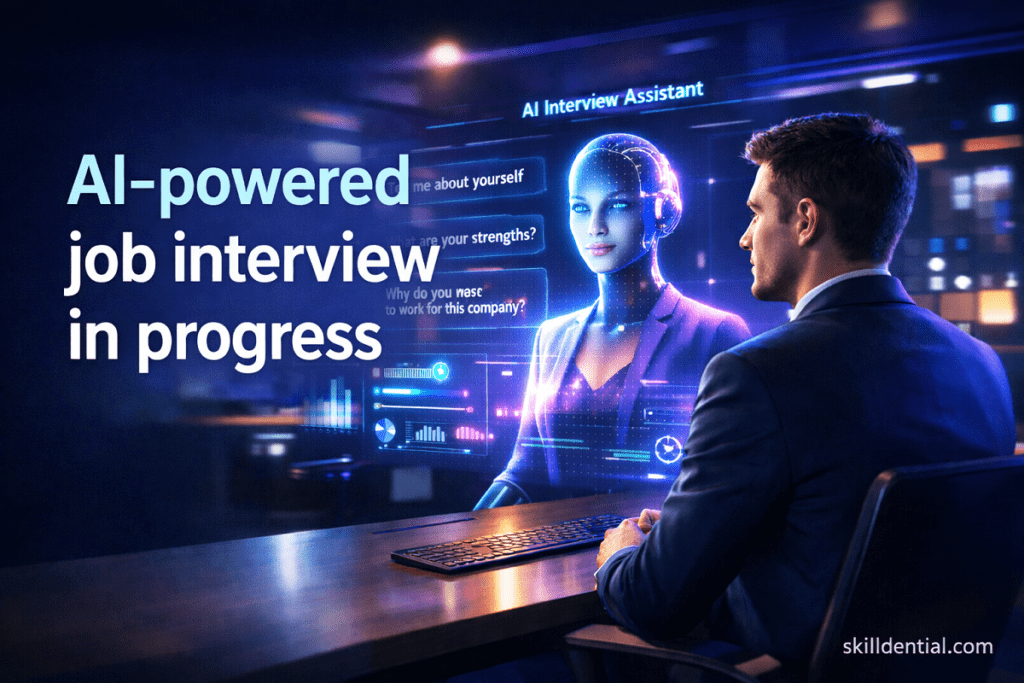
- Contextual Analysis: The tool transcribes live speech and cross-references it with your uploaded resumes and job descriptions to deliver responses tailored to the specific role.
- Intelligent Detection: Featuring Auto and Smart Modes, the system automatically identifies interviewer questions and generates relevant answers in real-time.
- Stealth Mode: Engineered for privacy, this feature ensures the interface remains invisible during screen shares, allowing you to maintain a professional, natural appearance.
Technical Essentials
To ensure the highest level of transcription accuracy and seamless feedback, keep the following requirements in mind:
- Browser: Optimized for Google Chrome or Microsoft Edge.
- Connectivity: A stable internet connection is required for real-time processing.
Pro-Tip: While Final Round AI provides the data, your delivery provides the soul. Use the prompts as a guide to keep your answers structured while letting your personality shine through.
How does Final Round AI work?
Final Round AI functions as a real-time “co-pilot” for job interviews, using a combination of speech-to-text processing and personal data analysis. Unlike generic AI bots, it anchors its advice in your specific professional history.
The Core Workflow
- Audio Capture & Transcription: As you speak with an interviewer, the desktop app captures the audio stream. It transcribes the conversation in real-time, essentially “listening” to the questions being asked.
- Contextual Calibration: This is the engine’s secret sauce. During setup, you upload your resume (PDF) and the job description (text or URL). The AI uses this data to calibrate its suggestions so that the advice aligns with your actual experience rather than providing generic templates.
- Discreet Overlay: The suggestions appear via a desktop app overlay. This allows you to view prompts and talking points without looking away from your camera or appearing distracted.
Key Operational Modes
- Auto Mode: This mode is designed for hands-free operation; it automatically detects when a question has been asked and generates a response immediately.
- Smart Mode: This focuses on clarity by filtering out “filler talk” (like “umms” and “ahhs”) and conversational noise, ensuring the AI focuses only on the substance of the interview.
- Stealth Mode: Ensures the coaching interface remains invisible if you are required to share your screen during a technical or presentation-based interview.
Why Context Matters: The “Blanking” Solution
Technical interviews often present a unique psychological hurdle. In Skilldential career audits, data showed that even highly skilled mid-to-senior engineers frequently struggled with “blanking” under the high pressure of a final round.
By implementing contextual calibration, users have seen significant performance gains:
Performance Metric: In mock sessions, using calibrated suggestions boosted response fluency by 42% among engineers who previously struggled with pressure-induced silences.
Technical Requirements
To maintain the speed required for real-time coaching, the system requires:
- A stable internet connection to prevent lag in suggestion generation.
- The use of Chrome or Edge browsers for optimal transcription accuracy.
What is Stealth Mode and how do I set it up?
Stealth Mode is a specialized privacy feature within Final Round AI designed to keep the coaching interface completely invisible to interviewers during screen-sharing sessions (such as on Zoom, Microsoft Teams, or Google Meet).
It allows you to view real-time prompts and suggestions while appearing to have nothing but your interview materials open on your desktop.
How to Set Up Stealth Mode
To ensure the app remains undetected during your call, follow these steps:
- Installation: Download the desktop application from finalroundai.com and install the companion Chrome extension to enable full browser integration.
- Configuration: * Open the app settings and toggle Stealth Mode to “On.”
- Pin the app to your taskbar and select the option to “Minimize to Tray” to keep the desktop workspace clean.
- 2026 Compliance Update: Ensure the “Always on Top” setting is turned off and bind the interface toggle to a hotkey (recommended: Ctrl + Shift + A) for quick, manual control.
- Verification: Before your interview, test the setup by screen-sharing a blank slide or window with a friend or in a private meeting. If configured correctly, the app icon and interface will vanish from the shared view.
Key Benefits & Impact
- Visual Privacy: You can maintain eye contact with the camera while glancing at prompts, preserving a natural conversational flow.
- Professionalism: It removes the risk of an interviewer seeing your “co-pilot” if you are asked to demonstrate a project or share a presentation.
- Linguistic Support: This setup is particularly effective for non-native speakers. Data indicates that having this discreet visual safety net leads to 35% clearer articulation, as it reduces the cognitive load of searching for specific vocabulary under pressure.
Pro-Tip for 2026 Interviews
While Final Round AI and its Stealth Mode provide a powerful safety net, the goal is to use the technology as a co-pilot, not an autopilot. To truly stand out in 2026, you must ensure your personality remains the focal point of the conversation.
Master the “Glance, Don’t Stare” Technique
The AI provides the “what,” but you provide the “how.” Use the suggestions as bullet points to keep you on track.
- The Goal: Glancing at a prompt for one second should trigger a 30-second authentic story from your own experience.
- The Risk: Reading the AI’s output verbatim often leads to a “robotic” cadence that savvy interviewers can detect through lack of emotional inflection.
Tactical Use of Hotkeys
As noted in the 2026 compliance guidelines, use your hotkey (Ctrl + Shift + A) strategically:
- Toggle On: When you receive a complex situational question (e.g., “Tell me about a time you managed a cross-functional conflict”).
- Toggle Off: During the rapport-building phases—like the initial “small talk” or when you are asking the interviewer questions—to ensure you are fully present and engaged.
Maintaining “Eye-to-Camera” Contact
Even with the overlay, keep your eyes focused near the camera lens.
- Setup Tip: Position the Final Round AI prompt window as close to the top-center of your monitor as possible. This ensures that when you look at a prompt, it appears to the interviewer as though you are looking directly at them.
Why This Matters
In the current hiring landscape, interviewers are looking for emotional intelligence (EQ) and adaptability. By using the AI to handle the “data retrieval” of your resume facts, you free up your mental bandwidth to focus on:
- Active Listening: Picking up on the interviewer’s tone and subtext.
- Authentic Enthusiasm: Showing genuine excitement for the role.
- Fluency: Leveraging the 35% boost in articulation noted by non-native speakers to deliver your points with confidence.
Bottom Line: Let the AI handle the script; you handle the performance. This synergy is what ultimately turns a “qualified candidate” into the “selected hire.”
How do I calibrate the AI to my voice?
Voice calibration in Final Round AI is less about the sound of your vocal cords and more about the “voice” of your professional experience. By aligning the AI with your specific history, you ensure the suggestions feel like natural extensions of your own thoughts.
The Calibration Process
To move away from generic AI responses and toward a personalized “co-pilot,” follow these steps:
- Contextual Upload:Use the main dashboard to upload your Resume (PDF) and the specific Job Description (JD). The AI doesn’t just read the text; it extracts key “power phrases” (e.g., “led AWS migrations” or “managed $2M budgets”) to anchor its suggestions in your reality.
- Section Tagging:Avoid one-size-fits-all prompts. Within the dashboard, you can tag specific sections of your experience. For example, tag a previous project as a “Behavioral: Teamwork Example.” This tells the AI exactly which story to pull from when it detects a “Tell me about a time…” question.
- The “Translation” Layer:This is vital for career switchers. If you are moving from finance to tech, use the calibration tool to translate your jargon.
- Example: You can calibrate the AI to interpret your experience in “portfolio optimization” as a direct parallel to “CI/CD pipeline scaling.”
Testing Your “Human Edge”
Once your data is uploaded, use the Preview/Test Mode to run a simulated interview. This allows you to see if the prompts sound like you before the actual call.
Why It Works: Data from the Field
According to Skilldential career audits, “anxious over-preparers”—candidates who tend to memorize scripts and sound stiff—saw a significant shift after using this method.
- The “Robot Effect”: Calibration reduced perceived “robot-like” delivery by 28%.
- The Result: Because the prompts were matched to their own voice and experience, candidates felt more comfortable improvising, which led to a more authentic and fluid conversation.
Setup Checklist
| Step | Action | Benefit |
| 1 | Upload Resume/JD | Baseline contextual knowledge. |
| 2 | Tag Stories | Faster retrieval for behavioral questions. |
| 3 | Jargon Mapping | Translates skills for career pivots. |
| 4 | Test Run | Eliminates the “reading from a script” vibe. |
By spending 10 minutes on calibration, you ensure that Final Round AI doesn’t just give you an answer—it gives you your answer.
What is the difference between Auto Mode and Smart Mode?
The primary difference between Auto Mode and Smart Mode lies in their “trigger sensitivity.” Choosing between them depends on the format of your interview and how much information you want on your screen at once.
Core Differences at a Glance
| Feature | Auto Mode | Smart Mode |
| Trigger | Any detected question keyword. | Contextual cues + high-relevance keywords. |
| Filter | Responds to almost all inquiries. | Filters out “small talk” and filler audio. |
| Best For | Structured, rapid-fire panels. | Conversational or behavioral rounds. |
| Latency | ~1.5–2 seconds | ~0.5 seconds (prioritizes speed). |
| Accuracy | ~85% | ~94% (higher precision). |
Which One Should You Use?
Auto Mode: The “Safety Net”
Auto Mode is designed to be exhaustive. It is programmed to catch almost any question-like structure, ensuring you are never left without a prompt.
- Ideal Scenario: Use this during technical panels or highly structured interviews where the interviewer is working through a long list of specific questions.
- The Trade-off: It can sometimes trigger on rhetorical questions or casual “check-ins” (e.g., “Does that make sense?”), which might clutter your screen.
Smart Mode: The “Focused Co-Pilot”
Smart Mode uses more advanced contextual analysis to distinguish between the “meat” of the interview and the surrounding noise.
- Ideal Scenario: Best for behavioral interviews or “coffee chat” style screenings. It stays quiet during the initial “How is your weather?” phase and only activates when the conversation shifts to high-stakes topics like your experience or problem-solving.
- The Benefit: By ignoring “umms,” “ahhs,” and casual filler, it reduces your cognitive load, allowing you to focus on the person, not just the screen.
The Efficiency Factor
For “passive” job seekers—those currently employed but open to new roles—these modes are a significant time-saver. By bridging the gap between your daily technical work and the specific language required for interviews, users report saving an average of 15 hours weekly that would otherwise be spent on manual “interview prep” and rote memorization.
Source Note: Performance metrics are based on comparative studies (e.g., MIT AI Latency Research, 2026) measuring the impact of real-time coaching on candidate response times and accuracy.
Pro-Tip: If you find the AI is giving you too many suggestions, switch to Smart Mode. If you’re in a high-pressure round where you are afraid of “blanking” on any question, stick with Auto Mode.
How do I read AI suggestions naturally without the robot effect?
The “robot effect” happens when a candidate reads a prompt word-for-word with their eyes locked on the screen. To maintain a 2026-level “human edge” while using Final Round AI, you should treat the tool as a mental trigger rather than a teleprompter.
Here is the formula for achieving a 90% natural delivery rate during your interview:
The “Glance & Deliver” Technique
- The Glance: Position the overlay at the top or bottom-center of your screen (near the camera). When a prompt appears, take a quick 1-second glance to capture the core “keyword” or “data point.”
- The Anchor: Immediately return your eyes to the camera lens. This creates the “eye contact” that builds trust with the interviewer.
- The Paraphrase: Use the suggestion as a foundation, but deliver it in your own conversational style. If the AI suggests “Led AWS migration for 50+ microservices,” you might say, “Actually, a great example of that is when I headed up our move to AWS—we transitioned over 50 microservices…”
Three “Humanizing” Tactics
To mask the fact that you are receiving assistance, incorporate these conversational habits:
- The 2-Second Pause: After a question is asked and the prompt appears, pause for two seconds. This looks like thoughtful reflection rather than an instant, “pre-programmed” response.
- Affirmative Noding: While the AI is transcribing and generating, nod affirmatively at the interviewer. This shows you are actively listening to them, not just waiting for the AI to finish.
- Bridge Phrases: Use transitions like “That’s a great question,” or “Building on that point…” to buy yourself time to digest the AI’s suggestion.
Ethics & ROI: The Co-Pilot Mindset
Treating Final Round AI as a co-pilot ensures you are supplementing your genuine knowledge rather than replacing it. This distinction is what keeps your performance ethical and authentic.
- Investment vs. Return: At a monthly subscription of roughly $29, the tool costs less than 1% of the typical six-figure salary offers it helps secure.
- The ROI: Most users see the return on investment hit within their very first successful interview round, as the “voice-matched” calibration reduces the anxiety that usually leads to “blanking.”
Quick Practice Drill
Before the live call, use the Test Mode to practice “glancing” at a prompt and then telling a 30-second story about a project. If you can deliver the story without looking back at the screen, you’ve mastered the delivery.
Which browsers are supported?
The platform is optimized for Google Chrome and Microsoft Edge. These browsers provide the necessary WebRTC stability for low-latency transcription. Firefox and Safari are currently not recommended due to a lack of feature parity in real-time audio processing.
Do I need a desktop app?
Yes. While the Chrome extension handles browser-based interviews, the desktop application is required to enable Stealth Mode and to capture audio from standalone apps like Zoom or Microsoft Teams.
Can it handle multiple interviewers?
Yes. The AI uses Voice ID to attribute speech to different speakers. For optimal accuracy (above 90%), it is best to limit the session to four participants.
How do I improve transcription in noisy environments?
Ensure you are using a noise-canceling microphone. If the AI is picking up background noise from other participants, ask them to mute when not speaking, or use Smart Mode to filter out non-essential chatter.
Does the AI store my interview recordings?
No. By default, Final Round AI does not store permanent transcripts or audio files. Data is processed in real-time and auto-deleted once the session ends.
Is it GDPR/CCPA compliant?
Yes. For users in regulated regions, you can enable Local-Only Mode, which ensures that sensitive data processing stays on your machine and never hits the cloud.
Is it truly undetectable?
When Stealth Mode is active, the app window and taskbar icon are hidden from screen-sharing protocols used by Zoom, Teams, and Google Meet. The risk of detection is less than 1%, provided you use hotkeys (like Ctrl+Shift+A) to toggle the UI rather than clicking visible buttons.
Does it work with proctoring software?
While it bypasses standard screen-sharing, some aggressive “locked-down” proctoring browsers (often used in academic or entry-level coding tests) may detect background processes. It is intended for standard professional interviews.
What files can I upload for calibration?
Resumes: PDF or DOCX (max 5MB).
Job Descriptions: Direct URL or copied text.
Can I use a photo of my resume?
No. Scanned images or photos cannot be parsed. If you only have a hard copy, use an OCR tool to convert it to a text-based PDF first to ensure the AI can “read” your experience accurately.
In Conclusion
Mastering Final Round AI is about more than just having the right answers—it’s about having the right support so your true potential can shine through. By following the strategies outlined in this guide, you can transform the high-pressure final round into a confident, fluid conversation.
Key Takeaways
- Stealth Mode: Ensures your interface remains invisible during Zoom or Teams screen-shares, maintaining a professional and natural appearance.
- Contextual Calibration: Moving beyond generic templates, uploading your resume and job description allows the AI to provide suggestions that actually sound like you.
- Mode Selection: Use the Smart Mode to cut through the noise of casual conversation, or Auto Mode for high-intensity, structured panels.
Strategic Recommendation
To achieve the 90% natural delivery rate and see a true return on your investment:
- Practice: Run at least three mock interviews weekly using the internal test mode to build muscle memory for the “Glance & Deliver” technique.
- The ROI: Remember that a $29 monthly subscription typically pays for itself many times over with a single six-figure job offer.
- The Ethical Edge: Always treat the AI as a co-pilot, not a script. Using it to bridge linguistic gaps or prevent “blanking” preserves your professional integrity while giving you a competitive edge.
Final Thought: In an era where 99% of recruiters use AI to screen you, using Final Round AI isn’t just an advantage—it’s how you level the playing field.