Running a digital business requires constant maintenance. Manage your WordPress site effectively, and you ensure uptime, security, and peak performance. However, traditional workflows demand endless hours spent updating pages, organizing content archives, monitoring site activity, moderating comments, auditing plugins, and executing routine maintenance inside the dashboard.
What if you could bypass the administrative friction and execute these operations entirely through natural-language commands?
Modern AI integrations allow both ChatGPT and Claude to connect directly to your WordPress environment. Instead of navigating endless menus manually, you can instruct an AI assistant to query site data, draft and format content, stage approved updates, and audit your digital assets in seconds.
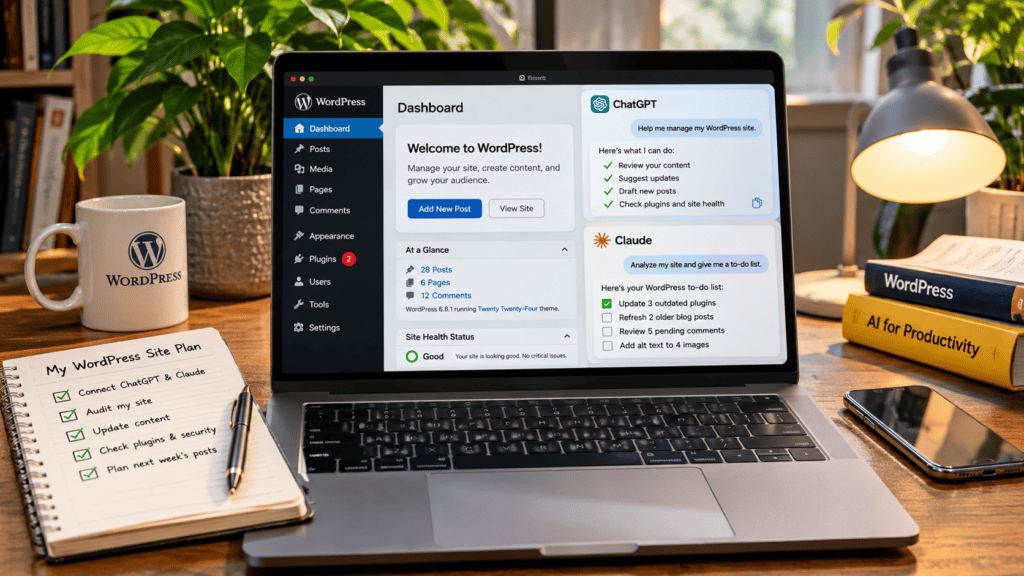
In this comprehensive guide, you will learn how to connect ChatGPT and Claude to your CMS, discover high-leverage automation workflows, explore ready-to-use prompts, and learn how to manage your WordPress site safely without compromising security or full administrative control.
Understanding How ChatGPT and Claude Connect to WordPress
The core technology enabling this workflow is the Model Context Protocol (MCP). MCP is an open standard designed to let AI models securely communicate with external software, databases, and APIs. In this architecture, it serves as a secure data bridge between your chosen AI assistant and your content management system.
Once the protocol is configured and permissions are explicitly granted, you can use ChatGPT or Claude to query site architecture and execute supported operations. Instead of manually navigating your backend to manage your WordPress site, you can leverage natural-language commands to streamline routine tasks:
- Audit content: Pull your latest published articles or flag outdated posts requiring content refreshes.
- Execute drafting: Generate and stage complete draft articles directly within your CMS environment.
- Moderate interactions: Review, approve, or filter comments awaiting moderation.
- Audit infrastructure: Check installed plugins for available security and feature updates.
- Analyze metrics: Summarize high-level website traffic and performance statistics.
The AI assistant parses your instructions, translates them into precise API calls, and utilizes available WordPress tools to complete the requested operation. Notably, WordPress.com provides an official MCP integration with native support for both ChatGPT and Claude, ensuring a streamlined setup for compatible environments.
Preparing Your Environment for AI Integration
Before connecting ChatGPT or Claude to your CMS, verify your hosting setup and permissions to ensure a secure link.
Identify Your Infrastructure
The integration pathway depends entirely on how your site is hosted:
| Website Type | Connection Approach |
| WordPress.com | Official WordPress.com MCP integration |
| Self-Hosted WordPress | Eligible Jetpack-connected site or another compatible MCP integration |
Note on Access Terms
Model Context Protocol (MCP) access is standard on paid WordPress.com and Jetpack plans.Free websites and self-hosted sites running Jetpack have promotional access through November 30, 2026. Review current platform policies before scaling long-term production workflows on free tiers.
Essential Prerequisites
Ensure you have the following ready before initiating the handshake:
- An active WordPress website.
- An active, verified ChatGPT or Claude account.
- Administrator or appropriate editorial access to your WordPress environment.
- Explicit permissions configured to authorize external AI data access.
- A complete, recent backup of your website database and files before executing large-scale automated changes.
Crucial Security Rule
The available capabilities and depth of control will vary based on your hosting setup and whether you grant Read-Only or Read-Write permissions to the assistant. Always restrict the AI to the minimum scope required for your tasks.
How to Connect ChatGPT to Your WordPress Site
Connecting ChatGPT to your content management system allows you to manage your WordPress site using natural-language instructions securely powered by the Model Context Protocol (MCP).
Follow these steps to establish the connection:
Step 1: Enable MCP Access on WordPress.com
- Log in to your WordPress.com account.
- Open your account Preferences.
- Select AI and MCP (or navigate directly to
[my.wordpress.com/me/preferences/mcp](https://my.wordpress.com/me/preferences/mcp)). - Locate the External AI Agent Access section.
- Switch on the Enable MCP access toggle.
(Note: You can also selectively grant or restrict individual read and write tool permissions within this menu depending on your operational security requirements.)
Step 2: Connect ChatGPT
- Open the official WordPress.com integration for ChatGPT.
- Log in to your ChatGPT account if prompted.
- Select the option to install or add the integration.
- You will be securely redirected to WordPress.com via OAuth 2.1 to authorize access.
- Review the requested permission levels (Read-Only vs. Read-Write).
- Approve the connection to link your accounts.
Step 3: Start Managing Your Website
Once the handshake is complete, open a new ChatGPT conversation and invoke the integration.
You can now give ChatGPT direct instructions to manage your WordPress site seamlessly:
“Show me the latest 10 articles published on my WordPress website and identify three that could benefit from content updates.”
ChatGPT will parse your prompt, utilize the authorized WordPress MCP tools, and retrieve or execute the data securely.
How to Connect Claude to Your WordPress Site
Connecting Claude to your CMS allows you to manage your WordPress site seamlessly through Anthropic’s chat interface. Because WordPress.com provides an official connector, setup requires zero manual MCP server configuration.
Follow these steps to establish the integration:
Step 1: Verify MCP Access
If you already enabled MCP access while configuring ChatGPT, you can skip this step. Account-level permissions apply universally across your WordPress.com profile. If not, follow Step 1 from the previous section to enable External AI Agent Access in your account preferences.
Step 2: Launch the WordPress.com Connector for Claude
- Navigate to the official WordPress.com connector for Claude.
- Select the option to add or connect the integration to your Claude account.
Step 3: Authorize Your Account
- Log in to your Claude account if prompted.
- Click Connect to initiate the OAuth 2.1 authorization handshake.
- Review and select your required permission level (balancing read and write capabilities against security protocols).
- Approve the connection to link your WordPress.com account to Claude.
Step 4: Start Using Claude
Once the handshake is verified, open a new conversation in Claude and activate the WordPress connector.
You can now issue natural-language instructions to manage your WordPress site efficiently:
“Review my latest blog posts and identify articles with outdated information, weak introductions, or missing image alt text.”
Claude will securely query your website data via the active connection and return an actionable audit of your digital content.
High-Leverage Workflows: What You Can Do After Connecting WordPress
Connecting ChatGPT or Claude to your CMS shifts the paradigm from traditional prompt-and-copy workflows to direct, bidirectional platform execution. Rather than treating AI as a standalone text editor, you can now manage your WordPress site by executing complex administrative tasks through natural language.
The following practical applications outline how to leverage these integrations to scale your operations safely:
Create and Edit WordPress Blog Posts
You can bypass the manual friction of copy-pasting drafts between external chat windows and the Gutenberg editor. Instruct either assistant to generate, structure, and save content directly as a draft inside your database.
Execution Prompt:
Plaintext
Create a WordPress draft titled '10 Digital Skills You Can Learn Online for Free'. Write an informative article for beginners, organize it with appropriate headings, include an introduction and conclusion, and save it as a draft. Do not publish it until I review and approve it.Code language: PHP (php)
- Strategic Benefit: Keeps your writing pipeline entirely integrated, reducing staging time while ensuring strict editorial gatekeeping before live publication.
Update Existing Website Pages
Static pages—such as your About, Contact, or Landing pages—require frequent optimization. You can execute copy edits and layout updates without manually clicking through the WordPress dashboard pages tree.
- Core Capabilities:
- Rewrite and optimize your About page positioning.
- Improve conversion phrasing on Contact pages.
- Inject new section blocks into live resource pages.
- Rewrite outdated product or service descriptions.
- Update primary page headings (H1/H2 tags) for better clarity.
Execution Prompt:
Review my About page and suggest improvements to make it more informative and professional. Show me your proposed changes before applying them.
Manage Website Comments at Scale
High-traffic blogs deal with heavy comment moderation queues. An AI assistant connected via MCP can rapidly parse incoming submissions, filter low-quality spam, and draft context-aware replies.
Execution Prompt:
Review the pending comments on my website. Separate genuine comments from likely spam and recommend appropriate actions. Do not delete or approve anything without my permission.
Code language: JavaScript (javascript)- Strategic Benefit: Reclaims hours of manual moderation time while ensuring community engagement remains active and secure.
Audit and Fix Image Accessibility (Alt Text)
Search engines and accessibility standards require descriptive alt text for every digital asset. AI assistants can scan your media library references, identify gaps, and write SEO-compliant, accessibility-friendly descriptions.
Execution Prompt:
Review the images in my WordPress media library and identify images with missing or unhelpful alt text. Suggest descriptive, accessibility-friendly alternatives.
Code language: JavaScript (javascript)
Audit Infrastructure and Plugins
Security and site health depend on active maintenance. With proper read/write permissions, an AI assistant can review your plugin stack, flag outdated software versions, and highlight dormant extensions.
Execution Prompt:
List all the plugins installed on my WordPress website. Identify inactive plugins, outdated versions, and available updates. Explain what each plugin does before recommending any changes.
Code language: PHP (php)
Production Rule: Retain Manual Control
Never grant an AI assistant autonomous permission to delete, deactivate, or uninstall plugins. Background dependencies (such as security tokens, caching layers, or custom post-type handlers) require strict human oversight to prevent catastrophic site breakage.
Analyze Website Statistics and Activity
Instead of manually navigating through disparate analytics plugins or hosting logs, you can query your connected AI assistant for real-time summaries of your site’s operational health.
- Common Queries:
- “How many visitors did my website receive during the previous month?”
- “Which of my posts generated the highest engagement this week?”
- “How many articles have I published year-to-date?”
- “When was my last successful system backup?”
By centralizing these audits into a single chat thread, you can efficiently manage your WordPress site with executive-level oversight and minimal operational friction.
ChatGPT vs. Claude: Choosing the Best Assistant for Your WordPress Workflow
Both ChatGPT and Claude interface seamlessly with WordPress via the Model Context Protocol (MCP), exposing core platform capabilities to natural-language commands. However, their underlying model strengths, UI behavior, and operational tendencies give each assistant distinct advantages depending on your day-to-day administrative tasks.
Strengths & Use-Case Breakdown
ChatGPT: Ecosystem Breadth & Analytical Context
- Core Advantage: Broad ecosystem familiarity, robust third-party tool integration, and advanced reasoning models that excel at synthesis and troubleshooting logic.
- Best Suited For:
- Analyzing cross-channel data (e.g., combining site analytics with marketing insights).
- High-volume content planning and structured outlining before pushing drafts to WordPress.
- Complex multi-step instructions where conversational context needs to adapt dynamically.
Claude: Structural Precision & Code-Level Accuracy
- Core Advantage: Exceptional structural fidelity, superior instruction-following for long-form formatting, and precise handling of technical markup and database schemas.
- Best Suited For:
- Complex content generation requiring strict adherence to brand guidelines, tone, and specific heading hierarchies.
- Reviewing code snippets, fixing template logic, or parsing deep technical system structures.
- Performing granular content audits (such as spotting broken internal links, tone inconsistencies, or nuanced SEO gaps across dozens of posts).
Side-by-Side Comparison
| Feature / Capability | ChatGPT | Claude |
| Official WordPress.com Integration | Yes | Yes |
| Create and Edit Posts & Pages | Fully Supported | Fully Supported |
| Comment Moderation & Alt-Text Audits | Supported | Supported |
| Instruction Adherence for Formatting | Good | Excellent (Higher precision on structural layout) |
| Ecosystem & Web Search Synthesis | Extremely Robust | Strong, focused heavily on direct text processing |
The Verdict: How to Choose
You do not need to lock yourself into a single platform. Because WordPress.com allows account-level MCP permissions, you can authenticate both assistants simultaneously:
- Use Claude when you need meticulous content generation, complex long-form structural rewrites, or highly detailed code and metadata audits.
- Use ChatGPT when you want to blend your website management tasks with broad web research, brainstorming, or multi-platform data synthesis.
10 High-Impact ChatGPT and Claude Prompts for WordPress Management
One of the primary benefits of connecting AI assistants via the Model Context Protocol (MCP) is replacing rigid dashboard navigation with precise natural-language commands.
Here are 10 expert-level prompts you can deploy immediately to manage your WordPress site with maximum efficiency and strategic oversight:
Comprehensive Site Audit
Prompt:“Review my WordPress website and create a prioritized list of tasks that need attention. Separate urgent security or technical issues from routine content improvements.”
- Use Case: Run this weekly to get an executive-level health check of your entire CMS infrastructure without opening multiple menus.
Content Decay & Refresh Analysis
Prompt:“Identify five older blog posts that may need updating based on shifting trends or outdated information. Explain why each one should be reviewed and outline a brief update strategy.”
- Use Case: Protect your organic rankings by systematically surfacing underperforming or dated content archives.
On-Page SEO & Internal Linking Audit
Prompt:“Review my latest published articles and identify opportunities to improve their titles, H2/H3 heading hierarchies, meta descriptions, and internal linking structures.”
- Use Case: Maximize topical authority and click-through rates by tightening technical on-page optimization right after publishing.
4. Automated Draft Generation
Prompt:“Create a new WordPress draft about [Insert Topic]. Include a compelling hook-driven introduction, descriptive subheadings, optimized anchor text placeholders, and a clear conclusion. Save it directly as a draft without publishing.”
- Use Case: Streamline your editorial pipeline by having your AI assistant stage fully structured drafts straight into your database.
Plugin Stack & Security Review
Prompt:“List my installed plugins, identify available updates, and flag any inactive tools. Explain the operational purpose of each plugin before recommending any action or update sequence.”
- Use Case: Maintain strict software hygiene while ensuring you never accidentally break background dependencies or security tokens.
Intelligent Comment Moderation
Prompt:“Review my pending comments queue. Separate genuine community engagement from automated spam, and draft professional, context-aware reply suggestions for legitimate comments. Do not approve or delete anything without my final sign-off.”
- Use Case: Reclaim hours of manual community management while keeping interaction loops active and secure.
Accessibility & Alt-Text Optimization
Prompt:“Scan my WordPress media library references and identify images with missing, generic, or unhelpful alt text. Suggest descriptive, accessibility-friendly alternatives optimized for both screen readers and search crawlers.”
- Use Case: Ensure WCAG and ADA compliance across your visual assets while boosting image search visibility.
Analytics & Traffic Summary
Prompt:“Summarize my website’s visitor traffic statistics, top-performing pages, and publishing activity for the previous 30 days.”
- Use Case: Aggregate performance insights instantly without navigating away from your active assistant workspace.
Landing Page Conversion Review
Prompt:“Review my homepage [or specify a core landing page URL/slug] and suggest improvements to its content structure, clarity, value proposition, and calls to action (CTAs).”
- Use Case: Optimize user experience (UX) and conversion rates through data-informed structural critique.
Weekly Executive Maintenance Report
Prompt:“Prepare a comprehensive weekly WordPress maintenance report covering recent content output, plugin status, comment volume, website activity highlights, and the timestamp of your last successful system backup.”
- Use Case: Establish a repeatable operational audit to ensure long-term site stability and zero administrative drift.
Pro Tip
Treat these prompts as functional templates. Customize them with specific URL paths, brand voice guidelines, or strict permission boundaries to fit your exact workflow requirements.
Essential Security Precautions When Using AI to Manage WordPress
Connecting AI assistants like ChatGPT or Claude to your content management system via the Model Context Protocol (MCP) dramatically streamlines workflows, but it also creates potential attack vectors and points of failure. Because these assistants can query and modify site data, maintaining strict governance is non-negotiable.
Here are six critical security rules to follow when you manage your WordPress site with AI:
Start with Read-Only Access
Do not grant write or administrative permissions on day one. Begin by enabling read-only access so the assistant can audit content, analyze traffic, and fetch data without altering your database. Only scale up permissions after you fully understand the integration’s behavior and reliability.
Enforce the Principle of Least Privilege
Restrict unnecessary tool permissions ruthlessly. An AI assistant tasked with optimizing blog posts or auditing SEO does not need permission to manage plugins, modify system settings, or delete files. Tailor your OAuth permission scopes to match the exact requirements of each specific task.
Maintain Strict Editorial Gatekeeping
AI-generated text can contain factual inaccuracies, unverified claims, or generic phrasing that dilutes your brand voice. Never publish AI-drafted content directly. Always review articles, page rewrites, and meta descriptions within the staging or draft environment before pushing them live.
Execute Fresh Backups Before Major Actions
Automated changes—especially those involving database queries, bulk content updates, or infrastructure modifications—carry inherent risks. Always ensure your hosting provider has taken a recent, verified system backup before authorizing large-scale AI operations.
Require Impact Explanations Before Approving Changes
Never grant autonomous permissions for destructive actions, such as deleting pages, wiping comments, or deactivating plugins. Mandate that the assistant explain the technical impact and background dependencies of any proposed change before you give final approval.
Monitor Activity Logs and User Roles
Keep a close eye on your WordPress activity log to track every action initiated by connected AI agents. Furthermore, remember that WordPress user-role permissions apply directly to connected AI agents—if your authenticated account has Administrator rights, the AI inherits those high-level capabilities. Whenever possible, connect using a dedicated user account restricted to lower-privilege roles (such as Editor or Contributor).
Limitations and Boundaries of AI-Powered WordPress Management
While integrating ChatGPT and Claude via the Model Context Protocol (MCP) drastically reduces manual overhead, it does not replace the core WordPress dashboard entirely. Understanding these architectural boundaries ensures you deploy AI where it excels while retaining manual control over complex systems:
- Hosting Compatibility: The official WordPress.com MCP integration requires specific paid tiers or eligible promotional periods. Self-hosted installations outside of WordPress.com typically require a Jetpack connection or a separate compatible adapter plugin.
- Advanced Page Builders: The current scope of official MCP capabilities does not support direct visual editing or layout manipulation for complex third-party page builders like Elementor, Divi, or Beaver Builder. Structural page design still requires the native editor.
- WooCommerce Operations: Standard content and management tools do not inherently expose e-commerce data. Managing store orders, inventory levels, or dynamic product pricing requires specialized API connectors beyond standard blog management permissions.
- Third-Party SEO Plugin Restrictions: While an AI assistant can review content and suggest general improvements, it cannot automatically configure every granular setting inside specialized plugins like Yoast or Rank Math unless specific API hooks are exposed.
- Mandatory Human Oversight: AI models are susceptible to hallucinations, contextual misinterpretations, and generic phrasing. Automated changes and drafted content always demand thorough human review before final publication.
- Permission Boundaries: An assistant is strictly limited by the OAuth scopes and user-role permissions you authorize. It cannot perform operations that have been disabled in your account security settings.
Recognizing these constraints allows you to build a hybrid workflow—automating routine audits, content drafts, and data queries while reserving complex site architecture and design for manual administration.
Building a Sustainable Weekly WordPress Management Routine with AI
Rather than treating AI integration as an emergency tool to fix broken pages or clear out comment spam, you can operationalize ChatGPT or Claude into a proactive, recurring maintenance schedule.
Distributing administrative checks across the week prevents burnout, keeps your infrastructure secure, and ensures consistent content momentum without manual dashboard fatigue.
Here is a structured, high-signal weekly WordPress management routine designed for digital creators, founders, and site operators:
| Day | Focus Area | Operational Task | Example Prompt / Action |
| Monday | Analytics & Activity | Review visitor traffic statistics, top-performing pages, and recent platform activity. | “Summarize my website’s visitor statistics and publishing activity for the previous 7 days.” |
| Tuesday | Content Audits | Identify older, underperforming blog posts that require informational updates or structural refreshes. | “Identify three older blog posts that need updating due to shifting trends and outline an update strategy.” |
| Wednesday | Community & Comments | Clear out spam submissions, review genuine community engagement, and draft polite replies. | “Review my pending comments queue, separate spam from genuine remarks, and draft reply suggestions.” |
| Thursday | Infrastructure & Plugins | Audit the plugin stack, check for available security or feature updates, and flag inactive software. | “List my installed plugins, identify available updates, and explain the purpose of each before recommending changes.” |
| Friday | SEO & Accessibility | Scan recent media library additions for missing alt text and evaluate internal linking opportunities. | “Scan my recent media library references for missing alt text and suggest descriptive alternatives.” |
| Saturday | Content Pipeline | Stage new post outlines or complete drafts directly into the CMS database for final human review. | “Create a new WordPress draft about [Insert Topic] with structured headings and save it as a draft.” |
| Sunday | Weekly Synthesis | Generate an executive-level summary report covering the week’s output, metrics, and next steps. | “Prepare a comprehensive weekly maintenance report covering content output, plugin status, and comment volume.” |
Pro Tip for Execution
You do not need to log in every single day to execute this workflow. On Monday morning, you can deploy a consolidated prompt to ChatGPT or Claude to run a broad diagnostic audit across all categories at once.
By establishing this rhythmic routine, you maintain absolute control over your digital assets while leveraging AI to handle the repetitive cognitive load of site maintenance.
Can I manage my WordPress website without logging into the dashboard?
You can perform many supported tasks through a connected AI assistant without manually navigating the WordPress dashboard.
However, complex configuration changes, advanced visual page-building (such as Elementor), and deep administrative troubleshooting still require direct access to the native dashboard.
Can I connect both ChatGPT and Claude to the same WordPress website?
Yes. WordPress.com supports both integrations simultaneously. You can authenticate both AI assistants to your account and individually configure their tool access and permission scopes.
Do I need coding skills to connect ChatGPT or Claude to WordPress?
No coding or technical deployment is required when using the official WordPress.com integrations. However, setting up custom MCP servers for complex self-hosted installations outside of WordPress.com or Jetpack may require technical familiarity with API endpoints.
Can ChatGPT or Claude publish articles directly to WordPress?
Yes, supported integrations can create, edit, and publish posts when granted full Read-Write permissions. However, a safer, industry-standard workflow is to instruct the AI assistant to save content as a draft so you can review and approve it before going live.
Is it safe to give AI access to my WordPress website?
It is safe when you adhere to strict security protocols: enforce the principle of least privilege, start with read-only access, review consequential edits, and maintain regular system backups. Avoid granting unnecessary administrative privileges to sensitive platform functions.
Can I use this integration with a self-hosted WordPress website?
Yes, eligible self-hosted WordPress sites connected via Jetpack can utilize WordPress.com’s MCP integration under current promotional and platform terms. Other independent, self-hosted installations can connect using separate, compatible MCP adapter plugins.
In Conclusion
Managing digital properties no longer requires spending hours bogged down by repetitive administrative overhead inside the backend dashboard.
By leveraging the Model Context Protocol (MCP) to connect ChatGPT and Claude directly to your CMS, you shift from manual execution to strategic oversight. You can manage your WordPress site faster, audit infrastructure more effectively, and scale your content workflows—all through natural-language commands.
However, the true power of this technology lies in augmentation, not automation without guardrails. AI serves as your high-speed operational assistant, but human judgment remains the final arbiter of quality, security, and brand alignment.
Your Next Action Step
Ready to transform your publishing workflow? Explore the official WordPress.com connectors for ChatGPT and Claude today, start with secure read-only permissions, and test a few basic diagnostic prompts to see how AI can streamline your day-to-day operations.