Best Productivity Chrome Extensions to Work Smarter
The best productivity Chrome extensions help you manage tasks, reduce distractions, organize research, improve writing, and save time on repetitive work. Useful options include Todoist for task management, StayFocusd for limiting distractions, OneTab for organizing open tabs, Grammarly for writing assistance, Clockify for time tracking, and Bitwarden for password management. Selecting the best productivity Chrome extensions for your setup depends entirely on your workflow, budget, and privacy requirements.
If you spend much of your workday in a browser, small interruptions can accumulate. You might repeatedly switch between tabs, search for a saved link, rewrite an email, or lose track of a task while researching something else.
The right browser extensions can reduce this friction without requiring you to adopt a complicated productivity system. This guide compares practical options for students, researchers, remote workers, freelancers, developers, marketers, and small teams, including their uses, limitations, and free-plan considerations.
Core Workflow Categories to Consider

- Task & Quick Capture: Tools like Todoist place a lightweight task manager inside your browser toolbar, letting you capture action items from any page without breaking concentration.
- Distraction & Focus Management: Extensions such as StayFocusd or Forest restrict access to time-wasting sites or gamify deep work sessions.
- Tab & Memory Optimization: Utilities like OneTab collapse dozens of open tabs into a single clean list, recovering memory and eliminating visual clutter.
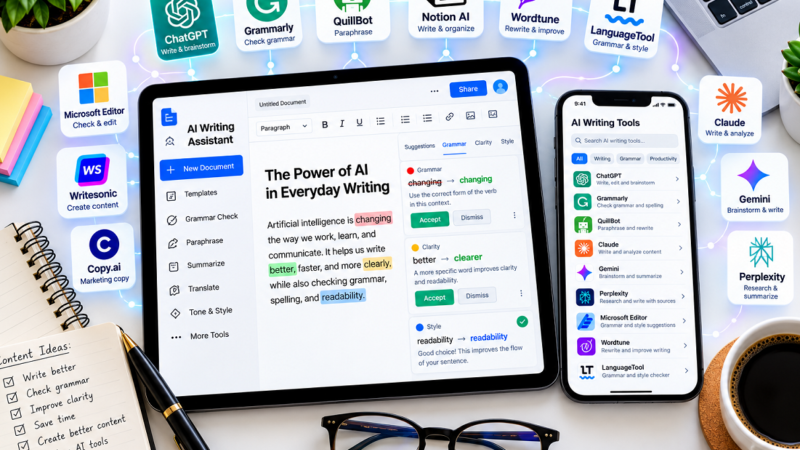
- Writing & Communication: Assistants like Grammarly offer real-time spelling, grammar, and tone adjustments across emails, docs, and forms.
Quick Comparison: Best Productivity Chrome Extensions
Compare the best productivity Chrome extensions to streamline your workflow, block distractions, and save time. Explore top tools, free tiers, and reviews.
| Extension | Best Use | Free Option |
| Todoist | Tasks and priorities | Yes |
| StayFocusd | Blocking distractions | Yes (100% free core version) |
| OneTab | Tab organization and RAM cleanup | Yes (Free / donation model) |
| Grammarly | Writing and editing | Yes, with limitations |
| Clockify | Time tracking | Yes |
| Evernote Web Clipper | Saving research | Account and plan dependent |
| Bitwarden | Password management | Yes |
| Scribe | Documenting workflows | Yes, with limitations |
| Loom | Screen recordings | Yes, with limits |
| Read Aloud | Text-to-speech | Yes |
Note: Free-plan availability does not mean every feature is free. Limits, eligibility, and subscription terms can change; check official product pages before choosing your best productivity Chrome extensions setup.
Todoist: Best for Task Management
Todoist is a premier task-management application with a high-performance browser extension that helps you capture tasks and keep your priorities accessible while browsing.
It is particularly useful when research, messages, and other online activities generate more actionable items than you can remember. You can add a webpage directly as a task, review your active lists from the browser toolbar, and prevent important follow-up actions from disappearing among a sea of open tabs.
Useful Features
- Quick Capture: Instantly save webpages as tasks while browsing.
- Project Organization: Structure work into dedicated projects, sections, and lists.
- Prioritization: Assign due dates, times, and priority levels to manage deadlines.
Who Should Use It?
Students managing assignments, freelancers tracking client deliverables, bloggers planning editorial content, and professionals coordinating daily responsibilities.
Free-Plan Note
Todoist offers a permanent free Beginner plan (capped at 5 active personal projects), while additional planning capabilities, calendar layouts, and custom reminders are available through paid tiers (Pro starting around $5/month billed annually). Check their official pricing page for current terms.
Limitation
A task manager will not automatically decide which tasks deserve your immediate attention. Review your priorities regularly instead of accumulating an endless list of obligations.
Practical Example
While researching an article, you can save an important source directly as a task named “Verify statistics before publishing” rather than leaving the tab open indefinitely as a visual reminder.
StayFocusd: Best for Limiting Distractions
StayFocusd is one of the most popular distraction-blocking tools available, helping you restrict the time spent on websites that interfere with deep work. Depending on your settings, you can limit access to specific sites, block entire domains, or establish rules for particular working periods.
This extension is particularly useful if you frequently open social media, entertainment feeds, or news sites out of habit while trying to complete a complex task.
Useful Features
- Granular Time Limits: Configure daily time allowances for specific websites (e.g., allowing 20 minutes of Reddit per day).
- The Nuclear Option: A stricter mode that completely blocks all time-wasting websites for a user-specified duration when you need intense focus.
- In-App Element Blocking: Hide specific distracting components on major platforms, such as YouTube Shorts, reels, comments, and recommendations.
Who Should Use It?
Students, remote workers, writers, and anyone who finds it difficult to resist compulsive browsing during deep work hours.
Free-Plan Note
StayFocusd is completely free to install and use from the Chrome Web Store, with no hidden subscription costs or locked premium features.
Limitation
Website blocking cannot replace intentional work planning. Furthermore, because the extension requires broad permissions to monitor and restrict URL navigation, you should review its permission settings before installation if privacy is a top priority.
Practical Example
Block access to entertainment and social media websites during a dedicated 45-minute writing session using the Nuclear Option, then enjoy your planned break once the timer finishes.
OneTab: Best for Organizing Too Many Browser Tabs
OneTab is a lightweight, high-utility extension that converts open browser tabs into a clean list with a single click. Instead of letting dozens of active pages slow down your machine, you can save an entire session and restore individual pages or groups whenever needed.
This makes it particularly valuable for research-heavy workflows, where shifting between multiple complex projects requires entirely different sets of reference material.
Useful Features
- Instant Tab Consolidation: Collapse all open tabs into a single, organized text-based list.
- Memory & RAM Reduction: Saves up to 95% of browser memory by unloading inactive tabs from your system resources.
- Session Export & Sharing: Export your saved tab groups as a web page URL so you can easily transfer or back up research sessions.
Who Should Use It?
Researchers, students, software developers, content creators, and anyone who routinely runs heavy, multi-tab browsing sessions.
Free-Plan Note
OneTab is completely free to use via the Chrome Web Store with no hidden subscriptions or tiered feature locks.
Limitation
Saving tabs into a list is not a substitute for a structured research archive. For critical projects, remember to record primary source titles, publication dates, and citations in a dedicated note-taking app or document.
Practical Example
Before pivoting to a new client project, collapse and save all active research tabs for your current blog article into a single OneTab list to instantly clear your mental and digital workspace.
Grammarly: Best for Writing and Editing
Grammarly provides real-time writing suggestions across supported websites and online editors, identifying grammatical errors, spelling mistakes, and opportunities to improve overall clarity.
For professionals who spend much of their day writing emails, reports, articles, proposals, and direct messages, browser-based writing assistance significantly reduces the manual effort required to proofread routine text.
Useful Features
- Real-Time Proofreading: Instantly flags and corrects spelling, punctuation, and grammatical mistakes as you type.
- Tone Detection: Analyzes your phrasing to show whether your text comes across as formal, confident, or friendly.
- Clarity & Conciseness Checks: Automatically trims filler words and straightens out convoluted phrasing to make your communication sharper.
- Generative AI Assistance: Offers quick inline prompts to draft text, rewrite paragraphs, or brainstorm ideas directly within your browser.
Who Should Use It?
Students, bloggers, marketers, freelancers, and business professionals who communicate frequently in writing.
Free-Plan Note
Grammarly offers a robust free plan that covers essential spelling, punctuation, basic tone detection, and a limited monthly allowance of generative AI prompts. Advanced sentence rewrites, plagiarism detection, and full style guides require a paid Pro tier.
Limitation
Automated writing suggestions can occasionally alter your intended meaning, unique voice, or technical accuracy. Always review critical edits manually rather than accepting AI-driven changes automatically.
Practical Example
Use the best productivity Chrome extensions like Grammarly to review the clarity and tone of a client email before hitting send, while manually verifying proper names, figures, and specific project commitments.
Clockify: Best for Tracking Time
Clockify helps you record the exact time spent on projects and tasks. Its Chrome extension lets you start a timer straight from your browser toolbar, making it easy to measure work without opening a separate application or dashboard.
Time tracking is especially valuable when you need to understand how long client projects take, estimate future work more accurately, or identify activities that consume more time than expected.
Useful Features
- One-Click Browser Timers: Start, pause, and stop tracking time instantly from your Chrome extension toolbar.
- Project & Task Association: Tag time entries by client, project, or specific labels to maintain clear separation of work.
- Calendar & Timesheet Views: Visualize your day, log manual hours retroactively, and manage weekly commitments.
Who Should Use It?
Freelancers, consultants, remote workers, and small teams that need clear visibility into working hours.
Free-Plan Note
Clockify offers a generous free tier that supports unlimited time tracking and projects for up to 5 users. Note that advanced features like billable hourly rates, team cost tracking, and CSV/Excel report exports require a paid tier (Basic plans start around $3.99/seat/month). Check their official pricing page for current terms.
Limitation
Time records are only useful if you record them consistently and categorize activities properly. Tracking every minute manually can introduce administrative overhead for some roles if not managed with discipline.
Practical Example
Track research, writing, editing, and publishing hours separately to develop more realistic data-driven estimates for future content projects.
Evernote Web Clipper: Best for Saving Online Research
Evernote Web Clipper lets you save articles, webpages, PDFs, and full screenshots directly into your Evernote account. Depending on the capture type, you can preserve an entire page or targeted content snippets, organizing them with titles, tags, and notebooks.
For researchers and content creators, this provides a much more deliberate way to collect reference material than relying on a chaotic, ever-expanding list of standard browser bookmarks.
Useful Features
- Flexible Capture Modes: Save full articles, simplified web pages, bookmarks, full-page screenshots, or specific selections.
- In-App Annotations: Highlight key passages, add text callouts, or stamp arrows directly onto captured screenshots before saving.
- Metadata & Organization: Automatically capture source URLs and file information, sorting clips directly into designated notebooks and tags.
Who Should Use It?
Students, academic researchers, writers, marketers, and professionals who regularly synthesize information from multiple online domains.
Free-Plan Note
While the Web Clipper extension itself is free to download, Evernote’s free plan is strictly limited to 50 notes, 1 notebook, and a single active synced device. Heavy researchers quickly exceed these limits and will need to look at paid tiers (Starter or Advanced) or alternative clipping workflows.
Limitation
Saving an article via a clipper does not automatically make it a reliable or permanent source. Web pages change or disappear; always record the original author, publication date, and explicit evidence when building research files.
Practical Example
Save useful reference articles into a dedicated notebook for your current content project, then extract and log the exact supporting data points before you begin drafting.
Bitwarden: Best for Password Management
Bitwarden is a premier open-source password manager that securely stores your login credentials in an encrypted vault and automatically fills matching credentials across websites. Its browser extension makes saved logins seamlessly accessible during normal daily browsing.
Robust password management is foundational to digital productivity, eliminating the cognitive friction of remembering dozens of unique passwords or repeatedly triggering account recovery flows. It also enforces elite security hygiene by ensuring you never reuse weak passwords across multiple platforms.
Useful Features
- Encrypted Vault Storage: Store and organize unlimited login credentials, secure notes, credit cards, and identities.
- Built-In Generator: Instantly create strong, randomized, cryptographically secure passwords for every new account you open.
- Smart Autofill: Automatically populates your credentials on recognized login fields with a single click or keyboard shortcut.
- Cross-Device Syncing: Keeps your vault synchronized across all your computers, browsers, and mobile devices.
Who Should Use It?
Anyone managing multiple online accounts, particularly remote workers, freelancers, entrepreneurs, software developers, and small teams.
Free-Plan Note
Bitwarden offers an exceptionally generous free individual tier that includes unlimited password storage across an unlimited number of devices, two-factor authentication (2FA) support, and basic secure sharing. Advanced features like vault health reports, file attachments, and emergency access require a paid premium subscription (starting around $10/year). Check their official pricing page for current terms.
Limitation
A password manager is a high-impact security tool, meaning initial setup requires discipline. You must create a strong, memorable master password, enable multi-factor authentication (MFA) on your account, and carefully audit how team collections or individual items are shared.
Practical Example
Use Bitwarden to seamlessly log into your work applications, email hosting, cloud dashboards, and analytics accounts without ever risking password reuse or wasting time on password resets.
Scribe: Best for Documenting Repetitive Workflows
Scribe turns digital workflows into step-by-step guides automatically. It is useful when you repeatedly explain how to complete a process or need to document procedures for colleagues, customers, or learners.
Instead of manually writing every instruction from scratch and taking individual screenshots, you can capture a process, review the generated guide, and refine it before sharing.
Useful Features
- Automatic Workflow Capture: Records your browser actions and instantly generates an ordered guide with screenshots, instructions, and click targets.
- Guide Editing & Customization: Lets creators revise text, reorder steps, and adjust visual walkthroughs.
- Scribe AI Pages: Combines multiple captured guides with generated context to draft comprehensive SOPs, onboarding handbooks, or help-center documentation.
Who Should Use It?
Trainers, customer support teams, educators, operations staff, and professionals who frequently document digital and web-based processes.
Free-Plan Note
Scribe offers a permanent Basic free plan that includes unlimited browser-based guide creation and sharing via links or embeds. Advanced capabilities—such as desktop app capture, PDF/Markdown exports, custom branding, and screenshot redaction—require a paid tier (Pro Personal starts around $25/month billed annually). Check their official pricing page for current terms.
Limitation
Generated documentation still requires human review. Check every step for factual accuracy and ensure you remove sensitive data or confidential information before sharing screenshots.
Practical Example
Document the steps required to publish an article in a content management system so that a new team member can follow the same procedure consistently.
Loom: Best for Screen Recordings and Asynchronous Communication
Loom lets you record screen walkthroughs and camera footage directly from your browser, allowing you to instantly share video links with colleagues, clients, or students.
This asynchronous approach is often far more efficient than scheduling a live meeting for every question, review, or demonstration that requires a visual explanation.
Useful Features
- Instant Screen & Cam Capture: Record your screen, microphone, and front-facing camera simultaneously with a single click.
- Instant Link Sharing: Automatically generates a shareable web link the moment you stop recording, eliminating large file transfers.
- Viewer Engagement Metrics: See who has watched your video and track feedback through inline comments and emoji reactions.
Who Should Use It?
Remote teams, educators, freelancers, marketers, and support professionals looking to cut down on unnecessary meetings.
Free-Plan Note
Loom offers a free Starter plan, but it includes strict operational caps: a maximum of 25 total videos per person and a 5-minute time limit per recording. Heavy users or teams needing longer recordings, video downloads, and advanced editing must upgrade to a paid tier (Business plans start around $18/user/month).
Limitation
Screen recordings can accidentally expose private tabs, sensitive customer data, or confidential messages. Always clean up your desktop and browser environment before recording, and review the final clip before sending.
Practical Example
Record a quick 3-minute video walkthrough showing a client how to navigate a new web dashboard instead of typing out lengthy, multi-step instructions.
Read Aloud: Best for Listening to Webpages
Read Aloud is a popular text-to-speech extension that converts supported webpage content into spoken audio. It offers an alternative way to review written material when you prefer listening, need to multitask, or want to reduce continuous screen fatigue.
It is also an effective tool for writers who want to listen to drafts aloud, making awkward phrasing, missing words, or repetitive sentences much easier to notice.
Useful Features
- One-Click Playback: Instantly reads current web articles, blog posts, and documentation with a single click from your browser toolbar.
- Playback Controls: Easily pause, resume, skip forward, or adjust reading speeds to match your listening preference.
- Cloud Voice Integration: Supports standard text-to-speech voices out of the box, with options to connect premium text engines (like Google WaveNet or Amazon Polly) for more natural audio.
Who Should Use It?
Students, researchers, avid readers, and writers who benefit from listening-based review and audio consumption.
Free-Plan Note
Read Aloud is a free, open-source project requiring zero account setup for standard browser speech. Optional premium cloud voices can be accessed via low-cost in-app options or by plugging in your own developer API keys (such as AWS or Google Cloud).
Limitation
Speech quality and page text extraction vary depending on the website layout, language, and selected text-to-speech engine. It may occasionally stumble on complex code blocks, custom layouts, or heavy technical notation.
Practical Example
Listen to a draft article using the best productivity Chrome extensions toolbox to identify sentences that sound unnatural when spoken, then edit the original text accordingly.
Which Productivity Chrome Extensions Should You Choose for Your Role?
You do not need every extension in this guide. Start with the tools that solve your most frequent problems, then add others only when a clear need emerges.
| Audience | Suggested Starting Combination | Main Benefit |
| Students and researchers | Todoist + Evernote Web Clipper + StayFocusd | Organize assignments, capture sources, and protect study time |
| Remote workers | Todoist + Clockify + Loom | Manage tasks, track work, and explain progress |
| Freelancers | Clockify + Bitwarden + Grammarly | Track billable work, manage logins, and improve written communication |
| Developers | OneTab + Bitwarden + Todoist | Organize research tabs, access credentials, and track issues |
| Entrepreneurs and marketers | Todoist + Grammarly + Evernote Web Clipper | Manage campaigns, refine copy, and collect research |
| Small teams | Todoist + Loom + Scribe | Coordinate tasks, share explanations, and document processes |
These are suggested combinations, not rigid requirements. For example, a team that already relies on a centralized project management system should not adopt Todoist simply because it appears in this list. Always choose extensions that complement your existing workflow rather than duplicate or complicate it.
How to Set Up a Productive Chrome Workflow
The most effective approach to building a streamlined browser setup is to introduce extensions gradually. Each tool should have a clearly defined job, and you should be able to explain why it deserves a permanent place in your browser toolbar.
- Identify Your Biggest Source of Friction. Decide whether your primary obstacle is digital distraction, task management, tab overload, slow writing, poor time tracking, or explaining repetitive processes. Always start by addressing the specific problem that most frequently disrupts your deep work.
- Choose One or Two Extensions. Avoid toolbar clutter by installing only what you need initially. For example, pair Todoist with OneTab if your main daily challenges are capturing action items on the fly and managing heavy research tabs.
- Configure the Tools Around a Real Task. Set up your new extensions during an active project—create your first task lists, configure a distraction-blocking time window, or establish a dedicated notebook for saving research. A browser tool only becomes truly useful when it directly supports a repeatable activity rather than sitting dormant.
- Review the Results After One Week: Evaluate whether your selected best productivity Chrome extensions actually reduced interruptions, made information easier to retrieve, or improved task completion rates. Do not hesitate to uninstall or replace tools that introduce more maintenance overhead than tangible value.
How to Evaluate Privacy and Security Before Installing Extensions
Productivity should never come at the expense of account security or confidential information. Browser extensions can request access to browsing history, open tabs, or data on websites, depending on their permissions. Google outlines the implications of these permission requests in its Chrome Web Store safety guidance.
Security Evaluation Checklist
- Verify the Publisher: Locate the official product website and confirm that the Chrome Web Store listing belongs to the expected developer.
- Inspect Permissions: Evaluate whether each requested permission is strictly necessary for the feature you intend to use.
- Limit Website Access: Configure an extension’s site access in Chrome, restricting it to specific websites (or setting it to activate “On click”) rather than giving permanent access to all sites.
- Review Privacy Disclosures: Read what information the extension collects, how it is processed, and whether data is shared with third parties.
- Be Cautious With Sensitive Content: Avoid submitting confidential business records, client information, or private documents to writing assistants and AI tools unless organizational policies and the service terms explicitly permit it.
- Remove Unused Extensions: Fewer installed tools mean a smaller security footprint and less maintenance overhead.
Note for Managed Devices: If you use a computer provided by your employer or school, check your organization’s IT policies before installing new software, as many institutions restrict or monitor extension management.
Common Mistakes to Avoid
Even the best productivity Chrome extensions can become a source of friction when they are poorly chosen, carelessly configured, or over-adopted. Avoid these common pitfalls to keep your browser lean and efficient:
- Installing Too Many Extensions: More tools mean more pop-up interfaces, background scripts, security permissions, and potential distractions. Always start small and add utilities only when a clear bottleneck appears.
- Using Several Tools for the Same Purpose: You do not need multiple task managers or conflicting tab organizers fighting for browser resources. Pick one primary tool for each recurring workflow category.
- Assuming Free Means Unlimited: Free tiers often impose strict limits on usage, storage, recording length, or collaboration features. Always check current terms before building an essential daily workflow around a free feature.
- Treating Saved Information as Verified Information: A clipped webpage or bookmarked article is not proof that its claims are accurate. Always preserve source details and verify critical facts against reliable references.
- Ignoring Maintenance: Periodically audit your installed extensions—particularly if a developer changes ownership, requests expanded permissions, or updates pricing and privacy terms.
- Measuring Activity Instead of Outcomes: The ultimate goal is never to track more tasks or spend longer inside productivity applications. The true objective of the best productivity Chrome extensions is to complete meaningful work with less unnecessary effort.
What are the best productivity Chrome extensions?
Top-rated options include Todoist for tasks, StayFocusd for reducing distractions, OneTab for tab organization, Grammarly for writing assistance, and Clockify for time tracking. The ideal setup depends entirely on your specific workflow, role, and daily priorities.
Are there free productivity Chrome extensions?
Yes. Utilities like OneTab and StayFocusd operate as free extensions, while Todoist, Grammarly, Clockify, Bitwarden, Scribe, and Loom offer robust free tiers with specific functional or usage limitations. Always confirm current plan details on official product pages before installation.
Can Chrome extensions improve productivity at work?
Yes, they can significantly reduce friction in specific daily activities—such as capturing tasks, organizing heavy research, proofreading text, tracking billable work hours, and documenting step-by-step procedures. Ultimate success depends on whether the extensions solve genuine bottlenecks in your workflow rather than adding unnecessary complexity.
Do Chrome extensions slow down a computer?
Certain extensions consume memory (RAM) or processing resources depending on their background scripts and active permissions. Running an excessive number of extensions can also introduce browser clutter and maintenance overhead. It is best to remove unused tools and monitor resource usage if your browser begins to feel sluggish.
Are Chrome extensions available on mobile devices?
Traditional desktop Chrome extensions generally do not run on mobile versions of Google Chrome. Extension compatibility varies widely depending on the mobile operating system, alternative mobile browsers, or specialized developer environments. Always check official support documentation before relying on an extension outside of a desktop workflow.
Should I use AI-powered productivity extensions?
AI-powered extensions can accelerate drafting, text summarization, and task automation, but they must be chosen with care. Always evaluate their accuracy, privacy disclosures, data handling policies, pricing, and whether the feature genuinely improves your productivity. Always review AI-generated outputs manually before incorporating them into professional or academic work.
In Conclusion
The best productivity Chrome extensions are not necessarily the ones packed with the most features. Instead, they are the tools that solve your recurring workflow friction without introducing unnecessary complexity, bloat, or security overhead.
If you are starting from scratch, build a lean setup with a small, purposeful combination:
- A task manager to keep priorities visible.
- A focus tool if compulsive browsing or interruptions derail your day.
- A tab or research organizer if your workflow demands handling multiple sources simultaneously.
Introduce writing assistants, time-trackers, password managers, or workflow documentation tools only when a distinct operational need emerges.
Your Next Step
Identify the single browser-related bottleneck that wastes the most time in your working day. Choose one extension from this guide to address it, use it consistently for a full week, and evaluate whether it genuinely makes your work easier before expanding your stack.