21 ChatGPT Image Prompt Shortcuts to Create Better Visuals
Writing effective prompts often feels like a guessing game. When you ask ChatGPT to “create an image of a laptop” and receive something technically correct but visually generic, the issue is rarely the underlying model. Instead, your prompt likely leaves too many creative decisions unspecified.
To bridge the gap between vague ideas and precise visual assets, ChatGPT image prompt shortcuts act as concise structural anchors—such as “exploded view,” “X-ray,” “poster,” “blueprint,” and “infographic“—that instantly establish a clear visual direction. However, these commands are not magic bullets; the highest-quality outputs require combining a targeted shortcut with robust constraints covering the subject, composition, style, lighting, and text.
Modern image generation handles natural-language descriptions, precise text placement, transparent backgrounds, custom aspect ratios, and iterative editing through follow-up instructions.
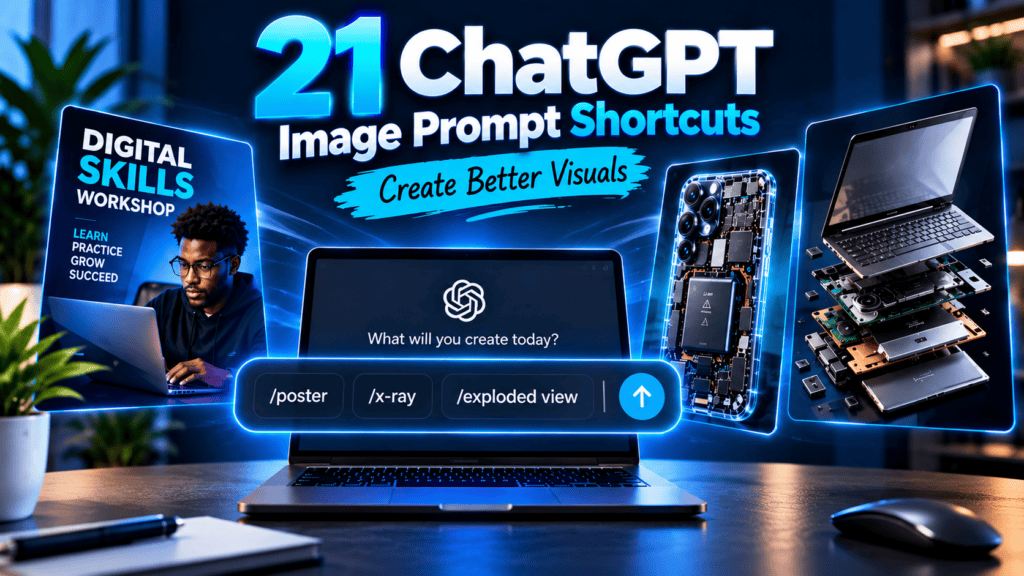
This guide delivers 21 ChatGPT image prompt shortcuts designed to serve as high-leverage starting points for technical illustrations, social media graphics, educational assets, product visuals, diagrams, and marketing collateral. Beyond the shortcuts themselves, you will learn how to systematically expand these frameworks to give ChatGPT the exact parameters needed for production-ready visuals.
Are ChatGPT Image Prompt Shortcuts Official Commands?
No. Treat the slash-prefixed examples throughout this guide as prompt shorthand rather than native, system-level ChatGPT commands.
For instance, formatting a prompt as:
/exploded view of a laptop
functions as a concise equivalent to writing out:
Create an exploded-view illustration of a laptop.
Official Guidance vs. Industry Shorthand
OpenAI’s documentation consistently emphasizes clear, descriptive natural language for image generation. Effective prompting frameworks dictate establishing core parameters explicitly, including:
- Purpose of the image
- Main subject and action or scene
- Visual style and framing
- Lighting and technical constraints
Despite not being hardcoded commands, terminology like “exploded view” functions as a recognized, high-leverage prompt pattern—even appearing in educational resources like OpenAI Academy to describe how separating parts communicates structural organization.
While ChatGPT features official starting templates for specific assets like posters and logos, these should be kept distinct from the broader collection of conceptual shortcuts used in advanced prompt engineering.
Key Takeaway: The leading slash is entirely optional. The real utility lies in the underlying visual concept and structural terminology that follows it.
A Simple Formula for Better ChatGPT Image Prompts
Before diving into the shortcuts, use this foundational framework to structure your prompts:
$$Visual \ format + subject + details + composition + style + lighting + text + constraints + aspect \ ratio$$
Practical Application
Instead of relying on a minimal shorthand like:
/poster for a digital skills workshop
Deploy a fully articulated prompt built on the formula:
Create a professional poster for a digital skills workshop titled “BUILD YOUR DIGITAL SKILLS.” Show a young professional working on a laptop, subtle AI-themed visual elements, dark navy background, bright blue accents, bold modern sans-serif typography, strong visual hierarchy, premium educational campaign aesthetic, vertical 4:5 composition. Keep all text clearly legible and do not include additional logos.
Prompt Length vs. Precision
While OpenAI guidelines note that image prompts do not inherently need to be long—often requiring just one to three concise sentences—the key driver of quality is precision. Brevity works only when every included word explicitly communicates vital constraints.
With this structural foundation established, explore the 21 ChatGPT image prompt shortcuts outlined below to systematically upgrade your visual outputs.
/exploded view — Separate an Object Into Its Components
An exploded view visually separates an object’s individual components while maintaining their spatial relationship to one another. This format is ideal for educational graphics, engineering concepts, electronics explainers, product presentations, and “how it works” content.
Example Prompt
/exploded view of a modern laptop showing the display, keyboard, battery, motherboard, cooling system, SSD and speakers, photorealistic technical illustration, components clearly separated, dark studio background, no brand logos
Adaptation Ideas
Apply this shortcut to cameras, smartphones, headphones, keyboards, watches, engines, home appliances, or fictional sci-fi hardware.
- Best for: Technical education, product explainers, electronics, engineering concepts, and educational social media graphics.
- Pro Tip: Explicitly list the key components you want visible rather than leaving the selection up to the model.
- Caveat: Treat AI-generated technical illustrations as conceptual assets rather than engineering-accurate blueprints. Always verify component placement and terminology if absolute technical precision is required.
/x-ray — Reveal What Is Hidden Inside
An X-ray prompt asks ChatGPT to render an object’s exterior transparent or translucent, bringing internal components into view while keeping the overall assembly intact.
Example Prompt
/x-ray of a modern smartphone showing the battery, camera modules, logic board, speakers and charging components through a transparent outer shell, realistic technical visualization, dark background, clearly visible internal components
Exploded View vs. X-Ray
While an exploded view physically pulls components apart in space, an X-ray keeps the structural assembly unified, using transparency to expose the interior architecture. Both serve as powerful ChatGPT image prompt shortcuts for breaking down complex hardware.
- Best for: Electronics explainers, conceptual anatomy, mechanical visualization, and educational infographics.
- Pro Tip: Explicitly define the aesthetic you want—whether a literal medical X-ray look, a transparent tech-shell style, or a photorealistic cut-away effect—as these yield drastically different visual styles.
/poster — Create Posters and Promotional Graphics
Use a poster instruction when you need to combine striking imagery, structured typography, and promotional design into a single cohesive composition. As one of the most versatile ChatGPT image prompt shortcuts, this format anchors campaign assets directly in your visual workflow.
Example Prompt
/poster for a digital skills workshop titled "BUILD YOUR DIGITAL SKILLS", modern professional design, laptop and AI-themed visuals, bold readable typography, dark blue background with bright blue accents, clear visual hierarchy, premium promotional design, vertical format
Built-In Capabilities
ChatGPT Images handles direct text rendering effectively, and the platform’s native experience also features pre-built poster templates that serve as helpful starting points for rapid ideation.
- Best for: Events, webinars, product launches, online courses, marketing campaigns, and social media promotions.
- Pro Tip: Always enclose your exact copy in quotation marks and explicitly instruct the model on which headline elements require the highest visual hierarchy.
/blueprint — Turn an Idea Into a Technical-Style Drawing
A blueprint prompt transforms an ordinary subject into a technical drawing styled after architectural or engineering documentation. Leveraging these specialized ChatGPT image prompt shortcuts gives technical and educational content a striking, structured aesthetic.
Example Prompt
/blueprint of a futuristic compact home office desk, orthographic technical drawing, front and side views, precise linework, dimension-style annotations, white lines on deep blue background, clean professional presentation
Applications & Caveats
- Best for: Architecture concepts, custom furniture design, hardware devices, fictional inventions, and technical social media content.
- Pro Tip: Specify orthographic views (such as front, side, or top-down angles) to enhance the architectural authenticity of the output.
- Safety Note: Treat AI-generated blueprints strictly as conceptual visualizations. Never rely on generated dimensions, scales, or structural annotations for actual construction, manufacturing, safety, or engineering production without professional verification.
/cutaway — Remove Part of the Exterior
A cutaway illustration removes or visually slices away a section of an object’s exterior, allowing viewers to see internal mechanisms and structural layouts in action. Incorporating this technique among your core ChatGPT image prompt shortcuts adds immediate depth to mechanical explanations.
Example Prompt
/cutaway illustration of a modern electric car showing the battery pack, electric motor, passenger cabin and major internal systems, realistic educational visualization, three-quarter view, clean background
Cutaway vs. X-Ray
While an X-ray visualization relies on transparency across the entire outer shell, a cutaway physically removes a localized section to expose the interior, making it distinct from other ChatGPT image prompt shortcuts like the transparent tech-shell style.
- Best for: Vehicles, architectural buildings, complex machinery, consumer electronics, and educational explainers.
- Pro Tip: Specify the exact angle of the slice (such as a corner section or a longitudinal cross-section) to ensure the model exposes the internal features you want to highlight.
/cross-section — Show an Internal Slice
A cross-section presents an object, structure, or natural environment as though it has been cleanly sliced through a specific plane. Utilizing these structural ChatGPT image prompt shortcuts lets you reveal spatial relationships and interior layouts that standard exterior views cannot show.
Example Prompt
/cross-section of a two-storey energy-efficient house showing the foundation, rooms, insulation, roof structure and ventilation system, clean architectural educational illustration
Spatial Layouts vs. Component Breakdowns
While an exploded view separates individual parts into space, a cross-section focuses heavily on how different layers, rooms, or internal zones interact along a single plane. This makes it an essential tool among your ChatGPT image prompt shortcuts for architecture and environmental design.
- Best for: Architectural home layouts, geographical earth layers, engineering assemblies, product anatomy, and educational science graphics.
- Pro Tip: Specify the cutting plane (such as a vertical slice, horizontal floor plan view, or diagonal cut) to dictate exactly how the interior is exposed to the viewer.
/infographic — Turn Information Into a Visual Explanation
An infographic prompt organizes complex data into a clear visual hierarchy rather than relying on standard photography or traditional illustrations. Utilizing these information-focused ChatGPT image prompt shortcuts allows you to structure processes and step-by-step guides cleanly.
Example Prompt
/infographic explaining five steps for protecting an online account, five clearly separated sections, simple security icons, bold headings, minimal text, modern blue and white design, vertical layout
OpenAI Guidance & Best Practices
OpenAI highlights that infographics work exceptionally well for explainers, labeled diagrams, timelines, and information-heavy assets. For dense layouts, the platform recommends prioritizing sharp text rendering and finishing complex compositions in a dedicated design suite when necessary.
As a core rule for your ChatGPT image prompt shortcuts, never attempt to cram an entire article or massive data set into a single AI-generated image; keep text concise and focused on high-level takeaways.
- Best for: Tutorials, statistical summaries, step-by-step processes, educational explainers, and high-engagement social media posts.
- Pro Tip: Specify the exact number of data blocks, columns, or steps you want displayed to prevent the model from generating random, unstructured text blocks.
/flowchart — Visualize a Process or Decision
A flowchart represents a sequence of steps, phases, or decisions using connected boxes, branching paths, and clear directional arrows. Incorporating this method into your repertoire of ChatGPT image prompt shortcuts lets you quickly transform abstract workflows into structured visual guides.
Example Prompt
/flowchart showing the content creation process: Research → Outline → Draft → Edit → Design → Publish → Analyze, clean professional diagram, large readable labels, simple arrows, white background
Workflow Mapping & Verification
- Best for: Step-by-step tutorials, business operations, decision-making trees, technical frameworks, and educational materials.
- Pro Tip: Explicitly list your sequence using arrows or bullet points in the prompt so the model accurately maps the logical progression from start to finish.
- Critical Warning: AI image generators prioritize overall visual composition over strict programmatic logic. For complex or mission-critical workflows, always verify every connection, label, and step for accuracy after generation.
/mind map — Organize Related Ideas Visually
A mind map places a core topic directly in the center, and branches related concepts outward in a radiating, non-linear structure. Utilizing these conceptual ChatGPT image prompt shortcuts helps you map out complex subject matter at a glance.
Example Prompt
/mind map with "DIGITAL SKILLS" in the center and branches for AI, data analysis, cybersecurity, digital marketing, content creation and web development, clean educational design, readable labels
Structuring for Clarity
- Best for: Brainstorming sessions, study guides, revision notes, content planning, and breaking down multi-faceted educational concepts.
- Pro Tip: Keep the number of primary branches manageable (typically 5 to 7 maximum) to ensure text legibility and prevent the model from overcrowding the outer edges of the composition.
/timeline — Show Events in Sequence
A timeline prompt helps present events, developmental stages, product milestones, or historical developments along a clear chronological axis. Utilizing these sequential ChatGPT image prompt shortcuts lets you map out complex progressions in a single glance.
Example Prompt
/timeline showing the evolution of a fictional startup from idea to launch, six milestones from January to June, horizontal layout, modern business infographic, large readable dates and short labels
Chronological Structuring & Fact-Checking
- Best for: Historical overviews, project management milestones, product roadmaps, career progression journeys, and startup growth stories.
- Pro Tip: When visualizing real historical data or actual project schedules, explicitly provide verified dates and milestones within your prompt rather than asking the model to recall or infer them.
/handwritten — Create a Handwritten-Note Aesthetic
A handwritten prompt introduces a human, analog touch to educational content, making digital explainers feel like personal study notes, classroom whiteboard breakdowns, or organized notebook journals. Integrating this stylistic approach into your go-to ChatGPT image prompt shortcuts is ideal for building approachable, high-engagement educational content.
Example Prompt
/handwritten study note explaining five ways to write better AI prompts, realistic notebook paper, black handwritten text, blue highlights, simple arrows and small doodles, clean organized layout
Managing Text Density & Polish
- Best for: Study guides, educational social media carousel posts, productivity tips, and creator-led learning assets.
- Pro Tip: Keep the text minimal and high-level. For dense multi-paragraph copy, generate the core structural design and aesthetic background with AI first, then overlay precise or lengthy text in a conventional design editor.
/sticky note — Present an Idea as a Quick Reminder
A sticky note visual creates an instant focal point for concise tips, daily reminders, impactful quotes, and bite-sized productivity advice. Leveraging these physical-world ChatGPT image prompt shortcuts adds a tactile, relatable element to digital feeds.
Example Prompt
/sticky note containing the text "Describe the result, not just the tool", yellow sticky note attached to a modern laptop, realistic desk environment, soft natural lighting, shallow depth of field
Best Practices for Micro-Content
- Best for: Quick daily tips, reminders, inspirational quotes, productivity hacks, and high-retention social media hooks.
- Pro Tip: Keep text exceptionally brief (under ten words when possible) to ensure the generator renders clean typography and avoids spelling artifacts within the compact note format.
/whiteboard — Explain a Concept Like a Lesson
A whiteboard prompt simulates the look of a strategist, consultant, or educator mapping out a framework during a live session. Using these collaborative ChatGPT image prompt shortcuts gives your content an instant workshop or masterclass aesthetic.
Example Prompt
/whiteboard explaining the AI content workflow: IDEA → RESEARCH → CREATE → EDIT → PUBLISH, clean marker handwriting, simple icons and arrows, realistic office whiteboard, readable text
Best Practices & Applications
- Best for: Step-by-step tutorials, virtual classroom content, business strategy frameworks, and educational social posts.
- Pro Tip: Specify marker colors (such as black, blue, and red) and request simple geometric framing to make the diagram look structured rather than messy.
/schematic — Visualize How Components Connect
A schematic prioritizes the functional relationships and pathways between different system components over hyper-realistic physical appearances. Leveraging these abstract ChatGPT image prompt shortcuts lets you map out complex networks, interconnected devices, and digital systems clearly.
Example Prompt
/schematic showing a simple smart-home system connecting a smartphone, Wi-Fi router, smart lights, security camera and smart thermostat, clean technical diagram, clear connection lines and labels
Systems Mapping & Safety Warnings
- Best for: Network topology, smart-home systems, electronics concepts, software architecture workflows, and educational system diagrams.
- Pro Tip: Specify line styles (such as solid paths for hardwired connections and dashed lines for wireless signals) to enhance the structural readability of the diagram.
- Safety Note: Treat generated schematics purely as conceptual learning aids. For real-world electrical wiring, network infrastructure, or safety-critical installations, always rely on verified technical engineering documentation.
/wireframe — Create a Basic Interface Structure
A wireframe establishes the underlying architecture and information hierarchy of a digital interface before aesthetic styling, color schemes, or branding are introduced. Incorporating this product-focused entry into your set of ChatGPT image prompt shortcuts accelerates early-stage UX brainstorming.
Example Prompt
/wireframe of a mobile learning app home screen showing navigation, course cards, progress tracker, search bar and profile section, grayscale UX wireframe, clean professional layout
UX Ideation vs. Validation
- Best for: Website mockups, mobile app layouts, software dashboards, UX brainstorming sessions, and digital product concepts.
- Pro Tip: Request grayscale styling and explicit UI elements (such as placeholder boxes for images and lines for body copy) to maintain a clean, low-fidelity prototype look.
- Caveat: AI-generated wireframes serve as fast visual aids for concept ideation, but they cannot replace genuine user research, functional prototyping, or accessibility testing.
/dashboard — Create a Data Interface Concept
A dashboard prompt helps you visualize how core metrics, charts, user controls, and status summaries come together within a single unified interface. Integrating this layout style into your set of ChatGPT image prompt shortcuts lets you rapidly prototype analytics tools and SaaS concepts.
Example Prompt
/dashboard for a content creator analytics platform showing total views, engagement rate, follower growth, top content and traffic sources, modern professional UI, clean data cards, desktop layout
Data Integrity & Visualization Best Practices
- Best for: SaaS product concepts, analytics platform mockups, pitch deck presentations, business intelligence ideas, and general UI/UX inspiration.
- Pro Tip: Specify visual data components—such as line graphs, pie charts, metric cards, or progress bars—to guide the model toward a balanced, structured dashboard grid.
- Important Note: Always use clearly fictional placeholders, rounded estimates, or your own sample data when generating conceptual dashboards. Never present AI-generated figures as real performance analytics.
/comparison — Put Two Concepts Side by Side
A comparison prompt divides a composition into distinct sections—such as a split-screen or dual-pane layout—allowing viewers to instantly analyze differences between two options, states, products, or approaches. Incorporating this method into your collection of ChatGPT image prompt shortcuts is ideal for highlighting contrasting scenarios.
Example Prompt
/comparison showing a cluttered home office versus an organized productive home office, split-screen composition, same camera angle, realistic photography, clear visual contrast, no text
Structuring Visual Contrast
- Best for: Before-and-after case studies, educational comparisons, product feature contrasts, and high-engagement social media graphics.
- Pro Tip: Explicitly instruct the model to maintain a consistent camera angle, lighting style, and framing across both sides of the split screen to ensure the visual contrast remains clean and deliberate.
- Important Note: When presenting factual product or service comparisons, always define your evaluation criteria from verified data first, using image generation solely to handle the visual presentation layer.
/annotated — Add Callouts to Important Features
An annotated illustration combines a primary image with precise callout lines, arrows, or labels pointing directly to key components. Utilizing these label-focused ChatGPT image prompt shortcuts bridges the gap between pure visual art and instructional graphics.
Example Prompt
/annotated illustration of a professional mirrorless camera with clear callouts identifying the lens, shutter button, viewfinder, LCD screen, mode dial and memory card compartment, clean educational layout
Best Practices for Instructional Assets
- Best for: Step-by-step tutorials, product education manuals, equipment guides, and technical explainers.
- Pro Tip: Explicitly list the exact parts you want called out and instruct the model to use simple connecting lines to keep the annotations clean and readable.
- Verification Note: Always cross-reference generated labels against reliable technical documentation before publishing educational material to ensure correct anatomical or mechanical terminology.
/product photo — Create Commercial-Style Product Imagery
A product photo prompt prioritizes commercial-grade presentation, professional studio lighting, surface textures, reflections, and precise camera composition. Incorporating this commercial style among your essential ChatGPT image prompt shortcuts allows you to rapidly prototype high-end marketing assets.
Example Prompt
/product photo of a fictional premium wireless keyboard on a dark studio surface, soft rim lighting, realistic reflections, three-quarter camera angle, shallow depth of field, luxury technology advertisement aesthetic, no logos
Commercial Prototyping & Best Practices
- Best for: Early-stage product design concepts, advertising mockups, e-commerce visual ideation, and high-impact marketing creatives.
- Pro Tip: Specify advanced lighting and material cues (such as soft rim lighting, matte metallic finishes, or subtle subsurface scattering) to elevate the realism well beyond a basic rendering.
- Important Note: When experimenting with conceptual designs, rely on fictional brand names or generic hardware to prevent audiences from mistaking AI-generated mockups for authentic photographs of real products.
/isometric — Show a Scene From an Elevated 3D Angle
An isometric illustration presents spaces, buildings, networks, or workflows from an elevated, three-dimensional perspective without converging vanishing points. Integrating these spatial ChatGPT image prompt shortcuts into your creative workflow allows you to build clean, stylized 3D concepts instantly.
Example Prompt
/isometric illustration of a modern remote worker's home office with desk, laptop, monitor, ergonomic chair, bookshelf and indoor plant, clean 3D illustration, soft lighting, minimal background
Spatial Layouts & Perspectives
- Best for: Interior design concepts, software architecture systems, fictional city scenes, operational workflows, and educational illustrations.
- Pro Tip: Specify a clean isolation background (like a solid neutral tone or pure white) to make the isometric cut-out object stand out clearly for digital presentations and landing pages.
/cheatsheet — Condense a Topic Into a Reference Graphic
A cheat sheet combines complex information into a single, compact visual reference guide. Utilizing these high-impact ChatGPT image prompt shortcuts allows you to distill multi-step frameworks into digestible, shareable assets.
Example Prompt
/cheatsheet titled "AI IMAGE PROMPT FORMULA" showing Subject + Composition + Style + Lighting + Details + Constraints, large readable typography, six clearly separated sections, clean modern educational design, vertical format
Best Practices for Reference Graphics
- Best for: Core learning resources, quick-reference desk guides, high-retention social media carousel posts, and student revision materials.
- Pro Tip: Focus exclusively on bullet points, formulas, or short checklists. If your topic requires dense paragraphs of explanation, direct users to a dedicated document or long-form guide rather than cramming text into the image graphic.
By treating these 21 ChatGPT image prompt shortcuts as structural anchors rather than rigid system commands, you can systematically bridge the gap between vague ideas and precise visual outputs.
Remember the core formula: combine your chosen format with explicit details covering the subject, composition, style, lighting, and constraints. Apply these frameworks to your technical diagrams, marketing assets, and educational workflows to eliminate guesswork and produce professional-grade visuals consistently.
How to Turn a Shortcut Into a High-Quality Prompt
The 21 ChatGPT image prompt shortcuts provide immediate conceptual direction, but the shortcut keyword is only the starting point.
Consider a scenario where you need commercial product imagery. A weak, unoptimized prompt looks like this:
/product photo of headphones
By contrast, a highly controlled version expands those parameters into a production-ready instruction:
Create a premium product photograph of fictional over-ear wireless headphones positioned upright on a matte black pedestal. Three-quarter camera angle, soft studio key light from the left, subtle rim lighting, realistic material texture, shallow depth of field, dark charcoal background, luxury technology advertising aesthetic, no logo, no text, square composition.
Anatomy of an Advanced Prompt
The expanded version systematically locks down every crucial variable:
- Subject: Fictional over-ear wireless headphones
- Composition: Upright on a matte black pedestal in a square layout
- Camera Angle: Three-quarter view
- Lighting: Soft studio key light from the left with subtle rim lighting
- Materials & Detail: Realistic surface textures and tactile finishes
- Background: Dark charcoal studio environment
- Style: Luxury technology advertisement aesthetic
- Constraints: Strictly no logos or text
The Core Skill
Mastering this approach represents the foundational skill of advanced prompt engineering: the shortcut gets you into the right visual category, while specific parameters give you absolute creative control.
How to Improve Text Inside ChatGPT-Generated Images
While text rendering has improved substantially in newer ChatGPT image-generation systems, complex visual layouts and high-density compositions still require careful inspection. OpenAI explicitly recommends keeping text instructions highly precise to prevent spelling errors or unwanted artifacts.
When typography matters in your ChatGPT image prompt shortcuts, apply these practical techniques:
- Enclose exact copy in quotation marks to ensure the model captures the intended wording.
- Keep copy concise to maximize legibility and minimize rendering errors.
- Specify placement by stating precisely where the text should appear within the layout.
- Define visual hierarchy (headline, subheading, caption, or label) to guide the model’s structural design.
- Detail typographic characteristics such as bold weights, sans-serif styles, alignment, or relative sizing.
- Explicitly include negative constraints like “No other text” when extra stray characters or random letters would ruin the asset.
- Review every detail by thoroughly checking spelling, numbers, labels, and factual data before publishing.
Practical Example
Instead of leaving copy open to interpretation, structure text instructions with strict parameters:
Add the headline “LEARN AI SKILLS” in large bold white sans-serif typography centered at the top. Add no other text.
Advanced Workflows
For information-heavy assets like dense infographics, OpenAI recommends requesting sharp text rendering directly in your prompt while keeping final polishing in a dedicated design suite as a fallback for production-ready outputs.
Don’t Regenerate Everything When One Detail Is Wrong
One of the most efficient workflow improvements in prompt engineering is learning to iterate. When you like 90% of a generated image but dislike a minor element—such as a headline or a specific color accent—you do not need to restart from scratch with a completely new prompt.
Instead, leverage conversational image editing instructions:
Keep the composition, subject, lighting, and background unchanged. Make only the headline larger and easier to read.
The Iteration Workflow
OpenAI explicitly recommends small, targeted revisions that communicate precisely what needs to change while explicitly stating what must remain fixed. Because modern ChatGPT image generation allows users to edit existing outputs through conversational follow-ups, your production loop shifts from a guessing game into a controlled refinement process:
$$\text{Generate} \rightarrow \text{Inspect} \rightarrow \text{Identify One Problem} \rightarrow \text{Refine} \rightarrow \text{Inspect Again} \rightarrow \text{Export}$$
Adopting this iterative habit gives you vastly superior control and saves significant time compared to repeatedly starting over from scratch.
Common ChatGPT Image Prompting Mistakes
Avoiding common pitfalls prevents wasted iterations and accelerates your visual creation workflow. Review these frequent errors when applying your ChatGPT image prompt shortcuts:
- Treating shortcuts like magic commands: Shortcuts such as
/posterestablish a visual format, but they cannot automatically know your target audience, exact headline copy, color palette, or hierarchy unless you provide surrounding context. - Requesting too much text: Image generators are not word processors or page-layout tools. Keep generated visual copy brief and focused.
- Leaving the composition unspecified: Vague instructions like “create a picture of a laptop” leave crucial framing choices—such as whether the device is centered, top-down, desk-level, or at a three-quarter angle—up to random chance.
- Forgetting the output format: A 16:9 blog banner serves a completely different design purpose than a 9:16 social vertical graphic. Explicitly state your desired aspect ratio or format in the prompt.
- Assuming technical diagrams are accurate: A generated schematic, blueprint, or exploded view can look polished while displaying impossible component placements or incorrect labels. Always treat technical generations as conceptual art until verified.
- Trying to fix everything in one revision: If an output is 90% correct, avoid starting from scratch. Use incremental, targeted feedback to maintain consistency during refinement.
Which ChatGPT Image Prompt Shortcut Should You Use?
To help you select the right framework at a glance, use this quick-reference lookup table matching your visual goal to the appropriate ChatGPT image prompt shortcut:
| If You Want to Create… | Start With Shortcut |
| Separated product components | /exploded view |
| Transparent internal view | /x-ray |
| Promotional graphic | /poster |
| Technical drawing aesthetic | /blueprint |
| Partially opened object | /cutaway |
| Internal slice | /cross-section |
| Visual explanation | /infographic |
| Process diagram | /flowchart |
| Connected ideas | /mind map |
| Chronological sequence | /timeline |
| Notebook-style content | /handwritten |
| Quick reminder | /sticky note |
| Classroom-style explanation | /whiteboard |
| System connections | /schematic |
| App or website structure | /wireframe |
| Analytics interface concept | /dashboard |
| Side-by-side visual | /comparison |
| Labeled object | /annotated |
| Commercial product visual | /product photo |
| Elevated 3D illustration | /isometric |
| Quick-reference graphic | /cheatsheet |
Would you like to assemble this complete collection of shortcuts into a final downloadable guide or review another section of the article?
Can You Use Normal Language Instead?
Absolutely.
You could write:
/blueprint of a modern house
Or you can use plain, descriptive language:
Create a blueprint-style technical illustration of a modern house.
In many cases, the second approach makes your exact creative intention even clearer to the model. This is why it is best to think of these examples as visual prompt shortcuts rather than a rigid, hidden command language.
Moving Beyond Memorization
ChatGPT is designed from the ground up to generate high-quality visuals directly from natural-language descriptions. Once you understand that distinction, you no longer need to rely on memorizing specific slash phrases—you can invent your own customized styling cues on the fly.
For example, you can easily adapt your approach using natural framing:
Create a museum-display-style illustration of...Create a textbook-diagram-style visualization of...Create a premium ecommerce product photograph of...
Ultimately, the real superpower in AI visual creation isn’t memorizing shortcuts; it’s learning how to clearly articulate and communicate your complete visual intent.
What are ChatGPT image prompt shortcuts?
They are short visual descriptors that quickly establish the type of image you want, such as an exploded view, X-ray visualization, poster, blueprint, flowchart, or product photograph. In this article, the slash notation is used as convenient shorthand rather than as a claim that every phrase is an official ChatGPT command.
Do I need to type / before the shortcut?
No. Plain language works. For example, you can ask ChatGPT to “create an exploded-view illustration of a laptop” instead of typing /exploded view.
Can ChatGPT create posters with text?
Yes. ChatGPT Images can follow instructions to include text, and the current Images experience also includes templates such as posters. OpenAI recommends being specific about the text you want and its appearance and placement.
Can I edit the generated image afterward?
Yes. You can select a generated image or upload an existing image and describe the changes you want. ChatGPT Images also supports targeted editing of specific areas.
Are AI-generated technical diagrams accurate?
Not necessarily. They can be excellent explanatory or conceptual visuals, but technical labels, dimensions, connections, and component locations should be checked against authoritative sources before the image is used for engineering, medical, safety, or other high-stakes purposes.
What’s the best ChatGPT image prompt structure?
There is no single mandatory formula, but a useful structure is: Visual format + subject + important details + composition + style + lighting + text + constraints + aspect ratio.
You do not need every element in every prompt. Include the details that materially affect the result.
In Conclusion
The most important takeaway from these ChatGPT image prompt shortcuts is that you do not need to memorize a rigid list of special commands.
Terms like exploded view, X-ray, poster, blueprint, cutaway, infographic, wireframe, isometric, and product photo give ChatGPT useful foundational direction. However, they become infinitely more powerful when you layer in the specific subject matter, composition, lighting, style, text parameters, aspect ratio, and constraints that matter to your project.
Your Next Step
Start with one simple experiment today:
- Choose an object near you and try:
exploded view of [OBJECT]... - Or pick something you want to promote and try:
poster for [EVENT OR PRODUCT]...
Then, refine your results iteratively, adjusting one element at a time. Mastering that iterative workflow—rather than relying on a slash command—is what transforms generic AI outputs into precise, professional-grade visuals.
With this final section in place, your comprehensive educational guide on “21 ChatGPT Image Prompt Shortcuts to Create Better Visuals” is complete. Would you like to review the complete table of contents or organize the final draft for publishing?