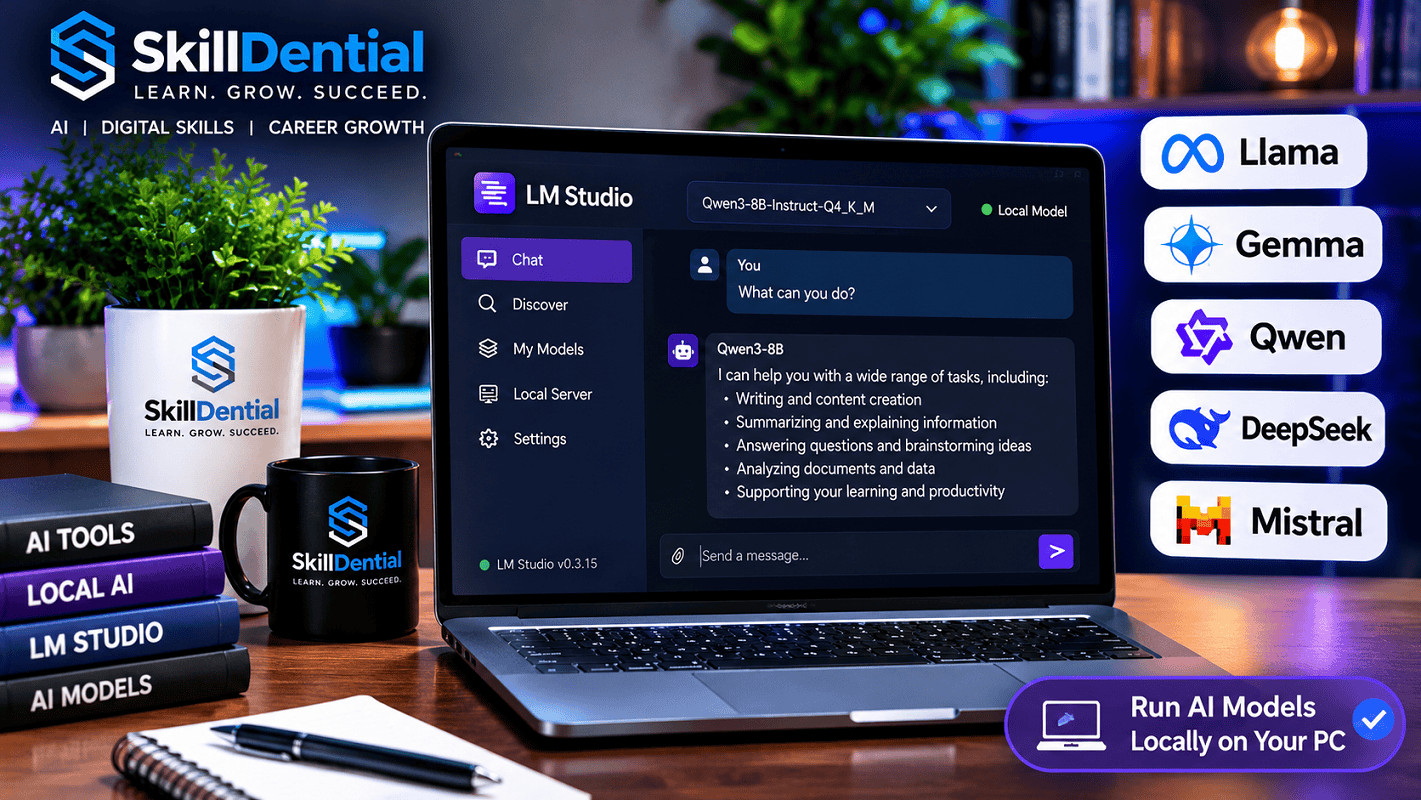
Artificial intelligence tools like ChatGPT, Gemini, and Claude have revolutionized productivity, but they share a major limitation: they rely entirely on cloud infrastructure. This means your data goes to external servers, and you need an active internet connection.
But what if you could run powerful AI models directly on your own hardware—completely offline, with total privacy and zero usage fees?
That is where LM Studio comes in.
LM Studio is a desktop application that lets you easily download and manage open-weight large language models (LLMs)—such as Llama, Qwen, Gemma, and Mistral—locally on your PC or Mac. By providing a clean graphical user interface, it eliminates the need for complex command-line scripts or heavy Python setups, making local AI accessible to everyone.
Once you download LM Studio, you can:
- Run advanced AI models completely offline without internet dependency.
- Interact privately with your local documents using built-in RAG capabilities.
- Host a local, OpenAI-compatible API server for your development workflows.
In this comprehensive guide, you will learn how to download LM Studio, configure your system for local inference, select the right model variant for your hardware, and launch your own private AI assistant.
Understanding LM Studio: The Local AI Engine
LM Studio is a desktop application designed to make running large language models (LLMs) locally fast, visual, and accessible.
Instead of routing your prompts through a cloud-based chatbot, LM Studio allows you to pull model files directly onto your machine and execute them using your computer’s local hardware (CPU, GPU, or Apple Silicon).
By providing a clean graphical interface, the application removes the friction of complex command-line environments. It manages the entire workflow—from discovery and downloading to memory allocation and interactive chatting.
Core Capabilities & Features
- In-App Model Hub: Search, browse, and download LM Studio-compatible open-weights models (such as Llama, Qwen, Mistral, and Gemma) directly from Hugging Face repositories.
- Offline Execution: Run advanced AI models completely disconnected from the internet once the model files are stored locally.
- Hardware Utilization: Leverage your local CPU and dedicated GPU (Nvidia/AMD) or Apple Silicon unified memory for high-speed inference.
- Local RAG (Document Chat): Upload local files (
.pdf,.docx, etc.) to query and analyze private documents securely without cloud exposure. - OpenAI-Compatible Local Server: Spin up a built-in local API server (
http://localhost:1234) to connect your local model to custom developer apps, extensions, or coding environments. - Multi-Model Management: Easily switch between different quantization variants (e.g.,
Q4_K_M,Q8_0) to balance memory consumption and generation quality.
Crucial Distinction: LM Studio is not an AI model itself. It is the software environment and runtime engine that empowers you to download LM Studio-compatible files and orchestrate them on your PC.
Why Should You Use LM Studio?
The benefits you’ve outlined highlight why running open-weights AI locally has become a major movement for developers, privacy advocates, and power users. Let’s look at a refined, high-impact version of your text optimized for clarity, structure, and readability.
Why Should You Download LM Studio?
Running open-weights AI locally via a dedicated desktop environment unlocks significant advantages over traditional cloud-based workflows:
Total Offline Functionality
One of the greatest benefits of using LM Studio is its ability to run downloaded models completely offline.
- Once you download LM Studio, fetch your model files, and cache the necessary runtimes, you can disconnect from the internet entirely.
- This makes local AI ideal for traveling, working in remote locations with unstable connections, or maintaining uninterrupted productivity during network outages.
Absolute Data Privacy & Control
When working with private notes, internal business documents, or sensitive research, data leakage is a primary concern.
- Because LM Studio processes inferences directly on your hardware, your prompts, chat histories, and attached documents stay strictly on your local machine and are never transmitted to external cloud servers.
- Note: While inference is 100% local, initial tasks like browsing the model hub, downloading weights, or checking for software updates do require an active internet connection.
Access to a Diverse Ecosystem of Open-Weights Models
Instead of being locked into a single ecosystem, LM Studio allows you to experiment with a vast library of frontier open-weights models from leading labs and developers, including:
- Meta Llama (general reasoning and coding)
- Google Gemma (lightweight, efficient performance)
- Alibaba Qwen (multilingual and mathematical strength)
- Mistral (high efficiency and speed)
- DeepSeek (advanced reasoning and technical tasks)
- OpenAI GPT-OSS (open-weights releases). Every model features different strengths, parameter sizes, and licensing terms, giving you the flexibility to swap models depending on your exact task.
Eliminate Recurring Cloud Subscriptions
Cloud-based AI providers often charge monthly subscription fees for access to their top-tier models.
- By running downloaded models locally, you eliminate recurring subscription costs.
- Trade-off: While the software and models are free to use, running local AI requires upfront hardware investment (such as a capable GPU with ample VRAM) and consumes local electrical power. Always check individual model licenses for commercial usage rights.
Local Document Chat (RAG)
LM Studio supports interactive document-based conversations, allowing you to attach local files—such as PDFs, DOCX, and TXT files—and query their contents directly.
- This feature is invaluable for studying research papers, summarizing long-form reports, or extracting insights from local files without exposing proprietary information to third-party cloud services.
LM Studio System Requirements
Running a large language model locally is resource-intensive, requiring significantly more computing power than standard desktop software. Before you download LM Studio, verify that your hardware and operating system meet the necessary specifications to ensure smooth local inference.
Core Hardware Considerations
When evaluating your PC or Mac for local AI, focus on these critical components:
- Operating System: Windows, macOS, or Linux compatibility.
- System RAM: Serves as the primary workspace for loading model weights if they exceed your GPU memory.
- GPU & VRAM: The single most important factor for inference speed. Dedicated video memory (VRAM) keeps the model calculations on the graphics card rather than falling back to slower system RAM.
- Storage Space: Model files range anywhere from 2GB to over 20GB each, meaning solid-state drive (SSD) storage is strongly recommended for fast loading times.
- Processor Compatibility: Modern multi-core processors with vector extension support.
Official Operating System Requirements
According to LM Studio’s system documentation, minimum and recommended specifications vary by platform:
| Operating System | Compatibility & Architecture | Recommended Hardware Specs |
| Windows | x64 and supported ARM64 systems | • x64 processors with AVX2 instruction support • At least 16GB of System RAM • At least 4GB of dedicated GPU VRAM (NVIDIA or AMD) |
| macOS | Apple Silicon Macs (M1, M2, M3, M4) | • macOS 14.0 or newer • 16GB+ unified memory recommended (Note: 8GB Macs can run smaller 1B–3B models with modest context sizes) • Intel-based Macs are not supported |
| Linux | Supported x64 and ARM64 systems | • Ubuntu 20.04 or newer • Distributed in AppImage format • 16GB+ RAM and a dedicated GPU recommended |
Compatibility requirements evolve as new model architectures and software updates roll out. Always check the official guidelines before installation. Official System Requirements
How Much RAM Do You Need to Run AI Models?
RAM (and VRAM) is the single most critical bottleneck when running local AI models. Because model weights must be loaded entirely into memory during inference, your hardware capacity directly dictates which models you can run and how fast they will generate text.
The following practical guide breaks down RAM requirements by tier, keeping in mind that your operating system and background apps also require breathing room:
| System RAM / VRAM | Practical Capability & Real-World Expectations |
| 8 GB | Very restrictive. Limited to tiny, highly quantized models (e.g., 1B to 3B parameters). Expect slow speeds and tight context window limitations. |
| 16 GB | The practical baseline. Allows you to comfortably run smaller 7B to 8B models (like Llama 3 8B or Mistral 7B) using 4-bit (Q4_K_M) quantization. Context length and multitasking will be constrained. |
| 32 GB | High flexibility. Empowers you to run medium-sized models (8B to 14B) with higher quantization quality (Q8_0) or larger context windows, plus run other desktop applications simultaneously. |
| 64 GB or more | Power-user tier. Provides the freedom to load larger frontier models (e.g., 32B+ parameters) or handle massive context lengths for document analysis (RAG). |
Key Variables Beyond Raw RAM
A common misconception is that a computer with 16GB of RAM can automatically run any 7B or 8B model. In practice, local AI performance depends on several compounding factors:
- System RAM vs. VRAM (GPU): If your model fits entirely inside your graphics card’s dedicated VRAM (e.g., an Nvidia RTX card), inference runs lightning-fast. If VRAM overflows, the model spills over into system RAM, causing a steep drop in generation speed.
- Quantization: Compression formats like
Q4_K_M(4-bit) shrink a model’s file size dramatically, allowing a model that would normally require 16GB of memory to run comfortably in 8GB to 10GB. - Context Window Length: Processing long documents or massive chat histories consumes extra memory (“KV cache”). Expanding context from 2,048 tokens to 16,384 tokens requires significantly more RAM.
Always check a model’s estimated memory footprint on its Hugging Face repository or inside LM Studio before hitting download.
How to Download LM Studio on Your PC
Getting started with local AI is straightforward. To safely download LM Studio and set it up on your desktop, follow this step-by-step walkthrough:
Visit the Official LM Studio Website:
Open your web browser and navigate directly to the official download portal. Always pull the software directly from the official source and avoid third-party mirrors to ensure file integrity and security.
Select Your Operating System:
LM Studio offers dedicated installers tailored for major desktop operating systems. Choose the correct build for your machine:
- Windows: Select the Windows x64 or ARM64 installer.
- macOS: Choose the Apple Silicon build matching your processor family (
M1,M2,M3, orM4). - Linux: Choose the compatible AppImage package for your architecture.
Download the Installer Package:
Click the download button for your operating system and wait for the file transfer to complete. Because desktop application packages bundle runtime environments, file sizes can be substantial—ensure you have a stable internet connection.
Run the Installer & Launch:
Locate the downloaded file on your computer and execute it:
- Windows: Run the
.exeinstaller and follow the setup wizard prompts. - macOS: Drag the application bundle into your Applications folder.
- Linux: Make the AppImage executable (
chmod +x) and launch it.
Once installed, open LM Studio to initialize the workspace. You are now ready to explore the model discovery hub and load your first local AI model!
How to Download AI Models Using LM Studio
After you install LM Studio, the next step is to find and download an open-weights AI model to run locally. Because LM Studio integrates directly with Hugging Face, you can browse, select, and pull model files entirely from within the desktop application.
Open the Discover (Search) Tab:
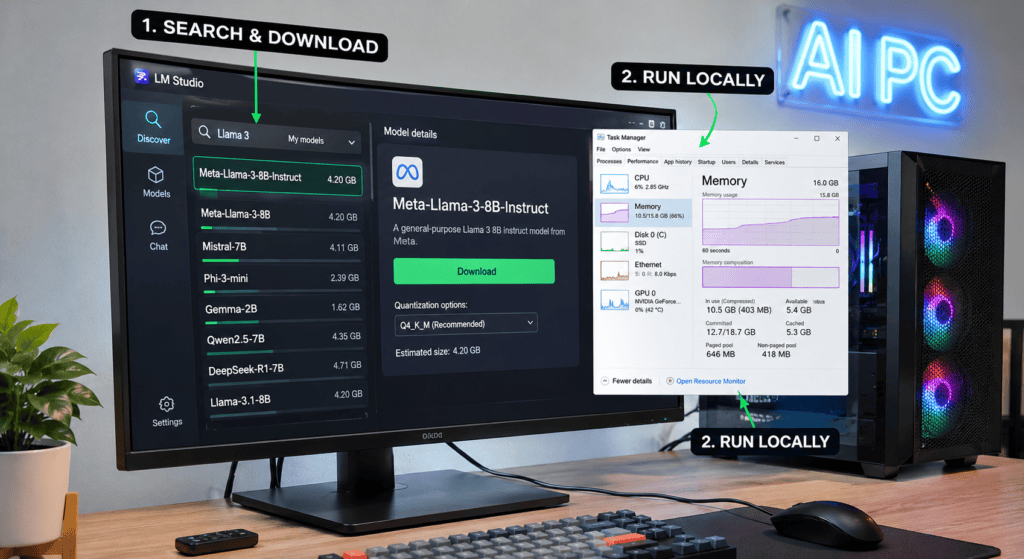
Launch LM Studio and go to the Discover tab (the magnifying glass icon on the left sidebar). This interface serves as your primary search engine for open-weights AI models, featuring curated recommendations alongside a search bar to find specific model families like Llama, Qwen, Gemma, Mistral, and DeepSeek.
Search for Your Desired AI Model:
Type the name or family of the model you want to explore into the search bar (e.g., Llama 3, Qwen 2.5, or Mistral).
As results load, review the model cards carefully. Pay attention to:
- Model Architecture & Creator: Ensuring it comes from a trusted developer (like Meta or Alibaba).
- Parameter Size: Indicating the scale of the model (e.g., 3B, 7B, 8B, or 70B).
- Hardware Requirements: Initial memory estimates displayed by the interface.
Select the Right Quantization Variant:
When you click on a model, you will typically see multiple files listed under the download section. These represent different quantization levels (compression techniques that reduce precision to shrink file size and memory requirements).
- Common variants include
Q4_K_M(4-bit, best balance of size and quality for most PCs),Q5_K_S(5-bit, higher quality), andQ8_0(8-bit, near original quality but requires more RAM/VRAM). - Beginner Tip: Do not automatically choose the largest file or highest precision variant. Start with a smaller model or a 4-bit (
Q4_K_M) quantization that comfortably fits within your system’s hardware limits.
Download the Model Files:
Click the Download button next to your chosen file variant. Model sizes typically range from 2GB to over 10GB, so download times will depend on your internet connection speed.
Ensure you have ample solid-state drive (SSD) storage space available before initiating the download. Once complete, the model file is safely cached on your machine and ready to load into memory.
Best AI Models to Explore With LM Studio
As you build out your local AI toolkit using LM Studio, choosing the right model family depends heavily on your specific use cases—whether that is general writing, technical coding, logical reasoning, or fast daily assistance.
Here are the top open-weights model families worth exploring as a beginner, along with practical selection guidelines:
Llama (Meta)
Developed by Meta, Llama is the gold standard baseline for open-weights AI.
- Strengths: Excellent general-purpose conversation, strong instruction-following, writing assistance, and general reasoning.
- Why explore it: Smaller parameter variants (like 3B or 8B versions) run exceptionally well on standard consumer hardware using 4-bit quantization, making them the ideal starting point for your first local setup.
Qwen (Alibaba)
Built by Alibaba, the Qwen model family is widely praised for its high performance across multiple domains.
- Strengths: Exceptional multilingual support, strong mathematical reasoning, coding proficiency, and structured data handling.
- Why explore it: If you need a local assistant that excels at technical tasks, math, or non-English languages, Qwen models deliver impressive benchmark results relative to their file size.
Gemma (Google)
Gemma represents Google’s family of lightweight, open models built from the same research and technology used to create Gemini.
- Strengths: Highly efficient performance-to-size ratio, tuned specifically for safe and responsive text generation.
- Why explore it: Gemma models are fantastic if your hardware is slightly constrained (such as mid-tier laptops or 8GB/16GB configurations) because they punch well above their weight class.
Mistral (Mistral AI)
Mistral AI specializes in high-efficiency, high-speed open-weight models designed for dense performance.
- Strengths: Fast inference speeds, strong concise writing, and reliable general-purpose execution.
- Why explore it: Mistral models are ideal when you want snappy, responsive chat generation without waiting excessively for token output.
DeepSeek
DeepSeek offers advanced model architectures that have gained massive popularity for specialized tasks.
- Strengths: Advanced logical reasoning, complex code generation, and step-by-step problem-solving.
- Why explore it: Perfect for developers and technical users looking to test cutting-edge reasoning capabilities locally—just ensure your hardware has adequate RAM/VRAM before pulling larger variants.
Critical Model Selection Tip
Do not choose an AI model based on its brand name or hype alone. Before you download any file inside LM Studio, evaluate these core metrics:
- Parameter Count: (e.g., 3B, 8B, 14B) Dictates the base scale of the model.
- Quantization Level: (e.g.,
Q4_K_MvsQ8_0) Determines compression and memory footprint. - Licensing Terms: Check whether the model permits commercial use if you plan to build business applications.
- Context Length: Measures how much text or data the model can hold in memory during a single session.
Rule of Thumb
A smaller model (3B or 8B at Q4_K_M) that runs smoothly and instantly on your local machine is infinitely more useful than a massive frontier model that overwhelms your system RAM and crawls at a fraction of a word per second.
How to Use LM Studio Without Internet
One of the most powerful advantages of setting up your local AI environment is complete independence from cloud servers. Once you download LM Studio, fetch your model files, and cache the necessary software components, you can disconnect your computer from the internet entirely and run your AI assistant offline.
What You Can Do Fully Offline
When operating without an internet connection, your workflow remains fully functional for core AI tasks:
- Chat with Downloaded Models: Conduct text conversations, ask questions, and iterate on prompts with any model already stored on your local drive.
- Generate Content & Brainstorm: Create outlines, draft emails, write code, and brainstorm ideas without data leaving your machine.
- Summarize & Analyze Text: Process long-form notes and write summaries instantly.
- Local Document Chat (RAG): Query attached local files (
.pdf,.docx, etc.) using the built-in document processing engine. - Run a Local API Server: Spin up your OpenAI-compatible local server (
http://localhost:1234) to power offline developer applications, extensions, or custom scripts.
What Still Requires an Internet Connection
While inference and local data processing happen entirely on your hardware, certain administrative actions require web connectivity:
- Discovering and Searching: Browsing the online Hugging Face model repository through the Discover tab.
- Downloading New Assets: Pulling additional model files, quantizations, or new software runtimes.
- Checking for Updates: Verifying application patches and software version upgrades.
Best Practice
Before traveling or working in remote environments with unstable or restricted internet access, open LM Studio, download LM Studio model variants you plan to test, and verify they load successfully into memory while connected. Official Offline Guide.
How to Chat With Documents Using LM Studio (Local RAG)
Beyond general chat and content generation, LM Studio features built-in document interaction capabilities. This allows you to query your own private files locally using Retrieval-Augmented Generation (RAG)—without uploading sensitive reports or study materials to external cloud servers.
Why Use Local Document Chat?
Local RAG brings cloud-level document analysis directly to your desktop while preserving total data privacy:
- Summarize PDF Reports: Instantly distill dense research papers, financial statements, or whitepapers into executive summaries.
- Extract Key Insights: Pull specific data points, clauses, or figures out of long-form documents.
- Study & Review Materials: Query lecture notes, textbooks, or technical documentation to test your understanding or clarify complex concepts.
- Troubleshoot Offline: Review internal manuals or guides when traveling without an active internet connection.
Step-by-Step Guide to Chatting With Documents
Discover how to query your private PDF, DOCX, and TXT files securely on your local hardware. This step-by-step walkthrough covers attaching documents, indexing files, and leveraging local Retrieval-Augmented Generation (RAG) to analyze research, extract insights, and summarize reports without sending data to the cloud.
Navigate to the Chat Section:
Open LM Studio and make sure you have successfully loaded your preferred model into memory via the Chat interface.
Attach Your Document:
Locate the attachment control or document upload icon (often represented by a paperclip or + button) inside the chat input pane.
Select and attach your supported local files—such as PDFs, DOCX files, or plain text (.txt) documents.
Formulate Your Query:
Type a specific question or prompt regarding the attached file. For example:
- “Summarize the main findings outlined in Section 3 of this report.”
- “Extract all deadlines mentioned in this document into a bulleted list.”
- “Explain the methodology used in this research paper in simple terms.”
Generate and Review Responses:
Submit your prompt. LM Studio will use local RAG mechanics to scan the file, retrieve the most relevant segments, and feed them into the model’s context window to generate an accurate, text-backed response.
Understanding How Local RAG Works
When you attach a file, LM Studio breaks the document down into manageable segments, indexes them, and pulls only the sections relevant to your prompt. This allows models to handle massive files that would normally exceed their standard context limits.
Critical Verification Note: AI models can occasionally hallucinate or misinterpret complex data. Always cross-reference important answers, financial figures, or legal requirements directly against your source document. Official RAG Guide.
LM Studio vs. ChatGPT: What’s the Difference?
While both LM Studio and ChatGPT provide conversational interfaces for interacting with large language models, their underlying architectures, data privacy models, and deployment strategies are fundamentally different.
ChatGPT is a fully hosted, cloud-managed software-as-a-service (SaaS) provider, whereas LM Studio is a local desktop client that empowers you to download LM Studio model variants and run open-weights AI directly on your own hardware.
Feature Comparison Matrix
| Feature | LM Studio (Local AI) | ChatGPT (Cloud AI) |
| Architecture | Runs locally on your PC or Mac hardware | Hosted entirely on OpenAI’s cloud infrastructure |
| Offline Operation | Yes (fully operational offline after setup) | No (requires an active internet connection) |
| Data Privacy | Absolute (prompts and documents never leave your local machine) | Cloud-dependent (data is processed and stored on remote servers subject to provider policies) |
| Model Selection | High Flexibility (choose from thousands of open-weights models like Llama, Qwen, and Mistral) | Ecosystem Locked (restricted strictly to OpenAI’s proprietary model lineup) |
| Document Processing (RAG) | Local & Private (indexes local PDF, DOCX, and TXT files on your drive) | Cloud-Based (uploads and processes files via OpenAI’s hosted environment) |
| Hardware Requirements | User-Managed (demands adequate RAM, CPU, and GPU VRAM) | Zero Hardware Burden (runs smoothly on any device with a web browser or app) |
| Local API Server | Built-in (runs an OpenAI-compatible endpoint at localhost:1234) | Not Applicable (relies on OpenAI’s external cloud API endpoints) |
Choosing the Right Tool for Your Workflow
Neither platform is universally superior; the optimal choice depends entirely on your technical requirements, privacy constraints, and hardware availability:
- Choose ChatGPT if: You want zero setup friction, need access to state-of-the-art proprietary frontier reasoning models, prefer offloading heavy compute to the cloud, or want seamless syncing across multiple mobile and desktop devices.
- Choose LM Studio if: You work with sensitive internal data that cannot leave your device, need guaranteed offline functionality while traveling, want to eliminate recurring cloud subscription fees, or wish to experiment freely with diverse open-weights model families.
Many power users leverage both: using cloud assistants for heavy frontier reasoning and deploying LM Studio for private document analysis, offline coding, and zero-cost experimentation.
Common LM Studio Problems and How to Fix Them
While LM Studio simplifies running open-weights AI on local hardware, users—especially beginners—frequently run into performance bottlenecks, memory limits, and loading errors.
Here is a practical troubleshooting guide to diagnose and resolve the most common issues you may encounter after you download LM Studio.
LM Studio Is Running Slowly (Low Generation Speed)
If your model is generating tokens at a crawl (e.g., less than 2–5 tokens per second), your system is likely struggling with hardware constraints or memory bottlenecks.
- The Fix:
- Shift to GPU Offloading: Ensure your dedicated graphics card (Nvidia/AMD) is handling the workload rather than falling back entirely to your CPU. Check the model loader settings and increase GPU layer offloading.
- Switch to a Lighter Quantization: If you are running an 8-bit (
Q8_0) or unquantized model, switch to a 4-bit (Q4_K_M) version. It dramatically reduces memory bandwidth pressure while preserving text quality. - Trim the Context Length: Lower the context window setting (e.g., from 32,768 tokens down to 4,096 or 8,192) to conserve memory and speed up processing.
- Close Resource-Heavy Apps: Shut down memory-hungry browsers, video editors, or background tasks before loading your model.
Out-of-Memory (OOM) Errors / Crash on Load
Out-of-memory errors occur when the model’s weight footprint plus the context cache exceeds your system’s available RAM or GPU VRAM.
- The Fix:
- Downgrade Parameter Size: If an 8B parameter model crashes your system, try a smaller 3B variant (e.g., Llama 3 3B or Gemma 2B).
- Check VRAM vs. System RAM Spillover: If the model size exceeds your graphics card’s dedicated VRAM, it spills over into system RAM. If your system RAM is also maxed out, the application will crash.
- Lower Context Cache: Large context windows consume massive amounts of memory. Restrict the context length in the model loader settings before hitting load.
AI Model Download Fails or Hangs
Because model files range from 2GB to over 20GB, downloads can occasionally stall due to network interruptions, timeouts, or disk space limits.
- The Fix:
- Verify Disk Space: Ensure your system drive (or the designated LM Studio model storage directory) has ample free Solid-State Drive (SSD) space.
- Check Network Stability: Switch to a wired connection or stable Wi-Fi network if downloads repeatedly drop.
- Restart the Download: Clear corrupted partial downloads from your local model directory and re-initiate the download through the Discover tab.
The Model Fails to Load (“Error Loading Model”)
If LM Studio throws an error right as you attempt to load a downloaded model into memory, it usually points to an architecture incompatibility or corrupted file weights.
- The Fix:
- Check Software Compatibility: Ensure your version of LM Studio is up to date. Older application builds may not support newly released model architectures (e.g., updated attention mechanisms or tokenizer formats).
- Verify File Integrity: Delete the faulty
.gguffile and re-download it to ensure the file wasn’t corrupted during transfer. - Inspect Application Logs: Open the app logs or error console inside LM Studio to read the specific stack trace or error code causing the failure.
The AI Model Produces Inaccurate or Gibberish Answers
Local models are bound by their parameter size, training data, and quantization level. A small model running locally will not automatically match the advanced reasoning of massive cloud models like GPT-4 or Claude.
- The Fix:
- Upgrade Model Scale: If your hardware allows (e.g., you have 32GB+ RAM or a high-VRAM GPU), step up from a 3B model to a more capable 8B or 14B open-weights model.
- Refine Your Prompting: Use structured, clear system prompts and give the model step-by-step instructions (Chain-of-Thought prompting) to improve output quality.
- Fact-Check Critical Output: Never treat local model outputs as infallible. Always cross-reference generated code, financial data, or factual claims against trusted sources.
Is LM Studio Worth Using?
Evaluating whether LM Studio is worth your time depends entirely on your specific workflow, privacy requirements, and hardware availability. For students, freelancers, content creators, developers, and tech enthusiasts, it offers one of the most accessible entry points into local AI.
However, like any software tool, it comes with distinct trade-offs. Here is a balanced breakdown to help you decide if it fits your needs:
Why LM Studio Is Worth Using (The Pros)
- Zero-Cost Experimentation: Once installed, running open-weights models locally incurs zero subscription fees or per-token API costs.
- Absolute Data Privacy: Your chats, prompts, and attached documents stay strictly on your local machine, making it ideal for handling sensitive notes, proprietary code, or confidential client data.
- Full Offline Functionality: After your initial downloads, you can disconnect from the internet entirely and run your AI assistant while traveling or during network outages.
- Access to Diverse Model Families: You aren’t locked into a single ecosystem; you can freely switch between Meta Llama, Alibaba Qwen, Mistral, Gemma, and DeepSeek.
- Local Document Chat (RAG): Query local PDFs, Word documents, and text files securely without cloud exposure.
- Developer API Server: Spin up a built-in OpenAI-compatible endpoint (
http://localhost:1234) to power local coding workflows and apps.
Potential Drawbacks to Consider (The Cons)
- Hardware Demands: Running AI locally requires a capable machine. If your computer has limited RAM or lacks a dedicated GPU with adequate VRAM, larger models will run slowly or trigger out-of-memory errors.
- Storage Footprint: Individual model files range from 2GB to over 20GB, consuming substantial solid-state drive (SSD) space.
- Performance vs. Cloud Giants: A 7B or 8B open-weights model running locally will generally not match the raw frontier reasoning and multi-step capabilities of massive, billion-dollar cloud models like GPT-4o or Claude 3.5 Sonnet.
- Setup & Tuning Curve: Finding the right quantization level (
Q4_K_Mvs.Q8_0) and adjusting context lengths requires a bit of trial and error for beginners.
The Verdict: Who Should Use It?
- YES, it is worth it if: You value data privacy, want a reliable offline AI assistant for travel, want to experiment with coding or writing without recurring cloud subscriptions, or enjoy tinkering with cutting-edge tech.
- NO, skip it if: You rely exclusively on heavy cloud-based reasoning, have an older computer with 8GB or less RAM and no dedicated GPU, or expect instant, zero-configuration cloud speeds without managing local system resources.
Is LM Studio free to download?
Yes, the LM Studio desktop application is free to download and use under its published terms of service. However, always review the official website for current licensing updates, and keep in mind that individual open-weight models (such as Llama or Mistral) carry their own separate developer licenses and usage terms.
Can I use LM Studio without an internet connection?
Yes. Once you download LM Studio, fetch your desired model files, and cache the necessary runtimes, you can disconnect from the internet entirely. Core tasks like chatting, local document analysis, and running your local API server will work completely offline.
Does LM Studio work on Windows 10 and Windows 11?
Yes. LM Studio supports Windows x64 and supported ARM64 systems. Because local inference relies heavily on system architecture, ensure your Windows 10 or 11 environment meets the minimum processor requirements (such as AVX2 support for x64 CPUs) before installing.
Can I run DeepSeek using LM Studio?
Yes. LM Studio supports compatible DeepSeek model variants (such as distilled or smaller parameter versions) via its Discover tab. However, deep-reasoning and larger models require substantial RAM and VRAM, so select a quantized variant (Q4_K_M) that fits your computer’s hardware.
Can I use LM Studio on a laptop?
Yes. You can run LM Studio on a laptop, provided it meets the operating system and memory specifications. Keep in mind that laptops generate heat and draw power heavily during local inference; generation speed and maximum model size will depend entirely on your laptop’s RAM, processor, and whether it has a dedicated GPU.
Does LM Studio require a powerful GPU?
Not strictly. While a dedicated Nvidia or AMD graphics card with adequate VRAM dramatically accelerates token generation, smaller models can run on CPU resources alone—though text generation will be noticeably slower.
Can LM Studio read PDF documents?
Yes. LM Studio features local document processing capabilities that support attaching PDF, DOCX, and TXT files. You can query, summarize, and extract insights from your files locally using Retrieval-Augmented Generation (RAG).
Is LM Studio better than ChatGPT?
Neither is universally better; they serve different use cases. ChatGPT provides zero-setup access to massive cloud-hosted proprietary models, while LM Studio allows you to run open-weight models locally for absolute data privacy, offline capability, and zero recurring subscription fees.
Can LM Studio run AI models without coding?
Yes. LM Studio is built specifically to bridge the gap between open-weight AI and non-technical users. Its clean graphical interface allows you to search, download, load, and chat with models entirely through point-and-click actions—no programming or command-line scripts required.
Does LM Studio support an API?
Yes. LM Studio includes a built-in local server that exposes an OpenAI-compatible API endpoint (http://localhost:1234). This allows developers and power users to connect local models directly to custom applications, coding extensions, or local software workflows.
In Conclusion
Running AI models locally has shifted from an obscure hobby for developers to an accessible, high-leverage option for anyone seeking complete data privacy, offline functionality, and freedom from recurring cloud subscription fees.
As you have seen throughout this guide, platforms like LM Studio remove the traditional friction of command-line scripts, Python environments, and complex setups. By offering a clean graphical interface, it allows you to discover open-weights models, manage system memory, query local documents via RAG, and execute inference entirely on your own hardware.
While local AI does demand adequate computing resources—such as a capable CPU, system RAM, and a dedicated GPU with sufficient VRAM—starting small with a 3B or 8B quantized model (Q4_K_M) lets you test the waters without overwhelming your system.
Your Next Step
Take action today to experience local AI firsthand:
- Visit the official website at lmstudio.ai.
- Download LM Studio for your operating system (Windows, macOS Apple Silicon, or Linux).
- Load a small, beginner-friendly model and run your first prompt completely offline.
Explore SkillDential for more practical guides, technical tutorials, and high-leverage strategies on AI tools, digital skills, and career growth.