How to Get a Free TLS Certificate for Your Website
Website security is non-negotiable for anyone publishing content, running an online business, managing a portfolio, or collecting data through online forms. When visitors land on your site, they expect a secure, private connection. Without HTTPS, data exchanged between the browser and your server remains vulnerable to interception and tampering.
Enabling HTTPS requires a digital credential to authenticate your server and encrypt traffic. Although many site owners still use the legacy term SSL, modern infrastructure relies on Transport Layer Security (TLS), the secure successor to older protocols. Securing your site no longer requires purchasing an expensive commercial certificate. Today, reliable certificate authorities and infrastructure providers offer a fully functional Free TLS Certificate at zero cost.
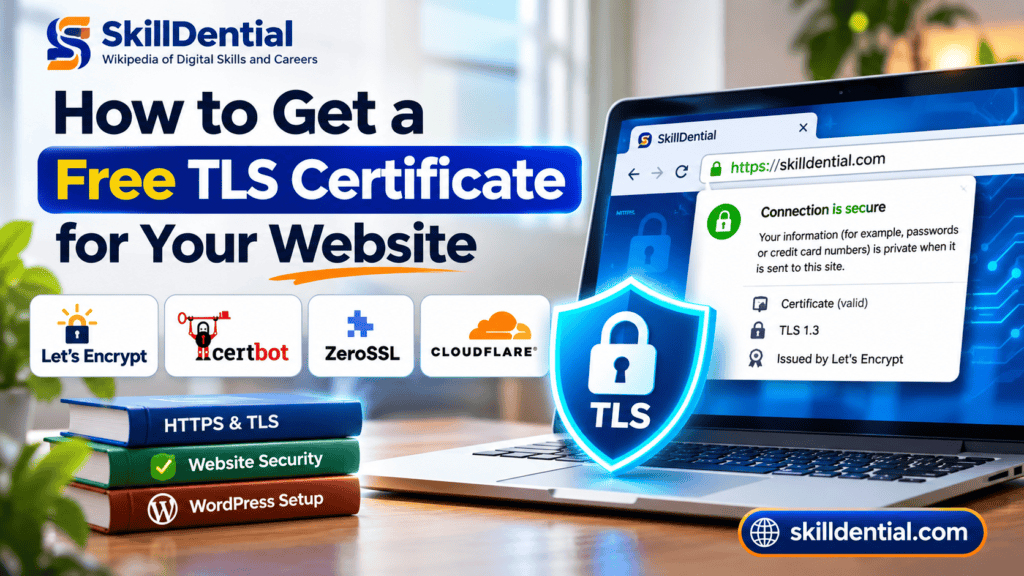
Whether you manage your own Linux server or use a managed hosting dashboard, deploying a Free TLS Certificate ensures your visitors see the trusted padlock icon while protecting your search engine rankings and data integrity. In this guide, you will learn how a Free TLS Certificate works, where to obtain one, how to install it correctly, and how to configure automated renewals so your site never experiences downtime or security warnings.
What Is a Free TLS Certificate?
A Free TLS Certificate is a cryptographic digital credential issued at zero cost by a trusted Certificate Authority (CA). It validates domain ownership and establishes an encrypted communication channel between a user’s web browser and your web server, protecting data in transit.
When a visitor navigates to a secure URL—such as [https://example.com](https://example.com)—the browser evaluates the site’s certificate against root certificate stores. If valid, it negotiates an encrypted session. Functionally, a Free TLS Certificate provides the same encryption strength and cryptographic security (Domain Validation or DV) as expensive commercial certificates.
Understanding TLS, SSL, and HTTPS
These terms are frequently used interchangeably, but they represent distinct layers of web infrastructure:
| Term | Technical Definition |
| TLS (Transport Layer Security) | The modern, secure cryptographic protocol currently used to encrypt web traffic. |
| SSL (Secure Sockets Layer) | The deprecated legacy protocol that TLS completely replaced. |
| HTTPS (Hypertext Transfer Protocol Secure) | Standard HTTP communication layered over a TLS-encrypted connection. |
| SSL Certificate | A legacy commercial term still widely used by hosting providers to describe a TLS certificate. |
Although the underlying technology has evolved past SSL, industry terminology lags. Searches for “free SSL certificates” and free TLS certificate refer to the same operational requirement: securing your domain with HTTPS.
Why Your Website Needs a Free TLS Certificate
Deploying a Free TLS Certificate is no longer optional; it is a foundational baseline for any functional website. Beyond building visitor trust, a secure connection provides critical operational and performance advantages:
- Encrypts Data in Transit: A Free TLS Certificate secures all communications between your visitors and your server. This is vital for protecting sensitive inputs such as login credentials, contact forms, account registrations, and transactional data from interception or tampering.
- Eliminates Browser Warning Indicators: Modern web browsers flag unencrypted HTTP sites as “Not Secure,” which instantly damages credibility and drives visitors away. Installing a valid certificate ensures clean HTTPS indicators, reassuring users that their connection is safe.
- Boosts Search Engine Optimization (SEO): HTTPS is an established Google Search ranking signal. While switching to HTTPS will not single-handedly rocket you to the top of search results, Google’s ranking systems factor site security into overall technical evaluation.
- Secures Website Administration: If you manage a content management system like WordPress, HTTPS is essential for shielding your backend dashboard. It protects your login credentials, content updates, file uploads, and plugin communications from man-in-the-middle attacks.
Where Can You Get a Free TLS Certificate?
Several reputable services provide a Free TLS Certificate. The best option depends entirely on your hosting environment, your technical comfort level, and whether you prefer an automated or managed workflow.
Here are four leading providers to consider:
Let’s Encrypt
Recommended | Best for: Website owners and developers who want free, publicly trusted certificates with automated issuance and renewal.
Let’s Encrypt is a nonprofit Certificate Authority (CA) that provides free Domain Validation (DV) certificates. It operates using the ACME (Automatic Certificate Management Environment) protocol, which handles certificate issuance and renewal without manual intervention.
- Key Features: Free publicly trusted certificates, automated workflows, Domain Validation, multi-domain support, and wildcard certificate capabilities via DNS-01 validation.
- Official Resource: How Let’s Encrypt works
Certbot
Best for: Developers and server administrators who want robust command-line automation for certificate deployment.
Certbot is a free, open-source ACME client developed by the Electronic Frontier Foundation (EFF). It communicates with certificate authorities like Let’s Encrypt to obtain a Free TLS Certificate, install it on your web server, and manage automated renewals.
- Key Features: Free management software, native integration with Let’s Encrypt, specialized configuration support for Apache and Nginx, and built-in renewal dry-run testing.
- Note: Certbot is an ACME client software, not a Certificate Authority itself.
- Official Resource: Certbot documentation
Cloudflare
Best for: Website owners who want managed HTTPS and edge security through a global content delivery network (CDN).
Cloudflare offers free Universal SSL certificates across its entire network, including the free tier. When you route your domain through Cloudflare, it automatically issues and maintains an edge certificate for traffic hitting its network.
- Key Features: Zero-touch edge certificate management, instant global activation, and support for root domains and first-level subdomains (
example.comandwww.example.com). - Architecture Tip: Understand the split security model. An edge certificate encrypts traffic between visitors and Cloudflare, while an origin certificate protects the connection between Cloudflare and your web host. For true end-to-end security, set your Cloudflare SSL/TLS encryption mode to Full (strict) and install an origin certificate on your server.
- Official Resource: Cloudflare Universal SSL documentation
ZeroSSL
Best for: Website owners looking for an alternative Certificate Authority offering both web-based and ACME-compliant certificate management.
ZeroSSL provides free 90-day certificates via its ACME service, functioning smoothly with standard ACME clients like acme.sh and Caddy.
- Key Features: Free ACME certificates, Domain Validation, support for multi-domain setups, and wildcard certificates when using valid validation methods.
- Note: Check current plan parameters regarding manual dashboard limits versus automated ACME limitations.
- Official Resource: ZeroSSL ACME documentation
Comparison of Free TLS Certificate Providers
Compare the top options for getting a Free TLS Certificate, including Let’s Encrypt, Certbot, Cloudflare, and ZeroSSL. Learn which provider fits your hosting setup.
| Provider or Tool | Free Option | Core Function | Best Suited For |
| Let’s Encrypt | Yes | Certificate Authority (CA) | General-purpose website certificates and automated web hosting integration |
| Certbot | Yes (Software) | ACME Client | Server administrators managing Linux servers (Apache/Nginx) |
| Cloudflare | Yes | Managed Edge Security / CDN | Website owners wanting managed edge HTTPS and global proxy protection |
| ZeroSSL | Yes | Certificate Authority (CA) & ACME | Alternative ACME certificate management and web dashboard workflows |
It is important to understand the distinct roles these services play: Let’s Encrypt and ZeroSSL act as Certificate Authorities that issue your Free TLS Certificate, Certbot functions as an ACME client to automate the installation and renewal process on your server, and Cloudflare provides managed edge certificates as part of its reverse-proxy network.
Beginner Recommendation
Before attempting a manual server installation, check your web hosting control panel (such as cPanel, Plesk, or managed WordPress dashboards). Most modern hosting providers include built-in, one-click tools that automatically provision and renew a Free TLS Certificate on your behalf.
How to Get a Free TLS Certificate Through Your Web Hosting Provider
For most beginners, obtaining a Free TLS Certificate directly through your hosting control panel is the fastest and easiest approach.
Many modern web hosts integrate free certificate provisioning directly into their environments. This means you can bypass command-line tools, certificate generation files, and manual server configurations entirely. While the exact user interface varies depending on your host, the general workflow follows these steps:
Step 1: Log in to your hosting account
Navigate to your hosting provider’s website and sign in to your user portal. From your dashboard, select the specific domain or website you want to secure.
Step 2: Locate the SSL/TLS section
Look through your dashboard menus or control panel for an option named:
- SSL/TLS
- SSL Certificates
- Let’s Encrypt SSL
- Security
- AutoSSL
(For example, if your host uses cPanel, you will typically find tools like SSL/TLS Status or Let’s Encrypt™ SSL listed under the Security tab.)
Step 3: Select your target domain
Choose the domain you want to protect. When configuring your Free TLS Certificate, ensure your selection covers both variants of your site:
example.com(Root domain)[www.example.com](https://www.example.com)(Subdomain)
If you utilize other specific subdomains (such as blog.example.com or shop.example.com), verify whether your host includes wildcard coverage or requires you to add them individually.
Step 4: Install or activate the certificate
If your host automates security, the certificate may already be pending or active. If manual action is required, select your domain and click Install, Activate, or Run AutoSSL. Wait a few moments for the server to process the request and generate the files.
Step 5: Verify your HTTPS configuration
Once installed, test your setup to ensure everything works correctly:
- Open a web browser in private/incognito mode and visit
[https://example.com](https://example.com). - Confirm that the page loads successfully without any browser security warnings or broken layout icons.
- For a deeper technical audit, run your URL through an online diagnostic tool like the Qualys SSL Labs SSL Server Test to inspect your server’s TLS configuration and cipher strengths.
Important Note
If your hosting provider’s control panel does not offer a built-in option for a Free TLS Certificate, reach out to their customer support team. Ask specifically whether they support Let’s Encrypt integration or permit you to install external certificates manually.
How to Get a Free TLS Certificate Using Let’s Encrypt and Certbot
If you manage your own virtual private server (VPS) or cloud instance rather than using shared hosting, you can use Certbot to directly obtain and install a Free TLS Certificate from Let’s Encrypt.
This command-line approach is ideal for Linux servers running Apache or Nginx, giving you full control over your cryptographic keys and configuration.
Before You Begin
Ensure your environment meets these technical prerequisites:
- A registered domain name with DNS
A(andAAAA) records pointing correctly to your server’s public IP address. - A web server (Apache or Nginx) installed, running, and configured to serve your domain.
- Secure shell (
SSH) access to your server. - Administrative privileges (
sudoroot access). - Inbound network access on ports
80(HTTP) and443(HTTPS) so the validation challenge can succeed.
Step 1: Select your Certbot instructions
Go to the official Certbot website, where an interactive menu lets you select your specific operating system (e.g., Ubuntu, Debian, AlmaLinux) and web server (Apache or Nginx).
Always follow the exact installation guide tailored to your Linux distribution and environment rather than copying generic commands.
Step 2: Install Certbot on your server
Using the package manager recommended for your system (such as apt on Ubuntu/Debian or dnf on RHEL-based systems), install Certbot and its web server plugin.
For instance, modern installations typically recommend using snapd to install the official Certbot package to ensure you have the latest version.
Step 3: Request and install your Free TLS Certificate
Once installed, run Certbot with the plugin corresponding to your web server. This command instructs Certbot to fetch your Free TLS Certificate, configure your web server blocks, and tie everything together.
- For Nginx:
sudo certbot --nginx -d example.com -d www.example.com - For Apache:
sudo certbot --apache -d example.com -d www.example.com
(Remember to replace example.com and [www.example.com](https://www.example.com) with your actual domain names.)
During the initial run, Certbot will prompt you to enter an email address for urgent renewal and security notices, and ask you to agree to the terms of service.
Step 4: Complete domain validation
To issue a Free TLS Certificate, Let’s Encrypt must verify that you actually control the domain. Certbot handles this automatically using one of two primary validation challenges:
- HTTP-01 Validation (Default): Certbot places a temporary token/file inside your web server’s web root directory. Let’s Encrypt then sends an HTTP request to your domain to retrieve that file. If it matches, domain ownership is confirmed.
- DNS-01 Validation: Instead of placing a file on your server, you prove domain control by publishing a specific TXT record in your DNS zone configuration. This method is required if you are generating wildcard certificates (e.g.,
*.example.com).
Step 5: Verify your automated installation
Once Certbot finishes execution, test your secure deployment:
- Open your browser and navigate to
[https://example.com](https://example.com). - Confirm that the site loads securely and your browser displays the valid padlock indicator.
- Certbot automatically configures a system timer or cron job to handle certificate renewals before your Free TLS Certificate expires (Let’s Encrypt certificates are valid for 90 days). You can test the renewal mechanism manually anytime by running:
sudo certbot renew --dry-run
How to Get a Free TLS Certificate Using Cloudflare
Cloudflare provides a streamlined, managed approach to website security, allowing you to secure your domain with a Free TLS Certificate without managing manual server renewals or command-line tools.
Through its Universal SSL feature, Cloudflare automatically provisions and maintains free edge certificates for all active domains on its network.
Step 1: Create a Cloudflare account
Go to the Cloudflare website and sign up for a free account if you do not already have one.
Step 2: Add your domain
Once logged in, click Add a Site, enter your registered domain name, and choose the free plan tier to proceed.
Step 3: Review and configure your DNS records
Cloudflare will automatically scan and import your existing DNS records.
- Verify that your
A,AAAA, andCNAMErecords point correctly to your web hosting server’s IP address. - Ensure that the proxy status toggle for your web traffic records is set to Proxied (orange cloud) so that traffic routes through Cloudflare’s network, enabling edge security and caching features.
Step 4: Update your nameservers at your registrar
To complete the setup, log into your domain registrar (where you originally purchased the domain) and update your domain’s nameservers to the two custom Cloudflare nameservers provided during the setup wizard.
- Note: Nameserver propagation can take anywhere from a few minutes up to a few hours depending on your registrar.
Step 5: Verify Universal SSL activation
Once your domain status changes to “Active” in Cloudflare, Universal SSL will automatically generate an edge certificate. This certificate covers your root domain (example.com) and standard first-level subdomains (such as [www.example.com](https://www.example.com)).
Step 6: Configure your SSL/TLS encryption mode
Navigate to the SSL/TLS app in your Cloudflare dashboard and select an encryption mode that matches your backend server setup:
- Flexible: Encrypts traffic between the browser and Cloudflare, but sends unencrypted traffic from Cloudflare to your origin server. (Not recommended).
- Full: Encrypts traffic end-to-end, but uses self-signed certificates on the origin server without strict validation.
- Full (Strict): (Recommended) Encrypts traffic end-to-end and requires a trusted certificate (such as a Free TLS Certificate from Let’s Encrypt or a Cloudflare Origin Certificate) installed on your web hosting server. This prevents man-in-the-middle attacks between Cloudflare and your backend.
Official Resource: Get started with Cloudflare SSL/TLS documentation
How to Configure HTTPS After Installing Your Free TLS Certificate
Successfully obtaining and installing a Free TLS Certificate is only half the battle. To secure your site completely and prevent browser security warnings, you must ensure all traffic is forced over HTTPS and that your site assets load correctly.
Enforce HTTPS Redirection
Merely installing a certificate does not automatically stop visitors from loading the insecure version of your site (http://). You must implement a permanent server-side redirect (HTTP 301) to route all incoming traffic to the secure variant.
- Via Web Hosting Control Panel: Most hosting dashboards (such as cPanel or Plesk) feature a simple toggle switch like “Force HTTPS Redirect.” Enabling this automatically updates your server configuration files.
- Via Apache (
.htaccess): If you manage an Apache server, add the following rules to your.htaccessfile in the root directory:
ApacheRewriteEngine On RewriteCond %{HTTPS} off RewriteRule ^(.*)$ https://%{HTTP_HOST}%{REQUEST_URI} [L,R=301] - Via Nginx: In your server block configuration file, add a permanent redirect rule from port 80 to port 443:
Nginxserver { listen 80; server_name example.com www.example.com; return 301 https://$host$request_uri; } - For WordPress Users: Go to your WordPress dashboard under Settings → General and verify that both the WordPress Address (URL) and Site Address (URL) begin with
https://. (If your site is already fully migrated, you can also use a trusted redirection plugin to enforce global HTTPS).
Identify and Fix Mixed-Content Errors
A “mixed content” warning occurs when a page loaded securely via HTTPS attempts to fetch background resources (such as images, JavaScript scripts, stylesheets, or fonts) over unsecured HTTP connections. Modern browsers block these unencrypted assets, which can break site styling or functionality.
To resolve mixed-content issues:
- Open your live website in a browser, right-click, select Inspect, and navigate to the Console tab to view active mixed-content warnings.
- Locate the specific file paths or URLs requesting resources over HTTP.
- Update hardcoded internal links, media references, and theme/plugin settings to use absolute
https://URLs. - Clear all server-side caches, CDN caches, and browser caches.
- Re-test the page to ensure the security padlock displays cleanly without warnings.
Standardize Your Domain Version (WWW vs. Non-WWW)
Decide on a single canonical version for your website URL—either [https://example.com](https://example.com) or [https://www.example.com](https://www.example.com)—and stick with it for branding and SEO consistency.
- Ensure that your Free TLS Certificate explicitly covers both variants (or use a wildcard/multi-domain configuration).
- Set up a 301 redirect from your non-preferred version to your primary version so that duplicate content issues are avoided, and all visitors land on the exact same canonical address.
How to Automatically Renew a Free TLS Certificate
Certificate management is the most critical operational requirement when maintaining a Free TLS Certificate. Because certificates issued by authorities like Let’s Encrypt have short validity periods (such as the standard 90-day lifetime), manual renewals are unsustainable and prone to human error.
A certificate that expires unrenewed results in immediate browser warnings, broken connections, and sudden drops in user trust. Therefore, automation is essential.
Automated Renewal via Web Hosting Providers
If you obtained your Free TLS Certificate through a managed shared-hosting platform or an automated hosting dashboard (like cPanel, Plesk, or managed WordPress hosts), renewal is typically handled out of the box.
- What to check: Verify that your host’s auto-renewal daemon or feature (such as cPanel’s AutoSSL) is enabled for your domain. In most modern hosting environments, the system automatically checks and replaces the certificate weeks before its expiration date without requiring any user intervention.
Automated Renewal via Certbot (VPS / Linux Servers)
If you installed your Free TLS Certificate using Certbot on a self-managed server, automated renewal relies on background scheduling. Certbot packages usually install a system timer (certbot.timer on systemd-based Linux distributions) or a cron job during initial setup.
- Test your renewal configuration: You can verify that your server is capable of renewing its certificates without altering production files by running a dry-run command:
sudo certbot renew --dry-run - Force a manual check: If you want to force an immediate renewal check outside of the automated schedule, run:
sudo certbot renew - Best Practice: Check your server logs or set up monitoring alerts to ensure that background renewal scripts execute successfully, preventing unexpected expiration issues.
Automated Renewal via Cloudflare Edge Certificates
If you manage your site through Cloudflare, certificate maintenance is entirely offloaded to their infrastructure.
- How it works: Cloudflare’s Universal SSL automatically issues, manages, and renews edge certificates on its network before expiration. You do not need to upload files, run server commands, or track renewal dates for your edge connection.
Expert Recommendation
Always choose a deployment method that guarantees hands-free automated renewal. A Free TLS Certificate only provides long-term value and bulletproof security when its lifecycle is fully automated from day one.
Free TLS Certificate vs. Paid SSL Certificate: Which Should You Choose?
A widespread misconception in web administration is that a free certificate is somehow less secure than a paid certificate. That is factually incorrect.
A properly issued and configured Free TLS Certificate provides the same cryptographic strength and encryption standards (such as modern TLS 1.3 protocols and strong cipher suites) as a comparable paid Domain Validation (DV) certificate. Both types encrypt data in transit identically and are trusted equally by modern web browsers.
The practical differences lie not in security, but in validation levels, warranties, customer support, and administrative perks.
Comparison: Free vs. Paid Certificates
| Feature | Free DV Certificate (e.g., Let’s Encrypt) | Paid Commercial Certificate |
| HTTPS Encryption | Yes | Yes |
| Domain Validation (DV) | Yes | Yes |
| Browser Trust | Yes (Fully trusted) | Yes (Fully trusted) |
| Automatic Renewal | Supported via ACME / Hosting | Varies (often manual or vendor-assisted) |
| Organization Validation (OV) | No | Available (Displays company details in records) |
| Extended Validation (EV) | No | Available (Legacy browser trust features) |
| Dedicated Customer Support | Community forums / Hosting help | Included vendor support line |
| Financial Warranty / Insurance | Usually none | Included under specific terms |
When Should You Choose a Free TLS Certificate?
A Free TLS Certificate is the optimal choice for the vast majority of website owners, developers, and businesses, including:
- Personal blogs and portfolios.
- Small business websites and local service pages.
- Educational websites and resource hubs.
- Content publishing platforms and editorial sites.
- Standard WordPress sites, e-commerce stores using external gateways (like Stripe or PayPal), and marketing landing pages.
When Should You Consider a Paid Certificate?
You should only invest in a paid certificate if your organization has specific, mandatory legal or structural requirements:
- Organization Validation (OV) or Extended Validation (EV): If your corporate compliance mandates that the Certificate Authority explicitly vet your legal business identity documents rather than just verifying domain control.
- Warranties and Contractual SLAs: If your enterprise risk-management framework requires a financial backing warranty from the certificate provider.
- Vendor Support Contracts: If you require dedicated phone or ticket support from a commercial CA to handle specialized deployment setups.
Final Takeaway
Paying hundreds of dollars a year for a standard certificate does not inherently make your web server more secure. Security depends on robust server configuration, secure code, regular updates, and proper TLS implementation—not the price tag of your digital certificate.
Common Problems When Installing a Free TLS Certificate
Even when using a streamlined automated service, troubleshooting is occasionally required when deploying a Free TLS Certificate. Below are the most common technical hurdles and how to resolve them:
| Problem | Possible Cause | What to Check |
| Certificate validation failed | Incorrect DNS records or blocked HTTP challenge path | Confirm that your domain’s A record points to the correct server IP and that your web server allows inbound traffic on port 80. |
Certificate does not cover www | Hostname omitted during the initial request | Re-run your generation command or hosting tool, ensuring you explicitly request coverage for both example.com and [www.example.com](https://www.example.com). |
| HTTPS redirects repeatedly (Infinite loop) | Conflicting redirect rules between server blocks, plugins, or Cloudflare | Review .htaccess, Nginx configuration blocks, WordPress URL settings, and Cloudflare Edge SSL modes for competing rules. |
| Mixed-content warning | Assets (images, scripts, stylesheets) still loading via http:// | Inspect your browser console, locate the unencrypted file paths, and update hardcoded links to absolute https:// URLs. |
| Certificate expired | Background renewal automation failed or script broke | Check your server’s cron logs, verify systemd timer status (systemctl status certbot.timer), or test manual renewal. |
| Cloudflare origin error (e.g., Error 525 / 526) | Mismatched encryption mode or missing origin certificate | Ensure your server has a valid certificate installed and your Cloudflare SSL/TLS mode is set to Full (Strict). |
| Website unavailable after installation | Syntax error in web-server configuration files | Review Apache (apache2ctl configtest) or Nginx (nginx -t) syntax logs to isolate configuration typos. |
What If Your Hosting Provider Does Not Support Let’s Encrypt?
If your current shared host lacks built-in integration for a Free TLS Certificate:
- Contact customer support and ask if they permit the manual installation of external certificates (where you paste or upload CRT and KEY files).
- If they support it, you can generate the files using an offline ACME client or a tool like ZeroSSL, then upload them via your control panel.
- If your host blocks external certificates entirely and charges extra for basic SSL, it may be time to migrate to a modern hosting provider that includes automated security out of the box.
What If Your Certificate Is Valid But the Browser Still Shows a Warning?
A green padlock requires more than just a valid certificate file. If warnings persist, check for the following:
- Domain Mismatch: Verify that the domain name in the browser address bar matches the Common Name (CN) or Subject Alternative Names (SANs) listed on the certificate.
- Incomplete Certificate Chain: Ensure your web server is configured to serve intermediate certificates provided by the CA, not just your primary server certificate.
- Active Mixed Content: Clear all caches and verify that no hidden scripts, tracking pixels, or external fonts are loading over unsecured HTTP.
- Deep Diagnostic Audit: Run your live domain through a professional testing suite like the Qualys SSL Labs SSL Server Test to pinpoint exact configuration flaws.
Is a Free TLS Certificate Enough to Secure a WordPress Website?
For the vast majority of WordPress websites, a properly configured Free TLS Certificate (such as one from Let’s Encrypt) is entirely sufficient to secure your traffic and enable HTTPS. You do not need to buy an expensive commercial certificate simply because your site runs WordPress.
However, a TLS certificate is only one pillar of web security. Because HTTPS only protects data in transit between the visitor’s browser and your server, it cannot protect against vulnerabilities residing on the server itself, inside your database, or within your WordPress application code.
To achieve robust security, combine your Free TLS Certificate with a layered defense strategy:
- Core and Plugin Updates: Keep WordPress core, themes, and plugins updated immediately when security patches are released.
- Strong Authentication: Enforce strong administrator passwords and require Two-Factor Authentication (2FA) for all dashboard users.
- Automated Backups: Maintain off-site, automated daily backups so you can recover quickly if an issue occurs.
- Security Plugins & Hardening: Use reputable security plugins to monitor file integrity, block brute-force attacks, and disable XML-RPC if unused.
- Server-Level Protections: Ensure proper file permissions, secure SSH access, and a properly configured web server firewall.
A Free TLS Certificate solves your encryption requirements completely—just make sure it is supported by strong operational practices across your entire WordPress stack.
Can I get a TLS certificate for free?
Yes. You can obtain a Free TLS Certificate through trusted Certificate Authorities such as Let’s Encrypt and ZeroSSL. Additionally, many web hosting providers and Cloudflare offer built-in, free certificate solutions.
Is a free TLS certificate safe to use?
Yes. A properly issued and configured certificate from a trusted CA provides the same cryptographic strength and encryption standards as a comparable paid certificate. Price does not dictate encryption security.
Is Let’s Encrypt completely free?
Yes. Let’s Encrypt issues certificates at zero cost with no certificate fees. However, you may still incur standard costs related to your domain registration, web hosting, or server management.
How long does a free TLS certificate last?
It depends on the provider. Let’s Encrypt’s standard certificate lifetime is 90 days, and ZeroSSL offers 90-day certificates via its ACME service. Always verify the current validity guidelines for the specific certificate you deploy.
Can I use a free TLS certificate on WordPress?
Yes. A Free TLS Certificate works seamlessly with WordPress websites, provided your hosting environment allows installation and your site is configured to force HTTPS.
Does a free TLS certificate improve SEO?
HTTPS is a confirmed Google Search ranking signal. However, installing a certificate is just one technical component; it does not guarantee higher search rankings or increased traffic on its own.
Can I use a free TLS certificate for an e-commerce website?
Yes. A free certificate provides full HTTPS encryption suitable for e-commerce. Note that encryption alone does not cover all compliance standards; you must still use a secure payment processor (like Stripe or PayPal) and follow proper security practices.
Do free TLS certificates support subdomains?
Yes, but coverage varies. Standard certificates protect specific hostnames (like example.com and [www.example.com](https://www.example.com)), while wildcard certificates (*.example.com) typically require DNS-01 validation.
What happens when a free TLS certificate expires?
If a certificate expires without renewal, modern web browsers display immediate security warnings and block visitors from establishing a trusted connection. This highlights the importance of automated renewal systems.
Is a TLS certificate the same as an SSL certificate?
Colloquially, yes—they are used interchangeably. Technically, SSL is an obsolete protocol, whereas TLS is its modern cryptographic successor. When people buy or install “SSL certificates” today, they are actually using TLS.
In Conclusion
Securing your website with a Free TLS Certificate is a practical, cost-effective way to enable HTTPS and protect data in transit without purchasing an expensive commercial certificate.
Your choice of provider ultimately comes down to your technical environment and workflow:
- Beginners & Shared Hosting Users: Look for built-in, automated tools like cPanel AutoSSL or one-click Let’s Encrypt integrations directly within your hosting dashboard.
- VPS & Server Administrators: Use Certbot for reliable, command-line-driven certificate issuance and renewal on Apache or Nginx.
- CDN & Edge Management Users: Leverage Cloudflare Universal SSL for streamlined proxy and edge certificate security.
Regardless of which path you choose, prioritize automated renewals and ensure your site is fully optimized with HTTPS redirects and fixed mixed-content resources.
Your Next Step
Log in to your web hosting account right now and check whether free SSL/TLS or AutoSSL is already available. If it is, activate it today, configure your site-wide redirects, and verify that your visitors enjoy a secure, trusted browsing experience.