Top Free Open-Source Alternatives to Microsoft Office
Replacing expensive software subscriptions no longer requires sacrificing productivity. If you need to build documents, spreadsheets, and presentations without paying recurring license fees, several capable free open-source alternatives to Microsoft Office are available.
LibreOffice serves as the most powerful all-around option, while ONLYOFFICE provides superior native file compatibility for complex Microsoft Office formats. Organizations needing hosted, browser-based co-editing can rely on Collabora Office, while Linux users benefit from Calligra’s integrated graphics and productivity environment.
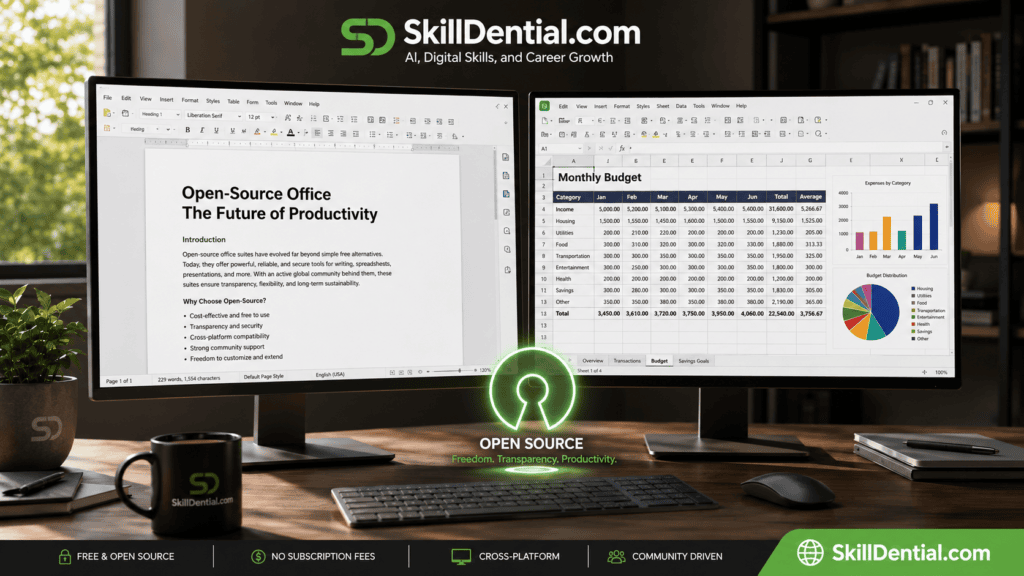
These free open-source alternatives to Microsoft Office allow students, freelancers, small businesses, and privacy-conscious teams to cut software costs significantly. However, because no suite functions identically to Microsoft 365, choosing the right tool depends on your specific needs around file rendering, real-time collaboration, and operating system support.
What Defines Genuine Open-Source Software?
Open-source software provides public access to its underlying source code under a license (such as GPL or Apache) that grants users the explicit right to inspect, modify, and redistribute it. It is critical to distinguish between cost and licensing: “free” describes a price point, while “open source” guarantees transparency, security auditing, and digital independence.
For example, SoftMaker FreeOffice is available at zero cost for personal and commercial use, but its core code remains proprietary. While feature-rich, proprietary freeware cannot be classified alongside true free open-source alternatives to Microsoft Office.
The primary open-source productivity suites covered in this guide include:
- LibreOffice: The industry standard for local, full-featured offline editing.
- ONLYOFFICE Desktop Editors: Optimized for strict Microsoft Office XML layout fidelity.
- Collabora Office / Collabora Online: Enterprise-grade, browser-based collaborative editing.
- Apache OpenOffice: The classic open-source foundation, suited for legacy deployments.
- Calligra Suite: A lightweight, modular suite built natively for Linux environments.
Best Free Open-Source Alternatives to Microsoft Office at a Glance
This quick comparison highlights the best free open-source alternatives to Microsoft Office, including their key features, supported platforms, Microsoft Office file compatibility, and ideal use cases. Use it to quickly identify which office suite best matches your productivity needs.
| Software Suite | Best For | Word Equivalent | Excel Equivalent | PowerPoint Equivalent | Supported Platforms | Microsoft File Compatibility |
| LibreOffice | Best overall option | Writer | Calc | Impress | Windows, macOS, Linux | Good (Complex layouts may require adjustment) |
| ONLYOFFICE | Maximum DOCX, XLSX, & PPTX compatibility | Document Editor | Spreadsheet Editor | Presentation Editor | Windows, macOS, Linux | Very High (Native support for OOXML) |
| Collabora Office | Enterprise privacy & local deployments | Writer | Calc | Impress | Windows, macOS, Linux, Mobile | Good |
| Collabora Online | Self-hosted browser collaboration | Writer | Calc | Impress | Web Browsers, Linux Server | Good |
| Apache OpenOffice | Basic offline desktop workflows | Writer | Calc | Impress | Windows, macOS, Linux | Acceptable (Best for simpler legacy files) |
| Calligra Suite | Linux-native & creative workflows | Words | Sheets | Stage | Linux (KDE) | Limited (Lower than LibreOffice/ONLYOFFICE) |
Note on Compatibility Ratings:
Compatibility levels reflect real-world testing rather than absolute guarantees. Complex documents—particularly those containing advanced Visual Basic for Applications (VBA) macros, custom typography, dynamic charts, or intricate layout objects—should always be benchmarked prior to deploying any free open-source alternatives to Microsoft Office across your production workflow.
LibreOffice: The Best Overall Free Open-Source Alternative to Microsoft Office
LibreOffice stands as the most versatile, feature-complete offline replacement for Microsoft Office. Backed by a massive global community through The Document Foundation, this open-source suite provides an enterprise-ready productivity stack that costs nothing to deploy across personal or commercial environments.
Core Applications Included
- Writer: Advanced word processing (Word equivalent).
- Calc: Complex spreadsheet analysis, formulas, and data visualization (Excel equivalent).
- Impress: Presentation design and slide animations (PowerPoint equivalent).
- Draw: Vector graphics, technical diagrams, and PDF editing.
- Base: Desktop database management (Access equivalent).
- Math: Formula editing for scientific and mathematical notation.
| Key Advantages | Primary Limitations |
| • 100% free and open-source under the MPL v2.0 license. | • Highly complex MS Office documents may require minor layout tweaks. |
| • Native cross-platform support (Windows, macOS, Linux). | • Advanced Excel VBA macros must often be adjusted or converted. |
| • Runs entirely offline with zero mandatory cloud connectivity. | • Real-time co-editing requires separate server setup (via Collabora). |
• Native use of OpenDocument Formats (.odt, .ods, .odp). | • Interface uses traditional toolbars by default (though a “Tabbed” ribbon view is available). |
| • Excellent backward compatibility for legacy document types. | • Missing native Microsoft fonts on Linux can alter page pagination. |
Summary Verdict
If you need a powerful, privacy-first desktop suite that operates reliably without a subscription, LibreOffice is the safest starting point among all free open-source alternatives to Microsoft Office.
ONLYOFFICE: Best Free Open-Source Alternative for Microsoft Office Compatibility
ONLYOFFICE Desktop Editors is an open-source productivity suite built from the ground up around Microsoft’s XML standards..docx, .xlsx, .pptx). Unlike suites that rely on heavy conversion layers to read proprietary formats, ONLYOFFICE processes Office Open XML files natively.
This architecture makes it the most reliable tool for maintaining strict document layouts when collaborating with Microsoft 365 users.
Core Applications Included
- Document Editor: Word equivalent optimized for real-time tracking, commenting, and precise typography.
- Spreadsheet Editor: Excel equivalent featuring heavy formula support, charts, and macro capabilities.
- Presentation Editor: PowerPoint equivalent supporting slide transitions and embedded media.
- PDF & Form Creator: Integrated engine for editing PDFs and building interactive, fillable forms.
| Key Advantages | Primary Limitations |
| • Native OOXML support minimizes layout and font rendering errors. | • Advanced Microsoft features (complex VBA macros, specific pivot setups) can vary. |
| • Familiar ribbon interface eases transition for Microsoft 365 users. | • Real-time co-editing requires connecting to a self-hosted cloud instance (Nextcloud, DocSpace). |
| • Cross-platform desktop apps available for Windows, macOS, and Linux. | • Higher memory footprint than lighter legacy tools during complex file processing. |
| • Includes tabbed multi-document management, PDF annotation, and plugin expansion. | • Dual AGPLv3/commercial model requires verifying terms for enterprise server deployments. |
Summary Verdict
Choose ONLYOFFICE as your go-to free open-source alternative to Microsoft Office if your priority is seamlessly exchanging documents, spreadsheets, and slide decks with clients, colleagues, or institutions without layout distortion.
Collabora Office & Collabora Online: Best Free Open-Source Alternative for Self-Hosted Privacy
Collabora takes core LibreOffice engine technology and optimizes it for modern enterprise deployments, self-hosted private clouds, and real-time browser collaboration. Rather than relying on third-party public clouds, Collabora allows organizations to maintain total data sovereignty by running its office suite directly on their own infrastructure.
Deployment Ecosystem
- Collabora Office: Standalone desktop and mobile applications optimized for offline work across Windows, macOS, Linux, iOS, and Android.
- Collabora Online (CODE): The web-based document editing server designed to integrate natively into cloud storage platforms like Nextcloud, ownCloud, and Seafile.
| Key Advantages | Primary Limitations |
| • Full data control and GDPR compliance via self-hosted infrastructure. | • Requires server administration (Docker, Linux CLI, reverse proxies) to deploy. |
| • Native integration with Nextcloud, ownCloud, and Seafile ecosystems. | • Free community tier (CODE) is intended for home/small-team testing. |
| • Excellent rendering fidelity powered by the LibreOffice core engine. | • Performance depends heavily on host server resources and network bandwidth. |
• Full support for OpenDocument Formats (.odt, .ods) and Microsoft OOXML (.docx, .xlsx). | • More complex setup than installing a standard single-user desktop client. |
Summary Verdict
Collabora is the ultimate free open-source alternative to Microsoft Office for privacy-conscious businesses, educational institutions, and tech-savvy users who require real-time cloud editing without handing document data to big-tech cloud providers.
Apache OpenOffice: A Legacy Option for Basic Desktop Work
Apache OpenOffice is one of the oldest and most recognized names in open-source productivity software. While it continues to provide a core suite of offline applications—including Writer, Calc, and Impress—its development cycle has slowed considerably compared to active alternatives.
It remains functional for basic tasks on older hardware, but it is no longer the premier choice for modern workflows.
Best Suited Use Cases
- Lightweight Document Creation: Simple letters, basic reports, and plain-text drafts.
- Basic Financial Tracking: Standard home budgets and non-complex arithmetic spreadsheets.
- Legacy System Hardware: Low-resource PCs where newer, feature-heavy suites run slowly.
| Key Advantages | Primary Limitations |
| • 100% free under the permissive Apache 2.0 license. | • Slower release cycles result in delayed security updates and feature gaps. |
| • Very lightweight with low memory footprint on older PCs. | • Weak rendering of modern Microsoft formats (.docx, .xlsx, .pptx). |
| • Classic, unchanging menu-based interface familiar to long-time users. | • Lacks native cloud integrations or real-time collaboration features. |
• Native support for OpenDocument Formats (.odt, .ods, .odp). | • Most active developers migrated to LibreOffice, limiting ongoing innovation. |
Summary Verdict
While Apache OpenOffice functions as a zero-cost tool for basic document editing, it is generally outclassed by LibreOffice and ONLYOFFICE. Most users seeking reliable free open-source alternatives to Microsoft Office should choose a more actively maintained platform.
Calligra Suite: Specialized for Linux Ecosystems & Creative Workflows
Calligra Suite is an open-source office and graphic arts collection developed by the KDE community. Unlike standard productivity tools, Calligra blends traditional office applications (word processing, spreadsheets, presentations) directly with vector graphic design utilities.
This unified design architecture makes it a compelling, lightweight choice for Linux users and digital creators who want to combine document authoring with visual asset design.
Core Component Applications
- Words: Intuitive word processor integrated with frame-based desktop publishing tools.
- Sheets: Spreadsheet engine supporting complex formulas, charts, and shape-based note-taking.
- Stage: Presentation software designed for flexible slide decks and multimedia embeds.
- Karbon: Vector drawing tool optimized for vector art, logos, and technical illustration.
| Key Advantages | Primary Limitations |
| • Deep integration with Linux environments and the KDE Plasma desktop. | • Lower Microsoft OOXML (.docx, .xlsx) rendering accuracy compared to ONLYOFFICE or LibreOffice. |
| • Native hybrid setup combining document editing with vector graphic design (Karbon). | • Non-Linux builds (Windows/macOS) receive less frequent optimization. |
| • Frames-based layout architecture offers desktop publishing (DTP) capabilities. | • Smaller ecosystem community with fewer third-party templates and extensions. |
• Native use of OpenDocument Formats (.odt, .ods, .odp). | • Advanced Microsoft features like complex VBA macros are not supported. |
Summary Verdict
Calligra Suite is an excellent free open-source alternative to Microsoft Office if you operate within a Linux/KDE environment and routinely combine text editing with graphic design. However, if your primary requirement is high-volume document interchange with Microsoft 365 users, LibreOffice or ONLYOFFICE remains the safer choice.
Which Alternative Offers the Highest Microsoft Office Compatibility?
ONLYOFFICE is the clear leader when native compatibility with .docx, .xlsx, and .pptx formats is your main priority. Because its underlying processing engine is built specifically around Microsoft’s Office Open XML (OOXML) standards, it renders complex layouts, tables, and typography with minimal formatting drift compared to other suites.
While LibreOffice offers robust import and export capabilities for Microsoft formats, its native architecture relies on OpenDocument Formats; (.odt, .ods, .odp). Converting between OpenDocument and proprietary Microsoft structures during saving can occasionally shift page pagination, font spacing, or cell boundaries.
Best Practices for Error-Free File Exchange
To ensure seamless document sharing when using free open-source alternatives to Microsoft Office, implement these workflow standards:
- Standardize Typography: Install Microsoft core fonts (such as Calibri, Aptos, Arial, and Times New Roman) across all target operating systems to prevent unintended text-wrapping issues.
- Export PDF Copies for Final Proofs: Send a PDF alongside editable source files whenever precise page layouts, margins, or visual presentations must remain 100% frozen.
- Audit Output Files Locally: Re-open exported
.docxor.xlsxfiles inside your alternative suite before emailing them to clients or colleagues to catch alignment errors early. - Benchmark Complex Assets in Advance: Run trial tests on multi-sheet financial models, VBA macros, pivot tables, and embedded media before migrating production workflows.
Core Rule of Thumb
Simple text drafts, basic meeting notes, and standard tables transfer with high accuracy across all major platforms. Complex financial workbooks, custom macro scripts, and multi-layered slide decks should always be benchmarked in advance.
Evaluating Spreadsheet Compatibility & Macro Migration
Spreadsheet tools require the highest scrutiny when evaluating free open-source alternatives to Microsoft Office. While basic calculations, cell references, conditional formatting, and standard chart generation transfer reliably across platforms, complex data architectures and automation scripts present distinct compatibility challenges.
The Technical Reality of Excel Automation
- VBA Macro Support: Microsoft Excel relies on Visual Basic for Applications (VBA). LibreOffice Calc offers partial VBA emulation, but complex scripts often require manual code adjustments. ONLYOFFICE, by contrast, uses a native JavaScript engine for macros, meaning legacy Excel VBA scripts must be rewritten entirely using the Office JavaScript API.
- Advanced Formulas & Data Models: High-end Excel functions (e.g., dynamic array formulas like
XLOOKUPorFILTER) and Power Query connections may behave differently or require updated syntax in open-source engines.
Pre-Migration Audit Checklist
Before transitioning business-critical financial models or operational workbooks, systematically test the following elements:
- Legacy VBA Macros & Custom Automation: Test execution for broken methods or rewrite automation using native JavaScript API/LibreOffice Basic.
- Pivot Tables & External Data Feeds: Verify that dynamic data models, SQL queries, and external file connections refresh accurately.
- Data Validation & Conditional Formatting: Confirm that multi-condition rules, color scales, and drop-down constraints remain intact.
- Sheet Protection & Workbook Links: Audit password-protected ranges and cross-workbook cell references for broken paths.
Strategic Deployment Model
If your enterprise relies heavily on proprietary Excel macros or third-party financial add-ins, a full migration may cause operational friction.
A hybrid rollout is often the most practical strategy: deploy a free open-source alternative to Microsoft Office like ONLYOFFICE or LibreOffice for standard business tasks, while preserving a minimal pool of Microsoft 365 licenses for advanced financial modeling teams.
Which Free Open-Source Alternative is Best for Team Collaboration?
If real-time, multi-user co-authoring is a mandatory requirement, standalone desktop applications are insufficient. Real-time document editing relies on backend server infrastructure to synchronize cursor positions, handle conflict resolution, and preserve data integrity across multiple users simultaneously.
Top Open-Source Collaborative Ecosystems
- Collabora Online: The premier choice for enterprise-grade browser editing. Built directly on the LibreOffice engine, Collabora Online integrates natively into cloud storage platforms like Nextcloud, ownCloud, and Seafile to deliver a self-hosted alternative to Google Docs and Microsoft 365.
- ONLYOFFICE DocSpace / Server: A powerful alternative for teams needing high OOXML format fidelity during real-time co-authoring. ONLYOFFICE pairs its desktop app with robust web components that connect directly to platforms like Moodle, Liferay, ownCloud, and Nextcloud.
- LibreOffice (Desktop): Optimized primarily for offline desktop environments. While teams can share LibreOffice files via cloud storage (e.g., Dropbox or Google Drive), concurrent editing is not natively supported out of the box without integrating a backend like Collabora Online.
| Collaboration Suite | Deployment Model | Real-Time Co-Editing | Best For |
| Collabora Online | Self-Hosted Server / Docker | Native (Browser-based) | Privacy-focused enterprises & Nextcloud users |
| ONLYOFFICE Workspace | Self-Hosted or Cloud | Native (Browser & Desktop) | Teams sharing heavy MS Office files |
| LibreOffice Desktop | Local Installation | Manual (File locking via SMB/Cloud) | Offline, single-user productivity |
Summary Verdict
For self-hosted, cloud-native teamwork, Collabora Online and ONLYOFFICE stand out as the premier free open-source alternatives to Microsoft Office. Choosing between them comes down to format preference: select Collabora for pure open-standard rendering or ONLYOFFICE for direct Microsoft file co-editing.
Recommended Free Open-Source Alternatives to Microsoft Office by User Persona
Not every Microsoft Office alternative is ideal for every user. The recommendations below match the best free open-source office suites with different user personas, including students, professionals, small businesses, Linux users, privacy-conscious users, and those who prioritize Microsoft Office file compatibility.
| User Profile / Use Case | Recommended Option | Core Strategic Rationale |
| Complete All-Around Desktop Replacement | LibreOffice | Broadest feature set, mature community support, and complete offline privacy. |
| Frequent Microsoft Office File Exchange | ONLYOFFICE | Native OOXML core preserves .docx, .xlsx, and .pptx layouts without formatting drift. |
| Linux Enthusiasts & Creative Workflows | LibreOffice or Calligra Suite | Deep Linux integration; Calligra offers built-in vector graphics tools alongside standard docs. |
| Self-Hosted Team Collaboration | Collabora Online | Built specifically for browser-based co-authoring integrated with Nextcloud/ownCloud. |
| Basic Home / Classroom Productivity | LibreOffice or Apache OpenOffice | Handles standard letters, simple budgets, and basic presentations with minimal setup. |
| Ribbon Interface Preference | ONLYOFFICE | Modern, tabbed layout mimics the look and feel of Microsoft 365 out of the box. |
| Legacy / Older Hardware | Apache OpenOffice or LibreOffice | Low memory footprint runs smoothly on low-spec hardware without cloud bloat. |
| Advanced Excel & Macro Workflows | Benchmark First (LibreOffice / ONLYOFFICE) | Automation compatibility is not guaranteed; VBA scripts and complex data models require auditing prior to deployment. |
Final Implementation Strategy
Transitioning away from proprietary software does not have to be an “all-or-nothing” decision. For most individuals and enterprises, the most successful path involves starting with LibreOffice for local, offline productivity or ONLYOFFICE if client compatibility is your primary driver.
By testing your most critical document templates, formulas, and custom macros upfront, you can deploy the right free open-source alternative to Microsoft Office to cut software overhead without sacrificing day-to-day productivity.
How to Safely Switch from Microsoft Office to an Open-Source Alternative
You don’t need to migrate all your documents at once. A gradual transition lets you test file compatibility, identify formatting issues, and make sure your essential workflows continue to work before fully replacing Microsoft Office.
Identify Core Requirements: Prerequisite audit
List the primary tasks your workflow requires each week to determine which capabilities matter most:
- Document Authoring: Long-form writing, complex page pagination, and layout design.
- Data & Analysis: Spreadsheets, formulas, pivot tables, and data visualizations.
- Presentations & Media: Slide decks, transitions, and embedded media.
- Automation & Integration: VBA macros, third-party add-ins, and external database links.
Collect Representative Benchmark Files
Gather sample files across varying complexity levels to test software rendering:
- Standard text documents alongside long reports with custom headers, tables, and footers.
- Financial spreadsheets containing complex formulas, multi-sheet references, and charts.
- Slide decks with custom layouts and animations.
- Business-critical document templates and fillable forms.
Install Primary Candidate Suites: Side-by-side evaluation
Install LibreOffice and ONLYOFFICE locally. Benchmark your collected sample files inside both applications rather than relying solely on online feature lists.
Perform Round-Trip Compatibility Testing
Open a native Microsoft Office file, make structural edits, save it in the target format, and reopen it inside Microsoft Office or an online viewer. Carefully inspect:
- Typography, font substitution, and page pagination shifts.
- Table alignments, image placements, and chart boundaries.
- Cell formula calculations, track changes, and inline comments.
Establish a Standardized File Format Policy:
Define file format guidelines based on target recipient requirements:
- OpenDocument Formats (
.odt,.ods,.odp): Use for internal editing when operating entirely within open-source environments. - Office Open XML (
.docx,.xlsx,.pptx): Use when exchanging active drafts with Microsoft 365 users. - PDF (
.pdf): Use for final read-only distribution to guarantee identical layout rendering across all devices.
Maintain Separated File Backups: Risk mitigation.
Keep original Microsoft Office files archived separately during the transition. Use versioned backups and avoid bulk-converting active document archives without prior manual validation.
Testing your most critical document templates, complex formulas, and macro scripts upfront ensures a smooth transition to free open-source alternatives to Microsoft Office without risking data integrity or operational downtime.
Common mistakes to avoid
Avoid these critical pitfalls when migrating your personal or organizational workflow to free open-source alternatives to Microsoft Office:
- Confusing Proprietary Freeware with Open Source: Assuming software is open source just because it is free (e.g., FreeOffice vs. LibreOffice). True open-source software guarantees code transparency, data privacy, and zero vendor lock-in.
- Bulk Converting Files Without Prior Testing: Mass-converting legacy
.docxor.xlsxfiles into OpenDocument formats (.odt,.ods) without verifying formatting, tables, or formulas first. - Overlooking Font Dependencies: Forgetting to install standard Microsoft core fonts (like Calibri, Arial, or Times New Roman) on Linux or macOS systems, which causes unexpected page breaks and text shifting.
- Assuming VBA Macros Execute Unchanged: Expecting complex Excel Visual Basic macros to run seamlessly in Calc or ONLYOFFICE without manual code translation or JavaScript adaptation.
- Relying on PDFs for Editable Workflows: Treating PDF exports as editable working drafts rather than read-only final copies.
- Underestimating Self-Hosted Cloud Overhead: Deploying browser-based tools like Collabora Online or ONLYOFFICE DocSpace without establishing a strategy for server maintenance, SSL certificates, security patches, and automated backups.
- Mismatched File Sharing Formats: Sending native
.odtor.odsfiles to external clients or institutions expecting.docxor.xlsxfiles, causing friction for non-technical recipients. - Testing Only Simple Text Files: Evaluating suite compatibility using basic, single-page text documents while ignoring multi-sheet financial models, complex charts, or custom templates.
Are free open-source alternatives to Microsoft Office legal to use?
Yes. Open-source office suites are legal, production-grade applications distributed under OSI-approved licenses (such as the Mozilla Public License or AGPLv3).
They are free to use for personal, academic, and commercial purposes. Always download suites directly from official project domains or verified OS package managers to avoid altered third-party builds.
Can open-source alternatives open Word, Excel, and PowerPoint files?
Yes. LibreOffice, ONLYOFFICE, Collabora, and Apache OpenOffice support opening, editing, and exporting standard Microsoft Office formats (.docx, .xlsx, .pptx).
While text and basic tables transfer seamlessly, complex layouts, custom VBA macros, dynamic array formulas, and embedded OLE objects should be pre-tested before migrating.
Is Google Docs an open-source alternative?
No. Google Docs is zero-cost proprietary cloud software, not open source. While it provides strong browser collaboration, its underlying source code is closed, and users must rely entirely on Google’s cloud infrastructure and data policies.
Is WPS Office open source?
No. WPS Office is ad-supported or subscription-based proprietary freeware. It does not grant access to its source code and lacks the privacy guarantees, open-source licensing, and community governance found in true free open-source alternatives to Microsoft Office.
Can I use open-source office suites without an internet connection?
Yes. The primary desktop applications for LibreOffice, ONLYOFFICE Desktop Editors, Apache OpenOffice, and Calligra Suite run 100% offline. Browser-based platforms like Collabora Online or ONLYOFFICE DocSpace require network connectivity only when hosting live multi-user web editing.
Which open-source alternative is best for students?
LibreOffice is the most versatile starting point for writing essays, analyzing dataset spreadsheets, and building slide decks. However, choose ONLYOFFICE if your courses or group projects strictly require exchanging .docx and .pptx files without layout shift.
In Conclusion
The best free open-source alternatives to Microsoft Office are not carbon copies, but together they cover the full operational needs of modern professionals, students, and businesses.
- Choose LibreOffice for a comprehensive, privacy-first offline desktop suite.
- Choose ONLYOFFICE for native Microsoft Office Open XML (
.docx,.xlsx,.pptx) compatibility. - Choose Collabora Online for self-hosted, private cloud team editing.
- Choose Calligra Suite for a Linux-focused workspace blending productivity with vector graphics.
- Use Apache OpenOffice for basic offline tasks on legacy hardware.
The ideal next step is to install LibreOffice and ONLYOFFICE, benchmark your core templates and spreadsheets side-by-side, and verify your workflow compatibility before canceling your Microsoft 365 subscription.