How to Choose Lightweight Software for an Old Windows PC
Lightweight software is the key to keeping older hardware productive, but not all “lightweight” claims are equal. True lightweight software must perform the tasks you need while using less memory, processor time, storage, and background activity on your particular PC.
Start by confirming operating-system compatibility and security support. Then, test two or three lightweight software candidates against the same real workload using Windows Task Manager. Ultimately, choose the option that stays responsive and preserves your essential features—not simply the one with the smallest installer.
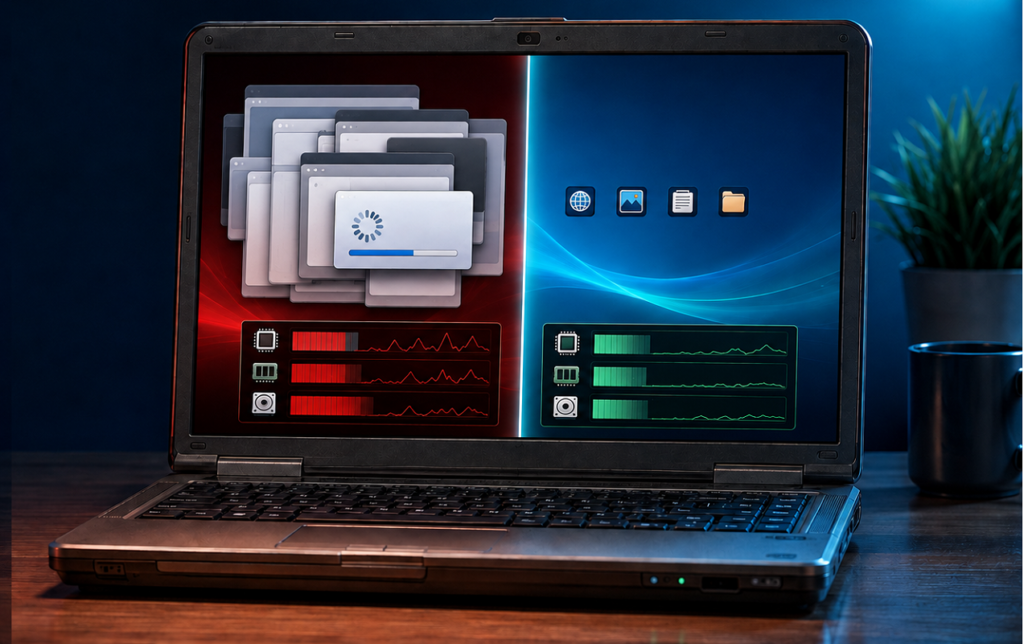
An older Windows computer can still be useful for study, remote work, writing, bookkeeping, media playback, and everyday administration. The difficulty is that a machine with 4 GB of RAM, a dual-core processor, or a mechanical hard drive has little capacity to spare for modern software bloat.
This guide is for people who need immediate, low-cost computing improvements. It explains what lightweight software actually means, how to compare applications fairly, and which current lightweight software options are worth testing—without pretending that one single app will be fastest on every computer.
Check the Windows Support Situation First
Even the best lightweight software cannot make an unsupported operating system secure. Before evaluating new applications, confirm which Windows version the computer runs and whether it still receives official security updates.
Microsoft ended standard support for Windows 10 on October 14, 2025. Eligible consumer devices running Windows 10 version 22H2 can enroll in Microsoft’s Extended Security Updates (ESU) program, which provides critical and important updates through October 12, 2027.
Note that Microsoft’s consumer program is strictly for personal use; commercial scenarios require the separate enterprise ESU route. Because availability and enrollment terms vary by region, verify your status on the official Windows 10 ESU page before relying on this extension.
Windows 11 officially requires at least 4 GB of RAM, 64 GB of storage, Secure Boot capability, and TPM 2.0. While adopting lightweight software reduces resource pressure on PCs meeting these bare minimums, failing Microsoft’s underlying hardware checks will prevent an officially supported OS upgrade.
Always check Microsoft’s current Windows 11 specifications before attempting an in-place upgrade. If your machine cannot run a supported Windows release or enroll in an ESU program, installing a lightweight software alternative or lightweight browser will not resolve the underlying vulnerability.
In these cases, plan a supported OS or hardware transition. Restricting an unsupported computer to offline, non-sensitive tasks reduces risk exposure, but lightweight software cannot substitute for operating system security patches.
What Makes Software “Lightweight”?
Evaluating lightweight software requires looking far beyond the size of the initial installer. Truly lightweight software is defined by its overall system footprint during real-world tasks—delivering required utility while minimizing demand on memory, CPU, storage, and background resources.
| Resource / Behavior | Why It Matters on an Old PC | What to Observe in Candidates |
| Working Memory (RAM) | When physical RAM is exhausted, Windows relies heavily on disk paging—causing severe system lockups on traditional mechanical hard drives (HDDs). | Memory consumption when opening representative files or running active browser tabs. |
| Processor (CPU) Usage | Sustained CPU load triggers thermal throttling, fan noise, input lag, and accelerated battery drain. | CPU utilization during active execution versus idle state after task completion. |
| Disk & I/O Activity | Constant background indexing, caching, and paging stall low-speed storage, making the whole OS feel sluggish. | Disk usage percentage and read/write speeds during app launch, active use, and background standby. |
| Startup Time | Slow cold-start times create friction for quick, high-frequency tasks. | Time elapsed from execution to full UI responsiveness and input availability. |
| Background Processes | Bloated utilities often auto-launch helper services, sync agents, or update checkers that persist even after closing the main UI. | Active processes and resource drain in Task Manager before launch, during operation, and post-exit. |
| Storage Footprint | Massive installation footprints consume limited drive capacity needed for Windows updates and pagefiles. | Total installed directory size, including persistent caches, user data blobs, and bundled bloatware. |
| Feature Efficiency | Stripped-down software is counterproductive if it breaks file compatibility or lacks critical workflow features. | Native compatibility with your exact document formats, external devices, and required tasks. |
| Security & Maintenance | Unmaintained software may be lightweight, but it presents unpatched security vulnerabilities and format decay. | Frequency of recent stable updates, clear developer disclosure, and active security maintenance. |
There is no arbitrary RAM limit or file-size threshold that automatically defines lightweight software. A lightweight web browser running a single static page demands drastically different resources than the same browser handling a live video conference. Always evaluate lightweight software candidates against the specific, real-world workloads you run every day.
A Repeatable Framework to Choose Lightweight Software
Selecting the right lightweight software requires a systematic evaluation process. Following a structured testing methodology prevents trial-and-error installation loops and ensures you select applications that deliver efficiency without sacrificing stability.
Record the Computer’s Hardware Limits:
Before searching for lightweight software alternatives, baseline your system hardware and identify current performance bottlenecks.
Document System Specs
Navigate to Settings > System > About and note down:
- Windows edition and version (e.g., Windows 10 22H2)
- Processor model (CPU architecture and clock speed)
- Installed RAM (Total capacity)
- System type (64-bit x64 or 32-bit x86 architecture)
Architecture Note: Windows 11 is strictly 64-bit. While some older Windows 10 machines run 32-bit builds, always download the matching architecture build specified by the lightweight software publisher.
Identify the Core System Bottleneck
Open Task Manager (Ctrl + Shift + Esc). Under typical desktop load, observe Processes and Performance metrics:
- Memory near capacity (80%+): Priority must be lower working-memory consumption and strict tab/app limits.
- Disk activity pinned at 100% (HDD): Priority must be lightweight software with minimal disk caching and background indexing.
- High idle CPU usage: Identify background processes eating cycles before swapping applications.
- System freezes on specific files: Test directly with those heavy workloads; idle benchmarks will not reflect real use.
Define Key Requirements Before App Selection:
Define mandatory functionality versus optional features before evaluating lightweight software candidates. Choosing an overly stripped-down application often forces you to install secondary helper tools, resulting in higher total resource consumption, redundant update services, and file association conflicts.
Essential vs. Optional Capability Mapping
- PDF Reader: Essential = Fast rendering, text search, printing. Optional = Form editing, OCR, cloud syncing.
- Office Suite: Essential = Native MS Office format fidelity, formula support. Optional = Advanced macros, real-time cloud collaboration.
Filter Out Unsuitable Candidates Upfront:
Screen lightweight software candidates against pass/fail operational criteria before downloading installers:
- Supported OS: Does the developer actively support your Windows version?
- Architecture Match: Are native x64, x86, or ARM64 builds available?
- Active Maintenance: Has a stable release or security patch been published in the last 6–12 months?
- Verified Source: Is the installer hosted on an official domain, GitHub repository, or verified app store?
- Format & Hardware Compatibility: Does it support your essential file formats, local printers, and external peripherals?
- Licensing & Privacy: Is commercial or institutional use permitted? Can you disable telemetry and auto-start services?
- Accessibility: Does the interface scale cleanly on lower-resolution displays with system high-contrast settings?
Open-Source Caution: Open-source software is often a fantastic choice for efficiency, but “open-source” does not automatically mean an app is lightweight, secure, or low on resource consumption. Apply the same rigorous testing to all licensing models.
Run a Controlled Workload Benchmark:
To test lightweight software fairly, evaluate each candidate under identical test conditions using real-world files:
- Save open work, close non-essential applications, and restart the PC to clear RAM.
- Allow baseline Windows startup processes to settle, then note baseline CPU, RAM, and Disk metrics in Task Manager.
- Launch candidate app A and perform a complete, representative task.
- Record real-time UI responsiveness, active resource load, idle resource consumption, and post-exit background process behavior.
- Repeat the exact test sequence with candidate app B using identical files or tabs.
Recommended Test Workloads by App Type
- Web Browsers: Load 5 fixed, resource-intensive pages and stream a 1080p/720p video segment.
- PDF Viewers: Open and search a 50+ page image-heavy or scanned PDF document.
- Office Tools: Open and edit a complex 10MB+ spreadsheet containing active formulas.
- Media Players: Play local high-bitrate media files at native screen resolution.
Avoid concluding brief CPU spikes during startup. Focus on sustained resource consumption and interactive smoothness across active execution.
Score Real-World Trade-Offs:
Compare your candidate apps using an operational trade-off matrix rather than relying solely on installer size or temporary benchmark numbers.
| Evaluation Criterion | Candidate A | Candidate B | Key Decision Question |
| Format Fidelity | Pass / Fail | Pass / Fail | Did formatting, fonts, formulas, or media rendering break during use? |
| Workload Responsiveness | Fast / Slow | Fast / Slow | Can you type, scroll, and switch views without input lag? |
| RAM Efficiency | ___ MB | ___ MB | Does the app leave enough RAM headroom for your secondary applications? |
| Idle Overhead | ___ % CPU | ___ % CPU | Do CPU and Disk utilization drop to zero when user input stops? |
| Background Footprint | Clean / Active | Clean / Active | Does the application fully terminate background helper services on exit? |
| Security & Updates | Active / EOL | Active / EOL | Is there an active security patching schedule and clear update channel? |
Lightweight Software Candidates Worth Testing
The following shortlist serves as a practical starting point for low-spec optimization. Performance varies based on application version, configuration, active plugins, opened files, and system hardware. Always download lightweight software directly from official publisher pages to avoid bundled bloatware or unverified installers.
Key Rule: Evaluating lightweight software is about finding the optimal balance between resource efficiency and necessary functionality. An application with a 5 MB installer is unhelpful if it lacks the features required to complete your daily work.
Curated Software Recommendations & Trade-Offs
| Category | Recommended Lightweight Software | Primary Selection Rationale | Critical Trade-Offs & Limitations |
| Web Browser | Microsoft Edge (Built-in) Mozilla Firefox | Edge includes native sleeping tabs to drop inactive tab RAM usage. Firefox offers an independent engine with transparent system requirements. | Modern web standards are heavy. Active extensions, multiple open tabs, and video calls impact RAM and CPU more than the browser brand itself. |
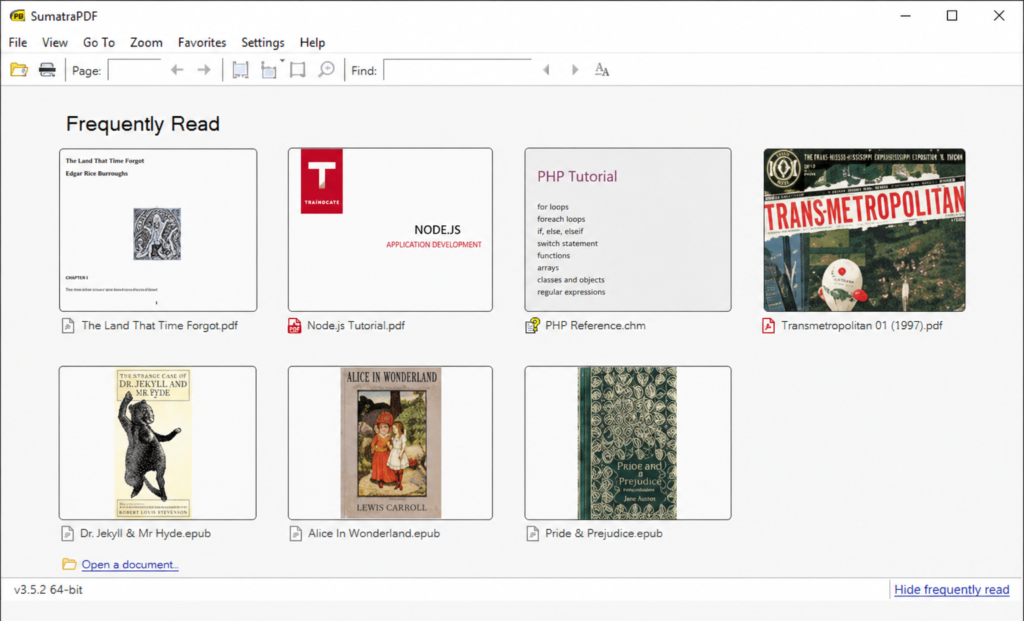
| PDF & Ebook Viewing | SumatraPDF | Unmatched startup speed, minimal RAM footprint, and native support for PDF, EPUB, MOBI, and comic formats. | Lacks advanced PDF editing, form-filling, electronic signing, and OCR capabilities. |
| Video & Audio Playback | VLC Media Player | Broad built-in codec support eliminates the need to install resource-heavy external codec packs. | High-bitrate video decoding demands CPU/GPU power regardless of player size. Hardware acceleration support varies on older GPUs. |
| Office Productivity | LibreOffice | Complete offline suite (Writer, Calc, Impress) with modest hardware requirements and zero subscription overhead. | More resource-heavy than plain text tools. Complex layouts, macros, or proprietary fonts may alter Microsoft Office formatting. |
| Plain Text & Code | Windows Notepad Notepad++ | Native Windows builds (32-bit, 64-bit, ARM64) with near-instant execution and negligible background memory draw. | Text editors lack word processing features like rich page layout, track changes, citation managers, and print formatting. |
| Image Viewing | IrfanView | Extremely compact viewer (~8 MB) with rapid file browsing and batch conversion support. | Freeware for non-commercial use only. Handling ultra-high-resolution images may require the 64-bit build and additional plugins. |
| File Compression | 7-Zip | High-compression utility with a minimal installer footprint and native x64, x86, and ARM64 support. | High compression ratios heavily load the CPU. Use “Normal” or “Fast” compression presets on legacy multi-core or dual-core CPUs. |
Category-Specific Optimization Tips
- Browsers: Treat web apps like desktop applications. A lightweight software browser cannot prevent heavy sites (like web-based spreadsheet tools or video streaming apps) from exhausting system RAM.
- Text & Utility Tools: Keep plugins minimal. While lightweight software like Notepad++ and IrfanView start small, stacking dozens of active third-party extensions quickly increases memory overhead.
- Storage & Archives: Prioritize portable releases when available. Running portable lightweight software from a secondary partition or fast USB drive keeps C: drive storage free for Windows swap files (pagefile.sys).
Browsers Need a Separate Testing Approach
The web browser is often the most resource-variable application on an old PC. Unlike offline tools, a browser’s footprint isn’t fixed—every website injects its own scripts, high-resolution media, tracking code, and background activity. A lightweight software setup that runs smoothly when reading a text article may quickly stall when joining a live video conference.
Benchmark Microsoft Edge First
If you are running a supported Windows build, start your benchmarks with Microsoft Edge. Because it is natively integrated into the OS, using it avoids installing a duplicate browser engine.
- Test Sleeping Tabs: Microsoft Edge includes native efficiency settings that put inactive background tabs to sleep, releasing memory and minimizing CPU draw.
- Execution: Turn on performance mode, open your typical daily tab layout, and observe if system RAM frees up after tabs sit idle.
Compare Mozilla Firefox Under Identical Conditions
Next, benchmark Mozilla Firefox using the same web pages with all optional extensions disabled.
Mozilla’s published minimum hardware requirements list:
- Operating System: Windows 10 or later
- Processor: 1 GHz or faster
- RAM: 1 GB (32-bit build) or 2 GB (64-bit build)
- Storage: 500 MB available space
Reality Check: Published system requirements represent baseline installation thresholds, not a guarantee that heavy modern web apps will run smoothly on aging hardware.
Best Practices for Low-Resource Web Browsing
Whichever application proves to be the most responsive lightweight software choice on your PC, enforce these browser management rules:
- Audit Extensions: Strip out unnecessary add-ons. Every active browser extension adds background process overhead.
- Leverage Tab Hibernation: Use built-in sleeping tab controls or close unused tabs promptly rather than letting memory pile up.
- Block Push Notifications: Prevent websites from launching background notification services that consume silent CPU cycles.
- Eliminate Duplicate Browsers: Avoid running secondary browsers concurrently in the background without a specific technical need.
- Isolate Video Meeting Benchmarks: Test video conferencing apps (Zoom, Teams, Google Meet) independently. Camera filters, screen sharing, and multi-participant video rendering create an exponentially heavier hardware load than standard web browsing.
Are Portable Apps Always Lighter?
No. The term portable refers strictly to how an application is deployed—not how efficiently it runs.
A portable build runs directly from its target directory or USB drive without running a conventional Windows installer or registering deeply with the OS. However, portability does not guarantee that an application uses less RAM, demands fewer CPU cycles, or executes faster.
Understanding the Reality of Portable Applications
| Aspect | What People Expect | How Portable Software Actually Behaves |
| System Memory (RAM) | Lower working-memory footprint. | Identical to installed software. Portable builds execute the same core codebase and binaries. |
| CPU Performance | Faster execution speeds. | Identical or slightly slower. Self-extracting portable wrappers can occasionally add startup overhead. |
| Storage & Caching | Zero local disk usage. | Creates temporary caches, log files, and local configuration files inside its working directory AppData. |
| System Integration | Identical feature set to full builds. | May lack system-level services, startup background hooks, or native context menu options. |
When to Choose a Portable Build
Selecting a portable build of lightweight software is ideal when:
- Testing Software Candidates: Evaluate multiple lightweight software options in Task Manager without cluttering the Windows Registry or creating leftover installation files.
- Limited System Permissions: Run utilities on machines where administrator privileges prevent standard software installation.
- Preserving System Drive Space: Keep applications running from a secondary drive or partition to preserve primary OS partition space for pagefiles.
Drawbacks to Keep in Mind
- Manual Update Management: Portable applications rarely include automated background update services. You must manually replace files to apply critical security patches.
- Missing OS Features: Features relying on background system services (like shell integrations, automatic startup routines, or default file associations) may be restricted or unavailable.
- Third-Party Repackaging Risks: Only download portable releases provided or endorsed directly by the official publisher. Avoid third-party “portable repacks” of commercial software, which frequently bundle security risks or unoptimized runtime environments.
Can a Web App Replace Heavy Desktop Software?
Sometimes—but a web app shifts resource demands rather than eliminating them.
Replacing a native installation with a web application removes local installer bloat and centralizes software updates, but it transfers the execution workload directly to your web browser. On an older Windows PC with limited RAM or a weak processor, this trade-off can actually degrade performance.
The Operational Trade-Off Matrix
| System Vector | Local Desktop Application | Web Application Alternative |
| Storage & Installation | Consumes permanent local disk space; requires manual setup. | Zero installer footprint; operates entirely inside the browser. |
| System Memory (RAM) | Allocates fixed memory for dedicated application logic. | High overhead; demands memory for the web app PLUS the browser’s engine. |
| Network & Syncing | Operates independently of network speed or cloud outages. | Requires stable internet; performance bottlenecks on connection latency. |
| Data Privacy & Control | Files remain on local storage under user access controls. | Data relies on remote cloud servers, third-party accounts, and web encryption. |
| Offline Resilience | Full offline capability without feature degradation. | Restricted or non-functional offline unless built as a specialized PWA. |
When Web Apps Work Well
- Basic Word Processing & Spreadsheets: Drafting short assignments, simple budget tracking, or collaborative document editing.
- Low Storage Systems: Devices running small SSDs or eMMC flash storage where every megabyte of local capacity matters.
- Cross-Device Workflows: Scenarios where jumping between a desktop, tablet, and phone without managing file transfers is critical.
When Native Desktop Software Remains Essential
- Handling Large, Complex Files: Opening 100MB+ PDF documents, multi-gigabyte spreadsheets, or high-bitrate local video files will choke a browser tab.
- Strict Confidentiality: Processing sensitive financial records, medical documents, or personal data where cloud upload policies pose a compliance risk.
- Unreliable Connectivity: Working in environments with intermittent Wi-Fi or metered internet connections.
- Advanced Workflows: Tasks requiring deep OS-level integration, custom hardware drivers, or specialized keyboard shortcuts.
Evaluation Rule: When testing lightweight software strategies, evaluate the complete end-to-end workflow—including browser tab memory overhead, cloud sync processes, and network reliance—rather than simply celebrating the absence of a local setup file.
Common Mistakes That Make an Old PC Slower or Less Secure
Optimizing low-spec hardware requires balancing resource efficiency with operational security. Avoid these common mistakes when evaluating and configuring lightweight software alternatives:
Choosing Software by Installer Size Alone
A tiny setup file does not guarantee a minimal resource footprint. An application with a 5 MB installer can easily inflate into a heavy RAM footprint, launch persistent helper services, or build massive local disk caches during operation.
- The Fix: Evaluate lightweight software by measuring its active memory, CPU load, and background processes in Task Manager while handling real files—not by checking the setup file size.
Running Outdated Software Releases for Speed
Installing an archived, legacy version of an app might seem like an easy way to save RAM, but unmaintained software exposes your machine to known security vulnerabilities. Older releases also frequently fail when parsing modern web standards or updated file formats.
- The Fix: Always select a currently maintained lightweight software candidate that receives active security patches and officially supports your Windows OS.
Downloading from Third-Party Download Portals
Search engine results often direct users to third-party software directories. These portals frequently repackage legitimate installers with unwanted toolbars, adware, or outdated, unpatched binaries.
- The Fix: Download lightweight software exclusively from the developer’s official domain, verified GitHub repositories, or official app stores. Check file hash checksums when provided.
Disabling Antivirus, Firewalls, or OS Updates
Disabling core security features to free up CPU cycles or RAM creates extreme risk—especially on PCs used for banking, email, remote work, or general web browsing.
- The Fix: Keep Windows Defender and system firewalls active. Instead of turning off protection, schedule heavy background scans and Windows updates during hours when you aren’t actively using the machine.
Assuming “Open Source” or “Native” Automatically Means Lightweight
Labels like “Open Source” or “Native” do not automatically guarantee low resource usage. Similarly, cross-platform app frameworks (like Electron) are often heavy, but individual apps can still be well-optimized depending on how the developer built them.
- The Fix: Ignore marketing buzzwords. Test every lightweight software candidate using identical test workloads regardless of its underlying framework or open-source license.
Allowing Every Application to Auto-Start
Many software installers quietly add update checkers, launcher agents, and background sync tools to your system startup list. This accumulates background overhead, prolongs boot times, and drains available RAM before you even launch a program.
- The Fix: Open Task Manager (
Ctrl + Shift + Esc), navigate to Startup apps, and disable non-essential startup items you recognize.
Startup Warning: Do not disable critical audio drivers, touchpad utilities, security agents, accessibility features, or enterprise backup services. If you are unsure what a startup item does, research it before toggling it off.
When Software Optimization Is Not Enough
Selecting lightweight software maximizes the efficiency of limited hardware, but no application can create hardware capacity out of thin air. When base hardware constraints are exceeded, continuing to search for lighter software yields diminishing returns.
Key Signals It Is Time for a Hardware or Platform Transition
| Indicator | Root Hardware Constraint | Why Software Alone Cannot Fix It |
| System idle thrashing | Base OS memory saturation | Modern operating systems (Windows 10/11) require a baseline RAM allocation purely for system kernel operations. |
| End-of-life platform status | Missing hardware security features | Hardware lacking Secure Boot, TPM 2.0, or supported instruction sets cannot safely execute modern OS security layers. |
| Constant disk lockups (100% active time) | Mechanical HDD latency | Traditional mechanical hard drives max out at low IOPS; heavy paging/swapping will stall the whole system regardless of app footprint. |
| Instruction set & driver drops | Deprecated CPU/GPU architecture | Modern web frameworks, media codecs, and software builds increasingly depend on modern CPU instructions (AVX/AVX2) or hardware GPU decoding. |
| Unusable web video/conferencing | Real-time media decoding demand | Live video rendering and real-time canvas processing require dedicated CPU/GPU hardware acceleration. |
| Intermittent freezes & crashes | Physical component failure | Failing storage drives, degraded thermal paste, or bad RAM modules produce instability that software choices cannot mitigate. |
Low-Cost Hardware Upgrades vs. System Replacement
If the underlying processor and motherboard remain capable, targeted hardware interventions often yield a far greater performance improvement than software swapping alone:
- Replacing a Mechanical HDD with a SATA SSD: The single most impactful upgrade for legacy systems. Transitioning the OS and pagefile to a cheap solid-state drive eliminates the disk-bottleneck lockups common on 4 GB RAM systems.
- Expanding RAM (e.g., 4 GB to 8 GB or 16 GB): Adding a second memory stick eliminates storage paging during basic web browsing and multitasking.
Cost-Benefit Checklist: Before spending money on individual hardware components, evaluate the total upgrade cost against a supported refurbished business PC (e.g., enterprise desktop/laptop off-lease). Factor in battery degradation on laptops, repairability, and the time required to migrate your workflow.
Final Checklist: How to Choose Lightweight Software
Before committing to a new application as your permanent default, verify that it passes every pass/fail requirement below:
Compatibility & Security
- [ ] Supported Windows Architecture: Built natively for your specific OS build (x64, x86, or ARM64).
- [ ] Official Distribution Channel: Downloaded directly from the publisher’s verified domain, an official GitHub repository, or the Microsoft Store.
- [ ] Active Patching Cycle: Receives regular security updates and bug fixes from an active developer.
Functional & Performance Validation
- [ ] File & Formatting Fidelity: Opens, edits, saves, and prints your actual production files without breaking formulas, layouts, or fonts.
- [ ] Acceptable Resource Footprint: Operates within your available system RAM, CPU limits, and disk bandwidth during a Task Manager stress test.
- [ ] Idle Thermal & Power Stability: Resource utilization drops back to zero when the app sits idle, avoiding unnecessary background CPU draw.
Operational Integrity
- [ ] Clean Startup Footprint: Avoids adding unauthorized update services, tray tools, or background agents to Task Manager > Startup apps.
- [ ] Workflow Alignment: Satisfies all licensing, privacy policies, accessibility needs, and offline usability constraints without requiring secondary helper apps.
- [ ] Clean Uninstallation: Leaves no persistent background processes or unremovable system clutter if removed via Settings > Apps.
Summary Rule: The goal of adopting lightweight software is not to collect the smallest installers, but to create a fast, stable, and responsive environment on your existing hardware.
What is the best lightweight software for a PC with 4 GB of RAM?
There is no single best package for every setup. The most effective approach is to maintain one dedicated, maintained application per task, enforce strict limits on active browser tabs, and benchmark candidates using Task Manager while handling your actual files.
Proven lightweight options to test include:
PDF & Documents:
SumatraPDF, LibreOffice
Media & Images: VLC Media Player, IrfanView
Text & Utilities: Windows Notepad, Notepad++, 7-Zip
Web Browsing: Microsoft Edge, Mozilla Firefox
Always verify operating-system compatibility and security maintenance before replacing software.
Does lightweight software make Windows boot faster?
Yes, but only if it reduces startup overhead.
Replacing resource-heavy applications can improve boot times if the new software avoids adding auto-start background services, telemetry agents, or update checkers.
To optimize boot speeds:
Open Task Manager (Ctrl + Shift + Esc).
Navigate to Startup apps.
Disable non-essential, recognized third-party startup entries.
Hardware Note: If your computer relies on an aging mechanical hard drive (HDD), low system RAM, pending Windows updates, or degraded hardware, software changes alone will have a limited impact on boot times.
Is a 32-bit app better for an old computer?
Not automatically.
While a 32-bit (x86) application may use slightly less disk space and is mandatory if running a 32-bit edition of Windows, it comes with strict memory address limits (4 GB RAM cap per process) and may receive fewer performance optimizations from developers.
If your machine runs a 64-bit operating system, download the native 64-bit (x64) release recommended by the developer for optimal file handling and processor efficiency.
Should I use Windows 7 or 8 because they need fewer resources?
No, not for an everyday, internet-connected computer.
Lower system resource consumption does not outweigh the severe risks of running an unsupported operating system. Legacy platforms no longer receive critical security patches, leaving your system exposed to modern web vulnerabilities, malware, and format incompatibility.
Always run a Windows release with an active security update path (such as Windows 10/11 with valid support or ESU coverage), or transition the hardware to a lightweight, actively maintained operating system.
Will a portable app leave no files on the PC?
Not necessarily.
While portable software runs from its local folder without writing traditional Windows Registry installation entries, it can still generate:
Temporary scratch files
Local application caches
Recent file records (MRU lists)
System log files inside working directories or AppData
If you are handling sensitive data, review the publisher’s technical documentation and test background file creation before relying on a portable app for complete privacy.
In Conclusion
“Lightweight” is a result, not a label. The right application completes your real task, remains supported, and leaves enough CPU, memory, disk capacity, and background headroom for the rest of your work.
Your next step is simple:
- Record your PC’s baseline: Document your exact Windows version, architecture, RAM, and primary system bottleneck.
- Target the main bottleneck: Pick the heaviest application you use every day.
- Run a controlled benchmark: Shortlist two supported lightweight software alternatives and evaluate them under identical workloads in Task Manager before setting a new default.