How to Convert PDF to Word for Free (5 Easy Methods)
Converting a PDF to an editable format is essential when you need to update text, reuse content, or restructure information without starting from scratch. Whether you want to convert PDF to Word for a resume, business report, or application form, choosing the right approach depends heavily on your document’s layout and text structure.
This comprehensive guide thoroughly breaks down the five most efficient and entirely free methods to convert PDF to Word—ranging seamlessly from built-in office applications and accessible web utilities to advanced optical character recognition (OCR) workflows designed specifically for unselectable scanned documents—ensuring that you carefully select the optimal solution for your specific document type, layout complexity, and security requirements.
What Does Convert PDF to Word Mean?
To convert PDF to Word means to transform a document locked in the Portable Document Format (PDF) into a fully editable word-processing file, typically utilizing the modern .docx extension.
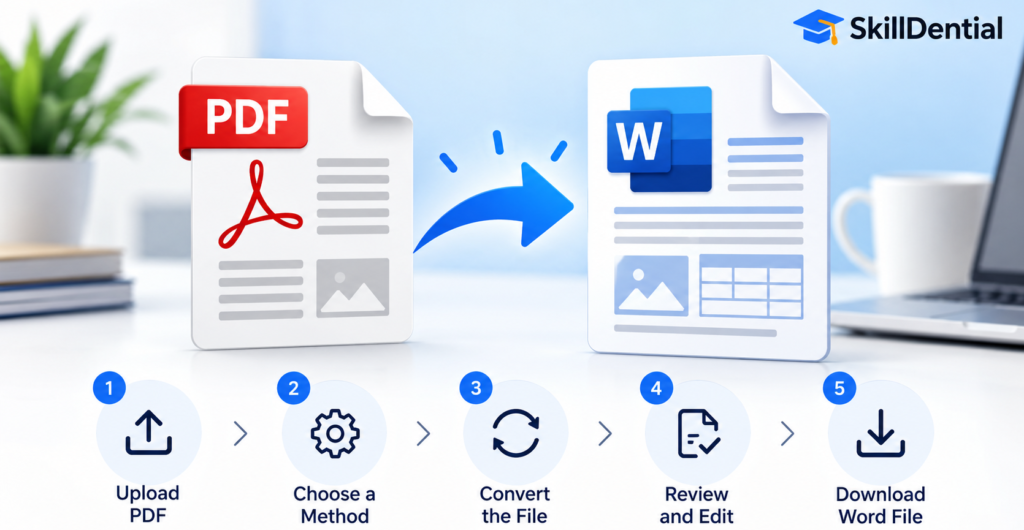
While PDF files are intentionally engineered to lock layout integrity and preserve visual presentation identically across disparate operating systems and devices, Word documents are built specifically for dynamic editing—allowing you to manipulate text blocks, restructure paragraphs, reformat tables, and swap out assets seamlessly.
When you convert PDF to Word, the underlying utility or software attempts to reverse-engineer the structural architecture of the original document using native Word elements. However, the fidelity of this output can vary; documents featuring complex multi-column layouts, intricate tables, proprietary fonts, or flat scanned images may require minor manual touch-ups post-conversion.
Practical Use Cases
- Academic Research: A student receiving fixed-layout lecture notes or academic papers can convert PDF to Word to inject annotations and personal summaries.
- Career Management: A professional updating their credentials can convert PDF to Word to rapidly modify outdated job histories within an existing CV template.
- Corporate Workflows: An office team member can convert PDF to Word on a legacy quarterly report to safely extract, update, and reuse institutional content without retyping manually.
Strategic Note: Before selecting a conversion utility, always verify whether your target file contains crisp, native selectable text or flat, rasterized scanned images. This fundamental distinction dictates whether a standard text-extraction tool will suffice or if your workflow requires integrated Optical Character Recognition (OCR).
Five Free Methods to Convert PDF to Word
When you need to bypass subscription paywalls and edit documents without purchasing Adobe Acrobat Pro, you can rely on five practical, zero-cost workflows to convert PDF to Word successfully.
Method 1: Convert PDF to Word Using Microsoft Word
Microsoft Word provides a native, built-in capability to open standard PDF files and automatically transform them into fully editable documents. This approach is ideal if you already have a desktop installation of Microsoft Office or Microsoft 365.
According to Microsoft’s documentation, this direct conversion process performs best on text-heavy files. PDFs dominated by complex layouts, overlapping graphics, or intricate structural elements may require manual clean-up post-conversion.
Step-by-Step Instructions
- Open Microsoft Word on your desktop computer.
- Navigate to File and click Open.
- Browse your local storage to locate the target PDF file.
- Select the PDF and click Open.
- When Word displays a prompt explaining that it will make a copy of the PDF and convert its contents into an editable Word document, select OK.
- Allow the software a moment to complete the translation process.
- Review the newly generated file to inspect alignment, typography, and layout integrity.
- Select File > Save As and save your file as a standard Word Document (.docx).
Safety Note: Your original PDF file remains intact and unmodified on your drive, allowing you to cross-reference or restart the conversion if unexpected formatting shifts occur.
Key Advantages
- Data Privacy: You bypass the security risks of uploading sensitive corporate or personal files to third-party web utilities.
- Immediate Utility: It eliminates extra software downloads if you already use Microsoft Word daily.
- Streamlined Workflow: Allows you to review and edit content instantly within the same application interface.
Limitations
- Layout Variance: Complex formatting features—such as multi-column newspaper layouts, custom page borders, overlapping text, footnotes, or heavily styled tables—frequently break or misalign during conversion.
- Licensing Dependencies: Fully functional editing capabilities within desktop Word require a valid active license or subscription (such as Microsoft 365), meaning it is not strictly “free” for users who lack pre-existing access.
Best for: Students, researchers, and professionals who already maintain an active Microsoft Office license and need to quickly edit text-dominant PDF documents locally.
Method 2: Convert PDF to Word Using Google Docs
Google Docs serves as an accessible, browser-based alternative for users who do not have a paid desktop installation of Microsoft Word. By leveraging Google Drive’s built-in conversion utilities, you can extract text from a supported PDF file and manipulate the resulting content directly online.
While Google Docs is exceptionally convenient for straightforward, text-driven files, complex visual formatting and structural alignment may require manual adjustments post-conversion.
Step-by-Step Instructions
- Open your web browser and navigate to Google Drive.
- Sign in to your Google account.
- Click on New > File upload to upload your target PDF into your Drive storage.
- Wait for the upload process to finish.
- Locate the uploaded PDF file within your Google Drive interface.
- Right-click the file, select Open with, and choose Google Docs (if available in the dropdown menu).
- Allow Google Docs a moment to process the document and parse its text contents.
- Review the extracted text thoroughly to correct any layout shifts, paragraph breaks, or structural flaws.
- Within the open Google Doc, navigate to File > Download > Microsoft Word (.docx).
- Open the newly downloaded file locally in Word or another compatible word processor.
At this stage, you possess a clean, editable Word document ready for collaboration and sharing.
Key Advantages
- Platform Independence: Operates entirely within your web browser without requiring any heavy desktop software installations.
- Cloud Collaboration: Enables immediate online editing, sharing, and real-time commentary before export.
- Direct Export: Allows you to effortlessly package the output into a native Microsoft Word (
.docx) file format with a single click.
Limitations
- Structural Degradation: Complex elements such as multi-column layouts, sidebars, footnotes, text boxes, and intricate tables frequently fail to transfer accurately.
- Variable Quality on Scans: Purely image-based or scanned PDFs require optical text recognition, and overall conversion fidelity heavily depends on the clarity of the source file.
- File Considerations: While Google handles varied file weights, extremely large PDFs or image-dense layouts can impact parsing performance. (Note: Google recommends managing file sizing carefully for optimal image-to-text handling, though size constraints vary by document structure).
Best for: Students, educators, freelancers, and remote workers who require a fast, cloud-based method to convert PDF to Word for simpler, text-dominant documents.
Method 3: Convert PDF to Word Using Adobe Acrobat Online
Adobe provides a dedicated, web-based PDF-to-Word utility that allows you to transform supported PDFs into editable Word documents directly through your browser, eliminating the need to install the full desktop Acrobat application.
This method is ideal when you want a purpose-built conversion engine optimized by the creators of the PDF format itself, rather than relying on a general word processor.
Step-by-Step Instructions
- Navigate to the official Adobe Acrobat Online PDF to Word converter page.
- Click the interactive button to choose or drop your file.
- Upload the target PDF you want to convert from your local storage.
- Allow Adobe’s cloud servers a moment to process the document architecture.
- Download the newly converted Word document as soon as the prompt appears.
- Open the resulting
.docxfile locally to verify typography, spacing, and structural layout.
Usage Note: Adobe provides this online utility as a streamlined web service, though features, daily conversion caps, and sign-in prompts are subject to change based on their platform updates. If prompted to create an account or sign in to complete your download, review any updated terms or prompts accordingly.
Key Advantages
- Specialized Conversion Engine: Developed by the inventors of the PDF format, ensuring high fidelity for standard text-and-layout combinations.
- Browser Convenience: Operates entirely online across all operating systems without heavy desktop requirements.
- Element Preservation: Retains common document elements, headings, and basic structural alignments better than generic office text-parsers.
Limitations
- Layout Complexities: Highly intricate designs, overlapping elements, or unconventional vector graphics may still exhibit minor formatting shifts requiring post-conversion touch-ups.
- Feature Restrictions: Advanced capabilities—such as heavy automated OCR processing for poor-quality scans or batch conversions—often require a paid Adobe subscription or desktop plan.
Best for: Professionals, students, and office workers looking for a dedicated online converter to quickly process standard reports, letters, and ordinary PDFs.
Method 4: Convert PDF to Word Using PDF24 Tools
PDF24 Tools is a popular browser-based utility suite offering a dedicated PDF-to-DOCX conversion feature. The platform allows users to quickly upload a PDF, execute the conversion, and download the resulting Word file without mandatory registration.
For users uncomfortable with web uploads, PDF24 also offers a standalone Windows desktop application called PDF24 Creator, enabling local, offline file processing.
Step-by-Step Instructions
- Navigate to the official PDF24 PDF to DOCX converter page in your web browser.
- Select your target PDF file from local storage or drag and drop it directly into the designated upload area.
- Initiate the conversion process.
- Allow the online utility a moment to parse and restructure your file.
- Download the newly generated
.docxdocument to your computer. - Open the file in Microsoft Word or any compatible word processor.
- Thoroughly review the text blocks, images, tables, and overall page layout.
Privacy Note: PDF24 states that files uploaded to their online tools are automatically deleted from their servers within one hour. However, users should treat this as the provider’s stated policy rather than a cryptographic guarantee of complete data eradication, making it wise to avoid uploading highly sensitive or confidential data to third-party web servers.
Key Advantages
- Frictionless Access: The online converter is freely available and does not require account registration or software installation.
- Cross-Platform Compatibility: Operates smoothly across standard desktop and mobile web browsers.
- Offline Alternative: Windows users can download PDF24 Creator for local processing, bypassing cloud upload requirements entirely.
Limitations
- Privacy & Security Trade-offs: Utilizing the online version requires transmitting your document to a third-party server.
- Layout Imperfections: As with most web-based parsers, complex graphics, custom typography, or intricate tables can suffer from reconstruction errors.
Best for: Users seeking a fast, free web-based option to convert PDF to Word, or Windows users who prefer a flexible offline desktop utility.
Method 5: Convert PDF to Word Using OCR (For Scanned Documents)
If your target PDF consists of scanned pages, photographs of documents, or flat files where individual words cannot be highlighted or selected, standard conversion tools will fail. You must utilize Optical Character Recognition (OCR).
OCR is an advanced technology designed to scan image pixels, recognize letterforms, and translate them into actual machine-readable text. Without successful OCR processing, a scanned PDF will remain a static picture embedded inside your converted Word document rather than becoming true editable text.
While dedicated offline OCR suites exist, Google Drive offers a reliable, zero-cost OCR workflow as a starting point.
Step-by-Step Instructions (Using Google Drive & Docs)
- Prepare a clear, correctly oriented scanned PDF file.
- Open your web browser and navigate to Google Drive.
- Upload the target PDF file into your storage.
- Locate the uploaded file in your Drive directory, right-click it, and select Open with > Google Docs.
- Allow Google Docs a moment to process the file and execute its automated text recognition.
- Review the resulting extracted content carefully for parsing errors.
- Navigate to File > Download > Microsoft Word (.docx).
- Open the downloaded document locally to make final corrections.
Troubleshooting Scanned Documents
If your PDF is not recognized properly or yields garbled text, apply these optimization steps:
- Enhance Resolution: Re-scan the physical document at a higher DPI or clarity rating.
- Correct Orientation: Ensure the page is entirely upright and free of skew.
- Optimize Contrast: Boost the contrast while minimizing background blur, shadows, or smudges.
- Verify Language: Ensure the document’s primary language matches the parser’s supported configurations.
- Manual Verification: OCR systems frequently confuse visually similar characters (such as the number
0and letterO, or1and lowercasel). Always manually audit critical figures, dates, proper names, and account numbers.
Best for: Students and professionals working with scanned historical lecture notes, printed paper forms, legacy reports, or documents received strictly as flat image files.
Which Free Method Should You Choose?
The ideal method to convert PDF to Word depends entirely on your document’s structural architecture, text layout, and confidentiality requirements. Use the structured matrix below to determine the best approach for your specific workflow:
| Your Situation | Recommended Method | Main Strategic Consideration |
| You already use Microsoft Word | Microsoft Word (Desktop) | Highly convenient for clean, text-based PDFs without complex vector graphics. |
| You want a browser-based workflow | Google Docs | Excellent for cloud accessibility, though complex layouts may require manual reformatting. |
| You want a dedicated conversion utility | Adobe Acrobat Online | Purpose-built web engine; check platform terms, sign-in prompts, or daily usage caps. |
| You prefer an alternative free utility | PDF24 Tools | Convenient online or desktop options (via PDF24 Creator), keeping in mind that cloud files are processed remotely. |
| Your PDF contains scanned pages | Google Docs OCR or an OCR-enabled tool | Essential for static image files; expect to manually check and correct recognition errors. |
| Your document is highly confidential | Local desktop workflows (e.g., Word or PDF24 Creator) | Strictly avoid uploading sensitive corporate, financial, or personal files to third-party web servers. |
Strategic Recommendation Summary
- For standard documents: Start with Microsoft Word if you possess an active license. If you are operating without desktop software, Google Docs or a trusted online converter will suffice.
- For scanned or image-based pages: Always verify whether Optical Character Recognition (OCR) is integrated before selecting your conversion tool.
How to Convert PDF to Word Without Losing Formatting
While it is difficult to guarantee flawless layout reproduction in every single conversion, you can drastically minimize post-conversion cleanup time by properly preparing your source file and systematically auditing the output.
Start with a Text-Based PDF When Possible
Files containing selectable text are significantly easier to convert from PDF to Word cleanly than image-only scans.
- Quick Test: If you can highlight and copy a sentence directly from your original PDF, the file contains extractable native text.
- Note: While this serves as a useful indicator for high-fidelity text extraction, it does not guarantee that complex column structures or embedded graphics will map perfectly.
Match the Conversion Method to Document Complexity
Different architectural layouts require different tools:
- Simple Documents: Basic letters or single-column memos convert exceptionally well using native desktop Word or Google Docs.
- Complex Documents: Reports featuring multi-column layouts, nested tables, graphical charts, and extensive footnotes require meticulous manual review post-conversion.
- Design Caveat: If preserving absolute visual appearance is more critical than editing capabilities, maintaining the original PDF format is often preferable.
Audit Fonts, Typography, and Spacing
Immediately after you convert PDF to Word, open the resulting .docx file side-by-side with the original and inspect it for common structural artifacts:
- Unexpected or hard line breaks
- Missing, uninstalled, or substituted font families
- Merged paragraphs lacking proper spacing
- Headings that have lost their hierarchy or visual prominence
- Text blocks that have bled or shifted onto subsequent pages
Tip: Apply native Microsoft Word paragraph and heading styles rather than manually fixing spacing line-by-line.
Inspect Tables and Embedded Graphics
Carefully verify whether structural elements remain intact:
- Check that table cells are properly aligned and that numeric data sits cleanly within its designated columns.
- Confirm that images and illustrations are anchored in the correct locations.
- Efficiency Rule: If a complex financial or data table converts with severe distortion, recreating the table natively in Word is frequently faster and more reliable than trying to repair a broken conversion.
Perform a Side-by-Side Quality Comparison
Keep your original PDF open on your screen while auditing the new Word file. Cross-check critical elements:
- Headings, formal titles, and section breaks
- Proper nouns, names, and contact details
- Numerical figures, financial data, and dates
- Sequence of pages, footnotes, and endnotes
High-Stakes Warning: Rigorous manual verification is mandatory when handling sensitive materials such as job applications (CVs), financial records, academic papers, and executive business reports.
Protect Your Files with Independent Versioning
Always save your conversion output as a fresh, separate .docx file rather than overwriting your source material. If your final objective requires distributing a fixed-layout document once edits are complete, you can safely re-export the audited Word file back into a pristine PDF format.
Is It Safe to Use Free Online PDF Converters?
While browser-based utilities offer incredible convenience when you need to convert PDF to Word, uploading a file requires transferring its contents to a remote third-party server for processing.
Before dragging and dropping a document into an online tool, evaluate the sensitivity of its contents. A public assignment or marketing handout carries minimal risk, whereas a signed legal contract, medical record, bank statement, identity document, or corporate personnel file introduces severe privacy vulnerabilities.
Best Practices for Sensitive Documents
- Prioritize Local Processing: Prefer trusted desktop applications (such as Microsoft Word or offline utilities like PDF24 Creator) that process files entirely on your local machine.
- Audit Privacy Policies: Scrutinize the provider’s stated privacy policy, data retention schedules, and terms of service before initiating a transfer.
- Exercise Caution with Unknown Sites: Never upload confidential, proprietary, or personal information to unfamiliar, ad-supported conversion websites.
- Adhere to Organizational Policies: Always utilize your company or institution’s officially approved and vetted software for work-related documents.
- Practice Good Hygiene: Promptly purge unnecessary temporary or converted copies from shared computers, downloads folders, and cloud storage bins after use.
Security Reality Check: A provider’s marketing claim that files are “encrypted in transit” or “automatically deleted within an hour” is standard procedure, but it should never override your internal data-handling requirements or compliance standards.
Common PDF-to-Word Problems and How to Fix Them
Even with the best tools, translation errors can occur when you convert PDF to Word. Review this troubleshooting guide to quickly diagnose and resolve the most frequent formatting and processing issues:
The converted Word document contains images instead of editable text
- The Cause: The original PDF is likely a flat scan or an image-based document containing no native text layers.
- The Fix: Switch to an OCR-enabled workflow (such as Google Drive’s OCR pipeline or a dedicated local optical character recognition utility). Once processed, carefully audit the resulting text for recognition mistakes.
The layout and formatting look entirely different from the original PDF
- The Cause: Conversion engines must mathematically reverse-engineer document layouts, which frequently introduces structural misalignments.
- The Fix: Manually adjust paragraph spacing, typography, page breaks, and structural styles directly inside Word, or run the file through a secondary conversion tool to compare output quality.
Tables appear broken, scrambled, or severely misaligned
- The Cause: PDFs do not natively store data tables as structured database rows and columns; instead, they render text coordinates visually.
- The Fix: Audit the original document carefully. For complex financial or data tables, manually rebuilding the table in Word is often significantly faster and cleaner than attempting to repair a broken conversion.
The document is too large to upload
- The Cause: You have exceeded the file-size caps enforced by web-based conversion platforms.
- The Fix: Split the document into smaller page ranges, or utilize a local desktop tool (like Microsoft Word or PDF24 Creator) which avoids browser upload ceilings entirely.
- Security Warning: Never upload a confidential document to an unfamiliar compression or splitting website simply to bypass online file-size limits.
The online converter demands payment or a subscription upgrade
- The Cause: Many web utilities restrict advanced functionalities—such as heavy OCR processing, large batch queues, or lossless layout mapping—behind a paywall.
- The Fix: Verify feature access before uploading your file, and switch to an alternative 100% free method (like Microsoft Word or Google Docs) if premium features are required.
The downloaded converted file will not open or throws an error
- The Cause: The browser download may have been interrupted, or the file extension was corrupted during transfer.
- The Fix: Confirm that your download completed successfully and that the file retains the proper
.docxextension. If corruption persists, clear your browser cache, re-download the file, or repeat the conversion process using a different method.
How can I convert PDF to Word for free?
You can convert PDF to Word for zero cost using Microsoft Word (if you possess a compatible desktop license), Google Docs, Adobe Acrobat Online, or PDF24 Tools. For files containing flat, image-based scans, you must utilize an OCR-enabled workflow.
Can I convert PDF to Word without Adobe Acrobat?
Yes. Microsoft Word, Google Docs, and PDF24 Tools serve as entirely viable alternatives. Choose the specific platform that aligns best with your device operating system, document layout complexity, and data privacy requirements.
Can I convert PDF to Word on my mobile phone?
Yes. You can access browser-based online converters using a mobile web browser. Additionally, Google Drive and Google Docs support mobile document workflows. Keep in mind that exact interface menus, features, and layout rendering capabilities may differ between Android, iPhone, and desktop environments.
How do I convert a scanned PDF into an editable Word document?
To convert a scanned PDF, you must run Optical Character Recognition (OCR) to identify and extract text from the flat image pages, then export the recognized text as a .docx file. Always audit the final output manually, as OCR engines frequently misread visual characters and formatting.
Will converting a PDF to Word preserve the original formatting?
Not always. Text-dominant PDFs convert significantly more successfully than documents featuring complicated multi-column layouts, custom typography, complex tables, or heavy graphics. Always compare your converted file against the source document.
What is the structural difference between PDF and DOCX?
A PDF file is engineered to lock and preserve a fixed visual page layout across all devices, whereas DOCX is a Microsoft Word format designed specifically for active editing and content creation. Because of this architectural difference, converting between them can occasionally alter alignment.
Do I need to install software to convert PDF to Word?
No. Browser-based platforms such as Google Docs, Adobe Acrobat Online, and PDF24 Tools allow you to execute supported conversions directly online without installing desktop applications. However, using a trusted offline desktop tool is strongly recommended when handling sensitive or confidential documents.
In Conclusion
Learning how to convert PDF to Word for free is straightforward once you align your document type with the appropriate utility. Microsoft Word offers native convenience if you possess a desktop license, Google Docs provides a flexible browser-based alternative, and dedicated web utilities deliver fast results when you need a quick conversion.
For flat, image-based documents, remember that integrating OCR is essential to extract true editable text. Regardless of the conversion pathway you select, always audit the final document for structural errors, keep your original PDF safe as a backup, and strictly avoid uploading sensitive or confidential files to untrusted third-party servers.
Your Next Step
Select one of the methods outlined in this guide, test a non-sensitive sample PDF, and carefully audit the resulting Word document to ensure layout fidelity before deploying it for active use or sharing.