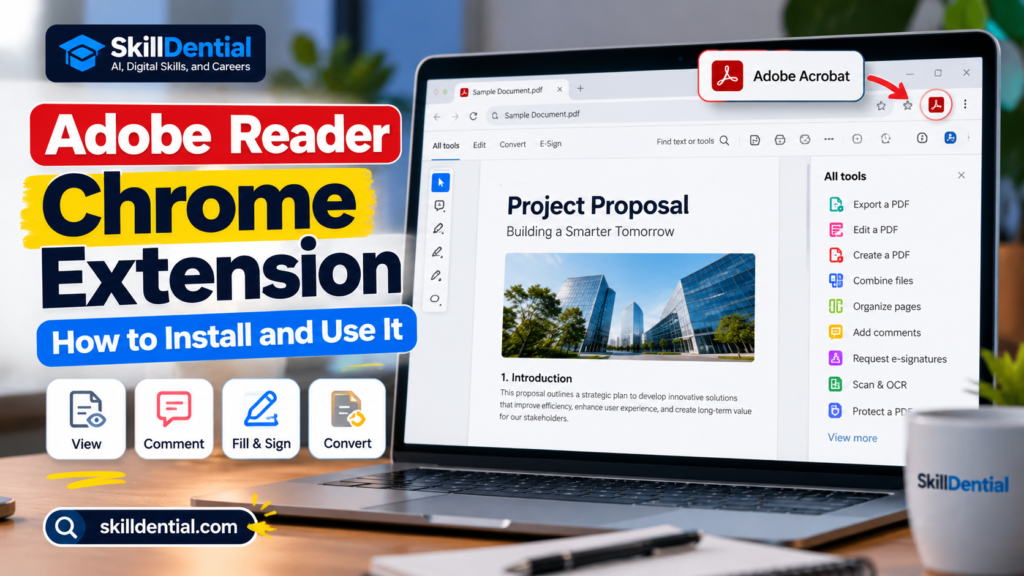
Adobe Reader Chrome Extension: How to Install and Use It
The Adobe Acrobat extension for Google Chrome—formerly known as the Adobe Reader Chrome extension—brings core document workflows directly into your browser. Instead of switching between desktop applications and web tabs, you can view, comment, fill forms, and sign PDFs on the fly.
While basic reading and commenting are free, certain conversion and editing tools require a paid Adobe subscription. This comprehensive guide details how to install the official Adobe Reader Chrome extension, configure your settings, leverage its core features, and troubleshoot common browser integration issues.
What You Will Learn in This Guide
- How to safely install and pin the Adobe Reader Chrome extension from the Chrome Web Store.
- A walkthrough of essential document tools available inside the Adobe Reader Chrome extension.
- Key differences between free browser tools and paid subscription features.
- Practical troubleshooting steps if your Adobe Reader Chrome extension fails to load or open PDFs.
Core PDF Capabilities of the Adobe Reader Chrome Extension
While Google Chrome includes a basic native PDF viewer, the Adobe Reader Chrome extension (officially listed as Adobe Acrobat: PDF edit, convert, sign tools) bridges the gap between simple browser reading and document management.
- Direct Browser Rendering: Open and read PDFs instantly within Chrome tabs with layout fidelity.
- Collaboration & Annotation: Add sticky notes, text comments, freehand drawings, and precise highlights directly onto documents without external software.
- Form Completion: Fill out interactive form fields cleanly and apply digital signatures where supported.
- Quick Cloud Conversion: Convert web pages or documents into structured PDFs (advanced conversion and compression tools require a paid Adobe subscription).
Use Cases Across Workflows
The Adobe Reader Chrome extension serves different professional and educational segments by reducing context switching:
- Students: Annotate research papers, highlight textbook excerpts, and manage study materials inside a single browser interface.
- Office Workers: Review corporate reports, complete compliance forms, and handle daily administrative workflows on the fly.
- Freelancers: Review client agreements, add inline comments, and prepare contracts without launching a heavy desktop application.
- Job Seekers: Complete application forms and securely sign PDFs directly within browser sessions.
- Small-Business Owners: Process invoices, review supplier contracts, and manage operational paperwork quickly.
- Educators: Examine digital curricula, grade assignments submitted as PDFs, and complete standardized forms.
Note
If your workflow is strictly limited to reading local PDF files, Chrome’s native viewer is often sufficient. Installing the Adobe Reader Chrome extension is most beneficial when you require interactive markup, web-to-PDF conversion, or direct integration with your Adobe Acrobat cloud account.
Feature Capabilities and Subscription Tiers
What you can accomplish with the Adobe Reader Chrome extension depends on your document type, account status, and subscription level. While the core extension bridges the gap between browser reading and advanced document management, capabilities are split between free utility features and premium cloud-backed workflows:
- Free Browser Tools: Instant PDF viewing, text highlighting, sticky notes, inline comments, basic form filling, and page navigation.
- Premium Subscription Tools: Advanced file conversions (PDF to Word/Excel), document merging, compression, and robust digital signing integrations.
View and Download PDF Documents
The Adobe Reader Chrome extension replaces basic browser rendering with the standardized Adobe Acrobat viewing experience. When you click a PDF link online or open a file in your browser, the extension loads the document with high-fidelity layout rendering, ensuring fonts, formatting, and vector graphics display correctly.
Key viewing and access functions include:
- Interactive Navigation: Jump through structured bookmarks, use page thumbnails, and use the built-in search bar to find specific terms.
- Direct Export: Download a local copy of the PDF to your machine or send the document straight to your connected printer with a single click.
This capability streamlines reviewing online manuals, digital application forms, academic research papers, and corporate reports without forcing you to manage heavy desktop software for simple reading.
Add Comments and Highlights
The Adobe Reader Chrome extension equips your browser with a robust markup toolset, letting you collaborate on documents without launching a desktop application. You can flag critical details, leave feedback, and map out document revisions directly inside your tab.
Supported annotation features include:
- Text Highlighting & Underlining: Select text to emphasize key passages using customizable highlight colors.
- Sticky Notes & Comments: Drop interactive comment bubbles anywhere on the page to leave detailed notes, suggest edits, or flag discrepancies.
- Freehand Drawing: Use the drawing tools to circle elements or sketch quick pointers when visual markup is required.
Practical Workflow Examples:
- Students: Reviewing academic research papers can highlight core methodology sections and attach sticky notes with critical summary points.
- Office Workers: Collaborating on corporate reports can flag specific paragraphs requiring revision and leave precise inline correction notes for team members.
Fill Out PDF Forms
The Adobe Reader Chrome extension eliminates the friction of printing, filling, and scanning paperwork by allowing you to complete digital forms directly within your browser window.
- Interactive Field Detection: The extension automatically recognizes fillable form fields (such as text boxes, checkboxes, and drop-down menus), letting you click and type smoothly.
- Streamlined Administrative Work: This capability significantly accelerates processes like job applications, government documentation, business registrations, and expense reports.
Important Caveat
The ability to type directly into a form depends on how the PDF was created. If a document is a flat, scanned image rather than an interactive form, standard text fields will not be selectable. In those cases, you may need to use annotation tools (like text boxes) or a more advanced optical character recognition (OCR) tool to enter your information.
Sign PDF Documents
The Adobe Reader Chrome extension includes digital signature capabilities, allowing you to apply electronic signatures or initials to supported agreements directly in your browser.
- Signature Placement: Type, draw, or upload an image of your signature to place it onto designated signature blocks without needing to print, sign manually, and scan the paperwork back into your computer.
- Workflow Integration: Useful for quickly signing standard contracts, internal company authorizations, and non-binding digital forms on the go.
Important Legal Consideration
Always verify the recipient’s or governing jurisdiction’s requirements before signing official documents. While electronic signatures are widely accepted for standard business agreements, certain legal contracts, government filings, and real estate transactions may require specific types of cryptographic digital IDs, notarization, or wet-ink signatures.
Convert and Organize PDF Files
Beyond viewing and markup, the Adobe Reader Chrome extension connects your browser to Adobe’s broader cloud document suite. Depending on your account tier and subscription status, you can access powerful file management and conversion tools directly from the web interface.
Key organization and conversion capabilities include:
- Format Conversion: Transform PDFs into editable Microsoft Word, Excel, or PowerPoint files, or convert web pages and images into structured PDFs.
- Page Management: Merge multiple files into a single document, split large files, reorder pages, and delete unwanted sections.
- File Compression: Reduce large PDF file sizes to meet strict email attachment limits or web upload restrictions.
These features streamline document preparation for email delivery, online portal submissions, and professional publishing. While the core extension offers basic utility, advanced conversion, compression, and merging operations typically require a paid Adobe Acrobat subscription.
How to Install the Adobe Reader Chrome Extension
To protect your browser security and avoid third-party software clones, the only safe method to set up the Adobe Reader Chrome extension is through the official Google Chrome Web Store listing published by Adobe Inc.
Step 1: Open the Official Chrome Web Store Listing
Launch Google Chrome on your computer and navigate to the official Chrome Web Store page for Adobe Acrobat. Before moving forward, verify that the listed developer or publisher is explicitly Adobe Inc. Avoid installing similarly named add-ons or clones from unfamiliar or third-party developers to protect your browser security and personal data.
Step 2: Add the Extension to Chrome
On the official store listing page for the Adobe Reader Chrome extension, click the “Add to Chrome” button. Chrome will display a security confirmation prompt outlining the extension’s access requirements. Review these permissions and select “Add extension” to complete the installation. Once finished, the tool will be successfully integrated into your browser.
Step 3: Enable the Extension
While Chrome usually activates add-ons immediately after installation, you may occasionally need to manually turn on the Adobe Reader Chrome extension:
- Open a new tab in your browser, type
chrome://extensions/into the address bar, and press Enter to open the Extension Management page. - Locate Adobe Acrobat: PDF edit, convert, sign tools in your list of installed items.
- Toggle the switch to the Enabled position if it is currently turned off. Follow any additional on-screen prompts if Chrome requests further confirmation.
Additional Resource: If you encounter persistent activation issues, consult theofficial Adobe support guide for troubleshooting browser extension integrations.
Step 4: Pin Adobe Acrobat to the Toolbar
Pinning the Adobe Reader Chrome extension to your main browser toolbar ensures your PDF tools are always a single click away, eliminating the need to dig through menus every time you need to review a document.
Follow these quick steps to pin the extension:
- Click the Extensions icon (represented by a puzzle piece) located in the top-right corner of your Chrome toolbar.
- Scroll through your installed add-ons to locate Adobe Acrobat: PDF edit, convert, sign tools.
- Click the Pin icon next to the extension name.
- Confirm that the red Adobe Acrobat icon now appears permanently on your main browser toolbar.
You can now instantly launch document workflows, check tools, or manage active PDF tabs right from your browser header.
Step 5: Open a PDF and Try the Available Tools
With the installation complete, test the Adobe Reader Chrome extension to ensure everything is functioning correctly:
- Open a PDF: Navigate to any website containing a PDF link or open an online document. Depending on your configuration, the file will either open directly through the Adobe Acrobat extension interface or prompt you to activate it.
- Access Document Tools: Click the pinned Acrobat icon in your toolbar or use the on-screen overlay to explore features like commenting, highlighting, or form filling.
- Enable Local File Access (Optional): If you plan to review PDFs stored directly on your computer’s hard drive rather than the web, you must grant the extension permission to access local file URLs. To do this, return to
chrome://extensions/, find the Adobe Reader Chrome extension, click Details, and toggle on “Allow access to file URLs”.
How to Use the Adobe Reader Chrome Extension
Once installed, the Adobe Reader Chrome extension streamlines your daily document workflows directly within the browser interface. Depending on your current settings and document type, the interface may vary slightly when managing files in-browser versus transitioning them to the full Adobe Acrobat desktop application.
How to Open a PDF in Adobe Acrobat
Working with documents in your browser using the Adobe Reader Chrome extension is straightforward, but you can choose between quick in-browser edits or full desktop processing depending on your project needs.
Follow these steps to open and manage documents:
- Click a PDF Link: Navigate to any webpage and click a link pointing to a PDF file, or drag a downloaded PDF directly into an open Chrome tab.
- Access the Extension Interface: Look for the Adobe Acrobat toolbar icon or the on-screen extension banner. The Adobe Reader Chrome extension will automatically hook into the tab to replace Chrome’s native viewer with Adobe’s toolset.
- Select Your Tools: Choose from the available feature menu to begin commenting, highlighting passages, filling out interactive forms, or applying digital signatures.
- Transition to Desktop (Optional): If a document requires heavy editing, advanced formatting, or tools unavailable in the browser environment, click the “Open in Acrobat Reader” option if available. This launches the full desktop Adobe Acrobat application for robust document control.
How to Annotate a PDF
Collaborating on documents or reviewing research is seamless with the Adobe Reader Chrome extension. Follow these steps to mark up your files directly in the browser:
- Open the PDF: Load your document using the Adobe Reader Chrome extension interface within Google Chrome.
- Select an Annotation Tool: Click the commenting or markup menu on the toolbar to choose your tool—such as the highlighter, underline tool, sticky note, or freehand drawing pencil.
- Mark Up the Text: Click and drag to highlight passages, or click anywhere on the page to drop an interactive comment bubble. Type your notes or feedback directly into the pop-up box.
- Save or Download Your Changes: Once your review is complete, use the export or download option within the extension interface to save the annotated PDF to your computer or cloud storage.
Practical Workflow Example
When reviewing a corporate report, you can highlight a problematic paragraph, attach a sticky note requesting data clarification, and immediately download the updated file to share with your team.
How to Fill Out a PDF Form
Completing administrative paperwork, applications, or business forms directly in your browser avoids the tedious cycle of printing, manual entry, and scanning.
Follow these steps to complete your documents using the Adobe Reader Chrome extension:
- Open the Document: Load the target PDF within the Adobe Reader Chrome extension viewer in Google Chrome.
- Access Form Tools: If interactive fields are detected, the form toolset will initialize automatically. If needed, select the fill and sign option from the extension menu.
- Input Information: Click into the designated form fields—such as text boxes, checkboxes, or drop-down menus—and type your information directly.
- Review Your Entries: Carefully check all completed fields to ensure accuracy before finalizing the paperwork.
- Save and Export: Click the download or save icon within the extension interface to save your completed PDF locally.
Important Caveat
Direct typing depends on whether the PDF contains native interactive form fields. If your document is a flat, scanned image, standard fields will not be selectable. In those cases, you will need to rely on annotation tools to drop custom text boxes onto the page or use a dedicated optical character recognition (OCR) tool.
How to Sign a PDF
Executing agreements, proposals, and official paperwork directly within your browser eliminates the friction of printing and scanning.
Follow these steps to apply an electronic signature using the Adobe Reader Chrome extension:
- Open the Document: Load your PDF using the Adobe Reader Chrome extension viewer in Google Chrome.
- Access the Signature Tool: Select the Fill & Sign or signature tool from the extension’s toolbar menu.
- Create or Insert Your Signature: Follow the on-screen prompts to type, draw using your cursor or trackpad, or upload an image of your signature.
- Place Your Signature: Drag the signature block to the appropriate line or designated signature field in the document and adjust its size as needed.
- Save and Export: Download the finalized, signed document to your local machine or cloud storage.
Important Legal Consideration
Always verify the recipient’s guidelines or the governing legal framework before finalizing official paperwork. While standard electronic signatures are widely accepted for general business agreements, certain binding contracts, legal documents, and government filings may require cryptographic digital IDs, specific third-party verification, or traditional wet-ink signatures.
How to Download or Print a PDF
Once you finish reviewing, signing, or editing a document, you can easily export or print the file directly from your browser interface.
Follow these steps to save or print your documents:
- Locate Viewer Controls: When a PDF is open in the Adobe Reader Chrome extension, look for the primary action toolbar located at the top or side of the viewing pane.
- Select Your Action: Click the Download icon to save a local copy of the file, or click the Print icon to route the document to your connected printer.
- Complete the Prompt: Follow the standard browser or system prompts to choose your destination folder or printer settings.
Practical Use Case
Downloading a locally saved copy of your PDF is essential when you need to upload a completed application form to an external web portal or retain permanent records for your personal archives.
How to Convert or Compress a PDF
Beyond basic viewing and markup, the Adobe Reader Chrome extension bridges your browser to advanced cloud-based document management tools.
Follow these steps to manage and transform your files:
- Access the Toolset: Open the extension menu while viewing your PDF and look for options related to file organization, conversion, or compression.
- Execute Your Task: Select the desired workflow—such as converting a PDF into an editable Microsoft Word document, combining multiple files into a single report, reordering pages, or reducing file size.
- Review Subscription Requirements: Many advanced transformation and compression utilities require you to sign in with an Adobe account or maintain an active subscription. If a specific tool appears greyed out or inaccessible, verify your account status and plan requirements before troubleshooting your browser installation.
How to Open Local PDF Files in the Extension
A common hurdle when setting up the Adobe Reader Chrome extension is working with PDFs stored directly on your computer’s hard drive rather than hosted on a website. By default, Chrome restricts extensions from interacting with local file paths for security reasons.
To use the Adobe Reader Chrome extension with documents saved locally on your machine, follow these precise configuration steps:
- Open the Extensions Page: Launch Google Chrome, type
chrome://extensions/into your address bar, and press Enter. - Locate Adobe Acrobat: Scroll through your installed add-ons to find Adobe Acrobat: PDF edit, convert, sign tools.
- Open Settings: Click the Details button associated with the extension to view its configuration page.
- Grant File Permissions: Scroll down to find the toggle labeled “Allow access to file URLs” and switch it to the On position.
- Test Your Document: Open or refresh your local PDF file in a Chrome tab and verify that the Adobe Reader Chrome extension toolbar and tools are now fully available.
Security Note
Only enable this permission if you frequently review and edit local documents. If you primarily work with PDFs hosted on the web, this setting is unnecessary. For further assistance, consult the official Adobe support instructions for browser integrations.
Is the Adobe Reader Chrome Extension Free?
The Adobe Reader Chrome extension (officially listed as Adobe Acrobat: PDF edit, convert, sign tools) is completely free to install and includes several robust document tools at no cost. However, it operates on a freemium model: while everyday reading and markup tools are free, advanced file management and conversion features require a paid Adobe subscription or eligible account.
The following breakdown outlines what is included for free versus what requires a paid plan:
| Task / Feature | Availability |
| Install the extension | Free (Chrome Web Store) |
| View and download PDFs | Available (Free) |
| Add comments and highlights | Available for free |
| Fill and sign supported forms | Available through supported free tools |
| Convert PDFs to other formats | Some tools require a paid plan |
| Combine, split, or reorganize PDFs | Advanced tools may require a subscription |
| Compress PDFs | Advanced tools may require a subscription |
| Request signatures from others | May require a paid service |
Note
Feature sets and pricing tiers are subject to change by Adobe. Always check the official Chrome Web Store listing and Adobe’s current plan details before committing to a paid subscription.
Adobe Acrobat Extension vs. Chrome’s Built-In PDF Viewer
Because Google Chrome includes a native PDF viewer out of the box, installing an external add-on is entirely optional. Deciding whether to keep the built-in reader or adopt the Adobe Reader Chrome extension depends entirely on your daily document workflow.
The side-by-side comparison below outlines how the two options stack up:
| Capability | Chrome’s Built-In Viewer | Adobe Acrobat Extension |
| Open and read PDFs | Yes | Yes |
| Download and print PDFs | Yes | Yes |
| Add comments and highlights | Limited compared with Acrobat’s tools | Fully supported |
| Fill and sign forms | Depends on the PDF and available tools | Advanced supported tools |
| Convert PDF files | Limited | Additional tools (some paid) |
| Organize and compress PDFs | Limited | Additional tools (some paid) |
Which Option Should You Choose?
- Stick with Chrome’s built-in viewer if: Your workflow is limited to basic reading, skimming online manuals, or occasionally downloading files for offline storage.
- Install the Adobe Reader Chrome extension if: You regularly annotate research papers, review contracts, complete and sign forms directly in the browser, or need fast access to cloud-based document management tools.
Desktop Integration
If you already maintain the full Adobe Acrobat Reader desktop application on your computer, the Adobe Reader Chrome extension gives you the convenient option to route browser-based PDFs straight into your desktop software whenever you require heavy-duty editing capabilities.
Troubleshooting Common Adobe Reader Chrome Extension Issues
If the Adobe Reader Chrome extension (officially listed as Adobe Acrobat: PDF edit, convert, sign tools) behaves unexpectedly, fails to load, or encounters integration errors, work through the following targeted troubleshooting steps to restore full functionality:
The Extension Does Not Appear in Chrome
- Diagnosis: The extension may have failed to install completely or was removed.
- Fix: Type
chrome://extensions/into your browser address bar and verify if Adobe Acrobat is listed. If it is missing entirely, revisit the official Chrome Web Store listing and reinstall it. - Managed Device Note: If you are using a school or corporate laptop, network or enterprise policies set by your system administrator may restrict external extension installations.
The Extension Is Installed But Disabled
- Diagnosis: The add-on is present in your browser but inactive.
- Fix: Open
chrome://extensions/, locate the Adobe Acrobat listing, and check its active toggle switch. If it is turned off, flip it to the Enabled position. Refresh any open PDF tabs and test the tools again.
The Adobe Acrobat Toolbar Icon Is Missing
- Diagnosis: The extension is active, but the shortcut icon has been hidden from your browser header.
- Fix: Click the Extensions icon (puzzle piece) in the top-right corner of your Chrome toolbar. Find Adobe Acrobat in the drop-down menu and click the Pin icon next to it to lock it back onto your primary toolbar.
Local PDF Files Do Not Work with Acrobat
- Diagnosis: Chrome’s security permissions block extensions from reading local hard-drive file paths by default.
- Fix: Go to
chrome://extensions/, click Details under Adobe Acrobat, and toggle on “Allow access to file URLs”. Refresh your local PDF tab to re-establish the connection.
PDFs Still Open in Chrome’s Built-In Viewer
- Diagnosis: Installing the extension does not automatically override every browser rendering behavior or force files into the desktop application.
- Fix: Look for the on-screen Acrobat menu overlay inside the PDF viewer pane. If you prefer using the full desktop application rather than browser tools, click the “Open in Acrobat Reader” option when available.
A PDF Tool Asks You to Upgrade
- Diagnosis: You are attempting to use an advanced cloud utility (such as complex file conversion, document merging, or compression) that requires a paid plan.
- Fix: Verify your account status. Free capabilities include viewing, highlighting, commenting, and basic form-filling. Advanced features require an active Adobe subscription or eligible trial account.
The Extension Stops Responding or Freezes
- Diagnosis: Temporary browser cache conflicts, extension crashes, or outdated software versions.
- Fix: Work through these recovery steps in order:
- Refresh the active PDF tab or browser window.
- Completely close and restart Google Chrome.
- Navigate to
chrome://extensions/and verify that the extension is enabled and up to date. - Disable and re-enable the extension, or uninstall and reinstall it fresh from the Chrome Web Store.
Warning
Before removing or reinstalling the extension, ensure you have downloaded or saved any active, unsaved work to prevent data loss.
Security and Privacy Considerations
Because PDF documents frequently contain sensitive personal, financial, academic, or proprietary business information, protecting your data requires careful management when using browser-based tools. While the Adobe Reader Chrome extension connects your browser to enterprise-grade document systems, managing security demands proactive oversight.
Keep these core security and privacy practices in mind when using the extension:
- Verify the Publisher: Always install the official extension published directly by Adobe Inc. Never download similarly named add-ons or clones from unverified third-party developers, which can pose severe data-security risks.
- Review Requested Permissions: Inspect the permissions requested during installation. Only enable optional advanced permissions—such as access to local file URLs—when they are strictly necessary for your workflow.
- Protect Confidential Documents: Adhere strictly to your organization’s data governance and security policies when handling sensitive records, such as legal contracts, financial statements, medical files, or confidential business documents.
- Manage Account and Storage Settings: If you sign in with an Adobe ID to use cloud-backed conversion or signing tools, review where your files are stored and familiarize yourself with Adobe’s data-handling practices.
- Keep Software Updated: Regularly update Google Chrome and your browser extensions to ensure you receive the latest security patches, vulnerability fixes, and performance improvements.
Important Reminder
Using an official publisher does not automatically mean every browser-based workflow is suitable for highly classified or regulated data. If your projects involve strict compliance requirements (such as GDPR, HIPAA, or corporate NDAs), review Adobe’s current privacy policy and the extension’s data permissions before uploading sensitive documents to cloud services.
Is Adobe Reader available as a Chrome extension?
Yes. The extension is officially listed in the Chrome Web Store as Adobe Acrobat: PDF edit, convert, sign tools. Although many users continue searching for it under the legacy name Adobe Reader Chrome extension, it delivers the modern browser-based suite of Adobe PDF tools.
Can I install the Adobe Reader Chrome extension for free?
Yes. The extension is completely free to install, and its core feature set—including viewing, downloading, highlighting, commenting, and basic form-filling—is available at no cost. More advanced document transformations and cloud utilities require an eligible Adobe subscription or paid account.
Do I need Adobe Reader installed on my computer?
Not necessarily. You can execute supported PDF viewing, annotation, and form tasks directly inside your browser without installing the desktop software. However, if a document requires heavy-duty editing or you prefer working offline in the dedicated desktop application, having Adobe Acrobat Reader installed on your machine provides a seamless handoff option.
Can the extension edit PDFs?
The extension provides robust markup capabilities, allowing you to add comments, highlight text, fill out interactive forms, and apply electronic signatures. While advanced structural edits and format conversions are supported, their full availability often depends on your account tier and subscription status.
Why can I not see Adobe Acrobat in Chrome?
If the tool is missing from your browser header, it may be uninstalled, disabled, or simply hidden. Type chrome://extensions/ into your address bar to verify that the Adobe Reader Chrome extension is present and enabled, then click the puzzle-piece extensions icon to pin it back to your primary toolbar.
Can I use the extension on my phone?
No. The installation steps detailed in this guide apply to the desktop version of Google Chrome. Standard desktop browser extensions cannot be installed on mobile browsers. For mobile document workflows, use the official Adobe Acrobat mobile app or a compatible platform-specific PDF application.
Is the Adobe Acrobat Chrome extension safe?
Yes, provided you download the genuine tool published directly by Adobe Inc. on the official Chrome Web Store. To maintain optimal browser security, avoid third-party clones, review requested permissions, keep your software updated, and adhere to internal corporate or privacy policies when handling sensitive documents.
In Conclusion
The Adobe Reader Chrome extension (officially known as Adobe Acrobat: PDF edit, convert, sign tools) streamlines everyday document workflows by bringing robust PDF capabilities directly into Google Chrome.
By following the installation steps, enabling necessary file permissions, and pinning the tool to your toolbar, you can instantly transition from basic browser reading to advanced annotation, form completion, and digital signing. While Chrome’s native reader works well for casual viewing, the Adobe extension offers a much higher level of utility for anyone regularly handling academic papers, business contracts, application forms, or professional reports.
Your Next Step
Head over to the official Chrome Web Store, verify the publisher is Adobe Inc., review the requested permissions, and install the Adobe Reader Chrome extension to upgrade your browser’s document management capabilities today.