Most people rely on basic commands like copy, paste, and undo, but mastering advanced Windows keyboard shortcuts is one of the fastest ways to eliminate daily workflow friction.
Whether you are writing code, managing spreadsheets, or juggling dozens of open browser tabs, replacing repetitive mouse clicks with targeted keystrokes compounds into hours of saved time every week.
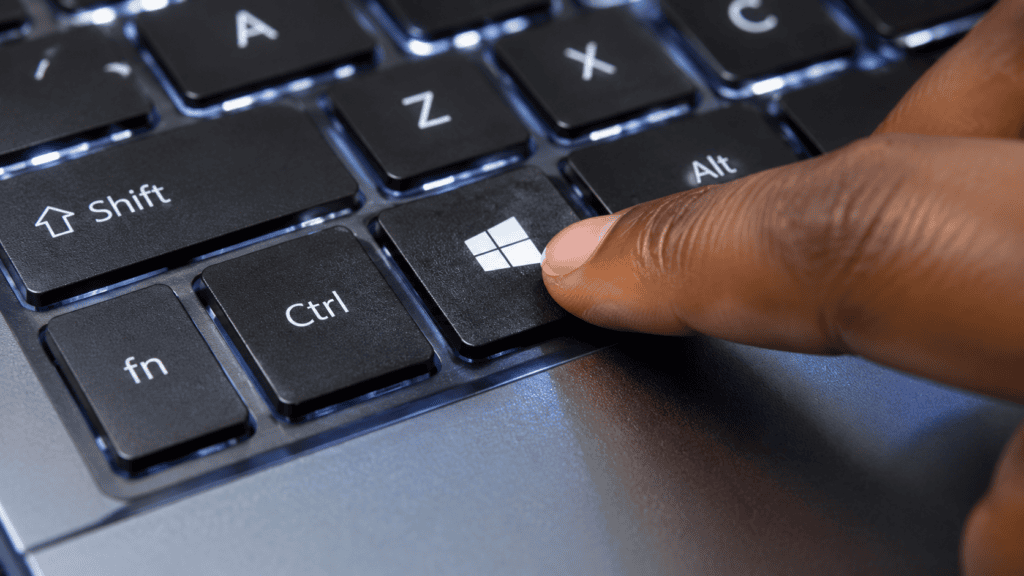
Below, you’ll find 25 essential Windows keyboard shortcuts—ranging from hidden window-management tools to instant screenshot and system controls—that work across both Windows 10 and Windows 11.
Windows Keyboard Shortcuts for Multitasking and Navigation
Eliminate constant mouse-clicking by snapping windows into split-screen layouts, switching between active apps, and cycling through virtual desktops in milliseconds.
Windows + V – Access Clipboard History
- Shortcut:
Win + V - Best for: Multi-source research, data entry, and repetitive form filling.
By default, Windows only stores your single most recent copy. Pressing Win + V opens the built-in clipboard manager, letting you view, pin, and paste your last 25 copied items—including text, HTML links, and screenshots.
Workflow impact: Eliminates constant
Alt + Tabwindow switching when moving multiple data points from emails, spreadsheets, or web pages into a single document.Setup note: If disabled on first use, press
Win + Vand click Turn on in the pop-up prompt to activate it.
Windows + X – Open the Quick Link Menu
- Shortcut:
Win + X - Best for: System administration, troubleshooting, and fast access to power-user tools.
Opens the hidden power-user menu near the bottom-left corner of your screen, giving one-step access to core Windows utilities—including Device Manager, Disk Management, Task Manager, Terminal (or PowerShell), Settings, and System. You can also press the underlined letter of a tool right after opening the menu (such as M for Device Manager or K for Disk Management).
Workflow impact: Bypasses Start menu searches and nested Control Panel paths when diagnosing hardware issues, checking drive partitions, or killing frozen processes.
Windows + Tab – Open Task View
- Shortcut:
Win + Tab - Best for: Managing virtual desktops, organizing multi-app workspaces, and reviewing open windows.
Opens an overview of all active windows and virtual desktops across your session, unlike Alt + Tab which stays locked to a single toggle bar.
From Task View, you can create new virtual desktops, drag windows between desktops, or reopen recently closed apps and timeline items depending on your Windows version.
Workflow impact: Separates distinct work contexts—such as research, coding, or client calls—into clean virtual desktops so you aren’t digging through dozens of overlapping windows on one screen.
Windows + Home – Minimize All Other Windows
- Shortcut:
Win + Home - Best for: Instant distraction removal and single-app focus mode.
Minimizes every background application except your currently active window—acting as the keyboard equivalent of Windows’ “Title Bar Shake” feature. Pressing Win + Home a second time immediately restores all minimized windows to their previous positions.
Workflow impact: Clears visual clutter behind a document, code editor, or video call in one keystroke without closing running apps or losing your place.
Windows + Comma (,) – Temporarily Peek at Your Desktop
- Shortcut:
Win + ,(Press and hold) - Best for: Checking desktop files, widgets, or notifications without disrupting window layouts.
Makes all open windows transparent for as long as you hold down Win + ,, giving you an instant preview of your desktop. The moment you release the keys, every window snaps right back into place—unlike Win + D, which minimizes everything and forces a second toggle to restore.
Workflow impact: Lets you check if a download finished saving to your desktop, read a sticky note, or glance at system widgets without losing your active window arrangement.
Windows Keyboard Shortcuts for Window Management
Snap, resize, maximize, and move active windows across single or multi-monitor setups in seconds—without dragging borders or hunting for tiny title-bar icons.
Windows + Z – Open Snap Layouts (Windows 11 only)
- Shortcut:
Win + Z - Best for: Multi-window tiling, side-by-side research, and ultrawide monitor layouts.
Opens the Snap Layouts grid in the top-right corner of your active window, letting you organize open apps into pre-built split-screen, three-column, or four-quadrant zones.
After pressing Win + Z, you can also tap the corresponding number keys (e.g., 1, then 2) to lock windows into place without touching your mouse.
Workflow impact: Replaces manual window dragging and resizing when referencing research sources alongside a document, spreadsheet, or code editor.
Windows + Ctrl + D – Create a New Virtual Desktop
- Shortcut:
Win + Ctrl + D - Best for: Separating distinct projects, client workspaces, or work vs. personal apps on a single screen.
Instantly creates and switches to a clean, empty virtual desktop without opening Task View first. You can isolate different workflows across separate spaces—such as keeping core work apps on Desktop 1, browser research on Desktop 2, and communication or personal apps on Desktop 3—then jump between them using Win + Ctrl + Left/Right Arrow or close the active desktop with Win + Ctrl + F4.
Workflow impact: Gives single-monitor users the organizational separation of a multi-monitor setup while keeping taskbars and Alt-Tab lists uncluttered.
Windows + Ctrl + Left or Right Arrow – Switch Between Virtual Desktops
- Shortcut:
Win + Ctrl + Left Arrow/Win + Ctrl + Right Arrow - Best for: Instant context switching across multi-project or multi-desktop setups.
Cycles immediately left or right through your active virtual desktops, skipping the Task View (Win + Tab) overlay entirely. You can jump straight from a coding or writing workspace to a dedicated research or communication desktop in a single keystroke.
Workflow impact: Eliminates the visual interruption and extra clicks of opening Task View every time you shift between isolated tasks.
Windows + Ctrl + F4 – Close the Current Virtual Desktop
- Shortcut:
Win + Ctrl + F4 - Best for: Cleaning up finished project workspaces without quitting open apps.
Closes your active virtual desktop immediately—without shutting down any running programs inside it. Windows automatically shifts all open windows from the closed desktop onto the adjacent virtual desktop to the left.
Workflow impact: Lets you spin up temporary virtual desktops for short-lived tasks (like a meeting or quick research sprint) and tear them down safely in one keystroke once you’re done.
Windows + Shift + Left or Right Arrow – Move a Window Between Monitors
- Shortcut:
Win + Shift + Left Arrow/Win + Shift + Right Arrow - Best for: Dual-monitor and multi-display setups, docking/undocking laptops, and ultrawide workflows.
Teleports your active application window directly to the adjacent monitor while preserving its current snap state or maximized size. Instead of un-maximizing a window, dragging it across screen borders, and re-snapping it, a single keystroke shifts it cleanly into position on the next display.
Workflow impact: Eliminates awkward cross-screen mouse drags—especially when moving windows between displays of different resolutions or retrieving an app stuck on an external monitor.
Windows Keyboard Shortcuts for Screenshots and Screen Recording
Capture full screens, custom regions, active windows, or live video recordings directly into your clipboard or Videos folder—no third-party capture apps required.
Windows + Shift + S – Capture Part of Your Screen
- Shortcut:
Win + Shift + S - Best for: Cropped tutorials, Slack/Teams updates, bug reports, and quick visual annotations.
Dims your screen and launches Windows’ built-in Snipping Tool overlay, letting you capture a rectangular region, freeform shape, specific window, or full screen.
Your capture is copied straight to the clipboard (and saved to your Pictures > Screenshots folder in Windows 11), while clicking the pop-up notification opens quick markup tools for highlighting or cropping.
Workflow impact: Eliminates post-capture cropping and manual file saving when dropping specific UI elements or error messages into emails, docs, or chat threads.
Windows + Shift + R – Record Part of Your Screen (Windows 11 only)
- Shortcut:
Win + Shift + R - Best for: Quick product demos, software walkthroughs, and bug-reproduction clips.
Among the most practical Windows keyboard shortcuts added to Windows 11, Win + Shift + R launches the Snipping Tool’s native screen recorder directly in video mode.
Drag to select your recording boundary, toggle microphone or system audio if needed, and capture an .mp4 clip that saves automatically to your Videos > Screen Recordings folder.
Workflow impact: Eliminates the need for third-party screen recorders when walking teammates through a workflow, capturing an app bug in motion, or creating quick tutorial clips.
Windows + G – Open Xbox Game Bar
- Shortcut:
Win + G - Best for: Live CPU/GPU performance monitoring, per-app volume mixing, and full-window screen recording.
One of the most overlooked Windows keyboard shortcuts for non-gamers, Win + G summons the Xbox Game Bar overlay directly on top of whatever app you are using.
Beyond capturing instant video clips (Win + Alt + R), it gives you a real-time CPU, GPU, and RAM performance monitor alongside a per-application audio mixer to balance browser, meeting, and media volume independently.
Workflow impact: Replaces opening Task Manager or digging through Windows Sound Settings when diagnosing system lag, adjusting app-specific volume on a call, or recording an active application window.
Windows + Alt + R – Start or Stop Screen Recording
- Shortcut:
Win + Alt + R - Best for: Instant one-keystroke application recording on both Windows 10 and Windows 11.
Among the fastest Windows keyboard shortcuts for capturing video, Win + Alt + R bypasses the Xbox Game Bar overlay (Win + G) entirely to start or stop recording your active window immediately.
A small floating timer bar appears in the corner while recording, and your finished .mp4 video saves automatically to your Videos > Captures folder.
Workflow impact: Eliminates menu clicks when you need to capture a fast software walkthrough, gameplay clip, or live app demo on the spot.
Limitation note: Game Bar only records single application windows—it cannot capture your blank desktop, File Explorer, or DRM-protected streaming apps.
Windows + PrtScn – Capture and Save Your Entire Screen
- Shortcut:
Win + PrtScn - Best for: Batch screen captures, full-display documentation, and rapid saving without opening Paint or image editors.
Among the most time-saving Windows keyboard shortcuts for full-screen capture, Win + PrtScn takes a snapshot of your entire display (or all connected monitors) and writes a .png file straight to Pictures > Screenshots while also copying it to your clipboard. The screen briefly dims for a split second to confirm the capture went through.
Workflow impact: Eliminates the multi-step routine of pressing
PrtScn, opening an image editor, pasting, and manually naming files when capturing multiple full screens in a row.
Windows Keyboard Shortcuts for Files, Settings, and System Controls
Launch File Explorer, jump straight into Windows Settings, lock your PC, and control core system utilities in a single keystroke—bypassing Start menu searches and nested control panels.
Windows + E – Open File Explorer
- Shortcut:
Win + E - Best for: Instant access to local folders, Downloads, external USB drives, and network storage.
One of the most foundational Windows keyboard shortcuts for daily file management, Win + E launches a fresh File Explorer window from anywhere in Windows—even when your taskbar is hidden or covered by full-screen apps. Press it multiple times to open side-by-side Explorer windows for fast drag-and-drop file transfers.
Workflow impact: Eliminates clicking down to the taskbar or hunting through the Start menu whenever you need to grab a recent download, browse external drives, or organize project folders.
Alt + Up Arrow – Move to the Parent Folder
- Shortcut:
Alt + Up Arrow - Best for: Deep directory navigation, nested project folders, and keyboard-driven File Explorer browsing.
Among the most underused Windows keyboard shortcuts inside File Explorer, Alt + Up Arrow moves you one level higher in the folder hierarchy—such as stepping directly from Documents > Projects > Reports up to Projects.
Unlike Alt + Left Arrow (which tracks your browsing history), Alt + Up Arrow always climbs the true directory tree, even if you jumped straight into a deep subfolder from Quick Access or a search result.
Workflow impact: Eliminates reaching for the tiny upward arrow icon in the address bar or clicking breadcrumb segments when organizing nested project directories.
Ctrl + Shift + N – Create a New Folder
- Shortcut:
Ctrl + Shift + N - Best for: Rapid project setup, organizing downloads, and batch-sorting files inside File Explorer.
Among the most essential Windows keyboard shortcuts for file organization, Ctrl + Shift + N creates a new folder inside any active File Explorer directory or directly on your desktop. The folder name highlights automatically in edit mode so you can type a title and hit Enter immediately—no mouse required.
Workflow impact: Replaces the slow four-step sequence of right-clicking empty space, hovering over New, clicking Folder, and selecting the text field when setting up project structures.
Alt + P – Show or Hide the Preview Pane
- Shortcut:
Alt + P - Best for: Reviewing PDFs, Word documents, spreadsheets, images, and text files without launching external apps.
Among the most practical Windows keyboard shortcuts inside File Explorer, Alt + P toggles the right-hand Preview Pane on and off. Selecting any supported file—such as a PDF, .docx, spreadsheet, image, or plain-text script—displays its live contents directly inside the Explorer window without opening a separate program.
Workflow impact: Eliminates the slow cycle of double-clicking, waiting for heavy applications like Word or Acrobat to load, and closing windows just to check which file version you need.
Windows + I – Open Windows Settings
- Shortcut:
Win + I - Best for: Fast access to Bluetooth pairing, Wi-Fi/network controls, display scaling, privacy, and Windows Update.
One of the most essential Windows keyboard shortcuts for system configuration, Win + I launches the main Windows Settings app immediately from any screen.
Instead of clicking through the Start menu or system tray, you get instant access to core controls—including Bluetooth & devices, Network & internet, System (display and sound), Personalization, Privacy & security, and Windows Update.
Workflow impact: Eliminates menu hunting whenever you need to connect wireless headphones, switch Wi-Fi networks, adjust external monitor scaling, or check for system updates.
Windows Keyboard Shortcuts for Communication and Everyday Convenience
Insert emojis and symbols anywhere, trigger instant voice-to-text dictation, launch accessibility tools, and lock your PC in a split second with these high-utility Windows keyboard shortcuts.
Windows + H – Open Voice Typing
- Shortcut:
Win + H - Best for: Hands-free drafting, long emails, meeting notes, and brainstorming directly inside any text field.
Among the most underrated Windows keyboard shortcuts for fast text entry, Win + H launches Windows’ built-in speech-to-text dictation bar directly over any active cursor—whether you are in Word, Google Docs, Slack, or a browser form.
It automatically handles punctuation (on Windows 11 and supported configurations) and recognizes spoken commands like “new line” or “delete that.”
Workflow impact: Lets you speak rough drafts, long replies, or brain-dump notes up to three times faster than typing—and gives your hands a break during heavy writing sessions.
Windows + Period (.) – Open the Emoji, GIF, and Symbol Panel
- Shortcut:
Win + .(orWin + ;) - Best for: Inserting emojis, GIFs, kaomoji, and special characters (like
©,™,°, or em-dashes) into any app.
Among the most versatile Windows keyboard shortcuts for everyday communication, Win + . launches a floating picker right at your text cursor—working inside browsers, Slack, Teams, Word, and email clients. Beyond standard emojis, the panel includes tabs for GIFs, kaomoji, special symbols (currency, math, and punctuation marks), and even your clipboard history (Win + V).
Workflow impact: Eliminates googling and copy-pasting emojis or memorizing
Altcodes when adding visual clarity to messages, documents, and social posts.
Windows + K – Open the Cast Interface
- Shortcut:
Win + K - Best for: Wireless presentations, Miracast screen mirroring, and connecting to Bluetooth/wireless displays or audio receivers.
Among the most convenient Windows keyboard shortcuts for presentations and multi-screen setups, Win + K opens the Cast flyout directly from the system tray—immediately scanning for nearby Miracast-enabled smart TVs, conference room projectors, and wireless displays. Once connected, you can choose whether to Duplicate, Extend, or use the external display as your Second screen only.
Workflow impact: Eliminates digging through Settings > System > Display or clicking multiple Quick Settings tiles when walking into a meeting room or mirroring content to a TV.
Windows + P – Change Display Projection Mode
- Shortcut:
Win + P - Best for: Switching monitor layouts during presentations, docking/undocking a laptop, and dual-monitor troubleshooting.
Among the most essential Windows keyboard shortcuts for multi-display workflows, Win + P opens the Project flyout on the right side of your screen so you can toggle instantly between PC screen only, Duplicate, Extend, and Second screen only. Press Win + P repeatedly (or use the arrow keys + Enter) to cycle through modes even if your primary laptop screen is damaged or an external monitor is unplugged.
Workflow impact: Eliminates navigating through Settings > System > Display whenever you plug into a conference room projector, mirror slides in a meeting, or switch to an external monitor with your laptop lid closed.
Windows + Ctrl + Shift + B – Restart the Graphics Driver
- Shortcut:
Win + Ctrl + Shift + B - Best for: Recovering from a frozen display, black screen after waking from sleep, or unresponsive graphics glitches without rebooting.
Among the most powerful Windows keyboard shortcuts for emergency troubleshooting, Win + Ctrl + Shift + B forces Windows to discard its current display buffer and restart your graphics driver in real time.
Your screen will flash black for a second and emit a short confirmation beep—leaving all your open applications, browser tabs, and unsaved documents completely intact.
Workflow impact: Saves you from holding down the physical power button and losing unsaved work when your display freezes, flickers, or fails to wake up from sleep mode.
Scope note: This resets the display driver state only—it will not fix hardware failures, system-wide OS freezes, or corrupted driver installations that require a full reboot or driver reinstall.
Quick Reference: All 25 Windows Keyboard Shortcuts
Bookmark this cheat sheet to look up any of the Windows keyboard shortcuts covered in this guide—organized by workflow category for fast scanning.
| # | Shortcut | Function | Category |
| 1 | Win + V | Open clipboard history | Productivity & Navigation |
| 2 | Win + X | Open Quick Link (power user) menu | Productivity & Navigation |
| 3 | Win + Tab | Open Task View | Productivity & Navigation |
| 4 | Win + Home | Minimize all inactive windows | Window & Desktop Management |
| 5 | Win + , (Comma) | Peek at the desktop | Window & Desktop Management |
| 6 | Win + Z | Open Snap Layouts (Windows 11) | Window & Desktop Management |
| 7 | Win + Ctrl + D | Create a new virtual desktop | Window & Desktop Management |
| 8 | Win + Ctrl + Left / Right Arrow | Switch between virtual desktops | Window & Desktop Management |
| 9 | Win + Ctrl + F4 | Close the current virtual desktop | Window & Desktop Management |
| 10 | Win + Shift + Left / Right Arrow | Move active window between monitors | Window & Desktop Management |
| 11 | Win + Shift + S | Capture a custom screen region | Screenshots & Recording |
| 12 | Win + Shift + R | Record a custom screen region (Windows 11) | Screenshots & Recording |
| 13 | Win + G | Open Xbox Game Bar overlay | Screenshots & Recording |
| 14 | Win + Alt + R | Start or stop active-window recording | Screenshots & Recording |
| 15 | Win + PrtScn | Capture and auto-save full screen | Screenshots & Recording |
| 16 | Win + E | Open File Explorer | Files, Settings & System |
| 17 | Alt + Up Arrow | Move up one folder level | Files, Settings & System |
| 18 | Ctrl + Shift + N | Create a new folder | Files, Settings & System |
| 19 | Alt + P | Toggle File Explorer Preview Pane | Files, Settings & System |
| 20 | Win + I | Open Windows Settings | Files, Settings & System |
| 21 | Win + H | Launch voice typing dictation | Communication & Convenience |
| 22 | Win + . (Period) | Open emoji, GIF, and symbol panel | Communication & Convenience |
| 23 | Win + K | Open wireless Cast interface | Communication & Convenience |
| 24 | Win + P | Change display projection mode | Communication & Convenience |
| 25 | Win + Ctrl + Shift + B | Restart the graphics driver | Communication & Convenience |
What are Windows keyboard shortcuts?
Windows keyboard shortcuts are multi-key combinations—typically anchored by the Windows (Win), Ctrl, Alt, or Shift keys—that trigger system commands directly from your keyboard.
They let you launch apps, snap windows, manage virtual desktops, capture screenshots, and adjust system settings in a single keystroke instead of navigating through nested menus with a mouse.
Do these Windows keyboard shortcuts work on both Windows 10 and Windows 11?
Yes—23 of the 25 Windows keyboard shortcuts in this guide work identically on both Windows 10 and Windows 11. Only Snap Layouts (Win + Z) and Snipping Tool screen recording (Win + Shift + R) are exclusive to Windows 11.
What are the most useful Windows keyboard shortcuts for everyday productivity?
For most workflows, three Windows keyboard shortcuts deliver the biggest immediate time savings: Win + V for multi-item clipboard history, Win + Shift + S for cropped screen captures, and Win + E for instant File Explorer access.
Power users also rely heavily on Win + Ctrl + D and Win + Ctrl + Left/Right Arrow to separate work across virtual desktops
How do I view and enable my clipboard history in Windows?
Press Win + V anywhere to open your clipboard history panel. If you have never used it before, Windows will display a prompt with a Turn on button—click it once to start saving copied text, links, and images across your session (or go to Settings > System > Clipboard).
Why isn’t a Windows keyboard shortcut working on my PC?
A shortcut usually fails for one of three reasons: an active full-screen application or game is intercepting the key combination, your keyboard has a Gaming Mode / Win-Lock toggle enabled (common on mechanical and gaming keyboards), or the feature requires a specific Windows 11 update (such as Win + Shift + R).
How can I memorize Windows keyboard shortcuts faster?
Apply the 80/20 rule: pick just three shortcuts that replace actions you repeat dozens of times a day—such as Win + V, Win + Shift + S, and Win + E—and force yourself to use them for one week.
Once those become muscle memory, layer in two or three window-management or File Explorer shortcuts at a time rather than trying to memorize all 25 at once.
In Conclusion
Building muscle memory for Windows keyboard shortcuts is one of the highest-leverage upgrades you can make to your daily workflow—requiring zero extra software and saving hundreds of repetitive mouse clicks every week.
Whether you are organizing multi-monitor workspaces, pulling up clipboard history (Win + V), or recording quick screen demos (Win + Shift + R), small keystroke habits compound rapidly into smoother, faster work sessions.
You don’t need to memorize all 25 combinations overnight. Pick just three to five Windows keyboard shortcuts that solve bottlenecks you hit every single day, use them intentionally for a week until they feel automatic, and layer in new ones over time.
Which of these Windows keyboard shortcuts are you adding to your daily workflow first—or do you have an underrated favorite we missed? Drop it in the comments below.

Lawrence Abiodun is the founder of SkillDential, a digital skills and career education platform. He creates practical resources on AI, digital skills, SEO, career development, and emerging technologies, helping students, professionals, and creators build future-ready skills and thrive in a rapidly changing digital world.