Switching to a new operating system often triggers the urge to install dozens of familiar apps immediately, but a high-leverage Linux setup thrives on minimalism.
Start with just the fundamentals: a secure browser, a robust office suite, a password manager, and a reliable system backup utility. Specialized software for graphics, development, or communication should only be added when your workload strictly demands it.
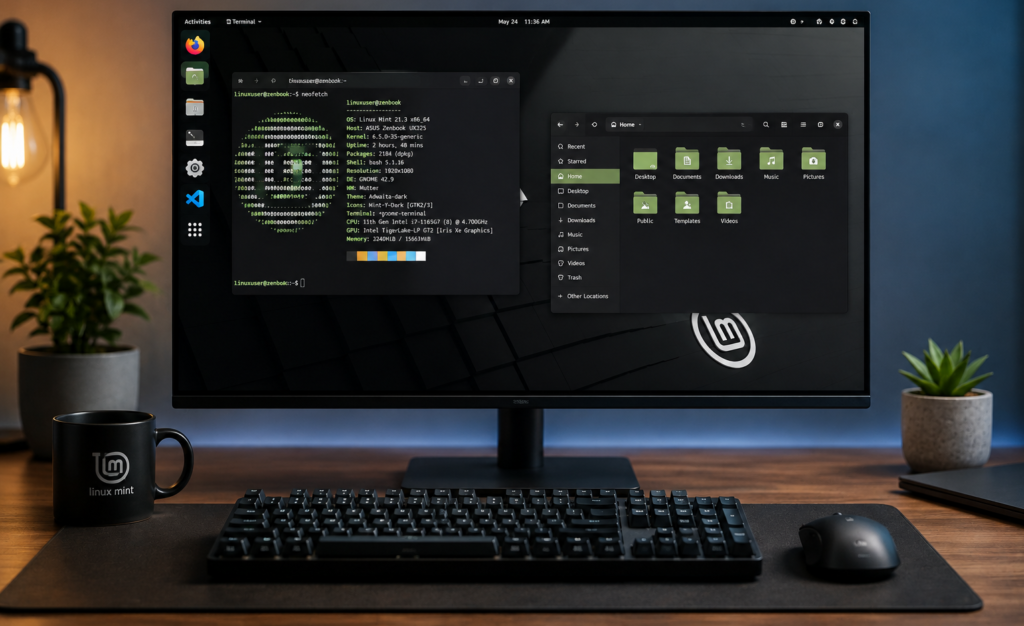
This guide breaks down the essential Linux applications required to build a productive, zero-bloat environment. Whether you are migrating from Windows or macOS, configuring a development workstation, or optimizing a daily driver, this roadmap details the exact tools to install, how Linux software distribution actually works, and how to avoid unsafe downloads.
Pre-Installed Software vs. Essential Linux Applications
Before downloading any new software, apply the 80/20 rule: audit your current system. Major desktop distributions are designed to be productive out-of-the-box and likely already contain 80% of the tools you need for daily tasks.
Installing redundant software (e.g., a second archive tool or media player) violates a clean system architecture. It creates bloated, duplicate menu entries, conflicting file associations, and unnecessary background updates.
Here is a baseline of what the most popular distributions include by default:
| Distribution | Default Desktop Environment | Core Pre-Installed Software | Default Package Manager |
| Ubuntu | Custom GNOME | Web browser, LibreOffice suite, basic text editors, and document viewers | App Center (Snap-focused) |
| Linux Mint | Cinnamon / MATE | Web browser, LibreOffice, Timeshift (backups), and media codecs | Software Manager (APT & Flatpak) |
| Fedora Workstation | Pure GNOME | Web browser, LibreOffice, and native GNOME utilities | GNOME Software (DNF & Flatpak) |
The Golden Rule of Linux Software Management
When you are ready to expand your toolkit with essential Linux applications, forget the Windows habit of downloading installers directly from websites. Your distribution’s native software manager should always be your first stop.
These package managers pull software directly from officially configured repositories—secure, centralized servers maintained by your distribution’s developers. Installing through these channels ensures that every application is verified, cryptographically signed for security, perfectly compatible with your system’s dependencies, and updated automatically alongside your OS kernel.
How to Safely Install Essential Linux Applications
Unlike Windows or macOS, where software setup relies on executing binary installers downloaded from web browsers, Linux relies on managed distribution channels. Choosing the correct package format is critical for maintaining system performance, security, and updates when installing essential Linux applications.
Package Management Formats Compared
Linux software is delivered through four primary distribution architectures. Each format makes specific trade-offs between system integration, application isolation, and update frequency:
| Packaging Format | System Integration | Security & Isolation | Primary Use Case |
Native Packages (.deb, .rpm) | Tight; built specifically for your Linux distribution’s libraries. | Shared system access; non-sandboxed by default. | System utilities, base OS components, and hardware drivers. |
| Flatpak | Universal; runs on any Linux distribution using shared runtimes. | Containerized sandbox; fine-grained permission controls. | Graphical desktop applications requiring up-to-date versions. |
| Snap | Universal; managed primarily by Canonical (Ubuntu). | Sandboxed via AppArmor profiles. | Server tools, CLI utilities, and Ubuntu-centric desktop applications. |
| AppImage | Standalone; single self-contained executable file. | Unsandboxed; runs with standard user execution rights. | Portable, non-installed software and utility testing. |
Recommended Installation Hierarchy
To keep your operating system clean, stable, and easy to maintain, follow this decision tree when sourcing essential Linux applications:
- Native Software Manager (Primary): Search your distribution’s software store first. Native repository packages guarantee maximum stability, low overhead, and full hardware integration.
- Flathub / Flatpak (Secondary for Desktop Apps): If your distribution’s native repository carries an outdated release, search Flathub. Flatpak gives you updated software without polluting your core operating system dependencies.
- Official Snaps or AppImages (Tertiary): Select these formats when the software developer directly maintains and recommends them as their official Linux distribution method.
- Official Vendor Repositories (Last Resort): Only add external package repositories (
.deb/.rpm) when provided directly by enterprise vendors (e.g., VS Code, Docker).
Security Warning: The Dangers of Arbitrary Scripts
Never copy and paste terminal commands from unverified tutorials—especially commands like
curl | bashor unvetted PPA additions. Running remote execution scripts with root orsudoprivileges bypasses distribution safety checks and can expose your machine to untrusted code.
Essential Linux Applications to Install First
The following Linux applications cover the most common everyday needs for new users, from productivity and communication to media and system utilities. You do not need to install every application on this list. Instead, choose the ones that best match your daily tasks, workflow, and personal preferences.
Web Browsers: Firefox, Chrome, or Brave
A web browser is the single most critical tool among essential Linux applications. Because modern workflows rely heavily on SaaS platforms, cloud environments, email, and web-based development tools, your browser serves as your primary application layer.
The Open-Source Standard: Mozilla Firefox
Most major distributions (including Ubuntu, Fedora, and Linux Mint) include Firefox by default. It remains the top recommendation for Linux users due to its open-source codebase, strong privacy model, multi-platform sync, and independence from Big Tech browser engines.
High-Leverage Alternatives
If your daily workflow requires specific extensions, enterprise profiles, or Chromium-specific engine behavior, consider these options:
- Brave: Ideal for users migrating from Windows or macOS who want full Chrome extension compatibility alongside built-in privacy protection, tracker blocking, and lower memory consumption.
- Google Chrome: Necessary if your work depends heavily on deep Google ecosystem integration, direct account synchronization, or proprietary DRM media codecs out of the box.
- Chromium: The open-source foundation behind Chrome. Best for users who require a pure Chromium environment for web development without Google’s proprietary telemetry.
| Browser | Engine | License Model | Primary Advantage | Target Replacement |
| Firefox | Gecko | Open Source | Pre-installed, high privacy, open-web alignment | Safari / Edge / Chrome |
| Brave | Blink (Chromium) | Open Source (Core) | Out-of-the-box ad/tracker blocking + speed | Microsoft Edge |
| Google Chrome | Blink (Chromium) | Proprietary | Direct Google Workspace & account sync | Google Chrome |
Strategic Advice
Do not install multiple browsers immediately. Stick with your distribution’s default (usually Firefox) or pick a single Chromium alternative. Running several browsers concurrently adds unnecessary background update daemons and pollutes system file associations.
Office Suites: LibreOffice & ONLYOFFICE
An offline document creation tool is one of the most essential Linux applications for professionals, students, and businesses transitioning away from Windows. However, your choice of office suite should be dictated entirely by your collaboration needs and required file formats.
The Open-Source Standard: LibreOffice
LibreOffice (which includes Writer, Calc, Impress, Draw, Base, and Math) is the most comprehensive free replacement for Microsoft Office. It is pre-installed on most distributions and is governed by The Document Foundation.
- Best for: General word processing, internal business reporting, and environments where Open Document Format (ODF) is the standard.
- The Compatibility Reality: While LibreOffice opens and exports
.docx,.xlsx, and.pptxfiles, it does not guarantee 100% fidelity. Complex formatting, advanced Excel macros (VBA), and niche typography often break when moving files between LibreOffice and Microsoft 365.
The Microsoft-Compatible Alternative: ONLYOFFICE
If you work in a Windows-centric industry where pixel-perfect Microsoft Office compatibility is non-negotiable, LibreOffice will cause friction.
Instead, install ONLYOFFICE Desktop Editors. Because ONLYOFFICE is natively built on Microsoft’s OOXML standard, it provides superior rendering accuracy for .docx and .xlsx files. It also features a tabbed, ribbon-style interface that makes the transition from Microsoft Office nearly frictionless.
| Feature | LibreOffice | ONLYOFFICE |
| Native Format | ODF (Open Document Format) | OOXML (Microsoft standard) |
| UI Style | Traditional, menu-driven | Modern, tabbed ribbon |
| Best Use Case | Self-contained, offline work | Client-facing MS Office collaboration |
| Database Tool? | Yes (Base) | No |
Strategic Advice
Do not install both unless strictly necessary. Choose ONLYOFFICE if your income or grades depend on exchanging files with Microsoft users. Otherwise, stick with the pre-installed LibreOffice to save storage and keep your system clean.
Media Players: VLC Media Player
While almost every Linux distribution ships with a basic pre-installed media player (such as Totem/Celluloid on GNOME or Dragon Player on KDE), installing VLC Media Player is a non-negotiable upgrade among essential Linux applications.
Standard desktop players often rely on system-wide GStreamer codecs that may lack support for proprietary formats out-of-the-box. VLC solves this by bundling its own comprehensive set of multimedia codecs, making it the definitive tool for local media consumption and technical troubleshooting.
Core Value & Strategic Capabilities
- Universal Codec Independence: Plays virtually any container format (
.mkv,.mp4,.avi,.webm) and compression standard (HEVC/H.265, AV1, H.264) without requiring third-party codec packs. - System Diagnostics: Serves as an isolation benchmark. If a video fails to play on your default player or web browser, opening it in VLC determines whether the file itself is corrupted or if your system is missing media pipeline drivers.
- Advanced Playback Management: Offers precise variable-speed playback, subtitle offset adjustments, direct network streaming (RTSP/HTTP/UDP), and basic audio/video post-processing filters.
| Capability | Default OS Media Player | VLC Media Player |
| Out-of-the-Box Codecs | Minimal (often requires non-free codecs) | Complete (self-contained library) |
| Subtitle Customization | Basic | Advanced (timing adjustments, font overrides) |
| Network Streaming | Rare / Limited | Comprehensive (RTSP, HLS, UDP, HTTP) |
| Hardware Acceleration | Varies by distro setup | Built-in GPU decoding options |
Strategic Advice
Keep your distribution’s default player for quick audio previewing, but rely on VLC as your primary workstation media engine to avoid playback failures during critical tasks.
Archive Managers: Handling ZIP, TAR, and RAR Files
Linux handles file compression entirely differently than Windows. Instead of downloading shareware like WinRAR or hunting for a 7-Zip installer, your system likely already includes a native graphical archive manager capable of handling .zip, .tar.gz, and .xz files out-of-the-box.
Within the ecosystem of essential Linux applications, archive managers fall into the “use what you have until it breaks” category.
Built-In Desktop Archive Tools
Before installing anything new, try extracting your files natively. Depending on your distribution’s desktop environment, you are already equipped with a highly capable archive utility:
- File Roller: The default for GNOME-based systems (Ubuntu, Fedora). Integrates directly with the Nautilus file manager.
- Ark: The default for KDE Plasma environments. Known for high performance and deep Dolphin integration.
- Engrampa: The default for MATE desktop environments (e.g., Linux Mint MATE).
These built-in tools allow you to seamlessly extract downloaded files, browse compressed directories, and create .zip or .tar archives without touching the terminal.
The High-Leverage Upgrade: PeaZip
If your workflow requires advanced compression features—such as extracting proprietary RAR5 files, enforcing AES-256 encryption, or splitting large archives into multi-volume parts—you will need a specialized tool.
The premier upgrade is PeaZip. Built as an open-source alternative to WinRAR, PeaZip handles over 200 archive formats and operates identically across Linux, Windows, and macOS.
| Feature Requirement | Default Tool (File Roller / Ark) | PeaZip |
| Standard ZIP / TAR Support | Yes | Yes |
| Extract Proprietary RAR Files | Varies by distro | Yes (built-in support) |
| Strong File Encryption | Basic | Advanced (AES, Serpent, Twofish) |
| Format Support | Common formats | 200+ formats (including 7z, ZPAQ) |
Strategic Advice
Do not immediately search for a third-party archive tool. Test your native desktop utility first. If you encounter an unsupported archive or need enterprise-grade encryption, install PeaZip directly from Flathub to ensure sandboxed stability.
Password Managers: Bitwarden & KeePassXC
Securing your credentials is the highest-leverage security decision you will make on a new operating system. A dedicated password manager is one of the most critical essential Linux applications you can install, far outweighing the value of aesthetic customization tools.
Relying on built-in browser password managers creates unnecessary vendor lock-in and limits cross-browser flexibility. Instead, adopt an open-source solution. The decision boils down to one fundamental architectural trade-off: cloud synchronization versus absolute local control.
The Cloud-Synced Standard: Bitwarden
Bitwarden operates on a zero-knowledge cloud architecture. Your passwords are encrypted locally on your machine before being sent to Bitwarden’s servers for synchronization.
- Best for: The 80% of users who require frictionless, real-time access across multiple devices without manual file management.
- The Advantage: “It just works.” You can install the desktop client on Linux, the extension in your browser, and the app on your phone, and your entire vault remains perfectly synchronized.
The Local-First Fortress: KeePassXC
KeePassXC is an entirely offline, standalone application. It generates a heavily encrypted .kdbx database file that lives strictly on your hard drive.
- Best for: Power users, developers, and privacy advocates who refuse to trust third-party servers and demand total sovereignty over their data.
- The Advantage: Zero external attack vectors. However, to access your passwords on a phone, you must manually sync the
.kdbxfile yourself using tools like Syncthing or a self-hosted Nextcloud server.
| Feature Model | Bitwarden | KeePassXC |
| Storage Architecture | Zero-Knowledge Cloud | Local Encrypted File (.kdbx) |
| Multi-Device Sync | Automatic (Built-in) | Manual (Requires third-party sync) |
| UI Complexity | Low (Beginner-friendly) | Medium (Highly utilitarian) |
| Mobile Access | Official iOS/Android apps | Requires third-party compatible apps |
Security Protocol
Regardless of which architecture you choose, your master password must be a long, unique passphrase. Enable Two-Factor Authentication (2FA) immediately. If using KeePassXC, never store the only copy of your database on your operating system drive—always implement the 3-2-1 backup rule.
Backup Applications: Timeshift & Personal File Protection
A bulletproof backup routine is one of the most critical elements of a mature operating system setup. When evaluating essential Linux applications, separating system state recovery from personal file preservation is non-negotiable.
A hardware failure, ransomware attack, or a broken system update can compromise your entire workflow if you rely on a single defensive layer. A robust Linux backup strategy requires addressing two distinct functions:
System Snapshots: Timeshift
For system-level security, Timeshift is the industry standard for desktop Linux. Operating similarly to Windows System Restore or macOS Time Machine, Timeshift takes incremental snapshots of your operating system files, configurations, and core packages.
- The Primary Use Case: Rolling back your system when a bad graphics driver, a broken repository update, or a misconfigured desktop package crashes your environment.
- A Critical Distinction: Timeshift is not designed to back up your personal documents, photos, or source code. Furthermore, because system snapshots are typically stored locally on your machine, they will not protect you if your physical hard drive fails.
Personal Data Protection: Déjà Dup or Cloud Sync
To safeguard irreplaceable personal files (such as schoolwork, business assets, or creative projects), you need an application dedicated to your user directory (/home).
- Déjà Dup (File Backup): A simple, elegant graphical tool built for GNOME and standard desktop environments. It provides encrypted, incremental backups to external drives or remote cloud storage providers (like Nextcloud, Google Drive, or AWS S3) without requiring terminal commands.
- The 3-2-1 Rule: Maintain at least three copies of your personal data across two different media formats, with at least one copy stored safely off-site or on a disconnected external drive.
| Function | Tool | Scope | Target Protection |
| System State | Timeshift | OS Files, Settings, Core Apps | Broken updates, bad configurations |
| Personal Data | Déjà Dup / Cloud Sync | /home Directory (Docs, Media) | Hardware failure, ransomware, deletion |
Strategic Maintenance
A backup is useless if the recovery process fails. Periodically run a test restore by pulling a dummy file from your backup archive to ensure your recovery pipeline actually functions before an emergency strikes.
LocalSend: Cross-Platform File Sharing
Moving files between a Linux workstation and other operating systems or mobile devices historically required clunky cloud workarounds, email self-attachments, or physical USB drives. For mixed-device environments, LocalSend has emerged as one of the most practical essential Linux applications for modern workflows.
Serving as an open-source, cross-platform alternative to Apple’s AirDrop, LocalSend allows you to securely transfer files and text snippets between nearby devices over your local network.
Core Capabilities & Workflow Integration
- Local-First Architecture: Transfers occur directly between devices over your local Wi-Fi or LAN. Files never touch external cloud servers or third-party relays, ensuring maximum transfer speed and privacy.
- Zero-Configuration Multi-Platform Support: Runs natively across Linux, Windows, macOS, Android, and iOS with a consistent interface. It eliminates the friction of setting up complex Samba shares or SSH/SFTP pipelines just to send a document to your phone.
- End-to-End Encryption: Communications are secured using HTTPS/TLS with on-the-fly certificate generation, ensuring your data remains protected even on shared or public local networks.
| Feature | Cloud Storage (Google Drive / OneDrive) | LocalSend |
| Internet Required? | Yes | No (Local Network only) |
| Transfer Speed | Limited by upload/download bandwidth | Limited only by local Wi-Fi / LAN speed |
| Accounts / Registration | Required | None (Peer-to-peer discovery) |
| Cross-OS Friction | High (Browser-dependent) | Low (Direct native app transfer) |
Strategic Note
LocalSend is a transit utility, not a storage repository. A file transferred quickly from your phone to your Linux laptop still requires proper archiving if it forms part of your permanent workflow. Install LocalSend via Flathub to ensure it runs cleanly within your distribution’s sandbox environment.
KDE Connect: Cross-Device Ecosystem Integration
While LocalSend handles straightforward file transfers, KDE Connect provides deep, comprehensive system integration between your Linux machine and mobile devices (Android and iOS).
Originally built for the KDE Plasma desktop environment, it runs smoothly on GNOME, XFCE, and other window managers, establishing it as one of the most powerful productivity-boosting essential Linux applications for multi-device workflows.
Instead of treating your computer and smartphone as isolated silos, KDE Connect bridges them securely over your local Wi-Fi network using end-to-end TLS encryption.
High-Leverage Capabilities
- Notification Synchronization: Mirror incoming phone calls, SMS messages, and app notifications directly onto your Linux desktop, with the ability to reply to messages right from your keyboard.
- Universal Clipboard: Seamlessly copy text on your Linux computer and paste it instantly onto your phone, or vice versa.
- Remote Input & Media Control: Use your phone screen as a virtual wireless trackpad/mouse, or use its hardware volume buttons and playback controls to manage media running on VLC or Spotify on your computer.
- Wireless File Exploration: Browse, open, and pull files from your phone’s storage directly through your Linux file manager (such as Dolphin) without needing physical USB cables.
| Feature Set | LocalSend | KDE Connect |
| Primary Focus | Fast, ad-hoc file and text transfers | Deep, continuous device integration |
| Notification Sync | No | Yes (Calls, SMS, Apps) |
| Remote Input (Touchpad) | No | Yes |
| Setup Overhead | Minimal (Open and send) | Moderate (Requires pairing code & permission grants) |
Security & Permission Protocol
Because KDE Connect has deep hooks into your operating system and phone (such as notification access and remote input controls), carefully review and grant only the specific permissions you need during the initial device pairing process.
Useful Linux Applications for Specific Needs
The following Linux applications are designed for more specific tasks and use cases. Install only the ones that align with your work, studies, creative activities, technical needs, or personal interests.
Graphics and Visual Editing Tools
When your workflow expands beyond text and code into visual assets, selecting the right utility is critical. Linux features mature, professional-grade open-source software that handles raster editing, vector design, digital illustration, and screen capture without proprietary subscription overhead.
As part of your curated collection of essential Linux applications, choose your graphics tools based on the specific asset type you are producing:
Raster Graphics and Photo Editing: GIMP
GIMP (GNU Image Manipulation Program) is the premier open-source raster graphics editor on Linux. It serves as a robust alternative to Adobe Photoshop for general photo retouching, color correction, image scaling, batch processing, and preparing web graphics.
- Best for: General photo editing, raster asset manipulation, and web asset preparation.
- The Learning Curve: While GIMP matches Photoshop in raw pixel-manipulation power, its interface, shortcut mappings, and non-destructive editing workflows differ significantly from Adobe products.
Digital Painting and Illustration: Krita
If your visual work involves digital art, concept illustration, or frame-by-frame animation rather than photo touch-ups, Krita is the superior choice.
- Best for: Digital painters, illustrators, and comic creators using graphics tablets (such as Wacom or Huion).
- The Advantage: Built specifically with artists in mind, Krita offers a responsive brush engine, stabilizer options for smooth lines, customizable canvas rotation, and comprehensive color management.
Vector Design and Scalable Graphics: Inkscape
For logos, UI icons, architecture diagrams, and scalable illustrations that must remain crisp at any resolution, Inkscape is the industry standard on Linux.
- Best for: Vector illustration and layout design.
- The Advantage: Serves as a practical, standards-compliant alternative to Adobe Illustrator, natively using Scalable Vector Graphics (SVG) as its core file format.
Advanced Screen Capture and Annotation: Flameshot
While most desktop environments (GNOME, KDE) include built-in screenshot shortcuts, they often lack immediate editing and annotation features. Flameshot is an indispensable utility for technical writers, developers, and support professionals.
- Best for: Capturing, highlighting, blurring sensitive data, and instantly annotating screen regions.
- The Advantage: Allows you to draw boxes, point arrows, add text callouts, and upload or save captures immediately via keyboard shortcuts.
Graphics Application Quick Reference
| Need / Asset Type | Recommended Application | Primary Equivalent / Replacement |
| Photo editing & raster work | GIMP | Adobe Photoshop |
| Digital painting & illustration | Krita | Corel Painter / Clip Studio Paint |
| Logos, icons & vector artwork | Inkscape | Adobe Illustrator |
| Annotated screenshots | Flameshot | Snagit / Snipping Tool |
Strategic Advice
Do not install all four tools by default if you are a backend engineer or writer. Only add these graphics utilities to your system when your specific project requirements demand visual asset creation. Install them via Flathub to ensure sandboxed stability and access to the latest upstream updates.
Communication and Email
Modern web browsers handle most day-to-day communication services effectively. However, when your workflow requires persistent background notifications, offline message searching, or unified multi-account management across multiple platforms, a dedicated desktop app becomes one of your essential Linux applications.
Desktop Email Clients: Thunderbird vs. Evolution
While webmail works for basic tasks, a native mail client provides offline archiving, local encryption, and centralized calendar coordination.
- Mozilla Thunderbird (Best Overall): The most robust, cross-platform email and personal information manager for Linux. It handles multiple IMAP/POP accounts, features built-in OpenPGP encryption, integrates calendars and tasks, and supports an extensive add-on ecosystem.
- Evolution (Best for GNOME & Exchange): If your workflow relies on corporate Microsoft Exchange servers or you want deep integration with the GNOME desktop environment, Evolution acts as a comprehensive replacement for Microsoft Outlook (combining mail, contacts, calendars, and task lists).
Chat, Collaboration, and Video Conferencing
Avoid installing a standalone client for every single chat network. Prioritize tools based strictly on your enterprise or community requirements:
- Signal Desktop: The gold standard for secure, private, end-to-end encrypted messaging, operating natively across Linux and mobile devices.
- Element (Matrix): An open, decentralized communication client ideal for open-source communities and teams using the Matrix protocol.
- Zoom, Slack, or Microsoft Teams: Install these proprietary workspace clients only if mandated by your employer or academic institution. Always fetch them via official flatpaks or vendor-supplied packages to ensure proper sandboxing.
| Communication Need | Recommended Linux Application | Strategic Trade-off |
| Personal Email & Calendars | Thunderbird | Reliable, highly extensible; uses moderate system RAM. |
| Corporate Exchange / GNOME | Evolution | Tight enterprise calendar sync; tied closely to GNOME design frameworks. |
| Encrypted Messaging | Signal Desktop | Maximum privacy; requires an active mobile phone registration. |
| Team Workspaces | Slack / Teams (Flathub/Official) | Essential for employment compliance; adds heavy background daemon processes. |
Strategic Architecture
Web versions of communication platforms consume zero background resources when closed. Install dedicated desktop clients only if you require persistent tray notifications or deep OS integrations.
Notes and Knowledge Management
When organizing research, technical documentation, or long-form writing projects, relying on random desktop text files quickly becomes inefficient. However, installing a heavy, specialized knowledge management system for a handful of transient notes introduces unnecessary software bloat.
Select your note-taking environment based on whether you require open-source data control or networked personal knowledge management:
Structured Open-Source Note-Taking: Joplin
Joplin is the premier open-source, cross-platform note-taking and to-do application designed for heavy research and structured organization.
- Best for: Users who want hierarchical notebooks, tag management, web clipper integration, and full control over their data synchronization via local encryption or third-party cloud storage (Nextcloud, Dropbox, OneDrive).
- The Advantage: It natively stores notes in plain Markdown text, ensuring you never experience platform lock-in.
Networked Personal Knowledge Bases: Obsidian
Obsidian is a powerful, local-first Markdown application built for connecting ideas through internal bidirectional links.
- Best for: Writers, researchers, and developers building complex, interconnected “second brains” or personal knowledge bases.
- The Architecture Trade-off: While your notes are stored locally as plain-text Markdown files, Obsidian is proprietary software (not open source), meaning its core application code is closed source even though it is free for personal and commercial use.
| Feature | Joplin | Obsidian |
| Source Model | Fully Open Source | Proprietary / Closed Source Core |
| File Format | Raw Markdown | Local Markdown (.md) |
| Organization Style | Notebooks, tags, and sub-folders | Bidirectional linking & graph view |
| Sync Ecosystem | Flexible (End-to-end encrypted cloud options) | Local-first or optional paid Sync service |
Strategic Architecture
If you only need to store quick code snippets, server configurations, or isolated to-do lists, skip both applications. Use your distribution’s default text editor (such as Gedit, Mousepad, or Kate) to keep your operating system lean and fast.
Document Scanning and PDF Management
Handling PDFs, reading research papers, and digitizing physical paperwork are common tasks for any workstation. Most Linux distributions ship with a lightweight PDF viewer (such as Evince on GNOME or Okular on KDE), which is usually sufficient for standard viewing.
However, when your workflow requires active annotation, page manipulation, or scanning hardware integration, you should expand your toolkit with these specialized utilities:
Reading and Advanced Annotation: Okular
While Evince handles basic reading well, Okular (developed by KDE) is the premier universal document viewer for Linux, functioning smoothly across any desktop environment.
- Best for: Reading complex PDF documents, technical manuals, EPUBs, and comic formats (
.cbz/.cbr). - The Advantage: Unlike basic viewers, Okular allows you to add persistent inline notes, highlight text, draw freehand annotations, add stamps, and bookmark pages without altering the underlying source file.
Page Assembly and Manipulation: PDF Arranger
When you need to merge multiple PDFs, extract specific pages, split a massive document, or rotate upside-down scans, heavy office suites are unnecessary.
- Best for: Quick structural manipulation of PDF files.
- The Advantage: PDF Arranger provides a clean, graphical grid interface where you can visually drag, drop, reorder, and delete individual pages across multiple PDF files before saving them as a single cohesive document.
Hardware Digitization: Document Scanner (Simple Scan)
For turning physical paperwork into digital files, use Document Scanner (historically known as Simple Scan). Built on the robust SANE (Scanner Access Now Easy) framework, it integrates seamlessly with flatbed scanners and automatic document feeders (ADFs).
- Best for: Quickly scanning receipts, multi-page contracts, or photos into clean PDF or image formats.
| Need / Task | Recommended Linux Application | Key Feature |
| Advanced Reading & Annotating | Okular | Multi-format support, highlighting, and inline notes |
| Splitting, Merging & Reordering | PDF Arranger | Visual drag-and-drop page restructuring |
| Physical Paper Digitization | Document Scanner (Simple Scan) | SANE-backed hardware integration for flatbeds/ADFs |
Security Warning: Avoid Browser-Based Converters
When dealing with sensitive legal contracts, identity documents, tax forms, or proprietary business data, never upload PDFs to random, unverified web-based conversion tools. Always perform splitting, merging, or editing locally on your machine using offline open-source applications to maintain data sovereignty and privacy.
Linux Applications for Developers
New Linux users interested in programming, cloud computing, DevOps, or cybersecurity do not need to install every development tool at once. Start with the essentials, such as a code editor, a version control tool, and the language runtime required for your projects. You can add more specialized development tools as your skills, projects, and technical requirements grow.
Visual Studio Code & VSCodium
For software engineers, system administrators, and technical writers, an extensible code editor is among the most essential Linux applications. It serves as the primary workspace for writing code, managing infrastructure configurations, and handling version control.
The Industry Standard: Visual Studio Code
Visual Studio Code (VS Code) is the dominant code editor on Linux. It provides an unmatched ecosystem of extensions, integrated terminal management, built-in Git workflows, and robust debugging pipelines for virtually every modern programming language.
- Best for: Developers who rely heavily on the official Microsoft extension marketplace, remote development extensions (SSH, WSL, Dev Containers), and cloud integrations.
- The Trade-off: While the core source code is open-source (MIT), the official Microsoft-branded binary contains proprietary tracking, crash reporting, and telemetry.
The Privacy-Focused Alternative: VSCodium
VSCodium is a 100% free, open-source community binary distribution built directly from the VS Code source repository.
- Best for: Privacy advocates and open-source purists who want the exact interface and feature set of VS Code with all Microsoft telemetry, tracking daemons, and branding completely stripped out at the build level.
- The Marketplace Trade-off: By default, VSCodium uses the Open VSX Registry rather than Microsoft’s proprietary extension marketplace. While most major extensions are available, some proprietary third-party extensions (or specific remote-connection tools) may require manual configuration or alternative installation packages.
| Feature Model | Visual Studio Code (Microsoft) | VSCodium |
| Licensing | Proprietary binary license | 100% Free / Libre Open Source (MIT) |
| Telemetry & Tracking | Enabled by default (configurable) | Completely removed at build level |
| Extension Marketplace | Official Microsoft Marketplace (All extensions available) | Open VSX Registry (Some proprietary extensions restricted) |
| Installation Support | .deb, .rpm, Snap | Flatpak, Native repos, Snap, AppImage |
Strategic Advice
If you depend on proprietary remote development containers or specific vendor extensions that check for official builds, use official VS Code. If your workflow thrives on strict open-source software compliance and telemetry elimination, install VSCodium.
Git Version Control
For developers, engineers, and technical professionals, Git is the foundational tool for managing codebases, tracking infrastructure configurations, and collaborating across platforms like GitHub, GitLab, or Forgejo.
Even if you primarily use graphical interfaces, having Git installed locally is one of the most essential Linux applications for modern workflows. Git records history, manages branching, and allows you to roll back breaking changes instantly.
Essential Core Commands for Beginners
While graphical clients (such as GitKraken or VS Code’s built-in source control) can simplify navigation, mastering a few core terminal commands forms the bedrock of professional version control:
Bash
git clone <repository-url>
git status
git add .
git commit -m "Describe the change"
git pull
git pushCode language: PHP (php)
Safety Protocol
Replace
<repository-url>with the actual address of your repository. Never paste terminal scripts or clone commands from untrusted forums without verifying their origin and destination.
| Version Control Need | Recommended Tool / Approach | Primary Advantage |
| Core Infrastructure Engine | Git (Command Line / Native package) | Universal standard; required for GitHub/GitLab integration. |
| Visual Management | VS Code Git integration or GitKraken | Simplifies merge conflicts and visual branch navigation. |
Python and Language Runtimes
For data scientists, backend developers, and automation engineers, Python is frequently required as a core language runtime. While many Linux distributions ship with Python pre-installed for system tasks, setting up a clean, production-ready development environment requires following strict architectural best practices.
Managing Python Environments
Never install third-party Python packages directly into your operating system’s global environment (/usr/lib/...). Doing so can break system utilities that rely on specific library versions.
Instead, always isolate your projects using virtual environments. The standard workflow using Python’s built-in module is:
Bash
python3 -m venv .venv
source .venv/bin/activate
python -m pip install --upgrade pip- Virtual Environments (
.venv): Ensures that package dependencies for one project never collide with or break another project. - Alternative Package Managers: For complex data science stacks or multi-version environments, consider using tools like
pipenv,poetry, oruvdepending on project documentation and dependency complexity.
| Workflow Step | Command / Action | Purpose |
| Environment Creation | python3 -m venv .venv | Generates an isolated sandbox directory. |
| Activation | source .venv/bin/activate | Switches your shell context to the sandbox. |
| Upgrade Pip | python -m pip install --upgrade pip | Ensures package manager stability before installing dependencies. |
Strategic Architecture
Always check your distribution’s package manager or official Python documentation for your specific distribution version (Ubuntu, Fedora, Debian) to ensure you are installing the correct development headers (
python3-devorpython3-full) if compiling native C-extensions.
Containers and Remote Administration Tools
For DevOps engineers, system administrators, and advanced developers, mastering containerization and remote management utilities is essential. However, these tools introduce background daemons, storage overhead, and permission management that casual users do not need.
Add these advanced utilities only when your infrastructure or engineering workflow explicitly demands them:
Containerization: Docker vs. Podman
Containers allow you to package applications and their dependencies into isolated, reproducible environments, eliminating “it works on my machine” issues.
- Docker: The industry standard for containerization. It is universally expected in workplace workflows, CI/CD pipelines, and online tutorials, providing an extensive ecosystem for local development and deployment.
- Podman: An attractive alternative for users who prefer a daemonless architecture. Unlike Docker, Podman does not require a background root daemon to run containers, offering enhanced security and native compatibility with standard Docker commands.
Network and Remote Utilities
- OpenSSH Client: The foundational tool for secure remote server administration, remote shell access (
ssh), and encrypted file transfers (scp/sftp). - cURL & Wget: Essential command-line utilities for transferring data with URLs, testing REST APIs, debugging network responses, and downloading assets in headless environments.
- Build Tools (
build-essential,gcc, Make): Compilers and language-specific toolchains required if you need to compile source code natively from scratch.
| Utility / Tool | Primary Function | Strategic Consideration |
| Docker | Container management | Industry standard; requires a background root daemon. |
| Podman | Daemonless container management | Enhanced security; drop-in CLI replacement for Docker. |
| OpenSSH | Secure remote access | Essential for cloud server management and SSH keys. |
| cURL / Wget | Command-line network requests | Vital for scripting, API testing, and remote file retrieval. |
Strategic Architecture
Do not install Docker or Podman preemptively. Containers consume disk space and run background network sockets that require active monitoring. Install them strictly when building or deploying containerized applications.
Choosing Between Native Packages and Flatpak
For a beginner setting up essential Linux applications, understanding package management is more important than finding a shiny download button. The golden rule is simple: use your distribution’s native package when it is available, well-maintained, and recent enough for your needs.
When to Choose Native Packages (.deb, .rpm, APT, DNF)
Native packages are compiled specifically for your distribution’s libraries and kernel version. Choose a native package when:
- The software is a core system component, driver, or hardware utility.
- The tool requires tight integration with your desktop environment.
- You are installing command-line utilities, compilers, or developer dependencies.
- You want your system package manager to handle all updates and shared dependencies automatically.
When to Choose Flatpak
Flatpak is a universal packaging format designed for desktop applications across different Linux distributions. Choose Flatpak when:
- You want the latest version of a graphical desktop application that your distribution’s native repository lags on.
- You want application-level sandboxing and permission controls.
- Your distribution’s software manager (such as Linux Mint’s Software Manager or GNOME Software) offers a verified build from Flathub.
Flatpak Trade-offs
Flatpak applications often consume more disk space because they bundle or require shared runtimes (such as GNOME or KDE frameworks). Additionally, because Flatpak apps run in an isolated sandbox, some applications may need manual permission adjustments via tools like Flatseal to access specific files, local devices, or system services.
Installing via Flatpak
If you are using the command line on a system with Flatpak configured, always use the precise application identifier provided by the official documentation or Flathub:
Bash
flatpak install flathub org.gimp.GIMPCode language: CSS (css)Never guess application identifiers or copy terminal commands from unverified third-party forums.
Alternative Formats: Snaps and AppImages
- Snaps: A packaged format heavily utilized by Ubuntu with built-in automatic updates. Snaps are a practical choice on Ubuntu when officially maintained by the developer, though startup times can sometimes lag behind native apps or Flatpaks.
- AppImages: Self-contained, portable application files that run without traditional installation. They are ideal for testing software or running tools on the go, but updates must be handled manually.
In all cases, ensure you download software exclusively from the developer’s official site or trusted distribution repositories.
A Sensible First-Day Checklist for Essential Linux Applications
Do not install every application listed in this guide on day one. A high-leverage Linux setup thrives on minimalism and deliberate architecture. Follow this staged rollout to avoid system bloat and dependency conflicts:
Phase 1: Install or Verify First (The Core Baseline)
- [ ] A web browser: Firefox (default) or a trusted Chromium-based alternative.
- [ ] An office suite: LibreOffice (pre-installed on most distros) or ONLYOFFICE for strict Microsoft Office compatibility.
- [ ] A media player: VLC Media Player for universal codec support and troubleshooting.
- [ ] A password manager: Bitwarden (cloud-synced) or KeePassXC (local-first).
- [ ] A system backup method: Timeshift for OS snapshots.
- [ ] An archive utility: Default tools (File Roller / Ark) or PeaZip for advanced encryption/RAR support.
- [ ] A PDF viewer: Evince or Okular for reading and annotating.
Phase 2: Add When Needed (Specialized Workflows)
- [ ] LocalSend or KDE Connect: For seamless cross-device file sharing and mobile integration.
- [ ] GIMP, Krita, Inkscape, or Flameshot: Strictly for raster editing, digital painting, vector design, or annotated screen capture.
- [ ] Thunderbird or Evolution: For dedicated offline email and calendar management.
- [ ] Joplin or Obsidian: For markdown note-taking and structured research.
- [ ] VS Code / VSCodium, Git, and Python: For programming, version control, and virtualized development.
- [ ] Docker, Podman, or OpenSSH: For containerization and remote server administration.
Pre-Installation Rules of Engagement
Before pulling down any new software package, execute this verification check:
- Audit the System: Check whether the application is already pre-installed in your distribution’s default software layout.
- Use Trusted Stores First: Search your distribution’s software manager or Flathub before browsing random websites.
- Verify Compatibility: Confirm the package supports your specific distribution architecture (e.g., x86_64, ARM).
- Prioritize Official Channels: Stick to native repositories, official
.deb/.rpmpackages, or verified Flatpaks. - Inspect Permissions: Review requested system permissions, especially for sandboxed apps (Flatpaks/Snaps).
- Avoid Redundancy: Never install duplicate versions of the same tool across multiple packaging formats (e.g., having both a native and a Flatpak build of the same browser).
Tailored Archetype Examples
- The Student: Firefox, LibreOffice, VLC, Bitwarden, Timeshift/Déjà Dup, and LocalSend.
- The Content Creator: GIMP, Inkscape, Krita, Flameshot, and a robust external-drive backup routine.
- The Developer / DevOps Learner: VS Code/VSCodium, Git, Python, Podman or Docker, and OpenSSH.
Common Mistakes to Avoid When Installing Linux Applications
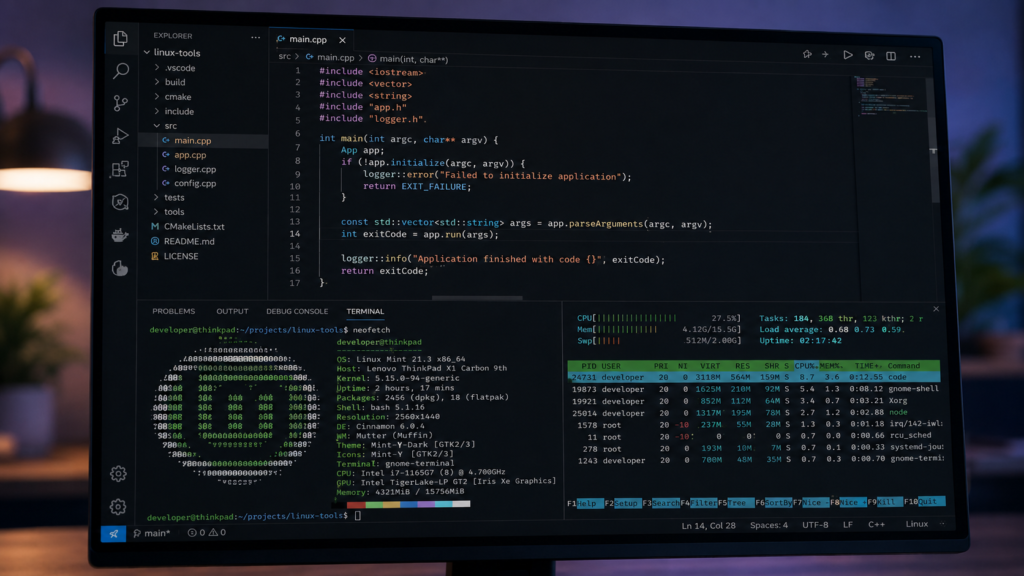
Migrating to a new operating system or configuring a fresh workstation often leads to avoidable missteps. To maintain a secure, high-performance environment, avoid these six common traps:
Installing Everything at Once
- The Mistake: Treating a new Linux install like a shopping spree by downloading dozens of apps “just in case.”
- The Consequence: More software means constant background updates, bloated application menus, conflicting file associations, and an expanded attack surface.
- The Fix: Build your system iteratively. Install essential Linux applications strictly based on immediate, real-world utility.
Confusing Synchronization with Backup
- The Mistake: Assuming cloud synchronization services (like a synced folder or LocalSend) constitute a valid backup strategy.
- The Consequence: If a file is corrupted, infected with malware, or accidentally deleted, a synchronization tool instantly replicates that deletion or corruption across all linked devices.
- The Fix: Maintain independent, versioned snapshots (via Timeshift) and offline personal backups (via Déjà Dup or external drives) following the 3-2-1 backup rule.
Mixing Package Formats Without a Reason
- The Mistake: Installing the same application across multiple packaging architectures (e.g., having a native
.deb, a Flatpak, and a Snap build of Firefox or VLC simultaneously). - The Consequence: Clutters your application launcher with duplicate entries, fragments configuration files across different sandbox directories, and wastes disk space on redundant dependencies.
- The Fix: Choose one reliable distribution format per application (preferring native packages for system utilities and Flathub/Flatpaks for desktop software) and stick with it.
Using Unofficial Repositories Casually
- The Mistake: Pasting random Personal Package Archives (PPAs), unverified shell scripts, or unknown third-party repository URLs found on old forums into your terminal.
- The Consequence: Bypasses your distribution’s security checks and gives untrusted third parties root access or wide-ranging control over your system.
- The Fix: Stick to your distribution’s official repositories, verified Flathub builds, or installation commands explicitly documented on the software developer’s official website.
Assuming Open Source Means Risk-Free
- The Mistake: Believing that because software is open source, it is automatically immune to security vulnerabilities, malicious forks, or outdated code.
- The Consequence: Neglecting updates, failing to use strong master credentials, or downloading packages from unverified mirrors.
- The Fix: Treat open-source tools with standard operational security: keep your system updated, enforce multi-factor authentication, and verify download checksums or signatures.
Ignoring Accessibility and Ergonomics
- The Mistake: Choosing an application solely based on its technical specifications or terminal flexibility while ignoring how it feels to operate daily.
- The Consequence: Poor font scaling, broken high-contrast themes, sluggish screen-reader support, or awkward touchpad behavior that slows down your entire workflow.
- The Fix: Test font scaling, keyboard navigation shortcuts, and input responsiveness before committing an application to your core daily driver setup.
What are the most essential Linux applications?
For most new users, start with a secure browser, an offline office suite, a universal media player, a password manager, a system backup utility, an archive manager, and a PDF viewer. Add other software based strictly on your professional or creative requirements rather than trying to hit a fixed checklist.
Are Linux applications free?
Many popular Linux applications are free and open-source software (FOSS), but not all Linux software is free. Several commercial applications, proprietary hardware drivers, cloud-sync subscription services, and enterprise development tools also support Linux and require paid licenses.
Is Flatpak safe for beginners?
Yes. Flatpak simplifies desktop application installation and isolates programs inside a sandboxed permission model. However, safety still depends on the application source. Stick to verified builders on Flathub, check the publisher details, and avoid granting unnecessary permissions via tools like Flatseal.
Should I use Snap or Flatpak?
Neither format is universally superior. Use the format officially recommended or supported by your distribution and the application developer. Flatpak is ideal for cross-distribution desktop software, while Snap is tightly integrated into Ubuntu workflows and server-centric utilities.
Can I run Windows applications on Linux?
Some Windows applications run successfully using compatibility layers like Wine or Proton, but performance and feature stability vary wildly depending on the application, hardware, and configuration.
If your livelihood depends on a specific Windows-only program (like advanced Adobe Creative Cloud suites), verify compatibility or maintain a dual-boot or virtual machine setup.
Do I need antivirus software on Linux?
Linux is not magically immune to malware. Keep your system updated, install software exclusively from trusted repositories, enforce strong multi-factor authentication, and remain cautious with downloaded scripts.
While desktop antivirus software (such as ClamAV) is rarely necessary for casual desktop users, it is standard practice on enterprise file servers, shared networks, or environments that frequently exchange files with Windows machines.
In Conclusion
The sheer volume of software installed does not define the most effective Linux configuration, but its operational efficiency. A high-leverage environment meets your exact computational needs while staying lean, secure, and easy to maintain.
To future-proof your setup, execute deployment in deliberate stages:
- Audit: Audit your distribution’s pre-installed toolset before downloading redundant packages.
- Core Baseline: Deploy your primary browser, office suite, media player, password manager, and backup system.
- Specialized Expansion: Introduce development environments, graphic suites, or cross-device utilities strictly when your workload requires them.
Next Actionable Step
Open your distribution’s native software manager right now. Identify the three essential Linux applications you genuinely require today, install them through trusted channels, and configure your Timeshift system snapshot before expanding your setup further.