OBS Studio vs Loom: Which Screen Recorder Is Better?
OBS Studio vs. Loom compares two industry-standard screen recording tools that serve fundamentally different user needs and operational workflows. OBS Studio is a free, open-source broadcasting powerhouse designed for granular control, high-quality production, and live streaming. In contrast, Loom is a cloud-native communication platform optimized for speed, asynchronous collaboration, and instant sharing.
While OBS Studio requires a technical setup—managing local files, encoders, and complex scene layers—it offers unlimited, zero-cost functionality. Loom provides a frictionless experience, leveraging AI-powered features for transcription, summarization, and team integration to maximize output efficiency. Neither tool is universally superior; your choice depends on whether you prioritize professional production control (OBS Studio) or team-based workflow velocity (Loom).
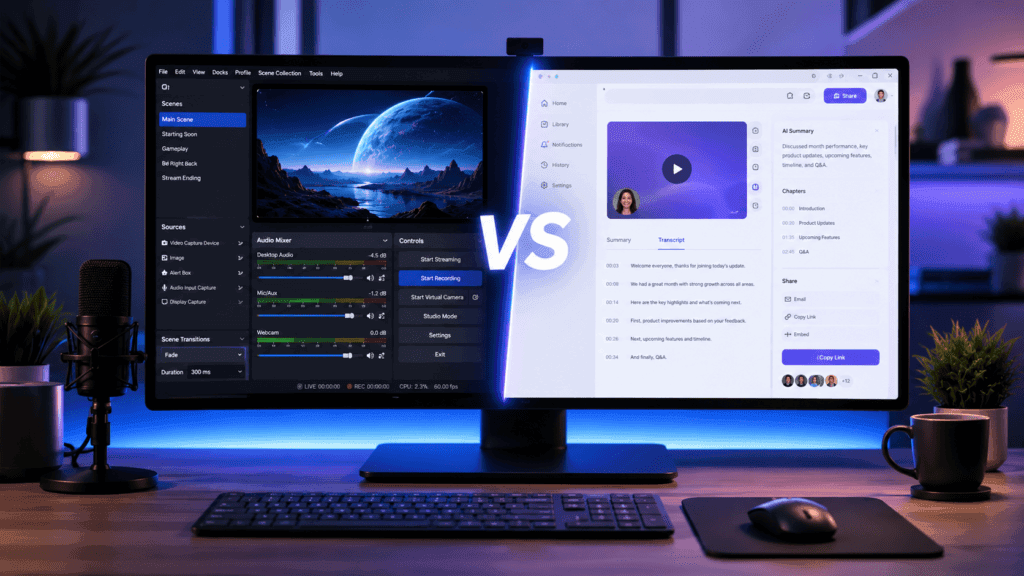
Choosing between OBS Studio and Loom is a critical decision for content creators, educators, remote teams, and freelancers, as the wrong tool can introduce significant friction, limit your output quality, or waste valuable hours on unnecessary post-production. This guide is designed to help you determine which tool aligns with your specific technical comfort, budget, and project requirements.
In the following sections, you will learn the core differences in feature sets, pricing models, ease of use, recording quality, AI capabilities, and live streaming support. This article is organized into objective, query-based modules that answer your most pressing questions, supported by technical comparison tables and actionable recommendations to help you master your recording workflow.
What Is OBS Studio?
OBS Studio (Open Broadcaster Software) is the gold standard for free, open-source video production, screen recording, and live streaming. Unlike consumer-grade recording tools that prioritize simplicity, OBS Studio operates as a complete, professional-grade video switcher and encoder. It allows users to capture, composite, and mix multiple high-definition audio and video sources—such as webcams, browser windows, application captures, and hardware inputs—into sophisticated “scenes” that can be switched in real-time.
Key pillars of the OBS Studio experience include:
- Professional Scene Composition: Think of your screen as a theater stage. You can layer elements, resize video inputs, add text overlays, and manage complex transitions between scenes.
- Zero-Cost Power: As a GPL v2 licensed project, OBS Studio provides unlimited recording and streaming capabilities without subscriptions, watermarks, or feature-gating behind paywalls.
- Advanced Audio/Video Control: It features a robust audio mixer with per-source filtering (noise suppression, gain, and noise gates) and supports VST plugins for studio-quality sound processing.
- Platform Versatility: While native to Twitch and YouTube, its customizable RTMP and WebRTC settings allow for streaming to virtually any destination, including custom private servers.
- Virtual Camera Integration: A standout feature for business use, OBS Studio can act as a virtual webcam, allowing you to bring professional production value—complete with overlays and multiple camera angles—directly into Zoom, Google Meet, or Microsoft Teams.
Widely adopted by professional content creators, educators, and technical freelancers, OBS Studio runs across Windows, macOS, and Linux. While it carries a steeper learning curve than browser-based recorders, it offers the ultimate “high-leverage” solution for those who require full, granular control over their digital output.
What Is Loom?
Loom is a cloud-native video messaging platform engineered specifically for asynchronous communication. Unlike OBS Studio, which functions as a local production studio, Loom is designed for high-velocity, “record-and-share” workflows. Its primary value proposition is the elimination of friction: it captures your screen and camera simultaneously and immediately generates a hosted, shareable link, bypassing the need for manual file management, rendering, or uploading.
Loom excels in environments where speed and human connection are paramount. Key features that define the Loom experience include:
- Asynchronous Workflow Velocity: Loom allows you to replace 30-minute status meetings or lengthy email threads with 3-minute video walkthroughs. Teammates can view, react to, and comment on your videos on their own schedule, across time zones.
- Built-in Engagement & Collaboration: Viewers can leave time-coded comments and emoji reactions directly on the video timeline. This turns a passive video into an interactive document, allowing for rapid feedback loops on code, designs, or project updates.
- AI-Powered Productivity: For users on paid tiers, Loom’s AI suite automatically generates titles, summaries, and searchable chapters, while also producing written transcripts that make the video content indexable and easy to skim.
- Deep Ecosystem Integration: Loom integrates directly into professional tools like Slack, Notion, Jira, and Gmail. You can attach a bug report video to a Jira ticket or a project demo to a Notion page with a single click, providing clear, visual context where it is most needed.
- Accessibility & Security: Loom provides native closed captioning in multiple languages and robust privacy controls, allowing you to password-protect videos or restrict access to specific team members or domains.
While OBS Studio is the choice for users who need total control over every pixel and audio frequency, Loom is the standard for those who need to communicate with clarity, speed, and minimal technical overhead. It is the preferred tool for remote teams, educators, and professionals looking to optimize their daily output without the steep learning curve associated with broadcast software.
OBS Studio vs. Loom: Key Differences at a Glance
Choosing between OBS Studio and Loom depends on whether your priority is professional-grade production or workflow velocity. Use the table below to evaluate which tool aligns with your project requirements.
| Feature | OBS Studio | Loom |
| Pricing | 100% Free, Open-Source | Free (limited); Business from $15/mo |
| Primary Focus | Production & Broadcasting | Asynchronous Communication |
| Learning Curve | Steep—requires configuration | Minimal—record & share instantly |
| Live Streaming | Yes (Twitch, YouTube, RTMP) | No |
| Sharing | Manual upload/file management | Built-in instant shareable links |
| AI Features | Via 3rd-party plugins | Native (transcripts, summaries, etc.) |
| Editing | None (requires external editor) | Basic trim and stitch tools |
| Multi-Source | Unlimited scenes & layers | Screen + webcam only |
| Compatibility | Windows, macOS, Linux | Web/Desktop/Mobile |
Key Takeaways for Your Workflow
- Choose OBS Studio if: You are a creator, streamer, or educator who needs complete control over the final output. If you require multiple camera angles, complex visual overlays, or live-broadcast capabilities, the “manual” nature of OBS Studio is a worthwhile investment.
- Choose Loom if: You are a professional or remote worker who needs to communicate clearly and quickly. Loom’s value lies in its integration with the modern stack (Notion, Jira, Slack) and its AI-driven ability to turn a simple recording into a searchable, summarized asset for your team.
Which Is Easier to Use: OBS Studio or Loom?
When comparing user experience, Loom and OBS Studio occupy opposite ends of the technical spectrum. Loom is designed for frictionless velocity, while OBS Studio is built for precision control.
The Loom Experience: Record and Go
Loom is optimized for the “instant-on” workflow. Its design philosophy centers on eliminating the gap between the thought and the share.
- Minimal Setup: Installation is straightforward (browser extension or lightweight desktop app). There are no encoders to tune or bitrates to manage.
- Instant Gratification: As soon as you stop recording, the video is processed, uploaded to the cloud, and a shareable link is generated automatically.
- Cognitive Load: For the average user, the interface is self-explanatory. You simply choose your camera bubble size, select your recording area, and hit record. It is the clear winner for non-technical users, remote workers, and sales professionals who value speed above all else.
The OBS Studio Experience: Configure and Conquer
OBS Studio operates on a “production studio” model. It is not an app you simply “open and record”; it is an application you engineer.
- The Learning Curve: New users are often intimidated by the interface, which presents a “black box” canvas. You must manually define your “Sources” (webcam, screen capture, audio inputs), arrange them in “Scenes,” and configure “Output” settings (encoding, bitrate, resolution) before you can capture a single frame.
- Technical Troubleshooting: Because it gives you total control, it also gives you total responsibility. You may encounter issues like audio-video sync offsets, high CPU usage, or dropped frames—all of which require manual configuration to fix.
- The Reward for Complexity: Once the initial setup is mastered, OBS Studio provides unparalleled power. You can create sophisticated, multi-camera compositions that Loom cannot replicate, apply real-time studio filters, and switch between dynamic scenes mid-recording.
The Verdict: Choosing Your Workflow
- Choose Loom if you need to communicate clearly and quickly without becoming a video technician. It is the superior tool for high-volume, collaborative environments where the goal is to transmit information efficiently.
- Choose OBS Studio if you are building high-quality assets (like course modules, webinars, or brand content) and require total agency over the aesthetic and technical quality of your video. While the barrier to entry is higher, OBS Studio removes the constraints imposed by proprietary platforms, offering a permanent, high-leverage solution for content production.
Which Offers Better Recording Quality?
While both platforms are capable of high-definition output, they prioritize different outcomes. OBS Studio is built for uncompromised fidelity, while Loom prioritizes optimized web delivery and platform-specific performance.
OBS Studio: The Professional Standard
OBS Studio places the power of professional video encoding directly in your hands. It provides granular control over every aspect of your output, making it the superior choice for high-stakes content like online courses, YouTube tutorials, or cinematic gameplay.
- Custom Encoding: You have direct access to hardware encoders (NVENC, AMD VCE, Apple VideoToolbox) and software encoders (x264), allowing you to balance CPU usage against visual fidelity.
- Bitrate & Resolution: You aren’t tethered to a platform’s compression algorithms. You can record in 4K or beyond at high bitrates, ensuring that fine details—like small text in code editors or complex UI elements—remain crisp.
- Color Range: You can configure the color range (Full vs. Partial), which is essential for professional color grading or ensuring accurate color reproduction in technical demos.
Loom: Optimization for Asynchronous Velocity
Loom’s recording quality is engineered for the “share-first” workflow. While it supports 4K resolution on paid tiers, the output is processed specifically for browser playback.
- The “Starter” Limitation: As of 2026, the free Loom plan is heavily restricted, capping resolution at 720p. For users who need sharp, high-resolution visuals, this is a significant bottleneck.
- Adaptive Compression: Loom automatically compresses and optimizes your video for the web. While this ensures that your link loads instantly for a recipient on a slow connection, it can sometimes result in “macro-blocking” or loss of detail in high-motion sequences or fine-text screencasts.
- Workflow-First Design: Loom prioritizes how quickly a video can be processed and viewed. If you are recording a quick internal team update, the 720p or standard HD quality is usually “more than adequate,” but it will not stand up to the rigors of high-production content creation.
Comparison Summary
| Metric | OBS Studio | Loom |
| Control | Full (Bitrate, Encoder, Profile) | Automated (Platform optimized) |
| Max Resolution | Unlimited (Hardware dependent) | 4K (Paid) / 720p (Free) |
| File Fidelity | High (Lossless options) | Compressed for Web |
| Best For | Courses, YouTube, Production | Internal Updates, Quick Feedback |
The Bottom Line: If visual clarity is a “feature” of your output—such as in a technical tutorial where viewers need to read small font sizes—OBS Studio is the only reliable option. If the information itself is the priority and you need to communicate it within seconds, Loom’s optimized, web-ready quality is designed to get the job done without extra legwork.
Does OBS Studio or Loom Have Better AI Features?
Loom holds a distinct advantage in native, out-of-the-box AI functionality. Because it is a cloud-based platform, Loom seamlessly integrates AI into the recording and post-production process, making it an essential tool for knowledge management and team communication.
Loom: The AI-First Communication Suite
Loom’s AI features are baked into its workflow, designed to turn a raw recording into a polished, professional asset without manual effort. On its paid plans, Loom provides:
- Intelligent Editing: Automatically removes filler words (“ums,” “ahs”) and silences to tighten pacing and improve clarity.
- Content Generation: Instantly creates titles, summaries, and clickable chapters to help viewers navigate your video.
- Workflow Automation: Converts video content into actionable documentation, such as Jira or Linear tickets, Confluence pages, and follow-up emails.
- Multilingual Support: Offers transcription and summaries in over 50 languages, expanding the reach of your internal communications.
OBS Studio: The “DIY” AI Ecosystem
OBS Studio does not include native AI features in the same way Loom does. It is a professional broadcasting tool designed for real-time video composition, not automated post-production. However, OBS Studio users can achieve similar (and often more powerful) results through third-party integrations and plugins:
- Local AI Plugins: Plugins like LocalVocal allow for real-time, local-first transcription and captioning using AI models (like Whisper) directly on your machine. This is a privacy-focused alternative that keeps your data off the cloud.
- Real-Time Audio Enhancement: Tools like NVIDIA Broadcast or Sonarworks SoundID can be routed through OBS Studio to perform AI-powered noise removal, room echo suppression, and professional-grade vocal tuning in real-time.
- Advanced Automation: Power users leverage plugins like Advanced Scene Switcher to automate camera cuts and scene transitions based on “intent” (e.g., detecting if a speaker is leaning in or looking away), providing a “virtual director” experience.
Comparison Summary
| Feature | Loom | OBS Studio |
| Native AI | High (Built-in) | Low (Plugin-dependent) |
| Transcription | Automatic, cloud-based | Requires external plugin/service |
| Editing AI | Auto-filler/silence removal | Manual (via external editors) |
| Best For | Business productivity, documentation | Professional production, live streaming |
The Bottom Line: If your priority is saving time on documentation, meeting recaps, and team collaboration, Loom’s native AI suite is the clear winner. If you are a content creator or technical professional who needs high-level production control, you can replicate or exceed Loom’s AI capabilities using the robust ecosystem of OBS Studio plugins—provided you are willing to spend the time configuring your custom “AI stack.”
Can You Live Stream with OBS Studio or Loom?
OBS Studio is explicitly designed for live broadcasting, while Loom is strictly an asynchronous video messaging tool.
OBS Studio: The Broadcasting Powerhouse
OBS Studio is built specifically for real-time video transmission. It connects directly to the ingest servers of major platforms—such as Twitch, YouTube Live, LinkedIn Live, and Facebook Gaming—using protocols like RTMP (Real-Time Messaging Protocol) and SRT (Secure Reliable Transport).
- Real-Time Control: You can manage “live” scene transitions, audio mixing, and graphical overlays while your audience watches.
- Production Depth: Features like custom stream delays, multi-track audio for separate stream/recording mixes, and plugin support for chat overlays and alert boxes make OBS Studio the industry standard for professional streamers and live educators.
- Infrastructure: It is “live-native,” meaning it is built to handle the constant, low-latency data stream required for broadcasting.
Loom: Asynchronous Only
Loom does not support live streaming. Its architecture is fundamentally different: it captures, processes, and stores video files in the cloud for on-demand, asynchronous viewing.
- No Live Ingest: There is no mechanism within Loom to provide an RTMP stream key or connect to a broadcasting destination.
- The “Record, Then Share” Loop: Loom is engineered to replace live meetings, not facilitate them. Even if you “record live” in the sense that you are capturing your screen in real-time, the audience cannot watch you as it happens. They only gain access once the recording is finished and the file has been processed on Loom’s servers.
- Purpose: Loom is optimized for “async-first” workflows—where the goal is to communicate information precisely, allowing the recipient to consume it when their schedule permits.
Comparison Summary
| Metric | OBS Studio | Loom |
| Live Broadcast | Yes (Native) | No |
| Protocol Support | RTMP, RTMPS, SRT | N/A |
| Primary Use | Streaming & Live Production | Asynchronous Messaging |
| Platform Integration | API-based (Twitch, YouTube, etc.) | None |
The Bottom Line: If your goal is to engage an audience in real-time, OBS Studio is the only viable option between the two. If you are looking to record a presentation to be viewed later, Loom provides a significantly more efficient, “set-it-and-forget-it” workflow that avoids the complexities of streaming infrastructure.
Which Has Better Video Editing Tools?
Neither OBS Studio nor Loom is designed as a standalone video editor. They occupy different ends of the “production lifecycle,” and both expect you to rely on external software for anything beyond the most basic adjustments.
OBS Studio: The “Raw Output” Approach
OBS Studio has zero built-in editing capabilities. Because it is a broadcasting tool, it is designed to output a final, “ready-to-go” file if you have configured your scenes and transitions correctly before you hit record.
- The Workflow: Most professional OBS Studio users treat their raw recordings as “source material” to be imported into dedicated NLEs (Non-Linear Editors) like DaVinci Resolve, Adobe Premiere Pro, or CapCut.
- The Advantage: Because OBS Studio gives you high-fidelity, uncompressed, or lightly compressed local files, you have maximum “headroom” for color correction, multi-track audio editing, and complex visual effects in your post-production software.
Loom: The “Utility Trim” Approach
Loom provides rudimentary editing tools, which are intended for “communication cleanup” rather than professional production.
- The Built-in Editor: On paid plans, you get basic “trim and stitch” functionality. You can cut out dead air, remove sections where you misspoke, or add simple call-to-action buttons.
- The Limitation: Loom is not a multi-track editor. You cannot layer audio, add B-roll, or perform advanced compositing. Its editor is strictly designed to make a raw “talking head” recording slightly more professional before sending it to a colleague.
- The Ecosystem: Unlike OBS Studio, Loom’s editing is cloud-dependent. You are confined to the tools provided in their web interface, which can be restrictive if you need precision frame-by-frame cutting.
Comparison Summary
| Feature | OBS Studio | Loom |
| Native Editing | None | Basic (Trim/Stitch) |
| Primary Method | Export to NLE (Premiere, Resolve) | In-browser “cleanup” |
| Workflow Goal | Maximum quality for later polish | Quick “good enough” communication |
| Best For | Final professional assets | Internal updates & team feedback |
The Bottom Line: If you require a polished, high-production result, do not look for editing features within either tool. OBS Studio provides the high-quality raw data needed for professional editing, while Loom provides a “quick-fix” utility for people who need to communicate fast.
If you find yourself needing to edit your recordings frequently, your best strategy is to adopt a dedicated tool like CapCut (for speed) or DaVinci Resolve (for professional depth) to handle your post-production workflow regardless of which recorder you use.
How Do Sharing and Collaboration Compare?
Sharing and collaboration represent the fundamental divide between Loom and OBS Studio. Loom is built for the “networked” workplace, while OBS Studio is built for the “broadcast” creator.
Loom: The Asynchronous Communication Engine
Loom is designed specifically to replace meetings and long-form emails with interactive video. It is a cloud-first platform where sharing is the default state.
- Instant Distribution: When you stop recording in Loom, the video is already hosted. You are provided with a permanent URL that you can paste directly into Slack, Notion, Jira, or email. The recipient doesn’t need special software to view it; it plays instantly in their browser.
- Built-in Feedback Loops: Loom transforms videos into collaborative documents. Viewers can leave time-coded comments and emoji reactions directly on the timeline, allowing for rapid, asynchronous feedback without needing to schedule a follow-up meeting.
- Engagement Analytics: Loom provides creators with high-signal data: who watched, how much of the video they viewed, and where they dropped off. This is invaluable for sales teams, onboarding managers, and educators who need to verify that their message was received and understood.
- Team Knowledge Management: Loom allows for structured organization through shared folders and workspaces, making it easy to build a searchable library of video assets for your team or organization.
OBS Studio: The “File-First” Workflow
OBS Studio operates entirely offline by default. It excels at local production, but it leaves the “distribution” problem entirely to you.
- Manual Distribution: OBS Studio saves files directly to your local hard drive. To share a recording, you must manually upload the file to a platform of your choosing (YouTube, Google Drive, Dropbox, or a private server).
- No Native Collaboration: There are no built-in commenting, reaction, or analytics tools in OBS Studio. It is a tool for creating the asset, not communicating it.
- The “Plugin” Path: Power users can bridge this gap using plugins or automated scripts (e.g., using
obs-websocketto trigger an automated upload script post-recording), but this requires technical implementation. - Full Asset Ownership: The trade-off for the lack of collaboration features is total control. Because the file is stored locally, you own the raw master copy. You aren’t subject to cloud storage limits, platform-specific compression, or subscription-based access rights.
Comparison Summary
| Metric | Loom | OBS Studio |
| Sharing | Instant (Cloud link) | Manual (Upload required) |
| Feedback | Native (Comments/Reactions) | None (Requires external tools) |
| Analytics | Built-in (Views/Engagement) | None |
| Workflow | Async-first (Share everywhere) | Creator-first (Produce & Distribute) |
The Bottom Line: If your priority is team velocity—the ability to send a quick update, get feedback, and move on—Loom’s integrated sharing and collaboration tools are unmatched. If your priority is asset ownership and high-fidelity production, OBS Studio gives you the professional-grade raw files you need to distribute across any platform you choose, on your own terms.
Performance and System Requirements
The hardware demands for OBS Studio and Loom reflect their distinct architectural philosophies: one is a local rendering engine, and the other is a lightweight cloud-connector.
OBS Studio: The High-Performance Engine
OBS Studio is a resource-intensive application because it performs real-time video compositing and encoding on your local hardware.
- Operating System: Windows 10/11 (64-bit), macOS 11+, or Linux (Ubuntu 20.04+).
- Processor (CPU): A quad-core processor (Intel i5/Ryzen 5) is the baseline for smooth performance. For 1080p60 recording or high-bitrate streaming, a modern 3.0+ GHz processor is recommended to prevent dropped frames.
- Memory (RAM): 8 GB is the practical minimum for a smooth workflow. If you are recording while running other resource-heavy applications (like games or editing software), 16 GB is strongly recommended.
- Graphics (GPU): A dedicated GPU with hardware encoding capabilities (NVIDIA GTX 1060+ or AMD RX 580+) is essential for professional output. Utilizing hardware encoders like NVENC (NVIDIA) or AMF (AMD) offloads the rendering work from your CPU, significantly improving system stability.
- Storage: An SSD is highly recommended for saving high-bitrate recordings to prevent “bottlenecking” during write operations.
Loom: The Lightweight Cloud Client
Loom is designed to be as unobtrusive as possible, moving the heavy lifting of video processing to the cloud.
- Operating System: Windows 10/11, macOS 11+, or any modern OS with a Chrome-compatible browser.
- Hardware: It requires a modern dual-core CPU and at least 4 GB of RAM. Because Loom is “thin-client” software, it does not require a high-end dedicated GPU.
- Connectivity: The primary “system requirement” for Loom is a stable broadband internet connection. Unlike OBS Studio, where your internet speed only matters if you are live streaming, Loom relies on your upload speed to push the video to the cloud during or immediately after recording.
- Storage: Loom has minimal local storage requirements, as your videos are stored in their cloud workspace. However, you must have enough free space to install the application and temporarily buffer recordings.
Comparison Summary
| Metric | OBS Studio | Loom |
| CPU Load | High (Real-time compositing) | Low (Client-side recording) |
| GPU Dependency | High (Recommended for encoding) | Low |
| Network Dependency | Low (Only for streaming) | High (Required for upload/sharing) |
| Hardware Fit | Modern Workstation / Gaming PC | Any Modern Office/School Laptop |
The Bottom Line: If your hardware is older or limited, Loom provides a significantly smoother experience because it avoids the high computational cost of local encoding. Conversely, if you have a powerful machine but a slow or unstable internet connection, OBS Studio is superior; it captures high-fidelity files locally, insulating you from the performance fluctuations of cloud-based upload services.
Pricing Comparison: OBS Studio vs. Loom
The financial models for these tools reflect their core business purposes: OBS Studio is a community-funded utility, while Loom is a commercial enterprise SaaS product.
OBS Studio Pricing
- Cost: 100% Free, Open-Source (GPL v2).
- Subscription: None. There are no “Pro” tiers, paywalls, or hidden feature-gating.
- Restrictions: Unlimited recordings, zero watermarks, no limits on resolution or bitrate, and no restrictions on commercial use.
- The “Cost” of OBS: While the software is free, the “cost” is measured in your time. You bear the burden of configuration, maintenance, and file storage. If you lose a recording due to a configuration error, there is no support team to help you recover it.
Loom Pricing (2026)
Loom operates on a tiered subscription model, shifting the burden of infrastructure and maintenance to the company in exchange for a recurring fee.
| Plan | Cost (Annually) | Key Features |
| Starter (Free) | $0 | 25 videos total, 5-minute cap, 720p, basic editing. |
| Business | $15/user/month | Unlimited recordings, 4K, custom branding, downloads. |
| Business + AI | $20/user/month | All Business features + AI summaries, filler removal, etc. |
| Enterprise | Custom | SSO, SCIM, advanced security, audit logs, and SLAs. |
- The “Loom Tax”: The primary constraint in Loom’s pricing is the 25-video lifetime limit on the free tier. This forces users into the Business tier ($180/year per user) almost immediately upon regular use.
- AI Monetization: Loom explicitly gates its most “high-leverage” AI features (automated recaps, transcript-based editing) behind the Business + AI tier. If your workflow depends on AI to save time, this is an unavoidable operating expense.
Strategic Recommendation: Which Fits Your Budget?
- Choose OBS Studio if: You are a solo creator, a technical professional, or a budget-constrained startup founder who requires maximum output control without recurring overhead. You are trading money for the time spent mastering the tool and managing your own storage.
- Choose Loom if: You are scaling a team and need workflow velocity. The $15–$20/month per user is an investment in reducing friction across your team. When you calculate the hourly cost of an employee manually uploading videos or writing manual summaries, Loom’s subscription fees often pay for themselves through regained productivity.
The Bottom Line: Use OBS Studio to build the high-quality, long-term assets of your business. Use Loom to handle the high-velocity, daily communication that keeps your team synchronized. Many high-leverage operators use both: OBS Studio for course creation and high-production content, and Loom for internal team updates and sales outreach.
Platform Compatibility
The landscape of screen recording in 2026 demands flexibility. Whether you are working across mobile devices, tablets, or mixed-OS desktop environments, your choice of tool will dictate your technical limitations.
OBS Studio
OBS Studio is a desktop-native powerhouse. It is designed to harness the full processing potential of your computer, which means it requires a dedicated OS environment to function effectively.
- Operating Systems: Runs natively on Windows 10/11 (64-bit), macOS 12+, and modern 64-bit Linux distributions (e.g., Ubuntu).
- Mobile Status: No native mobile recording app. Because OBS Studio relies on complex hardware acceleration (NVENC, QuickSync) and real-time compositing, it cannot be effectively ported to iOS or Android.
- Remote Control: While you cannot “run” it on a phone, power users utilize apps like Stream Deck Mobile or obs-websocket controllers to manage scenes and start/stop recordings from a smartphone or tablet.
Loom
Loom is a “cloud-first” service, making it significantly more portable than OBS Studio. Its architecture is designed to offload the heavy lifting to the cloud, allowing it to run across a diverse range of devices.
- Desktop: Dedicated apps for Windows 10/11 and macOS 11+, plus a feature-rich Chrome extension for lightweight, browser-based recording on any OS (including ChromeOS).
- Mobile: Fully functional mobile apps for iOS and Android. These apps are highly effective for recording “on-the-go” screen captures or face-to-camera updates, which are then instantly synced to your cloud library.
- Linux/Other: Accessible via any modern browser (Chrome/Firefox/Edge), making it highly compatible for team members who may not have permission or hardware to install desktop software.
Comparison Summary
| Metric | OBS Studio | Loom |
| Desktop Native | Yes (Win, Mac, Linux) | Yes (Win, Mac) |
| Browser-Based | No | Yes (Chrome Extension) |
| Mobile Recording | No | Yes (iOS, Android) |
| Accessibility | Best for high-spec workstations | Best for cross-platform/mobile teams |
The Bottom Line:
If your workflow is anchored to a high-performance workstation and you rarely need to record on the fly, OBS Studio provides the most consistent, high-performance experience across Windows, macOS, and Linux. However, if your team or project requires cross-platform flexibility, the ability to record from a mobile device, or the convenience of “no-install” browser accessibility, Loom is the superior solution.
Best Use Cases for Each Tool
Choosing the right technology stack for your screen recording needs requires aligning the tool’s architecture with your specific output goals. Use this high-level summary to make your final decision.
Choose OBS Studio if:
- You are a Content Creator: You produce high-fidelity assets like online course modules, YouTube tutorials, or cinematic gameplay where visual clarity and professional production value are non-negotiable.
- You Require Live Broadcasting: You need to stream to Twitch, YouTube, or custom RTMP servers with real-time switching, chat overlays, and multi-source management.
- You Demand “Zero-Compromise” Quality: You need total agency over your encoder settings, bitrate, resolution, and audio processing without platform-imposed compression.
- You are Budget-Conscious but Technical: You want a professional-grade production suite that is 100% free and open-source, provided you have the technical aptitude to configure and maintain your own setup.
- You Need Advanced Compositing: You need to layer multiple video sources, dynamic graphics, and custom transitions to create a visually distinct brand identity.
Choose Loom if:
- You are a Remote Professional/Manager: You need to replace long meetings or email threads with high-velocity, asynchronous video explanations.
- You Require Speed and Frictionless Sharing: Your primary goal is to record, share, and get feedback immediately. You need your video to be ready for your team in seconds, not minutes.
- You Rely on AI for Productivity: You need your videos to be automatically transcribed, summarized, and chapterized so your team can search and consume information efficiently.
- You Need Engagement Data: You need analytics to track who is watching your content and ensure your message is being understood.
- You Work in an Integrated Tech Stack: Your workflow relies on deep integrations with tools like Slack, Notion, Jira, or Confluence, and you want to embed video context directly into those environments.
Decision Matrix: Finding Your Workflow Fit
| Scenario | Recommended Tool | Primary Reason |
| “I need to record a 30-min course for sale.” | OBS Studio | High-fidelity control & no platform limits. |
| “I need to give feedback on a Jira ticket.” | Loom | Integration velocity & time-coded comments. |
| “I’m a streamer going live on Twitch.” | OBS Studio | Native RTMP broadcasting & scene control. |
| “I need to send a quick update to my team.” | Loom | Instant link sharing & ease of use. |
| “I have no budget and need 4K quality.” | OBS Studio | Unlimited, free, high-bitrate output. |
Final Recommendation:
The most efficient operators often utilize both. Use OBS Studio for your “High-Leverage” production (long-form assets, courses, brand identity) and use Loom for your “High-Velocity” communication (team updates, sales outreach, bug reports). By separating these workflows, you ensure that you aren’t sacrificing quality for speed, nor wasting time on high-production tools when a simple link will suffice.
Loom: Full Product Review
Loom is a cloud-based asynchronous video communication platform designed to replace live meetings and long-form email threads. Following its acquisition by Atlassian, it has evolved into a tightly integrated productivity engine, leveraging AI to transform raw screen recordings into structured documentation and collaborative assets.
Device Type
- Desktop: Native apps for Windows and macOS.
- Browser: Feature-rich Chrome extension and web-based recording.
- Mobile: Dedicated apps for iOS and Android (viewing and recording).
AI Features (Loom AI)
- Automated Content: Automatic title generation, chapter markers, and video summaries.
- Transcription: Auto-generated transcripts in 50+ languages with closed captioning.
- Editing Intelligence: One-click removal of filler words (“ums,” “ahs”) and automated silence trimming.
- Workflow Integration: Converts video content directly into structured Jira tickets, Confluence pages, or Slack summaries.
- Personalization: “Video Variables” to automate personalized sales outreach at scale.
Key Specifications
- Recording: Simultaneous screen, webcam, and system audio capture.
- Engagement: Time-coded comments, emoji reactions, and detailed viewer analytics (who watched and where they dropped off).
- Collaboration: Deep integration with the Atlassian stack (Jira, Confluence, Rovo), plus Slack, Notion, and Gmail.
- Quality: Up to 4K resolution (paid plans).
- Accessibility: Public link sharing—recipients can view recordings without needing an account.
Pricing (2026)
- Starter (Free): Capped at 25 videos lifetime, 5-minute limit per video, 720p resolution, no MP4 downloads.
- Business: ~$10–$15/user/month; adds unlimited recordings, 4K quality, custom branding, and password protection.
- Business + AI: ~$20/user/month; includes full AI suite (summaries, filler removal, transcript-based editing).
- Enterprise: Custom pricing; includes SSO, SCIM, advanced security, and audit logs via Atlassian Administration.
Compatibility
- Windows 10+, macOS 11+, ChromeOS, Linux (via browser).
Best For
- Remote Teams: Replacing “status update” meetings with asynchronous video.
- Product Managers/Developers: Embedding bug reports and feature walkthroughs directly into Jira/Confluence.
- Sales Professionals: Creating personalized, trackable outreach videos.
- Educators: Quick student feedback and instructional demonstrations.
Pros & Cons
- Pros: Incredible speed-to-share ratio; frictionless collaboration tools; industry-leading ecosystem integrations; professional AI-driven post-production.
- Cons: Highly restrictive free tier (25-video lifetime cap); recurring subscription costs for core AI features; no advanced manual video editing capabilities; cloud-dependent (no native offline recording archive).
Privacy & Security
- Enterprise-grade security under Atlassian’s umbrella, including SSO and custom data retention policies. Data is used to train anonymized models if enabled by team settings.
Alternatives
- OBS Studio: Best for high-production, local-first, zero-cost assets.
- Supademo: Stronger focus on interactive product demos.
- Vidyard: Specialized in sales-led engagement and CRM integration.
Verdict
Loom is the premier async communication tool for modern, distributed teams. It effectively sacrifices manual control for extreme workflow velocity. While it is no longer the “unlimited free” tool it once was, its ability to integrate video into the “work-about-work” (Jira/Notion) makes it a high-ROI investment for organizations that need to move faster than live meetings allow.
If you are a solo creator looking for free, high-fidelity storage, look toward OBS Studio; if you are building a team-based knowledge base, Loom is the current industry standard.
Loom: Full Product Review
Loom is a cloud-based asynchronous video communication platform designed to replace live meetings and long-form email threads. Following its integration into the Atlassian ecosystem, it has evolved into a tightly coupled productivity engine, leveraging AI to transform raw screen recordings into structured documentation and collaborative team assets.
Device Type
- Desktop: Native apps for Windows and macOS.
- Browser: Feature-rich Chrome extension for lightweight, cross-platform recording.
- Mobile: Dedicated apps for iOS and Android for viewing and recording on the go.
AI Features (Loom AI)
- Automated Intelligence: Automatically generates titles, chapter markers, and video summaries.
- Transcription: Auto-generated transcripts in 50+ languages with built-in closed captioning.
- Editing Intelligence: One-click removal of filler words (“ums,” “ahs”) and automated silence trimming.
- Workflow Integration: Converts video content directly into structured Jira tickets, Confluence pages, or Slack summaries.
- Personalization: “Video Variables” to automate personalized sales outreach at scale.
Key Specifications
- Recording: Simultaneous screen, webcam, and system audio capture.
- Engagement: Time-coded comments, emoji reactions, and detailed viewer analytics (who watched and where they dropped off).
- Collaboration: Deep integration with the Atlassian stack (Jira, Confluence, Rovo), plus Slack, Notion, and Gmail.
- Quality: Up to 4K resolution (paid plans).
- Accessibility: Public link sharing; recipients can view recordings instantly without an account.
Pricing (2026)
- Starter (Free): Capped at 25 videos lifetime, 5-minute limit per video, 720p resolution, no MP4 downloads.
- Business: ~$15/user/month (annual); unlimited recordings, 4K quality, custom branding, and password protection.
- Business + AI: ~$20/user/month (annual); includes the full AI suite (summaries, filler removal, transcript-based editing).
- Enterprise: Custom pricing; includes SSO, SCIM, advanced security, and audit logs via Atlassian Administration.
Compatibility
- Windows 10+, macOS 11+, ChromeOS, Linux (via browser).
Best For
- Remote Teams: Replacing “status update” meetings with asynchronous video.
- Product Managers/Developers: Embedding bug reports and feature walkthroughs directly into Jira/Confluence.
- Sales Professionals: Creating personalized, trackable outreach videos.
- Educators: Quick student feedback and instructional demonstrations.
Pros & Cons
- Pros: Incredible speed-to-share ratio; frictionless collaboration; industry-leading ecosystem integrations; professional AI-driven post-production.
- Cons: Highly restrictive free tier (25-video lifetime cap); recurring subscription costs for core AI features; no advanced manual video editing capabilities; cloud-dependent (no native offline recording archive).
Privacy & Security
- Enterprise-grade security under Atlassian’s umbrella, including SSO and custom data retention policies. Data is used to train anonymized models only if enabled by team settings.
Alternatives
- OBS Studio: Best for high-production, local-first, zero-cost assets.
- Screen Studio: Superior for cinematic/automated cursor movement and zoom effects.
- Tella: A strong alternative for branded video production and hosting with a focus on workspaces.
Verdict
Loom is the premier async communication tool for modern, distributed teams. It effectively sacrifices manual control for extreme workflow velocity. While it is no longer the “unlimited free” tool it once was, its ability to embed video into the “work-about-work” (Jira/Notion) makes it a high-ROI investment for organizations that need to move faster than live meetings allow.
If you are a solo creator looking for free, high-fidelity storage, look toward OBS Studio; if you are building a team-based knowledge base, Loom is the current industry standard.
Buying Guide: Who Should Buy Which Tool
This guide provides a definitive comparison between OBS Studio and Loom as of July 2026. Because these tools serve fundamentally different purposes—professional broadcasting versus asynchronous communication—the “better” choice depends entirely on your specific workflow.
Quick Comparison Table
| Feature | OBS Studio | Loom |
| Primary Use | Professional Production / Streaming | Async Team Communication |
| Cost | 100% Free, Open-Source | Free (Limited) / Paid ($15–$20/mo) |
| Learning Curve | Steep | Near-Zero |
| Cloud Sharing | Manual | Built-in (Instant Link) |
| AI Features | None (Plugin-dependent) | Native (Transcripts, Summaries) |
| Live Streaming | Yes (RTMP, Twitch, YouTube) | No |
| Hardware Fit | High-Spec Workstations | Any Modern Laptop / Mobile |
OBS Studio: The High-Leverage Powerhouse
OBS Studio is the industry standard for users who require full agency over their media. It functions as a local, professional-grade video switcher and encoder.
- Best For: Streamers, course creators, and technical professionals who need total control over production, multi-camera setups, and live broadcasting.
- Key Advantage: It is entirely free, forever. You own your files, there are no watermarks, and no platform-imposed limits on recording length or resolution.
- The Trade-off: You are responsible for everything—configuration, file management, and storage. If you need AI features or cloud analytics, you must build your own “stack” using third-party plugins or external services.
Loom: The High-Velocity Communication Suite
Loom (now part of the Atlassian ecosystem) is optimized for “async-first” workplaces where the goal is to transmit information instantly without the friction of a live meeting.
- Best For: Remote teams, project managers, and sales professionals who need to share quick updates, bug reports, or personalized demos.
- Key Advantage: Workflow Velocity. You record, and the video is instantly hosted and shareable. Its integration with Jira, Notion, and Slack turns video into structured documentation.
- The Trade-off: Subscription-based gatekeeping. The free plan is heavily restricted (25-video lifetime cap, 5-minute limit). To access professional features like AI summaries, filler-word removal, or 4K quality, you must pay a monthly “Loom tax.”
Decision Matrix: Which Should You Choose?
| If your goal is… | Choose… | Why? |
| Live Streaming | OBS Studio | Native RTMP support for Twitch/YouTube. |
| Asynchronous Updates | Loom | Instant link sharing & team collaboration. |
| Professional Courses | OBS Studio | High-fidelity control & no storage/paywall limits. |
| Bug Reports / Demos | Loom | Embeds directly into Jira/Slack workflows. |
| Budget Zero-Cost | OBS Studio | Truly free, no monthly fees. |
| Team Productivity | Loom | AI summaries save hours of meeting time. |
Strategic Recommendation for 2026
Do not force one tool to do the other’s job. The most efficient operators utilize a bimodal approach:
- Use OBS Studio for “High-Leverage Assets”: Whenever you are creating content with a long shelf-life (online courses, brand marketing, YouTube evergreen content), use OBS Studio. It ensures you own the high-fidelity source files and aren’t beholden to a platform’s compression or subscription policies.
- Use Loom for “High-Velocity Communication”: Use Loom for the daily “work-about-work”—quick feedback on a design, a question for a developer, or a status update for your team. The subscription cost is an investment in time recovery; the speed of the “record-and-share” loop will pay for itself by reducing your time spent in live meetings.
Is OBS Studio completely free?
Yes. OBS Studio is 100% free and open-source, distributed under the GPLv2 license. There are no watermarks, hidden premium tiers, or recording limits. Because it is community-driven, you are not dependent on any company’s servers or subscription model to use it.
Does Loom have a free plan?
Yes, Loom offers a Starter (Free) plan, but it is restrictive for power users. It includes a lifetime limit of 25 videos, a 5-minute maximum per recording, and 720p resolution. Once you reach these limits or require professional features like AI summaries and 4K quality, a paid subscription is necessary.
Can I live stream with Loom?
No. Loom is designed exclusively for asynchronous video messaging—recording a video to be watched later. It does not support RTMP or any live broadcasting protocols. If you need to stream to Twitch, YouTube, or Facebook Live, OBS Studio is the industry-standard choice.
Which tool is better for YouTube creators?
OBS Studio is widely considered the superior choice for most YouTube creators. It provides full control over high-fidelity encoding, custom scene composition, and unlimited recording length, all without adding watermarks. While Loom is excellent for quick, casual updates, its restrictive free plan and lack of advanced production control make it less suitable for high-quality, evergreen YouTube content.
Does Loom work on Linux?
There is no native desktop application for Linux. However, Loom is fully functional on Linux via its browser-based interface (using Chrome or Firefox), which allows you to record your screen, camera, and microphone directly from the web.
In Conclusion
The choice between OBS Studio and Loom is not about which tool is “better”—it is about aligning your software with your primary output objective.
- OBS Studio is a professional-grade, open-source production suite. It is the definitive choice for users who prioritize full creative control, high-fidelity output, and zero-cost accessibility. If your project involves live broadcasting, complex scene composition, or high-production course material, OBS Studio provides the technical infrastructure to execute at a professional level.
- Loom is a specialized, cloud-native communication engine. It is the definitive choice for professionals who prioritize workflow velocity, asynchronous collaboration, and AI-driven documentation. If your daily work involves remote team syncs, sales outreach, or rapid feedback loops, Loom’s ability to turn a simple recording into a searchable, shareable asset is a high-leverage multiplier for your time.
Final Strategic Summary
| Goal | Recommended Tool |
| High-Leverage Production (Courses, YouTube, Webinars) | OBS Studio |
| High-Velocity Communication (Updates, Feedback, Demos) | Loom |
The Bottom Line: Don’t treat these tools as mutually exclusive. The most effective digital operators use OBS Studio to build their “High-Leverage” assets (content that lasts for years) and use Loom for their “High-Velocity” communication (content that lasts for a meeting). By segmenting your workflow this way, you ensure that you aren’t over-complicating quick tasks with complex software, nor settling for low-quality assets when you need a professional-grade result.