How to Publish on the Google Play Store: Step-by-Step Guide
Publishing your first Android app on the Google Play Store requires navigating key distribution gates: a verified developer account ($25 one-time fee), a compliant Android App Bundle targeting API 36, a complete store listing, mandatory policy declarations, and—for personal accounts created after November 2023—a closed test with 12 testers for 14 continuous days before production access.
This guide walks you through every gate from account setup to live publication on the Google Play Store, complete with actionable checklists and common rejection causes.
This article is written for:
- First-time Android app developers preparing to publish their first app on the Google Play Store.
- Students and aspiring developers who want to master the Google Play Store console process.
- Small business owners and creators collaborating with a developer to launch a product on the Google Play Store.
- App owners whose initial Google Play Store submission was delayed or rejected and who require a reliable compliance checklist.
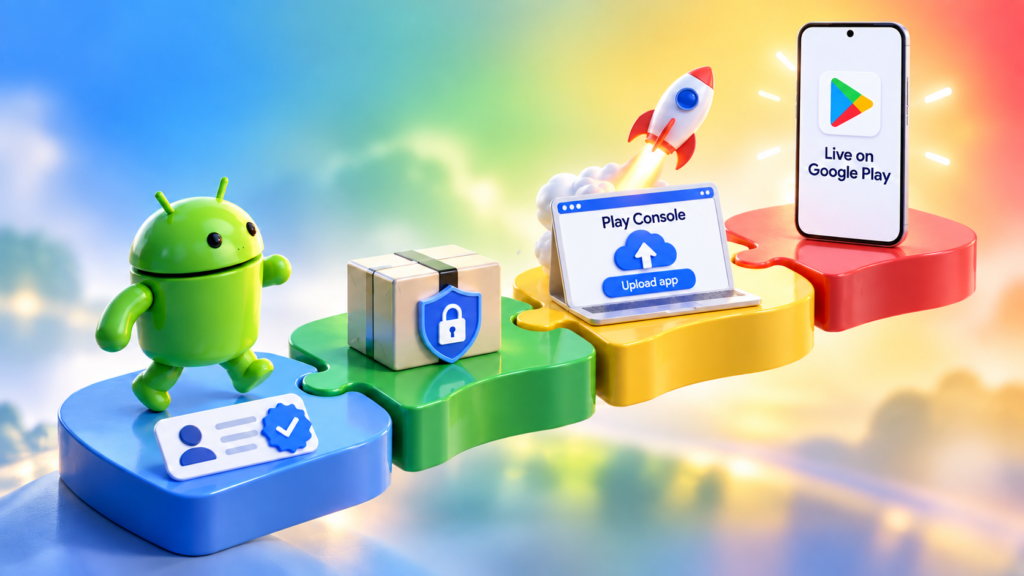
By the end of this guide, you will know exactly what assets to prepare, which compliance gates apply to your account type, and how to successfully deploy your software on the Google Play Store while avoiding common policy rejections.
What It Costs and How Long It Takes
Publishing on the Google Play Store requires a one-time US$25 developer registration fee. You may also need to budget for app development, testing, graphics, and a privacy policy. Approval time varies: account verification, required testing, and Google’s app review can all affect when your app goes live.
| Item / Gate | Cost / Requirement | Timeline / Duration |
| Developer Account Registration | $25 one-time fee | Hours to 5 business days (account verification) |
| D-U-N-S Number (Organizations Only) | Free | Up to 30 days to obtain |
| Closed Testing Track (Personal Accounts post-Nov 2023) | Minimum 12 testers | 14 continuous days before production access |
| Google Review SLA | None published | Plan for up to 7 days or longer per submission |
Realistic Timeline Expectation
For a first-time publisher utilizing a personal account created after November 2023, budget 2 to 4 weeks total from initial account setup to live status on the Google Play Store.
The vast majority of this timeline is dictated by Google’s mandatory 14-day closed testing window rather than technical submission friction. Ensuring your 12 testers remain continuously opted in without dropouts is the primary operational hurdle for getting your app cleared for production on the Google Play Store.
Step 1: Create and Verify Your Google Play Developer Account
To publish software on the Google Play Store, you must first establish a verified developer entity.
Choose Your Account Type
Select the track that matches your publishing profile:
- Personal Account: Built for individual developers and hobbyists. Requires a government-issued photo ID, verified contact channels (email and phone), and active device verification. Note that personal accounts created after November 13, 2023, are subject to mandatory closed testing requirements before production access is unlocked.
- Organization Account: Built for registered business entities.Requires a valid D-U-N-S number (which can take up to 30 days to secure), official corporate registration paperwork, and a verified public business domain. Certain app classifications—including high-risk financial services, medical research tools, approved VPNs, and government apps—must use an organization account.
Pay the Registration Fee
- Cost:$25 USD charged as a one-time fee per developer account (not per app).
- Payment Terms: Processed exclusively via credit or debit card; prepaid cards are rejected by the gateway.
- Renewals: Zero annual maintenance fees.
Complete Identity and Device Verification
- Identity Check: Upload a clear image of an official government-issued photo ID (passport, driver’s license, or national ID card) along with corresponding proof of address documents if requested by Google Payments.
- Device Verification (New Personal Accounts): Log into the web-based Play Console using your primary owner account, locate the device verification prompt, and scan the QR code to pair your account with a physical, non-rooted Android mobile device (running Android 10 or higher) via the Play Console mobile app.
- Clearance Gate: Monitor your dashboard closely; do not attempt downstream deployment until the Play Console officially clears all pending verification tasks.
Step 2: Prepare a Compliant App Build for the Google Play Store
Use Android App Bundles (.aab)
- Format Mandate: The Google Play Store strictly requires Android App Bundles (
.aab) for all new public app submissions. Traditional APKs are no longer accepted for new applications. - Version Management: Increment your version code with every unique upload to the Play Console. The Google Play Store automatically blocks duplicate version codes.
Target API Level Requirements
To maintain compliance when deploying software to the Google Play Store, your build must target the platform’s active API thresholds:
- New Mobile Apps & Updates: Must target Android 16 (API level 36) or higher.
- Specialized Form Factors: Wear OS and Android Automotive must target API 35+; Android TV and Android XR must target API 34+.
- Architecture Note: Apps targeting API 35+ must natively support 16 KB memory page sizes—a crucial factor for native code blocks and third-party SDK dependencies.
Enable Play App Signing
- Key Architecture: New apps published on the Google Play Store are automatically enrolled in Play App Signing. This establishes a clear structural boundary by separating your local upload key from Google’s secure app-signing key.
- Risk Mitigation: This protocol protects your ability to push updates to the Google Play Store even if your local developer upload key is compromised or misplaced.
Step 3: Create Your App in the Google Play Console
Initialize the Application Record
- Navigate to your Google Play Console, select All apps, and click Create app.
- Input your core metadata parameters:
- App Name: The title displayed publicly on the Google Play Store.
- Default Language: The primary locale for your store listing and localization framework.
- App / Game Type: Designate whether the software is an application or a game.
- Pricing Model: Choose between Free or Paid.
⚠️ Critical Architecture Note
Once an app is published as Free on the Google Play Store, it cannot later be converted to a Paid app under the same application ID. If you plan to monetize via upfront purchase fees later, you must configure it as a paid app from inception or launch a separate SKU.
Verify Your Application ID (Package Name)
- Configuration Source: Your application ID (e.g.,
com.company.appname) is hardcoded directly within your build configuration files (such as your Gradle build scripts), not entered manually in this console creation form. - Pre-Deployment Check: Double-check that your code configuration matches your intended namespace before uploading your first bundle to the Google Play Store, as changing this identifier later requires creating an entirely new listing.
Step 4: Complete Your Store Listing for the Google Play Store
Configure your public-facing discovery assets by navigating to Grow > Store presence > Main store listing in your Google Play Console.
Required Text Fields and Strict Character Limits
| Field | Character Limit | Strategic Optimization Guidelines |
| App Title | 30 characters max | Keep it concise; avoid keyword stuffing or decorative Unicode characters. |
| Short Description | 80 characters max | A punchy summary of your core value proposition that appears in search snippets on the Google Play Store. |
| Full Description | 4,000 characters max | Comprehensive breakdown of features, use cases, and functionality formatted for both human readers and search indexing. |
Required Graphic Assets
- App Icon: Exactly 512 × 512 px; 32-bit PNG format with alpha transparency; maximum file size of 1,024 KB.
- Feature Graphic: Exactly 1024 × 500 px; JPEG or 24-bit PNG format; strictly no transparency (no alpha). This serves as the promotional banner at the top of your store page.
- Screenshots: Minimum of 2 screenshots required; dimensions between 320 px and 3,840 px per side; valid aspect ratio between 1:2 and 2:1.
- Preview Video (Optional): Must be a public or unlisted YouTube URL with monetization and advertisements completely disabled.
Critical Metadata Rules That Trigger Rejections
Google’s automated and human compliance teams frequently flag and reject store listings that violate positioning standards. Avoid the following:
- Promotional Language: Never include transient terms like “Free”, “Sale”, “Discount”, or “Limited time” inside your app title, icon, or short description.
- Ranking Claims: Unverifiable performance descriptors such as “#1 app”, “Best software”, or “Top rated” will lead to immediate rejection on the Google Play Store.
- Formatting Violations: Excessive all-caps, keyword stuffing, and decorative emojis/characters in metadata fields violate core distribution policies.
- Misleading Visuals: Screenshots must accurately reflect the live, operational in-app experience, not conceptual wireframes or unfinished feature mockups.
Step 5: Complete App Content Declarations for the Google Play Store
Before your build can clear compliance review, you must systematically complete all regulatory questionnaires located under Policy > App content in your Google Play Console. Mismatches between your declarations and actual codebase behavior are a primary vector for app suspensions.
Mandatory Content Declarations
- Privacy Policy:
- Provide a fully accessible, non-geofenced URL in your Play Console listing.
- Embed a corresponding privacy policy link or plain-text statement directly inside the app interface.
- Note: Even offline tools or apps that collect zero telemetry require a policy identifying the software, developer entity, and valid contact details.
- Data Safety Form:
- Declare every data category your app collects or shares—including transmissions initiated by third-party SDKs (analytics suites, crash reporting tools, ad networks, and push notification services).
- Explicitly declare whether all data is encrypted in transit and whether users are provided a functional mechanism to request data deletion.
- Content Rating (IARC):
- Complete the International Age Rating Coalition (IARC) questionnaire to generate compliant regional age classifications automatically. Leaving this unrated results in immediate removal from the Google Play Store.
- Target Audience and Ads Declaration:
- Specify your intended demographic. Targeting children’s segments automatically binds your application to stringent Families Policy requirements.
- Declare whether the application contains advertisements, accounting for SDK-driven monetization.
- Health and Financial Features Declarations:
- These modules are mandatory for all apps; if your tool does not feature medical metrics or financial transactions, you must explicitly select “My app does not contain these features.”
- Account and Data Deletion (If Applicable):
- If your software supports user account creation, you must provide both an in-app deletion flow and a web-based equivalent that permanently purges user data upon request.
- App Access for Reviewers:
- If any core functionality sits behind Step 6: Run Closed Testing (Personal Accounts Post-Nov 13, 2023)
This compliance gate applies exclusively to individual Google Play Store developer accounts created on or after November 13, 2023. You cannot apply for production access until this testing window is successfully cleared.
Core Testing Requirements
Tester Threshold: At least 12 active testers must opt in via your designated closed testing link on the Google Play Store.
Continuous Duration: Each tester must remain opted in for 14 continuous days. If a tester drops out or opts out mid-stream, the eligibility clock resets.
Active Engagement: Google’s automated systems verify actual app usage and telemetry—not just static installations. Testers must open and interact with the software during the 14-day window.
Google Play Testing Tracks Breakdown
Testing Track
Purpose & Mechanics
Counts Toward Production Access?
Internal Testing
Up to 100 fast-track testers; bypasses formal review loops.
No
Closed Testing
Targeted deployments via email lists or Google Groups.
Yes (Required for post-Nov 2023 personal accounts)
Open Testing
Public beta visible directly on the Google Play Store.
No (Unlocked only after production access is granted)
How to Set Up Closed Testing in the Play Console
Navigate to your Google Play Console, select Testing > Closed testing, and click Create new release.
Upload your compiled Android App Bundle (.aab).
Add your tester emails individually or group them using a shared Google Group, then distribute the official opt-in URL.
Monitor your closed testing dashboard to track the live 12-tester counter.
Wait until the 14 continuous days have elapsed with verified user engagement before attempting to promote your build to the production track on the Google Play Store. a paywall, subscription gate, or login screen, you must supply up to five set-by-step instruction credentials and active test accounts so Google’s compliance team can fully explore the software.
- If any core functionality sits behind Step 6: Run Closed Testing (Personal Accounts Post-Nov 13, 2023)
Step 7: Apply for Production Access (Post-Nov 2023 Personal Accounts)
Once your mandatory closed testing window is successfully completed, individual publishers using personal accounts created after November 13, 2023, must explicitly request production privileges before their software can be deployed to the broader Google Play Store.
Organization accounts and personal accounts established before November 13, 2023, bypass this manual application gate and can promote builds directly to production.
How to Submit Your Production Access Request
- Initiate Application: From your main Google Play Console dashboard banner, click Apply for production.
- Complete the Production Questionnaire: You will be prompted to answer detailed questions regarding:
- The results, stability metrics, and feedback gathered during your 14-day closed test.
- Core app functionality, target use cases, and intended audience workflows.
- Your readiness criteria and ongoing support framework.
- Human Review Gate: Treat this questionnaire with high strategic rigor. This is evaluated by a human compliance reviewer at Google, and vague or incomplete responses will result in production access rejection. Ensure your answers clearly demonstrate that your app is stable, fully compliant, and ready for public distribution on the Google Play Store.
Step 8: Submit Your Production Release on the Google Play Store
With your verification, metadata, declarations, and testing gates cleared, you are ready to launch your application to the public catalog.
How to Publish Your Production Release
- Navigate to Production: In your Google Play Console, go to Release > Production, and click Create new release.
- Upload and Configure:
- Upload your finalized, signed Android App Bundle (
.aab). - Draft and input your release notes detailing what is included in this version.
- Configure your geographic target countries and final pricing parameters for the Google Play Store.
- Upload your finalized, signed Android App Bundle (
- Deploy a Staged Rollout: Never release an update to 100% of your audience instantly. Configure a staged rollout (e.g., starting at 5%, moving to 20%, then 50%, and finally 100%). This allows you to monitor live crash reporting, Android vitals, and user reviews for critical bugs before maximum exposure on the Google Play Store.
- Submit for Review: Click Save and Send for review.
⚠️ Crucial Rule
Avoid editing your public store listing, metadata, or graphics while your application is sitting in review. Modifying these fields mid-review can reset the compliance queue, significantly delaying your release on the Google Play Store.
Why Submissions Get Rejected on the Google Play Store (And How to Avoid It)
Google’s automated and manual enforcement teams prevented over 1.75 million policy-violating apps from publishing. Understanding the primary failure modes helps you clear compliance review on your first attempt on the Google Play Store.
Common Rejection Vectors and Fixes
| Area | What Goes Wrong | How to Fix It |
| Data Safety | Undeclared data collection by third-party SDKs (analytics, crash reporters, or ad networks); mismatch between your Data Safety form and privacy policy. | Audit every integrated SDK in your codebase. Cross-reference network payloads to ensure absolute alignment between your Data Safety declaration and your public privacy policy on the Google Play Store. |
| Minimum Functionality | Thin WebView wrappers, unstable builds, apps that crash immediately on launch, or lack of substantive native utility. | Test your .aab rigorously on physical, non-emulator devices. Ensure your software delivers a distinct, responsive user experience beyond a simple mobile website wrapper. |
| Restricted Permissions | Requesting high-risk permissions (such as SMS, call logs, or broad storage access) without a core, documented use case approved by Google. | Strip out any unused permissions. For media access, adopt the modern system photo picker instead of requesting broad legacy storage permissions on the Google Play Store. |
| Misleading Metadata | Promotional text in titles/icons, keyword stuffing, or screenshots depicting wireframes rather than the actual live app. | Strictly adhere to metadata styling rules. Ensure all screenshots capture the genuine, functional in-app interface. |
Pro Tip
A compliance rejection on the Google Play Store is not a permanent account strike. Review the specific violation policy link provided in your rejection email, patch the root cause in your codebase or console settings, and resubmit cleanly.
Pre-Submission Checklist for the Google Play Store
Run through this definitive compliance and build checklist before clicking Submit to ensure your application clears review on the Google Play Store without delays:
- [ ] API Target: Targets Android 16 (API 36) or approved extension.
- [ ] Memory Architecture: 16 KB memory page size compatibility verified (mandatory for native code and third-party SDKs).
- [ ] Bundle Format: Uploading a signed
.aabfile with an incremented version code. - [ ] Functional Stability: App launches, loads, and remains stable on physical, non-emulator Android devices.
- [ ] Graphic Assets: App icon matches 512 × 512 px; feature graphic matches 1024 × 500 px (strictly no alpha); includes at least 2 compliant screenshots.
- [ ] Metadata Hygiene: Zero promotional phrases, sales language, or unverifiable ranking claims in your title, short description, or icons on the Google Play Store.
- [ ] Age & Compliance: IARC content rating questionnaire fully completed.
- [ ] Data Governance: Data Safety form is fully completed, accounting for every third-party SDK integrated into the codebase.
- [ ] Privacy Policy: Public URL linked in the Google Play Console and embedded within the app interface, aligning precisely with your Data Safety declarations.
- [ ] Audience & Advertising: Target demographic declared; rigorous Families Policy conditions satisfied if children are targeted.
- [ ] Testing Gate (If Applicable): Minimum of 12 active testers completed their 14 continuous days of engagement (mandatory for personal accounts created post-November 13, 2023).
- [ ] Release Strategy: Staged rollout percentage configured (e.g., starting at 5% or 10%).
- [ ] Account Standing: Developer registration fully verified and active within the Google Play Store console dashboard.
Would you like to build out an automated workflow, an SEO content strategy, or a promotional plan to scale downloads for your app after its launch on the Google Play Store?
Do I need a privacy policy if my app collects no data?
Yes. Every single application distributed on the Google Play Store must provide a public, non-geofenced privacy policy URL inside the Google Play Console and a corresponding link or text block directly inside the app interface. Even if your software runs completely offline and collects zero data, the policy is still mandatory to identify the developer entity, software name, and contact details.
Can I upload an APK instead of an App Bundle?
Not for new applications. The Google Play Store has strictly required Android App Bundles (.aab) for all new public app submissions since August 2021. APKs are no longer accepted for first-time deployments, though they may still be used in specific advanced internal distribution scenarios.
How long does Google Play review take?
Google publishes no formal or guaranteed Service Level Agreement (SLA) for app reviews. While routine updates may clear in a few hours, first-time submissions on the Google Play Store frequently take up to 7 days or longer, especially if manual human compliance verification is triggered. Always plan your launch timeline around a full 1-to-2-week buffer.
What if my closed testing application is declined?
If your production access request is rejected after your closed test, it typically means Google’s human reviewers found insufficient user engagement, unresolved crash bugs, or unaddressed policy violations during your 14-day trial. To fix this, increase your active tester pool beyond the minimum 12, drive genuine in-app activity, resolve any stability issues, and submit a more comprehensive explanation when reapplying.
Do I need to register my app for Android developer verification?
Yes. While the vast majority of apps on the Google Play Store are processed automatically, you must verify your app’s registration status directly on your Google Play Console home page. Unverified or unregistered applications face the risk of global removal and suspension from the catalog.
In Conclusion
Successfully publishing an app on the Google Play Store requires moving past the hurdle of simple code compilation into strict operational compliance. From navigating the mandatory $25 developer account verification and 16 KB memory page size requirements to satisfying the 14-day closed testing window for newer personal accounts, every gate is designed to protect end-user security and software quality.
By auditing your third-party SDKs, aligning your Data Safety declarations with your privacy policy, and building a buffer for human compliance reviews, you eliminate the common triggers behind automated rejections. Treat your submission as a rigorous engineering milestone rather than an administrative afterthought.
Once your build clears review and your staged rollout begins, your focus can shift entirely from compliance execution to user acquisition, retention optimization, and feature iteration on the Google Play Store.