Managing projects quickly becomes overwhelming when tasks, deadlines, and responsibilities are scattered across multiple disconnected tools. Trello project management software eliminates this friction by providing a centralized workspace where individuals and teams can plan initiatives, assign responsibilities, and monitor real-time progress.
At its core, Trello project management software is a visual collaboration tool that uses an intuitive system of boards, lists, and cards to organize work into manageable stages. Whether you are a freelancer managing client deliverables, a student tracking assignments, or a business coordinating team activities, the platform offers a flexible, low-friction environment to keep workflows transparent and organized.
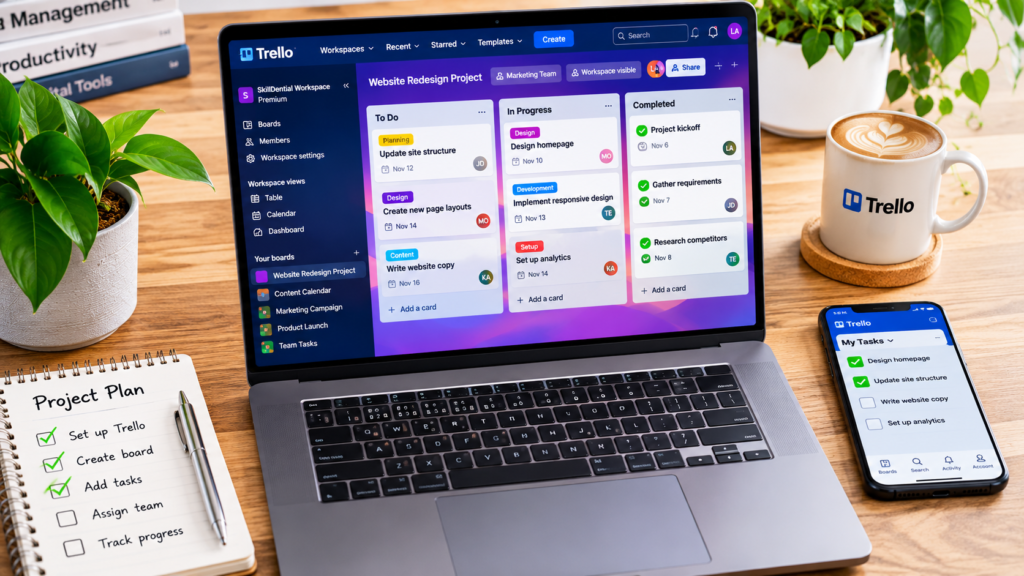
By centralizing tasks, files, and conversations into a single interface, Trello project management software helps prevent project bottlenecks and miscommunication. In this comprehensive guide, you will explore:
- What Trello project management software is and how its core architecture functions.
- Key features, automations, and capabilities available across free and paid plans.
- A step-by-step walkthrough on how to build a high-performance project management board from scratch.
Overview of Trello Project Management Software
Trello is an industry-standard, visual work management platform developed by Atlassian that leverages a Kanban-style framework to streamline task organization, project tracking, and team collaboration. By translating abstract workloads into a tangible, card-and-board layout, Trello project management software eliminates the opacity of traditional spreadsheets and email threads.
Core Structural Architecture
The platform’s hierarchy relies on three foundational components designed to mirror real-world workflows:
- Boards: High-level digital workspaces representing a specific project, department, or overarching objective (e.g., “Q3 Marketing Campaign” or “Website Redesign”).
- Lists: Vertical columns that define the sequential stages or status of a workflow (e.g., Backlog, In Progress, Review, Done).
- Cards: Individual task containers nested within lists. Each card holds the granular components of a single task, including due dates, checklists, attachments, comments, and member assignments.
Practical Example: Content Production Board
For a digital publishing workflow, a typical board structure moves individual items across sequential stages:
- Ideas: Raw concepts or proposed topics.
- Researching: Data gathering, outline creation, and keyword mapping.
- Writing: Active drafting phase.
- Editing: Quality assurance, SEO optimization, and proofreading.
- Ready to Publish: Final approval and staging.
- Published: Live assets archived for performance tracking.
As work advances, team members drag and drop cards across lists, providing instant visibility into project bottlenecks and velocity.
Key Use Cases & Functional Applications
Trello project management software is domain-agnostic, making it adaptable across multiple professional and personal ecosystems:
- Task & Project Planning: Mapping out epics, sprints, or deliverables with clear accountability.
- Content Calendars: Tracking editorial pipelines, publishing dates, and asset generation.
- Marketing Campaigns: Coordinating multi-channel initiatives across cross-functional teams.
- Client & Freelance Tracking: Managing client deliverables, scope, and billing milestones.
- Product Development: Managing product roadmaps, bug-tracking queues, and feature releases.
- Personal Productivity: Organizing daily to-do lists, personal goals, and study schedules.
Deployment Models & Collaboration
Teams can operate Trello project management software as a solo productivity tool or scale it across enterprise environments by inviting collaborators, setting granular permissions, and integrating third-party productivity apps (Power-Ups) like Slack, Google Drive, and Jira.
How Trello Project Management Software Works: The Core Architecture
The operational foundation of Trello project management software relies on a three-tier hierarchy: Boards, Lists, and Cards. This structured, Kanban-inspired framework transforms abstract workflows into a visual system that is intuitive yet robust enough to manage complex operations.
Boards (The Workspace)
A board serves as the central container for a specific project, department, or ongoing initiative. Instead of mixing unrelated tasks into a single messy document, boards maintain strict operational separation.
- Examples of Use Cases:
- Website management and development roadmaps
- Multi-channel social media planning
- Client-facing project tracking and deliverables
- Internal business operations and HR hiring pipelines
- Personal goal-setting and long-term planning
Each board maintains isolated member permissions, background themes, and customized configurations, acting as a single source of truth for all participants involved in that specific initiative.
Lists (The Workflow Stages)
Lists divide a board vertically, representing the sequential stages or categorical statuses a task moves through. While users can customize list titles to fit any operational model, a standard project management board typically follows a progressive workflow:
| List Name | Operational Purpose |
| To Do | Backlog of tasks waiting to begin |
| In Progress | Active tasks currently being executed by team members |
| Under Review | Deliverables awaiting stakeholder approval, QA, or editing |
| Completed | Successfully finished tasks and archived milestones |
Cards (The Task Units)
Cards are the individual task containers that live inside lists. Unlike static items on a traditional paper to-do list, a Trello card functions as a dynamic workspace in its own right.
- Granular Task Examples (Content Management):
- Researching AI writing tools and compiling data points
- Drafting an in-depth article on digital productivity applications
- Designing and exporting custom featured header images
- Executing final edits and SEO optimization
- Publishing the completed asset live to the web
Deep Dive: What Can You Store Inside a Card?
A single card holds comprehensive contextual metadata to prevent communication silos, including:
- Detailed rich-text descriptions and instructions
- Step-by-step interactive checklists with progress bars
- File attachments (PDFs, design assets, documents)
- Direct team member assignments and accountability
- Color-coded labels for priority or category sorting
- Hard deadlines with automated visual warning indicators
- Real-time comment threads for team discussion
Key Features of Trello Project Management Software
Trello project management software equips individuals and teams with a robust suite of capabilities designed to eliminate operational friction, automate repetitive workflows, and streamline collaboration. Beyond its core visual boards, the platform offers several advanced features that maximize productivity:
Visual Kanban Boards
The visual Kanban board serves as the cornerstone of Trello project management software, transforming abstract workflows into an intuitive, glanceable workspace.
Instead of hiding tasks within deep file directories or endless email chains, the visual board maps every project phase horizontally. Team members can instantly track task statuses, spot operational bottlenecks, and drag cards seamlessly across lists as work advances.
Practical Example: Marketing Campaign Workflow
For a marketing team managing a multi-channel launch, a standard campaign board organizes tasks through clear sequential stages:
- Campaign Ideas: Brainstormed concepts and raw inputs.
- Planning: Resource allocation, timeline mapping, and strategic scoping.
- Content Creation: Active drafting of copy, design assets, and video elements.
- Approval: Stakeholder review, compliance checks, and final sign-offs.
- Published: Successfully executed and live marketing assets.
By structuring operations this way, Trello project management software eliminates status update meetings, ensuring every stakeholder maintains real-time visibility into what is being worked on, what is pending review, and what has already been completed.
Task Management and Assignment
Effective execution requires absolute clarity regarding ownership. Trello project management software eliminates the diffusion of responsibility by allowing users to break projects down into granular cards and assign specific team members to them.
Practical Example: Website Redesign Workflow
When coordinating a complex initiative like a website redesign, project managers can create dedicated task cards for distinct deliverables:
- Homepage UI/UX design wireframes
- Core website copywriting and messaging
- Mobile responsiveness and cross-browser testing
- Quality assurance and bug testing
- Final stakeholder review and sign-off
Driving Accountability and Transparency
By assigning individual team members directly to these cards, Trello project management software ensures total operational accountability. Every contributor instantly knows which tasks fall under their direct ownership, while team-wide visibility prevents duplicate effort and ensures nothing slips through the cracks.
Due Dates and Deadlines
Timely execution is essential for keeping projects on schedule, and Trello project management software provides robust time-tracking capabilities to prevent missed deliverables. Users can attach specific start dates, precise due times, and automatic reminders directly to individual cards.
Practical Example: Freelance Content Delivery
Consider a freelance writer handling a client project. By creating a card titled “Write client’s website content” and attaching a hard deadline, the platform automatically monitors the timeline.
- Visual Indicators: Trello changes the color of the due date badge on the card (turning yellow as the deadline approaches and red if it becomes overdue) so priority items instantly grab attention.
- Advanced Views: Beyond individual cards, Trello project management software allows users to visualize schedules across broader time horizons using dedicated Calendar and Timeline (Gantt) views, ensuring teams can spot scheduling conflicts before they derail a project (feature availability varies by subscription tier).
Checklists and Subtask Tracking
Complex tasks often feel overwhelming when treated as a single monolithic item. Trello project management software solves this by allowing users to embed interactive checklists directly inside individual cards, breaking major deliverables down into sequential, bite-sized action items.
Practical Example: Blog Post Publication Workflow
For a card titled “Publish a Blog Post,” an integrated checklist can track every micro-step required for high-quality execution:
- Conduct keyword research and search intent analysis
- Create the structured article outline
- Write the comprehensive first draft
- Edit, proofread, and refine tone
- Design and format the custom featured header image
- Insert strategic internal and external links
- Optimize the SEO title, meta description, and URL slug
- Publish the article live to the CMS
Real-Time Progress Tracking & Advanced Capabilities
As work advances, users check off individual items, and an automated progress bar updates instantly on the front of the card, giving anyone viewing the board an immediate read on completion status.
On eligible paid tiers, Trello project management software unlocks advanced checklists, allowing teams to assign specific sub-tasks to individual members and set unique due dates for separate checklist items—ensuring granular accountability even within complex, multi-person tasks.
Labels and Categorization
When a project board scales and accumulates dozens or hundreds of tasks, finding specific information quickly becomes critical. Trello project management software solves this using color-coded labels and custom naming tags to visually categorize cards across your workspace.
Practical Example: Multi-Departmental Filtering
A growing business managing diverse operations on a single board can apply multiple labels to a single card to designate priority, department, or status:
- Priority Levels: High Priority, Medium Priority, Low Priority
- Functional Departments: Marketing, Finance, Customer Support, Engineering
Enhancing Board Visibility
Users can apply multiple labels to a single card (e.g., tagging a task as both High Priority and Marketing). This allows project managers to filter boards instantly to show only relevant tasks, cutting through the clutter and giving stakeholders a focused view of specific departments, urgency levels, or ongoing initiatives.
Comments and Team Collaboration
Communication silos are one of the primary drivers of project failure, often forcing teams to bounce between email threads, chat apps, and disparate documents. Trello project management software eliminates this fragmentation by embedding communication directly into the context of the work itself.
Contextual Discussions Within Cards
Instead of scattering feedback across external messaging platforms, team members can utilize the comment section inside any card to discuss specific project details, share feedback, or propose changes.
- Direct Mentions (@): If a teammate’s input or review is required, you can mention them directly using the
@symbol, instantly routing their attention to the exact task in question. - Smart Notifications: Trello triggers automated notifications whenever users are mentioned, assigned to a card, or actively “watching” a board or card for updates.
By keeping conversations tethered directly to the underlying deliverables, Trello project management software ensures that context is never lost, creating an easily searchable historical record of every decision and discussion.
File Attachments and Resource Centralization
Eliminating time wasted hunting for assets across local drives and cloud folders is critical for operational efficiency. Trello project management software allows users to attach files, documents, and external links directly to any card, centralizing all supporting resources in a single location.
Practical Example: Design and Creative Workflows
When a designer is working on a website project, a single task card can house all necessary collateral and reference materials:
- High-resolution UI design mock-ups and wireframes
- Raw product images, icons, and graphic assets
- PDF project briefs, brand guidelines, and scope documents
- External links to live staging sites, Figma files, or cloud-stored documents
Contextual Accessibility and Plan Limits
By anchoring these assets directly to the relevant task, team members never have to guess where the latest version of a file lives.
However, when planning your workspace architecture, keep in mind that Trello project management software enforces file attachment size and storage limits that vary depending on your subscription tier (with larger maximum file sizes permitted on paid plans like Standard, Premium, and Enterprise).
Power-Ups and Third-Party Integrations
No project management tool exists in a vacuum. Trello project management software solves the challenge of app fatigue through Power-Ups—modular extensions that add specialized functionality to your boards or connect them seamlessly with the external software stack your team already relies on.
Unlocking Custom Workflows
Power-Ups allow you to transform a standard Kanban board into a specialized command center tailored to your exact operational requirements. Depending on the integration, you can supercharge your boards with features for:
- Communication & Chat: Sync cards with Slack or Microsoft Teams to trigger automated alerts when tasks move or deadlines approach.
- Calendar Management: Embed two-way syncs with Google Calendar or Outlook to visualize task deadlines in your primary schedule.
- File Storage: Attach files directly from Google Drive, Dropbox, or OneDrive without cluttering local storage.
- Time Tracking: Integrate native timers and logging tools (like Toggl or Harvest) to track billable hours directly inside individual task cards.
- Development Workflows: Connect cards with GitHub or GitLab commits, linking code repositories directly to product management tasks.
Free vs. Premium Power-Ups
While Trello’s free tier allows you to utilize limited Power-Ups per board, paid tiers unlock unlimited integrations. Additionally, while many Power-Ups are free to use natively, some third-party services may require their own separate subscription or API integration to unlock advanced features.
Built-In Automation (Butler Engine)
Repetitive administrative tasks drain team momentum and introduce human error into daily operations. Trello project management software solves this through its robust, no-code automation engine (formerly known as Butler), allowing users to build custom workflows without writing a single line of code.
Operational Rules and Trigger-Based Actions
The automation interface lets you establish clear “if-this-then-that” rules that execute instantly when specific trigger conditions are met across your board:
- Status Transitions: Automatically move a card to the “Completed” list the moment all items in its internal checklist are checked off.
- Auto-Assignment: Assign specific team members automatically when a new card is created in a designated regional or departmental list.
- Scheduled Operations: Sort lists alphabetically, archive outdated cards, or generate recurring weekly task templates on a defined schedule.
- Custom Buttons: Create one-click custom card and board buttons that execute multi-step actions instantly (e.g., setting a due date, adding labels, and moving the card to review).
Saving Time Across Recurring Workflows
By removing manual data entry and routine housekeeping, automation keeps boards clean and teams focused on high-leverage work. While built-in automation features are accessible across Trello Workspaces, monthly command execution quotas and advanced trigger limits vary depending on your chosen subscription tier.
Pre-Built Templates and Community Gallery
Starting a project from a blank screen can often cause friction for new users. Trello project management software eliminates this onboarding hurdle by providing a robust library of pre-built templates designed by industry experts and the broader Trello community.
Jumpstarting Workflows Without Starting From Scratch
Instead of manually configuring lists, labels, and card structures from zero, users can browse the template gallery and deploy fully optimized boards instantly. These templates provide proven structural frameworks for various use cases:
- Project Planning & Agile Sprints: Standardized engineering backlogs, product roadmaps, and sprint boards.
- Content Calendars: Editorial schedules complete with staging stages, SEO checklists, and publishing workflows.
- Marketing Campaigns: Multi-channel product launch templates that coordinate copy, design, and distribution.
- Team Management & HR: Onboarding checklists, 1-on-1 meeting agendas, and team resource hubs.
- Personal Organization: Habit trackers, personal goal-setting boards, and study schedules.
Empowering Beginners and Standardizing Operations
Templates are especially beneficial for beginners who are unfamiliar with how to structure a Kanban workflow effectively. For growing organizations, they also allow managers to standardize operational processes across different departments, ensuring consistency and best practices are easily replicated company-wide.
How to Use Trello for Project Management: A Step-by-Step Walkthrough
Understanding Trello’s core features is a strong foundation, but knowing how to configure them for an active initiative is what drives results.
Below is a practical, 9-step walkthrough for setting up, structuring, and executing a complete project management board from scratch using Trello project management software.
Step 1: Create a Trello Account:
Visit the official Trello website and sign up using your preferred registration option (such as an Atlassian account, Google, or Apple ID).
Once signed in, you will land in your centralized workspace dashboard. Because Trello project management software offers a robust free tier, you can build your first board and explore its fundamental task management capabilities without committing to a paid subscription immediately.
Step 2: Create a New Board:
Once logged into your workspace:
- Click the Create button or select Create new board from your workspace home.
- Enter a clear, descriptive board name that reflects its operational purpose (e.g., “Website Development Project”).
- Choose a custom background theme or color to differentiate it from other boards.
- Configure the board’s visibility settings (Private, Workspace, or Public) depending on who needs access.
- Click Create to initialize your digital workspace.
Step 3: Create Your Project Lists:
Lists represent the sequential stages or status categories your workflow moves through. To establish a standard project pipeline, structure your new board with these five core lists from left to right:
- Project Backlog: Raw ideas, upcoming tasks, and long-term requirements.
- To Do: Vetted tasks queued up for the current sprint or operational phase.
- In Progress: Active work currently being executed by team members.
- Under Review: Deliverables undergoing quality assurance, testing, or stakeholder approval.
- Completed: Successfully finished tasks and archived milestones.
Step 4: Add Task Cards:
Populate your Project Backlog or To Do list by creating individual task cards for every required deliverable.
For a website development project, your initial cards might include:
- Research competitor UI/UX frameworks
- Create mobile and desktop website wireframes
- Design the homepage layout and visual assets
- Develop core website pages in the staging environment
- Optimize website performance and mobile responsiveness
- Test website functionality and fix reported bugs
- Execute final launch protocols
Pro Tip: Keep card titles specific and action-oriented. Avoid vague labels like “Website work” in favor of precise tasks like “Design the homepage layout.”
Step 5: Assign Tasks and Owners:
If you are collaborating with a team, assign specific cards to the individuals responsible for their execution to eliminate diffusion of responsibility.
- Competitor Research: Assigned to the Marketing Specialist
- Homepage Design: Assigned to the UI/UX Designer
- Website Development: Assigned to the Full-Stack Developer
- Website Testing: Assigned to the QA Engineer
For solo projects, assign tasks to yourself to maintain a clear personal overview of your daily workload.
Step 6: Add Deadlines and Checklists:
Open individual cards to enrich them with time-sensitive parameters and granular breakdowns:
- Deadlines: Attach precise start dates, due times, and automatic reminders (e.g., setting a hard deadline of 15 November for the homepage design card).
- Checklists: Build sub-task lists inside complex cards to break down micro-deliverables, ensuring nothing gets missed during execution.
Step 7: Move Cards as Work Progresses:
As tasks move through their lifecycle, drag and drop their cards across your lists in real time.
For example, when a designer finishes drafting the homepage, they move the card from In Progress to Under Review for stakeholder feedback. Once approved, it shifts to Completed. This visual movement gives everyone instant visibility into project velocity and bottlenecks.
Step 8: Invite Team Members and Set Permissions:
Scale your board for collaboration by inviting team members via email or workspace link sharing.
Before granting access, review your workspace permissions and board visibility settings to ensure confidential business, financial, or client data remains secure.
Step 9: Explore Automation:
Once your manual workflow is running smoothly, deploy Trello’s built-in automation rules (Butler) to eliminate repetitive housekeeping.
Start with simple rules, such as configuring an automation that automatically moves any card to the Completed list the moment all items in its internal checklist are checked off.
Practical Ways to Use Trello in Different Industries
The true strength of Trello project management software lies in its domain-agnostic architecture. Because its boards, lists, and cards can be molded to fit almost any workflow, the platform is widely adopted far beyond traditional project management offices.
Here is how different professionals, businesses, and learners leverage Trello project management software to optimize their daily operations:
Trello for Freelancers
Freelancers often juggle multiple clients, variable scopes, and shifting deadlines simultaneously. Trello provides a centralized control center to manage the pipeline and deliverables without dropping the ball.
- Typical Board Structure:
- New Client Requests: Inbound inquiries and scope discussions.
- Quoted Projects: Proposals sent awaiting client sign-off.
- Active Projects: Current deliverables under development.
- Client Review: Work submitted for feedback.
- Completed Work: Finished projects archived for billing and reference.
- Practical Application: A freelance graphic designer can create a dedicated board where each client project gets its own card containing design briefs, strict deadlines, reference images, and direct client revision feedback.
Trello for Small Businesses
Small business owners and lean teams need high visibility into daily operations without the overhead of heavy enterprise resource planning (ERP) systems. Trello project management software acts as an accessible operational hub.
- Typical Board Structure (Workspace Setup):
- Marketing Activities: Lead generation, social media, and campaigns.
- Customer Support: Ticket queues and issue resolution tracking.
- Sales Operations: CRM pipelines and client onboarding stages.
- Product Development: New product features or service rollouts.
- Administrative Tasks: Compliance, payroll reminders, and internal HR processes.
- Practical Application: Business owners use separate boards for different departments, giving employees clear visibility into ongoing tasks and direct ownership over their departmental responsibilities.
Trello for Content Creators and Bloggers
Content creators, YouTubers, and bloggers manage multi-stage media pipelines where timing and asset organization are critical. Trello project management software serves as a visual editorial calendar.
- Typical Board Structure:
| List Name | Focus & Activities |
| Content Ideas | Potential article, TikTok, or YouTube topics |
| Research | Keyword research, data collection, and outlining |
| Writing | Active script or text production |
| Editing | Proofreading, cutting, and optimization |
| Design | Thumbnails, graphics, and promotional banners |
| Scheduled | Approved media queued for publishing |
| Published | Completed content archived for performance tracking |
Trello for Students
Managing heavy coursework, research papers, and exam schedules can quickly become overwhelming. Students use Trello project management software to bring order to academic life.
- Typical Board Structure:
- Assignments: Upcoming homework and essay prompts.
- Research: Sources, citations, and notes.
- Studying: Exam prep topics and review schedules.
- Exams: Test dates and grading tracking.
- Completed Tasks: Finished coursework.
- Practical Application: A college student can create a board for the semester, assigning strict deadlines and subtask checklists to individual assignment cards to prioritize workloads and prevent last-minute cramming.
Trello for Marketing Teams
Marketing initiatives require cross-functional coordination between copywriters, designers, SEO specialists, and media buyers. Trello project management software keeps multi-channel campaigns aligned.
- Typical Board Structure:
- Campaign Ideas: Brainstormed growth initiatives.
- Strategy & Planning: Budgeting, targeting, and resource allocation.
- Content Production: Drafting copy and producing creative assets.
- Internal Approval: Stakeholder sign-offs and compliance checks.
- Ready to Launch: Final assets staged for deployment.
- Published: Live campaigns tracking performance.
- Practical Application: Team members attach campaign collateral directly to cards, debate revisions in the comments, and monitor real-time campaign velocity.
Trello for Remote Teams
Remote and distributed teams lack the proximity of a physical office, making asynchronous visibility essential. Trello project management software bridges the communication gap.
- Practical Application: Remote teams use shared boards as a single source of truth where members across different time zones can access assigned tasks, deadlines, and project updates without needing live alignment meetings.
- Operational Note: While powerful, remote teams should use Trello alongside dedicated video conferencing tools and instant messaging platforms to handle complex, real-time discussions that require deep collaborative nuance.
Trello Pricing Breakdown: Free vs. Paid Plans
Choosing the right Trello plan depends heavily on your team size, the complexity of your workflows, and how much you rely on automation and multi-project visibility.
Here is a detailed breakdown of Trello’s tiered subscription model:
Trello Free Plan
- Best Suited For: Individuals, students, freelancers, and small teams with straightforward workflows who want basic task management without any financial commitment.
- Cost: $0
- Key Features & Limits:
- Unlimited cards
- Up to 10 boards per Workspace
- Up to 10 collaborators per Workspace
- Unlimited Power-Ups per board
- Core task assignees and due dates
- 250 Workspace automation runs per month
- 10 MB maximum attachment size per file
- Mobile applications (iOS and Android) and two-factor authentication
Trello Standard
- Best Suited For: Growing teams that have outgrown the 10-board limit on the Free plan and need more advanced organization and customization tools.
- Cost:
- $5 per user/month when billed annually ($60/user/year)
- $6 per user/month when billed monthly
- Key Features & Limits:
- Includes all Free plan features, plus:
- Unlimited boards (removes the 10-board ceiling)
- Advanced checklists (assignees and due dates inside sub-tasks)
- Custom fields and card mirroring
- Increased automation capacity (typically 1,000 runs per workspace monthly)
- Integrated Trello AI features (Atlassian Intelligence)
- Larger file attachments (up to 250 MB per file)
Trello Premium
- Best Suited For: Project managers and teams juggling multiple projects simultaneously who need robust cross-project visualization and unlimited automation.
- Cost:
- $10 per user/month when billed annually ($120/user/year)
- $12.50 per user/month when billed monthly
- Key Features & Limits:
- Includes all Standard features, plus:
- Advanced project views: Calendar view, Timeline view, Dashboard view, Table view, and Map view
- Unlimited automation runs across the workspace
- Workspace-level collections to organize boards logically
- Enhanced administrative controls, security features, and observer access roles
Trello Enterprise
- Best Suited For: Large organizations requiring centralized multi-workspace management, strict security policies, and organization-wide administration.
- Cost:
- Starts at $17.50 per user/month billed annually (typically structured around minimum seat thresholds, such as 50+ users)
- Key Features & Limits:
- Includes all Premium features, plus:
- Unlimited Workspaces
- Organization-wide permissions and board visibility controls
- SAML Single Sign-On (SSO) bundled via Atlassian Guard Standard
- Centralized Power-Up administration
- Multi-board guest management
Trello Pricing Comparison At-a-Glance
| Plan | Best Suited For | Pricing (Billed Annually) | Pricing (Billed Monthly) | Key Limits & Upgrades |
| Free | Individuals & small teams | $0 | $0 | 10 boards & 10 collaborators max per Workspace; 250 automation runs |
| Standard | Growing teams | $5 / user/month | $6 / user/month | Unlimited boards, custom fields, advanced checklists, AI features |
| Premium | Multi-project teams | $10 / user/month | $12.50 / user/month | Calendar, Timeline, Table, and Dashboard views; unlimited automation |
| Enterprise | Large organizations | $17.50 / user/month | Annual only | Organization-wide controls, SSO, advanced security administration |
Note
Pricing and exact feature caps are subject to change. Regional taxes or currency variations may apply; always review Trello’s official pricing page before locking in a subscription.
Advantages and Disadvantages of Trello Project Management Software
While Trello project management software is one of the most popular collaboration tools available, evaluating both its strengths and limitations is essential before committing to it as your primary work management platform.
Advantages of Trello
- Intuitive and Easy to Learn: Trello’s visual framework of boards, lists, and cards requires virtually no formal onboarding or project management training. Beginners can map out workflows within minutes.
- Visual Task Management: The Kanban-style interface provides instant clarity, allowing teams to see at a glance which tasks are pending, currently active, or finished.
- High Workflow Flexibility: You can customize lists and boards to fit virtually any domain, from personal habit trackers and freelance pipelines to enterprise marketing campaigns.
- Seamless Collaboration: Multiple stakeholders can share boards, assign tasks, leave contextual feedback in comments, and track progress together in real time.
- Built-In Automation (Butler): The native automation engine eliminates repetitive administrative friction, helping teams maintain consistent workflows without writing code.
- Robust Free Tier: Individuals, students, and lean teams can leverage the platform’s core task management capabilities at zero financial cost.
- Extensive Power-Ups and Integrations: Native and third-party extensions allow users to connect Trello with external apps like Google Drive, Slack, and Jira.
Disadvantages of Trello
- Limitations for Complex Projects: While Trello excels at visual workflows, projects requiring deep task dependencies, resource allocation modeling, or advanced enterprise reporting often outgrow Kanban boards and require specialized software (like Jira or MS Project).
- Risk of Board Clutter (“Trello Doom”): As active boards accumulate hundreds of cards and lists across months, they can become visually overwhelming, making key information hard to locate without rigorous archiving habits.
- Paywalled Advanced Features: Critical organizational tools—such as Timeline, Calendar, Table views, and advanced checklists—are restricted to paid subscription tiers.
- External Integration Costs: Although Power-Ups expand functionality, many third-party integrations require separate paid subscriptions to unlock their full utility.
- Dependent on Consistent Maintenance: Trello is a passive mirror of your workflow; it does not manage projects for you. Teams must actively drag cards, update deadlines, and maintain hygiene to keep boards accurate.
Trello vs. Other Project Management Tools
While Trello is a powerhouse for visual organization, it is far from the only option in the productivity software landscape. Depending on your team’s structural needs, reporting depth, and document requirements, several alternatives offer different approaches to task management and collaboration.
Here is how Trello project management software compares to four leading alternatives:
Asana
Asana provides robust project and task management capabilities, emphasizing structured team coordination, milestone tracking, and cross-functional visibility.
- Best For: Teams that need structured multi-project workflows, lists, and detailed dependency mapping rather than purely visual Kanban boards.
- Official Website: Asana
ClickUp
ClickUp positions itself as an all-in-one productivity suite, combining task management, wikis, goal tracking, and time management into a single, highly configurable platform.
- Best For: Teams looking for an exhaustive, comprehensive workspace to replace multiple disjointed apps.
- Official Website: ClickUp
monday.com
monday.com offers highly customizable work management tools built around flexible grid views, robust automation, and visual project dashboards.
- Best For: Organizations that want deep data visualization, complex status tracking, and highly tailored operational workflows.
- Official Website: monday.com
Notion
Notion blends flexible document creation, relational databases, wikis, and project management into a modular note-taking structure.
- Best For: Users and knowledge-driven teams who want to manage heavy written documentation and knowledge bases side-by-side with their tasks.
- Official Website: Notion
Project Management Tool Comparison At-a-Glance
| Tool | Core Strength | Consider It When You Need… |
| Trello | Visual Kanban Boards | Simple, low-friction visual task management |
| Asana | Structured Workflows | Structured project and multi-team coordination |
| ClickUp | All-in-One Functionality | An exhaustive, feature-heavy productivity workspace |
| monday.com | Custom Dashboards | Highly customizable work management and visual reporting |
| Notion | Connected Docs & Databases | Integrated documentation, wikis, and project organization |
Note
These positioning differences highlight functional styles rather than universal superiority. The right choice ultimately depends on your specific workflow complexity, team size, reporting depth, and software budget.
10 Expert Tips for Using Trello More Effectively
Creating a board is only the first step. How you structure, maintain, and interact with your workspace determines whether Trello project management software becomes a high-leverage productivity system or simply another digital graveyard where tasks go to accumulate.
To maximize your workflow efficiency and keep your boards running smoothly, apply these 10 best practices:
Give Your Boards Clear, Contextual Names
Avoid generic titles like “My Board,” “To-Do,” or “Work.” Because your workspace can host multiple boards, use precise, descriptive titles that communicate the exact purpose of the workspace at a glance (e.g., “Q3 Content Editorial Pipeline” or “Client Onboarding: Acme Corp”).
Keep Your Lists Streamlined and Manageable
Resist the urge to overcomplicate your workflow with dozens of hyper-specific lists. Stick to meaningful, sequential stages that mirror your actual pipeline (e.g., Backlog, To Do, In Progress, Review, Done). Too many categories create visual clutter and slow down navigation.
Make Task Cards Actionable
Vague task titles lead to procrastination and confusion. Every card should instantly communicate what needs to be accomplished.
- Instead of: “Website work”
- Use: “Redesign homepage hero section and update CTA copy”
Assign Clear Owners and Accountability
When collaborating with a team, ambiguity is the enemy of execution. Ensure every active task card has a designated owner. When everyone is responsible for a card, no one takes accountability.
Set Realistic, Enforceable Deadlines
Leverage Trello’s due date feature to establish clear expectations and prioritize daily workloads. Avoid assigning arbitrary deadlines that cannot realistically be achieved, as constant overdue alerts desensitize teams to real scheduling risks.
Use Checklists to Break Down Complexity
If a task requires multiple steps, do not crowd your list with micro-tasks. Instead, open the card and build an interactive checklist. This keeps your board clean while providing a granular roadmap for execution.
Regularly Archive Completed Work
An active board cluttered with months of finished tasks quickly becomes overwhelming (often referred to as “Trello Doom”). Make it a habit to archive completed cards and clean up outdated assets weekly or monthly to keep your workspace focused.
Introduce Automation Gradually
Don’t try to automate your entire board on day one. Start by identifying single, repetitive administrative tasks that waste time—such as moving a card to the “Completed” list when all checklist items are checked off—and build simple rules via Trello’s automation engine.
Schedule Regular Board Reviews
A project management board is a living mirror of your operations; it requires active hygiene. Schedule regular check-ins to sweep for overdue items, unblock stalled activities, and adjust priorities as project scopes evolve.
Protect Sensitive Information
Never assume that every board is private by default. Always double-check your board visibility settings (Private, Workspace, or Public), review team member permissions, and be mindful of what proprietary financial, client, or personal data you attach to cards.
Who Should Use Trello Project Management Software?
Because of its low learning curve and highly adaptable visual structure, Trello project management software is exceptionally versatile. However, like any productivity tool, it excels in specific environments while falling short in others.
Here is a breakdown of who benefits most from the platform—and when you should consider a specialized alternative:
Ideal User Profiles
Consider implementing Trello project management software if you or your team fit into any of the following categories:
- Freelancers: Perfect for organizing client pipelines, tracking revision rounds, and managing project deliverables in one centralized location.
- Small Business Owners: Ideal for coordinating daily business operations, sales funnels, and departmental responsibilities without the complexity of heavy enterprise software.
- Project Managers: Great for overseeing visual workflows, tracking Kanban milestones, and monitoring team velocity at a glance.
- Content Creators & Bloggers: Excellent for mapping out editorial calendars, managing video production pipelines, and tracking multi-channel publishing schedules.
- Students: Useful for organizing complex research papers, tracking assignment deadlines, and structuring exam study schedules.
- Remote Workers & Distributed Teams: Provides a shared digital workspace that bridges communication gaps across different time zones.
- Entrepreneurs: Helps turn early-stage business ideas, product launches, and operational tasks into actionable step-by-step workflows.
When to Look Beyond Trello
While Trello is a powerhouse for visual task management, it is important to recognize its operational boundaries. You should evaluate more specialized enterprise project management applications (such as Jira, Microsoft Project, or Smartsheet) if your work requires:
- Advanced resource allocation and capacity planning
- Complex, multi-tier task dependencies and critical path analysis
- Detailed financial budgeting, forecasting, and labor-cost tracking
- Sophisticated portfolio-level reporting across multiple business units
Is Trello free to use?
Yes. Trello project management software offers a robust Free plan that includes unlimited cards, up to 10 boards per Workspace, up to 10 collaborators per Workspace, and basic automation runs. However, advanced views, larger file attachments, and higher automation quotas require a paid subscription (Standard, Premium, or Enterprise).
Is Trello a project management tool?
Yes. Trello is an industry-standard visual work management and project management platform. It uses a Kanban-style framework to help individuals and teams organize projects, assign responsibilities, track deadlines, and monitor real-time progress.
Can I use Trello for personal productivity?
Yes. Because of its flexibility, many users create personal boards to track daily tasks, weekly goals, fitness routines, learning roadmaps, household responsibilities, and long-term bucket lists.
Can Trello be used by small businesses?
Yes. Small businesses regularly use Trello to coordinate marketing campaigns, manage customer support queues, organize sales pipelines, streamline internal operations, and give employees clear ownership over their responsibilities.
Does Trello support automation?
Yes. Trello includes a powerful, no-code built-in automation system (formerly known as Butler). It allows users to set up custom rules, scheduled commands, and one-click card buttons to eliminate repetitive manual work. Monthly execution quotas vary by subscription plan.
Can I use Trello on my mobile phone?
Yes. Trello provides dedicated, highly optimized mobile applications for both Android and iOS devices, enabling users to update cards, check deadlines, and manage boards while on the go.
Is Trello better than Asana?
Neither platform is universally superior; they serve different operational styles. Trello project management software excels at intuitive, visual, Kanban-board task management.
In contrast, Asana is typically better suited for teams needing complex multi-project tracking, structured list views, and deep dependency mapping.
What is the difference between Trello boards, lists, and cards?
Boards: The primary workspace container for a specific project or department.
Lists: Vertical columns that segment a board into sequential stages or categories (e.g., To Do, In Progress, Done).
Cards: Individual task containers nested inside lists that hold descriptions, checklists, due dates, attachments, and comments.
Can I use Trello to manage multiple projects?
Yes. You can create independent boards for different projects and organize them within your Workspaces. While the Free tier caps workspaces at 10 boards, paid plans unlock unlimited boards to scale across multiple concurrent initiatives.
Does Trello work for remote teams?
Yes. Distributed teams rely on Trello as a centralized digital workspace where members across different time zones can access assigned tasks, view deadlines, and leave contextual comments. However, remote teams should pair Trello with video conferencing and messaging apps to handle complex, real-time discussions.
In Conclusion
Trello project management software is an exceptionally practical, low-friction solution for individuals, freelancers, small businesses, and teams that require a clean, visual way to organize work.
By leveraging intuitive boards, lists, and cards, the platform makes it seamless to break complex projects into manageable tasks, assign clear ownership, and monitor progress in real time. Supplementary capabilities—such as interactive checklists, strict due dates, Power-Up integrations, and built-in automation—provide the flexibility needed to scale from simple personal trackers to multi-departmental workflows.
At the same time, it is important to recognize its operational boundaries. Organizations managing highly complex projects that demand deep task dependencies, resource allocation modeling, or advanced enterprise reporting will likely outgrow Kanban boards and benefit from more specialized platforms.
If you are new to task management software or looking to streamline your current workflows, starting with Trello’s robust Free plan is an ideal, risk-free way to experience the benefits of visual organization firsthand.
Your Next Step
Visit the official Trello website, create a free account, and build a simple board for a project you are currently managing. Start with three core lists—To Do, In Progress, and Completed—add your first few active tasks, and experience how visual task management transforms your daily productivity.