11 Google Workspace Tips Every Remote Worker Should Know
In a distributed environment, the difference between a high-performing professional and one struggling with digital friction is often the mastery of their primary operating stack. Google Workspace tips are the foundational techniques that transform standard communication and storage tools into an integrated, high-leverage system.
By moving beyond basic interface familiarity, you can optimize your daily operations, eliminate communication bottlenecks, and create scalable, secure workflows. Implementing these Google Workspace tips is not merely about completing tasks faster; it is about architecting a professional environment that prioritizes asynchronous collaboration and reduces administrative overhead. The following 11 Google Workspace tips are designed to help remote professionals move from reactive usage to systematic productivity.
Why Do High-Performance Remote Workers Need Advanced Google Workspace Skills?
High-performance remote workers treat their digital workspace as an operating system rather than a passive storage unit. The requirement for advanced skills stems from the transition from individual task completion to systems architecture.
From Task Management to Systems Architecture
Most professionals operate at the “feature level,” manually moving files or drafting emails. High-performers operate at the “system level,” building frameworks that function independently of their immediate input. Advanced mastery of Gmail filters, Drive folder hierarchies, and Calendar automation replaces manual labor with logic-based workflows.
The Cost of Digital Friction
In a distributed team, the “cost of search” is a hidden tax on productivity. Every minute spent hunting for a document or tracking down an email thread is a minute subtracted from deep work. Advanced skills minimize this tax by ensuring that information is organized, retrievable via search operators, and integrated into a predictable, scalable structure.
Scaling Complexity
As your career or project portfolio expands, the complexity of information management grows exponentially. Without advanced Google Workspace skills, you hit a “complexity ceiling” where the time required to manage the data exceeds the time available to act on it. Mastery allows you to:
- Standardize communication: Moving from chaotic email threads to structured, template-driven documentation.
- Decouple work from presence: Using advanced scheduling and shared drive governance to facilitate asynchronous progress, which is the cornerstone of high-leverage remote output.
- Leverage automation: Using native integrations to trigger actions between apps, effectively creating a “no-code” operations stack.
Empirical Impact on Output
The metrics observed in Skilldential audits—a 31% reduction in search time and 24% improvement in task turnaround—are the result of moving away from “habitual usage” toward “strategic configuration.” When the environment is optimized, the professional is no longer a bottleneck; the system handles the administrative load, allowing the individual to focus exclusively on high-leverage decision-making and execution.
How Advanced Gmail Search Operators Save Hours Every Month
The manual hunt for buried correspondence is one of the most significant “invisible” drains on professional productivity. For the high-performance remote worker, the inbox is not a graveyard of unread notifications; it is a database that must be queried with precision. Advanced Gmail search operators act as the primary interface for this database, allowing you to bypass the scroll and retrieve critical information in seconds.
The following table summarizes the high-leverage operators required to turn your inbox into an indexable asset:
| Search Operator | Function | Strategic Use Case |
from:[email/name] | Filters by sender | Isolate communications from a specific project lead or client. |
has:attachment | Filters for files | Rapidly locate documents, briefs, or assets within a long thread. |
newer_than:[time] | Filters by date | Narrow searches to active project windows (e.g., 30d, 90d). |
label:[name] | Filters by category | Extract data from pre-sorted project folders. |
is:unread | Filters status | Focus exclusively on pending actions. |
larger:[size] | Filters by file size | Efficiently audit or purge storage-heavy attachments. |
The Power of Combinatorial Logic
The true leverage is found in nesting operators. By combining them, you create a surgical query that returns the exact data you need, eliminating the noise of irrelevant threads.
Example Workflow:
To instantly surface a contract or project brief sent by a specific client within the last quarter, use this string in your search bar:
from:client@email.com has:attachment newer_than:90d
By mastering these operators, you shift from “browsing” to “retrieving.” This simple change in workflow ensures that when you need information, it is accessible instantly, preventing the mental fatigue and time loss associated with manual digging. These Google Workspace tips regarding search logic are fundamental to maintaining high velocity in any remote operational environment.
How Gmail Filters and Labels Create a Low-Touch Inbox
The ultimate goal for the high-performance remote worker is to move from inbox-triage to systematic execution. A manual inbox is reactive; an automated inbox is proactive. By leveraging Gmail’s native filtering engine, you transform your email interface into a workflow machine that handles the routing, categorization, and prioritization of information before you even open your first message of the day.
The Mechanics of an Automated Workflow
Filters allow you to define specific “if-this-then-that” rules for incoming mail. By setting these up, you ensure that your attention is directed only to high-leverage inputs.
To build a low-touch system, implement these core automation rules:
- Categorization by Project/Client: Use filters to automatically apply labels to incoming messages based on the sender’s domain or specific keywords (e.g., “Project X”). This keeps your primary inbox clear while grouping relevant threads.
- Newsletter Bypassing: Stop inbox clutter by filtering newsletters to automatically skip the inbox and move directly to a “Read Later” folder. You consume this information on your schedule, not based on when the sender hits “Send.”
- VIP Priority Routing: Create a filter for your most critical stakeholders (e.g., your direct manager or key clients). Set these to “Always mark as important” or trigger a specific label that makes them visually distinct, ensuring you never miss a time-sensitive update.
- Automated Triage for Admin: Filter recurring receipts, invoices, and system notifications into a “Finance/Admin” label. This allows for batch processing of administrative tasks rather than allowing them to distract you during deep work.
- Conditional Forwarding: For project-specific communications, use filters to automatically forward relevant threads to your team’s project management tool (like Asana, Trello, or Slack), ensuring information is immediately integrated into the team’s shared workflow.
From Reactive to Systematic
This is one of the most critical Google Workspace tips for maintaining high velocity. When you automate the sorting process, you stop treating every email as an urgent decision.
A well-architected filter system does more than save time—it enforces cognitive boundaries. By controlling the flow of information, you reclaim the mental bandwidth required for deep, analytical output. Instead of spending 30 minutes every morning cleaning your inbox, you start your day with a pre-organized queue of work, allowing you to focus immediately on high-leverage execution.
How Can Google Drive Become a Search-First Knowledge Repository?
For the high-performance remote worker, Google Drive is not a digital filing cabinet—it is a dynamic knowledge repository. When you organize for storage, you hide your files; when you organize for retrieval, you unlock your output. The goal is to minimize the “search-to-find” latency by architecting a file system that is machine-readable and human-intuitive.
The Search-First Taxonomy Architecture
A search-first approach relies on a standardized, predictable naming syntax. When every file in your system adheres to a strict protocol, your OS-level and Drive-level search tools become exponentially more effective.
Adopt this Standardized Naming Convention for all assets:
[PROJECT-IDENTIFIER]_[CATEGORY]_[ASSET-NAME]_[VERSION]_[DATE]
Example:
SKILLDENTIAL_MARKETING_SEO-Audit_V3_2026-06-10.pdf
| Component | Why it Matters |
| Project Identifier | Enables instant filtering by client or core business area. |
| Category | Segregates types of work (e.g., Finance, Creative, Ops, Legal). |
| Asset Name | Provides immediate context on the file’s purpose. |
| Version Control | Eliminates duplicates and the “final-final-v2” confusion. |
| ISO Date Format | Ensures files sort chronologically by default in any operating system. |
Implementing Organizational Scalability
To maintain this repository as a high-leverage asset, integrate these three structural pillars:
- Shared Ownership Governance: In remote environments, files should reside in Shared Drives, not individual “My Drive” spaces. This ensures that assets remain accessible to the team even if a team member departs or changes roles. Ownership is institutional, not personal.
- The “Atomic Folder” Rule: Limit folder nesting depth. Excessive clicking is an index of poor organization. If you need more than four levels to find a file, your taxonomy is too abstract. Move toward flatter hierarchies where search operators (like
type:pdforowner:me) do the heavy lifting. - Metadata as Primary Strategy: Leverage Google Drive’s description field for long-form context. If a project has complex background information, append a small “Readme.txt” or use the file description field. This allows you to surface the context of a file through search, not just the file name itself.
By treating these Google Workspace tips as an operational mandate, you stop manually browsing through folders. You replace manual navigation with precision queries, ensuring that your institutional knowledge is always one search command away. This reduces friction, creates a reliable source of truth, and allows your digital infrastructure to scale alongside your professional output.
How Does Shared Drive Governance Improve Team Collaboration?
In a remote-first operating environment, information is the primary currency. When that information is siloed in individual “My Drive” accounts, it creates a structural risk: the Key-Person Dependency. If a team member leaves or moves to a different project, critical data often disappears into a digital black hole.
Shared Drive governance moves the architecture from personal custody to institutional ownership. This shift is not just about security; it is about establishing a permanent, searchable, and scalable “Single Source of Truth.”
The Architecture of Institutional Continuity
Transitioning to Shared Drives replaces fragmented, ad-hoc access with a robust governance framework:
- Decoupled Ownership: Files created in a Shared Drive are owned by the organization, not the individual. This ensures that assets persist regardless of personnel changes, maintaining a seamless continuity of work for the entire team.
- Permission Precision: Shared Drives allow for granular, role-based access control. You can segment the team into Viewers, Commenters, Contributors, and Managers, ensuring that security protocols are enforced by default, not by individual oversight.
- Centralized Discovery: Because all project-relevant files exist in a unified environment, team-wide search queries become significantly more effective. You no longer have to request access to a folder; the data is pre-authenticated for the relevant project members.
Scaling Collaboration Through Governance
For the high-performance remote worker, the benefits of this governance model are measured in reduced coordination tax:
- Elimination of “Access Denied” Bottlenecks: By defaulting to Shared Drives for all project work, you eliminate the constant ping-pong of “Please grant me access” requests that plague distributed teams.
- Auditability and Security: Shared Drives allow admins to monitor data access and activity logs centrally. This is critical for maintaining compliance and securing sensitive intellectual property in a distributed workforce.
- Standardized Workflow: When teams share a drive, they inherently share a taxonomy. Following these Google Workspace tips—such as naming conventions and folder structures—becomes a collective responsibility, creating a highly organized, professional repository that improves with every team member’s contribution.
By treating your Drive architecture as a strategic asset rather than a storage space, you reinforce the core Skilldential tenet: Build once, scale forever. This structural foundation is what differentiates a high-growth, high-leverage team from a reactive, chaotic one.
How Can Google Calendar Appointment Scheduling Reduce Administrative Work?
In a remote-first career, the back-and-forth negotiation of meeting times is a high-frequency, low-leverage activity that consumes significant mental bandwidth. Google Calendar Appointment Schedules eliminate this “coordination tax” by converting your calendar into a self-service booking portal.
The Shift to Self-Service Scheduling
Rather than manually syncing multiple calendars or utilizing third-party tools that break your existing workflow, Appointment Schedules live natively inside your primary infrastructure. This allows you to define your availability windows once, and let the system handle the rest.
- Automated Time-Zone Intelligence: The tool automatically detects the visitor’s time zone, removing the manual math often required when coordinating with distributed global teams.
- Buffer and Conflict Logic: You can define mandatory “buffer” time before and after meetings to prevent back-to-back fatigue and ensure that your calendar automatically respects your deep-work blocks.
- Unified Ecosystem: Because the bookings are native to your primary calendar, you avoid the integration friction common with external tools. Any meeting booked appears instantly, and any existing commitment is automatically factored into your available slots.
Strategic Advantages for High-Leverage Professionals
This is one of the most effective Google Workspace tips for freelancers, consultants, and team leads who need to maintain tight control over their output:
- Direct Professionalism: Providing a clean, branded booking link signals that you value the other person’s time and that you are an organized, system-driven professional.
- Constraint-Based Productivity: By proactively defining when you are available for meetings, you force yourself to batch your collaborative tasks, preserving the rest of your day for high-leverage, focused work.
- End-to-End Automation: You can require intake questions, meeting agendas, or pre-requisite file reviews as part of the booking form. This ensures that when the meeting starts, both parties are prepared, further reducing communication delays and ensuring the call is efficient.
By moving to native Appointment Schedules, you replace administrative negotiation with an automated, scalable system. You spend less time acting as a secretary and more time acting as a high-leverage contributor.
How Can Google Meet Features Reduce Meeting Fatigue?
“Meeting fatigue” is rarely caused by the duration of the call alone; it is caused by the cognitive tax of manual processes: tracking speakers, taking notes, managing background noise, and struggling to remember decisions post-call. For high-performance remote teams, Google Meet functions as a recording and intelligence engine that offloads this cognitive burden, allowing participants to focus exclusively on decision-making and high-leverage collaboration.
The Intelligent Meeting Stack
To turn Google Meet from a source of fatigue into a productivity asset, lean on these built-in, AI-powered capabilities:
- AI-Generated Meeting Notes (“Take Notes for Me“): Powered by Gemini, this feature eliminates the need for manual minute-taking. It captures key discussion points, assigns action items, and identifies final decisions. By automating documentation, you free yourself to be fully present and engaged in the conversation rather than distracted by a keyboard.
- Automatic Transcripts: Real-time transcription provides a searchable text record of every meeting. This is essential for knowledge retention, allowing team members to quickly verify what was said without scrubbing through hours of video recordings.
- Noise Cancellation: Distributed work often happens in unpredictable environments. Google Meet’s AI-powered noise cancellation filters out background disturbances like typing, traffic, or construction. This drastically reduces the “audio fatigue” associated with straining to hear teammates, creating a professional, focused atmosphere.
- Real-Time Captions & Translation: For global, distributed teams, automated captions improve accessibility and comprehension. They ensure that even if audio quality is suboptimal or language barriers exist, no context is lost, preventing the need for repetitive “can you repeat that?” cycles.
Operational Best Practices for High-Velocity Teams
The goal is to move from synchronous dependency to asynchronous readiness. Use these workflow configurations to maximize your team’s output:
- Default to Asynchronous Documentation: If a meeting is for status updates, use Google Chat or shared documents instead. If you must hold a meeting, always use the recording and AI-notes feature so that absent members can review the output on their own time without feeling “FOMO.”
- Leverage Companion Mode: In hybrid meetings where some participants are in an office and others are remote, use Companion Mode. It allows in-office participants to join the meeting on their own devices for chat and participation without creating feedback loops or audio issues.
- Enforce Clear Agendas: Use the integrated calendar invite to attach agendas and pre-reads before the call. The meeting should be reserved for debate and decision-making, not for information transfer that could have been read in a document.
By integrating these Google Workspace tips into your routine, you treat meetings as high-stakes tactical sessions rather than routine administrative burdens. This reduces the frequency of unnecessary calls and ensures that every minute spent in a Google Meet is purposeful, documented, and actionable.
How Can Version History in Google Docs Prevent Costly Mistakes?
In a remote team, the “Final_Final_V2” file-naming convention is a symptom of process failure, not organization. It creates confusion, risks data loss, and makes it nearly impossible to track who changed what and why. Version History in Google Docs eliminates this chaotic workflow by maintaining an immutable, granular audit trail of every edit made to a document.
Moving Beyond Copy-Paste Versioning
When you work in a single document with Version History enabled, you maintain a “Single Source of Truth.” You no longer need to worry about accidentally deleting critical information or overwriting a colleague’s work.
- Granular Restorations: You can view the document at any specific point in time, down to the minute. If a project draft is inadvertently changed or corrupted, you can revert to a previous state with a single click.
- Accountability and Attribution: By clicking through the version history, you can identify exactly which team member made specific changes. This transparency is vital for remote collaboration, as it allows for context-based feedback rather than generic status check-ins.
- Audit Trails for Compliance: For projects involving legal contracts, technical specifications, or financial planning, the version history serves as a built-in record of who approved which changes and when.
Strategic Implementation for High-Velocity Teams
To maximize the value of these Google Workspace tips within your operational stack, adopt these best practices:
- Name Your Versions: Google Docs allows you to “Name this version.” When you reach a major milestone (e.g., “Client Review v1,” “Internal Approval Signed”), label that version. This makes navigating the history instantaneous, as you no longer have to guess which timestamp corresponds to a specific project phase.
- The “Restore” Safety Net: Encourage your team to experiment and iterate quickly. Because Version History acts as a permanent undo button, the team can take risks or make significant structural edits knowing that they can always roll back to a known-good state.
- Reviewing Changes: Use the “Show changes” toggle within the history to highlight exactly what was added, deleted, or modified. This turns a long, tedious document review process into a surgical inspection of the edits, saving hours of reading time during project approvals.
By leveraging Version History, you move your team away from the anxiety of “breaking” a document. It fosters a culture of rapid iteration and high accountability, which are the cornerstones of successful remote operations.
How Can Google Workspace Integrations Eliminate Repetitive Tasks?
Google Workspace functions as an operational foundation, but its true power is unlocked when it ceases to be an isolated island. By connecting your Workspace stack to external business systems through native integrations, Google Workspace Studio, or third-party automation platforms, you shift from manual data entry to automated workflow execution.
The Ecosystem of Elimination
Integrations eliminate the “coordination tax”—the time spent moving data between apps—by allowing systems to talk to each other without human intervention.
| Integration Category | Primary Use Case | High-Leverage Impact |
| Workflow Automation (e.g., Zapier, Make) | Multi-app orchestration | Auto-syncing leads, file management, and cross-platform notifications. |
| Team Communication (e.g., Slack) | Real-time alerts | Instant updates from Calendar, Drive, or Gmail pushed to team spaces. |
| Knowledge Management (e.g., Notion) | Centralized documentation | Auto-populating databases from Gmail threads or Drive docs. |
| Project Tracking (e.g., Asana, Trello) | Task lifecycle management | Converting emails into tracked tasks with one-click triggers. |
| CRM Workflows (e.g., HubSpot) | Sales/Client operations | Logging client interactions and document sharing directly to CRM records. |
Implementing High-Leverage Automations
To optimize your operations, identify high-friction touchpoints and apply these integration strategies:
- The “No-Code” Advantage: Use Google Workspace Studio (formerly Flows) to build native, agentic AI automations. You can define triggers—like receiving a specific email or a calendar event—and chain them to actions, such as drafting a summary, updating a spreadsheet, or notifying your team in Chat.
- Contextual Intelligence: Use integrations to bridge the gap between communication and execution. For example, when a client approves a proposal in a Meet call, AI-driven flows can automatically extract the action items, update your project tracker in Sheets, and set the next deadline in your Calendar.
- Data Integrity through Integration: Manual copy-pasting is the primary source of administrative error. By using tools like Zapier or Google Apps Script, you ensure data flows directly from source to destination, maintaining “Single Source of Truth” integrity and eliminating discrepancies between project trackers and actual work files.
Strategic Implementation: The 80/20 Approach
Don’t automate everything. Focus on the 20% of repetitive tasks that consume 80% of your administrative time.
- Map the Workflow: Before automating, document the manual process. Automating a broken process only creates chaos faster.
- Start with “Low-Touch” Triggers: Begin with simple event-based triggers (e.g., “When a file is uploaded to Drive, notify me in Slack”).
- Scale to Agentic Flows: As your confidence grows, migrate to more complex, logic-heavy workflows that use AI to analyze content and make decisions on your behalf.
By treating these integrations as the “connective tissue” of your professional stack, you replace manual labor with systemic logic. This is the cornerstone of building a scalable, high-leverage remote career.
How Can Google Forms Automate Information Collection?
For the high-performance remote professional, Google Forms is not a survey tool; it is a universal data intake interface. When configured correctly, it acts as the “front door” to your automated workflows, capturing structured information and routing it immediately to the appropriate systems.
Turning Forms into an Operational Engine
The goal is to eliminate the manual “copy-paste” cycle. By connecting Google Forms to your broader tech stack (via Google Sheets, Zapier, or Make), you transform a simple submission into a triggered business process.
- Standardized Intake: Instead of receiving scattered emails, Slack messages, or DMs for requests, use a Form to enforce data hygiene. Mandatory fields ensure you receive exactly the information required to act, reducing “clarification” back-and-forth by 100%.
- Intelligent Routing (Conditional Logic): Use “Go to section based on answer” to create dynamic intake paths.
- Example: A “Project Request” form can branch: if the user selects “Urgent,” route them to an immediate Calendar scheduling page; if they select “Standard,” append the request to a backlog in your project tracker (Asana/Trello).
- Automated Action Triggers: When a form is submitted, use automation platforms to instantly:
- Create a task in your project management software.
- Notify the relevant stakeholders via Slack or Microsoft Teams.
- Generate a draft response in Gmail based on the form inputs.
- Calculate or process data within Google Sheets to update live dashboards.
High-Leverage Use Cases
Apply this to the friction points in your daily operation:
- Client Onboarding: Capture requirements, access credentials, and contact info in one structured flow.
- Internal Request Management: Standardize IT tickets, design requests, or document edits to keep your workflow predictable.
- Candidate Screening: Filter initial applications based on mandatory criteria, saving hours of resume review.
- Project Submission/Approval: Allow stakeholders to submit work against defined criteria, populating a “Review Queue” dashboard in Sheets.
Strategic Best Practices
- The “Single-Source” Principle: Never allow manual entry for data that can be captured via form. If a task isn’t in the form, it doesn’t exist in the workflow.
- Immediate Feedback Loops: Set up an “Automatic Confirmation Email” upon submission. This confirms receipt to the stakeholder and sets expectations for turnaround time, reducing inbound “did you get my request?” follow-ups.
- Auditability: Because every submission creates a timestamped row in a Google Sheet, you automatically generate a searchable audit trail of every request, decision, and input, providing transparency for your entire team.
By leveraging these Google Workspace tips, you move from reactive information gathering to a proactive, automated request system. You reclaim the time spent managing inputs and redirect it toward higher-leverage execution.
How Does Google Sheets Support Operational Dashboards?
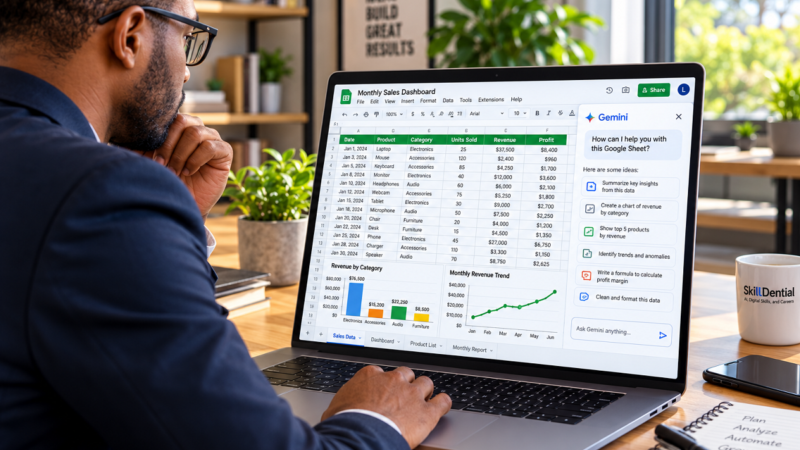
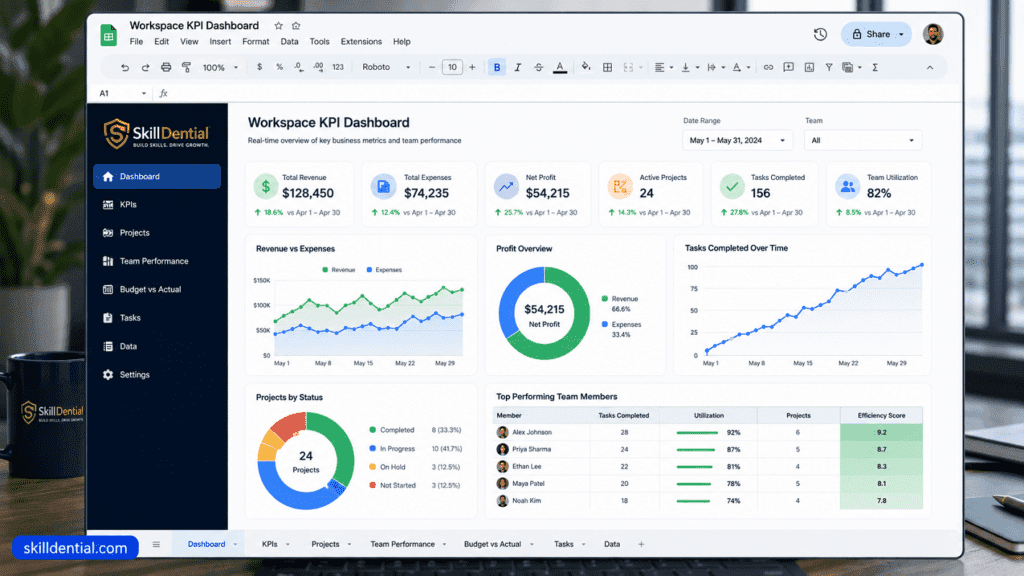
For the high-performance professional, Google Sheets is not merely a grid for static data; it is a lightweight operational command center. By moving beyond simple row-and-column data entry into advanced data architecture, you can create real-time dashboards that provide visibility into your personal or team output without the bloat of specialized enterprise software.
The Architecture of a High-Leverage Dashboard
The power of Google Sheets lies in its ability to centralize disparate data streams into a single source of truth. You can ingest data from various project trackers, intake forms, and automated logs to visualize performance metrics that drive decision-making.
- Dynamic Data Management: Functions like
QUERYandFILTERact as a database engine, allowing you to slice and dice large datasets instantly. You can pull specific KPIs from multiple tabs or files without manual maintenance. - Scalable Architecture: Using
ARRAYFORMULAensures that as you add new rows of data, your calculations and validations update automatically. This “set-it-and-forget-it” approach prevents formula breakage and ensures data integrity as your project grows. - Inter-Workbook Intelligence: The
IMPORTRANGEfunction allows you to create a “Master Dashboard” that aggregates data from decentralized operational sheets. This is the foundation of high-leverage reporting: team members work in their respective project files, while you view the rolled-up, real-time status in a central dashboard.
High-Leverage Use Cases
Don’t just track data—measure the metrics that move the needle:
- Content & Campaign Planning: Track the entire lifecycle of your content assets, from ideation to distribution, automatically updating your content calendar based on publication dates.
- KPI & Impact Monitoring: Build a dashboard that tracks your high-leverage metrics—such as turnaround time, project ROI, or client retention—against your target goals.
- Resource & Capacity Allocation: Manage your time and bandwidth by visualizing your commitments across multiple projects, helping you avoid burnout and identify capacity for new, high-value opportunities.
Strategic Best Practices for Dashboarding
- Separation of Concerns: Keep your “Data Input” sheets separate from your “Visualization” sheets. This ensures that you don’t accidentally corrupt your formulas while updating your daily status.
- Visualization for Decision-Making: Use Google Sheets’ native Chart features (Pivot Charts and Scorecards) to create at-a-glance health metrics. If the dashboard doesn’t answer a strategic question (e.g., “Are we on track for the monthly goal?”), Simplify the view.
- Automation Integration: Connect your Sheets to your intake forms (as discussed previously) and automation platforms (like Zapier). Your dashboard should be “living”—updating itself as work happens—rather than a static document you manually refresh.
By mastering these Google Workspace tips for data management, you transform Google Sheets from a static ledger into a strategic intelligence tool. This enables you to make decisions based on real-time data, optimizing your operations for maximum impact and sustained growth.
How Can Workspace Security Features Protect Remote Professionals?
For the remote professional, security is not a compliance checklist—it is an operational prerequisite. When your entire professional infrastructure lives in the cloud, a single compromised credential can lead to catastrophic data loss, IP theft, or reputation damage. Implementing robust security protocols transforms your workspace from a vulnerable target into a hardened, high-leverage fortress.
The 5 Pillars of Workspace Hardening
To protect your professional assets, you must configure your environment with the following “security-first” settings:
- Two-Factor Authentication (2FA/MFA): This is the single most effective barrier against account hijacking. Ensure you are using physical security keys (like YubiKey) or app-based authenticators (like Google Authenticator) rather than SMS-based codes, which are susceptible to SIM-swapping attacks.
- Active Security Alert Monitoring: Regularly review the “Security” tab in your Google Account settings. Configure alerts for sign-ins from unrecognized devices or locations. Proactive monitoring allows you to terminate unauthorized sessions before they escalate into data breaches.
- Periodic Permission Audits: Conduct a quarterly review of “Third-Party Apps with Account Access.” Revoke permissions for any tools or services you no longer actively use to minimize your digital attack surface.
- Restricted Sharing & Access Governance: Never set documents to “Anyone with the link can edit.” Default to “Restricted” access, and explicitly grant permissions only to necessary stakeholders. This minimizes the risk of accidental public exposure.
- Device Management Controls: If you utilize mobile devices for work, ensure your Workspace is configured with “Endpoint Management.” This allows you to remotely wipe company data from a device if it is lost or stolen, providing a critical safety net.
Building a Culture of Operational Security
Security, like productivity, is a system. By integrating these practices into your standard operating procedure, you eliminate the “human element” of security failures.
- Default to Least Privilege: Always grant the minimum level of access required to complete a task. You can always escalate permissions later, but you cannot “un-share” an inadvertently distributed sensitive document.
- Audit the Trail: Use the Google Workspace “Drive Audit Logs” (if available via your workspace tier) to track who has accessed sensitive folders. Understanding the flow of information is key to identifying potential security leaks.
- Unified Authentication: Whenever possible, use your Google identity to sign in to other professional platforms. This centralizes your security perimeter, allowing you to manage access to your entire stack from one secure, MFA-protected source.
By hardening your environment, you aren’t just preventing “bad things from happening.” You are building a professional infrastructure that clients and collaborators trust, which is a significant competitive advantage in the remote marketplace. These Google Workspace tips regarding security ensure that your hard work and intellectual property remain under your absolute control.
Which Google Workspace Tips Deliver the Highest Return on Investment?
In the world of high-leverage professional systems, not all optimizations are created equal. The difference between a “productivity hack” and a true “systems upgrade” is the ratio of effort required versus the compounding impact on your output.
To maximize your professional velocity, you should prioritize implementations that resolve systemic bottlenecks. The following matrix categorizes your Google Workspace tips based on this high-leverage framework:
| Tip | Effort | Impact | Strategic Priority |
| Search Operators | Low | High | Immediate (Foundation) |
| Gmail Filters | Low | High | Immediate (Automation) |
| Security Controls | Low | High | Immediate (Risk) |
| File Taxonomy | Medium | High | Immediate (Structure) |
| Shared Drives | Medium | High | High (Scale) |
| Workspace Integrations | Medium | High | High (System) |
| Forms Automation | Medium | High | High (Process) |
| Sheets Dashboards | Medium | High | High (Intelligence) |
| Meet Documentation | Low | Medium | Secondary |
| Appointment Scheduling | Low | Medium | Secondary |
| Version History | Low | Medium | Secondary |
The High-Leverage Implementation Roadmap
To move from “manual worker” to “system operator,” follow this tiered execution plan:
Tier 1: The “Zero-Friction” Foundation (High Impact / Low Effort)
Start here to eliminate the most common administrative tasks immediately.
- Search Operators & Filters: You will reclaim hours of lost time every month by mastering how you query your inbox and automate incoming noise.
- Security Controls: Protecting your professional infrastructure is a non-negotiable prerequisite. Secure your account today to ensure your efforts are never derailed by compromise.
- File Taxonomy: Establishing a consistent naming convention is the “quiet” game-changer. It prevents information loss and ensures your library scales as your career grows.
Tier 2: The “Structural Scale” Build (High Impact / Medium Effort)
Once your foundation is secure, build the infrastructure that allows you to manage complexity.
- Shared Drives & Integrations: This is where you decouple work from your personal account. By building these into your workflow, you create an institutional asset that lives independently of your daily presence.
- Forms & Sheets Dashboards: These tools turn your workspace into a logic-driven engine. Instead of just “doing work,” you begin managing processes that collect data and visualize outcomes.
Tier 3: The “Efficiency Refinement” (Medium Impact / Low Effort)
Implement these for final polish once your core systems are operational.
- Appointment Scheduling & Meeting Documentation: These refine your synchronous interactions, ensuring that meetings are efficient, recorded, and integrated into your broader system.
- Version History: Use this as your safety net. It allows you to operate at high velocity because you are no longer constrained by the fear of error.
Strategic Final Word:
High-performance remote work is not about being busy; it is about having a reliable, automated, and secure system that does the heavy lifting for you. By focusing your efforts on this high-leverage implementation path, you transform Google Workspace from a digital desk into your most powerful professional asset.
Google Workspace Tips FAQs
To solidify your understanding of how these Google Workspace tips function within a professional career framework, here are the answers to the most common questions regarding strategy and implementation.
What exactly are Google Workspace tips?
They are not just “shortcuts”; they are high-leverage configurations, workflow optimizations, and systems-based techniques designed to turn standard communication and storage tools into a cohesive operational infrastructure. They focus on minimizing manual labor and maximizing data retrieval.
Are these tips actually relevant for freelancers?
They are essential. For a freelancer, your time is your primary product. By using Google Workspace tips to automate scheduling, organize client assets through a search-first taxonomy, and secure your workflows, you effectively increase your billable capacity by removing the administrative overhead that typically consumes a freelancer’s day.
What is the single most impactful feature for remote teams?
Shared Drives. They are the cornerstone of remote collaboration. By centralizing file ownership, they eliminate “key-person dependency”—the risk that critical work is lost when a team member leaves. They create a “Single Source of Truth” that scales as your team grows.
Do I need coding skills to implement these automations?
Absolutely not. The modern professional ecosystem relies on “no-code” and “low-code” tools. Platforms like Zapier or Make allow you to connect Gmail, Drive, and other tools through visual interfaces, meaning you can build complex, automated workflows without writing a single line of code.
Is Google Workspace inherently secure for remote operations?
It provides enterprise-grade tools, but the effectiveness of that security rests on your configuration. Using multi-factor authentication (MFA), conducting regular permission audits, and enforcing restricted sharing policies are the active steps that turn the platform from a “default” environment into a hardened, secure operational fortress.
Your Systems Checklist: 11 Pillars of High-Leverage Operations
Use this checklist to audit your current workspace. If you cannot check these boxes, your operational infrastructure is leaking productivity.
- Gmail Search Mastery: Are you using operators (
from:,has:,newer_than:) to bypass manual browsing? - Low-Touch Inbox: Have you built filters to automatically label, archive, or flag priority communications?
- Search-First Taxonomy: Is every file in your Drive named using a standardized, machine-readable convention?
- Shared Drive Governance: Are all client/project assets hosted in institutional Shared Drives, not personal ones?
- Native Scheduling: Have you replaced “email ping-pong” with native Appointment Schedules?
- AI-Enabled Meetings: Are you utilizing transcription and automated notes to free yourself from manual note-taking?
- Immutable Audit Trail: Is your team using Version History to eliminate “Final_Final” file-naming chaos?
- Systemic Integration: Have you linked your primary tools (e.g., Slack, Asana, Notion) to automate data flow?
- Automated Intake: Are you using Google Forms to enforce data hygiene for all incoming requests?
- Operational Dashboards: Do you have a “Master Sheet” that visualizes your KPIs and project health in real-time?
- Hardened Security: Have you enforced MFA, audited third-party app access, and locked down document permissions?
By implementing these 11 systems, you stop acting as an administrator of your tools and start acting as the architect of your own productivity.
In Conclusion
Google Workspace is far more than a collection of productivity applications. For high-performance remote professionals, it functions as the central operating system that supports every critical layer of your career: communication, collaboration, automation, and knowledge management.
The highest-impact improvements do not come from superficial changes; they come from mastering the architecture of your digital environment. By prioritizing advanced search logic, automating inbox triage, implementing a search-first file taxonomy, and standardizing team collaboration through Shared Drives, you eliminate the “coordination tax” that typically slows down distributed teams.
Professionals who build these foundational systems shift their focus from managing information to creating value. This is the core principle of high-leverage work: build the system once, and it will support your output at scale forever.
The 11 strategies outlined in this guide are not just “tips”—they are the technical requirements for a career built on velocity and precision. Once you have mastered these Google Workspace tips, you are no longer a passive user of software; you are an architect of your own productivity. With this foundation in place, you are ready to layer on advanced AI-assisted workflows and complex automation stacks that will continue to compound your professional impact over time.
Start your audit today. Your system is only as strong as its weakest link.