ChatGPT Scheduled Tasks: Complete Guide to Saving Time
ChatGPT Scheduled Tasks is a built-in feature that lets users set up one-time reminders, recurring tasks, and monitoring workflows that run automatically in the background. Whether you are automating daily briefings, tracking live information, or managing recurring administrative duties, this feature transforms your AI assistant from a reactive chatbot into a proactive productivity partner.
Artificial intelligence is evolving beyond simple question-and-answer exchanges. Modern AI assistants can now perform actions on your behalf, helping you stay organized without requiring constant manual input. ChatGPT Scheduled Tasks is the most significant leap in this direction, allowing the system to remind you about important events, generate recurring reports, monitor specific web changes, and automate repetitive workflows on a set cadence.
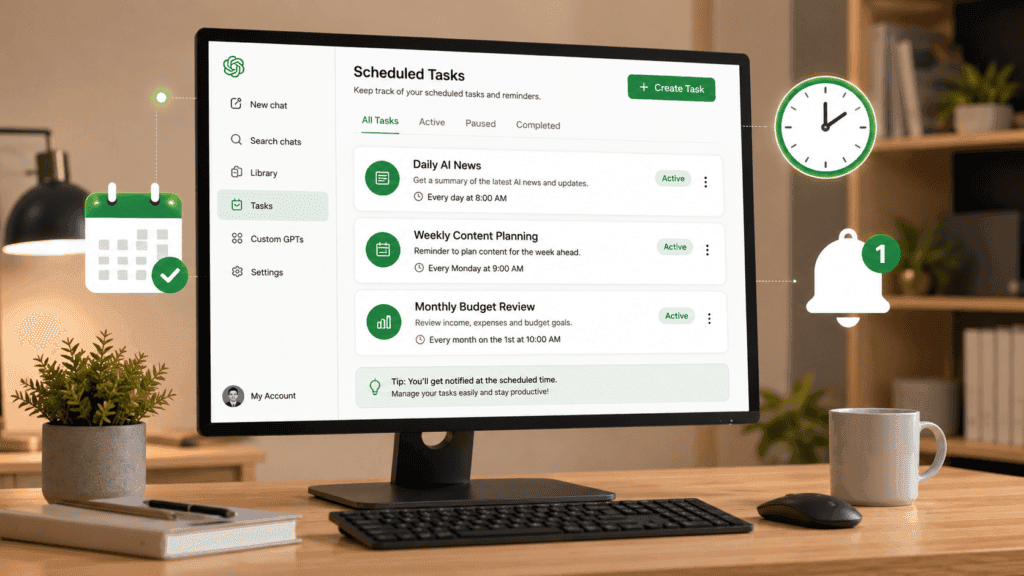
Whether you’re a busy professional managing meetings, a student juggling assignments, or a content creator planning weekly videos, you can now leverage ChatGPT Scheduled Tasks to act as a personal productivity assistant that works even when you are offline.
In this guide, you’ll learn:
- What ChatGPT Scheduled Tasks are and how they differ from standard prompts.
- How the feature works and how to set it up through the dedicated dashboard.
- Who can use it—understanding the current plan requirements (Plus, Pro, Business, Enterprise).
- Current availability and limitations, including task frequency caps and platform support.
- Why can it save significant time by offloading recurring, “manual” cognitive work?
- Best use cases for work, study, and business to maximize your ROI.
- Common misconceptions to avoid before you begin.
Everything in this guide is based on current official documentation (as of mid-2026) and is written to remain useful as the feature evolves. By the end of this article, you will have a clear, modular framework for building your own automation system using ChatGPT Scheduled Tasks.
What Are ChatGPT Scheduled Tasks?
ChatGPT Scheduled Tasks represent a fundamental shift in how you interact with AI, moving the platform from a reactive chatbot to a proactive productivity engine. At its core, the feature allows you to delegate recurring actions to ChatGPT, ensuring they execute at specific times or intervals without requiring your manual input.
While a standard conversation requires you to provide a prompt to receive a response, ChatGPT Scheduled Tasks function as “set-and-forget” automations. You define the instruction and the cadence—such as a daily, weekly, or one-time schedule—and ChatGPT manages the execution in the background. When the time arrives, the system processes your request, leverages necessary tools (like web browsing or connected apps), and delivers the output to you via a new chat notification.
Key Functions of Scheduled Tasks
- Proactive Briefings: Instead of searching for information manually, you can set a task to aggregate industry news, track specific market changes, or summarize your inbox at a set time each morning.
- Recurring Workflow Automation: Use them to handle repetitive administrative duties, such as drafting status updates, generating weekly project reports, or assembling meeting prep documents.
- Intelligent Monitoring: You can instruct the AI to monitor specific web sources or connected app data and notify you only when a meaningful change occurs, such as a price drop, a status update on a project ticket, or a new post in a tracked feed.
- Systemized Reminders: Beyond simple alerts, these tasks can pair a reminder with actionable context—for example, not just reminding you of a bill, but also summarizing the payment details and providing a link to the payment portal.
Why This Matters
By offloading routine “cognitive maintenance” to ChatGPT Scheduled Tasks, you effectively reclaim the time you would otherwise spend initiating standard prompts. This transformation turns ChatGPT into a dedicated personal assistant capable of executing structured routines, allowing you to focus on higher-level decision-making while the AI handles the data gathering and initial synthesis.
Ready to start? The best way to understand this feature is to identify a task you perform every single day that involves the same three steps (e.g., gathering, summarizing, and reporting). What is one routine task you find yourself manually prompting for every morning?
How Do ChatGPT Scheduled Tasks Work?
ChatGPT Scheduled Tasks function as a background-execution engine. You define a specific instruction and a cadence, and ChatGPT stores this as an “active task.” The system then executes the prompt automatically at your designated time—even if you are offline—and delivers the output directly to your device.
Unlike a standard interaction that requires a real-time, manual prompt, this feature turns ChatGPT into an autonomous agent capable of performing routine maintenance and information retrieval on your behalf.
The Standard Task Workflow
- Define: You provide the instruction (e.g., “Summarize the top AI news every weekday at 8 AM”).
- Schedule: You select the timing (one-time, daily, weekly, monthly, or a broader window like “morning”).
- Validate: ChatGPT confirms the task parameters, tools required (web browsing, file access), and your notification preferences.
- Execute: At the scheduled time, the background engine runs the prompt.
- Notify: You receive a push notification or email alert containing the finalized output.
Task Types at a Glance
| Task Type | Example |
| One-time | “Remind me tomorrow at 9 AM to submit my monthly report.” |
| Recurring | “Every Monday at 9 AM, draft an outline for my weekly newsletter.” |
| Monitoring | “Notify me only when there is a meaningful update on the status of my tracked shipment.” |
Advanced Flexibility
OpenAI has significantly expanded the system’s logic to handle more than just “clock-time” triggers. You can now use broader time windows (e.g., “Run this sometime in the morning”), allowing the system to batch non-urgent tasks for when it is most efficient. Furthermore, Monitoring Tasks use intelligent filters; rather than just repeating a prompt, the AI checks for specific changes or new information, notifying you only when the data has actually evolved.
Strategic Tip: Because ChatGPT Scheduled Tasks consume part of your plan’s usage limits, always audit your “Active Tasks” in the new Scheduled dashboard. If a recurring report is no longer adding value, pause or delete it to free up your limit for higher-leverage monitoring tasks.
Who Can Use ChatGPT Scheduled Tasks?
ChatGPT Scheduled Tasks are designed for power users and professionals who want to offload repetitive “cognitive maintenance” to an automated agent. While the feature is aimed at a wide range of roles, access is tied to specific subscription tiers.
Availability & Subscription Requirements
As of mid-2026, ChatGPT Scheduled Tasks are available globally to users on the following plans:
Note: The feature is currently unavailable on the free “Go” tier. If you are on a qualifying plan, you can access the dedicated “Scheduled” page directly from the ChatGPT sidebar on the web, iOS, and Android.
Active Task Limits
To ensure system stability, OpenAI enforces a cap on how many tasks you can run simultaneously. These limits are determined by your specific plan:
- Plus Users: Up to 5 active tasks.
- Pro, Business, and Enterprise Users: Up to 15 active tasks.
Use-Case Profiles
The feature is most valuable for individuals who need to stay “in the loop” without manually triggering constant prompts:
- Professionals: Manage project cadences, track deadlines, and automate weekly reporting or client follow-up reminders.
- Entrepreneurs: Use ChatGPT Scheduled Tasks to generate daily sales summaries, review business KPIs, or conduct automated market research on competitors.
- Content Creators: Schedule recurring brainstorming sessions, set reminders for content publishing deadlines, or have ChatGPT analyze weekly analytics trends.
- Students: Automate study schedules, track assignment due dates, or receive recurring practice prompts for language or skill-based learning.
- Remote Workers: Synchronize team check-ins, manage across time-zone reminders, and plan your daily work structure without the need for additional calendar software.
Pro Tip: Maximize Your Allowance
Because active task slots are limited, treat them as a “scarce resource.” Instead of setting up a task for every minor item, focus your slots on high-leverage Monitoring Tasks—such as tracking a specific industry trend or competitor update—where the AI does the heavy lifting of browsing and filtering information for you.
Efficiency Check: Since you are limited to a specific number of active tasks based on your plan, have you audited your current recurring workflows to see which ones are worth “automating” versus which ones are better handled by a simple calendar notification?
Why Are ChatGPT Scheduled Tasks Useful?
ChatGPT Scheduled Tasks fundamentally alter your digital productivity by shifting the burden of execution from your memory to an automated agent. By removing the need for manual, repetitive prompts, you reclaim “cognitive bandwidth”—the mental energy typically drained by routine maintenance.
Here is why this feature is a high-leverage addition to your professional and personal toolkit:
- Immediate Time Reclamation: You no longer need to manually trigger ChatGPT for recurring requests. Whether it’s a daily briefing or a complex data pull, you save the time previously spent typing prompts, waiting for responses, and managing the thread.
- Example: Instead of typing “Summarize my industry news” every morning, your automated task delivers a fresh, summarized report to your device the moment you wake up.
- Mitigation of Decision Fatigue. Decision fatigue is the silent productivity killer. By automating administrative “micro-tasks”—like drafting status updates or tracking project milestones—you preserve your mental energy for high-leverage, deep-work activities that require human judgment.
- 3. Strengthening Habit Consistency. Consistency is often more difficult to maintain than initial motivation. ChatGPT Scheduled Tasks act as a persistent, non-judgmental accountability partner. Use them to enforce daily habits such as:
- Learning: Receiving a “word of the day” or a quick coding challenge.
- Well-being: Scheduled reminders for breaks, exercise, or water intake.
- Documentation: Automatic prompts to journal or log end-of-day progress.
- 4. Error Reduction and Deadline Compliance: Proactive monitoring reduces the risk of human oversight. By setting tasks to track project deadlines, bill due dates, or meeting prep requirements, you ensure that critical information surfaces before it becomes a fire drill.
- 5. Transformation into an Agentic Assistant Most AI interactions are reactive—you ask, it answers. With ChatGPT Scheduled Tasks, the AI behaves like a genuine personal assistant. It proactively gathers data, synthesizes insights, and notifies you only when necessary. It is no longer just a chatbot; it is a systemized part of your digital infrastructure.
Efficiency Insight: Because this feature allows for Monitoring Tasks, you can set parameters to receive updates only when conditions change. This is the ultimate “set-and-forget” tool—you aren’t just getting repetitive data; you are getting a filtered signal that identifies when your attention is actually required.
Feature Availability and Requirements
ChatGPT Scheduled Tasks are a premium feature designed to integrate seamlessly into your existing workflows. As of July 2026, the feature is available across all paid tiers, with active task allowances scaled according to your subscription level.
Availability by Plan
The feature is not available on the Free tier. To access the dedicated “Scheduled” management hub, you must have an active subscription to one of the following:
| Subscription Tier | Availability | Max Active Tasks |
| Go | Supported | 3 |
| Plus | Supported | 5 |
| Business / Edu | Supported | 10 |
| Pro / Enterprise | Supported | 15 |
Platform Support
You can manage your tasks directly through the Scheduled page, which is accessible via the sidebar on both desktop (Web) and mobile (iOS and Android).
- Web & Mobile: Full support for creating, editing, and monitoring tasks.
- Desktop App: Functionality varies by version; please ensure your app is updated to the latest 2026 build for full sidebar integration.
- Note: Tasks do not currently support voice interactions, file uploads within the task prompt, or Custom GPTs.
Operational Guardrails
To ensure system stability and performance, OpenAI enforces several key constraints:
- Frequency Cap: Tasks are designed for periodic updates and reminders; they cannot run more frequently than once per hour.
- Auto-Pause: To prevent “notification fatigue” and unnecessary resource consumption, unattended tasks may automatically pause after a sustained period of inactivity.
- Project Isolation: Tasks created within a specific “Project” folder cannot access the files stored within that same project. This is a deliberate security boundary to prevent unauthorized background data exposure.
Strategic Consideration: Since your active task slots are limited (e.g., 5 for Plus, 15 for Pro), audit your workflows to ensure you are prioritizing “High-Signal” monitoring—such as market changes or specific project status updates—over basic reminders that could be handled by a standard calendar app.
Important Limitations
Before integrating ChatGPT Scheduled Tasks into your core workflows, it is critical to understand the architectural boundaries of the feature. While powerful, these tasks are designed as a lightweight “reminder-and-monitoring” layer rather than a robust, high-frequency execution engine.
Key Constraints
- Hourly Frequency Cap: Tasks are strictly capped at a minimum interval of once per hour. They are not suitable for latency-sensitive, real-time, or high-frequency polling requirements.
- Unsupported Features: To maintain system stability and performance, the following capabilities are not supported within a scheduled task:
- Custom GPTs: You cannot trigger your specialized, custom-built GPTs via a scheduled task.
- Voice Chats: Interaction is limited to text-based prompts and responses.
- File Uploads: Tasks cannot access files uploaded to other conversations or stored within specific Project folders.
- Active Task Limits: Your ability to create new tasks is governed by your subscription plan. Once you reach your limit, you must delete or pause an existing task to free up a slot:
- Go: Up to 3 active tasks.
- Plus: Up to 5 active tasks.
- Business / Edu: Up to 10 active tasks.
- Pro / Enterprise: Up to 15 active tasks.
- Conversation Dependency: Every scheduled task is tethered to a specific chat thread. If you delete that conversation, the associated task will automatically pause.
- Auto-Pause Mechanisms: To prevent notification fatigue and unnecessary resource usage, tasks that remain ignored or show prolonged inactivity may be automatically paused by the system. You will need to manually resume these via the Scheduled dashboard.
- Integration Boundaries: While tasks can interact with connected apps (like Gmail) if authorized, managed workspaces may impose administrative restrictions on these permissions. Always verify that your task has the necessary “permission chain” to perform actions on your behalf.
Strategic Design Rule: Because of these limits, the most effective design pattern is to make the task prompt self-contained. Do not rely on “hidden” context from long, previous chat histories. Clearly define the subject, scope, source preferences, and output format within the task prompt itself so that it can execute successfully even if it runs while you are offline.
How Do You Create Your First ChatGPT Scheduled Task?
Setting up an automation shouldn’t require configuring complex API pipelines or writing custom scripts. Building with ChatGPT Scheduled Tasks is entirely conversational. You define the action, set the cadence, and manage the execution using natural language directly inside the standard chat interface.
Here is the exact step-by-step framework to transition a manual prompt into a high-leverage, automated routine.
Step-by-Step Guide to Creating a Scheduled Task
Automating your workflow with ChatGPT Scheduled Tasks requires no technical expertise or complex API integration. The process is entirely conversational—you simply describe the action and the cadence within a standard chat, and the system handles the background execution.
Follow these steps to turn your recurring manual prompts into a “set-and-forget” productivity engine.
Step 1: Open ChatGPT and Verify Prerequisites
Before creating your first automated routine, ensure your workspace is prepared to handle background execution. Access the platform through a supported web browser or the latest version of the ChatGPT mobile app.
Before initiating your first ChatGPT Scheduled Task, confirm the following:
- Account Authentication: Ensure you are logged into the specific account associated with your subscription.
- Subscription Eligibility: Verify that your plan (Go, Plus, Business, Enterprise, or Pro) is active. Note that the free “Free” tier does not support scheduled automation.
- Notification Permissions: Because ChatGPT Scheduled Tasks function while you are offline, you must grant permission for the application to send push notifications or email alerts. Without this, your tasks will execute in the background, but you will not receive the output until you manually reopen the specific chat thread.
- To enable: Navigate to Settings > Notifications and toggle on alerts for “Task Completion” or “Scheduled Updates.”
Efficiency Check: Since your total active task limit (e.g., 3 for Go, 5 for Plus, up to 15 for Pro/Enterprise) is based on your specific plan, ensure you aren’t currently “at capacity.” You can verify your available slots by navigating to the Scheduled hub in the sidebar. If you have hit your limit, you will need to pause or delete an existing, low-value task before the system will allow you to create a new one.
Step 2: Start a New Conversation
Open a fresh chat thread to begin setting up your automation. Using a new conversation ensures that your ChatGPT Scheduled Tasks are isolated from unrelated history, preventing the AI from being distracted by past context when it runs in the background.
Unlike traditional productivity tools that require rigid forms or complex menu navigation, this system is conversational. You can define your requirements using natural, human-readable language.
Example Commands
To initiate a task, provide a clear instruction that includes what you want done and when it should trigger:
- For Reminders: “Remind me to submit my project status report tomorrow at 10 AM.”
- For Recurring Routines: “Every Friday at 5 PM, remind me to back up my files and clear my desktop.”
- For Information Monitoring: “Every weekday at 8 AM, search for the latest updates on ‘AI agent frameworks’ and send me a summary of the top three news items.”
Why Natural Language Works
Because ChatGPT Scheduled Tasks are powered by the core LLM engine, you don’t need to memorize specialized syntax or field-specific codes. You can be descriptive, explain the desired tone, or even specify the format (e.g., “bulleted list,” “short paragraph,” or “markdown table”).
Strategic Tip: If your task involves a complex workflow, include the “how” in your natural language prompt. For instance, instead of “Remind me to study,” use: “Every evening at 7 PM, provide a 10-minute quiz based on my current coding project, focusing on error handling in Python.” This transforms a simple reminder into a functional, personalized study session.
Step 3: Specify the Schedule
The reliability of your automation depends entirely on the precision of your request. Since ChatGPT Scheduled Tasks interpret natural language, you can move beyond rigid “date-time” formats to define cadences that fit your actual life.
Elements of a Precise Schedule
To avoid ambiguity, ensure your prompt includes these four pillars:
- Date/Day: Be clear if it’s a specific calendar date (e.g., July 20th), a day of the week (e.g., Every Monday), or a business cycle (e.g., “Every weekday”).
- Time: Use local time formatting (e.g., 9:00 AM) to ensure triggers align with your actual workflow.
- Frequency: Define the repetition pattern clearly—One-Time, Daily, Weekly, or Monthly.
- Time Zone: If you travel frequently or work with international teams, append your time zone (e.g., “9:00 AM WAT”) to ensure the task triggers at the intended moment, regardless of the system’s default settings.
Examples of High-Precision Requests
- One-Time Execution: “Remind me on July 20 at 3:00 PM WAT to renew my domain registration for Skilldential.”
- Daily Routine: “Every day at 6:00 PM WAT, remind me to close out my open browser tabs and log my daily progress.”
- Weekly Workflow: “Every Monday at 8:00 AM WAT, draft a content calendar outline for the upcoming week based on current industry trends.”
- Monthly Maintenance: “On the first day of every month at 9:00 AM WAT, remind me to review my business budget and audit my active task usage.”
Strategic Tip: You can also define “broader windows” if the task isn’t urgent. Instead of a specific minute, you can instruct: “Send me my morning briefing sometime between 7:00 AM and 8:00 AM.” This allows the system to batch your task during less congested processing times, potentially leading to more reliable delivery.
Efficiency Check: Once you submit your request, always review the confirmation card. If the system misinterprets “Every Monday” as “Once on Monday,” correct it immediately in the chat thread before clicking “Save.”
Step 4: Review and Confirm Your Task
Before finalizing your automation, the system will generate a Confirmation Card. This is a critical checkpoint to ensure your parameters—time, date, cadence, and instructions—are aligned with your intent.
Why Verification Matters
Because ChatGPT Scheduled Tasks act autonomously in the background, a small error in your prompt (like setting a daily task for “8:00 PM” instead of “8:00 AM”) could result in unnecessary notifications or missed deadlines.
The Verification Checklist
- Time & Date: Double-check the execution time. Remember that the system respects your account’s timezone settings.
- Cadence: Ensure the schedule is correctly interpreted as Daily, Weekly, Monthly, or One-Time.
- Instructional Clarity: Review the summary of your prompt. Is the “Acceptance Criteria” clear? If you are monitoring for a change, have you specified what constitutes a “meaningful update”?
- Notification Status: Confirm that your device permissions are set to allow alerts. If the confirmation card displays a prompt to “Enable Notifications,” address it immediately; otherwise, the task will run, but you will not receive the output until you manually check the chat.
Pro-Tip: If you see any discrepancies, do not save the task. Instead, reply directly in the chat thread with a correction (e.g., “Actually, change that to 9:00 AM”), and the system will update the confirmation card accordingly. Once you are satisfied, click Save (or confirm in the interface) to commit the task to your active slots.
Once confirmed, your task is stored in your account’s Scheduled dashboard. You can modify, pause, or delete this task at any time without needing to revisit the original chat thread.
The video above provides a practical, visual demonstration of setting up recurring prompts and managing them through the dedicated dashboard, which is highly effective for seeing how to handle the “confirmation card” process in real-time.
Step 5: Confirm and Monitor Your Task
Once you click “Save” on the confirmation card, the system officially registers your routine in the background engine. You no longer need to keep the chat window open; ChatGPT will proactively trigger the prompt at your specified cadence, even if you are logged out or offline.
Managing Your “Active” Lifecycle
While the automation runs in the background, your work isn’t “done”—it has simply transitioned from manual creation to system oversight. You can continue using ChatGPT for other, unrelated conversations without impacting your scheduled automations.
To manage your tasks long-term:
- The Scheduled Dashboard: Navigate to the Scheduled page via the sidebar (on web or mobile). This is your central control center to view when tasks will run next, pause those you no longer need, or delete outdated routines to free up your active task limit.
- Persistent Memory: Because each task is linked to a specific chat, you can open that thread at any time to review the history of previous runs. This creates a valuable “audit trail” of your automated briefings or reminders.
- Task Updates: If your requirements change, simply open the task from the dashboard or the original chat thread, edit the parameters, and save. The system will automatically update the background schedule to reflect your new instructions.
Strategic Insight: Periodically audit your Scheduled dashboard. If a task hasn’t provided a “meaningful update” in a while, it may be consuming a valuable active task slot (especially on the Plus/Go tiers). Pause these tasks to ensure you always have capacity for high-leverage monitoring or new, more relevant automations.
How to Create One-Time Reminders with ChatGPT Scheduled Tasks
ChatGPT Scheduled Tasks are not limited to long-term automation; they are equally effective for managing single, high-stakes events. Using ChatGPT Scheduled Tasks for one-time events ensures you never miss a critical deadline, appointment, or milestone without needing to juggle multiple calendar apps.
These tasks are ideal for “set-and-forget” events where you only need a single, timely nudge:
- Professional: Interview prep reminders, job application submission deadlines, or tax filing dates.
- Logistics: Flight departure alerts or time-sensitive travel check-ins.
- Personal: Doctor appointments, birthdays, or unique, one-off project milestones.
How to Set Up a One-Time Task
To create a one-time reminder, state the specific date, time, and action. Because ChatGPT Scheduled Tasks use natural language processing, the system identifies the temporal reference and schedules the execution for that exact moment.
Example Prompt:
“Remind me tomorrow at 8:00 AM to submit my job application.”
Why Use ChatGPT Scheduled Tasks for One-Time Events?
Beyond a simple notification, ChatGPT Scheduled Tasks allow you to embed “contextual intelligence” into your reminder.
For instance, you aren’t just getting a generic alert; you can instruct the AI to:
- “Remind me on Friday at 9:00 AM to review my interview prep notes and summarize the top three questions I should ask the recruiter.”
By doing this, the ChatGPT Scheduled Tasks feature delivers the reminder along with the prepared context you need to succeed, effectively reducing the mental friction of performing the task when the time comes.
Strategic Tip: Once the reminder has triggered and the task is completed, it will no longer occupy an “active task” slot in your Scheduled dashboard. This makes ChatGPT Scheduled Tasks a clean, self-managing solution for your daily to-do list.
How to Create Recurring Tasks
ChatGPT Scheduled Tasks are most powerful when applied to repetitive workflows. By offloading recurring administrative or personal duties to the system, you ensure consistency—the foundation of high-leverage growth—without the daily cognitive burden of manual initiation.
Common Recurring Schedules
Whether your goal is habit formation or operational efficiency, ChatGPT Scheduled Tasks can be configured for virtually any cadence:
- Daily: “Every morning at 8:00 AM, summarize my unread emails from the last 12 hours and flag any requiring immediate response.”
- Weekdays: “Every weekday at 7:00 AM, draft a ‘Morning Brief’ covering key updates in AI and the tech industry.”
- Weekly: “Every Tuesday at 9:00 AM, generate a draft for my weekly blog post based on these three bullet points: [Insert Points].”
- Monthly: “On the first of every month at 10:00 AM, remind me to review my business expenses and categorize any unverified transactions.”
- Quarterly: “On the first Monday of every quarter at 9:00 AM, prompt me to conduct a business performance review and assess progress toward my annual goals.”
Why Recurring Tasks Build Better Habits
Consistency is often harder to maintain than initial motivation. ChatGPT Scheduled Tasks act as an automated accountability partner. By receiving a structured prompt or summary on a fixed schedule, you move from “trying to remember to do it” to “responding to the output.”
- For Content Creators: Ensure your publishing pipeline never stalls by scheduling recurring brainstorming sessions or analytics reviews.
- For Professionals: Automate the “pre-work” of your day—such as gathering reports or drafting meeting agendas—so the information is waiting for you when you log in.
- For Students: Use ChatGPT Scheduled Tasks to receive daily practice quizzes or reading reminders, reinforcing learning through spaced repetition.
Best Practice: The “Self-Contained” Prompt
Since these tasks run in the background without active conversation history, your prompt must be self-contained.
Pro-Tip for Recurring Tasks
Avoid referencing “that document we discussed” or “the previous chat.” Instead, explicitly provide the necessary context or links within your initial command.
Example: “Every Friday at 5:00 PM, look at [Link to Project Folder] and provide a summary of the status updates uploaded this week.”
Strategic Consideration: Because active task slots are limited (e.g., 5 for Plus users, 15 for Pro), don’t waste your slots on low-value reminders that a simple calendar notification could handle. Reserve your ChatGPT Scheduled Tasks for routines that require the AI’s synthesis or data-gathering capabilities.
How to Create Monitoring Tasks
ChatGPT Scheduled Tasks are most powerful when they transition from simple “time-triggered” reminders to “condition-triggered” monitoring. Unlike static recurring tasks that fire regardless of whether new information exists, monitoring tasks utilize ChatGPT’s browsing and analytical capabilities to check for meaningful updates, alerting you only when actionable data is found.
This is the ultimate efficiency hack for information-dense fields, as it eliminates “noise” and ensures you only spend time on updates that actually matter.
The Power of “Conditional Monitoring”
By using ChatGPT Scheduled Tasks for monitoring, you move from reactive browsing to proactive intelligence gathering. Instead of manually searching for updates daily, the AI acts as a filter, consuming the information for you and summarizing it only when a significant event occurs.
Examples of Effective Monitoring Prompts
- Industry Trends: “Notify me if there are any major developments in generative AI agent frameworks this week.”
- Corporate Intelligence: “Monitor and let me know the moment there is a significant update regarding product launch announcements for Google’s latest AI models.”
- Market Developments: “Check for any new, high-authority white papers or research articles on [specific topic] and summarize the top three insights if anything noteworthy is published.”
- Competitive Tracking: “Track news regarding [Competitor Name] and notify me only if they make a major shift in their pricing or platform offering.”
How to Structure Your Monitoring Request
To get the best results, use a “Condition-Action” structure in your prompt:
- Specify the Source/Topic: Clearly define the subject you want tracked.
- Define “Significant”: Explain what constitutes a meaningful change. (e.g., “don’t notify me for minor bug fixes, only for product launch announcements”).
- Set the Cadence: Even if you only want to be notified when something happens, you must specify the polling interval (e.g., “Check this once a day”).
Example Prompt: “Every day at 9:00 AM, check for new major product releases or significant strategic pivots from [Company Name]. If anything noteworthy is published, notify me with a summary. If there is no major news, do not send a notification.”
Strategic Advantage
Because ChatGPT Scheduled Tasks are limited by your plan’s active task capacity, use these slots for high-signal tracking. Monitoring tasks save you significant time by eliminating the “check-see-nothing-new” loop, allowing you to treat your ChatGPT inbox as a curated feed of intelligence rather than a stream of repetitive alerts.
Efficiency Check: Since monitoring tasks require active browsing, ensure you are specific about your sources. If you want to track a particular site or publication, include that in your prompt to prevent the AI from wasting cycles on irrelevant or low-authority web noise.
How to Manage Your ChatGPT Scheduled Tasks
Creating your automations is only the first step. To maintain a high-leverage, clutter-free digital environment, you must actively manage your routines. The Scheduled dashboard in your sidebar is your command center for all ChatGPT Scheduled Tasks.
Accessing Your Command Center
- The Scheduled Dashboard: Navigate to the Scheduled page via the ChatGPT sidebar on the web or mobile. This hub aggregates every active task, allowing you to see at a glance when each is next slated to run.
- In-Chat Management: You can also manage a specific task directly from its original chat thread by clicking the vertical three-dot menu (⋮) next to the task confirmation card.
Core Management Options
From your dashboard, you can perform the following actions to keep your automation infrastructure lean and efficient:
- View Active Tasks: See all your current automations, their frequency, and their next scheduled execution time.
- Edit Task Details: Hover over any task and click the pencil icon to modify the instructions, change the cadence (e.g., switching from daily to weekly), or adjust the time of day. This is ideal for refining the “signal” of your monitoring tasks.
- Pause Reminders: If a task is temporarily irrelevant—such as a project report reminder during your vacation—pause it. Paused tasks remain in your list but do not fire; note that they still count toward your plan’s Active Task limit.
- Resume Reminders: Reactivate paused tasks instantly once your workflow requires them again.
- Delete Completed/Obsolete Tasks: Remove tasks you no longer need. Deleting a task from the Scheduled dashboard does not delete the associated chat thread; it only stops the automation.
Strategic Management Rule: Because your plan has a fixed cap on active tasks (e.g., 5 for Plus, 15 for Pro), treat your task list like a priority queue. If you hit your limit, don’t just add more—audit your existing list. Delete or pause any task that has stopped providing “meaningful” utility. By keeping your list optimized, you ensure your capacity is always reserved for the most impactful monitoring and reporting workflows.
Editing Existing Tasks
Workflows evolve, and your automated routines should adapt accordingly. Whether you need to shift a meeting reminder to a new time zone or change a daily summary to a weekly cadence, you can update your ChatGPT Scheduled Tasks in seconds.
How to Modify Your Tasks
You have two primary ways to edit an existing routine:
- Via the Scheduled Dashboard: Navigate to the Scheduled page in your sidebar. Locate the task you wish to update, click the pencil icon (Edit), adjust the instruction or schedule, and click Save.
- Via the Original Chat Thread: Locate the task’s original confirmation card within your conversation history. Click the vertical three-dot menu (⋮) and select Edit. Once you’ve revised your instructions or timing, save your changes.
Common Edits to Consider
- Refining Cadence: Transitioning from “Every Monday” to “Every weekday” is a frequent optimization as you find your rhythm.
- Updating Instructions: As your goals shift (e.g., changing a “Learning” prompt to focus on a new coding language), update the prompt description directly.
- Adjusting Precision: If you find the AI is triggering at a time that interrupts your deep work, simply edit the time window to a “broader” slot (e.g., “morning” instead of “8:00 AM”) to allow the system to batch your tasks more efficiently.
Pro-Tip: Every time you edit a ChatGPT Scheduled Task, the system “re-validates” the instruction. Always ensure your new prompt remains self-contained and explicitly clear about the desired output format—this prevents “prompt drift” where the AI’s responses become less accurate over time.
Strategic Management: Keeping your tasks updated is the difference between a “smart” assistant and a source of digital noise. If a prompt starts returning irrelevant information, don’t just ignore it—recalibrate the instruction to tighten the scope.
Pausing a Task
There are times when a routine needs to be temporarily shelved rather than removed entirely. Whether you are heading on vacation, wrapping up a short-term project, or taking a break from a specific habit, the Pause function in ChatGPT Scheduled Tasks provides a clean way to manage your workflow without losing your configuration.
Why Use the “Pause” Feature?
- Workflow Flexibility: If you have a task that is only relevant during a specific “semester” or “project phase,” pause it during the off-season. You can reactivate it with one click when your needs change.
- Limit Management: If you are nearing your plan’s Active Task limit (e.g., 5 for Plus, 15 for Pro), pausing a low-priority task is an excellent way to free up a slot for a more urgent, high-leverage monitoring task without deleting the work you put into the original prompt.
- Preventing Notification Fatigue: If a “Daily Briefing” becomes overwhelming during a busy week, pause it temporarily to clear your notifications without having to rebuild the prompt from scratch later.
How to Pause and Resume
- Via the Scheduled Dashboard: Navigate to the Scheduled page in your sidebar. Find the relevant task and toggle the status to “Paused.” To bring it back, simply toggle it to “Active” or click “Resume.”
- Via the Chat Thread: Locate the original task confirmation card in your conversation history. Click the vertical three-dot menu (⋮) and select Pause. You can resume it the same way when you are ready.
Important Note on Task Limits: While a paused task is inactive and will not send notifications, it still counts toward your maximum number of active tasks. If you are at your limit and need to start a brand new task, you must either delete a task or ensure your subscription tier allows for the total count.
Strategic Insight: If you find yourself frequently pausing a specific task, it may be a signal that the cadence or the “trigger” is no longer aligned with your actual priorities. Instead of simply toggling it on and off, consider if it’s time to Edit the frequency (e.g., changing “Daily” to “Weekly”) to make it a more sustainable part of your long-term routine.
Deleting a Task
When an automation has served its purpose—such as a completed course, an expired promotion, or a project that is now finished—deleting it is essential for keeping your workspace organized and your “Active Task” limit optimized.
How to Delete a Task
You can remove a task permanently through either the central management hub or individual conversation threads:
- Via the Scheduled Dashboard (Recommended): Navigate to the Scheduled page via the sidebar. Hover over the task you wish to remove, click the vertical three dots (⋮), and select Delete. This provides a clean overview of all your tasks, making it the most efficient way to perform regular “spring cleaning” of your automations.
- Via the Original Chat Thread: Locate the specific conversation where the task was first created. Find the task’s confirmation card, click the three-dot menu (⋮), and select Delete.
Important Considerations
- Chat Preservation: Deleting a task does not delete the underlying chat conversation. Your history, previous task outputs, and logs remain intact.
- Immediate Capacity Release: As soon as you delete a task, that active task slot is immediately freed up, allowing you to create a new, more relevant automation without hitting your plan’s cap.
- Automatic Pausing: If you delete the entire chat thread associated with a task, the system will automatically pause the task. However, it is best practice to delete the task via the dashboard first to ensure a clean exit.
Strategic Housekeeping: Treat your Scheduled dashboard like a digital portfolio. Regularly audit your active tasks to ensure every slot is driving measurable ROI—whether that’s time saved, deadlines met, or intelligence gathered. If a task isn’t providing a “meaningful update” at least once a week, it’s a candidate for deletion.
20 Practical Ways to Use ChatGPT Scheduled Tasks
The true power of ChatGPT Scheduled Tasks lies in its versatility. By offloading routine cognitive labor to an automated agent, you can standardize high-performance habits and operational efficiency.
Below are 20 actionable ChatGPT Scheduled Tasks categorized by high-leverage domains to help you jumpstart your automation journey:
| Category | Task | Frequency |
| Content Creation | Generate 3 trending content hooks for my niche. | Daily (8 AM) |
| Blogging | Remind me to review my SEO draft for publication. | Weekly |
| TikTok | Remind me to record and upload my daily clip. | Daily (Evening) |
| YouTube | Draft my weekly script outline based on notes. | Weekly |
| Flag all unread client emails that need follow-ups. | Weekly (Friday) | |
| Learning | Prompt me with a Python coding challenge. | Every Weekday |
| Fitness | Remind me to complete my daily mobility routine. | Daily (Morning) |
| Reading | Send a reminder to read 20 pages of my current book. | Daily (Night) |
| Business | Aggregate and summarize my core business KPIs. | Weekly |
| Marketing | Audit performance metrics for active campaigns. | Weekly (Monday) |
| Finance | Summarize monthly expenses against my budget. | Monthly |
| Bills | Remind me to pay recurring utility invoices. | Monthly |
| Remote Work | Send me my prioritized daily “Must-Do” checklist. | Daily (Morning) |
| Meetings | Summarize prep notes for my scheduled meetings. | Daily |
| Job Search | Remind me to submit two personalized applications. | Daily |
| AI News | Summarize the top 3 shifts in the AI industry. | Daily |
| Public Speaking | Prompt me to practice a 2-minute improvised talk. | Weekly (Saturday) |
| Language | Send me 5 new vocabulary words and their usage. | Daily |
| Health | Remind me to hydrate and take a posture break. | Every 3 hours |
| Family | Remind me to call parents for a weekly check-in. | Weekly (Sunday) |
Strategy for Implementation
Don’t attempt to enable all 20 at once. Start with the “80/20” approach:
- Identify the “Brain Drain”: Choose the 2 tasks from this list that consume the most mental energy when you have to remember them manually.
- Standardize the Format: Use a consistent template (e.g., “Bullet points,” “Executive Summary,” or “Action Items”) for all your tasks to build muscle memory in how you consume the output.
- Audit the ROI: After one week, review your Scheduled dashboard. If a task isn’t significantly reducing your stress or saving you at least 5 minutes of manual work, delete or pause it.
By strategically applying ChatGPT Scheduled Tasks to these areas, you transform your AI from a chatbot into a foundational infrastructure for your daily work.
What is the one task from this list you intend to set up first?
Productivity Tips for Better Results
To extract maximum ROI from ChatGPT Scheduled Tasks, treat your automation list like a high-leverage business asset. If managed poorly, it becomes just another source of notification clutter; if managed well, it becomes a streamlined operating system for your professional and personal life.
Here are the best practices for optimizing your task architecture:
- 1. Bundle Tasks into “Execution Routines” Instead of creating five individual tasks that trigger at different times, consolidate them into a single, comprehensive “Morning Routine” or “End-of-Day Shutdown” task.
- Example: Instead of four alerts for emails, news, and planning, set one ChatGPT Scheduled Task for 8:00 AM that asks: “Review my calendar, summarize unread emails, provide a 5-minute AI news briefing, and draft my top 3 daily priorities.” This creates a cohesive “daily launch” workflow rather than a fragmented series of pings.
- 2. Practice Radical Naming Clarity. When you save a task, the title is what you will see in your Scheduled dashboard. Avoid generic titles like “Reminder” or “Task 1.”
- Use Descriptive Labels: “Review TikTok Analytics,” “Q3 Sales Pipeline Audit,” or “Daily AI Funding Brief.” Clear labels allow you to scan your dashboard and identify active workflows in seconds.
- 3. Guard Against “Automation Bloat.” Just because you can automate a task doesn’t mean you should. Over-automating leads to “notification fatigue,” where you begin to ignore your alerts.
- The Filter Rule: Prioritize only those tasks that reduce genuine cognitive load or prevent critical human errors. If a task isn’t saving you at least 5–10 minutes of manual effort, it’s likely better handled by a simple calendar event.
- 4. Execute a Monthly “Infrastructure Audit.” Productivity systems are not “set-and-forget.” Schedule a recurring task on the first of every month to audit your own automation setup. During this review:
- Delete: Remove projects or habits that are no longer relevant.
- Consolidate: Merge duplicate or overlapping reminders.
- Update: Edit descriptions or cadences to better reflect your current goals.
Strategic Takeaway: The goal of using ChatGPT Scheduled Tasks is to create a “brain-off” experience for your routine processes. By grouping your tasks logically, naming them clearly, and pruning them regularly, you ensure that your AI assistant remains an intelligence-amplifying tool rather than a digital distraction.
Common Mistakes to Avoid with ChatGPT Scheduled Tasks
Even the most sophisticated automation systems can fail if the inputs are flawed. Avoid these common pitfalls to ensure your ChatGPT Scheduled Tasks act as reliable, high-signal components of your daily workflow rather than digital noise.
- Being Too Vague in Your Prompts: The quality of your output is directly proportional to the specificity of your input. Avoid “lazy” instructions that force the AI to guess your intent.
- Instead of: “Remind me later to do some research.”
- Use: “Remind me tomorrow at 2:00 PM WAT to browse for the latest statistics on [specific topic] and summarize the key findings in a bulleted list.”
- Creating Too Many “Low-Value” Reminders Automation bloat is real. If you create 30 tasks, your notifications will eventually become white noise.
- The Fix: Apply the 80/20 rule. Focus your ChatGPT Scheduled Tasks on high-leverage outcomes—like automated intelligence gathering or critical deadline management—that genuinely save you deep-work time.
- 3. Neglecting Time Zone Synchronization: If you are a remote worker or work with global clients, a generic “9:00 AM” trigger can lead to missed meetings or late reports.
- The Fix: Always explicitly state your time zone (e.g., “9:00 AM WAT”) when setting up your tasks. This ensures your ChatGPT Scheduled Tasks fire in perfect sync with your actual work environment.
- 4. Treating the System as “Set-and-Forget”: A productivity system left unmonitored is a system destined to fail.
- The Fix: Treat your Scheduled dashboard like a project backlog. If you don’t perform a monthly audit to delete obsolete reminders, you will quickly find your dashboard cluttered with irrelevant tasks, making it harder to spot your high-priority automations.
- 5. Ignoring the “Action” Loop, Automations are only useful if they trigger a behavioral change. If you find yourself consistently ignoring notifications, you have created a “passive” system rather than an “active” one.
- The Fix: If a notification is being ignored, ask yourself: Is this task actually useful? If the answer is no, delete it. If the answer is yes, edit the prompt to deliver the output in a more actionable format (e.g., as a checklist instead of a paragraph).
Strategic Insight: The most successful users of ChatGPT Scheduled Tasks view them as an extension of their own focus. By avoiding these five mistakes, you ensure that every notification you receive is a “nudge” toward your goals, rather than an unnecessary interruption.
Key Takeaways
You have now mastered the operational framework for ChatGPT Scheduled Tasks. By shifting from reactive prompting to proactive, systemized automation, you have turned your AI assistant into a robust part of your digital infrastructure.
To ensure your implementation remains high-leverage and effective, remember these core principles:
- Master the Trigger: Use explicit, natural language to define the what, when, and how of every task. Clarity in your prompt equals precision in your automation.
- Segment Your Automation: Use One-Time Reminders for critical milestones, Recurring Tasks for habit and operational consistency, and Monitoring Tasks for high-signal intelligence gathering.
- Manage for ROI: Your active task slots are a finite resource. Treat your Scheduled dashboard as a priority queue; audit it monthly to delete obsolete routines and free up capacity for your highest-impact workflows.
- Optimize for Action: Every automated output should be “ready to act upon.” If you find yourself ignoring notifications, refine your prompts to produce clearer checklists, summaries, or actionable alerts.
- Avoid the Noise: Never allow automation to become a source of distraction. If a task isn’t saving time or reducing mental overhead, delete it immediately.
By applying these strategies, you move beyond simple chatbot interactions and into the realm of Agentic Productivity—where your tools work for you, even when you aren’t at your keyboard.
Ready to Scale? Now that you have the foundation, the next step is building your first “Master Automation Routine”—a bundled task that handles your entire morning or end-of-day workflow in one execution.
How do ChatGPT Scheduled Tasks Compare to Traditional Reminder Apps?
To maximize your personal productivity stack, it is critical to distinguish between intent-based reminders (the “what”) and intelligence-based automation (the “how”). ChatGPT Scheduled Tasks and traditional apps like Apple Reminders, Todoist, or Google Calendar are not mutually exclusive; they are complementary tools that serve different layers of your digital infrastructure.
Comparison Table: The Productivity Ecosystem
| Feature | ChatGPT Scheduled Tasks | Traditional Reminder Apps | Calendar Apps |
| Simple Alarms | Good | Excellent | Excellent |
| Natural Language | Excellent | Good | Limited |
| AI-Generated Content | Native/Superior | None | Limited |
| Recurring Reports | Excellent | None | None |
| Live Monitoring | Excellent | None | None |
| Offline Reliability | Limited | Excellent | Excellent |
| Calendar Sync | Limited | Good | Excellent |
Strategic Decision Framework
The choice between these tools should be based on the nature of the cognitive load you are trying to offload:
- Choose ChatGPT Scheduled Tasks when the output requires synthesis. If you need an automated daily brief, a weekly performance summary, or a report on industry changes, the AI’s ability to “think” and process data is unmatched. Use this for tasks where the content of the reminder is as important as the timing.
- Choose Traditional Reminder/Calendar Apps for time-critical, hard-stop events. If you need a fail-safe notification for a flight, a meeting, or a hard deadline where offline reliability and calendar integration (like blocking your time) are non-negotiable, traditional apps remain the industry standard.
The “Hybrid Infrastructure” Model
For high-leverage users, the most effective strategy is a Hybrid Workflow:
- Use your Calendar as the “Source of Truth” for hard time blocks (meetings, travel).
- Use Reminder Apps for simple, low-effort checklist management (shopping lists, basic to-dos).
- Use ChatGPT Scheduled Tasks as your “Knowledge & Synthesis Layer.” Configure your automations to extract insights from your daily stream of information and provide the context you need to execute the items in your calendar or reminder apps.
Strategic Insight: Do not attempt to force ChatGPT to be your primary task manager if your main goal is simple to-do list maintenance. Instead, use ChatGPT Scheduled Tasks to perform the “pre-work”—gathering data, summarizing reports, and drafting outlines—that makes actually completing your tasks faster and more insightful.
Decision Matrix: When to Use ChatGPT Scheduled Tasks
Not every productivity challenge requires an AI solution. To maintain a high-signal workflow, use this decision framework to determine when ChatGPT Scheduled Tasks provides the highest return on investment versus a standard utility.
| If You Want To… | Recommendation | Rationale |
| Build better habits | ✅ Excellent | AI-driven accountability is more engaging than static beeps. |
| Receive AI-generated reports | ✅ Excellent | This is the core strength of LLM-based automation. |
| Track industry news/trends | ✅ Excellent | Automates the “search-and-summarize” loop effectively. |
| Remember appointments | ⚠️ Good | Functional, but lacks the deep calendar integration of specialized apps. |
| Manage complex business calendars | ❌ Use Calendar App | Dedicated tools handle conflict resolution and time-blocking better. |
| Schedule meetings with teams | ❌ Use Calendar App | Requires shared availability; ChatGPT is for personal synthesis. |
| Receive simple, offline alarms | ❌ Use Reminder App | Standard apps are more reliable for basic, time-critical alerts. |
| Automate information requests | ✅ Excellent | Uniquely transforms “manual research” into “passive intake.” |
The “High-Leverage” Filter
To determine if a task belongs in ChatGPT Scheduled Tasks, apply this simple triage:
- Does it require intelligence? If the task requires summarizing, searching, synthesizing, or analyzing information, use ChatGPT Scheduled Tasks.
- Is it a hard time-block? If the task is a meeting, flight, or deadline that must be strictly enforced regardless of internet connectivity, use a Calendar or Reminder App.
- Is it “Cognitive Maintenance”? If the task is a recurring, data-heavy routine (e.g., “Summarize the week’s project updates”), it is the perfect candidate for ChatGPT Scheduled Tasks.
By using this matrix, you ensure your automation stack remains a streamlined asset rather than a fragmented set of tools. You are now equipped with a complete, structured guide to leveraging ChatGPT Scheduled Tasks for maximum professional impact.
Real-World Productivity Workflows
By shifting from isolated, reactive prompts to systemized automation, you transform ChatGPT into a proactive partner. Rather than managing dozens of manual reminders, you can design “Master Routines” that handle your entire workflow in a single execution.
Here are five high-leverage workflow designs for ChatGPT Scheduled Tasks:
The “Morning Launchpad” (Productivity)
Instead of checking five different apps to start your day, consolidate your “startup” sequence into one automated task.
- Trigger: Every weekday at 8:00 AM.
- The Command: “Synthesize my top priorities for today, provide a 3-bullet summary of the most critical AI industry news, and remind me of any deadlines I have tracked for this week.”
- Why it works: It provides a single “Cognitive Load” reduction—you start your day with all necessary information in one view.
The “Content Engine” (Creators)
Consistency is the hardest part of content creation. Use automation to keep your pipeline moving even when your creative energy is low.
- Trigger: Every Monday at 9:00 AM.
- The Command: “Review my content backlog and generate three viral-potential hooks for TikTok, suggest a trending topic for my newsletter, and list my upcoming publishing deadlines for the week.”
- Why it works: It prevents the “blank page” syndrome by giving you a structured starting point at the beginning of the week.
The “Momentum Guard” (Job Search)
Long-term projects like job searches often suffer from inconsistency. Automation keeps the process moving.
- Trigger: Every weekday at 10:00 AM.
- The Command: “Remind me to search for new vacancies in [Industry], prompt me to update one section of my resume, and provide a 2-minute interview-prep question to practice.”
- Why it works: It creates “habit-stacking,” where you combine searching, editing, and prep into one daily micro-session.
The “Academic Accelerator” (Students)
Use automation to reinforce learning through spaced repetition.
- Trigger: Every day at 6:00 PM.
- The Command: “Review my current assignment syllabus, generate a 5-question practice quiz based on the chapter I read today, and remind me of any upcoming exam dates.”
- Why it works: It forces “active recall”—a superior study method—without requiring you to build the quiz yourself.
The “Operational Pulse” (Business/Freelance)
Routine operations are the “hidden” tasks that often get neglected until they become emergencies.
- Trigger: Every Friday at 4:00 PM.
- The Command: “Summarize my business KPIs from the past week, remind me to follow up with [Client Name], flag any unpaid invoices, and draft a high-level update for my website traffic.”
- Why it works: It forces a “Weekly Review” (GTD methodology), ensuring you end your work week with clarity and preparation for the following Monday.
Pro-Strategy: The “System-of-Systems”
The true maturity in using ChatGPT Scheduled Tasks is grouping your tasks by context:
- Task Group A (Morning): Aggregation & Planning (News, Calendar, Goals).
- Task Group B (Mid-Day): Execution & Monitoring (Client follow-ups, Price alerts).
- Task Group C (End-of-Day): Reflection & Logging (Daily progress, Documentation).
By batching these workflows, you reduce the number of individual notifications you receive, which keeps your focus sharp and your “Scheduled” dashboard uncluttered.
Final Execution Step: Pick one of these workflows that addresses your most significant “manual chore.” Create the task today, run it once manually to test the formatting, and let it automate your first routine tomorrow.
Advanced Productivity Tips for ChatGPT Scheduled Tasks
To evolve from a casual user to an automation power user, you must move beyond simple reminders and treat your ChatGPT Scheduled Tasks as a modular operating system. The objective is to maximize the “signal-to-noise” ratio of every alert you receive.
Follow these advanced patterns to ensure your setup remains a high-leverage asset:
- Prioritize “Conversational Precision.” While the system supports complex logic, maintain natural language clarity. Highly technical, pseudo-code prompts often break when the AI undergoes model updates.
- The Strategy: Use simple, imperative language: “Every Friday at 4:00 PM, draft a newsletter summary based on these three bullet points: [Points].” This is more resilient and easier to maintain than complex, multi-layered constraints.
- Convert “Manual Loop” Prompts into Tasks. Review your chat history. Identify questions you ask ChatGPT at least three times a week (e.g., “What is the latest on AI agent benchmarks?” or “Draft my daily to-do list”).
- The Shift: Anything you ask repeatedly is a “scheduled task in waiting.” Offload these to the background engine so you never have to type the prompt again.
- Architect “Routine Bundles” Avoid notification fragmentation. If you have five tasks firing at 8:00, 8:15, and 8:30 AM, you are inducing notification fatigue.
- The Fix: Use one “Morning Launchpad” task to deliver a single, comprehensive markdown response containing all your requirements (News + Goals + Meetings + Priorities). A single, robust notification is far more likely to be acted upon than five scattered alerts.
- Engineer for “Action-Oriented Output.” An output that is merely “informative” is a passive alert. An output that is “action-oriented” is a productivity tool.
- Vague: “Marketing Reminder.” (This requires you to think about what to do next).
- Actionable: “Review quarterly marketing performance and draft 3 pivot points for the upcoming month.” (This tells you exactly what to do, reducing the “friction to start”).
The “Advanced Maintenance” Audit
To ensure your ChatGPT Scheduled Tasks stay optimized, execute this 5-minute audit on the first Monday of every month:
- Re-verify Cadence: Does this task still need to be daily, or would a weekly digest be more impactful?
- Prune the Backlog: Delete any task that you have “dismissed” or ignored more than twice in the past month.
- Refine Constraints: If the AI’s output is too long or verbose, explicitly update the prompt: “Keep output under 150 words” or “Prioritize table formatting for readability.”
By treating your automation setup as a “living” system—constantly pruning and refining—you ensure that your AI assistant remains a high-signal partner that saves you time rather than a source of digital clutter.
Privacy and Security Considerations
When implementing ChatGPT Scheduled Tasks, you are essentially creating an automated pipeline that periodically processes data. Because these tasks run in the background and persist in your chat history, you must treat them with the same security posture as you would any other cloud-based productivity tool.
The Data “Need-to-Know” Principle
The most effective way to secure your automations is to minimize the input.
- Avoid Sensitive Data: Never include passwords, financial credentials (credit card numbers, bank details), government IDs, medical records, or confidential client data in your task prompts.
- Treat Prompts as Persistent: Remember that your task instructions (including the data referenced within them) are stored in your conversation history. If your account is compromised, any sensitive information embedded in your scheduled prompts becomes accessible.
Understand Plan-Specific Protections
Your security and privacy level depends heavily on your subscription tier:
- Consumer Plans (Free/Plus/Go): By default, ChatGPT may use your conversations to improve its models unless you explicitly opt out in Data Controls. Even with opting out, your data remains on OpenAI’s servers and is subject to their retention policies.
- Team/Enterprise/Edu Plans: These tiers offer enterprise-grade data protection, including SOC 2 Type 2 compliance, data encryption (at rest and in transit), and a default opt-out of model training. If you are handling proprietary business data, these plans are strongly recommended.
Manage Connected Apps Carefully
When your scheduled tasks utilize “Connected Apps” (like Gmail, Google Calendar, or Drive), you are extending your security perimeter.
- Audit Permissions: Regularly review your “Connected Apps” in Settings. Only grant access to the specific apps required for the task.
- Read-Only Scope: For new monitoring tasks, verify that the AI’s access is limited to “read-only” wherever possible. An automation that only needs to read a calendar should not have write access to your entire Google Drive.
The “Audit Trail” Mindset
Because these tasks run unattended, they can create a “shadow” record of your activity.
- Review Regularly: Use your Scheduled dashboard to audit active tasks. If a task is no longer providing clear ROI, delete it. An idle task with lingering permissions is an unnecessary vulnerability.
- Require Confirmation: For tasks involving high-impact actions (e.g., sending an email or updating a spreadsheet), ensure your workflow includes a “human-in-the-loop” step where you review the output before it is executed.
Strategic Tip: If your workflow must involve sensitive information, consider using Temporary Chat mode for sensitive one-off requests or using an enterprise-grade plan with custom data retention policies. Never automate the handling of credentials or highly regulated data (e.g., HIPAA-covered content) through a standard consumer scheduled task.
Review Your Notification Settings
Automation is only effective if you see the output when it matters most. Because ChatGPT Scheduled Tasks can trigger at any time, configuring your notification environment is the final—and often overlooked—step in building a reliable productivity system.
Cross-Platform Configuration
Your ChatGPT notifications can propagate across your digital ecosystem. To ensure you don’t miss high-leverage updates:
- Mobile App: Ensure you have the ChatGPT app installed and push notifications enabled. This is your primary “on-the-go” pulse for monitoring tasks and daily briefings.
- Desktop/Browser: If you use ChatGPT primarily on desktop, verify that your browser has permission to send system notifications.
- Sync Logic: Remember that notifications will typically trigger on the device where you are currently active. If you are signed in on multiple devices, check your platform-specific notification settings to ensure you aren’t silencing alerts on the device you check most frequently.
The “Privacy/Visibility” Factor
Since notifications often display a snippet of the message content on your lock screen, privacy is paramount.
- Lock Screen Privacy: Go into your mobile OS settings (iOS/Android) and set your notifications to “Hide Preview” when the phone is locked. This ensures that sensitive summaries or business insights generated by your automation aren’t visible to anyone looking at your phone.
- Shared Environments: If you share a device or work in a high-traffic public space, treat your lock screen notifications as you would an open document on your laptop screen.
Troubleshooting “Silent” Notifications
If your scheduled tasks are running (as confirmed in your history) but you aren’t receiving alerts:
- Check Focus/Do Not Disturb: Verify that your mobile device’s “Focus” or “Do Not Disturb” modes aren’t suppressing ChatGPT alerts.
- App Permissions: Navigate to
Settings > Notifications > ChatGPTon your device and ensure they are set to “Allow” and “Banner/Lock Screen” is enabled. - Background App Refresh: Ensure the ChatGPT app is permitted to use background data so that your scheduled reports can be delivered as soon as they are generated.
Strategic Insight: For high-leverage routines—like your “Morning Launchpad”—set a specific notification “Sound” or “Haptic” on your mobile device if your OS allows it. This differentiates your ChatGPT Scheduled Tasks from standard email or social media alerts, training your brain to recognize that this is an actionable, high-value update.
Understanding Workspace Policies
If you are using ChatGPT Scheduled Tasks within a Business, Enterprise, or Education workspace, your experience may differ from that of a personal account. Organizational policies act as a “governance layer” on top of the feature, ensuring compliance with data security and operational standards.
How Workspace Policies Influence Your Tasks
- Data Retention & Privacy: Unlike personal plans, workspace administrators control the Chat and File Retention Policies. If your organization has set a 30-day retention window, your task history and the logs of “what the AI read” will be purged automatically according to that policy.
- Opt-Out of Model Training: Enterprise and Edu workspaces automatically opt you out of model training. This provides a critical security assurance that your task prompts and the data they process are not being used to improve OpenAI’s global models.
- Compliance API & Audit Logs: For organizations requiring strict oversight, tasks are integrated into the Compliance API. This allows your IT or Compliance department to export execution history and task logs in JSON/CSV formats, enabling them to audit who created, modified, or triggered a task for forensic analysis.
- Access Controls: Your administrator may restrict which App Connectors (e.g., Gmail, Drive, Calendar) are available to your workspace. If a specific connector is missing, you will not be able to link it to your scheduled tasks.
Essential Steps for Workspace Users
- Check with Your Admin: Before deploying high-leverage automations involving company data, verify your organization’s policy on data egress (what information can be sent to external tools) and tool usage.
- Use “Projects” for Collaborative Work: If your workspace supports Projects, try running your scheduled tasks within a Project environment. This allows you to centralize documentation and ensure that the task’s context is aligned with team-shared goals.
- Respect “Read-Only” Boundaries: In a workspace environment, err on the side of caution. Even if you have “write” permissions in an app like Google Drive, design your tasks to be read-only whenever possible to prevent accidental automated changes to shared corporate files.
- Review Export Capabilities: If you are the owner of a professional workflow, familiarize yourself with how your team can export task logs. This is helpful if you ever need to demonstrate to leadership that your automated report is hitting the right data sources.
Strategic Insight: Workspace-level automations are significantly more powerful because they can leverage shared memory and context. However, they also carry a higher responsibility for data hygiene. Treat your professional task list as a corporate asset—ensure it is transparent, auditable, and strictly aligned with your team’s data handling protocols.
Common Misconceptions: The Reality of Scheduled Tasks
As you integrate ChatGPT Scheduled Tasks into your professional toolkit, it is critical to separate the “marketing hype” from the technical reality. Below is an updated analysis of the common misconceptions surrounding the feature as of July 2026.
“Scheduled Tasks Replace My Calendar”
- The Reality: They complement, but do not replace, calendar software.
While ChatGPT can synthesize information and remind you of deadlines, calendars remain the “source of truth” for time-blocking, invitation management, and attendee availability. Use your calendar to manage the time, and use Scheduled Tasks to manage the intelligence and context surrounding that time (e.g., preparing a briefing note for a calendar event).
“I Can Automate Everything”
- The Reality: ChatGPT is a notification and synthesis engine, not an execution engine.
Scheduled Tasks have hard functional boundaries:
- Frequency Cap: Tasks cannot run more than once per hour. This is not for real-time, high-frequency reaction.
- Functional Exclusions: Tasks do not support voice chat, file uploads, or Custom GPTs.
- No Webhooks: You cannot use these tasks to trigger downstream external workflows (like sending an automated Slack message or updating a CRM) without significant third-party integration (e.g., Zapier or Make). They are designed for “proactive output,” not “cross-platform command execution.”
“The Feature Works Identically on Every Plan”
- The Reality: Availability and limits are highly plan-dependent.
The utility of the feature scales directly with your subscription:
- Active Task Limits: Go (3 tasks), Plus (5), Business/Edu (10), and Pro/Enterprise (15).
- Data Access: Business and Enterprise tiers include higher-level governance, such as compliance APIs and audit logs, which are essential if your automations interact with proprietary company data. Always check your specific plan’s documentation to avoid hitting capacity bottlenecks.
“It’s a Set-and-Forget System”
- The Reality: Scheduled Tasks require active “Lifecycle Management.”
Because the system is designed to run in the background without user intervention, it is prone to “notification drift” or “stale automation.”
- Inactivity Pausing: Unattended tasks may pause automatically if they go unused or if the associated chat is deleted.
- The “Audit” Necessity: If you treat this as a “set-and-forget” tool, you will eventually be overwhelmed by alerts for processes that no longer add value. Successful power users treat their Scheduled Dashboard as a high-value backlog that is groomed monthly.
Strategic Insight: The most effective users view Scheduled Tasks as the “Brain” of their productivity stack, while Calendars remain the “Skeleton” (the structure of time) and Task Managers (Todoist/Notion) remain the “Muscle” (the record of executable items). By leveraging these tools for their intended roles, you build a resilient, high-leverage operating system.
Best Practices Checklist: Maximizing ChatGPT Scheduled Tasks
To maintain a high-signal productivity environment, use this checklist to audit and refine your automations. Treat your Scheduled Dashboard as a portfolio of high-leverage assets—if it isn’t adding value, it’s adding noise.
| Best Practice | Why It Matters |
| Use descriptive titles | Allows for instant identification and management in the dashboard. |
| Review tasks monthly | Removes “stale” automations and prevents notification bloat. |
| Combine related tasks | Reduces notification fatigue by batching inputs into a single “routine.” |
| Use recurring schedules wisely | Builds consistent habits without manual initiation. |
| Keep prompts clear/specific | Prevents “prompt drift” and ensures consistent output quality. |
| Avoid sensitive data | Protects your PII, credentials, and confidential business intelligence. |
| Test before relying | Ensure the output format meets your needs before it becomes a “daily” habit. |
| Update as priorities shift | Keeps your system aligned with your current goals rather than past ones. |
Strategic Summary: The “2026 Power User” Mindset
As of July 2026, ChatGPT Scheduled Tasks have evolved into a core component of professional AI workflows. By transitioning from manual interaction to proactive automation, you effectively turn your AI from a chatbot into a personal operational layer.
Final Pro-Tips for Your Platform
- The “Audit & Prune” Rule: If you haven’t actioned a specific recurring alert in the last two weeks, delete it. Your active task slots are limited (e.g., 15 for Pro/Enterprise users), and every slot is valuable real estate.
- The “Human-in-the-Loop” Check: For tasks that involve writing emails or updating documents, ensure you use the “Confirm before writing” setting to prevent unwanted automated actions.
- Context over Quantity: Don’t automate a task simply because you can. Automate tasks that involve synthesis (news summaries, KPI reports, project progress) rather than just alerts (use standard calendar apps for simple time-based alarms).
Should You Use ChatGPT Scheduled Tasks?
ChatGPT Scheduled Tasks represent a significant shift from “reactive chat” to “proactive assistance.” Because these tasks run on a server-side schedule, they allow the AI to act on your behalf even when you aren’t active in the app. However, to maintain a high-signal workflow, it is important to know if this tool is the right fit for your specific needs.
Recommended For…
This feature is a “force multiplier” for users who need to synthesize information or maintain routine consistency without manual overhead:
- Professionals: For automating KPI reports, aggregating business metrics, and drafting daily briefings.
- Content Creators: For maintaining a consistent publishing schedule, generating content hooks, and tracking social media trends.
- Entrepreneurs & Freelancers: For managing operational “pulses” (e.g., invoice follow-ups, weekly client check-ins, or competitive intelligence monitoring).
- Researchers: For setting up “monitoring tasks” that browse specific topics or sites and alert you only when significant updates occur.
- Students & Learners: For reinforcing habit-based learning (e.g., daily vocabulary, practice quizzes) and tracking academic deadlines.
- Productivity Enthusiasts: For anyone who wants to consolidate multiple “low-brainpower” manual checks into a single, automated morning or end-of-day routine.
May Not Be the Best Choice If…
While powerful, these tasks are not a universal replacement for your entire digital stack. Avoid using them for:
- Hard-Stop Time Management: If you need to manage complex calendar invitations, attendee responses, or shared resource booking, dedicated Calendar Apps (Google/Outlook/Apple) are superior.
- Offline Reliability: Scheduled Tasks require the ChatGPT cloud infrastructure. If you need a reliable alarm for a critical, time-sensitive event (like a flight departure) where offline access or local system alerts are required, use a native System Reminder/Alarm App.
- High-Frequency Triggers: Tasks are currently limited to a minimum frequency of once per hour. Do not rely on them for real-time operations or sub-hourly monitoring.
- Complex Multi-Step Infrastructure: Scheduled Tasks are “proactive prompts,” not full-scale backend automations. If your workflow requires complex logic, branching API calls, or webhooks, look toward integration platforms like Zapier, Make, or custom automation scripts.
Strategic Decision Matrix
Use this framework to determine the “owner” of your task:
| If your primary need is… | Recommended Tool |
| Synthesis & Context | ChatGPT Scheduled Tasks |
| Time Blocking & Appointments | Calendar Apps |
| Simple Checklist/Reminder | Reminder/Todo Apps |
| Deep Workflow Automation | No-Code Integration Tools (Zapier/Make) |
The Bottom Line: You should use ChatGPT Scheduled Tasks when your goal is to offload cognitive synthesis. If the task requires you to “think” about what to summarize, track, or analyze, ChatGPT is the best tool for the job. If the task is simply to ensure you don’t miss a flight or a meeting, rely on the specialized tools built for those functions.
Managing ChatGPT Scheduled Tasks: A Professional Guide
To leverage ChatGPT Scheduled Tasks effectively, you must move beyond simple reminders and treat the feature as a proactive intelligence layer for your digital workflow. As of July 2026, the feature—relaunched with a dedicated Scheduled sidebar—functions as an automated “prompt-on-a-clock” system.
The Core Lifecycle
Managing your tasks effectively requires moving through three phases:
- Initialization (The “Prompt-to-Task” Transition): Do not simply ask for a one-off report. Use explicit natural language to define the cadence: “Every weekday at 8:00 AM, [Task].” Confirm the settings in the prompt confirmation dialog to ensure it is correctly registered in the Scheduled dashboard.
- Operational Management: Treat your Scheduled page as a high-value backlog. Use the dashboard to:
- Edit: Refine the prompt instruction if the output becomes “stale” or inaccurate.
- Pause: Temporarily disable tasks during vacations or project lulls to keep your “Active Task” count (e.g., 15 for Pro) within your tier’s limit.
- Delete: Remove obsolete tasks immediately to free up slots for higher-leverage monitoring.
- Audit & Pruning: Schedule a monthly review to delete tasks that no longer provide measurable ROI. If a task isn’t saving you at least 10 minutes of manual labor or decision-making per week, it is a candidate for removal.
Strategic Workflow Design
Don’t create fragmented alerts. Use these patterns to turn ChatGPT into an extension of your professional operations:
- The Morning “Launchpad”: Instead of five separate alerts for news, calendar, and goals, bundle them into one comprehensive Morning Routine task. This minimizes notification fatigue and gives you a single “start-up” point for your day.
- The “Conditional Monitor”: Use the Monitoring capability to watch web pages or connected apps. Configure the AI to ping you only when a meaningful change occurs (e.g., a price drop, a competitor’s page update, or a new project filing). This is far more efficient than static, time-based alerts.
- Action-Oriented Outputs: Structure your prompts to force action.
- Weak: “Remind me about marketing.”
- Strong: “Review Q3 marketing KPIs and draft 3 pivot points for next month.”
- Result: You move directly from “notification” to “execution.”
Critical Guardrails
- Privacy First: Never include PII (Personally Identifiable Information), passwords, or confidential client data in your task prompts. Your instructions are stored in your chat history and are subject to your workspace’s data retention policies.
- The “Human-in-the-Loop” Check: If your task involves “connected apps” (e.g., Gmail/Calendar), ensure your prompts are Read-Only by default. Use automation for synthesis and drafting, but reserve final sending/execution for your own manual review.
- Tier-Dependent Limits: Note your account’s capacity (Go: 3, Plus: 5, Business: 10, Pro/Enterprise: 15). If you reach your limit, the system will not allow new tasks until you pause or delete existing ones.
Decision Framework: When to Use What?
Use this matrix to ensure you are using the right tool for the job:
| Goal | Recommended Tool |
| Cognitive Synthesis (Summaries, Briefs, Trends) | ChatGPT Scheduled Tasks |
| Appointments & Scheduling | Calendar Apps |
| Hard-Stop Alarms/Reminders | System Native Reminder App |
| Complex Multi-Step Logic | Automation Platforms (Zapier/Make) |
Strategic Takeaway: The goal of this feature is to minimize “context switching”—the mental cost of moving between tabs, apps, and manual research. If you find yourself manually typing the same prompt three times a week, you have a prime candidate for a Scheduled Task.
ChatGPT Scheduled Tasks FAQs
As of the June 17, 2026 update, ChatGPT Scheduled Tasks have been overhauled with a dedicated management hub, improved notification logic, and expanded integration capabilities. Use these FAQs to ensure your implementation is aligned with current platform standards.
What are ChatGPT Scheduled Tasks?
Scheduled Tasks allow you to automate ChatGPT to perform specific actions—such as generating summaries, monitoring data, or sending reminders—on a recurring or one-time basis. You can set prompts to “run on a clock,” allowing the AI to act proactively in the background and notify you when the result is ready.
Can I create recurring reminders?
Yes. You can schedule tasks with flexible recurrence, including hourly, daily, weekly, and monthly intervals. You can also specify broad windows (e.g., “morning”) or precise times (e.g., “8:30 AM WAT”).
Are Scheduled Tasks available on the Free plan?
No. As of July 2026, the feature is available exclusively to Go, Plus, Pro, Business, and Enterprise users. OpenAI has not announced plans to extend this feature to the free tier.
Can Scheduled Tasks replace my calendar?
No. Scheduled Tasks are for intelligence and synthesis (e.g., “Brief me on my inbox and meetings”), while calendar applications remain the definitive tool for time-blocking and meeting management (e.g., managing attendee RSVPs and availability). The two systems are designed to be used in tandem.
Are Scheduled Tasks secure?
Scheduled Tasks share the same security posture as your ChatGPT account, including encryption at rest and in transit. However, because these tasks persist in your chat history, you must avoid inputting sensitive information like banking credentials, passwords, or highly regulated data. If you are on a Business or Enterprise plan, your organization’s data retention and compliance policies also apply to these task logs.
What are the usage limits?
Limits are determined by your subscription tier to ensure system reliability:
Go: Up to 3 active tasks.
Plus: Up to 5 active tasks.
Business/Edu: Up to 10 active tasks.
Pro/Enterprise: Up to 15 active tasks.
Note: Tasks cannot run more frequently than once per hour.
Why did my task stop running?
If a task stops, it is likely due to one of the following:
Inactivity: Unattended tasks may auto-pause after a period of non-interaction.
Limit Caps: If you have reached your plan’s maximum active task limit, you cannot create or resume tasks until others are paused or deleted.
Chat Deletion: If you delete the chat thread associated with a task, the task will automatically pause. You can resume or manage all tasks from the central Scheduled page in your sidebar.
Pro-Tip: If your tasks involve “Connected Apps” (Gmail, Calendar, Drive), ensure your permissions are set to “Read-Only” where possible. This keeps your automations functional while maintaining a strict security perimeter around your private data.
In Conclusion
As of the June 17, 2026 update, ChatGPT Scheduled Tasks have evolved into a centralized, proactive automation hub. This guide synthesizes the operational, strategic, and governance layers required to master this feature for your professional and personal workflows.
Core Mechanics & Lifecycle
The system is designed for synthesis and monitoring, not as a high-frequency execution engine.
- How it Works: You define a prompt with an explicit cadence (e.g., “Every weekday at 8:00 AM”). ChatGPT registers this in the Scheduled dashboard. At the trigger time, the AI executes the prompt—independently of your active session—and delivers the output as a new message, often accompanied by a push notification or email.
- The “Scheduled” Dashboard: Found in your sidebar, this is your control center. Use it to Pause (to save capacity), Resume, Edit (to refine instructions), or Delete tasks that no longer provide ROI.
- Capacity Limits: Subscription tiers have defined limits (e.g., Plus: 5, Pro/Enterprise: 15). If you hit your cap, you must pause or delete existing tasks to create new ones.
High-Leverage Workflow Designs
Stop managing “reminders” and start managing “outcomes.”
- The Morning “Launchpad”: Instead of fragmented alerts, bundle your startup sequence: “Summarize my unread emails, check today’s calendar events, and provide a 3-bullet summary of relevant industry news.”
- The “Conditional Monitor”: Configure tasks to check web pages or connected apps (Gmail/Drive) for specific changes, only notifying you when criteria are met (e.g., “Ping me only if a new project filing appears on [Site]”).
- Action-Oriented Prompts: Structure instructions for immediate execution.
- Weak: “Remind me to do marketing.”
- Strong: “Review Q3 marketing KPIs and draft 3 pivot points for the upcoming month.”
Essential Guardrails
- Privacy & Governance: Tasks are cloud-persistent. Never input passwords, PII, or sensitive NDA data into task instructions. If using an Enterprise workspace, ensure your tasks align with your organization’s data retention policies.
- The “Read-Only” Default: When connecting apps (like Gmail), grant Read-Only access. Use the AI for synthesis and drafting, but keep a “Human-in-the-Loop” for any actions that send emails or modify files.
- Notification Hygiene: Avoid “automation bloat.” If a notification is ignored twice, it’s a sign to delete or refine the task. Set “Lock Screen Privacy” on your mobile device to ensure sensitive summaries aren’t exposed in public.
Strategic Framework
Use this matrix to ensure the right tool for the job:
| Goal | Recommended Tool |
| Synthesis & Context | ChatGPT Scheduled Tasks |
| Hard Deadlines & Appointments | Calendar Apps (Google/Outlook) |
| Simple Task Lists | Task Managers (Todoist/Notion) |
| Complex Backend Automations | No-Code Platforms (Zapier/Make) |