ChatGPT Chrome extensions make it easier to use artificial intelligence while browsing the internet, writing emails, researching information, creating content, and completing everyday tasks. Instead of constantly switching between browser tabs, you can access AI assistants, generate responses, summarize webpages, and improve your writing directly from Chrome.
In this guide, we explore 11 useful ChatGPT Chrome extensions, their features, practical applications, limitations, and how to get started with each one.
ChatGPT has fundamentally transformed how people write, learn, research, and work online. However, constantly switching between the standalone ChatGPT interface and your active web applications can disrupt your workflow—particularly when handling high-volume emails, conducting multi-source research, managing web documents, or producing content.
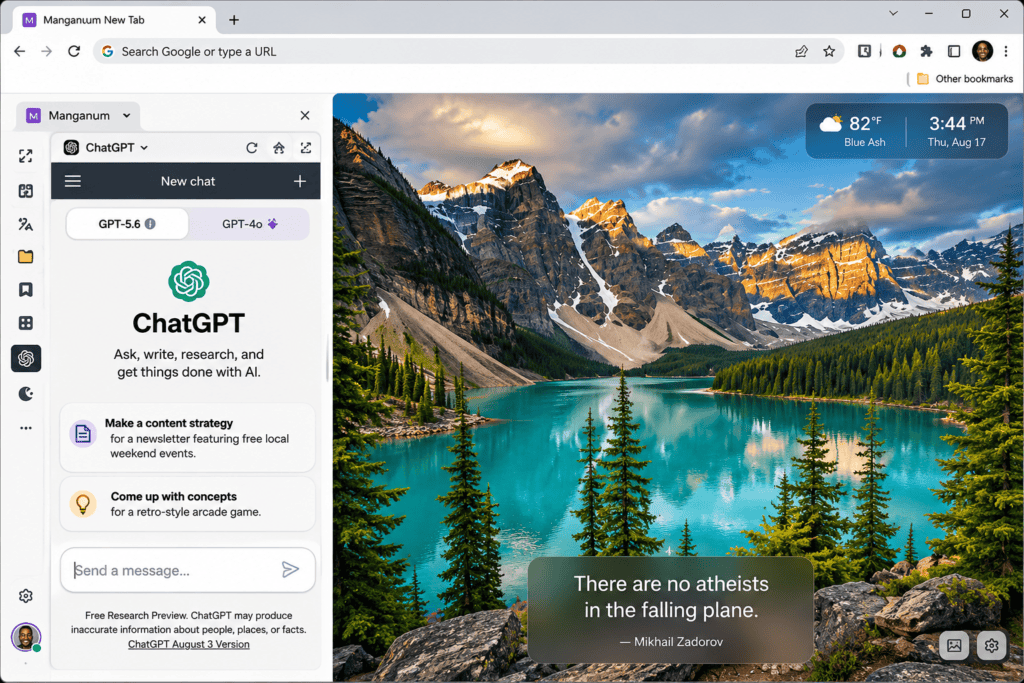
This is where ChatGPT Chrome extensions become an essential workflow upgrade. These browser add-ons embed AI assistance directly into the web pages and SaaS applications you already use. Depending on the tool you choose, these extensions allow you to:
- Summarize long-form articles and PDFs inline
- Draft and reply to emails instantly inside your webmail client
- Refine grammar and alter tone across writing fields
- Retrieve contextual web data and perform deep research
- Manage, organize, and execute advanced prompt libraries
- Access multi-model ecosystems (including ChatGPT, Claude, and Gemini) without leaving your current tab
By bridging the gap between your browser environment and large language models, ChatGPT Chrome extensions eliminate context switching and maximize productivity across every daily digital touchpoint.
What Are ChatGPT Chrome Extensions?
ChatGPT Chrome extensions are browser add-ons that integrate ChatGPT or compatible AI assistants directly into your Google Chrome browsing experience, embedding AI capabilities straight into the web pages and applications you already use.
Instead of constantly switching back and forth between a separate ChatGPT browser tab and your work, these extensions allow you to interact with large language models inline. Depending on the specific tool, they typically provide sidebars, popup interfaces, context-menu integrations, or direct writing assistants.
Core Capabilities and Use Cases
- Inline Summarization: Instantly generate summaries of lengthy articles, research documents, or YouTube videos without copying and pasting text.
- Email & Content Drafting: Draft professional replies, adjust tone, or compose messages directly inside webmail clients and text editors.
- Grammar & Style Editing: Review and refine grammar, vocabulary, and sentence structure across any online text field.
- Prompt Management: Access organized libraries of reusable prompts for marketing, coding, or data analysis without leaving your current tab.
- Multi-Model Access: Many independent, third-party extensions allow you to switch between ChatGPT, Claude, and Gemini from a single interface.
Important Distinction
Most available extensions are independent, third-party tools rather than official OpenAI products. They connect to ChatGPT via APIs or provide multi-model access. Always verify which underlying AI model is being used and whether the extension requires its own subscription, API key, or account login.
Quick Comparison: The 11 Best ChatGPT Chrome Extensions
To help you choose the right browser companion for your specific workflow, here is a breakdown of the top ChatGPT Chrome extensions, what they do best, and their primary use cases.
| Extension | Best For | Main Purpose |
| ChatGPT by OpenAI | Browser assistance | Official extension for quick, direct interaction with webpages. |
| ChatGPT Search | AI-powered search | Integrating conversational AI directly into your Chrome address bar. |
| AIPRM | Prompt engineering | Accessing, sharing, and organizing professional prompt templates. |
| Sider | Everyday productivity | Floating AI sidebar supporting multi-model access (ChatGPT, Claude, Gemini). |
| HARPA AI | Browser automation | Complex research, webpage workflows, and web monitoring. |
| Merlin AI | Writing and research | Summarizing text, rewriting content, and drafting across web apps. |
| Monica | All-in-one AI assistance | Comprehensive writing, research, and standalone AI agent workflows. |
| Jetwriter AI | Email writing | Specialized drafting and refining of professional messages. |
| YouTube Summary with ChatGPT & Claude | Video learning | Instantly summarizing YouTube videos and lengthy articles. |
| SciSpace | Academic research | Analyzing, explaining, and extracting insights from scientific papers. |
| GPT Workspace | Office productivity | Integrating AI directly into Google Workspace (Docs, Sheets, Gmail). |
ChatGPT by OpenAI
- Best for: Bringing ChatGPT directly into browser-based workflows.
- Official Resource: ChatGPT Chrome Extension
The official ChatGPT Chrome extension is developed by OpenAI to bridge the gap between your web browsing and your AI assistant. Rather than treating your browser and AI interface as entirely separate environments, this extension connects ChatGPT directly with supported browser workflows.
Key Features
- Browser Integration: Access ChatGPT seamlessly via a dedicated browser extension interface.
- Webpage Interaction: Ask questions directly about active webpages and browser tabs.
- Contextual Work: Leverage information from supported websites for real-time analysis.
- Workflow Support: Streamline browser-based research, content organization, and productivity tasks.
- Desktop Synchronization: Connect your browser activity with the official ChatGPT desktop experience.
Note on Compatibility
This tool goes beyond a basic standalone popup. Its advanced browser-control capabilities depend heavily on the official desktop application, specific configuration settings, and explicit system permissions. Always verify current compatibility requirements before installing.
How to Use It
- Visit the Chrome Web Store: Step 1.
- Navigate to the official ChatGPT extension listing in the Chrome Web Store.
- Verification: You are on the verified extension page published by OpenAI.
- Add to Chrome: Step 2.
- Click Add to Chrome and review the requested extension permissions in the prompt.
- Verification: Confirm the installation to add the extension toolbar icon.
- Configure Desktop Settings: Step 3.
- Open your ChatGPT desktop application and locate the browser or Computer Use settings.
- Verification: Settings panel reflects the correct linking options.
- Complete the Connection: Step 4.
- Follow the on-screen setup instructions to link your browser activity with the desktop app.
- Verification: Status indicator shows your browser successfully connected.
- Run a Web Workflow: Step 5.
- Open any supported website and invoke ChatGPT to assist with your active page tasks.
Practical Example
Suppose you are researching remote job opportunities across multiple boards. You can use the extension’s browser capabilities to examine relevant job postings, parse requirements, organize salary insights, and compare opportunities without constantly copying and pasting text back and forth.
ChatGPT Search
- Best for: People who want to use ChatGPT directly from Chrome’s address bar.
- Official Resource: ChatGPT Search on the Chrome Web Store
ChatGPT Search is an official OpenAI Chrome extension that alters your browser workflow by making ChatGPT Search your default search engine. Instead of navigating to a separate website or relying strictly on traditional search engine results pages, you can type your query directly into Chrome’s address bar and instantly receive a conversational, AI-generated response complete with citations to relevant web sources.
Key Features
- Omnibox Integration: Replaces your default Chrome search engine with ChatGPT Search for seamless querying.
- Natural Language Queries: Ask complex, conversational questions rather than relying on rigid keyword strings.
- Synthesized Answers: Receive cohesive AI-generated summaries built from multiple live web sources.
- Source Citations: Explore transparent links back to the original online references and publishers.
- Quick Fallback: Easily bypass the default search engine for a single query by using the
!gshortcut to redirect your search to Google.
How to Use It
- Open the Chrome Web Store: Step 1.
- Navigate to the official ChatGPT Search extension listing in the Chrome Web Store.
- Verification: You are viewing the verified OpenAI extension page.
- Install the Extension: Step 2.
- Click Add to Chrome and confirm the permissions prompt to add the extension to your browser.
- Verification: The extension icon appears in your toolbar.
- Authenticate Your Account: Step 3.
- Log in to your active ChatGPT account at chatgpt.com to link your profile.
- Verification: Your session is active and recognized by the extension.
- Execute an Address Bar Search: Step 4.
- Click into Chrome’s address bar (omnibox), type a natural language question, and press Enter.
- Verification: Your browser redirects to the ChatGPT Search results view.
- Review Responses and Sources: Step 5.
- Read the synthesized AI response and click the inline citation links to verify the underlying sources.
Practical Example
Suppose you are researching the macro-economic benefits of remote work. Instead of typing keywords into traditional search engines and opening half a dozen separate tabs to piece together data, you can type a direct question into your address bar.
ChatGPT Search aggregates the core points, structures the answer, and provides direct links to the relevant studies and articles in one unified view.
AIPRM
- Best for: Bloggers, digital marketers, SEO professionals, and prompt engineering enthusiasts.
- Official Resource: AIPRM on the Chrome Web Store
AIPRM (Artificial Intelligence Prompt Revenue Model) is a robust prompt management extension designed to streamline how you use ChatGPT for recurring professional tasks.
Instead of engineering complex prompts from scratch every time you start a new chat, AIPRM gives you direct access to a community-driven and curated library of ready-made prompt templates tailored specifically for business, marketing, SEO, and sales.
Key Features
- Extensive Prompt Library: Browse thousands of pre-built prompt templates categorized by function, topic, and popularity.
- Specialized Use Cases: Access battle-tested templates for SEO optimization, blogging, copywriting, sales outreach, and email marketing.
- Custom Prompt Management: Save your own favorite prompts, organize them, and reuse them across sessions.
- Team Prompt Sharing: Share standardized prompts with team members to maintain consistent output quality and brand voice across organizations.
- Variable Inputs: Easily fill in custom placeholders within community templates to adapt them to your specific data.
How to Use It
- Visit the Chrome Web Store: Step 1.
- Navigate to the AIPRM extension listing in the Chrome Web Store.
- Verification: You are on the verified AIPRM extension page.
- Install the Extension: Step 2.
- Click Add to Chrome and confirm the permissions prompt to install it.
- Verification: The AIPRM interface integrates directly into your chatgpt.com view upon opening.
- Authenticate Your Account: Step 3.
- Create a new AIPRM account or sign in to your existing one to link the extension.
- Verification: Your account profile displays correctly in the extension dashboard.
- Open ChatGPT: Step 4.
- Navigate to chatgpt.com to see the modified prompt selection interface overlaying the chat window.
- Verification: AIPRM template categories and search bars appear above the text input box.
- Select a Template: Step 5.
- Filter or search the library for a template matching your workflow (e.g., SEO, marketing, or coding).
- Verification: Clicking a template populates the input box with the structured prompt template.
- Fill Variables and Submit: Step 6.
- Complete any required bracketed variables in the prompt text, then submit your query to generate the response.
Practical Example
A blogger working on a content expansion strategy can use an SEO-focused AIPRM template to instantly generate a comprehensive article outline, semantic keyword suggestions, and FAQs based on a single seed topic.
Similarly, a digital marketer can leverage specialized templates to quickly draft high-converting social media captions, ad copy variations, or meta descriptions without having to rewrite prompt frameworks manually.
Sider
- Best for: People who want multiple AI assistants in one browser sidebar.
- Official Resource: Sider on the Chrome Web Store
Sider is a comprehensive, multi-model AI browser extension designed to eliminate the need for juggling separate chatbot tabs. By embedding a floating sidebar directly into your Google Chrome environment, Sider gives you instantaneous access to leading frontier models—including ChatGPT, Claude, Gemini, and DeepSeek—from a single unified workspace.
Key Features
- Multi-Model Access: Switch instantly between top-tier AI models or run parallel queries to evaluate different model outputs.
- Context-Aware Sidebar: Interact directly with active web pages, PDFs, and long-form articles without copying and pasting text.
- Writing & Editing Tools: Rewrite sentences, adjust tone, check grammar, and generate content outlines inline.
- Video & Document Summarization: Instantly condense YouTube videos, research papers, and multi-page PDFs into structured executive takeaways.
- Prompt Management: Save and organize custom prompt templates, deploying them instantly across any web input field using shortcut commands.
How to Use It
- Navigate to the Chrome Web Store: Step 1.
- Open the official Sider extension listing in the Chrome Web Store.
- Verification: You are viewing the verified Sider extension page published by Vidline Inc.
- Install the Extension: Step 2.
- Click Add to Chrome and accept the permissions prompt to install the sidebar.
- Verification: The Sider icon appears pinned in your browser toolbar.
- Create or Sign In: Step 3.
- Log in or create your Sider account to activate your daily usage credits.
- Verification: Your account tier and credit status display in the sidebar panel.
- Open a Webpage and Launch the Sidebar: Step 4.
- Navigate to any article, document, or video you wish to work with and click the Sider toolbar icon to open the side panel.
- Verification: The sidebar slides out on the right side of your browser window.
- Select Your Model and Query: Step 5.
Choose your preferred AI model from the dropdown menu, then type your prompt or click a quick-action button to summarize or analyze the active page.
Practical Example
A content creator researching a complex technical topic can ask ChatGPT to draft an initial article outline inside the Sider sidebar, switch instantly to Claude to critique the structural logic and tone, and cross-reference a specific data point using Gemini—all without opening a single new browser tab or losing context on the source page.
HARPA AI
- Best for: Browser automation, deep research, and repetitive online workflows.
- Official Resource: HARPA AI on the Chrome Web Store
HARPA AI is an advanced browser automation and AI assistant extension designed to take your workflow beyond simple chat interactions.
By combining large language models (including ChatGPT, Claude, and Gemini) with powerful browser automation primitives, HARPA acts as a hybrid personal assistant capable of scraping data, monitoring websites, executing macros, and analyzing active web pages in real time.
Key Features
- Webpage & Document Context: Instantly parse, summarize, and extract data from open webpages, long-form PDFs, and YouTube videos.
- Browser Automation & Macros: Build custom, step-by-step automation workflows to navigate web applications and execute repetitive tasks.
- Website & Price Monitoring: Set automated checks to track page updates, competitor pricing drops, stock availability, and content changes, alerting you instantly.
- Multi-Model Connectivity: Connect to ChatGPT (via API or session tokens), Claude, Gemini, or local models.
- Predefined AI Commands: Utilize hundreds of built-in macros for content generation, marketing analysis, data extraction, and web research.
How to Use It
- Visit the Chrome Web Store: Step 1.
- Navigate to the official HARPA AI extension listing in the Chrome Web Store.
- Verification: You are viewing the verified HARPA AI extension page.
- Install the Extension: Step 2.
- Click Add to Chrome and accept the permissions prompt to add the extension toolbar icon.
- Verification: The HARPA icon appears in your toolbar.
- Open the Assistant: Step 3.
- Click the HARPA icon or use the keyboard shortcut (
Alt+AorCmd+Adepending on configuration) to open the interface. - Verification: The HARPA command bar overlays your active page.
- Click the HARPA icon or use the keyboard shortcut (
- Configure Your AI Connection: Step 4.
- Select your preferred AI provider, connecting via your ChatGPT account, API key, or alternative supported models.
- Verification: Connection status shows as active in the settings menu.
- Run a Command or Monitor: Step 5.
- Activate page-aware mode to analyze the current site, select a pre-built macro, or configure a web monitoring rule.
Practical Example
Suppose you need to track pricing shifts and content updates across several competitor web pages daily. Instead of manually navigating to each site, checking layouts, and logging data, you can configure HARPA AI to monitor those specific URLs automatically.
The extension runs in the background, parses the structural changes, and notifies you or summarizes the updates directly in your workspace.
Merlin AI
- Best for: Writing, research, summarization, and everyday multi-model AI assistance.
- Official Resource: Merlin AI on the Chrome Web Store
Merlin AI is a multi-model AI browser assistant that aggregates top-tier language models—including OpenAI’s GPT, Anthropic’s Claude, Google’s Gemini, and DeepSeek—into a single interface.
Designed to streamline web workflows, it allows you to query, analyze, and generate text directly inside any active browser tab using a convenient keyboard shortcut (Ctrl+M or Cmd+M).
Key Features
- Multi-Model Access: Switch dynamically between leading AI architectures without needing multiple browser tabs or distinct subscriptions.
- Webpage & Video Summarization: Instantly condense long-form articles, research documentation, and YouTube video transcripts into core actionable highlights.
- Inline Writing & Editing: Rewrite text, adjust professional tones, translate languages, and draft responses directly inside webmail clients (like Gmail) and social media fields.
- Specialized AI Utilities: Access over 70 built-in micro-tools ranging from code explanation and data extraction to content optimization.
- Prompt Management: Save and organize custom prompt templates for recurring professional workflows.
How to Use It
- Navigate to the Chrome Web Store: Step 1.
- Open the official Merlin AI extension listing.
- Verification: You are viewing the verified Foyer Tech extension page.
- Install the Extension: Step 2.
- Click Add to Chrome and pin the extension to your toolbar for fast access.
- Verification: The Merlin icon appears in your toolbar.
- Create an Account: Step 3.
- Sign up or log in to initialize your account and unlock free daily model queries.
- Verification: Your tier status and credits display upon opening the widget.
- Summon Merlin on Any Webpage: Step 4.
- Navigate to any website or document and press
Ctrl+M(Windows) orCmd+M(Mac) to open the interface. - Verification: The chat overlay appears on your active screen.
- Navigate to any website or document and press
- Select Your Model and Task: Step 5.
- Choose your desired AI model from the menu, then type your prompt or click a quick-action button to summarize or rewrite text.
Practical Example
A student or researcher reading a dense academic paper online can summon Merlin via keyboard shortcut to generate a section-by-section breakdown and explain complicated technical definitions.
Meanwhile, a content creator can leverage the extension to automatically draft multiple alternative iterations of a social media caption or email response right inside their active workspace.
Monica AI
- Best for: All-in-one AI assistance, multi-model research, and productivity workflows.
- Official Resource: Monica on the Chrome Web Store
Monica is a feature-rich, all-in-one AI browser assistant designed to act as your virtual co-pilot across the web. Combining access to multiple frontier AI models (including OpenAI’s GPT models, Claude, and Gemini) with built-in utility tools like a prompt library, voice-based interaction, and autonomous AI agents, Monica handles complex research and content generation without requiring you to jump between tabs.
Key Features
- Multi-Model Ecosystem: Switch effortlessly between top-tier language models depending on the specific analytical or creative task at hand.
- Contextual Web Search & Summarization: Parse active web pages, PDFs, and long-form articles instantly to extract core insights or translate content on the fly.
- AI Copilot & Agents: Utilize autonomous agents to execute multi-step research or data retrieval tasks in the background.
- Prompt Library: Save, organize, and quickly deploy custom prompt templates for recurring tasks.
- Voice Interaction: Speak your queries directly into the extension for hands-free assistance.
- Content Generation: Brainstorm outlines, write essays, draft marketing copy, and structure presentation frameworks inline.
How to Use It
- Navigate to the Chrome Web Store: Step 1.
- Open the official Monica extension listing.
- Verification: You are viewing the verified Monica extension page.
- Install the Extension: Step 2.
- Click Add to Chrome and confirm the permissions prompt to install the extension.
- Verification: The Monica icon appears in your browser toolbar.
- Create an Account: Step 3.
- Sign up or log in with your credentials to activate your account and initialize daily query credits.
- Verification: Your account dashboard and credit balance load in the side panel.
- Open the Sidebar: Step 4.
- Navigate to any webpage or document and click the extension icon or use the shortcut key to open the sidebar.
- Verification: The Monica copilot interface slides out on your screen.
- Select Model and Execute: Step 5.
- Choose your desired AI model from the model selector menu, input your prompt, or click a quick-action button to summarize or analyze the page.
Practical Example
A professional preparing an executive presentation can use Monica to quickly pull research notes from multiple online articles, synthesize the key statistics, and structure a comprehensive presentation outline.
Similarly, a student can leverage the extension to instantly translate foreign text or break down difficult technical concepts into digestible explanations without leaving their study portal.
Jetwriter AI (Formerly ChatGPT Writer)
- Best for: Writing emails and improving everyday communication.
- Official Resource: Jetwriter AI on the Chrome Web Store
Jetwriter AI—formerly known widely as ChatGPT Writer—is a specialized, highly focused browser extension engineered specifically to streamline email composition, messaging, and everyday professional correspondence.
Rather than acting as a broad, multi-purpose chatbot, Jetwriter embeds itself directly into your webmail client (such as Gmail) to generate context-aware replies and refine text instantly.
Key Features
- Email Draft Generation: Instantly draft comprehensive emails from brief seed instructions.
- Contextual Reply Creation: Read incoming threads and generate accurate, professional responses with a single click.
- Grammar & Spelling Correction: Automatically detect and fix syntax errors, awkward phrasing, and spelling mistakes.
- Tone & Style Editing: Adjust the tone of your correspondence (e.g., shifting from casual to formal) to match your professional context.
- Cross-Platform Compatibility: Operates smoothly across Gmail and other supported Chromium-based web mail clients and text interfaces.
How to Use It
- Open the Chrome Web Store: Step 1.
- Navigate to the Jetwriter AI extension listing in the Chrome Web Store.
- Verification: You are viewing the official extension page.
- Install the Extension: Step 2.
- Click Add to Chrome and confirm the permissions prompt to complete the installation.
- Verification: The Jetwriter icon appears in your toolbar.
- Open Your Email Client: Step 3.
- Navigate to Gmail or your preferred supported webmail application. (If your browser tab was already open prior to installation, reload the page).
- Verification: The Jetwriter assistant icon appears inside your compose or reply window.
- Invoke the Assistant: Step 4.
- Open the Jetwriter writing interface by clicking its inline icon within the email composer.
- Verification: The prompt input box pops up over your message thread.
- Generate and Review: Step 5.
- Type your bullet-point instructions or select a reply command, generate the text, and review the output for accuracy and tone before inserting it into your message.
Practical Example
Imagine receiving a complex project update request from a client right before a meeting. Instead of manually drafting an email from scratch, you can invoke Jetwriter AI directly inside your Gmail reply window, bullet out three quick status updates, and have the extension instantly construct a polished, professional response tailored to your client’s exact questions.
Important Note on Quality Control
AI writing assistants require human oversight. Always review generated messages for accuracy, appropriate tone, and context before sending important professional emails.
YouTube Summary with ChatGPT & Claude
- Best for: Students, researchers, and anyone who learns through video and long-form web content.
- Official Resource: YouTube Summary with ChatGPT & Claude on the Chrome Web Store
Developed by Glasp, YouTube Summary with ChatGPT & Claude is a specialized browser extension designed to eliminate the friction of watching lengthy videos or reading exhaustive web documents. By extracting transcripts and leveraging large language models, it instantly condenses hours of video into actionable, structured notes.
Key Features
- Instant Video Transcripts & Summaries: Automatically extract video transcripts and generate comprehensive summaries with a single click.
- Timestamp-Based Navigation: Jump directly to specific moments in a video using clickable timestamps embedded within the generated summary notes.
- Multi-Format Support: Summarize online articles, blog posts, and PDF documents alongside YouTube videos.
- Multi-Model Integration: Choose between supported AI backends (including ChatGPT and Claude) to process and format the output.
- Customizable Settings: Adjust summary length and formatting preferences to suit your exact study or research needs.
How to Use It
- Navigate to the Chrome Web Store: Step 1.
- Open the YouTube Summary with ChatGPT & Claude extension listing.
- Verification: You are viewing the verified Glasp extension page.
- Install the Extension: Step 2.
- Click Add to Chrome and accept the permissions prompt to complete the installation.
- Verification: The extension integration elements load into your browser.
- Open YouTube: Step 3.
- Navigate to YouTube and select any video you want to review.
- Verification: A transcript and summary box appears on the top-right corner of the YouTube video player interface.
- Generate and Review: Step 4.
- Click the summary button to parse the transcript, then review the core takeaways and clickable timestamps.
- Navigate by Timestamp: Step 5.
- Click any timestamp link in the summary to jump straight to that exact moment in the video for deeper review.
Practical Example
A student studying a complex, one-hour university lecture recording online can use the extension to generate a comprehensive structural outline of the talk. Instead of re-watching the entire video, they can scan the key topics, click a timestamp to inspect a specific difficult segment, and save hours of study time.
Important Limitation
Summaries are strictly dependent on the availability and accuracy of native video transcripts or closed captions, as well as the underlying AI model processing. They may occasionally omit nuanced context or qualifications; always consult the primary video source when absolute accuracy is required.
SciSpace
- Best for: Academic research and understanding technical information.
- Official Resource: SciSpace on the Chrome Web Store
SciSpace provides an advanced AI-powered research assistant through its Chrome extension, purpose-built for students, academic researchers, and technical professionals who regularly read scholarly papers, scientific studies, and complex documentation. Instead of getting bogged down by dense terminology or obscure jargon, users can interact directly with the text to get instant clarity.
Key Features
- In-Context AI Assistance: Read web-based papers and PDFs while interacting with an integrated research copilot.
- Inline Terminology Breakdown: Highlight any unfamiliar word, sentence, or complex paragraph to generate a plain-English explanation.
- Math & Table Interpretation: Decode complicated mathematical expressions, formulas, and data tables directly within technical documents.
- Interactive Q&A: Ask conversational follow-up questions to probe deeper into methodology, findings, or conclusions.
- Multilingual Support: Access research assistance and explanations across multiple languages.
How to Use It
- Navigate to the Chrome Web Store: Step 1.
- Open the official SciSpace extension listing.
- Verification: You are viewing the verified SciSpace extension page.
- Install the Extension: Step 2.
- Click Add to Chrome and complete the browser installation prompt.
- Verification: The SciSpace icon appears in your extension toolbar.
- Sign In: Step 3.
- Log in to your SciSpace account to activate your research copilot session.
- Verification: Your account profile is recognized by the extension.
- Open an Academic Document: Step 4.
- Navigate to any research paper, preprint, or technical article online (such as arXiv, PubMed, or PDF repositories).
- Verification: The SciSpace copilot widget initializes along the side of the document.
- Highlight and Explain: Step 5.
- Highlight a difficult paragraph, mathematical expression, or technical term, then select the prompt option to explain the selected content.
Practical Example
A university student reading a complex machine learning paper on arXiv encounters a dense mathematical formula and heavy academic jargon. Using SciSpace, they can highlight the passage to receive an immediate, simplified breakdown of the concepts, letting them grasp the core methodology without losing momentum in their research.
Important Limitation
AI-generated explanations and summaries are designed to assist comprehension, not replace rigorous academic due diligence. Always check the original research text, methodology sections, and cited sources before relying on conclusions for professional or academic work.
GPT Workspace
- Best for: Professionals who work extensively with Google Docs, Sheets, Slides, and Gmail.
- Official Resource: GPT Workspace on the Chrome Web Store
GPT Workspace is a productivity-focused extension that embeds GPT-powered AI assistance directly into the core Google Workspace suite. Rather than forcing you to move data back and forth between a separate chatbot tab, it integrates seamlessly into your native web editors to accelerate document creation, data manipulation, slide generation, and email management.
Key Features
- Google Docs Assistance: Draft, rewrite, summarize, and polish text directly within your Google Documents.
- Google Sheets Integration: Clean data, categorize information, translate text, and generate custom AI formulas and summaries inside spreadsheets.
- Google Slides Generation: Create presentation structures, outlines, and slide content automatically.
- Gmail Management: Compose, edit, and reply to emails instantly inside your webmail interface.
- Data Extraction & Transformation: Parse unstructured text into structured rows and columns or translate content effortlessly.
How to Use It
- Navigate to the Chrome Web Store: Step 1.
- Open the official GPT Workspace extension listing.
- Verification: You are viewing the verified extension page.
- Install the Extension: Step 2.
- Click Add to Chrome and complete the browser installation and permissions prompt.
- Verification: The GPT Workspace icon appears in your toolbar.
- Sign In: Step 3.
- Log in or create your GPT Workspace account to initialize your session.
- Verification: Your account status is active.
- Open a Workspace App: Step 4.
- Navigate to Google Docs, Sheets, Slides, or Gmail.
- Verification: The GPT Workspace extension sidebar or menu integration loads within the application UI.
- Execute Instructions: Step 5.
- Open the assistant interface, type your prompt or task instructions, and review the generated output directly inside your document, sheet, or email.
Practical Example
A business owner working with a dense sales report in Google Sheets can use GPT Workspace to clean up unformatted entries, categorize customer feedback data, and generate executive summaries directly within the spreadsheet cells. Similarly, a blogger can leverage the extension inside Google Docs to expand article outlines or refine tone without changing tabs.
Important Limitation
GPT Workspace is an independent third-party tool rather than an official OpenAI or Google product. Some advanced Workspace features may require a paid subscription or tier upgrade. Always review your organization’s data-handling and privacy terms before using third-party extensions with confidential business documents.
How to Install a ChatGPT Chrome Extension
Installing a browser add-on to supercharge your workflow takes less than a minute. Follow these steps to install and configure any of the ChatGPT Chrome extensions covered in this guide:
- Open the Chrome Web Store: Step 1.
- Navigate to the official Chrome Web Store.
- Search for the Extension: Step 2.
- Type the exact name of the extension you want to install (such as AIPRM, Sider, or Merlin AI) into the store search bar.
- Check the Extension Details: Step 3.
- Before hitting install, verify the extension’s authenticity and security by examining:
- The verified developer’s identity.
- User ratings and recent user reviews.
- Total active user count.
- The date of the last software update.
- Requested browser permissions.
- Privacy and data-handling disclosures.
- Before hitting install, verify the extension’s authenticity and security by examining:
- Add the Extension to Chrome: Step 4.
- Click Add to Chrome and carefully review the permission prompt popup. If you trust the developer and agree to the required permissions, select Add extension.
- Pin the Extension for Fast Access: Step 5.
- Click the puzzle-piece Extensions icon in the top-right corner of Chrome’s toolbar, locate your newly installed tool, and click the Pin icon so it remains visible for one-click access.
- Sign In and Configure: Step 6.
- Many extensions require an account login, an external API key (such as an OpenAI or Anthropic key), or a connection to an AI provider. Follow the developer’s on-screen setup instructions to complete initialization.
- Test the Extension: Step 7.
- Open a live webpage, document, or email client and run a low-stakes test task—such as summarizing a single paragraph or rewriting a short message—to verify everything is working smoothly before diving into advanced workflows.
Are ChatGPT Chrome Extensions Safe to Use?
While ChatGPT Chrome extensions offer powerful productivity boosts, installing any browser add-on requires granting permissions that give the developer access to your browsing environment.
Because many of these extensions need to read webpage text in order to summarize articles, correct writing, or interact with web applications, they often request permission to “read and change all your data on the websites you visit.” While legitimate tools require this to function, it means security, data privacy, and developer trustworthiness are critical factors to evaluate before clicking install.
Essential Security Best Practices
- Check the Developer’s Identity: Verify the Publisher.
- Only install ChatGPT Chrome extensions directly from their official Chrome Web Store listings. Verify the publisher name against the official brand website to avoid lookalike or malicious extensions.
- Review Requested Permissions: Scrutinize Permissions.
- Pay close attention to what data the extension asks to access. Be extremely cautious of tools requesting broad permissions like browsing history or access to sensitive web apps unless fully justified by the tool’s core utility.
- Read the Data-Handling Disclosures: Inspect Privacy Policies.
- Review the developer’s privacy policy to understand what text, personal data, or usage metrics are collected, processed, and stored on external servers.
- Avoid Sharing Confidential Information: Protect Sensitive Data.
- Never input passwords, financial details, proprietary workplace data, or private client documents into third-party AI extensions unless the service is explicitly enterprise-approved and data-privacy compliant.
- Limit Website Permissions: Control Site Access.
- Where Google Chrome provides the option, restrict the extension’s access to “On click” or limit it strictly to the specific websites where you actively need it, rather than allowing universal access.
- Maintain Regular Updates: Keep Software Updated.
- Ensure your browser and extensions are updated to the latest versions. Developers frequently push security patches and compatibility fixes through updates.
- Remove Unused Extensions: Audit and Clean Up.
- Periodically audit your installed browser add-ons and immediately uninstall any extensions you no longer use or recognize.
Official Resource
For deeper technical guidelines, review Google’s official documentation on Chrome extension permissions and safety practices
Which ChatGPT Chrome Extension Should You Choose?
The best extension depends entirely on the specific friction points in your daily workflow. To help you choose the right tool without installing unnecessary add-ons, use this quick reference guide:
| Your Main Task | Recommended Extension |
| Browser-based ChatGPT workflows | ChatGPT by OpenAI |
| Searching with AI | ChatGPT Search |
| Finding and managing reusable prompts | AIPRM |
| Accessing multiple AI models (Sidebar) | Sider |
| Browser automation & monitoring | HARPA AI |
| Writing and summarizing webpages | Merlin AI |
| All-in-one AI assistance | Monica |
| Drafting professional emails | Jetwriter AI |
| Summarizing YouTube videos & articles | YouTube Summary with ChatGPT & Claude |
| Understanding academic research | SciSpace |
| Working with Google Docs & Sheets | GPT Workspace |
Recommendation for Your Setup
You do not need to install all 11 extensions. Start with just one or two that directly solve your most frequent bottlenecks. Installing too many overlapping extensions can lead to browser clutter, conflicting keyboard shortcuts, duplicate functionality, and unnecessary privacy risks.
Does ChatGPT have an official Chrome extension?
Yes. OpenAI provides official Chrome extensions, including the core ChatGPT extension and ChatGPT Search. Their functions differ: the primary ChatGPT browser extension supports connected browser workflows, while ChatGPT Search integrates conversational AI directly into Chrome’s address bar.
Are ChatGPT Chrome extensions free?
Many extensions offer robust free tiers, while others operate on a freemium or subscription-based model. Free access often includes daily usage caps, restricted model options, or limited feature sets. Always review current pricing terms directly on the developer’s official site or store listing.
Can I use ChatGPT in Chrome without installing an extension?
Yes. You can access ChatGPT directly in any browser tab by visiting chatgpt.com without installing any add-ons. Chrome extensions are entirely optional enhancements designed to bring AI directly into your active webpages and web applications.
Can ChatGPT Chrome extensions help with email writing?
Yes. Specialized tools like Jetwriter AI and GPT Workspace provide direct email drafting, editing, and reply generation inside webmail clients like Gmail. Several multi-purpose sidebar tools also support composing and refining emails. Always review AI-generated correspondence before sending.
Can I use ChatGPT Chrome extensions for research?
Yes. Extensions such as SciSpace, HARPA AI, and Merlin AI are engineered to help you read, extract data, and summarize online information. However, AI-generated summaries and academic explanations should always be verified against original sources.
Can I use ChatGPT Chrome extensions on my mobile phone?
Traditional Chrome extensions are built for desktop versions of Google Chrome. Standard mobile browsers on iOS and Android generally do not support desktop-style extension installations. If you want mobile AI workflows, check whether the developer offers dedicated mobile applications or native apps.
Do ChatGPT Chrome extensions require a ChatGPT Plus subscription?
Not necessarily. Requirements vary by developer. Some extensions provide their own independent AI backend or free usage pools, while others require a logged-in ChatGPT account, an active API key, or a separate paid subscription tier.
Can developers use ChatGPT Chrome extensions for coding?
Yes. Several extensions offer features for code explanation, debugging assistance, syntax rewriting, and technical Q&A. Tools like Merlin AI and HARPA AI can assist with programming tasks, though developers should always test and review generated code before pushing it to production environments.
Can ChatGPT Chrome extensions summarize YouTube videos?
Yes. The YouTube Summary with ChatGPT & Claude extension is built specifically for video and document summarization. Other multi-model assistants, including Merlin AI and HARPA AI, also offer video parsing features. Note that summary quality relies heavily on the availability and accuracy of native video transcripts.
Can I install multiple ChatGPT Chrome extensions?
Yes. Google Chrome allows you to install multiple extensions concurrently. However, avoid installing overlapping tools that perform identical functions, as redundant add-ons can cause conflicting keyboard shortcuts, browser clutter, and unnecessary data-privacy risks.
In Conclusion
ChatGPT Chrome extensions can make everyday browsing more productive by bringing AI assistance directly into the websites and applications you already use. Whether you are a student researching academic papers, a professional writing emails, a blogger creating content, or a business owner working with spreadsheets, there is a tailored tool to support your workflow.
- For general browser assistance: Start with the official ChatGPT extension.
- For advanced prompt management: Consider AIPRM.
- For academic research: Explore SciSpace.
- For Google Workspace integration: GPT Workspace is an ideal addition.
Remember that installing more extensions does not automatically make you more productive. Choose tools based on your actual workflow bottlenecks, review their permissions carefully, and always verify AI-generated information before relying on it.
Your Next Step
Choose one extension from this guide, install it from its official source, and test it on a real task you perform regularly. That is the most practical way to discover whether AI-powered browser tools can genuinely improve your daily output.