Best Digital Planners for Productivity, Work, and Study
The best digital planners depend heavily on your device ecosystem, preferred workflow, and budget. Tablet users who prefer a tactile, handwritten workflow can use hyperlinked PDF planners in apps like GoodNotes, Notability, or Xodo for an authentic, paper-like experience.
Conversely, professionals and students who need seamless cross-platform syncing, automated reminders, and team collaboration can use dedicated digital planners built as software suites—such as TickTick, Todoist, Notion, and ClickUp—for robust automation and deep calendar integration.
Who This Guide Is For
This evaluation helps students, remote professionals, freelancers, entrepreneurs, and productivity enthusiasts compare the best digital planners currently available across iPads, Android tablets, Windows PCs, and web browsers.
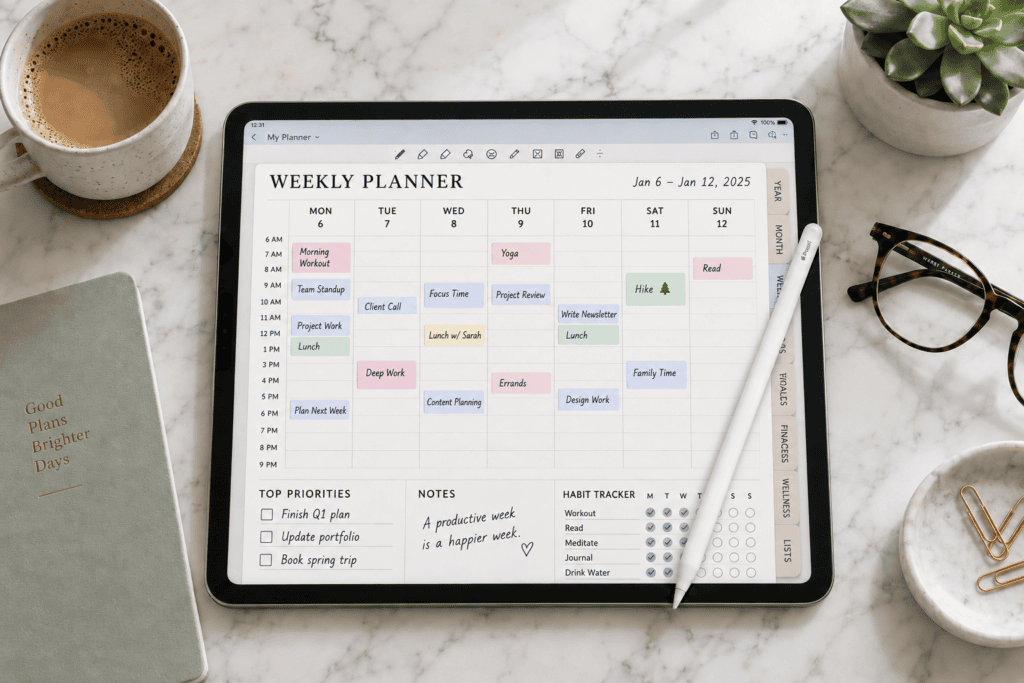
- Core coverage areas: How digital planning systems operate across app-based and PDF-annotated formats.
- Feature breakdown: Essential criteria including two-way calendar sync, task management, goal-tracking frameworks, hyperlinked navigation, and layout templates.
- Decision criteria: A direct mapping framework to help you select a planner that aligns with your specific hardware, workflow habits, and budget.
What is a digital planner?
A digital planner is a structured, interactive layout—traditionally delivered as a hyperlinked PDF—optimized for note-taking and PDF annotation apps on tablets, 2-in-1 laptops, and desktop computers. By importing the file into software like GoodNotes, Notability, Xodo, or Samsung Notes, you replicate the tactile feel of a physical notebook while gaining the speed of hyperlinked tabs that instantly jump between yearly, monthly, weekly, and daily views.
When evaluating the best digital planners, it is vital to distinguish between two distinct categories:
- Hyperlinked PDF Planners (Template-Based): Static, beautifully designed digital layouts that rely entirely on your note-taking app for handwriting, text entry, and page navigation. They do not natively auto-sync tasks to Google Calendar or Apple Calendar, though high-end versions feature embedded deep links to open external calendar apps directly on the tapped date.
- Dedicated Planner Software (Database-Driven): Productivity platforms (such as TickTick, Todoist, Notion, and ClickUp) are built around relational databases, automated reminders, and real-time, cross-device two-way calendar sync.
Selecting the best digital planner ultimately hinges on whether your workflow prioritizes the creative freedom of a handwritten notebook or the computational power of a database-driven productivity app.
Types of Digital Planners
The best digital planners typically fall into two distinct structural categories, each serving entirely different cognitive workflows, hardware setups, and productivity styles.
Hyperlinked PDF Planners (Note-Taking Apps)
- Best for: iPad and Android tablet users who prefer handwriting with a stylus and a tactile, paper-like workflow.
- How they work: You acquire a structured PDF template and import it into an annotation app like GoodNotes, Notability, Xodo, or Samsung Notes. You then use digital pens, highlighters, and text boxes to write out schedules and task lists, navigating between sections using embedded internal hyperlinks (tabs, index pages, and date links).
- Strengths: Highly customizable aesthetic layouts, support for digital stickers and inserts, one-time purchase models, and full offline functionality without cloud dependency.
- Limitations: Lack of native automated reminders, no true two-way calendar sync, platform-specific quirks (e.g., Android versions of GoodNotes may have limitations with hyperlink functionality), and manual archiving requirements.
Dedicated Planner Apps (Task & Calendar-Centric)
- Best for: Professionals, students, and teams who require automated reminders, recurring tasks, real-time collaboration, and multi-device cloud synchronization.
- How they work: You manage schedules and workloads inside dynamic software environments (such as TickTick, Todoist, Notion, or ClickUp). These platforms utilize relational databases, Kanban boards, time-blocking views, and native two-way integrations with Google Calendar, Outlook, and Apple Calendar.
- Strengths: Automated push notifications, recurring task loops, team-shared projects, universal web and mobile access, and lightning-fast global search filters.
- Limitations: Ongoing subscription models for advanced features, a steeper learning curve for flexible modular tools like Notion, and a distinctly digital interface that lacks the creative, handwriting-heavy feel of a physical notebook.
Top digital planners compared
Compare the best digital planners for productivity, work, and study based on their key features, platform compatibility, pricing, and ideal use cases. This comparison will help you quickly identify the right option for managing tasks, schedules, projects, goals, and academic responsibilities.
| Planner Type | Best For | Platforms | Free Tier | Paid Plans (approx.) | Key Features |
| GoodNotes | Note-taking app (use with PDF planners) | iPad, iPhone, Mac, Android, Windows, Web | 3 notebooks, 100 MB upload limit | Essential $11.99/yr; Pro $35.99/yr | Hyperlinked PDF support (iOS), templates, handwriting search, cross-device sync |
| Notability | Note-taking app | Audio notes + handwriting, iPad users | iPad, iPhone, Mac, Android, Web | Limited free tier | Subscription (varies by region) |
| Xodo | PDF editor/annotation | Android/iOS tablet annotation, students | Web, iOS, Android | Free trial available | From ~$4.99/user/month |
| TickTick | Planner app | Balanced tasks + calendar + habits | Web, iOS, Android, Mac, Windows | Basic tasks, calendar view, habits, Pomodoro | Premium ~$35.99/yr |
| Todoist | Planner app | Checklist-style planning, quick capture | Web, iOS, Android, Mac, Windows | Free (limited) | From ~$6/mo (or $5/mo billed annually) |
| Notion | All-in-one workspace | Flexible databases, students, creators | Web, iOS, Android, Mac, Windows | Free for personal use | Plus $10/user/month (annual) |
| ClickUp | Work management | Teams, custom workflows, time tracking | Web, iOS, Android, Mac, Windows | Free plan available | From ~$7/user/month |
Best for Students (Classes, Assignments, Exams)
Choosing the best digital planner as a student depends heavily on whether your study style relies on handwriting lecture notes or managing structured assignment databases. The top options for academic workflows include:
- GoodNotes (+ Hyperlinked PDF Planner): The premier choice for iPad and Android tablet users who want a tactile, paper-like note-taking experience. You can handwrite lecture notes, map out assignment trackers, and organize exam timetables inside a single aesthetic notebook. The free tier supports up to three notebooks, while paid tiers unlock unlimited notebooks and advanced search features.
- Notion (Free for Students): The gold standard for modular, database-driven organization. Using student-specific templates, you can track course modules, assignment deadlines, reading lists, and group projects in one unified workspace. Its built-in calendar and board views make visualizing a complex semester schedule effortless, and the robust free tier easily handles individual academic workloads.
- TickTick (Free Tier & Premium): Perfect for students who struggle with time management and focus. It combines simple task lists with built-in habit trackers (ideal for daily study blocks) and a native Pomodoro timer to enforce deep work sessions. Upgrading to premium unlocks advanced calendar views and task duration tracking for precision time-blocking.
Best for Professionals and Remote Workers
Professionals and remote workers need tools that handle fast-moving deliverables, client meetings, and cross-device synchronization without friction. The best digital planners for professional and remote environments include:
- Todoist: The premier choice for fast task capture and checklist-driven workflows. Its natural language input lets you type “Review quarterly report every Friday at 3 pm” and instantly schedules it. Robust cross-platform apps and lightning-fast syncing ensure you can manage your daily deliverables seamlessly from a desktop or mobile device.
- ClickUp: Built specifically for team environments, complex projects, and remote collaboration. It features visual Kanban boards, built-in time tracking, and a dedicated Planner view that merges calendar scheduling and task management into a single interface to eliminate app switching.
- Notion: The ultimate workspace for freelancers, consultants, and solo entrepreneurs who want to centralize their operations. You can combine a custom CRM, project tracker, resource library, and content calendar into one modular dashboard, utilizing pre-built templates to minimize setup time.
Best for iPad and Android Tablet Users
Device ecosystems dictate how effectively you can utilize hyperlinked PDFs and stylus-driven interfaces. The best digital planners for tablet users vary significantly depending on whether you operate within the Apple ecosystem or use Android hardware:
- iPad (GoodNotes & Notability): GoodNotes and Notability are the undisputed leaders for handwriting-first planning on iOS. GoodNotes provides seamless support for hyperlinked PDFs, turning static templates into fully interactive planners, while Notability stands out by letting you sync audio recordings directly to your handwritten meeting notes. Both apps sync effortlessly across iPads, iPhones, and Macs.
- Android Tablets (Xodo): Because Android versions of GoodNotes currently lack robust support for hyperlinks—forcing users to rely on manual scrolling or bookmarks—Xodo serves as the superior PDF annotation engine for hyperlinked planners on Android and Windows tablets. It offers fast document rendering, multi-layer pen tools, and stable performance for large PDF files.
- Cross-Platform Access: GoodNotes has expanded to Windows and web browsers, enabling cross-platform access outside of Apple hardware, though feature parity and separate licensing models may apply depending on your operating system.
Free vs Paid Digital Planners
Free digital planners provide basic tools for managing schedules, tasks, and goals, while paid options typically offer advanced templates, customization, integrations, and ongoing updates. Understanding these differences can help you choose the best digital planner for your needs and budget.
Free Options
- GoodNotes (Free Tier): Restricted to 3 notebooks and a 100 MB storage cap, suited exclusively for light, casual note-taking.
- Notion (Free Personal Plan): Comprehensive and scalable, offering unlimited pages, databases, and custom template access for solo users.
- TickTick (Free Plan): Delivers foundational task lists, a basic calendar view, and standard habit tracking.
- Hyperlinked PDF Planners (Freebies): Readily accessible via Etsy freebies or independent creator promotions, though usually restricted to a single calendar year or simplified design structure.
Paid Options
- Premium PDF Planners ($10 to $50 one-time purchase): Feature expansive multi-year bundles, integrated dark mode layouts, dedicated finance and meal trackers, and exhaustive hyperlinking architectures.
- App Subscriptions (Todoist, ClickUp, Notion Plus, TickTick Premium): Unlock advanced scheduling views, automated workflows, expanded cloud limits, and team collaboration frameworks.
Essential Features to Evaluate
When comparing the best digital planners, evaluate essential features such as device compatibility, calendar integration, task management, customization, templates, reminders, cloud syncing, collaboration tools, and offline access. The right combination of features should fit your daily routine, productivity goals, and preferred planning style.
- Calendars and Date Navigation: Monthly, weekly, and daily spreads featuring clickable index tabs for PDF planners, or dynamic grid layouts for application-based systems. Always verify whether the template or software supports your preferred weekly starting day (Sunday or Monday).
- Task Lists and Reminders: Dedicated productivity apps integrate native due dates, automated recurring tasks, and push notification alerts, whereas static PDF planners rely entirely on personal discipline or companion calendar applications.
- Goal Tracking and Habit Trackers: Look for specialized layouts, dedicated log pages, or relational databases designed to manage quarterly goals, daily habit grids, and visual progress bars.
- Hyperlinks and Templates: For hyperlinked PDF planners, test navigation smoothness and tap-target responsiveness within your specific annotation app. For software-driven tools, explore native template galleries to bypass manual setup friction.
- Synchronisation: Productivity applications automatically handle cross-device synchronization via the cloud. In contrast, PDF templates require cloud storage integration (such as iCloud or Google Drive) and must be accessed through the same application engine across endpoints.
- Compatibility: Confirm native software and format support across your operating system. For instance, GoodNotes hyperlinks currently lack full functionality on Android devices, and Notability’s document handling rules differ from GoodNotes.
Common Mistakes and How to Avoid Them
Choosing a digital planner without checking device compatibility, essential features, ease of use, or total cost can lead to wasted money and poor productivity. Understanding these common mistakes will help you select the right planner, avoid unnecessary features, and build a planning system you can use consistently.
- Buying a hyperlinked PDF without checking app compatibility: Always verify that your chosen annotation app supports functional hyperlinks on your specific hardware. Android GoodNotes users, for instance, should test layout behavior beforehand or opt for dedicated alternatives like Xodo or Noteshelf.
- Expecting PDF planners to sync directly to Google or Apple Calendar: Static PDF templates cannot execute two-way calendar synchronization. Use planners featuring embedded one-tap deep links or pair your template layout with a companion calendar application.
- Over-customising before building a consistent habit: Avoid spending hours formatting elaborate multi-page layouts right away. Start with a minimalist template—focusing solely on daily, weekly, and monthly views—and introduce specialized trackers only after two weeks of consistent daily usage.
- Ignoring backup and export protocols: Ensure your application permits standard PDF data export or automated cloud-based backups to protect against the catastrophic loss of an entire semester’s worth of notes and schedules.
How to Choose the Right Digital Planner
Choosing the right digital planner depends on your goals, daily routine, preferred device, budget, and planning style. Compare platform compatibility, ease of use, templates, task-management features, calendar integration, and syncing options to find a digital planner you can use consistently for work, study, or personal productivity.
- Identify your primary device and app ecosystem: Match your hardware setup to the optimal platform—such as an iPad with GoodNotes or Notability, an Android tablet with Xodo or Noteshelf, or a cross-platform software suite like TickTick, Todoist, or Notion.
- Decide between a handwriting or typed workflow: Choose hyperlinked PDF templates if you prefer a stylus and an authentic, paper-like note-taking experience. Choose dynamic software if you rely on automated reminders, push notifications, and cross-platform synchronization.
- List must-have features: Isolate your non-negotiable requirements, whether that includes multi-view calendars, recurring task loops, habit-tracking grids, team collaboration tools, or full offline access.
- Test free tiers first: Experiment with the GoodNotes free notebook allowance, Notion template galleries, or the TickTick free plan to evaluate usability before committing capital to paid alternatives.
- Check long-term support ecosystems: For hyperlinked PDF planners, source creators who offer consistent yearly bundle updates. For software applications, review historical pricing stability and multi-platform support roadmaps.
Do digital planners work on Android tablets?
Yes. You can use PDF annotation applications like Xodo, Noteshelf, or Samsung Notes to run hyperlinked PDF planners seamlessly. Note that GoodNotes on Android currently lacks native hyperlink support, meaning navigation requires manual scrolling or bookmarks. Dedicated software planner apps like TickTick, Todoist, and Notion operate fully across Android devices.
Can a digital planner sync to Google Calendar?
Hyperlinked PDF planners cannot perform two-way synchronization. However, many include embedded one-tap deep links that open your native calendar application directly on the tapped date. Dedicated software tools like ClickUp and Notion integrate or embed live calendar views, while TickTick and Todoist offer calendar subscription feeds via their paid tiers.
Are free digital planners good enough?
For many students and individual users, yes. The GoodNotes free tier, Notion personal plan, and TickTick free plan easily cover core organizational requirements. Free PDF templates may omit multi-year navigational structures, dark mode layouts, or advanced financial and wellness trackers.
Which app is best for handwriting on iPad?
GoodNotes and Notability represent the market leaders. GoodNotes excels in hyperlink support, notebook organization, and cross-device syncing, whereas Notability stands out by offering integrated audio recording synced directly to handwritten notes.
In Conclusion
Selecting the best digital planners ultimately comes down to aligning your hardware ecosystem with your cognitive workflow. If you crave the tactile, creative freedom of handwriting, a hyperlinked PDF paired with GoodNotes, Notability, or Xodo provides an authentic notebook experience. If your day demands relentless speed, automated reminders, and real-time cross-device synchronization, dynamic software like Todoist, Notion, TickTick, or ClickUp eliminates friction.
To avoid the productivity trap of endless tool-switching, anchor your decision in a simple framework:
- Audit your hardware: Match your primary device (iPad, Android tablet, Windows PC, or smartphone) to an app that natively supports its strengths.
- Start lean: Test free tiers or minimalist templates for at least two weeks before investing in paid bundles or premium app subscriptions.
- Keep it focused: Only introduce complex habit trackers, financial logs, or multi-view databases once your foundational daily and weekly routines are locked in.
By deliberately choosing a planning system that fits your actual habits rather than an idealized aesthetic, you create a sustainable operational hub that keeps you focused, organized, and moving forward.