45 Practical Computer Proficiency Exam Questions and Answers
Mastering a computer proficiency exam is essential for validating your core digital capabilities in both academic and professional settings. Whether you need to meet institutional requirements or prove your workplace tech readiness, this definitive resource is designed to get you prepared. Inside, you will find 45 original practice questions, detailed answers, explanations, a scoring guide, and a structured revision plan tailored to ensure you walk into your computer proficiency exam fully confident.
A computer proficiency exam evaluates your ability to navigate everyday digital tools accurately, efficiently, and securely. It typically measures foundational competencies—such as
- Computer fundamentals,
- Windows navigation,
- File management,
- Microsoft Word,
- Excel,
- PowerPoint,
- Email,
- Internet research,
- Cybersecurity—alongside practical workplace tasks.
Because exact test formats vary widely by school, employer, and testing provider, treat this guide as a robust general-purpose preparation resource rather than a rigid, institution-specific syllabus. While mastering a computer proficiency exam requires a solid grasp of core digital operations, keep in mind that testing environments differ.
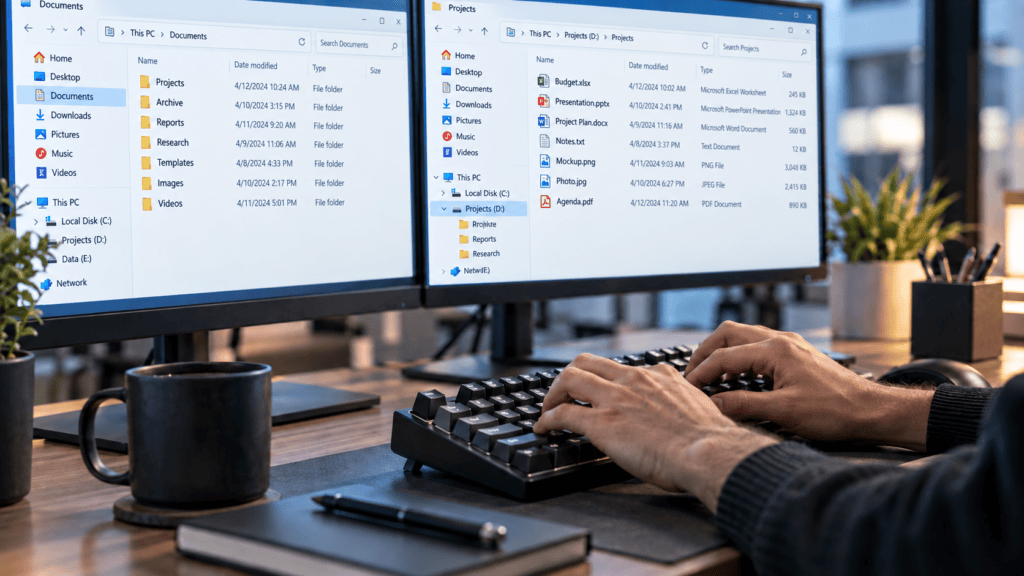
This guide uses examples based primarily on Windows and Microsoft Office for broad accessibility. Depending on your specific assessment, platforms like Microsoft 365, Google Workspace, macOS, or proprietary corporate portals may feature alternative menus, layouts, or keyboard shortcuts. Prioritize understanding the underlying concepts and functions so you can easily adapt to whichever interface your computer proficiency exam utilizes.
What Is a Computer Proficiency Exam?
A computer proficiency exam measures your practical ability to execute common digital tasks accurately and efficiently. Organizations frequently deploy a computer proficiency exam during candidate recruitment, academic admissions, internal promotions, employee training programs, or general workplace competency assessments to establish a verifiable baseline of technical competence.
Most general tests evaluate whether you can execute the following essential operations:
- Identify basic computer hardware components and software applications.
- Navigate an operating system using a keyboard, mouse, and system settings.
- Create, save, rename, copy, and organize files and directory structures.
- Format and edit documents effectively within a word processor.
- Input data, structure tables, and apply basic formulas in a spreadsheet.
- Design and structure a clear presentation.
- Compose professional email messages and manage attachments securely.
- Execute targeted information searches online.
- Recognize and avoid common cybersecurity risks such as phishing.
- Complete practical, hands-on tasks within a strict time limit.
Because testing standards differ across organizations, the exact structure of a computer proficiency exam varies. Some assessments rely purely on multiple-choice questions to test theoretical knowledge, while others require live, performance-based tasks executed directly inside Microsoft Word, Excel, a web browser, or a simulated office environment.
Main Topics to Study
| Topic | Skills Commonly Tested |
| Computer Fundamentals | Hardware, software, input, output, storage, and operating systems |
| Windows & Navigation | Desktop, taskbar, settings, windows, and keyboard shortcuts |
| File Management | Folders, file extensions, paths, copying, moving, and backups |
| Word Processing | Formatting, tables, spell check, page layout, and printing |
| Spreadsheets | Cells, formulas, functions, sorting, filtering, and charts |
| Presentations | Slides, layouts, themes, images, and presentation mode |
| Recipients, subject lines, attachments, CC, BCC, and etiquette | |
| Internet Use | Browsers, search terms, downloads, and website security |
| Cybersecurity | Phishing, passwords, malware, updates, and multifactor authentication |
| Practical Workplace Skills | Accurate typing, data entry, file naming, and time management |
Microsoft maintains official guidance for Microsoft 365 applications and Windows keyboard shortcuts, making its documentation useful when revising for Office-based elements of a computer proficiency exam.
Computer Proficiency Practice Test
Work through all 45 items below before reviewing the detailed answer key to accurately gauge your readiness for your upcoming computer proficiency exam. Unless explicitly stated otherwise, assume a standard Windows environment running Microsoft Office applications for all software-based scenarios.
Computer Fundamentals
Computer fundamentals cover the basic concepts every user should understand before operating a computer confidently. Questions in this section may test your knowledge of computer hardware, software, operating systems, input and output devices, storage units, file types, and common computing terms. Understanding these essentials provides a strong foundation for completing everyday digital tasks and performing well in a computer proficiency exam.
Which component is primarily responsible for executing program instructions?
- A. Monitor
- B. CPU
- C. Keyboard
- D. Printer
Answer: B. CPU
Explanation: The central processing unit (CPU) acts as the primary processor of the computer, responsible for executing instructions and performing core calculations. The monitor functions as an output device, while the keyboard and printer serve as input and output peripherals, respectively.
Which of the following is classified as an input device?
- A. Speaker
- B. Projector
- C. Keyboard
- D. Monitor
Answer: C. Keyboard
Explanation: An input device is used to send data, signals, or control commands to a computer system. A keyboard allows users to manually enter text and issue commands, whereas speakers, projectors, and monitors are output devices designed to present information back to the user.
What is the primary function of an operating system?
- A. To create only spreadsheets
- B. To manage computer hardware and software resources
- C. To print every document automatically
- D. To provide internet access without hardware
Answer: B. To manage computer hardware and software resources
Explanation: An operating system acts as the core intermediary layer between the user, software applications, and physical computer hardware, managing system processes, memory, and resource allocation. Common examples include Windows, macOS, and Linux.
Which type of memory temporarily stores data currently being used by active programs?
- A. RAM
- B. ROM
- C. DVD
- D. Flash drive
Answer: A. RAM
Explanation: Random Access Memory (RAM) temporarily holds data and instructions that the computer’s processor is actively utilizing. Because RAM is volatile memory, its contents are wiped out when the system loses power, making it distinct from permanent storage drives.
Which device is designed primarily for long-term data storage?
- A. RAM
- B. CPU register
- C. SSD
- D. Cache
Answer: C. SSD
Explanation: A solid-state drive (SSD) is a non-volatile storage device designed to permanently retain files, applications, and operating systems even when the computer is powered off. Unlike mechanical hard drives, it relies on flash memory and has no moving parts. RAM, cache, and CPU registers are volatile, temporary memory layers.
What does software refer to?
- A. Physical computer components
- B. Computer programs and instructions
- C. Electrical cables only
- D. The computer case
Answer: B. Computer programs and instructions
Explanation: Software comprises the intangible set of instructions, applications, and operating programs that direct physical hardware on how to execute tasks. This encompasses everything from system software to productivity apps and browsers, whereas physical components, cables, and cases are classified as hardware.
What is the primary purpose of a data backup?
- A. To increase screen brightness
- B. To create an additional copy of data
- C. To remove the operating system
- D. To reduce the number of files
Answer: B. To create an additional copy of data
Explanation: A backup safeguards critical information by duplicating files to a separate storage location or cloud platform. This ensures you can restore your data following accidental deletions, hardware failures, malware infections, or catastrophic system crashes encountered during your day-to-day computer operations.
Windows and File Management
This section assesses your ability to navigate the Windows operating system and manage files efficiently. Questions may cover creating, renaming, copying, moving, and deleting files and folders, using File Explorer, recognizing common file extensions, managing the Recycle Bin, and applying keyboard shortcuts. These practical skills are essential for organizing information and completing everyday tasks on a computer.
Which keyboard shortcut is used to copy selected content?
- A. Ctrl + X
- B. Ctrl + C
- C. Ctrl + V
- D. Ctrl + Z
Answer: B. Ctrl + C
Explanation: Pressing Ctrl + C copies selected content—such as text, files, or images—to the system clipboard while leaving the original item intact. In contrast, Ctrl + X cuts the selection, Ctrl + V pastes clipboard contents into a new location, and Ctrl + Z undoes the previous action. Standardized keyboard shortcuts like these are universal across Windows and Microsoft Office environments.
Which keyboard shortcut is used to paste copied content?
- A. Ctrl + P
- B. Ctrl + V
- C. Ctrl + F
- D. Ctrl + S
Answer: B. Ctrl + V
Explanation: Pressing Ctrl + V inserts the contents currently stored on the system clipboard into the active cursor position or selection location. For context, Ctrl + P opens the print dialog, Ctrl + F activates the search/find feature, and Ctrl + S saves the current document.
What does the keyboard shortcut Ctrl + Z typically perform?
- A. Saves a file
- B. Closes a program
- C. Undoes the last action
- D. Opens the Start menu
Answer: C. Undoes the last action
Explanation: The Ctrl + Z shortcut triggers the undo function, allowing you to instantly reverse your most recent action. This is particularly valuable when you accidentally delete text, apply incorrect formatting, or misplace files during your computer proficiency exam tasks.
Which file name is the most organized and professional for a job application document?
- A. New Document
- B. Document1
- C. CV_Lawrence_Abiodun_2026
- D. Stuff
Answer: C. CV_Lawrence_Abiodun_2026
Explanation: A clear, descriptive file name includes the document type, the owner’s name, and a relevant identifier (such as a year or version), making files significantly easier to identify, search for, and retrieve. Generic names like “New Document” or “Document1” lead to poor organization and clutter. Avoid using spaces or special characters that can cause compatibility issues across different platforms or web upload portals.
What is the primary purpose of a folder in a file system?
- A. Organising files and other folders
- B. Increasing processor speed
- C. Displaying websites
- D. Editing images automatically
Answer: A. Organising files and other folders
Explanation: Folders (directories) provide a hierarchical structure used to logically group and manage documents, images, spreadsheets, and other files. Proper folder organization is a core competency tested on a computer proficiency exam, as it directly improves file retrieval efficiency and prevents data clutter.
What does a file extension typically indicate?
- A. The file’s physical location on the hard drive
- B. The file type or associated application
- C. The user’s account password
- D. The file’s creation date only
Answer: B. The file type or associated application
Explanation: A file extension (the suffix following the period in a file name) identifies the format of the file and tells the operating system which program to use to open it. Common examples include .docx for Word documents, .xlsx for Excel workbooks, .pdf for Portable Document Format files, and .jpg for images. Mastering file extensions and navigation is essential for passing your computer proficiency exam.
What is the core difference between copying and moving a file?
- A. Copying creates another version; moving changes its location
- B. Copying deletes the original; moving duplicates it
- C. They always produce the same result
- D. Moving changes the file extension
Answer: A. Copying creates another version; moving changes its location
Explanation: Copying a file creates a duplicate in a new destination while keeping the original file intact in its current folder. Moving a file relocates it entirely, transferring it from the original directory to the new target folder without leaving a duplicate behind. Mastering basic file management operations like copying and moving is a fundamental requirement for any computer proficiency exam.
Which action is the safest protocol before deleting an important file?
- A. Confirm that it is no longer needed or keep a backup
- B. Rename it repeatedly
- C. Disconnect the keyboard
- D. Change its font
Answer: A. Confirm that it is no longer needed or keep a backup
Explanation: Before removing any critical document during your computer proficiency exam or day-to-day work, always verify that the data is truly redundant or ensure an independent backup copy exists. Relying solely on the Recycle Bin or Trash can lead to permanent data loss if files are purged or if storage failures occur.
Microsoft Word and Documents
This section evaluates your ability to create, edit, format, and manage documents using Microsoft Word. Questions may cover text formatting, page layout, tables, lists, headers and footers, spelling and grammar tools, document saving and printing. These skills are important for producing professional letters, reports, résumés, and other workplace or academic documents.
Which application is best suited for creating a formal letter or report?
- A. Microsoft Word
- B. Microsoft Calculator
- C. Microsoft Paint
- D. Windows Task Manager
Answer: A. Microsoft Word
Explanation: Microsoft Word is a dedicated word-processing application designed specifically for creating, editing, and formatting text-based documents such as formal letters, resumes, and reports. Calculator, Paint, and Task Manager serve computational, graphic editing, and system management functions, respectively. Selecting the correct software tool for standard office tasks is a common competency evaluated on a computer proficiency exam.
Which feature in a word processor checks for potential spelling and grammar errors?
- A. Mail Merge
- B. Editor or spelling and grammar tools
- C. Slide Sorter
- D. Freeze Panes
Answer: B. Editor or spelling and grammar tools
Explanation: Word processing applications include built-in proofreading features (such as Microsoft Word’s Editor) that automatically scan text, underline errors, and suggest corrections for spelling and grammar. While these automated tools are exceptionally helpful during a computer proficiency exam, human review remains essential because automated checkers can occasionally misinterpret context, specialized jargon, or proper nouns.
What is the primary purpose of paragraph alignment in a word processor?
- A. To arrange text relative to the page margins
- B. To change the file extension
- C. To encrypt the document
- D. To insert a formula
Answer: A. To arrange text relative to the page margins
Explanation: Paragraph alignment controls how text lines up horizontally between the left and right margins of a page. Common alignment options include left-aligned, centered, right-aligned, and justified. Knowing how to apply and modify paragraph formatting is a core skill tested on any computer proficiency exam.
Which feature applies a consistent visual format to headings across a document?
- A. Styles
- B. Clipboard
- C. Status bar
- D. Zoom slider
Answer: A. Styles
Explanation: The Styles feature allows users to apply uniform formatting (such as font size, weight, color, and paragraph spacing) to headings and body text instantly. Using built-in styles ensures professional document consistency and enables automated features like tables of contents, making it a critical capability to demonstrate during your computer proficiency exam.
What is a header in a word processing document?
- A. Text placed at the top margin of pages
- B. A hidden spreadsheet formula
- C. A browser bookmark
- D. A deleted paragraph
Answer: A. Text placed at the top margin of pages
Explanation: A header is a dedicated area located in the top margin of a document page that repeats automatically across multiple pages. Headers typically contain metadata such as document titles, company names, author information, or dynamic page numbers, and are a standard feature evaluated during a computer proficiency exam.
What is the primary purpose of the Mail Merge feature in a word processor?
- A. To combine a main document with a data source for personalized copies
- B. To compress an image file size
- C. To remove all document formatting
- D. To calculate spreadsheet totals automatically
Answer: A. To combine a main document with a data source for personalized copies
Explanation: Mail Merge is an advanced productivity feature that allows you to merge a standardized template document with an external data source (such as an Excel contact list) to quickly generate bulk, personalized letters, mailing labels, envelopes, or emails. Demonstrating proficiency in time-saving features like Mail Merge is often required in performance-based sections of a comprehensive computer proficiency exam.
Which file format is best suited for ensuring a document’s layout and formatting remain identical across all devices?
- A. PDF
- B. TXT only
- C. EXE
- D. TMP
Answer: A. PDF
Explanation: The Portable Document Format (PDF) locks in document layouts, fonts, and graphics so they render identically regardless of the operating system, device, or software used to view them. While excellent for sharing final documents, PDFs are generally non-editable without specialized software, contrasting with native formats like .docx. Understanding document sharing formats is a key topic on any computer proficiency exam.
What is a recommended action before sending a document to a physical printer?
- A. Use Print Preview
- B. Delete the source file
- C. Turn off the monitor
- D. Remove all page margins
Answer: A. Use Print Preview
Explanation: Print Preview allows you to inspect how your document will look on paper before wasting ink and paper. It helps you catch layout issues, awkward page breaks, incorrect orientation, or missing text elements. Being methodical about document output checks is a hallmark of the practical skills tested on a computer proficiency exam.
Microsoft Excel and Spreadsheets
This section evaluates your ability to enter, organize, calculate, and analyze data using Microsoft Excel. Questions may cover cells, rows, columns, worksheets, formulas, functions, formatting, sorting, filtering, and charts. These spreadsheet skills are essential for managing records, preparing budgets, performing calculations, and presenting data clearly in academic and professional settings.
In a spreadsheet, what is the intersection of a row and a column called?
- A. A cell
- B. A slide
- C. A paragraph
- D. A record
Answer: A. A cell
Explanation: The intersection of a row and a column in a spreadsheet is called a cell. Each cell acts as a distinct data container that can hold text, numeric values, dates, or formulas. Cells are uniquely identified by combining their column letter and row number (such as B4), which is a foundational concept evaluated on any computer proficiency exam.
Which formula is used to add the values in cells A1 through A5 in a spreadsheet?
- A. =ADD(A1:A5)
- B. =SUM(A1:A5)
- C. =TOTAL(A1-A5)
- D. SUM A1:A5
Answer: B. =SUM(A1:A5)
Explanation: The SUM function is the standard mathematical function used to add a range of numeric values together in spreadsheet applications like Microsoft Excel or Google Sheets. Spreadsheet formulas must always begin with an equals sign (=), and cell ranges use a colon (:) to designate continuous selections. Understanding core formulas and syntax is a vital competency tested on any computer proficiency exam.
Which formula calculates the average of B2 through B6 in a spreadsheet?
- A. =AVERAGE(B2:B6)
- B. =MEAN(B2-B6)
- C. =AVG(B2;B6)
- D. AVERAGE B2:B6
Answer: A. =AVERAGE(B2:B6)
Explanation: The AVERAGE function calculates the arithmetic mean of the selected numeric values. Like all valid spreadsheet formulas, it requires a leading equals sign (=) and proper range formatting with a colon, which is a standard competency evaluated on any computer proficiency exam.
What symbol does a spreadsheet formula typically begin with?
- A.
# - B.
@ - C.
= - D.
&
Answer: C. =
Explanation: The equals sign (=) acts as the mandatory trigger symbol in spreadsheet applications like Microsoft Excel and Google Sheets. It signals to the program that the subsequent entry is a calculation or function to be evaluated rather than simple text. Understanding formula syntax is a foundational requirement for any computer proficiency exam.
Which feature arranges spreadsheet records or table rows from smallest to largest or alphabetically?
- A. Sort
- B. Merge
- C. Wrap Text
- D. Spell Check
Answer: A. Sort
Explanation: The Sort feature reorganizes data rows based on selected criteria, such as alphabetical order (A to Z) or numerical order (smallest to largest). When sorting table data or spreadsheet ranges, it is critical to ensure the entire dataset is selected to prevent row misalignment—a common pitfall evaluated on a computer proficiency exam.
What does filtering data do in a spreadsheet application?
- A. Temporarily displays rows that meet selected criteria
- B. Deletes all rows permanently from the file
- C. Converts a workbook into a presentation
- D. Changes every number to text format
Answer: A. Temporarily displays rows that meet selected criteria
Explanation: Filtering allows you to isolate and view specific rows that match designated conditions or criteria while temporarily hiding non-matching rows. Crucially, filtering does not delete or alter the underlying dataset; it merely restricts the viewable subset, making it an indispensable data management skill evaluated on a computer proficiency exam.
What is the primary purpose of creating a chart or graph from spreadsheet data?
- A. To represent data visually
- B. To install an operating system
- C. To remove duplicate files automatically
- D. To send an email message
Answer: A. To represent data visually
Explanation: Charts transform raw numeric tables into graphical representations, making complex patterns, proportions, comparisons, and long-term trends significantly easier to analyze and interpret at a glance. Selecting the appropriate chart type (such as bar charts for discrete comparisons or line charts for trends over time) is a core data visualization competency tested on any computer proficiency exam.
What does the “Freeze Panes” feature help you accomplish in a spreadsheet?
- A. Keep selected rows or columns visible while scrolling
- B. Lock the entire computer operating system permanently
- C. Prevent all formulas from calculating automatically
- D. Convert plain text into synthesized audio
Answer: A. Keep selected rows or columns visible while scrolling
Explanation: The Freeze Panes feature locks specific rows (such as header rows with column titles) or columns in place so they remain permanently visible on your screen as you scroll through large datasets. This maintains data context when working with extensive tables and is an essential navigation skill evaluated on any computer proficiency exam.
What is a common cause when a spreadsheet cell displays a series of hash marks or number signs (#######)?
- A. The column is too narrow to display the numeric value
- B. The computer has no connected keyboard
- C. The workbook file is permanently corrupted
- D. The active formula must be deleted immediately
Answer: A. The column is too narrow to display the numeric value
Explanation: When numbers, currency, or dates in a spreadsheet exceed the current width of their container cell, spreadsheet applications display ####### as a safety indicator so truncated values are not mistaken for correct data. Simply widening the column resolves the display issue. Troubleshooting common interface errors and visual formatting glitches is a practical competency evaluated on a computer proficiency exam.
Which practice helps improve data accuracy and integrity within a spreadsheet?
- A. Entering inconsistent formats deliberately
- B. Using clear headings and checking formulas
- C. Replacing formulas with random values
- D. Leaving important cells blank
Answer: B. Using clear headings and checking formulas
Explanation: Maintaining a structured layout with descriptive table headers, utilizing appropriate data validation, and routinely auditing formulas for logical errors significantly reduce data-entry and calculation mistakes. Adhering to professional spreadsheet design principles and quality control practices is a key competency tested on any computer proficiency exam.
Presentations
This section evaluates your ability to create, edit, and deliver clear presentations using tools such as Microsoft PowerPoint or Google Slides. Questions may cover slide layouts, themes, text formatting, images, charts, transitions, animations, and slideshow controls. These skills are useful for presenting ideas, reports, research, and project updates effectively in academic and professional settings.
Which application is designed primarily for creating visual slide presentations?
- A. Microsoft PowerPoint
- B. Microsoft Word
- C. Microsoft Excel
- D. File Explorer
Answer: A. Microsoft PowerPoint
Explanation: Microsoft PowerPoint is a dedicated presentation software used to design and deliver slide decks containing text, images, multimedia, and charts. Knowing the specific role of each core office application is a fundamental requirement tested on any computer proficiency exam.
What is a slide layout in presentation software?
- A. A predefined arrangement of placeholders on a slide
- B. A spreadsheet calculation formula
- C. A file backup and recovery method
- D. An email recipient address
Answer: A. A predefined arrangement of placeholders on a slide
Explanation: A slide layout defines how content placeholders—such as titles, body text, images, and charts—are organized and positioned on a slide. Using consistent predefined layouts helps maintain visual harmony and structural clarity across an entire slide deck, which is a standard presentation design principle evaluated on any computer proficiency exam.
Which design choice generally improves the readability and effectiveness of a presentation slide?
- A. Using very small text to fit as many words as possible
- B. Filling every blank area with intricate decorative graphics
- C. Using clear contrast between text and background with limited text
- D. Using a completely different font style on every individual line
Answer: C. Using clear contrast and limited text
Explanation: Effective visual design relies on legibility and simplicity. High contrast between text and background colors, combined with concise bullet points or phrases, prevents cognitive overload and ensures audience comprehension. Slides should serve as visual aids to support the speaker rather than dense text documents to read aloud—a key principle evaluated on any computer proficiency exam.
What is the primary purpose of Presenter View in presentation software?
- A. To give the presenter additional controls and notes while showing the audience the slide
- B. To delete the presentation file permanently
- C. To convert slide elements into calculation formulas
- D. To format a physical computer hard drive
Answer: A. To give the presenter additional controls and notes while showing the audience the slide
Explanation: Presenter View provides the speaker with dedicated tools—such as speaker notes, a presentation timer, a preview of the upcoming slide, and navigation controls—on their private screen while displaying only the clean, full-screen slide deck to the audience. Knowing how to leverage professional delivery features is a standard topic evaluated on any computer proficiency exam.
Email and Internet Use
This section evaluates your ability to communicate through email and use the internet safely and effectively. Questions may cover composing and replying to messages, attaching files, using CC and BCC, managing inbox folders, navigating web browsers, using search engines, and identifying secure websites. These skills are essential for effective communication, online research, and responsible internet use in academic and professional environments.
What should an effective email subject line communicate to the recipient?
- A. The main purpose or topic of the message
- B. The sender’s private account password
- C. The entire message translated into random symbols
- D. Absolutely nothing
Answer: A. The main purpose or topic of the message
Explanation: A clear, concise subject line gives recipients immediate context, helping them understand what the email is about and prioritize it accordingly in their inbox. Mastering professional communication and digital etiquette is a standard requirement evaluated on any computer proficiency exam.
What is the purpose of the BCC (Blind Carbon Copy) field in an email message?
- A. To hide listed recipients from one another
- B. To attach an active spreadsheet file
- C. To correct spelling errors automatically
- D. To increase your internet connection speed
Answer: A. To hide listed recipients from one another
Explanation: When you add email addresses to the BCC field, those recipients receive the message, but their addresses remain invisible to everyone on the To, CC, and BCC lines. This protects user privacy and prevents unwanted “Reply All” storms. Understanding secure and polite electronic communication practices is an essential topic tested on any computer proficiency exam.
What is an email attachment?
- A. A file sent along with an email message
- B. A web browser history entry
- C. A secure password hint or recovery code
- D. A search engine query result page
Answer: A. A file sent along with an email message
Explanation: An email attachment is a separate file—such as a document, spreadsheet, image, or PDF—bundled and transmitted alongside an email message. It allows users to share digital materials easily across networks. Because attachments can occasionally carry malware, ransomware, or phishing threats, verifying the sender and inspecting unexpected files before opening them is an essential digital security practice evaluated on any computer proficiency exam.
Which search query is the most specific and effective for finding introductory instructional videos or guides on basic spreadsheet functions?
- A. Excel
- B. Everything about computers
- C. beginner Excel formulas tutorial
- D. Help
Answer: C. beginner Excel formulas tutorial
Explanation: Effective information retrieval relies on precise, targeted keywords rather than broad or vague terms. A specific query filters out irrelevant noise and directs search engines to exact matches, making search strategy an important digital literacy topic on any computer proficiency exam.
Which web address is most likely to use HTTPS?
- A.
[http://example.com](http://example.com) - B.
[https://example.com](https://example.com) - C.
file://example.com - D.
printer://example.com
Answer: B. [https://example.com](https://example.com)
Explanation: The prefix https:// (Hypertext Transfer Protocol Secure) indicates that the connection between the user’s web browser and the web server is encrypted, protecting data from being intercepted in transit. While essential for web privacy, it is important to note that HTTPS alone does not guarantee a website is legitimate or safe from malicious intent—a core distinction tested on any computer proficiency exam.
Cybersecurity
This section evaluates your understanding of basic practices for protecting computers, accounts, and personal information from digital threats. Questions may cover strong passwords, multi-factor authentication, phishing, malware, suspicious links, software updates, secure Wi-Fi, and safe file sharing. These skills are essential for recognizing common cyber risks and using workplace or personal technology securely.
Which message structure or scenario is a likely phishing attempt?
- A. An expected internal memo distributed by verified company channels
- B. An urgent message asking you to click a suspicious link and disclose your password
- C. A working document you created and saved on your local drive yourself
- D. A calendar reminder notification you set up for your own appointments
Answer: B. An urgent message asking you to click a suspicious link and disclose your password
Explanation: Phishing attacks commonly rely on artificial urgency, threats of account suspension, impersonation of trusted entities, and requests for sensitive credentials via unverified links. Recognizing social engineering tactics and verifying communications through independent channels is a critical cybersecurity competency evaluated on any computer proficiency exam.
Which security action provides significantly stronger account protection than relying on a password alone?
- A. Reusing the same strong password across all your online accounts
- B. Enabling multifactor authentication (MFA)
- C. Sharing your account password with a trusted colleague
- D. Writing your password on a sticky note attached to your computer monitor
Answer: B. Enabling multifactor authentication
Explanation: Multifactor authentication (MFA) adds an extra layer of security by requiring two or more independent verification factors to prove identity—such as a password combined with a time-based one-time code from an authenticator app, a physical security key, or a biometric check. Even if a password is compromised, MFA prevents unauthorized access, making it a critical cybersecurity standard evaluated on any computer proficiency exam.
What is the recommended course of action if you receive an unexpected email attachment from an unknown sender?
- A. Open it immediately to see what’s inside
- B. Forward the message to your entire contact list
- C. Verify the sender’s identity and report or delete the message if suspicious
- D. Disable your computer’s antivirus software
Answer: C. Verify the sender and report or delete it if suspicious
Explanation: Unexpected email attachments are a primary vector for malware, ransomware, and credential-harvesting attacks. Users should never open unverified files from unknown sources; instead, they should report suspicious messages according to organizational security procedures. Safe handling of digital files and malware awareness are core competencies evaluated on any computer proficiency exam.
Practical Computer Tasks to Practise
Multiple-choice questions assess what you know, but practical exercises reveal whether you can apply that knowledge accurately and efficiently. Practising realistic tasks in Word, Excel, PowerPoint, email and file management will help you build confidence, improve your speed and prepare for the time pressure of a computer proficiency exam.
Task 1: File Management & Organization
Set up the following hierarchical directory structure:
Plaintext
Computer_Test/
├── Documents/
├── Spreadsheets/
├── Presentations/
└── Backup/
Complete the following execution steps:
- Create Document: Generate a new text document directly inside the
Documentsfolder. - Rename File: Assign a descriptive title, such as
Job_Application_September_2026. - Duplicate Data: Copy the renamed document and place the duplicate inside the
Backupfolder. - Relocate Asset: Move an existing spreadsheet file into the
Spreadsheetsfolder using cut-and-paste or drag-and-drop. - Verify Locations: Inspect the directory tree to confirm that the original text document remains in
Documents, its duplicate resides inBackup, and the spreadsheet is correctly housed inSpreadsheets.
Task 2: Word Processing — Formal Letter Execution Guide
If you are performing this task in a standard word processor (such as Microsoft Word or Google Docs), follow these structured steps to ensure professional formatting:
- Set up Page Layout: Open a blank document, verify that the page margins are set to standard 1 inch (or 2.54 cm), and confirm the line spacing is set to 1.15 with consistent paragraph spacing.
- Add Header and Date: Type today’s date (
September 12, 2026) aligned to the left, followed by the recipient’s address details. - Format the Title: Add a clear title (e.g.,
Application for Senior Technical Consultant Position) formatted in a distinct heading style or bold uppercase text to establish document hierarchy. - Draft Body Content: Write two structured paragraphs detailing your professional background, qualifications, and intent. Maintain a formal tone, correct spelling, and left or justified alignment.
- Insert Bulleted List: Insert a bulleted list breaking down key core competencies or professional achievements clearly.
- Add Footer: Insert a page footer containing your name (
Jane Doe) centered or aligned at the bottom of the page. - Print Preview & Export: Inspect the document in Print Preview to verify that all content fits cleanly onto a single page without awkward line breaks or overflow, then export or save the document as a PDF.
Task 3: Spreadsheet Operations & Data Analysis
Set up a structured sales tracking table using the following column headers and sample data:
| Date | Product | Quantity | Unit Price | Total |
| 2026-09-01 | Wireless Mouse | 15 | $25.00 | =C2*D2 |
| 2026-09-02 | Mechanical Keyboard | 8 | $75.00 | =C3*D3 |
| 2026-09-03 | HD Monitor | 5 | $180.00 | =C4*D4 |
| 2026-09-04 | USB-C Hub | 20 | $35.00 | =C5*D5 |
| 2026-09-05 | Ergonomic Mousepad | 12 | $15.00 | =C6*D6 |
Execution Steps
- Format Prices Consistently:
- Select the
Unit Pricecolumn and theTotalcolumn cells. - Apply the Currency number format (e.g., USD
$, two decimal places) to ensure uniform financial data representation.
- Select the
- Calculate Row Totals with a Formula:
- In cell
E2, enter the multiplication formula to calculate the line total:=C2*D2. - Press Enter, then use the fill handle (the bottom-right corner of the cell) to drag and copy the formula down to row 6 (
E6).
- In cell
- Calculate Aggregate Metrics (
SUMandAVERAGE):- In a summary row below the table, use the
SUMformula to calculate total revenue:=SUM(E2:E6). - In an adjacent cell, use the
AVERAGEformula to determine the average sale value:=AVERAGE(E2:E6).
- In a summary row below the table, use the
- Sort Data by Total:
- Highlight the entire table range including headers.
- Access the sort function (Data > Sort Range), select Sort by Total, and choose Z to A (Descending) to rank products from highest to lowest revenue generator.
- Filter by Product:
- Select the header row and toggle on the Filter tool (Data > Create a filter).
- Click the filter dropdown arrow on the Product column header to isolate specific items or view filtered subsets dynamically.
- Create a Suitable Chart:
- Select the
Productcolumn and the correspondingTotalcolumn (holdingCtrlorCmdto select non-adjacent columns if necessary, or selectProductthroughTotal). - Insert a Column Chart or Bar Chart to visually compare revenue contributions across different product lines. Ensure the chart includes a clear title, labeled axes, and a legend.
- Select the
Task 4: Email Composition
Draft the email using the following structure and professional template:
- To:
hiring.committee@globaltech.example - Subject: Submission of Application Materials — Jane Turner (Senior Technical Consultant)
Email Body:
Dear Hiring Committee,
I am writing to submit my application materials for the Senior Technical Consultant position at Global Technologies Inc.
Please find attached my completed application document (
Job_Application_September_2026.pdf) for your review. I welcome the opportunity to discuss how my technical background and project experience align with your team’s objectives.Thank you for your time and consideration.
Sincerely,
Jane Turner
[Contact Information]
Attachment:Job_Application_September_2026.pdf
Pre-Send Verification Checklist
- Recipient: Confirm the email address is correct and directed to the intended contact.
- Attachment: Verify that
Job_Application_September_2026.pdfis properly attached and matches the required naming convention. - Tone & Spelling: Ensure the message maintains a polite, formal tone with zero spelling or grammatical errors.
- Draft Safety: In a real exam simulation, click Save as Draft rather than clicking Send, unless explicit instructions require live transmission.
Task 5: Presentation Design & Delivery
Build a five-slide professional presentation using presentation software (such as Microsoft PowerPoint or Google Slides) following a single consistent design theme, legible typography, and a logical structural flow:
- Slide 1: Title Slide
- Content: Project title, presenter name, and date (
September 12, 2026). - Purpose: Establishes professional context and sets the presentation topic immediately.
- Content: Project title, presenter name, and date (
- Slide 2: Objectives
- Content: Bulleted list outlining the primary goals and operational targets of the initiative.
- Purpose: Prepares the audience by defining clear expectations for the session.
- Slide 3: Three Key Points
- Content: Core arguments or strategic pillars broken down into concise, digestible points.
- Purpose: Delivers the primary value proposition without cluttering the screen with dense text blocks.
- Slide 4: Visual Data Slide (Chart or Image)
- Content: A clean bar chart or relevant professional graphic illustrating performance data or system architecture.
- Purpose: Reinforces key insights visually and breaks up text-heavy slides to maintain audience engagement.
- Slide 5: Conclusion & Next Steps
- Content: Summary of core takeaways and a clear call to action or timeline for upcoming milestones.
- Purpose: Leaves the audience with a definitive conclusion and actionable direction.
Delivery Practice Checklist
- Theme Consistency: Verify that font styles, background colors, and accent palettes remain uniform across all five slides.
- Readability: Ensure high contrast between text and background colors, keeping font sizes large enough for the back of a room.
- Slide Navigation: Practice starting the slide show in full-screen mode, advancing forward and backward smoothly, and utilizing Presenter View or shortcut keys during a timed dry-run.
Scoring & Proficiency Guide
Multiple-choice questions assess what you know, but practical exercises reveal whether you can apply that knowledge accurately and efficiently. Practising realistic tasks in Word, Excel, PowerPoint, email and file management will help you build confidence, improve your speed and prepare for the time pressure of a computer proficiency exam.
| Score Range | Approximate Proficiency Level | Recommended Action Plan |
| 40–45 | Strong general proficiency | Practise speed, accuracy, and timed practical tasks |
| 32–39 | Functional proficiency | Review missed topics and complete targeted exercises |
| 23–31 | Developing proficiency | Study core fundamentals and practise Office workflows |
| 0–22 | Beginner level | Build foundational skills before attempting a timed exam |
Note: This scale serves as an editorial guide rather than an official, universal pass mark. Actual employers, certification boards, or academic institutions may employ distinct grading systems, weigh practical tasks differently, or enforce separate minimum thresholds for individual sections.
Diagnostic Review & Topic Breakdown
- Questions 1–7: Core hardware, system software, operating systems, memory architecture, and data backup strategies.
- Questions 8–15: Keyboard shortcuts, directory hierarchies, file extensions, and basic file operations.
- Questions 16–23: Word processing formatting, paragraph styles, headers/footers, Mail Merge, and PDF export workflows.
- Questions 24–33: Spreadsheet cell referencing, arithmetic formulas, data sorting, filtering, and chart generation.
- Questions 34–37: Slide layouts, visual design principles, and Presenter View mechanics.
- Questions 38–42: Professional email structure, attachment handling, BCC privacy, and advanced search query optimization.
- Questions 43–45: Phishing recognition, safe attachment verification, password security, and multifactor authentication (MFA).
Common Examination Pitfalls to Avoid
Many candidates lose marks not because they lack computer knowledge, but because they misread instructions, rush through questions, or overlook simple details. Understanding the common pitfalls below can help you manage your time, avoid preventable mistakes, and complete both theoretical and practical tasks more accurately.
- Memorising Instead of Practising: Knowing a shortcut like
Ctrl + Cmeans copying is completely different from applying it smoothly while editing a document under time pressure; repeat practical tasks hands-on to build muscle memory.
- Ignoring File Locations: Candidates frequently create the correct document but save it in an improper directory; always read instructions carefully and verify file paths before submitting your work.
- Using Formulas Incorrectly: Frequent spreadsheet errors involve omitting the equals sign (
=), selecting incorrect cell ranges, or sorting a single column independently instead of highlighting and sorting the complete data table.
- Over-Formatting Documents: Excessive colors, mixed fonts, and irregular spacing destroy professional visual hierarchy; stick to clean, simple, and consistent styling throughout.
- Treating HTTPS as Proof of Trust: While HTTPS encrypts data in transit, it does not guarantee a website is legitimate or safe; always inspect the actual domain and context before entering credentials or sensitive data.
- Opening Suspicious Files: Never open unexpected links or attachments simply because an email or message conveys artificial urgency; always verify the sender independently and report suspicious content according to security procedures.
What is included in a computer proficiency exam?
A general exam may cover computer fundamentals, Windows navigation, file management, Word, Excel, PowerPoint, email, internet research, and cybersecurity, with some assessments also featuring typing, data entry, and practical simulations.
Is a computer proficiency exam difficult?
Difficulty depends on the specific syllabus, time limit, and software required; beginners often find formulas, file paths, or timed tasks challenging, whereas experienced users typically require only targeted revision.
Which computer skills should job applicants prioritise?
Applicants should prioritize file management, document formatting, spreadsheet formulas, email etiquette, accurate data entry, internet research, and cybersecurity awareness due to their high transferability across administrative and office roles.
Can I pass by studying only multiple-choice questions?
Relying solely on multiple-choice questions is generally unreliable because practical exams often require active execution—such as creating files, formatting documents, calculating totals, or identifying unsafe messages.
Do shortcuts work the same way in every application?
While many common Windows shortcuts are shared across applications, certain commands vary depending on the specific software, operating system, and keyboard layout used in the examination.
What should I do on exam day?
Candidates should read all instructions carefully, note the time limit, save work frequently, use descriptive file names, verify final outputs, and follow stated requirements precisely rather than adding unnecessary formatting.
In Conclusion
As you approach the final stages of your preparation for a computer proficiency examination, it is vital to remember that true readiness encompasses far more than the mere memorization of isolated technical definitions or abstract terminology.
Rather, a comprehensive mastery of modern digital competence requires diligent, hands-on practice across the entire breadth of the core operational domains: foundational computing principles, meticulous file management hierarchies, productivity and office software execution, professional electronic mail correspondence, effective internet research methodologies, and robust cybersecurity protocols.
To ensure optimal performance and bridge any lingering gaps in your knowledge, your immediate next strategic action should be to undertake a complete, uninterrupted simulation of the entire forty-five-question assessment entirely from memory, resisting the temptation to consult answer keys or reference guides prematurely.
Upon completion, carefully calculate your cumulative score to accurately determine your standing against the proficiency tiers. Finally, direct your revision efforts precisely toward targeted practical task drills that correspond directly to your identified areas of vulnerability, thereby transforming potential weaknesses into reliable strengths before test day.