Practical Excel Assessment Test Questions for Data Analysts
Excel assessment tests evaluate how well you can organise data, apply formulas, identify patterns, and communicate findings. If you are preparing for a data analyst interview, a structured practical Excel assessment test is essential to test your proficiency in real-world scenarios. To ace your evaluation, practise tasks involving data cleaning, lookup functions, conditional calculations, PivotTables, charts, and business interpretation.
This comprehensive guide delivers an in-depth practical Excel assessment test designed to rigorously evaluate your analytical capabilities across three distinct difficulty levels. Complete with step-by-step worked answers, a fully timed mock assessment, and a structured scoring framework, this resource provides everything you need to benchmark your current performance and pinpoint the precise Excel skills required to elevate your data analysis career.
What Do Excel Assessment Tests for Data Analysts Cover?
Excel assessments for data analyst roles commonly focus on six core competencies: data preparation, foundational formulas, cross-table lookups, data summarisation, visualisation, and analytical reasoning.
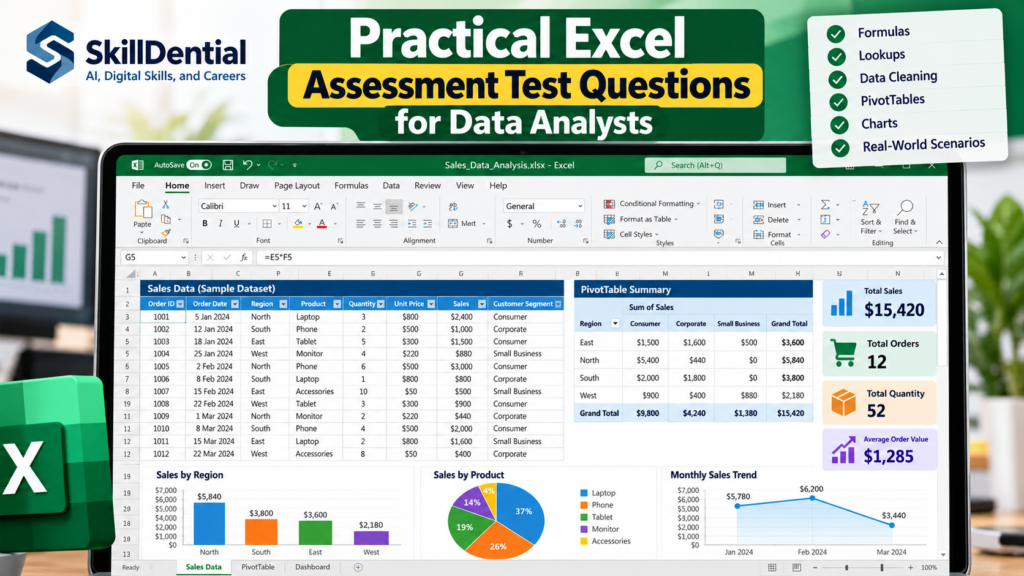
The exact tasks vary based on the employer, role focus, and seniority level. For instance, a reporting analyst typically spends more time structuring and summarising recurring datasets, whereas a commercial data analyst is frequently evaluated on calculating revenue metrics, running variance analyses, and communicating commercial trends.
| Skill Area | What You May Be Asked to Do |
| Data Cleaning | Remove duplicates, strip whitespace, correct inconsistent casing, and handle missing values. |
| Formulas & Functions | Calculate totals, weighted averages, percentage changes, and conditional outputs (e.g., nested logical statements). |
| Lookups | Match customer, product, or employee records across disparate tables using modern retrieval functions. |
| PivotTables | Summarise performance across regions, product lines, or reporting periods using calculated fields and groupings. |
| Visualisation | Select and format appropriate charts to clearly present key performance indicators (KPIs) to stakeholders. |
| Data Quality & Interpretation | Identify anomalies, validate complex calculations, and translate raw figures into actionable business findings. |
Note: While these represent the standard operational domains tested across the industry, specific test formats depend on organizational needs and tool stacks.
How to Use This Practice Guide
To maximize the value of this assessment, work through the questions sequentially from foundational concepts to advanced scenarios. Follow these operational guidelines:
- Attempt Independently: Solve each prompt completely before reviewing the provided worked solutions.
- Apply Hands-On Execution: Open Excel and manually input formulas, build PivotTables, and manipulate data rather than passively reading.
- Focus on Business Logic: Verify that your output directly answers the underlying commercial question—ensuring a functional formula translates to correct, actionable insights.
- Target Your Weaknesses: Log any functional areas or formulas that cause friction, and isolate those specific exercises for repetition.
Note: The scenarios below utilize simulated business data designed strictly for skills benchmarking and practice.
Level 1: Beginner Practical Questions & Solutions
These foundational exercises test your raw data hygiene, execution of essential formulas, and ability to identify and correct basic data-quality issues under typical assessment constraints.
Question 1: Calculate Total Sales Revenue
The Scenario: A retail dataset records the number of units sold and the unit price for individual transactions.
| Order ID | Units Sold | Unit Price ($) |
| ORD001 | 5 | 20 |
| ORD002 | 3 | 45 |
| ORD003 | 8 | 12 |
| ORD004 | 2 | 150 |
- Task: Calculate the revenue for each order and determine the aggregate total revenue across all four transactions.
Worked Solution
- Calculate Individual Revenue: Assuming
Units Soldis in column B andUnit Priceis in column C, enter the following formula in cellD2:
Excel=B2*C2 - Copy the Formula: Drag or double-click the fill handle down to row 5 to compute revenue for the remaining orders.
- Calculate Total Revenue: In the summary row, apply the
SUMfunction to aggregate the revenue column:
Excel=SUM(D2:D5)
Expected Output
| Order ID | Revenue ($) |
| ORD001 | 100 |
| ORD002 | 135 |
| ORD003 | 96 |
| ORD004 | 300 |
| Total | 631 |
- What This Tests: Basic arithmetic multiplication, relative cell references, formula propagation, and foundational use of the
SUMfunction.
Question 2: Calculate Average Daily Sales
The Scenario: A sales team records daily revenue figures over five days.
| Day | Sales Amount ($) |
| Day 1 | 120 |
| Day 2 | 150 |
| Day 3 | 90 |
| Day 4 | 180 |
| Day 5 | 160 |
- Task: Calculate the average daily sales amount using the appropriate built-in Excel function.
Worked Solution
- Apply the Function: Assuming the sales figures are recorded in the range
A2:A6, enter the following formula in your target cell:
Excel=AVERAGE(A2:A6) - Review Calculation Logic: The function automatically sums the values (
700) and divides by the count of numeric entries (5), yielding a final result of140.
Expected Output
- Result:
140 - What This Tests: Fundamental statistical function syntax, continuous range referencing, and core numerical summarisation.
Question 3: Identify Duplicate Customer Records
The Scenario: A raw customer table contains multiple entries, including a repeated customer ID and name.
| Customer ID | Customer Name |
| C001 | Ada |
| C002 | Musa |
| C001 | Ada |
| C003 | Grace |
| C004 | John |
- Task: Identify repeated customer IDs within the dataset without immediately deleting any records.
Worked Solution
- Apply the Conditional Formula: Assuming
Customer IDresides in column A from row 2 to 6, enter the following formula in a helper column cell (C2):
Excel=COUNTIF($A$2:$A$6, A2) > 1 - Propagate the Formula: Copy the formula down the column. Rows containing an ID that appears more than once will return
TRUE, flagging the duplicate entries (both occurrences ofC001). - Alternative Method (Conditional Formatting): Alternatively, select range
A2:A6, navigate toHome$\rightarrow$Conditional Formatting$\rightarrow$Highlight Cells Rules$\rightarrow$Duplicate Values, and select your preferred highlight color.
Important Data Governance Note
A repeated ID is not inherently an error; it may represent multiple valid transactions or interactions by the same customer over time. Before executing a deletion or deduplication workflow, always verify whether the business context requires a unique list of entities or a complete transactional log.
- What This Tests: Conditional counting functions (
COUNTIF), absolute range referencing ($A$2:$A$6), Boolean logic (>1), and data validation awareness.
Question 4: Classify Performance Using Conditional Logic
The Scenario: A sales manager needs to evaluate representatives against a fixed performance target of 1,000.
| Representative | Sales ($) |
| Ada | 1,250 |
| Musa | 850 |
| Grace | 1,000 |
| John | 700 |
- Task: Return
"Target Met"when sales are at least1,000, and"Below Target"for all other outcomes.
Worked Solution
- Apply the Conditional Formula: Assuming sales data is recorded in cell
B2, enter the followingIFfunction:
Excel=IF(B2>=1000, "Target Met", "Below Target") - Propagate the Formula: Drag or double-click the fill handle down to row 5 to evaluate the remaining representatives.
Expected Output
| Representative | Sales ($) | Performance Status |
| Ada | 1,250 | Target Met |
| Musa | 850 | Below Target |
| Grace | 1,000 | Target Met |
| John | 700 | Below Target |
- What This Tests: Logical condition structures, comparison operators (
>=), text string management within formulas, and conditional business classification.
Level 2: Intermediate Practical Questions & Solutions
Intermediate Excel assessments test whether you can combine multiple conditional criteria, cross-reference and retrieve information from disparate tables, and structure data for informed commercial decision-making.
Question 5: Calculate Conditional Revenue Using SUMIFS
The Scenario: A transactional dataset structured as an Excel Table named SalesData contains columns for Region, Status, and Revenue.
- Task: Calculate the aggregate revenue for all
"Completed"transactions originating specifically from the"South"region.
Worked Solution
- Apply the Multi-Criteria Function: Enter the following formula into your summary cell, utilizing structured references for clean data management:
Excel=SUMIFS(SalesData[Revenue], SalesData[Region], "South", SalesData[Status], "Completed") - Understand the Argument Structure:
- Sum Range (
SalesData[Revenue]): The column containing the numeric values to be aggregated. - Criteria Range 1 (
SalesData[Region]): The first column checked against conditions. - Criteria 1 (
"South"): The specific text filter applied to the region column. - Criteria Range 2 (
SalesData[Status]): The second column checked against conditions. - Criteria 2 (
"Completed"): The status filter ensuring pending or cancelled transactions are excluded.
- Sum Range (
Expected Output
- Result: Sums matching rows dynamically (e.g., combining valid transaction entries of 540, 1,400, and 600 yields an aggregate of
2,540). Note: Final numerical output depends on the underlying dataset. - What This Tests: Multi-criteria conditional aggregation (
SUMIFS), structured table syntax, and logical data filtering.
Question 6: Count Transactions Meeting Multiple Conditions
The Scenario: A reporting team needs to track regional sales performance by counting how many orders originating from the "East" region exceed a value of 500 within the SalesData table.
- Task: Count the exact number of transactions in the dataset that satisfy both conditions simultaneously.
Worked Solution
- Apply the Multi-Criteria Function: Enter the following formula into your summary cell:
Excel=COUNTIFS(SalesData[Region], "East", SalesData[Revenue], ">500") - Understand the Argument Structure:
- Criteria Range 1 & Criteria 1 (
SalesData[Region], "East"): Evaluates the region column and counts only rows matching"East". - Criteria Range 2 & Criteria 2 (
SalesData[Revenue], ">500"): Evaluates the revenue column and restricts the count to rows where the numeric value is strictly greater than500.
- Criteria Range 1 & Criteria 1 (
Common Pitfall to Avoid
Do not attempt to use single-condition COUNTIF when evaluating two or more parallel criteria. COUNTIFS is specifically designed to evaluate multiple range-criteria pairs simultaneously. Enclosing comparison operators like ">500" in quotation marks is required for the formula to parse correctly.
- What This Tests: Multi-criteria frequency counting (
COUNTIFS), logical operator syntax (">500"), and structured table referencing.
Question 7: Retrieve Product Prices Using XLOOKUP
The Scenario: A master product reference table lists unique product IDs, item names, and respective unit prices. You need to pull the correct price into a separate transaction sheet based on the Product ID entered in the cell E2.
| Product ID | Product Name | Unit Price ($) |
| P101 | Laptop | 700 |
| P102 | Monitor | 180 |
| P103 | Keyboard | 35 |
| P104 | Mouse | 20 |
- Task: Return the correct unit price for the product ID specified in the cell
E2without being restricted by legacy left-column lookup limitations.
Worked Solution
- Apply the Modern Lookup Formula: Enter the following formula in your target cell:
Excel=XLOOKUP(E2, $A$2:$A$5, $C$2:$C$5, "Not found") - Understand the Argument Structure:
- Lookup Value (
E2): The specific Product ID you want to find. - Lookup Array (
$A$2:$A$5): The range containing the product IDs to search within. - Return Array (
$C$2:$C$5): The range containing the corresponding prices you want to retrieve. - If Not Found (
"Not found"): The fallback text returned if the lookup value does not exist in the table, preventing#N/Aerrors.
- Lookup Value (
Technical Note for Assessments
XLOOKUP allows you to select separate lookup and return ranges. It works independently of column placement (unlike VLOOKUP, which requires the lookup column to be on the far left). Note that XLOOKUP is natively available in Microsoft 365 and Excel 2021+, but is unsupported in legacy desktop versions like Excel 2016 or 2019. Always confirm the assessment’s software environment before relying exclusively on modern functions.
- What This Tests: Modern lookup syntax (
XLOOKUP), absolute cell referencing ($), built-in error handling, and cross-range data retrieval.
Question 8: Summarise Sales Using a PivotTable
The Scenario: A manager provides hundreds of raw transaction rows and asks you to identify which region generates the highest completed revenue.
- Task: Build a PivotTable that aggregates total revenue by region, filters for completed transactions only, and sorts the results to highlight top performance.
Worked Solution
- Prepare the Data Range: Ensure your dataset has a single, clean header row with consistent columns and no blank rows or embedded totals.
- Insert the PivotTable: Select any single cell within the dataset, navigate to the
Inserttab on the ribbon, and click PivotTable. Accept the default range and choose to place the report on a new worksheet. - Configure Field Layout:
- Drag Region into the Rows field area.
- Drag Revenue into the Values field area (verify that it defaults to
Sum of Revenue).
- Apply Filters: Drag Status into the Filters field area, then set the filter dropdown to
"Completed"to exclude all pending or cancelled orders. - Sort the Output: Right-click the revenue values column in your PivotTable, select Sort, and choose Sort Largest to Smallest to instantly reveal the top-performing region.
Business Insight
Structuring the PivotTable this way allows stakeholders to bypass noise, isolate valid commercial transactions, and immediately pinpoint regional performance drivers.
- What This Tests: PivotTable architecture, multi-field arrangement (Rows, Values, Filters), aggregation settings, sorting logic, and translating raw data into actionable business answers.
Question 9: Calculate Month-on-Month Revenue Growth
The Scenario: A company tracks monthly revenue figures to evaluate business momentum across quarters.
| Month | Revenue ($) |
| January | 10,000 |
| February | 12,000 |
| March | 9,000 |
- Task: Calculate the percentage change in revenue for February and March compared against the immediately preceding month.
Worked Solution
- Apply the Percentage Change Formula: Assuming January revenue is in cell
B2and February revenue is in cellB3, enter the following formula in cellC3:
Excel=(B3-B2)/B2 - Format the Output: Select the calculation cells and apply the Excel Percentage format (
Ctrl + Shift + %). - Propagate the Formula: Drag the fill handle down to row 4 to compute March’s month-on-month growth.
Expected Output
| Month | Revenue ($) | MoM Growth (%) |
| January | 10,000 | — |
| February | 12,000 | +20% |
| March | 9,000 | -25% |
- Business Interpretation: February records a 20% expansion in top-line revenue, while March experiences a 25% contraction, indicated by the negative sign.
- What This Tests: Percentage change arithmetic, relative cell referencing, number formatting, and commercial performance interpretation.
Question 10: Apply Conditional Formatting to Highlight Underperformance
The Scenario: A manager needs to rapidly review a large performance report and spot regional reps who are falling behind the minimum acceptable threshold of 1,000 in sales.
- Task: Apply dynamic conditional formatting to the sales column so that any value strictly below
1,000is automatically highlighted in a distinct visual style.
Worked Solution
- Select the Target Range: Highlight the entire column or range containing the sales values (e.g.,
B2:B50). - Navigate to Conditional Formatting: On the Excel ribbon, go to Home $\rightarrow$ Conditional Formatting $\rightarrow$ Highlight Cells Rules $\rightarrow$ Less Than…
- Configure the Rule: In the dialog box, enter
1000as the threshold value. - Select a Formatting Style: Choose a clear, professional highlighting style (such as Light Red Fill with Dark Red Text) to ensure underperforming entries stand out without creating visual clutter.
- Verify Application: Confirm that the rule references the correct absolute/relative range and accurately flags only the rows falling below the target.
Business Insight
Conditional formatting allows analysts and stakeholders to scan exceptions, spot trends, and identify operational bottlenecks at a glance without altering underlying cell values or performing manual sorts.
- What This Tests: Visual data exploration, conditional formatting rule configuration, threshold exception reporting, and executive dashboard design.
Level 3: Advanced Practical Questions & Solutions
These advanced exercises test the quality of your strategic analytical decisions, system integration, and ability to engineer robust, error-resistant spreadsheet models under complex business conditions.
Question 11: Identify and Dynamically Rank the Highest-Revenue Product
The Scenario: A product performance report summarizes completed sales revenue across multiple categories.
| Product | Completed Revenue ($) |
| Laptop | 28,000 |
| Monitor | 18,000 |
| Keyboard | 6,500 |
| Mouse | 9,000 |
- Task: Identify the highest-revenue product and explain how to design the model so that the output updates automatically when new products are added to the dataset.
Worked Solution
- Static Identification: To pull the top product name using a lookup/match combination or modern dynamic arrays, locate the maximum revenue value and match it back to the product name.
- Dynamic Ranking Solution: To future-proof the report against new data entries, convert your data range into a structured Excel Table (
Ctrl + T) so ranges expand automatically. In Microsoft 365 or Excel 2021+, apply the dynamic array sorting function to rank items automatically in descending order:
Excel=SORTBY(A2:B5, B2:B5, -1)- Alternatively, use
=INDEX(A2:A5, XMATCH(MAX(B2:B5), B2:B5))to extract the top-performing item dynamically.
- Alternatively, use
Expected Output
- Highest-Revenue Product:
Laptop(28,000)
Architectural Insight
Advanced assessments test whether your solution breaks when rows are added. Relying on hardcoded cell ranges (A2:B5) introduces maintenance debt; using structured table references or dynamic array functions ensures your workbook scales cleanly in production environments.
- What This Tests: Advanced dynamic array functions (
SORTBY,XMATCH,MAX), scalable model architecture, automated ranking, and maintainable reporting design.
Question 12: Investigate and Clean Messy Enterprise Datasets
The Scenario: A raw sales dataset ingested from multiple legacy systems contains severe data quality defects: blank region entries, inconsistent date formatting, irregular whitespace in product names, duplicate order IDs, and revenue figures stored as text strings.
- Task: Outline a rigorous, repeatable data-cleaning and auditing workflow to sanitize the dataset before running quantitative analysis or reporting.
Structured Workflow
- Preserve a Master Backup: Create a read-only duplicate of the raw, unedited dataset to maintain a clean audit trail and enable pre- and post-cleaning comparisons.
- Audit Missing Values: Investigate blank region fields to determine whether they represent omitted entries, inapplicable contexts, or systemic data-capture errors rather than blindly deleting rows.
- Standardize Date Formats: Unify all date entries and ensure Excel recognizes them natively as serial date values rather than unformatted text strings.
- Clean Text Strings: Remove leading, trailing, and double whitespace from product and category names to prevent matching failures in lookups.
- Evaluate Duplicate Entries: Cross-reference repeated order IDs against business rules to distinguish between actual data-entry errors and legitimate multi-row order splits.
- Convert Data Types: Transform text-formatted revenue figures into numeric values (e.g., using
VALUE()or paste-special multiplication) and validate that aggregate totals match pre-conversion sums. - Reconcile Row Counts and Totals: Perform a checksum reconciliation before and after cleaning to ensure no valid commercial records were inadvertently dropped.
- Document Transformation Steps: Maintain an explicit change log detailing every cleaning rule applied, ensuring reproducibility for senior stakeholders.
Data Governance & Analytical Insight
Data cleaning is not a mechanical checklist; it is an exercise in analytical judgment. Blindly dropping blanks or removing duplicates without understanding the underlying business definitions can silently distort financial models and compromise executive reporting.
- What This Tests: Data-quality judgment, ETL (Extract, Transform, Load) methodology, error auditing hygiene, and awareness of how data hygiene impacts downstream business intelligence.
Question 13: Design an Executive Sales Performance Dashboard
The Scenario: A sales director requests a clean, one-page executive dashboard that highlights regional performance, product-level revenue distribution, and monthly momentum.
- Task: Outline the key KPI blocks, core visualizations, and layout principles required to design a professional, user-friendly Excel dashboard.
Structured Solution & Design Framework
- High-Level Summary Cards (KPI Blocks): Position key performance metrics at the top left of the dashboard for immediate scanning:
- Total completed revenue.
- Total completed order count.
- Average order value (AOV).
- Variance against target (actual vs. goal).
- Core Visualizations: Select visual structures tailored to the analytical objective:
- Revenue by Region: Use a sorted horizontal bar chart to cleanly compare regional sales contribution.
- Revenue by Product: Use a vertical column chart or Pareto layout to highlight top-performing product lines.
- Monthly Revenue Trend: Use a line chart to track growth trajectory and cyclical patterns over time.
- Interactive Filtering Controls: Integrate Excel Slicers connected to the underlying PivotTables, allowing users to dynamically filter by region, product category, and reporting period without breaking the layout.
- Data Validation & Hygiene: Verify that all charts pull from dynamic, error-free summary tables, remove default chart gridlines to reduce visual clutter, apply a professional, cohesive color palette, and label all axes and timeframes explicitly.
Design Insight
An effective dashboard is designed to answer specific business questions at a glance. Avoid cluttering the view with unformatted tables or excessive data points; prioritize visual hierarchy, whitespace, and absolute calculation integrity.
- What This Tests: Dashboard architecture, visual encoding selection (line vs. bar charts), user experience (UX) design in spreadsheets, executive communication, and reporting hygiene.
Question 14: Explain and Diagnose a Business Finding
The Scenario: A PivotTable summary reveals a significant performance disparity: the South region generated the highest revenue during the reporting period, whereas the East region recorded the lowest.
- Task: Draft a concise executive management summary explaining the observed outcome and outline the diagnostic next steps you would execute before recommending strategic interventions.
Structured Solution & Management Summary
- The Executive Summary (Draft Response):
“The South region recorded the highest revenue during the reporting period, while the East region recorded the lowest. Before recommending structural changes or resource reallocations, I would conduct a deeper diagnostic comparison of regional targets, transaction volumes, average order value (AOV), product mix, and individual sales representative performance. This will establish whether the variance stems from true market demand, pricing strategies, operational constraints, or external factors.” - Diagnostic Follow-Up Checklist:
- Target Variance: Did the East region have a lower baseline target, or did it miss a comparable goal?
- Volume vs. Value: Is the South region outperforming due to high transaction volume or high-value individual orders (AOV)?
- Product Mix: Are high-margin products selling exclusively in the South while lower-margin items dominate the East?
- Territory Size / Rep Count: Does the South have a larger sales force or higher customer density per rep?
Analytical Insight
A strong data analyst distinguishes an observed result from a proven cause. Jumping to the conclusion that low revenue in the East reflects weak demand or poor employee performance is a dangerous analytical error. Rigorous reporting requires isolating variables to uncover the root cause behind top-line numbers.
- What This Tests: Business communication, diagnostic reasoning, data interpretation, and the ability to translate raw numbers into prudent, objective recommendations.
Timed Mock Assessment: End-to-End Excel Test for Data Analysts
This comprehensive, timed mock assessment puts your practical skills to the test by combining data cleaning, multi-criteria aggregation, lookup functions, PivotTables, and commercial interpretation into a single simulated sales scenario.
Mock Assessment Overview
- Time Limit: 30 minutes
- Total Score: 100 points
- Difficulty Level: Beginner–Intermediate
- Format: Practical Excel Workbook Exercise
Instructions
Open a blank Excel workbook, copy the practice dataset below into cell
A1, and complete all nine tasks independently before reviewing the worked solutions and scoring framework at the end.
The Practice Dataset
Copy and paste this raw transactional table into the cell A1. Add a new column named Revenue directly adjacent to Status (starting in column H).
| Order ID | Customer | Region | Product | Units | Unit Price ($) | Status |
| 1001 | Amina | North | Laptop | 2 | 700 | Completed |
| 1002 | Ben | South | Monitor | 3 | 180 | Completed |
| 1003 | Chika | East | Laptop | 1 | 700 | Pending |
| 1004 | David | West | Keyboard | 5 | 35 | Completed |
| 1005 | Efe | South | Laptop | 2 | 700 | Completed |
| 1006 | Farah | North | Monitor | 4 | 180 | Cancelled |
| 1007 | Grace | East | Keyboard | 3 | 35 | Completed |
| 1008 | Hassan | West | Monitor | 2 | 180 | Completed |
Note: Revenue is calculated as $\text{Units} \times \text{Unit Price}$. For performance reporting, evaluate only transactions with a status of "Completed" unless a specific task mandates otherwise.
Assessment Tasks & Scoring Checklist
| Task # | Assessment Requirement | Point Value | Status |
| 1 | Calculate revenue for every transaction row. | 10 pts | [ ] |
| 2 | Calculate total revenue from completed orders only. | 15 pts | [ ] |
| 3 | Calculate completed revenue specifically for the South region. | 10 pts | [ ] |
| 4 | Count the exact number of completed orders. | 10 pts | [ ] |
| 5 | Identify the region that generated the highest completed revenue. | 10 pts | [ ] |
| 6 | Use XLOOKUP to return unit prices from a separate product table. | 10 pts | [ ] |
| 7 | Create a PivotTable summarizing completed revenue by region. | 15 pts | [ ] |
| 8 | Identify a critical data-quality check to perform before reporting. | 10 pts | [ ] |
| 9 | Write a concise two-sentence executive summary of the findings. | 10 pts | [ ] |
| Total | Comprehensive Evaluation Score | 100 pts |
Answer Key & Worked Solutions
Review step-by-step breakdowns, exact formula syntax, and scoring benchmarks for every task in the mock assessment to verify your calculations and refine your spreadsheet technique.
Calculate Revenue per Transaction (10 Points)
- Formula: Assuming
Unitsis in columnEandUnit Priceis in columnF, enter this formula in cellH2: Excel=E2*F2 - Execution: Drag the fill handle down to row 9 (
H9). - Expected Output:
- Order 1001:
1,400 - Order 1002:
540 - Order 1003:
700 - Order 1004:
175 - Order 1005:
1,400 - Order 1006:
720 - Order 1007:
105 - Order 1008:
360
- Order 1001:
Calculate Completed Revenue Only (15 Points)
- Formula: Assuming
Revenueis in rangeH2:H9andStatusis inG2:G9: Excel=SUMIFS(H2:H9, G2:G9, "Completed") - Result:
3,980(Excludes pending order 1003 and cancelled order 1006).
Calculate Completed Revenue for the South Region (10 Points)
- Formula: Apply multi-criteria aggregation checking both region and status columns: Excel
=SUMIFS(H2:H9, C2:C9, "South", G2:G9, "Completed") - Result:
1,940
Count Completed Orders (10 Points)
- Formula: Excel
=COUNTIF(G2:G9, "Completed") - Result:
6completed orders.
Identify the Highest-Revenue Region (10 Points)
- Breakdown by Region (Completed Orders Only):
- North:
1,400(Order 1001; Order 1006 is cancelled) - South:
1,940(Orders 1002 and 1005) - East:
105(Order 1007; Order 1003 is pending) - West:
535(Orders 1004 and 1008)
- North:
- Answer: South, generating a total completed revenue of
1,940.
Use XLOOKUP for Price Retrieval (10 Points)
- Formula: Assuming a separate product reference table has Product IDs in
J2:J5and Unit Prices inK2:K5, with the target lookup ID entered in cellM2: Excel=XLOOKUP(M2, J2:J5, K2:K5, "Not found") - Solution Note: This formula retrieves matching unit prices dynamically while safely returning
"Not found"for invalid ID entries.
Build the Regional PivotTable (15 Points)
- Configuration:
- Rows:
Region - Values:
Sum of Revenue - Filters:
Statusset exclusively to"Completed"
- Rows:
- Expected Regional Totals: North:
1,400| South:1,940| East:105| West:535.
Data-Quality Audit Check (10 Points)
- Suggested Answer: Verify that
Order IDentries are strictly unique (if each row represents an independent transaction), check for stray leading/trailing whitespace in text columns, and confirm that all revenue figures are parsed as numeric data types rather than text strings.
Executive Management Summary (10 Points)
- Suggested Answer: “The South region generated the highest completed revenue at 1,940, while the East region generated the lowest at 105. Before recommending strategic shifts, I would review underlying order volumes, product mix, and regional sales targets, as top-line revenue alone does not prove the root cause of the performance gap.”
How to Score Your Excel Assessment
Use the 100-point allocation outlined above to benchmark your performance. Note: These score bands represent an editorial practice framework rather than a rigid, validated hiring standard.
| Score Band | Proficiency Interpretation | Recommended Next Step |
| 90–100 | Strong Performance: Excellent mastery of formulas, lookups, aggregation, and business interpretation. | Progress to larger enterprise datasets, Power Query workflows, and advanced data modeling scenarios. |
| 75–89 | Good Foundation: Solid operational capability with minor calculation or logic gaps. | Review the specific questions missed, isolate the friction points, and practice similar multi-criteria exercises. |
| 60–74 | Developing Proficiency: Functional understanding, but experiencing friction in conditional logic, lookups, or data-handling. | Revisit core formula construction, conditional aggregation (SUMIFS/COUNTIFS), and data hygiene principles. |
| Below 60 | Foundational Gap: Significant difficulty executing standard data tasks under typical assessment constraints. | Rebuild foundational competency in basic cell referencing, arithmetic syntax, and basic spreadsheet navigation. |
Important Caveats & Administering Best Practices
- For Job Seekers: A numerical practice score serves as a useful skills checkpoint, but it is not definitive proof of overall job readiness. Real-world data analysis requires handling ambiguous data, managing messy schemas, and communicating insights under shifting stakeholder requirements.
- For Hiring Teams: To ensure an objective and equitable evaluation process, apply the identical dataset, instructions, 30-minute time limit, and scoring rubric to every candidate. Assess not only the mathematical correctness of the final output, but also the elegance of the formula logic, structural data-handling decisions, and the clarity of the candidate’s business interpretation.
Common Pitfalls to Avoid in Excel Assessments
Candidates often possess strong technical formula knowledge yet still introduce subtle errors that compromise their analysis. Watch out for these critical mistakes during timed evaluations:
- Filtering the Wrong Subset: Failing to distinguish between all orders, completed transactions, or specific regional criteria requested by the prompt.
- Flawed Cell Referencing: Neglecting to lock absolute cell references (
$) when propagating formulas across rows or columns, leading to cascading#REF!or lookup errors. - Destructive Deduplication: Removing duplicate rows blindly without confirming the unique business key or maintaining a master backup of the raw dataset.
- Misinterpreting Blank Values: Treating missing cells as zeros when they may represent missing data points, omitted entries, or inapplicable states.
- Assuming Function Compatibility: Relying on modern dynamic functions (such as
XLOOKUP,SORTBY, orXMATCH) without verifying whether the target assessment environment supports them (e.g., legacy Excel 2016 or 2019). - Creating Cluttered Visualizations: Building charts that lack a clear analytical question, overload the executive view, or fail to communicate a precise comparison.
- Conflating Correlation with Causation: Assuming an observed variance in revenue or regional performance proves the underlying root cause without conducting secondary diagnostic checks.
- Skipping Output Validation: Failing to perform pre- and post-cleaning checksum reconciliations or spot-checking complex formula logic before presenting the final output.
How to Prepare for a Data Analyst Excel Assessment
A targeted preparation strategy must bridge technical formula proficiency with end-to-end business problem-solving. Use this four-step study plan to sharpen your skills before your interview:
- Master Data Cleaning & Hygiene: Practice ingesting messy datasets containing inconsistent text casing, trailing spaces, blank fields, duplicate records, and text-formatted numbers. Be prepared to articulate why your cleaning choices protect downstream data integrity.
- Drill Core Formulas & Lookups: Move beyond rote memorization to understand the logical arguments behind high-frequency functions:
IF,SUMIFS,COUNTIFS,AVERAGE,IFERROR, and modern retrieval tools likeXLOOKUP. - Build Summaries & Visualizations: Rapidly construct PivotTables, configure multi-field layouts, run variance analyses, and select clean visual formats (such as bar charts for categories or line charts for trends) that directly answer executive questions.
- Simulate Time-Constrained Exams: Complete mock assessments under strict 30-minute limits without relying on tutorials. Log every calculation error, isolate the friction point, and repeat the exercise until you can execute it under pressure.
Tailor Your Prep to the Job Description
Always cross-reference the target role requirements before your interview. If the job description emphasizes financial reporting, prioritize advanced aggregation and variance formulas; if it centers on business intelligence and stakeholder management, focus heavily on dashboard layout, Slicers, and PivotTable architecture.
What is an Excel assessment test for data analysts?
It is a practical evaluation of how well a candidate uses Excel to clean, calculate, summarise, analyse, and present data. The format varies by employer and may include timed exercises, workbook tasks, or questions evaluating formula logic and analytical decision-making.
Which Excel functions should a data analyst know?
Essential functions include SUM, AVERAGE, IF, COUNTIF, COUNTIFS, SUMIFS, IFERROR, and modern retrieval tools like XLOOKUP. Analysts should also master text-cleaning functions, date calculations, PivotTables, conditional formatting, and chart creation. The exact requirements depend on the specific role and Excel version.
Are Excel assessment tests difficult for beginners?
They can be challenging if you have only learned formulas in isolation. Beginners should first practice basic calculations, relative and absolute cell references, sorting, filtering, and simple logical formulas before advancing to multi-condition lookups and PivotTables.
How long should I spend preparing for an Excel assessment?
Preparation time depends entirely on your current proficiency and the target role’s expectations. A proven approach is to take a diagnostic mock test, identify your weak areas, target those specific skills with focused practice, and complete a timed evaluation to track improvement.
Do data analysts need to know advanced Excel?
Not every role requires advanced functionality. Some positions focus purely on standard reporting, formulas, and PivotTables, while others require advanced data modeling, Power Query, or dynamic arrays. Always consult the job description to determine which tier of Excel skills to prioritize.
Can Excel alone qualify me for a data analyst job?
While Excel remains a cornerstone of the data toolkit, modern analyst roles frequently require complementary competencies such as SQL, data visualization platforms (e.g., Tableau, Power BI), or scripting languages. Employers evaluate candidates against the holistic technical stack demanded by the specific position.
In Conclusion
Practical Excel assessments for data analysts do more than test rote memorization of formula syntax—they evaluate your ability to clean raw data responsibly, calculate accurate figures, structure meaningful summaries, and translate numbers into clear business recommendations.
Begin by working through the 30-minute mock assessment in this guide without reviewing the answer key. Log your score, pinpoint any friction points in your formulas or data hygiene habits, and isolate those specific areas for targeted repetition before your next interview.
Suggested Next Steps
- Test Your Speed: Run through the mock dataset again under a strict 30-minute time constraint.
- Scale Up Your Practice: Transition from the 8-row practice table to larger enterprise datasets containing hundreds of rows to test your PivotTable and dynamic array workflows under realistic conditions.
- Refine Your Diagnostic Reasoning: Practice writing short executive summaries for your findings, focusing on distinguishing between observed metrics and proven root causes.