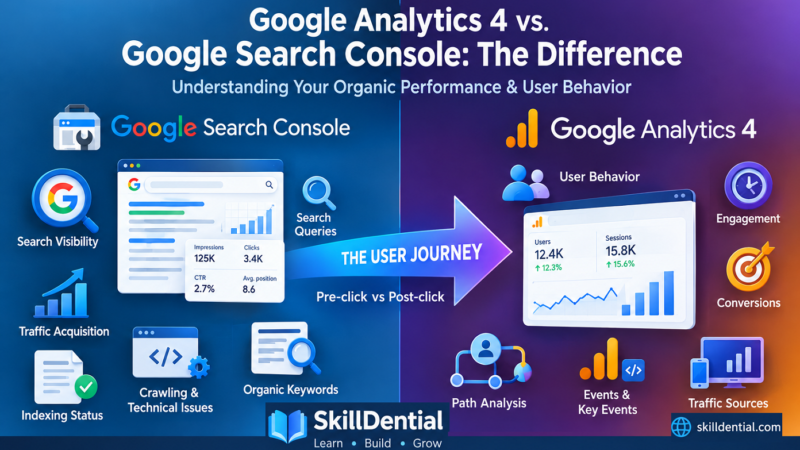
How to Find Your Top Search Queries in Google Search Console
If you want to understand how your audience discovers your website, analyzing search queries is the most direct path. To find your top search queries in Google Search Console, open the Performance report, select the Queries tab, and sort by clicks or impressions. This reveals the exact terms users type into Google before engaging with your pages.
This article is designed for:
- Beginner and intermediate website owners and bloggers
- SEO beginners learning Google Search Console
- Small business owners managing their own websites
- Content creators looking for new topics from actual search queries data
- Freelancers and digital marketers managing client properties
- WordPress users, students learning SEO, and affiliate marketers
If your site is already accumulating impressions and clicks in Google but you lack visibility into the exact search queries driving that traffic, this guide provides the exact workflow to uncover them—and actionable steps on what to do next.
By the end of this guide, you will be able to:
- Navigate Google Search Console to extract high-value search queries.
- Analyze core metrics: clicks, impressions, CTR, and average position tied to specific search queries.
- Identify high-impression, low-click search queries that signal immediate optimization potential.
- Isolate search queries where your pages rank between positions 4 and 20 for quick-win optimizations.
- Uncover unexpected search queries your site already ranks for organically.
- Transform discovered search queries into targeted content ideas.
- Leverage existing search queries to refine titles, headings, content depth, and internal linking structures.
- Differentiate between a raw search query and a target keyword.
- Avoid common analytical pitfalls when interpreting Google Search Console search query data.
What is a search query in Google Search Console?
A search query is the exact string of text or phrase a user types into the Google search bar that results in your website appearing in the search engine results pages (SERPs). Within Google Search Console’s Performance report, the Queries dimension aggregates your performance data by these live user terms.
Search Queries vs. Target Keywords
Search queries are the actual words and phrases people type into Google when looking for information, products, or services. Target keywords, on the other hand, are the search terms you intentionally optimize your content for. Understanding the difference helps you use Google Search Console data to discover what your audience is actually searching for and identify new SEO and content opportunities.
Search Query
A search query represents the raw, unfiltered intent of a user at the exact moment they execute a search. Unlike static target keywords, queries capture the natural language, typos, long-tail variations, and specific questions real people use when seeking information, products, or services.
Key Characteristics of Search Queries
- Behavioral, Not Prescriptive: Queries reflect what users actually type into the search bar, complete with conversational phrasing, localized terms, or implicit questions.
- High Variability: A single piece of content can rank for hundreds—or even thousands—of unique search queries that you never explicitly targeted in your keyword strategy.
- Intent-Driven: Every search queries data point in Google Search Console reveals the underlying motivation of the user, whether informational, navigational, commercial, or transactional.
Why Google Search Console Data Matters
Because Google Search Console surfaces these live search queries, it bridges the gap between what you think your audience is searching for and what they are actually typing. Analyzing these patterns allows you to align your content updates directly with real user behavior.
Target Keyword
A target keyword is the specific phrase or term you deliberately choose, research, and optimize for within your content, meta tags, and overall SEO strategy. Unlike raw user behavior captured by search queries, target keywords represent your proactive approach to ranking.
Key Characteristics of Target Keywords
- Proactive & Strategic: Chosen based on search volume, commercial value, competition, and alignment with your business goals before you publish content.
- Structural Anchor: Acts as the primary focus for on-page optimization, including title tags, meta descriptions, URL slugs, header tags (H1, H2), and strategic internal linking.
- The Foundation, Not the Ceiling: While you might build a page around one primary target keyword, Google will evaluate your content against dozens or hundreds of related search queries once it indexes.
How Target Keywords and Search Queries Work Together
Your target keyword dictates what you build and optimize for, but your search queries data in Google Search Console reveals how real users actually interact with your site. Comparing the two lets you see where your intended optimization aligns with actual audience behavior—and where you can adapt your content to capture high-value search queries you didn’t initially target.
Google Search Console exclusively reports on actual search queries, giving you an unfiltered view of how your audience discovers your content in the wild.
Step-by-step: How to find your top search queries in Google Search Console
Finding your top search queries in Google Search Console is straightforward once you know where to look. In this step-by-step guide, you’ll learn how to use the Performance report to see the search queries that generate impressions and clicks for your website, analyze key SEO metrics such as clicks, impressions, CTR, and average position, and identify search opportunities you can use to improve your rankings and create more relevant content.
Step 1: Open Google Search Console and Select Your Property
To begin analyzing your search queries, you need to access your data dashboard:
- Navigate to the Platform: Open Google Search Console.
- Select Your Property: Choose the correct property (either a domain property or a URL prefix property) for your website from the property selector dropdown in the top left.
- Verify Ownership (If Needed): If you have not verified your site yet, you must complete the verification process using DNS records, an HTML file, or other supported methods before Google can populate your search queries data.
Step 2: Open the Performance Report
Once you are inside your dashboard, locate the traffic data for your search queries:
- Access the Report: In the left-hand navigation menu, click on Performance.
- Verify Search Type: Ensure that Search results is selected at the top filter bar (default) rather than Image, Video, or News, unless you are specifically auditing non-web traffic.
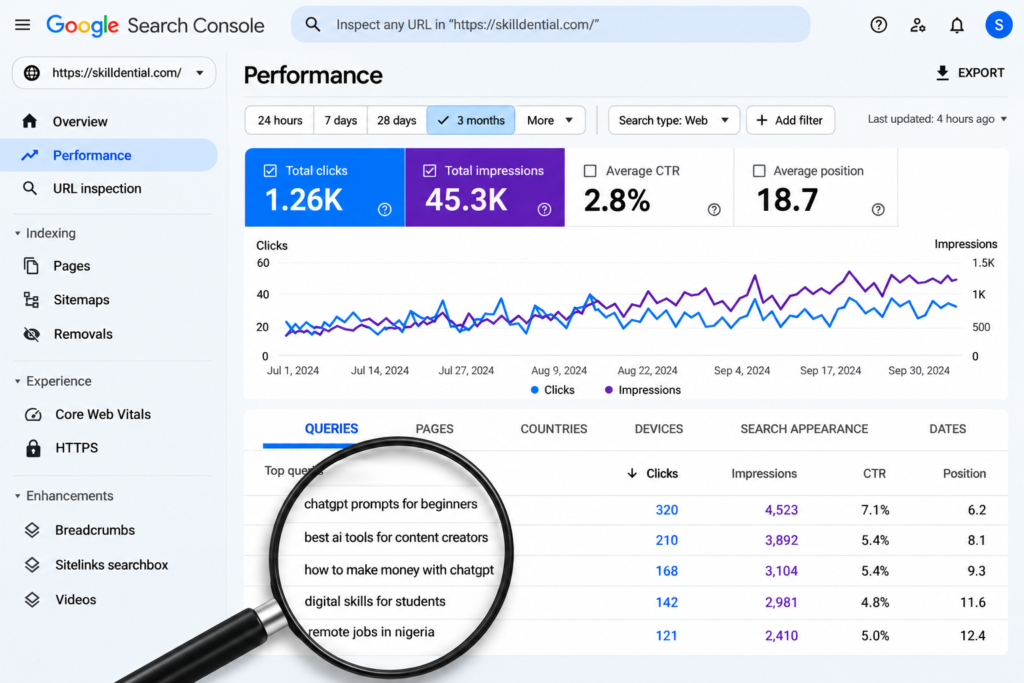
- Review the Default View: By default, the main chart displays your aggregate performance metrics—total clicks, total impressions, average CTR, and average position—spanning the last three months, establishing a baseline for your search queries analysis.
Step 3: Switch to the Queries View
To isolate the specific phrases driving traffic, you need to navigate to the primary data table:
- Locate the Dimension Tabs: Directly below the main performance chart, you will see a row of tabs labeled Queries, Pages, Countries, Devices, and more.
- Select the Queries Tab: Click on the Queries tab to filter the data exclusively by user-entered text.
- Analyze the Output: The table below will now display each search query that triggered your site to appear in Google’s results, accompanied by performance metrics for every single term.
Step 4: Choose Your Metrics and Date Range
To get an accurate, actionable view of your search queries, customize your dashboard settings:
- Toggle Performance Metrics: Above the main chart, click on the metric boxes to enable or disable them. Select all four core metrics—Clicks, Impressions, CTR (Click-Through Rate), and Average Position—so you can evaluate every dimension of your search queries.
- Adjust the Date Range: Above the top-right corner of the table, click the date filter (which defaults to the last 3 months). Adjust it to a custom range, the last 6 months, or the last 12 months depending on your analysis goals.
- Account for Site Age: For newer websites, expanding the date range to 6–12 months is often necessary to accumulate enough meaningful search query data for valid insights.
Step 5: Sort and Analyze Your Top Queries
With your table configured, you can now sort the data to uncover how your search queries are performing:
- Sort by Clicks (Descending): Click the Clicks column header to rank your search queries from highest to lowest traffic. These represent your core traffic-driving terms.
- Sort by Impressions: Click the Impressions column header to see where Google displays your site most frequently, revealing broad visibility even if clicks are low.
- Explore Alternative Sorts: You can also sort by CTR (Click-Through Rate) or Position to unearth optimization opportunities, which we will cover next.
At this point, your top search queries are clearly displayed before you. The next step is learning how to read these metrics and translate them into actionable strategy.
Understanding the Core Metrics: Clicks, Impressions, CTR, and Position
Google Search Console’s Performance report relies on four core metrics. Mastering these metrics is essential before making any optimization decisions regarding your search queries.
Clicks
Clicks represent the total number of times users clicked through to your website from Google Search results for a given search query.
- Direct Traffic Driver: Directly reflects your organic search traffic acquisition.
- Influencing Factors: Driven by your ranking position, title tag appeal, meta description persuasiveness, and alignment with search intent.
- Diagnostic Value: A search query with high impressions but low clicks suggests your meta snippet or content does not fully match user expectations.
Impressions
Impressions measure how many times a link to your site appeared in Google search results for a specific search query.
- Visibility Indicator: Your page earns impressions whenever it appears on a search engine results page (SERP), even if it ranks on page 2 or 3.
- Relevance Signal: High impressions mean Google’s algorithm considers your content relevant to that search query.
- Opportunity Flag: Low clicks relative to high impressions indicate strong visibility with weak conversion, pointing directly to optimization opportunities.
CTR (Click-Through Rate)
CTR is calculated as clicks divided by impressions, expressed as a percentage. It measures the efficiency of your visibility.
- Compelling Snippet Gauge: Indicates how attractive and relevant your listing is when users encounter it.
- Influencing Factors: Shaped by title tags, meta descriptions, URLs, rich snippets, and intent matching.
- Actionable Trigger: A low CTR on a high-impression search query is a definitive signal to rewrite your page’s title and meta description.
Average Position
Average Position reflects the average ranking of your pages for a given search query across all recorded impressions.
- Ranking Scale: Position 1 is the top organic result; higher numbers indicate lower placements on the page or subsequent pages.
- Dynamic Nature: It is an average, not a fixed rank. A page might rank at position 2 for desktop users in one region and position 14 for mobile users elsewhere, averaging out to position 8.
- Contextual Analysis: Average position must be interpreted alongside impressions and clicks, never in isolation.
5 Things to Look For in Your Search Queries
Instead of mindlessly scanning a massive list of keywords, focus on specific patterns that unlock immediate SEO opportunities. Use the filters and sorting options in the Queries tab to spot these five high-value scenarios:
High Impressions + Low CTR
- What it means: Google displays your site frequently for these search queries, but users rarely click through.
- How to find it:
- In the Queries tab, sort the table by Impressions (descending).
- Scan for terms where your CTR drops significantly below your site average.
- What to do:
- Audit and rewrite the title tag and meta description for the associated page to make the snippet more compelling.
- Verify that your snippet directly answers the user’s implicit intent (e.g., informational, transactional, navigational).
- Implement structured data schema where applicable to secure rich snippets and stand out in the SERPs.
High CTR + Low Impressions
- What it means: When your site actually appears in search results, users click often, but Google does not show it to a wide audience yet.
- How to find it:
- Sort the Queries table by CTR (descending).
- Filter for terms with high percentages but low overall impressions.
- What to do:
- Recognize that these search queries prove high user relevance and strong content resonance.
- Drive more visibility by pointing stronger internal links toward the target page and expanding its topical depth.
- If the page currently hovers around positions 5 through 15, targeted on-page optimization can expand its footprint and multiply impressions.
Queries Where You Rank Around Positions 4–10
- What it means: You are lingering on the bottom half of page one. Small, strategic improvements can push you toward the top three and dramatically increase clicks.
- How to find it:
- Click + New in the filter bar and select Position.
- Set the filter parameters to: Position greater than 3 and less than 11.
- Sort the filtered list by Impressions or Clicks.
- What to do:
- Optimize your title tag and main H1 header to better align with the exact search query.
- Add dedicated sections or comprehensive sub-bullets that directly answer the query.
- Strengthen internal linking by using the query (or tight variations) as anchor text pointing to the page.
- Refresh the content with up-to-date data, fresh examples, or clearer steps.
Queries Where You Rank Around Positions 11–20
- What it means: You are sitting on the page one/page two border (“striking distance”). With focused effort, these can break into clear page-one territory.
- How to find it:
- Filter by Position greater than 10 and less than 21.
- Sort by Impressions (descending) to find high-potential terms.
- What to do:
- Expand overall content depth, ensuring clear subheadings match the specific nuance of the search query.
- Boost on-page optimization signals and secure relevant internal links from authority pages on your site.
- Evaluate if multiple related queries point to thin content—if so, consider building a more comprehensive pillar page.
Queries You Weren’t Intentionally Targeting
- What it means: Your site is organically appearing for topics you never planned to rank for, exposing hidden market demand and content gaps.
- How to find it:
- Scan your Queries list for unexpected terms, niche angles, or modifiers (e.g., “for beginners,” “examples,” or localized terms).
- Look for clusters of related phrases that indicate a recurring user need.
- What to do:
- Group these unexpected search queries into distinct thematic clusters.
- Spin up brand-new pieces of content or expand existing pages to specifically target these hidden topics.
- Integrate the exact phrasing of high-impression discoveries naturally into your headings and body copy.
Turning Query Data Into Content Ideas
Your top search queries represent a ready-made content roadmap. Instead of guessing what your audience wants to read, use real performance data to plan and structure articles that capture verified search demand.
Create New Posts From High-Impression, Low-CTR Queries
If a search query exhibits high impressions alongside a low click-through rate, but no existing page on your site fully satisfies that specific user intent, you have found a prime candidate for a dedicated new article.
- Example Workflow:
- Identify a query such as “how to set up Google Search Console for beginners.”
- Check which page currently ranks for it by applying a query filter and switching to the Pages tab.
- If the current page only touches on the topic briefly as an afterthought, plan a standalone, comprehensive guide.
- Integrate the exact search query into your H1 tag and introduce it early in the body content to signal immediate relevance to search engines.
Expand Existing Posts Using Related Queries
Often, your existing pages already rank for dozens of minor variations and subtopics without your direct intervention. You can mine these variations to upgrade established content.
- Optimization Steps:
- Filter your Performance report by a specific high-value Page.
- Switch back to the Queries tab to view every term driving traffic and impressions to that single URL.
- Look for close variations, niche use cases, and specific subtopics your readers care about.
- Action: Add new dedicated H2 or H3 sections and FAQ blocks addressing those subtopics directly. Update your headings to mirror common search query phrasing, and reinforce the page with targeted internal links from related posts using query-based anchor text.
Cluster Queries Into Topic Groups
To scale your content production systematically, export your search query dataset via the top-right export button in Google Search Console, then group the data into logical clusters:
- Intent Categorization: Sort by intent markers like how-to, best, review, or comparison.
- Modifier Breakdown: Group by contextual modifiers (e.g., for beginners, in Nigeria, 2026, with examples).
- Core Subject: Segment by foundational themes (e.g., Google Search Console, technical SEO, performance audits).
Each structured cluster can then be mapped directly into a robust publishing framework, such as a comprehensive pillar page backed by targeted supporting articles, a multi-part tutorial series, or an authoritative resource hub.
Using Query Data to Improve Titles, Headings, and Internal Links
Once you have identified your highest-impact search queries, the next step is applying them directly to your on-page SEO. Integrating these exact terms and their variations transforms your content into a precise match for what users expect to find.
Titles and Meta Descriptions
Your meta snippet is your frontline pitch in the search results. Optimize it using your query data:
- Front-Load the Primary Query: Include your core search query or a natural variation within the title tag, positioning it near the beginning for maximum algorithmic and user impact.
- Communicate Clear Value: Ensure the title promises a tangible outcome or solution to the user’s underlying problem.
- Align Intent and Call to Action: Craft your meta description to match the exact intent of the search query, concluding with a compelling call to action that drives clicks.
Headings and Content Structure
Structure your content layout around the actual phrases your audience uses:
- Integrate Headings Naturally: Turn high-value search queries or closely related sub-queries into H2 or H3 heading tags where they fit organically into the flow.
- Build Direct Answer Sections: Create dedicated paragraphs or bulleted lists that instantly answer common search query variations to capture featured snippets.
- Add an FAQ Block: Conclude your article with an FAQ section targeting specific long-tail search queries uncovered in Google Search Console that did not fit into the main narrative sections.
Internal Links
Strengthen your site architecture using data-driven anchor text:
- Utilize Query-Based Anchor Text: When linking from related pages on your site, use descriptive anchor text that mirrors the target search query (e.g., linking with “how to find top search queries in Google Search Console”).
- Prioritize Link Flow: Ensure your most critical pillar pages receive inbound internal links from multiple relevant, high-authority articles across your site.
- Maintain Natural Variation: Avoid over-optimizing or repeating exact-match anchor text unnaturally; keep your internal linking profiles diverse and readable for real users.
Common Mistakes When Interpreting GSC Query Data
To ensure your SEO decisions are driven by real insights rather than false signals, avoid these four common pitfalls when analyzing your search queries:
Treating Average Position as an Exact Rank
- The Pitfall: Fixating on your average position as a fixed, permanent ranking. Because it is an aggregate metric, your actual rank fluctuates based on user location, device type, personalization, and search history.
- The Better Approach:
- Monitor position trends over weeks and months rather than stressing over day-to-day fluctuations.
- Always evaluate average position alongside total impressions and clicks to gauge true business impact.
Ignoring Search Intent
- The Pitfall: Assuming two similar search queries require the exact same content approach. For example, a broad query like “Google Search Console” is largely navigational, whereas “how to find top search queries in Google Search Console” is explicitly informational and instructional.
- The Better Approach:
- Inspect the live search engine results page (SERP) for your priority search queries to see what kind of content Google currently rewards.
- Match your page structure, format, and depth directly to the user’s underlying intent.
3. Overreacting to Small Data Points
- The Pitfall: Making massive structural changes to your site based on low-volume search queries that have only generated a handful of impressions or clicks. Small samples lead to noise-driven decisions.
- The Better Approach:
- Filter your analysis to focus on search queries with meaningful impression volumes.
- Look for macro-patterns and clusters across multiple related queries and pages rather than chasing single-digit outliers.
Confusing Queries with Keywords
- The Pitfall: Treating Google Search Console data like a rigid keyword list. Trying to force awkward, ungrammatical search queries into your text verbatim can ruin readability and lead to over-optimized copy.
- The Better Approach:
- Use raw search queries as creative inspiration, natural phrasing guides, and content gap indicators.
- Always prioritize seamless user experience, natural writing flow, and content clarity over exact-match keyword stuffing.
Practical Workflow: From Finding Queries to Taking Action
To turn raw data into a reliable growth engine, establish a repeatable cadence. Run this simple, high-leverage process on a monthly or quarterly basis:
- Access the Data: Open Google Search Console, navigate to Performance, ensure Search results is selected, and click the Queries tab.
- Set Your Parameters: Choose a meaningful date range (such as the last 3 or 6 months) to capture enough statistical significance.
- Audit Top Traffic: Sort your search queries by Clicks to review your current top-performing traffic drivers.
- Isolate Optimization Targets: Filter by Position (4–20) and sort by Impressions to pinpoint your highest-upside “striking distance” queries.
- Uncover Gaps: Scan the list for unexpected or emerging search queries you weren’t intentionally targeting.
- Synthesize and Plan: Group your most promising search queries into thematic clusters and decide:
- Which existing pages need content expansions, meta updates, or refreshed headings.
- Which brand-new articles you need to create to capture unserved demand.
- Execute Optimizations: Update your title tags, H2/H3 headings, body content, and internal linking structure accordingly.
- Measure Results: Return to your dashboard after 2 to 4 weeks to evaluate ranking shifts and traffic impact.
Where exactly do I see search queries in Google Search Console?
In the left-hand navigation menu, click Performance, ensure Search results is selected at the top filter bar, and then click the Queries tab located directly below the main performance chart. This table displays all the specific search queries that triggered your site.
Can I see search queries for a specific page?
Yes. To isolate the search queries driving traffic to a single URL:
Navigate to the Performance report and click the Pages tab.
Select the specific page you want to analyze.
Switch back to the Queries tab.
The table will now update to show exclusively the search queries that triggered impressions and clicks for that exact page.
How far back does Google Search Console show query data?
Google Search Console typically retains and displays up to 16 months of historical search queries data. You can easily adjust the timeframe using the date filter located in the top-right corner of the Performance report.
Why do some queries show no position?
If a search query displays a dash (-) in the position column, it indicates that Google did not record a standard ranking position for those impressions.
This can happen when results appear in unique search features or layouts where traditional pagination and positioning are not measured. For reliable ranking analysis, focus your efforts on search queries with sufficient impressions and fully recorded positions.
Is GSC query data the same as keyword data from SEO tools?
No. Google Search Console captures actual search queries reflecting real user behavior on your specific website. In contrast, third-party SEO tools provide modeled estimates of search volume, traffic potential, and keyword difficulty across the broader web. Use Google Search Console for precise, site-specific performance insights, and rely on keyword tools for top-of-funnel market research.
In Conclusion
Mastering your search queries in Google Search Console bridges the gap between what you hope your audience is looking for and what they are actually typing into Google. By moving beyond generic keyword tools and analyzing real user behavior, you gain an unfiltered roadmap for your entire content strategy.
Whether you are capturing quick-win traffic from queries ranking in positions 4 through 10, optimizing snippets for high-impression terms with low CTR, or uncovering unexpected content gaps, GSC data provides the exact feedback loop needed to scale organic traffic.
Next Steps to Take Today
- Audit Your Top Pages: Open Google Search Console right now, navigate to the Queries tab, and identify your top three high-impression, low-CTR queries.
- Refine Your Snippets: Update the title tags and meta descriptions on those pages to better match real user intent.
- Establish a Routine: Put a monthly or quarterly review on your calendar to systematically scan for new search queries, cluster your data, and continuously optimize your site architecture.
By consistently turning your search queries into actionable content improvements, you build a resilient, data-backed SEO engine that drives long-term visibility and sustainable growth.