How to Use ChatGPT in Microsoft Word: A Beginner’s Guide
Writing long-form documents often means constantly switching between your browser and your workspace. By setting up ChatGPT in Microsoft Word, you can bring advanced AI capabilities directly into your native document environment to streamline drafting, editing, and content refinement.
You can activate ChatGPT in Microsoft Word by installing an official OpenAI-compatible add-in or extension from the Microsoft Marketplace. Once installed, it opens in a dedicated sidebar beside your active document. From there, you can execute targeted commands without leaving your workflow:
- Drafting: Generate initial paragraphs or sections directly from raw notes.
- Rewriting: Adjust the tone, clarity, or style of selected text segments.
- Summarizing: Condense lengthy documents or sections into actionable takeaways.
- Editing: Surface structural improvements and grammar corrections instantly.
You can begin using ChatGPT in Microsoft Word with a standard ChatGPT account, though feature availability and usage limits will vary depending on your plan tier.
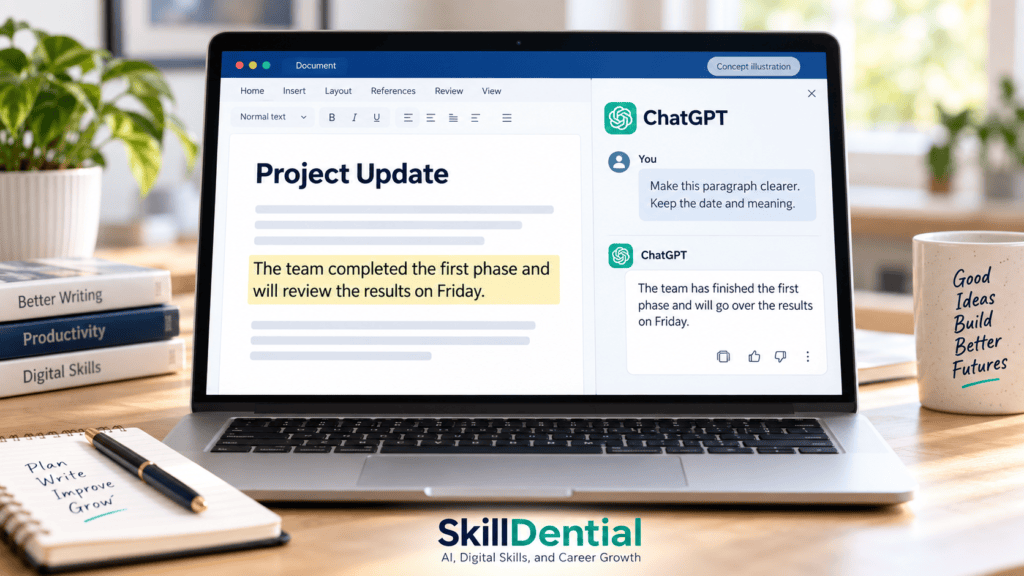
Whether you are drafting corporate reports, client proposals, or structured articles, integrating ChatGPT in Microsoft Word eliminates context-switching. This guide covers end-to-end setup instructions, high-leverage starter prompts, and the critical quality checks required before publishing or sharing AI-assisted content.
What is ChatGPT for Microsoft Word?
ChatGPT for Microsoft Word is an official add-in developed by OpenAI that embeds generative AI directly into your document workspace. Operating as a dedicated sidebar panel, the add-in interacts contextually with your open document. Notably, the same official Microsoft add-in framework extends functionality to Excel and PowerPoint as well.
Warning
Exercise caution when selecting tools from the directory. The Microsoft Marketplace features multiple third-party utilities containing “GPT” or “ChatGPT” in their metadata. To ensure security, data privacy, and native capability, always install the official listing published directly by OpenAI, LLC.
High-Leverage Use Cases & Practical Prompts
Official documentation and standard workflows position ChatGPT in Microsoft Word as a versatile assistant for drafting, structural organization, and revision. Below are actionable prompt frameworks designed to maximize productivity within your document pipeline:
| Use Case | Objective | High-Leverage Prompt Example |
| Initial Drafting | Convert raw notes into structured documentation. | “Turn these notes into a report with an introduction, findings, and next steps.” |
| Text Revision | Adjust clarity, tone, or readability while safeguarding data integrity. | “Rewrite the selected text in plain English. Keep every date and figure unchanged.” |
| Document Synthesis | Extract core insights and open action items from lengthy texts. | “Summarise this document in five points and identify decisions still needed.” |
| Structural Editing | Optimize flow and eliminate redundancy across sections. | “Find repeated ideas and suggest a clearer order for the sections.” |
| Consistency Control | Standardize vocabulary and terminology across collaborative files. | “List terms used inconsistently and suggest one term to use throughout.” |
Note: These starter prompts serve as baseline frameworks. Always audit and review outputs generated by ChatGPT in Microsoft Word before finalizing or publishing your documents.
How to Install and Set Up ChatGPT in Microsoft Word
Integrating ChatGPT in Microsoft Word requires installing the official add-in, launching it within your desktop or web application, and authenticating your account. Follow this structured setup sequence:
- Locate the Add-in: Navigate to the official ChatGPT listing within the Microsoft Marketplace.
- Authorize Installation: Select Get it now and complete the verification steps associated with your Microsoft account.
- Launch in Word: Open Microsoft Word (desktop or web app) and locate the ChatGPT icon within the application ribbon.
- Authenticate Your Account: Sign in using your standard ChatGPT credentials. If your login is tied to an enterprise or team account, select your designated organizational workspace.
- Initiate Your Workflow: Open any document to launch the ChatGPT sidebar and enter your initial prompt.
Compatibility, Plans, and Access Requirements
The official add-in supports ChatGPT Free, Go, Plus, and Pro tiers, alongside eligible enterprise and team accounts. However, exact feature availability and execution limits depend on several external factors:
- Geographic region and localization restrictions.
- Your specific Microsoft 365 licensing environment.
- Internal organization policies and IT administrator permissions.
While you can start using ChatGPT in Microsoft Word at no cost under standard plans, rate limits apply, and advanced capabilities may require an upgraded subscription. Always verify your current account terms and quotas directly within your dashboard before running heavy documentation workflows.
Troubleshooting Missing Add-ins and Your First Practical Workflow
If you can’t find an AI add-in in Microsoft Word, first check Insert → Get Add-ins or Home → Add-ins; the location can vary by Word version. Make sure you’re signed in, connected to the internet, and using an account that allows add-ins. Work or school administrators may restrict what you can install. Once the add-in is available, try a simple workflow: draft a short paragraph, ask the AI assistant to improve its clarity, then review the suggestions and make the final edits yourself.
Troubleshooting: What to Do If ChatGPT Does Not Appear in Word
If the integration fails to load or the icon is missing from your interface, execute the following diagnostic checks:
- Verify the Source: Confirm that you installed the official listing published specifically by OpenAI, LLC, rather than a third-party clone.
- Check Account Authentication: Ensure you are signed into Microsoft Word using the exact Microsoft account associated with your installation, and authenticated within the sidebar using your correct ChatGPT login.
- Review Enterprise & Admin Policies: If you operate on a work or school Microsoft 365 license, restrictions may be enforced by your IT department. Consult your system administrator to confirm whether add-in deployment is permitted and whether your organizational ChatGPT workspace requires explicit enablement.
Your First Workflow: Improving a Single Paragraph
Before applying AI across entire reports or manuscripts, master the mechanics of prompt construction by executing a low-risk, targeted edit. This builds familiarity with how ChatGPT in Microsoft Word processes instructions and handles contextual constraints.
- Backup Your File: Open your Word document and save a duplicate copy if you are working with sensitive or vital content.
- Select Target Text: Highlight a single paragraph that requires clarity, tone adjustment, or structural tightening.
- Define the Objective: In the ChatGPT sidebar, explicitly state the transformation you want to achieve.
- Anchor Constraints: Clearly specify critical data points, numbers, or terminology that must remain completely untouched.
- Evaluate the Output: Compare the generated suggestion side-by-side with your original text.
- Execute Action: Accept, manually tweak, or reject the proposed wording.
Example Practical Prompt for ChatGPT in Microsoft Word
An administrative professional drafting a public notice can utilize this structured command structure within ChatGPT in Microsoft Word:
“Rewrite the selected paragraph for readers unfamiliar with this process. Use short sentences and a professional tone. Keep the deadline, office name, eligibility requirements, and contact details exactly as written.”
Explicitly defining what must be preserved ensures high-fidelity editing when using ChatGPT in Microsoft Word for production-grade documentation.
Practical Application Patterns for ChatGPT in Microsoft Word
Structuring your requests prevents generic outputs and transforms ChatGPT in Microsoft Word into a precise document editor. Apply these four core templates depending on your current editorial stage:
Draft a Document From Rough Notes
Avoid vague prompts like “write a proposal”. Provide boundaries, headings, and strict guardrails for missing data.
Turn the following notes into a one-page project proposal. Use the headings Problem, Proposed Approach, Expected Benefits, and Next Steps. Write for a manager who has not heard of the project. Use only the information provided and mark missing details as “[information needed].”
[Paste your notes here]
Summarize a Document for a Specific Purpose
Define the target reader and enforce strict parameters to prevent the model from hallucinating conclusions.
Summarize this document for a project manager in no more than 150 words. Include the main recommendation, supporting evidence, unresolved questions, and any stated deadlines. Do not add conclusions that the document does not support.
Rewrite for a Different Audience
Instead of asking to “make it better,” define the exact shift in reading level or technical register required.
Rewrite the selected section for beginners. Define technical terms the first time they appear. Keep the original meaning, names, figures, and references. Suggest any claims that need a source.
Review a Draft Before Editing
For larger documents, request structural critique or an outline before allowing the model to rewrite text directly.
Review this draft for unclear wording, repeated points, weak transitions, and inconsistent terminology. Give me a numbered list of suggestions by section. Do not revise the document yet.
Standardizing Your Editorial Workflow
To maintain consistency across repetitive tasks (such as weekly client updates or recurring status memos), use a repeatable prompt structure:
- Task:[Draft, summarize, rewrite, or review.]
- Audience: [Who will read it?]
- Source:[The selected text, open document, or notes supplied.]
- Format: [Headings, bullets, length, or tone.]
- Keep unchanged:[Names, figures, dates, terminology, or quotations.]
- Check: [What should ChatGPT flag rather than guess?]
Important Technical Note
Add-in conversations within Microsoft Word operate entirely independently from your standard web-based ChatGPT history.Platform features such as ChatGPT memory and custom user instructions do not automatically carry over or persist inside the Word sidebar. Every session relies strictly on the explicit context provided within your current document and prompt structure.
What specific type of document or workflow are you planning to optimize first with this setup?
Limitations, Risks, and Best Practices
When operating ChatGPT in Microsoft Word, treat all generated outputs strictly as raw drafts requiring careful human review. AI-assisted writing carries inherent risks that demand methodical verification before documents leave your workspace.
Core Technical Limitations
- Factual Inaccuracies: ChatGPT can introduce subtle hallucinations, factual mistakes, or misinterpretations of complex source material.
- Unintended Alterations: Automated rewrites can accidentally drop critical conditions, modify constraints, or shift the intended meaning of specific clauses.
- Formatting Disruptions: Complex document structures—such as native tables, nested lists, charts, and custom page layouts—often require manual post-processing to fix layout shifts.
- Local File Isolation: The add-in can read and modify your open document, but it cannot directly reference other local files stored on your machine. If external source data is required, you must manually paste the relevant text into your prompt.
Pre-Publication Quality Checklist
Before sharing or finalizing any AI-assisted document, perform these four verification steps:
- Fact-Check Data Points: Verify every name, date, numerical figure, quotation, reference, and formal claim against your source documentation.
- Audit Rewritten Text: Compare modified sections side-by-side with the original text to ensure no crucial conditions or technical meanings were altered.
- Inspect Layout Elements: Review headings, tables, numbering sequences, charts, and page breaks to ensure Word’s visual hierarchy remains intact.
- Backup Files: Always save a distinct manual copy of your document before letting the AI execute large-scale structural edits.
Privacy and Data Governance Considerations
According to the official Microsoft Marketplace permissions, the add-in possesses the capability to read, modify, and transmit document data across the internet. OpenAI states that data handling practices align directly with your specific ChatGPT plan and account data controls.
Warning
Before processing proprietary, legal, financial, or staff-related documents, consult your organization’s internal compliance policies. Ensure that using ChatGPT in Microsoft Word complies with your employer’s rules regarding confidential, restricted, or regulated data.
Is ChatGPT for Word the same as Copilot in Word?
No, they are entirely separate products.
- ChatGPT for Word is an official add-in developed by OpenAI. It is installed from the Microsoft Marketplace and operated using a standard ChatGPT account and interface within a sidebar panel.
- Copilot in Word is Microsoft’s native AI experience built directly into the Microsoft 365 ecosystem. It relies on a Microsoft account and specific Microsoft 365 or Copilot licensing, deeply integrating with enterprise data, SharePoint, and other Microsoft applications.
Always confirm which tool or software stack your organization provides and licenses before implementing workspace guidelines or installation workflows.
Is ChatGPT for Microsoft Word free to use?
Yes, you can get started for free using a standard ChatGPT account, but usage limits and rate restrictions apply. Depending on your required volume and access to advanced features, an upgraded plan (such as Plus, Pro, or team tiers) or organizational licensing may be necessary for heavy, production-level document workflows.
Can ChatGPT for Word access other files on my computer?
No. The add-in can read and modify your currently open document, but it cannot directly browse or reference other local files stored on your local machine. If you need to pull context from external documents or notes, you must manually copy and paste the relevant text into the sidebar prompt.
How does ChatGPT for Word differ from Microsoft Copilot?
They are entirely separate products built by different companies. ChatGPT for Word is an official OpenAI add-in installed via the Microsoft Marketplace and operated via a ChatGPT account. Microsoft Copilot in Word is Microsoft’s native AI assistant, which is deeply integrated into the Microsoft 365 ecosystem and requires a separate Microsoft Copilot license.
Are my documents kept private and secure when using the add-in?
Data handling depends entirely on your specific ChatGPT subscription tier and account data controls. Because the add-in transmits data over the internet, you should always consult your employer’s IT compliance policies before using it with proprietary, confidential client, financial, or legal documents.
Why is the ChatGPT add-in not showing up in my Microsoft Word ribbon?
First, ensure you installed the official listing published specifically by OpenAI, LLC from the Microsoft Marketplace. If you are using a work or school account, your Microsoft 365 administrator or internal IT department may have blocked third-party add-ins or restricted access for your organizational workspace.
In Conclusion
ChatGPT in Microsoft Word bridges the gap between your web-based AI workflows and your native document environment, enabling you to draft, summarize, rewrite, and review text directly from a sidebar panel. By installing the official OpenAI, LLC add-in from the Microsoft Marketplace and establishing disciplined prompt habits—such as anchoring constraints, defining target audiences, and protecting critical data—you can significantly accelerate your document production pipeline.
Remember that AI is an assistant, not a final authority. Always audit generated text against your sources, inspect structural layouts, and verify compliance with your organization’s data privacy policies before finalizing important files.
Your Next Step
Open a non-sensitive Word document today, select a single paragraph, and test your first structured prompt to make the text clearer while preserving every vital factual detail.