Microsoft 365 is a subscription-based cloud productivity ecosystem developed by Microsoft that unifies core office applications, cloud storage, communication, and enterprise-grade security into a single workflow.
Evolving beyond the legacy Microsoft Office suite, Microsoft 365 connects desktop and web apps like Word, Excel, and PowerPoint directly with cloud infrastructure—including OneDrive, Outlook, Teams, and SharePoint.
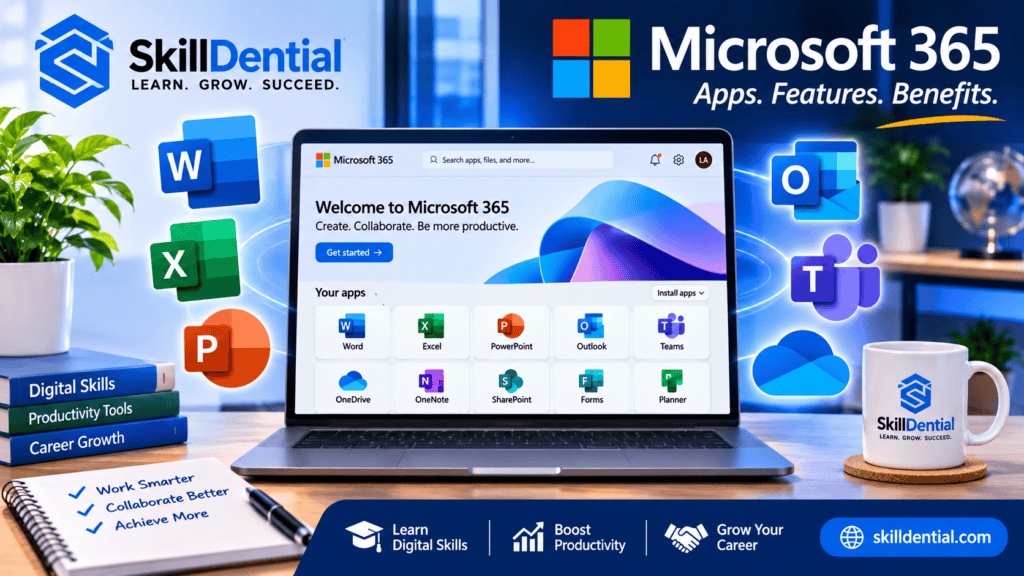
Depending on your plan tier, you gain cross-device access across desktop, web, and mobile, alongside centralized administration, threat protection, and integrated AI capabilities via Microsoft Copilot.
In practice, Microsoft 365 adapts to distinct operational needs:
- Students draft coursework in Word, model data in Excel, and sync files automatically via OneDrive.
- Corporate teams manage communications in Outlook, host meetings in Teams, and co-author live documents in SharePoint.
- Small businesses track financials in Excel, generate client proposals in Word, and streamline internal operations through Teams.
Rather than treating software as isolated tools, Microsoft 365 consolidates document creation, real-time collaboration, and cloud management into one connected environment.
How Does Microsoft 365 Work?
Microsoft 365 operates on a hybrid cloud architecture, pairing locally installed desktop software with real-time services hosted on Microsoft’s cloud infrastructure.
Access is governed by identity-based licensing. You sign in using either a personal Microsoft account or an organizational work/school account (managed via Microsoft Entra ID). Your subscription tier dynamically unlocks specific applications, cloud storage quotas, and security permissions across your devices.
A standard Microsoft 365 workflow connects five operational layers:
- Identity & Licensing: Sign in with your Microsoft or organizational account to authenticate access and enforce plan-level permissions.
- Core Creation Apps: Draft, model, and design using Word, Excel, and PowerPoint across desktop, web, or mobile interfaces.
- Cloud Storage & Sync: Store and version-control files automatically in OneDrive (personal/individual) or SharePoint (team/organizational).
- Communication & Co-Authoring: Route email through Outlook and host meetings, chats, and live document collaboration inside Teams.
- Security & Governance: Protect data and manage devices via plan-dependent tools like Microsoft Defender, Intune, and Purview.
Practical Workflow Example:
You draft a quarterly report in the Word desktop app, save it to OneDrive, and generate a role-based sharing link. Colleagues can co-author the file simultaneously in real time—with permissions restricted to viewing, commenting, or editing—while version history tracks every change automatically.
Online vs. Offline Execution:
Using Microsoft 365 does not require a constant internet connection. Core desktop applications run natively offline; you can create and edit files locally, and Microsoft 365 automatically syncs your changes to the cloud the moment your device reconnects.
Microsoft 365 Apps: What Does Each Application Do?
Microsoft 365 bundles specialized applications built to handle distinct operational workflows—from document creation and financial modeling to enterprise communication and cloud storage. While exact app availability varies by subscription tier, device compatibility, and licensing type, the core Microsoft 365 suite covers five primary functions:
Microsoft Word
Microsoft Word is the flagship word-processing application within Microsoft 365, built for drafting, formatting, reviewing, and co-authoring written documents across desktop, web, and mobile devices.
Core Use Cases & Capabilities:
- Business & Technical Writing: Draft client proposals, standard operating procedures (SOPs), executive reports, and formal correspondence using customizable templates.
- Academic & Career Documentation: Structure research papers with automated citations and bibliographies, or build ATS-friendly CVs and resumes.
- Structured Formatting & Visuals: Organize long-form content using dynamic styles, tables, accessible math equations, and embedded visuals.
- Real-Time Co-Authoring & Version Control: Edit documents simultaneously with teammates, audit granular revisions via Track Changes and comments, and restore prior drafts through OneDrive version history.
- AI-Assisted Drafting & Transcription: On Copilot-enabled plans, generate initial drafts, rewrite sections for tone, summarize lengthy documents, and convert recorded audio into interactive transcripts.
Practical Example:
A university student drafts a research paper in Word using built-in heading styles and citation tools, saves it to OneDrive, and shares a review link with their lecturer—who leaves inline feedback via Track Changes without creating conflicting file versions.
Microsoft Excel
Microsoft Excel is the flagship spreadsheet and data-analysis application within Microsoft 365, engineered for organizing structured datasets, executing complex calculations, building financial models, and generating visual reports.
Core Use Cases & Capabilities:
- Formulas & Financial Modeling: Automate calculations and logic workflows using dynamic functions (
XLOOKUP,SUMIFS,INDEX/MATCH), nested conditions, and custom formulas. - Data Analysis & PivotTables: Slice, aggregate, and cross-tabulate large datasets rapidly using PivotTables, Power Query (for automated data cleaning and ETL), and Power Pivot.
- Data Visualization & Dashboards: Transform raw numbers into executive-ready charts, sparklines, and conditional formatting heatmaps to surface trends and anomalies instantly.
- Data Integrity & Automation: Enforce clean inputs with data validation rules, eliminate repetitive tasks via macros and Office Scripts, and connect live data sources across Microsoft 365.
- AI-Assisted Insights (Copilot): On Copilot-enabled plans, generate complex formulas from natural language prompts, identify variance drivers, and build visual summaries automatically.
Practical Example:
A small-business owner logs daily revenue and operating expenses in Excel, uses SUMIFS and PivotTables to calculate monthly profit margins by product category, and builds an automated visual dashboard to monitor cash flow.
Career Relevance:
Proficiency in Excel remains a non-negotiable core skill for roles in data analysis, finance, accounting, operations management, and business intelligence.
Microsoft PowerPoint
Microsoft PowerPoint is the flagship visual presentation application within Microsoft 365, designed to structure ideas, pitch decks, training modules, and executive briefings using slides, dynamic charts, multimedia, and real-time delivery tools.
Core Use Cases & Capabilities:
- Structured Slide Design & Layouts: Build cohesive decks rapidly using PowerPoint Designer, master slide templates, SmartArt diagrams, and consistent brand typography.
- Data & Multimedia Integration: Embed live Excel charts, high-resolution visuals, screen recordings, audio narration, and video directly into slides to simplify complex information.
- Motion & Visual Pacing: Guide audience attention with purposeful slide transitions (such as Morph), object animations, and interactive zoom summaries.
- Delivery & Rehearsal Tools: Present confidently using Presenter View (with private speaker notes and timers), live automated captions/subtitles, and Speaker Coach for pacing and filler-word feedback.
- Cloud Co-Authoring & AI Generation: Co-edit decks simultaneously across Microsoft 365 via OneDrive or SharePoint, and on Copilot-enabled plans, generate structured slide outlines directly from Word documents or prompts.
Practical Example:
A job seeker builds a clean, visual portfolio deck showcasing case-study outcomes for an interview, while a business analyst embeds live Excel performance charts to present quarterly KPIs to leadership.
Microsoft Outlook
Microsoft Outlook is the unified email, calendar, and personal information management hub within Microsoft 365, designed to centralize business communications, scheduling, contacts, and task tracking across desktop, web, and mobile devices.
Core Use Cases & Capabilities:
- Email Management & Automation: Organize high-volume inboxes using Focused Inbox, custom folders, conditional rules, and Quick Steps to automatically filter, route, and prioritize messages.
- Smart Calendar & Scheduling: Coordinate meetings across time zones using the Scheduling Assistant, saved calendar views, shared team calendars, and integrated Microsoft Bookings links.
- Contact & Address Book Sync: Maintain personal and organizational directories, build distribution lists, and manage shared mailboxes seamlessly via Exchange integration.
- Task & Follow-Up Integration: Sync flagged emails directly with Microsoft To Do to convert action items into tracked tasks with deadlines and reminders.
- AI Triage & Drafting (Copilot): On Copilot-enabled plans, summarize lengthy email threads in one click, draft context-aware replies with adjustable tone, resolve scheduling conflicts, and execute natural-language inbox actions (such as flagging, archiving, or creating rules).
Practical Example:
An office administrator manages executive calendars in Outlook, uses the Scheduling Assistant to find open meeting slots across departments, automatically routes incoming vendor invoices to a dedicated finance folder via inbox rules, and turns urgent requests into Microsoft To Do tasks.
Microsoft OneNote
Microsoft OneNote is the free-form digital note-taking and knowledge-management application within Microsoft 365, designed to capture, organize, and sync unstructured information across desktop, tablet, web, and mobile devices.
Core Use Cases & Capabilities:
- Hierarchical Knowledge Structure: Organize information intuitively using a three-tier system—Notebooks, Section Groups/Sections, and individual Pages—to mirror physical binders without page limits.
- Rich Multimedia & Free-Form Canvas: Click anywhere on a page to type text, embed PDFs, clip web articles, insert audio/video recordings, or handwrite and sketch using a stylus.
- Optical Character Recognition (OCR) & Instant Search: Search across typed text, handwritten ink, and even text embedded inside images or scanned documents.
- Ecosystem & Meeting Integration: Pull Outlook meeting details (attendees, agendas, dates) directly into a note page, assign Outlook follow-up tasks, and co-author shared notebooks via OneDrive or SharePoint.
- AI Note Synthesis (Copilot): On Copilot-enabled plans, summarize sprawling meeting notes, extract prioritized action items, and transform rough bullet points into structured project briefs.
Practical Example:
A student creates separate notebooks for each semester course, organizes weekly lectures into dedicated sections, embeds PDF syllabi alongside typed notes and audio recordings, and syncs everything via Microsoft 365 to review on their phone before exams.
Microsoft OneDrive
Microsoft OneDrive is the cloud storage and file-synchronization backbone of Microsoft 365, built to store, back up, sync, and securely share personal or work files across desktop, web, and mobile devices.
Core Use Cases & Capabilities:
- Cross-Device Sync & Files On-Demand: Automatically sync local folders (
Desktop,Documents,Pictures) to the cloud while using Files On-Demand to browse your entire directory without consuming local hard drive space until a file is opened. - Granular Sharing & Access Controls: Share files or folders via role-based links with customizable permissions (view-only vs. edit), password protection, expiration dates, and blocked downloads.
- Version History & Ransomware Recovery: Restore previous file iterations automatically via Version History, or roll back your entire OneDrive to an earlier point in time using Files Restore (available on paid Microsoft 365 plans).
- Mobile Document Scanning & Offline Access: Scan physical receipts, whiteboards, and IDs directly into searchable PDFs via the mobile app, and mark critical folders for offline availability when traveling.
- Personal Vault Security: Protect sensitive files (such as passports, tax records, or contracts) inside a dedicated, identity-verified folder requiring two-step authentication.
Practical Example:
A consultant saves a client proposal to OneDrive on their office desktop, marks it for offline access before a flight, and reviews or shares the final version from their smartphone upon landing—knowing every edit is backed up automatically.
OneDrive vs. SharePoint (Key Distinction):
Within Microsoft 365, OneDrive is built primarily for individual file storage, personal drafts, and ad-hoc sharing, whereas SharePoint serves as the centralized repository for department-wide libraries, team workspaces, and long-term organizational knowledge.
Microsoft Teams
Microsoft Teams is the central communication and real-time collaboration hub within Microsoft 365, unifying persistent chat, video conferencing, voice calling, and shared workspaces into a single interface.
Core Use Cases & Capabilities:
- Persistent Chat & Threaded Channels: Organize communication into dedicated Teams and topic-specific Channels alongside instant 1:1 or group messaging, reducing internal email clutter.
- HD Video Meetings & Webinars: Host virtual meetings with screen sharing, interactive whiteboards, breakout rooms, live captions, and cloud recording with searchable transcripts (plan-dependent).
- Embedded Co-Authoring: Open, edit, and co-author Word, Excel, and PowerPoint files directly inside Teams channels without switching apps—backed automatically by SharePoint and OneDrive.
- Workflow & App Integrations: Pin project boards (Planner), notes (OneNote), shared files, and third-party tools directly into channel tabs to create a single operational workspace.
- AI Meeting Recaps (Copilot): On Copilot-enabled plans, generate automated meeting summaries, extract assigned action items, and catch up on missed discussions in real time without disrupting the call.
Practical Example:
A distributed product team hosts its weekly sprint review in Teams, shares a live PowerPoint roadmap, edits the launch tracker in Excel simultaneously inside the channel, and relies on automated transcripts to log follow-up tasks.
Microsoft SharePoint
Microsoft SharePoint is the enterprise content management and intranet platform within Microsoft 365, built to centralize organizational knowledge, manage shared document libraries, and power internal communication sites.
Core Use Cases & Capabilities:
- Internal Intranet & Communication Sites: Build browser-based company portals, departmental hubs, and news feeds to publish policies, SOPs, and executive announcements without writing code.
- Enterprise Document Libraries: Store, tag, and organize shared team files using custom metadata columns, views, and automated version control—serving as the underlying file-storage engine for Microsoft Teams channels.
- Granular Permissions & Governance: Enforce role-based access controls at the site, library, folder, or individual file level to protect confidential records while enabling controlled external sharing.
- Workflow Automation & Lists: Track structured operational data using Microsoft Lists and automate document approvals, notifications, and lifecycle retention rules via Power Automate integration.
- Enterprise Search & AI Knowledge Grounding: Surface company-wide documents instantly through Microsoft Search, and on Copilot-enabled plans, ground AI responses directly in verified internal SharePoint documentation.
Practical Example:
An HR department builds an internal SharePoint portal where employees browse onboarding handbooks, download benefit forms, and submit policy sign-offs—with permissions restricting editing rights exclusively to HR administrators.
Microsoft Access
Microsoft Access is a desktop relational database management system (RDBMS) included in select Microsoft 365 plans, built for designing structured databases, custom data-entry interfaces, and automated operational reports without heavy software engineering.
Core Use Cases & Capabilities:
- Relational Data Modeling: Structure complex datasets across normalized tables linked via primary and foreign keys to eliminate duplicate records and enforce referential integrity.
- Custom Data-Entry Forms: Build user-friendly input screens with drop-down lists, validation rules, and subforms so non-technical staff can enter records accurately without touching raw tables.
- Visual & SQL Queries: Filter, join, aggregate, and update large datasets rapidly using either the drag-and-drop Query Designer or standard SQL statements.
- Formatted Operational Reports: Generate printable invoices, inventory summaries, and grouped analytical reports directly from live database queries.
- Macros & VBA Automation: Automate multi-step database workflows using built-in macros or Visual Basic for Applications (VBA), and connect Access front-ends to external data sources like Excel, SharePoint lists, or SQL Server.
Practical Example:
A regional logistics company uses Access to link customer profiles, shipment orders, and warehouse inventory tables—giving dispatch staff a simple custom form to log deliveries while automatically generating daily manifest reports.
Platform & Plan Availability:
Unlike web-first apps in Microsoft 365, Access is a Windows-only desktop application (not natively available on macOS, iOS, or Android) and is included only in specific tiers such as Microsoft 365 Business Standard, Business Premium, and Enterprise plans (excluded from Personal, Family, and Business Basic).
Microsoft Publisher: Important Retirement Update
Microsoft Publisher was a legacy Windows-only desktop publishing application included in select Microsoft 365 plans for designing print-focused layouts—such as brochures, flyers, newsletters, postcards, and business cards.
Status Update (Retired October 2026):
Microsoft officially retired Publisher from Microsoft 365 subscriptions on 1 October 2026, permanently removing the ability to open or edit
.pubfiles via subscription licenses. Support for standalone perpetual versions (such as Office LTSC 2021) also reached end-of-life on 13 October 2026.
Recommended Alternatives & Migration Path:
- Within Microsoft 365: Microsoft directs users to Microsoft Word (for structured newsletters, reports, and printable templates) and Microsoft PowerPoint (for custom-dimension flyers, posters, banners, and visual layouts), alongside Microsoft Designer for AI-assisted social and marketing graphics.
- Handling Legacy
.pubFiles: Because Microsoft 365 no longer supports native.pubediting, any remaining legacy files must be converted to PDF or Word (.docx) using a supported environment or third-party conversion utilities before archiving. - Dedicated Publishing Alternatives: Teams requiring advanced print typography, CMYK color profiles, or multi-page layout control should adopt dedicated tools such as Affinity Publisher, Adobe InDesign, or Canva rather than relying on legacy Microsoft publishing workflows.
Other Important Microsoft 365 Services
Beyond core document and communication apps, Microsoft 365 includes cloud services built to manage enterprise email infrastructure, collect structured data, track projects, automate workflows, and visualize business intelligence.
Microsoft Exchange Online
Exchange Online is the cloud-hosted email, calendar, and contact server powering business communications inside Microsoft 365.
- Custom Domain Email Hosting: Issue professional email addresses (
you@yourcompany.com) backed by cloud mailbox storage (50 GB to 100 GB depending on plan). - Shared Mailboxes & Resource Calendars: Manage department-wide inboxes (e.g.,
support@orsales@) and conference room booking calendars without paying for separate user licenses. - Built-In Threat & Spam Filtering: Protect organizational inboxes with automated anti-malware, anti-phishing, and compliance retention policies.
- Seamless Client Sync: Synchronizes mailboxes, calendars, and contacts across the Outlook desktop app, Outlook on the web, and mobile devices.
Practical Example:
A growing company configures Exchange Online so every employee receives a custom-domain email address while customer inquiries route automatically into a shared support inbox accessible by the entire service team.
Microsoft Forms
Microsoft Forms is a lightweight web-based survey, quiz, and polling tool integrated across Microsoft 365.
- Surveys, Polls & Registrations: Collect customer feedback, employee pulse checks, and event RSVPs using branching logic and mobile-friendly templates.
- Auto-Graded Assessments: Build educational or internal training quizzes with automated scoring and instant feedback.
- Live Excel & Teams Integration: Export responses directly into an Excel workbook for analysis or embed live polls inside Microsoft Teams meetings and channels.
Practical Example:
An HR manager sends out a Microsoft Forms onboarding survey to new hires and exports the structured responses directly into Excel to track training satisfaction scores.
Microsoft Planner
Microsoft Planner is the unified work-management and task-tracking platform within Microsoft 365, combining personal task management with collaborative Kanban boards.
- Visual Task Boards & Lists: Organize projects into buckets, assign owners, set priority tags and due dates, and track progress across Grid, Board, and Schedule views.
- Unified Personal & Team Tasks: Consolidates assigned team tasks alongside private individual tasks inside a single My Tasks workspace.
- Microsoft Teams Integration: Pin Planner boards directly into Teams channels so project status updates stay visible where daily conversations happen.
Practical Example:
A marketing team builds a content-launch board in Planner with buckets for Drafting, Design, and Review, assigning deadlines and subtasks to writers and designers inside Teams.
Microsoft Power Automate
Microsoft Power Automate is a low-code workflow automation engine that connects apps and eliminates repetitive manual tasks across Microsoft 365 and external platforms.
- Event-Driven Cloud Flows: Trigger automated actions across standard Microsoft 365 apps—such as sending a Teams alert when a Form is submitted, routing SharePoint files for approval, or logging Outlook attachments to OneDrive.
- Scheduled & Button Flows: Run recurring reports or launch multi-step processes on demand from desktop or mobile.
- Licensing & Connector Tiers: Standard connectors (covering SharePoint, Outlook, Teams, Forms, and Planner) are included at no extra cost in most commercial Microsoft 365 plans (up to 6,000 daily actions per user), whereas third-party ERP/CRM connectors, SQL integrations, and advanced RPA require paid Power Automate Premium or Process licenses.
Practical Example:
When an employee submits a leave request via Microsoft Forms, Power Automate automatically routes an approval card to their manager in Teams and updates a shared HR calendar once approved.
Microsoft Power BI
Microsoft Power BI is an enterprise business intelligence (BI) and data-visualization platform that transforms raw data from multiple sources into interactive executive dashboards.
- Multi-Source Data Modeling: Connect, clean, and unify datasets from Excel, SharePoint, SQL databases, cloud warehouses, and SaaS platforms.
- Interactive Reports & KPIs: Build drill-down visual dashboards that update automatically on scheduled refreshes, far exceeding static spreadsheet charts.
- Licensing Distinction: Full Power BI Pro or Premium/Fabric publishing and sharing capabilities are not included in standard consumer or SMB Microsoft 365 subscriptions—they require either a standalone Power BI license or an enterprise tier such as Microsoft 365 E5.
Practical Example:
A retail operations lead connects Power BI to Excel sales logs and inventory databases to monitor live regional revenue and stock turnover on a single interactive dashboard.
Microsoft 365 Features You Should Know
Beyond individual apps, Microsoft 365 delivers platform-wide capabilities that unify file management, real-time teamwork, AI workflows, and enterprise governance across your devices.
Cloud Storage and Synchronisation
Microsoft 365 connects local devices to cloud repositories—using OneDrive for personal and individual work files, and SharePoint for shared organizational libraries.
- Cross-Device Continuity: Save a Word document or Excel workbook on your desktop and immediately resume editing from a browser or mobile device under the same account.
- Sync vs. Backup Reality: Real-time cloud synchronization mirrors changes across devices—meaning accidental deletions, file corruption, or ransomware can also propagate automatically. Treat cloud sync as an access layer, and rely on Version History, OneDrive Files Restore, or dedicated third-party backups for true disaster recovery.
Real-Time Collaboration (Co-Authoring)
When files are stored in OneDrive or SharePoint, Microsoft 365 enables simultaneous multi-user editing with live cursor tracking and inline commenting.
- Students co-write group research papers in Word without emailing conflicting file versions (
Final_v2_FINAL.docx). - Finance teams update shared budget models concurrently in Excel.
- Project leads build and refine slide decks together in PowerPoint—or directly inside a Microsoft Teams channel.
Microsoft Copilot and AI-Powered Productivity
Microsoft Copilot embeds generative AI directly into core Microsoft 365 applications, grounded in your documents, emails, and meetings.
| Application | Example AI-Assisted Workflow |
| Word | Draft proposals, rewrite paragraphs for tone, and summarize long reports. |
| Excel | Generate complex formulas, surface data trends, and build visual charts via natural language. |
| PowerPoint | Transform Word documents or text prompts into structured slide presentations. |
| Outlook | Summarize lengthy email threads and draft context-aware replies. |
| Teams | Generate real-time meeting recaps, highlight key decisions, and extract assigned action items. |
| OneNote | Synthesize sprawling meeting notes and convert rough brainstorms into structured action plans. |
Licensing & Accuracy Caveat:
Full Microsoft 365 Copilot capabilities vary significantly by plan tier—consumer plans have distinct AI credit/usage limits, while business and enterprise users often require a separate Copilot add-on license.
Additionally, AI outputs can contain hallucinations or calculation errors; always verify critical figures, legal phrasing, and business decisions before acting on them.
File Sharing and Permission Controls
Instead of attaching static copies to emails, Microsoft 365 lets you share dynamic cloud links with granular governance:
- Audience Scope: Restrict access to Specific People, People in Your Organization, or Anyone with the Link (if enabled by your IT admin).
- Permission Levels: Grant View-Only (with optional download blocking), Review/Comment, or Full Edit privileges.
- Security Best Practice: For confidential contracts, financial models, or PII, disable anonymous links, verify recipient addresses, and apply expiration dates or password protection.
Version History and File Recovery
Files saved in OneDrive and SharePoint automatically maintain an audit trail of revisions inside Microsoft 365.
- Point-in-Time Restoration: View, compare, or restore prior iterations if a teammate overwrites critical formulas or makes unwanted edits.
- Retention Nuances: Version history applies specifically to cloud-stored files (not isolated local drives) and follows storage quota and retention policies configured by your account or IT administrator.
Cross-Device Accessibility
Microsoft 365 supports Windows, macOS, iOS, Android, and major web browsers—allowing workflows to move fluidly between desk and mobile environments.
- Feature Parity Caveat: Web and mobile apps are optimized for rapid editing and review, whereas full desktop installations provide advanced power features (such as Excel VBA macros/Power Query or Word mail merge). Certain legacy tools, like Microsoft Access, remain strictly Windows-desktop-only.
Security and Administrative Controls
Commercial and enterprise Microsoft 365 plans include centralized identity, device, and data protection tools managed through the Microsoft 365 Admin Center:
- Identity & Access: Role-based access control (RBAC), Multi-Factor Authentication (MFA), and Conditional Access policies via Microsoft Entra ID.
- Threat & Data Protection: Anti-phishing email filtering (Microsoft Defender), mobile device management (Microsoft Intune), and data loss prevention/sensitivity labels (Microsoft Purview).
- Configuration Principle: Purchasing a Microsoft 365 license provides the security toolkit, not automatic protection—administrators must actively enforce MFA, conditional access, and sharing restrictions to secure the environment.
Benefits of Using Microsoft 365
Adopting Microsoft 365 replaces fragmented software stacks with a single connected workspace—delivering measurable efficiency, career leverage, and operational scalability for individuals and organizations alike.
Unified Workflow & Higher Output
Instead of juggling disconnected apps and manual file exports, Microsoft 365 integrates document creation, data modeling, and presentation tools into a continuous pipeline.
- End-to-End Execution: Draft a market analysis in Word, model financial projections in Excel, embed live charts into PowerPoint, and distribute the final deck via OneDrive—without switching ecosystems or converting file formats.
Frictionless Real-Time Collaboration
Microsoft 365 eliminates version-control bottlenecks by letting multiple contributors co-author files simultaneously inside OneDrive, SharePoint, and Microsoft Teams.
- Single Source of Truth: Teams review comments, track granular edits, and discuss changes directly alongside the live document rather than passing conflicting email attachments back and forth.
Seamless Cross-Device Continuity
With cloud-synced files and cross-platform apps across Windows, macOS, iOS, Android, and web browsers, your workspace follows you automatically.
- Zero Hardware Lock-In: Start a proposal on an office desktop, review numbers on a tablet during a commute, and approve final edits from a smartphone—without relying on USB drives or self-sent emails.
High-Leverage Workplace & Career Skills
Proficiency in Microsoft 365 remains one of the most universally required baseline skill sets across global industries—including finance, operations, administration, project management, and data analysis.
- Transferable Career Capital: Mastering core tools like Excel (formulas, PivotTables), Word, PowerPoint, and Outlook directly improves day-one workplace readiness and employability across both corporate and remote roles.
Centralized Knowledge & Information Management
By pairing OneDrive (personal work), SharePoint (team repositories), and OneNote (structured notes), Microsoft 365 prevents critical institutional knowledge from getting buried in scattered chat threads or local hard drives.
- Faster Retrieval: Unified Microsoft Search indexes documents, emails, meeting transcripts, and notes across the entire ecosystem so users locate information in seconds.
Built-In Infrastructure for Remote & Hybrid Work
Microsoft 365 provides the complete operational backbone required to run distributed teams without physical office overlap.
- Connected Operations: Employees join HD video calls in Teams, coordinate schedules in Outlook, manage tasks in Planner, and co-edit shared SharePoint libraries from any location.
Modular & Scalable Licensing
Microsoft 365 scales linearly from solo users to global enterprises across distinct subscription tracks—including consumer tiers (Personal, Family, Premium), SMB plans (Business Basic, Standard, Premium up to 300 users), and Enterprise tiers (E3, E5, E7).
- Cost-Control Caveat: Organizations can start with lean web-only seats and upgrade specific roles as security or compliance needs mature—though add-ons like Copilot, Teams Phone, or Power BI Pro increase per-seat costs and should be assigned selectively based on actual workflow ROI.
Who Should Use Microsoft 365?
Microsoft 365 adapts to vastly different workflows—from solo students drafting coursework to distributed enterprises managing thousands of endpoints—though the ideal app stack and license tier depend heavily on your daily operations.
| User Group | Core Microsoft 365 Stack | Primary Workflows & Outcomes |
| Students & Educators | Word, Excel, PowerPoint, OneNote, OneDrive | Drafting cited research papers, organizing lecture notes, analyzing lab data, and co-authoring group presentations. (Note: Many schools provide free Microsoft 365 Education access). |
| Corporate Professionals | Word, Excel, Outlook, Teams | Producing executive reports, managing high-volume email/calendars, and running cross-functional meetings. |
| Small-Business Owners | Excel, Word, Outlook, Teams, Forms | Tracking cash flow and expenses, generating client proposals, hosting custom-domain email, and collecting customer feedback. |
| Job Seekers & Career Builders | Word, Excel, PowerPoint | Building ATS-optimized CVs, presenting case-study portfolios, and mastering core workplace tools required across corporate roles. |
| Data & Business Analysts | Excel (Power Query/Pivot), Power BI | Cleaning datasets, building automated financial/KPI models, and publishing interactive executive dashboards. |
| Remote & Hybrid Teams | Teams, SharePoint, OneDrive, Loop | Centralizing internal knowledge, co-authoring live files without version conflicts, and running asynchronous/live collaboration. |
| Project & Operations Managers | Planner, Teams, Excel, Power Automate | Tracking sprint/project boards, assigning deliverables, monitoring budgets, and automating routine status approvals. |
When You Do Not Need a Paid Subscription:
Microsoft 365 is not an automatic necessity for every user. If you only need to write occasional documents, view spreadsheets, or build basic slide decks, Microsoft 365 for the Web (free with a standard Microsoft account) or lightweight alternatives like Google Docs cover 80% of basic personal needs at zero cost.
A paid Microsoft 365 subscription becomes high-ROI when you require offline desktop power features (like advanced Excel modeling), 1 TB+ cloud storage, custom business email, or centralized team governance.
Microsoft 365 Plans: Which Subscription Should You Choose?
Microsoft 365 divides its subscription lineup into distinct tracks for individual consumers, households, commercial organizations, and academic institutions.
Selecting the right tier comes down to three variables: whether you need full offline desktop apps, how much cloud storage and AI capacity you use, and whether you require custom domain email or IT security controls.
Consumer & Household Plans
| Plan Tier | Typical Pricing (US Reference) | Users & Storage | Core Inclusions | Best For |
| Microsoft 365 Free (Web) | $0/month | 1 user; 5 GB OneDrive storage | Browser-based Word, Excel, PowerPoint, and ad-supported Outlook on the web. | Casual users, beginners, and basic online editing. |
| Microsoft 365 Basic | ~$1.99/mo or $19.99/yr | 1 user; 100 GB OneDrive storage | Web/mobile apps only (no desktop apps), ad-free Outlook, and OneDrive ransomware recovery. | Users who need extra cloud storage and ad-free email without paying for desktop software. |
| Microsoft 365 Personal | ~$9.99/mo or $99.99/yr | 1 user (up to 5 simultaneous devices); 1 TB storage | Full desktop, web, and mobile apps (Word, Excel, PowerPoint, Outlook, OneNote) plus integrated Copilot AI features. | Freelancers, solo professionals, and power users who rely on offline desktop apps. |
| Microsoft 365 Family | ~$12.99/mo or $129.99/yr | 1 to 6 users (5 devices each); 1 TB per user | Full desktop and mobile apps for up to six separate Microsoft accounts (Note: Copilot AI credits apply to the primary subscription owner). | Households or couples—breaks even over Personal as soon as two people share a plan. |
| Microsoft 365 Premium | ~$19.99/mo or $199.99/yr | 1 to 6 users; 1 TB per user | Everything in Family, plus extensive Copilot AI usage limits, visual AI assistance, and advanced research/analysis agents. | Heavy AI power users and multi-user households maximizing Copilot workflows. |
Commercial & Institutional Plans
Unlike personal subscriptions, Microsoft 365 commercial and institutional plans are built for multi-user organizations—delivering custom-domain business email, centralized IT governance, compliance controls, and scalable seat licensing across small businesses, enterprises, and verified academic institutions.
Microsoft 365 Business Plans (Up to 300 Users)
Built for startups, SMBs, and growing teams requiring company-owned domain email (you@yourcompany.com), centralized admin controls, and shared workspaces:
- Business Basic (~$7.00/user/month, billed annually): Includes custom domain email (Exchange), Microsoft Teams, 1 TB OneDrive/SharePoint storage per user, and web/mobile apps only (no desktop installations).
- Business Standard (~$14.00/user/month, billed annually): Adds full desktop installations of Word, Excel, PowerPoint, Outlook, and Access (PC) alongside webinar hosting and Microsoft Loop.
- Business Premium (~$22.00/user/month, billed annually): Adds enterprise-grade cybersecurity (Microsoft Defender), mobile device management (Intune), and sensitive data protection (Purview).
- Note on Add-Ons & Enterprise Tiers: Organizations exceeding 300 seats move to Microsoft 365 Enterprise (E3, E5). Commercial Copilot add-ons and Teams Phone carry additional per-user monthly fees unless bundled into specific Copilot-inclusive SKUs.
Microsoft 365 Education Plans
Tailored for verified K–12 schools, colleges, and universities:
- Office 365 A1 (Free for Eligible Institutions): Browser-based Office apps, Teams, OneNote Class Notebooks, and foundational cloud collaboration at zero cost for verified students and faculty.
- Microsoft 365 A3 & A5 (Paid Institutional Tiers): Unlocks full desktop applications, advanced device management, security compliance, and analytics (with A5 adding Power BI Pro and advanced threat protection).
Buying Tip:
Microsoft adjusts regional pricing, promotional first-year discounts, and bundle structures periodically (for example, offering “no Teams” business variants in select markets). Always verify local currency pricing and annual vs. monthly billing savings on the official Microsoft 365 plans page before subscribing.
Microsoft 365 Free vs Paid: What Is the Difference?
Yes—you can use Microsoft 365 without paying for a subscription. Microsoft provides free browser-based versions of its core productivity apps for anyone with a standard Microsoft account, though paid plans unlock offline desktop power features, substantially higher cloud storage, and enterprise governance.
| Capability | Microsoft 365 Free (Web) | Paid Microsoft 365 Subscription |
| Core Apps (Word, Excel, PowerPoint) | Browser-only versions with essential formatting and editing tools. | Full desktop, web, and mobile installations (on desktop-eligible tiers). |
| Offline Access | Not supported—requires an active internet connection. | Full offline execution with automatic cloud sync upon reconnection. |
| OneDrive Cloud Storage | 5 GB total free storage (shared across OneDrive and Outlook attachments). | 100 GB (Basic) up to 1 TB+ per user (Personal, Family, Business). |
| Advanced App Features | Basic formulas, charts, and layout tools only. | Full power features—Excel Power Query, Power Pivot, VBA macros, Word mail merge, and custom templates. |
| AI & Copilot Capabilities | Limited entry-level web AI features. | Integrated Microsoft Copilot workflows and higher usage limits (plan-dependent). |
| Custom Email & Business Admin | Ad-supported @outlook.com / @hotmail.com personal email only; no admin controls. | Custom domain email (you@yourcompany.com), Teams, SharePoint, and centralized IT security/admin tools (Business/Enterprise plans). |
Decision Framework: Which One Should You Choose?
- Stick with Microsoft 365 Free if: You write occasional documents, view shared spreadsheets, work primarily online with reliable internet, and stay under 5 GB of total cloud storage.
- Upgrade to a Paid Microsoft 365 Plan if: You rely on offline desktop software, run heavy Excel data models or macros, need 1 TB+ of backed-up cloud storage, or operate a business requiring custom-domain email and centralized team administration.
Microsoft 365 vs Microsoft Office 2024: What Is the Difference?
The core difference between Microsoft 365 and Microsoft Office 2024 is subscription access versus perpetual ownership. Microsoft 365 is a recurring subscription delivering continuously updated desktop and mobile apps, 1 TB+ of OneDrive cloud storage, and integrated Copilot AI across multiple devices, whereas Office 2024 is a one-time upfront purchase that locks in a static feature set for a single PC or Mac with no recurring fees.
| Comparison Factor | Microsoft 365 | Microsoft Office 2024 |
| Licensing & Payment Model | Recurring monthly or annual subscription. | One-time upfront payment (perpetual license). |
| Feature & AI Updates | Continuous monthly feature releases plus integrated Microsoft Copilot AI tools (plan-dependent). | Security patches and bug fixes only—no new features, no Copilot AI, and no free upgrade path to future major Office releases. |
| Device Limit | Sign in across up to 5 devices simultaneously (PC, Mac, tablet, phone) per user. | Licensed strictly for 1 PC or Mac. |
| Cloud Storage | 100 GB to 1 TB+ per user included in OneDrive. | None included beyond the standard 5 GB free Microsoft account tier. |
| Included Applications | Word, Excel, PowerPoint, Outlook, OneNote, plus Access (PC) and cloud services (Teams, SharePoint, Exchange on business plans). | Core desktop apps only (Office Home 2024: Word, Excel, PowerPoint, OneNote; Home & Business 2024 adds Outlook). |
| Collaboration & Cloud Services | Full real-time co-authoring, mobile premium editing, and enterprise services (Teams, SharePoint) on eligible plans. | Desktop-centric usage; lacks bundled business email, Teams, and enterprise cloud administration. |
Which One Should You Choose?
- Choose Microsoft 365 if: You work across multiple devices (laptop, tablet, phone), rely on 1 TB+ of cloud storage for file backups, want Microsoft Copilot AI features and continuous app updates, or need business collaboration services like Teams and Exchange.
- Choose Office 2024 if: You use a single PC or Mac, prefer a predictable one-time payment without recurring bills, do not need cloud storage or AI tools, and want a static interface that stays unchanged for years. (Note: Over a 3-to-5-year window on a single machine, Office 2024 typically costs less than maintaining an annual subscription).
How to Get Started with Microsoft 365
Setting up Microsoft 365 takes less than five minutes and requires zero technical configuration. You can start immediately at zero cost using the browser-based web apps or activate a paid subscription for full desktop software and expanded cloud storage.
- Open the Microsoft 365 Web Portal: Navigate to
microsoft365.comorm365.cloud.microsoftin any modern web browser (Chrome, Edge, Safari, or Firefox). This serves as your central cloud dashboard for launching apps, accessing files, and managing your account.
- Sign In or Create Your Account: Click Sign In and enter your credentials:
- Personal or Free Use: Sign in with an existing Microsoft account (
@outlook.com,@hotmail.com, etc.) or click Create one to register a free account in seconds. - Work or School Use: Sign in using the organizational email and password issued by your employer or academic institution.
- Personal or Free Use: Sign in with an existing Microsoft account (
- Install Desktop Apps (Paid Plans Only): If your plan includes desktop software, select Install apps from the portal home screen to download Word, Excel, PowerPoint, Outlook, and OneNote onto your PC or Mac (up to 5 simultaneous devices per user).
- Launch an Application: Open the App Launcher (the nine-dot grid icon in the top-left corner) and select your starting tool—Word for documents, Excel for spreadsheets, PowerPoint for slides, OneNote for notes, or Outlook for email.
- Create and Name Your First File: Select Blank document (or choose a pre-built template), add your content, and click the file title bar at the top to give it a clear, searchable name.
- Save to OneDrive for AutoSave & Sync: Store the file inside OneDrive (or a SharePoint library for team projects). Saving to the cloud enables AutoSave, unlocks Version History, and makes the file accessible across all your devices.
- Share with Granular Permissions: Click the Share button in the top-right corner, enter recipient email addresses, and explicitly set access rights (Can edit vs. Can view) before sending the link.
- Connect Multi-App Workflows: Once comfortable with a single app, link them together—for example, embedding live Excel charts into PowerPoint, capturing Teams meeting notes in OneNote, or tracking project tasks in Planner.
System Requirements and Compatibility
Before installing Microsoft 365 desktop or mobile applications, verify that your hardware and operating system meet current compatibility standards. While browser-based web apps run on virtually any modern OS, local desktop installations require specific hardware baselines.
| Platform | Operating System Requirement | Processor & Memory | Storage & Display |
| Windows PC | Windows 11 (Note: Windows 10 reached end-of-support in October 2025; new desktop updates require Windows 11). | 1.6 GHz or faster, 2-core processor; 4 GB RAM (64-bit) or 2 GB RAM (32-bit). | 4.0 GB available disk space; 1280 × 768 screen resolution. |
| macOS | One of the three most recent major macOS versions (Microsoft rolls support forward each autumn as Apple releases new OS versions). | Intel or Apple Silicon (M-series) processor; 4 GB RAM. | 10.0 GB available disk space (APFS or Mac OS Extended); 1280 × 800 resolution. |
| iOS / iPadOS | Two most recent major versions of iOS or iPadOS. | Compatible iPhone or iPad hardware. | App-dependent storage; screens larger than 10.1 inches require a paid Microsoft 365 subscription for editing. |
| Android | Last four major versions of Android running on an ARM-based or Intel x86 processor. | Minimum 1 GB RAM (4 GB+ recommended for multitasking). | App-dependent storage; screens larger than 10.1 inches require a paid Microsoft 365 subscription for editing. |
Key Compatibility & Feature Nuances:
- Web Browser Access: Microsoft 365 web apps work across Windows, macOS, Linux, and ChromeOS using current versions of Microsoft Edge, Google Chrome, Apple Safari, or Mozilla Firefox—making browser access the default path for Chromebook and Linux users.
- Application-Specific Restrictions: Not every app is cross-platform. Microsoft Access runs exclusively on Windows PCs (no native macOS, web, or mobile versions), and advanced Excel features (such as Power Pivot and certain COM add-ins) remain Windows-only.
- Mobile Screen-Size Rule: Viewing documents on mobile devices is free, but creating or editing files on tablets with screens larger than 10.1 inches (such as iPad Pro or large Android tablets) requires a qualifying paid Microsoft 365 subscription.
Verification Note:
Hardware baselines above reflect Microsoft’s standard consumer and small-business desktop specifications. Enterprise tools (such as Microsoft Teams HD video conferencing or large Power BI models) perform significantly better with 8 GB to 16 GB RAM and SSD storage. Always verify exact version requirements on the official Microsoft 365 system requirements page before deployment.
Common Microsoft 365 Mistakes to Avoid
Even experienced Microsoft 365 users lose productivity—or expose sensitive data—when they rely on default settings or misunderstand licensing boundaries. Avoiding these seven common pitfalls ensures smoother workflows and stronger data governance:
Assuming Every Plan Includes the Full Desktop & AI Suite
Microsoft 365 entitlements vary sharply across tiers. Entry-level plans like Microsoft 365 Basic and Business Basic include browser and mobile apps only—not installable desktop software. Similarly, Microsoft Access is Windows-only and excluded from consumer tiers, while Microsoft Copilot and Power BI Pro carry distinct usage caps or separate add-on licensing fees.
- The Fix: Audit your exact plan matrix before purchasing to confirm desktop installation rights, OS compatibility, and AI credit limits.
Treating OneDrive Sync as a True Backup Solution
Real-time cloud synchronization mirrors file additions, edits, and deletions across every connected device. If ransomware encrypts a local folder or a teammate accidentally deletes a shared directory, that change syncs automatically to the cloud.
- The Fix: Treat OneDrive as a real-time access and sync layer. Protect critical business records using OneDrive Files Restore, SharePoint retention policies, or an independent third-party cloud-to-cloud backup.
Sharing Files with Overly Permissive Default Links
Clicking Share without inspecting link settings frequently results in unrestricted “Anyone with the link can edit” URLs—allowing unintended recipients to forward, modify, or download confidential files.
- The Fix: Restrict sharing scope to Specific People or People in Your Organization, default to View-Only unless co-authoring is required, and apply expiration dates or download blocks to sensitive documents.
Saving Files Locally Instead of Using Cloud AutoSave & Version History
Keeping working files on a local desktop hard drive disables AutoSave, real-time co-authoring, and Version History—leaving you vulnerable if your laptop crashes or someone overwrites a critical formula.
- The Fix: Save active work inside OneDrive or SharePoint by default so every incremental change is logged automatically and reversible in seconds.
Forcing the Wrong Tool for Operational Tasks
Many users build complex tables and budgets inside Word, track multi-user projects in static Excel spreadsheets instead of Planner, or email static attachments back and forth instead of collaborating inside a Microsoft Teams channel.
- The Fix: Match the workflow to the native tool—use Excel for structured modeling, Planner for task tracking, Forms for data collection, and SharePoint for centralized team documentation.
Trusting Microsoft Copilot Outputs Without Verification
Microsoft Copilot accelerates drafting, email triage, and formula generation, but generative AI can still hallucinate facts, misinterpret nuanced spreadsheet logic, or omit critical context from meeting transcripts.
- The Fix: Use Copilot as a first-draft and synthesis accelerator, then manually verify financial calculations, legal terms, and executive decisions before publishing or acting on them.
Ignoring Storage Quotas, Renewal Dates, and Expiry Rules
Exceeding your OneDrive or Exchange mailbox storage quota—or letting a Microsoft 365 subscription lapse—freezes file uploads, blocks incoming/outgoing emails, and eventually downgrades files to read-only access before scheduled deletion.
- The Fix: Monitor storage usage in your account dashboard, turn on billing renewal alerts, and archive or export critical files before canceling or downgrading any license tier.
Practical Microsoft 365 Workflows for Everyday Productivity
Understanding individual apps is only the baseline; the real leverage of Microsoft 365 comes from chaining tools together so data, documents, and conversations flow seamlessly without manual rework.
Workflow 1: Academic & Study System (For Students)
End-to-End Pipeline: Capture lecture notes in OneNote → analyze research datasets in Excel → draft cited papers in Word → build defense slides in PowerPoint → store and sync all coursework in OneDrive while coordinating group projects in Teams.
| Academic Task | Microsoft 365 Tool | Connected Workflow Action |
| Lecture & Research Capture | OneNote | Organize semester notebooks by module; clip web sources and search handwritten or scanned notes via OCR. |
| Quantitative Data Analysis | Excel | Clean survey or lab data, run statistical formulas, and generate clean charts for research papers. |
| Assignment & Thesis Drafting | Word | Format long-form essays with automated heading styles, citation managers, and inline peer comments. |
| Group Presentations | PowerPoint | Embed live Excel charts into slides and co-author presentation decks simultaneously with classmates. |
| Cloud Backup & Study Groups | OneDrive & Teams | Auto-save every draft to OneDrive and host virtual study sessions with screen sharing in Teams. |
Workflow 2: Corporate Execution & Reporting (For Office Professionals)
End-to-End Pipeline: Triage requests in Outlook → model departmental KPIs in Excel → compile executive summaries in Word → present insights in PowerPoint → publish final deliverables to SharePoint for team-wide access.
| Workplace Task | Microsoft 365 Tool | Connected Workflow Action |
| Inbox & Calendar Triage | Outlook | Automate incoming email sorting with rules, schedule cross-team meetings, and flag emails into To Do tasks. |
| Performance & Budget Modeling | Excel | Aggregate monthly operational data using PivotTables and XLOOKUP to track variance against targets. |
| Executive Reports & SOPs | Word | Draft structured reports and co-author policy updates using Track Changes for manager sign-off. |
| Stakeholder Briefings | PowerPoint | Turn analytical findings into visual briefing decks delivered via Teams with live transcripts. |
| Departmental Knowledge Hub | SharePoint | Store finalized templates, SOPs, and reports in role-permissioned libraries rather than email attachments. |
Workflow 3: Lean Business Operations (For Small-Business Owners)
End-to-End Pipeline: Capture client leads via Forms → generate proposals in Word → log revenue and expenses in Excel → run client email via Exchange/Outlook → centralize internal SOPs in SharePoint and daily operations in Teams.
| Operational Function | Microsoft 365 Tool | Connected Workflow Action |
| Client Proposals & Invoices | Word | Build branded proposal and invoice templates, export to PDF, and share secure view-only links. |
| Bookkeeping & Cash Flow | Excel | Track daily sales, operating expenses, and profit margins in cloud-backed financial trackers. |
| Custom-Domain Email | Outlook (Exchange) | Communicate from a professional @yourcompany.com address and manage shared sales@ or support@ inboxes. |
| Team Coordination & Files | Teams, OneDrive & SharePoint | Keep private financial drafts in OneDrive, shared team SOPs in SharePoint, and daily team chat in Teams. |
Governance Tip for Founders:
Pair this workflow with Microsoft 365 Business Standard or Business Premium so you retain administrative ownership of company email addresses, enforce Multi-Factor Authentication (MFA), and revoke file access instantly if a contractor or employee departs.
Workflow 4: Job Readiness & Portfolio Building (For Job Seekers & Career Changers)
End-to-End Pipeline: Draft an ATS-ready resume in Word → build a verifiable analytical portfolio in Excel and PowerPoint → manage recruiter outreach in Outlook → showcase remote readiness in Teams and OneDrive.
| Career Skill Area | Microsoft 365 Tool | High-Leverage Portfolio Application |
| ATS-Optimized Resumes & Cover Letters | Word | Build clean, single-column resumes using consistent styles and export error-free PDFs. |
| Demonstrable Data Literacy | Excel | Master PivotTables, XLOOKUP, conditional formatting, and dashboards—among the highest-ROI skills on any resume. |
| Case-Study & Interview Portfolios | PowerPoint | Create a concise 5-to-7-slide project portfolio showcasing past results and problem-solving frameworks. |
| Professional Communication & Interviews | Outlook & Teams | Manage interview schedules cleanly and run polished video interviews with custom backgrounds and screen sharing. |
| Shareable Work Samples | OneDrive | Host read-only portfolio links so hiring managers can inspect live work samples without downloading attachments. |
What is Microsoft 365 used for?
Microsoft 365 is an integrated cloud productivity ecosystem used for drafting documents, modeling data, building presentations, managing email and calendars, hosting virtual meetings, and storing files securely in the cloud. It connects desktop and web applications with real-time collaboration and enterprise security services.
Is Microsoft 365 free?
Yes. Anyone with a standard Microsoft account can use the browser-based versions of Word, Excel, and PowerPoint alongside 5 GB of free OneDrive cloud storage at zero cost.
Upgrading to a paid Microsoft 365 subscription unlocks offline desktop software, 100 GB to 1 TB+ of storage, advanced Excel/Word power features, and expanded AI capabilities.
Is Microsoft 365 the same as Microsoft Office?
No. Microsoft Office (such as Office 2024) refers to standalone, one-time-purchase desktop software licensed for a single PC or Mac without cloud storage or feature upgrades.
Microsoft 365 is a recurring subscription ecosystem that bundles continuously updated desktop and mobile apps with OneDrive storage, cloud collaboration, Copilot AI, and business services like Teams and Exchange.
Can I use Microsoft 365 without an internet connection?
Yes—on plans that include installable desktop applications, Word, Excel, PowerPoint, Outlook, and OneNote run natively offline.
Your local edits automatically sync to OneDrive once you reconnect to the internet. (Note: You must connect to the internet at least once every 30 days to verify your active subscription status).
What are the main applications in Microsoft 365?
The core Microsoft 365 suite includes Word (documents), Excel (spreadsheets), PowerPoint (presentations), Outlook (email and calendars), OneNote (digital notes), OneDrive (cloud storage), Teams (meetings and chat), and SharePoint (team intranets and document libraries).
Depending on your tier, you also get services like Forms, Planner, Loop, Power Automate, and Access (Windows PC).
Does Microsoft 365 include Copilot?
It depends on your subscription tier. Consumer plans (Microsoft 365 Personal, Family, and Premium) include integrated Copilot AI features with tiered usage limits, whereas commercial and enterprise users typically require a separate Microsoft 365 Copilot add-on license (or a Copilot-inclusive enterprise bundle) to unlock full workplace AI across Teams, Outlook, and SharePoint.
Is Microsoft 365 suitable for students?
Yes. Students use OneNote for lecture notes, Word for cited research papers, Excel for data analysis, PowerPoint for presentations, and OneDrive for automatic cloud backups.
Many accredited schools and universities also provide Microsoft 365 Education to enrolled students at zero cost via their institutional email address.
Can Microsoft 365 be used on mobile phones and tablets?
Yes. Microsoft 365 offers dedicated mobile apps for iOS, iPadOS, and Android, letting you view, edit, scan, and share files on the go.
However, mobile versions offer streamlined interfaces rather than full desktop feature parity, and editing files on tablets with screens larger than 10.1 inches requires a qualifying paid subscription.
What is the difference between OneDrive and SharePoint?
Within Microsoft 365, OneDrive is designed primarily for individual cloud storage, personal drafts, and ad-hoc file sharing, whereas SharePoint serves as the centralized repository for team document libraries, departmental workspaces, and internal company intranet sites.
Is Microsoft Publisher still available?
No. Microsoft officially retired Microsoft Publisher from Microsoft 365 subscriptions on 1 October 2026, and support for standalone perpetual editions ended on 13 October 2026.
Microsoft recommends using Word, PowerPoint, or Microsoft Designer for standard layout tasks, or dedicated tools like Affinity Publisher or Canva for advanced print publishing.
Which Microsoft 365 plan is best for beginners?
Beginners with light, occasional needs should start with Microsoft 365 Free (Web) at $0/month. If you need offline desktop apps and 1 TB of cloud backup for a single user, choose Microsoft 365 Personal; if two or more people in your household need access, Microsoft 365 Family delivers better per-user value.
Is Microsoft 365 worth learning for career development?
Yes. Proficiency in Microsoft 365—particularly Excel (PivotTables, XLOOKUP, data modeling), Word, PowerPoint, Outlook, and Teams—remains one of the highest-ROI baseline skill sets across global job markets, directly improving employability in operations, finance, administration, project management, and remote roles.
In Conclusion
Microsoft 365 is far more than a bundle of legacy desktop tools—it is a unified cloud productivity ecosystem built to connect document creation, data modeling, real-time collaboration, and enterprise security into a single workflow.
Whether you are a student structuring academic research, a professional sharpening high-leverage workplace skills, or a founder scaling a remote team, the 80/20 rule applies: you do not need to master every app or buy the highest-tier license on day one.
Real productivity comes from matching the right plan to your actual operational bottlenecks and connecting a core stack of tools that work together seamlessly.
Your Practical Next Step:
Create a free Microsoft account at microsoft365.com to test the browser-based versions of Word, Excel, and PowerPoint alongside 5 GB of OneDrive storage.
Once you establish a consistent daily workflow—or hit the point where offline desktop power features, 1 TB+ cloud backup, custom business email, or Copilot AI deliver clear ROI—upgrade to the exact Microsoft 365 tier tailored to your goals.