How to Install Python on Windows, macOS, and Linux
Installing Python means adding the Python interpreter and its supporting tools to your computer so you can run Python code locally. Depending on your operating system, learning how to install Python involves different workflows:
Windows users typically rely on the official installer, macOS users can choose between the python.org package or Homebrew, and Linux users generally install through their distribution’s native package manager.
As a core technology across software engineering, data science, and artificial intelligence, mastering how to install Python correctly is the critical first step before building local projects or following structured programming curricula. Without a proper setup, configuring dependencies and running scripts becomes an immediate bottleneck.
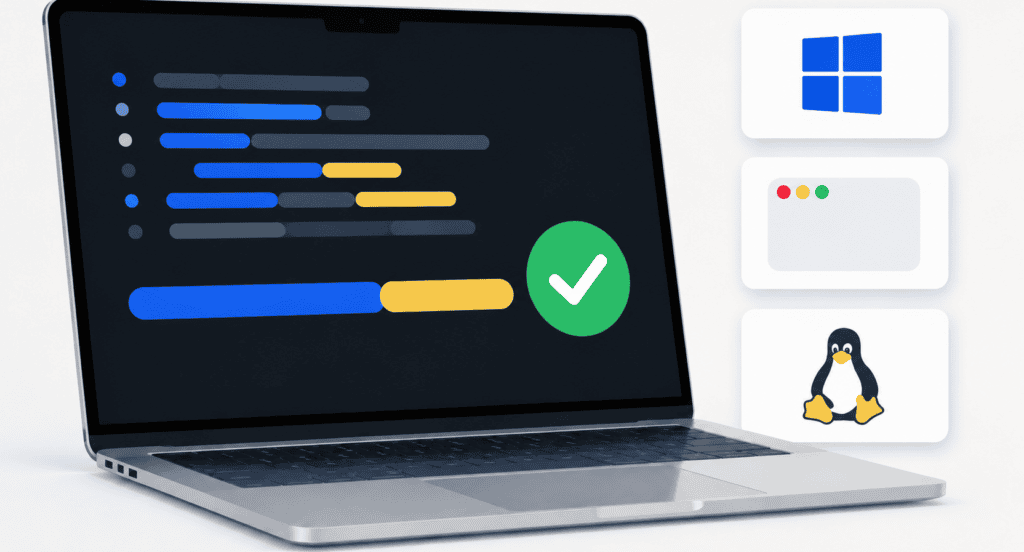
Whether you are a beginner setting up your first development environment or an experienced engineer configuring a new machine, this comprehensive guide demonstrates how to install Python on Windows, macOS, and Linux. You will learn step-by-step setup methods, version verification, virtual environment management, and how to resolve common path configuration errors.
What You Need Before Installing Python
Before learning how to install Python on your machine, ensure your system meets these basic prerequisites:
- Supported Operating System: A functional, updated installation of Windows, macOS, or a Linux distribution.
- System Administrator Rights: Administrative privileges or
sudoaccess to install system software and manage environment variables. - Active Internet Connection: Required to download installers or fetch packages via package managers.
- Terminal or Command-Line Access:
- Windows: Windows Terminal, PowerShell, or Command Prompt (
cmd). - macOS: Terminal (
Applications > Utilities > Terminal). - Linux: Your distribution’s default terminal application (e.g., GNOME Terminal, Konsole).
- Windows: Windows Terminal, PowerShell, or Command Prompt (
Step 1: Check for Existing Python Installations
Many operating systems come with Python pre-installed. Before walking through how to install Python, check if a compatible version already exists on your system.
Run the following commands in your system terminal (do not enter these inside Python’s >>> interactive interpreter):
Windows:
Bash
python --version
py --version
macOS or Linux:
Bash
python3 --version
If your terminal outputs a version number formatted as Python 3.x.x, Python 3 is already active. You can proceed with that version or continue below to update to the latest release.
Security Note: Trusted Download Sources
To keep your development environment secure, always obtain installation packages from verified official sources:
- Official Website: Direct downloads from python.org.
- App Stores: Official Microsoft Store listings linked directly from python.org.
- Official Package Repositories: Native system package managers (e.g.,
brewon macOS,aptordnfon Linux).
Security Warning: Avoid downloading Python binaries from third-party sites or unverified software repositories.
Which Python Version Should You Install?
Most beginners learning how to install Python should choose the latest stable Python 3 release supported by their operating system and development tools.
The latest stable feature series is Python 3.14 (with Python 3.14.6 as the current maintenance release). Because release cycles update regularly, always check the official python.org downloads page to verify the most up-to-date stable release.
Key Rules for Choosing a Version
- Default Choice: Install the latest stable 3.x release for general learning, script automation, and new projects.
- Targeted Requirements: Choose a specific older release only if mandated by a course, employer, legacy codebase, or deployment target (e.g., AWS Lambda, Heroku).
- Avoid Pre-Releases: Do not use Alpha, Beta, or Release Candidate (RC) builds for daily development or production environments. These builds exist strictly for testing upcoming core engine changes.
The Newest Release Trade-Off
Before finalizing how to install Python on your primary machine, consider the trade-offs of using the newest release versus a mature release:
| Consideration | Latest Release (e.g., Python 3.14) | Previous Stable Release (e.g., Python 3.13) |
| Language Features | Access to the newest syntax updates and core optimizations. | Fully modern features with maximum stability. |
| Third-Party Libraries | Specialized C-extension packages (e.g., PyTorch, TensorFlow) may take time to publish wheel builds. | Broadest C-extension library compatibility across PyPI. |
| Best Used For | New projects, general learning, and standard library development. | Enterprise deployments and specialized data science or AI stacks. |
Best Practice: If joining an existing team or codebase, always mirror the exact Python version documented in the project’s
README.mdor environment specification file (runtime.txt,.python-version) rather than upgrading independently.
Which Installation Method Should You Choose?
When deciding how to install Python, select the official installation method that aligns with your operating system and preferred updating strategy.
Because Python is completely free and open source, there are no licensing decisions or subscription tiers. Your main decision is determining who or what will manage updates and system paths over time: the Python installer, system package managers, or dedicated version management tools.
Python Installation Methods Compared
| Operating System | Recommended Method | Best For | Key Trade-Off |
| Windows | Python Install Manager (from python.org or Microsoft Store) | Beginners and developers who may manage multiple concurrent versions | Workflow differs slightly from legacy tutorials showing standalone .exe installers |
| macOS | Universal2 .pkg installer (from python.org) | Beginners who want a guided graphical installer and built-in IDLE editor | Updates require downloading and installing newer package builds manually |
| macOS | Homebrew (brew install python) | Command-line users who manage developer tools via terminal | Homebrew controls the active Python version and underlying system paths |
| Linux | Native distribution package manager (apt, dnf, pacman) | Most Linux system users and server environments | System repositories may lag behind python.org’s newest feature release |
| Any OS | Version Managers (e.g., pyenv, asdf) | Developers maintaining multiple isolated, project-specific Python versions | Introduces additional CLI tools and environment concepts to learn upfront |
Practical Recommendations
- Windows: Use the Python Install Manager. It simplifies multi-version handling and PATH configuration.
- macOS: Use the official python.org
.pkginstaller if you are new to terminal environments. Use Homebrew if you already manage your dev stack via CLI. - Linux: Use your distribution’s native package manager (
sudo apt install python3on Ubuntu/Debian,sudo dnf install python3on Fedora). - Avoid Source Builds: Do not attempt to compile Python from source code for your first setup unless you have strict custom build requirements.
How to Install Python on Windows
To set up Python on Windows, install the official Python Install Manager, use it to install the current stable Python runtime, and verify the executable paths from your command line.
Python’s official Windows documentation recommends using the Python Install Manager. It is available via direct download from python.org or through the Microsoft Store (both packages are functionally identical).
Download the Python Install Manager: Official installer options.
- Go to the official python.org downloads page.
- Select the download for the Python Install Manager, or navigate to the official Microsoft Store listing.
- If you downloaded the executable file, double-click it and select Install.
Note: Standard per-user installations generally do not require system administrator privileges. However, enterprise or educational network policies may restrict store apps or MSIX installers.
Install the Default Python Runtime: Executing installation via CLI.
Open a fresh PowerShell or Command Prompt window and run:
Bash
py install default
Code language: JavaScript (javascript)
The default argument instructs the manager to pull and configure the latest stable Python runtime.
If your project specifically requires a particular release version, you can specify it directly:
Bash
py install 3.14
Code language: CSS (css)
(Running the bare python command on a fresh Windows system without a runtime configured can also prompt automatic installation of the latest stable build, but running py install explicitly ensures control over the runtime environment.)
Verify the Windows Installation: Checking Python and Pip pathing.
In your terminal, execute the following commands to verify that the launcher, interpreter, and package manager are mapped correctly:
Bash
python --version
py list
py -m pip --version
Code language: PHP (php)
python --version: Confirms that the main Python executable is active and displays the active version.py list: Displays all Python runtimes currently indexed by the Python Install Manager.py -m pip --version: Ensures thepippackage manager is attached directly to the activepyruntime environment.
Do You Need to Add Python to PATH on Windows?
When learning how to install Python on Windows using the modern Python Install Manager, you usually do not need to edit system PATH environment variables manually.
The Install Manager automatically registers python, py, and pymanager using Windows App Execution Aliases. For most beginners and general workflows, manual PATH configuration is unnecessary and can cause conflicting version paths if configured incorrectly.
Understanding Extra PATH Configurations
While the core launcher works out of the box, specific development scenarios interact with PATH differently:
- User Binaries (
%LocalAppData%\Python\bin): The installer may offer to add this directory to PATH for optional versioned aliases. If you execute scripts usingpython,py, orpy -m pip, this step remains optional. - Global Package Scripts (
Scripts/folder): When you install third-party command-line tools usingpip install <package>globally, their binaries are placed inside a specific runtime’sScriptsdirectory. To run these tools directly by name, that directory must be in your PATH—or you should run them inside an activated virtual environment (the recommended best practice).
Troubleshooting Windows App Execution Aliases
If typing python in Command Prompt or PowerShell opens the Microsoft Store or returns 'python' is not recognized as an internal or external command, follow these diagnostic steps:
- Enable App Execution Aliases:
- Open the Start Menu and search for Manage app execution aliases.
- Locate App Installer – python.exe and App Installer – python3.exe.
- Toggle both settings to On.
- Verify User Profile PATH Variable:
- Open System Properties (
sysdm.cpl) > Advanced > Environment Variables. - Under User variables, check that
%UserProfile%\AppData\Local\Microsoft\WindowsAppsexists in thePATHlist. This directory allows Windows to route thepythonalias directly to the Python Install Manager.
- Open System Properties (
What About the Older Windows .exe Installer?
Older Python releases (Python 3.12 and earlier) and certain enterprise environments frequently use standalone executable installers (python-3.x.x-amd64.exe).
If your workflow requires using a legacy .exe executable rather than the modern Install Manager, keep these key factors in mind when learning how to install Python:
- Check the PATH Checkbox: During setup, you must manually check the box that says “Add python.exe to PATH” on the first wizard screen. Omitting this causes
'python' is not recognizedterminal errors. - Avoid Mixing Installers: Do not run both the old
.exeinstaller and the new Python Install Manager simultaneously on the same system without isolation. Mixing them can create conflicting execution aliases and path precedence issues. - Follow Release-Specific Docs: Always refer to the exact documentation for that specific Python release series.
Recommendation: For any new personal setup, project, or development machine, stick with the Python Install Manager. It handles multi-version management cleaner and requires less manual environment maintenance over time.
How to Install Python on macOS
For a straightforward graphical setup on macOS, download and run the official Universal2 package from python.org, then complete its root certificate configuration.
The official macOS package (.pkg) is built as a Universal2 binary, meaning it runs natively on both Apple Silicon (M1/M2/M3/M4 chips) and Intel-based Macs.
Check Existing System Python Command: Identify pre-existing Apple CLI tools.
Open Terminal (Command + Space > type Terminal) and check for an existing Python executable:
Bash
python3 --version
Note: macOS often ships with a system-managed python3 stub linked to Xcode Command Line Tools. Do not modify or delete Apple’s system Python files. The official python.org framework will co-exist safely alongside Apple’s built-in toolchain.
Download and Run the Package Installer: Download and execute the GUI installer.
- Visit the official python.org downloads page.
- Download the latest macOS 64-bit Universal2 installer (
.pkg). - Double-click the downloaded
.pkgfile to open the installation wizard. - Follow the prompts through the license agreement and click Install.
Because the python.org installer installs the Python framework system-wide for all users, macOS will prompt you to enter your administrator password.
Install the Included SSL Certificates: Required for SSL/TLS network requests.
Once the main installer wizard completes, open Finder and navigate to Applications > Python 3.x.
- Double-click the file named
Install Certificates.command. - A Terminal window will launch and download the required
certifiSSL root certificates. - Wait until the terminal output prints
[Command completed]before closing the window.
Crucial Note: If you skip this step, Python scripts attempting to make secure HTTPS web requests or fetch packages via pip will fail with SSL certificate verification errors.
Verify the Installation in Terminal: Confirm binary paths and pip linking.
Open a new Terminal window (to reload environment paths) and run:
Bash
python3 --version
python3 -m pip --version
python3 -c "import sys; print(sys.executable)"
Code language: JavaScript (javascript)
python3 --version: Verifies the active Python 3 release.python3 -m pip --version: Confirms thatpipis properly attached to the newly installed interpreter.sys.executablescript: Prints the exact file system path of the running Python binary (typically/Library/Frameworks/Python.framework/Versions/3.x/bin/python3), helping you confirm you aren’t accidentally invoking Apple’s system binary.
Can You Install Python with Homebrew Instead?
Yes. If you already use Homebrew to manage software on macOS, installing Python via the terminal is a fast and efficient alternative to the graphical .pkg installer.
Homebrew compiles or fetches pre-built binaries (bottles) directly to its own system prefix, automatically handling path aliases and terminal dependencies.
Step-by-Step Homebrew Setup
Install Python via Homebrew
Open your terminal and run the installation command for the target release:
Bash
brew install python@3.14
Code language: CSS (css)
(If you run brew install python without specifying a version tag, Homebrew defaults to its current core Python formula.)
Verify Executable Precedence
Because macOS can host multiple Python installations (Apple’s Xcode Command Line Tools, python.org framework packages, and Homebrew), verify which executable your shell active path selects:
Bash
which -a python3
python3 -c "import sys; print(sys.executable)"
Code language: JavaScript (javascript)
which -a python3: Displays allpython3binary paths available in your systemPATH, ordered by priority.sys.executablescript: Prints the exact location of the active interpreter. For Homebrew on Apple Silicon Macs, this typically points to/opt/homebrew/bin/python3(or/usr/local/bin/python3on Intel Macs).
Management Warning: Choose either Homebrew or the python.org installer as your primary Python setup. Mixing both management tools without regularly tracking active interpreter paths can lead to broken
pippackages and virtual environment conflicts.
How to Install Python on Linux
To set up Python on Linux, use your distribution’s native package manager to install the core interpreter, pip, and virtual environment tooling.
Because many core Linux system utilities depend on Python, a version of Python 3 is often pre-installed. Before running installation scripts, verify whether it is already present:
Bash
python3 --version
If the command returns a version number but lacks pip or virtual environment capability, use the corresponding commands below to complete your setup.
Installation Commands by Distribution
| Distribution Family | Terminal Installation Command | Notes & Specifics |
| Ubuntu / Debian | sudo apt update && sudo apt install python3 python3-pip python3-venv | python3-venv is required on Debian/Ubuntu derivatives to enable standard isolated environments. |
| Fedora / RHEL | sudo dnf install python3 python3-pip | Fedora typically pre-installs core Python 3; use dnf to add missing package managers or headers. |
| Arch Linux | sudo pacman -Syu python python-pip | Arch packages the main binary simply as python (which points to Python 3). Always run a system sync (-Syu). |
Distribution Notes & Best Practices
- Debian & Ubuntu Derivatives: Package managers split Python components into smaller modular packages. Even if
python3is present, runningpython3 -m venv myenvwill fail unlesspython3-venvis explicitly installed viaapt. - System Environment Protection (PEP 668): Modern Linux distributions enforce rules against running
sudo pip install <package>directly into system libraries. Always use virtual environments (python3 -m venv) for personal code and third-party PyPI dependencies to prevent breaking OS-level tools. - Minimal Installations & Containers: Stripped-down Linux environments (such as Docker images or minimal cloud instances) may omit Python entirely. Search your distribution’s package index if a specific sub-package name differs.
Why You Should Avoid Replacing the Linux System Python
When learning how to install Python on Linux, one critical rule governs system stability: never replace, delete, or overwrite the default system Python interpreter.
Many core Linux operating system tools—including package managers like apt (Debian/Ubuntu) and dnf (Fedora/RHEL), desktop configuration daemons, and system network utilities—are written directly in Python. Overwriting system binaries like /usr/bin/python3 or manually modifying system-level packages can break critical operating system functions.
Key System Management Risks
- Corrupting System Utilities: Removing or overwriting
/usr/bin/python3with a custom-compiled Python version breaks OS tools that rely on specific distribution-patched library structures. - Global Dependency Conflicts: Running
sudo pip install <package>installs third-party code directly into/usr/lib/python3/dist-packages/. Overwriting OS-managed libraries can cause system maintenance scripts to crash during routine Linux updates.
Understanding the PEP 668 Guardrail
Modern Linux distributions enforce PEP 668, which marks system Python installations as “externally managed environments.”
If you attempt to run pip install globally outside of a virtual environment, your terminal will block the execution and return an error:
Plaintext
error: externally-managed-environment

× This environment is externally managed
╰─> To install Python packages system-wide, try apt install...
    or create a virtual environment using python3 -m venv.
Code language: HTTP (http)
Warning: Never use the
--break-system-packagesflag as a routine workaround to bypass PEP 668. Doing so overrides safety checks and risks corrupting core operating system tools.
The Correct Approach: Virtual Environments
Instead of altering the global system environment, create isolated project environments using the standard venv module:
Bash
# 1. Create a project directory and virtual environment
mkdir my_project && cd my_project
python3 -m venv .venv

# 2. Activate the isolated environment
source .venv/bin/activate

# 3. Safely install third-party packages
pip install requests
Code language: PHP (php)
Using virtual environments ensures your development packages remain completely isolated from the operating system, allowing you to install any library version without affecting Linux system stability.
What If the Repository’s Python Version Is Older?
When learning how to install Python on Linux, you may notice that your distribution’s default package manager (apt, dnf, zypper) ships a version slightly behind the newest release on python.org.
For most users, using the distribution-supported version is actually the safest choice. Operating system maintainers backport critical security fixes directly to that specific build, guaranteeing maximum stability with system libraries and desktop tools.
However, if your specific project, framework, or employer requires features from a newer release, you can install a newer interpreter safely without disrupting system binaries.
Modern Solutions for Running Newer Python Versions
| Method | Recommended For | Pros | Cons |
| PPA / Third-Party Repos (e.g., Deadsnakes PPA for Ubuntu) | System-level CLI access | Fast installation via native package managers | Limited to specific Linux distributions |
Version Managers (e.g., pyenv, asdf) | Local multi-version development | Installs isolated versions in your $HOME directory without root privileges | Requires managing shell environment variables |
| Containers & Tooling (e.g., Docker, Dev Containers) | Production parity & isolated projects | Complete isolation from your host OS; exact environment replication | Requires learning Docker CLI basics |
Why You Should Avoid Compiling from Source
Compiling Python directly from source code (./configure, make, sudo make install) is an advanced option that should generally be avoided by beginners and intermediate developers.
- Missing Dependencies: Compiling requires manually downloading developer C libraries (like
libssl-dev,zlib1g-dev, andlibffi-dev). If any are missing, features likepipor HTTPS connections will fail post-build. - Overwriting System Files: Running
sudo make installwithout specifying a separate execution path can overwrite system binaries in/usr/bin/python3, corrupting your operating system tools. (If you must compile, always usesudo make altinstallto preserve default system links). - Manual Updates: Source builds do not receive automatic security updates via system package managers—requiring you to manually re-compile every minor security release.
Rule of Thumb: Use a version manager like
pyenvor containerized dev environments whenever a project demands a newer Python version than your Linux distribution provides natively.
How to Verify Python and Pip
After following the steps for how to install Python, you should always verify that both the interpreter and the pip package manager are correctly installed, wired to the right PATH environment, and executing properly from a fresh terminal window.
Verification Commands Matrix
| Verification Step | Windows Command | macOS / Linux Command | What It Verifies |
| Python Version | python --version(or py --version) | python3 --version | Confirms the primary executable is accessible and reports the installed version number. |
| Pip Version | py -m pip --version | python3 -m pip --version | Confirms the pip package installer is present and attached directly to that specific interpreter. |
| Interpreter Path | python -c "import sys; print(sys.executable)" | python3 -c "import sys; print(sys.executable)" | Prints the exact filesystem directory path where your active Python binary is located. |
| Interactive Shell | python(or py) | python3 | Opens the interactive REPL prompt (>>>) for testing short code snippets live. |
Why Module Invocation (-m pip) Is Best Practice
The official Python Packaging User Guide recommends invoking pip using the -m pip module flag rather than typing a standalone pip or pip3 command.
- Prevents Environment Mismatches: On systems with multiple Python installations, a standalone
pipcommand might install libraries into an old or unwanted Python installation directory. - Guarantees Alignment: Running
py -m pip(Windows) orpython3 -m pip(macOS/Linux) guarantees that third-party packages are installed directly into the exact Python environment that the active terminal session is running.
Exiting the Interactive Shell
If you launch the interactive shell (python or python3) to test your setup, you will see the >>> prompt. To exit back to your standard terminal prompt:
- Command: Type
exit()and press Enter. - Keyboard Shortcut (Windows): Press
Ctrl + Z, then press Enter. - Keyboard Shortcut (macOS / Linux): Press
Ctrl + D.
How to Run Your First Python Script
Once you have verified how to install Python, the final test of a working installation is creating a script file and running it through the interpreter.
To execute a script, write valid Python code in a plain-text file ending in .py, navigate to its directory in your terminal, and pass the filename to Python.
Create the Test Script File: Plain-text code file.
- Open a plain-text editor (such as VS Code, Notepad, or TextEdit in plain text mode).
- Create a new file named
hello.pyinside a dedicated project folder. - Add the following line of code:
Python
print("Python is working!")
Code language: PHP (php)- Save the file. Ensure the extension is strictly
.py(avoid hidden.txtextensions likehello.py.txt).
Open Your Terminal in the File Location: Navigating directories in Terminal/PowerShell.
Open your command-line application and change your directory (cd) to the folder containing hello.py:
Bash
cd path/to/your/folder
- Windows Verification: Type
dirto list files in your active folder. - macOS / Linux Verification: Type
lsto check file names, orpwdto check your full path directory.
Pass the File to the Python Interpreter: Executing the code.
Run the execution command corresponding to your operating system:
Windows:
Bash
python hello.py
Code language: CSS (css)
macOS / Linux:
Bash
python3 hello.py
Code language: CSS (css)
If configured correctly, your terminal will output:
Plaintext
Python is working!
Troubleshooting File Not Found Errors
If your terminal displays python: can't open file 'hello.py': [Errno 2] No such file or directory, your Python installation is working correctly—but the terminal is looking in the wrong folder.
- Confirm Current Folder: Run
dir(Windows) orls(macOS/Linux) to confirmhello.pyis inside your active working directory. - Check File Extensions: Ensure Windows or macOS file settings have not appended an extra extension (e.g.,
hello.py.txt). Rename the file if necessary.
Why You Should Create a Virtual Environment
When learning how to install Python and build projects, using virtual environments is a critical best practice. A virtual environment creates an isolated folder containing a self-contained Python binary and package directory.
Creating an isolated environment before installing third-party packages (like requests, pandas, or flask) ensures that:
- Dependencies Stay Isolated: Project A can use an older version of a library while Project B uses a newer version on the same computer without version conflicts.
- System Files Stay Protected: Prevents third-party packages from modifying or corrupting system-managed Python files (especially on Linux and macOS).
- Deployments Remain Clean: Allows you to generate accurate dependency files (
requirements.txt) that list only the packages your specific project actually uses.
Step-by-Step Setup Guide
Always create and activate a virtual environment inside your project’s main folder before installing libraries with pip.
Windows Setup
PowerShell:
PowerShell
# Create the virtual environment folder named .venv
python -m venv .venv

# Activate the environment
.\.venv\Scripts\Activate.ps1

# Upgrade pip inside the active environment
python -m pip install --upgrade pip
Code language: PHP (php)
Command Prompt (cmd.exe):
DOS
:: Create the virtual environment
python -m venv .venv

:: Activate the environment
.venv\Scripts\activate.bat

:: Upgrade pip
python -m pip install --upgrade pip
Code language: CSS (css)
Note for PowerShell: If you see an error stating that script execution is disabled on your system, run Set-ExecutionPolicy -ExecutionPolicy RemoteSigned -Scope CurrentUser once to allow local script activation.
macOS & Linux Setup
Bash
# Create the virtual environment folder named .venv
python3 -m venv .venv

# Activate the environment
source .venv/bin/activate

# Upgrade pip inside the active environment
python -m pip install --upgrade pip
Code language: PHP (php)
Working Inside an Active Environment
Once activated, your terminal prompt will display (.venv) at the beginning of the line.
While activated:
- Running bare
pythonandpython -m pipwill automatically route to the environment’s Python interpreter—even on macOS and Linux wherepython3is normally required. - Any library installed via
pip install <package>stays locked strictly inside that project’s.venvfolder.
To exit the environment when you finish working, simply run:
Bash
deactivate
The Trade-Off
The primary trade-off of virtual environments is adding a minor 10-second setup step whenever you launch a new project. In return, you eliminate broken dependencies, prevent global package clutter, and keep your primary Python installation clean and maintainable.
How Do You Fix Common Python Installation Problems?
Most installation issues stem from environment variable mismatches, multiple co-existing Python installations, or typing system commands directly into the Python interactive shell.
Before trying to fix a setup error, identify which command, executable path, and package manager your session is using.
Troubleshooting Matrix
| Problem | Likely Cause | Recommended Fix |
python is not recognized (Windows) | Install Manager execution aliases or WindowsApps entries are missing from system PATH. | Try running py; search Manage app execution aliases in the Start Menu and ensure Python aliases are enabled; reopen PowerShell. |
python Opens the Microsoft Store | Windows placeholder alias is active, but no default runtime is configured. | Install the official Python Install Manager, verify its app execution aliases, and run py install default. |
python: command not found (macOS/Linux) | Operating systems default to the explicit python3 command name. | Run python3 --version. Use python3 for system commands until inside an active virtual environment. |
pip is not recognized | pip‘s script directory is omitted from PATH, or a standalone binary command was called. | Run py -m pip on Windows or python3 -m pip on macOS and Linux to invoke pip safely through the interpreter. |
No module named pip | pip was omitted during installation or split into a separate distribution package. | On Linux, install python3-pip via your package manager. On official builds, run python3 -m ensurepip --default-pip. |
externally-managed-environment | Linux PEP 668 protection is blocking global modifications to system-managed files. | Create and activate a virtual environment (python3 -m venv .venv). Do not use sudo pip or --break-system-packages. |
| The wrong Python version runs | Terminal PATH precedence or active shell aliases point to an older duplicate binary. | Check active paths with sys.executable, where python (Windows), or which -a python3 (macOS/Linux). |
NameError: name 'python3' is not defined | A bash or PowerShell terminal command was typed inside Python’s interactive REPL (>>>). | Type exit() and press Enter, then run the command in your main system terminal. |
PowerShell blocks Activate.ps1 | Windows execution policy prevents unsigned scripts from executing in PowerShell. | Use Command Prompt’s .venv\Scripts\activate.bat, or adjust user script execution policy using Set-ExecutionPolicy -ExecutionPolicy RemoteSigned -Scope CurrentUser. |
| macOS HTTPS requests fail / SSL errors | The post-installation root SSL certificate setup was skipped. | Navigate to Applications > Python 3.x in Finder and double-click Install Certificates.command. |
Safe Cleanup Guidelines
If you encounter duplicate installations or version conflicts, do not attempt to fix the problem by manually deleting Python folders from your file system.
- Audit Active Paths: Run
python3 -c "import sys; print(sys.executable)"(orpy liston Windows) to map every installed runtime. - Uninstall via Original Tools: Remove duplicate or unwanted versions using the exact package manager or installer that placed them there (e.g., Windows Settings Add/Remove Programs,
brew uninstall, orsudo apt remove). - Preserve OS Tools: Never delete system-managed Python files located in
/usr/bin/python3on Linux or system frameworks on macOS.
Python Installation Checklist
Use this high-signal checklist to confirm your environment is fully operational before launching new learning modules or software projects:
- [ ] Verified Source: Python 3 was installed directly from an official, trusted source (python.org, official Microsoft Store link, Homebrew, or system package manager).
- [ ] Interpreter Executable: Running
python --version,py --version(Windows), orpython3 --version(macOS/Linux) in a fresh terminal window outputs your expected version number. - [ ] Package Manager Alignment: Running
py -m pip --version(Windows) orpython3 -m pip --version(macOS/Linux) successfully reports the activepipbuild attached to your interpreter. - [ ] Path Audit: Executing
python -c "import sys; print(sys.executable)"confirms the active binary path matches your intended installation directory. - [ ] Script Test Failsafe: A basic
hello.pytest script containingprint("Python is working!")executes cleanly without path or syntax errors. - [ ] Virtual Environment Setup: You can create and activate an isolated project environment (
python -m venv .venvorpython3 -m venv .venv). - [ ] Package Isolation: All third-party PyPI dependencies (
requests,pandas,pytest) are installed strictly inside an active.venvenvironment, keeping global system paths clean. - [ ] System Safety: System-managed Python installations (
/usr/bin/python3on Linux or Xcode command-line utilities on macOS) remain intact and uncorrupted.
Is Python free to install?
Yes. CPython, the standard reference implementation distributed through python.org, is completely free and open source. You do not need a license, paid tier, or enterprise subscription to install the interpreter, access the standard library, or build commercial and personal projects.
Should I install Python 2 or Python 3?
Always install Python 3. Python 2 reached official End-of-Life (EOL) in 2020, receives no security patches, and is unsupported by modern third-party libraries. Python 2 should only exist inside strictly isolated legacy system maintenance environments with an active migration strategy.
Should I use python or python3 in my terminal?
Use python on modern Windows setups running the Python Install Manager. Use python3 for global system operations on macOS and Linux. Once you create and activate a project-level virtual environment (.venv), typing python automatically targets that specific environment’s interpreter across all three operating systems.
Does installing Python include pip?
Official python.org installer packages and Homebrew automatically bundle the pip package manager. However, Linux distributions (like Ubuntu and Debian) often package pip separately to keep system dependencies lightweight. Verify pip‘s presence using py -m pip --version on Windows or python3 -m pip --version on macOS/Linux. If missing on Linux, install it via your package manager using sudo apt install python3-pip.
Do I need an IDE before installing Python?
No. Python and Integrated Development Environments (IDEs) are completely separate tools: the Python interpreter executes code, whereas an IDE or text editor helps you compose and debug it. Always install and verify Python from your terminal first. Afterwards, choose an editor—such as the built-in IDLE, Visual Studio Code, or PyCharm—based on your project requirements.
In Conclusion
Learning how to install Python effectively requires choosing the right setup path for your primary operating system. Because environment management varies across platforms, matching your installation strategy to your OS guarantees a maintainable, conflict-free setup:
- Windows: Use the official Python Install Manager for the cleanest, most maintainable runtime configuration without manual PATH editing.
- macOS: Install the signed Universal2 package from python.org for a native graphical installation on Intel and Apple Silicon Macs, or leverage Homebrew if you prefer CLI-based environment management.
- Linux: Stick to distribution-managed package managers (
apt,dnf,pacman) to preserve system stability, while utilizing virtual environments or version managers when a project requires newer language builds.
Final Implementation Checklist
Regardless of which OS workflow you execute when learning how to install Python, adhere to these universal post-installation steps before starting any programming course or software project:
- Verify Binary Paths: Confirm both
python/python3andpipbinaries respond correctly from a fresh terminal window. - Execute a Test Script: Run a basic
.pyfile to verify interpreter execution end-to-end. - Isolate Dependencies: Always create and activate a project-level virtual environment (
.venv) before usingpipto install third-party libraries.
For beginners, stick to the default official method recommended for your platform. For cross-platform developers and engineers, strictly follow each project’s documented Python runtime targets and verify binary path execution on every new machine.